Smart Mix Studio
Multi-track audio mixing studio for music production on Windows
Smart Mix Studio is a desktop multi-track audio mixing application for Windows. Arrange tracks on a timeline, adjust volume and panning, apply EQ and effects per track, and mix down to a final stereo master — no subscription, fully offline.
See Smart Mix Studio in Action
A clean, modern interface designed for real-world use.
Smartmixstudio screen 01 screenshot
Smart Mix Studio is an AI-powered music mixing tool for Windows that takes a music track and a vocal recording and blends them into a polished mix automatically. Drop your two audio files in, hit Auto Smart Mix, and the AI engine handles the levels, ducking, reverb matching, and stereo width — producing a balanced master output ready to export as WAV or MP3. No engineering degree required.
Built for content creators, podcasters, musicians, and anyone who needs their voice to sit cleanly over a music bed, Smart Mix Studio eliminates the technical mixing process while keeping control in your hands through manual parameter tweaks.
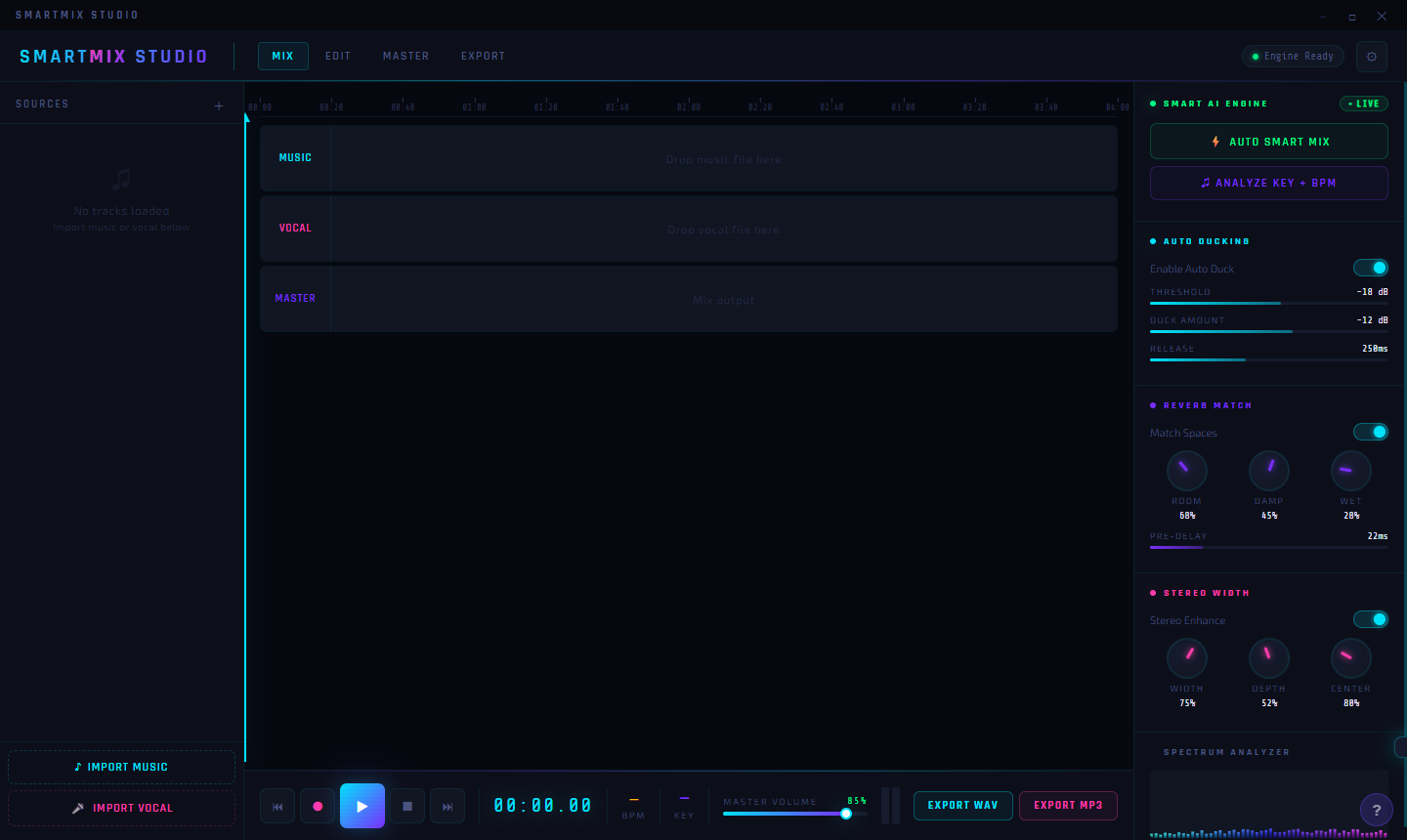
Screen 1 — Empty Project / UI Overview
The initial screen shows the full Smart Mix Studio layout. Three track lanes fill the center: MUSIC, VOCAL, and MASTER (the output mix). The right panel displays the AI controls ready to use: Smart AI Engine with AUTO SMART MIX and ANALYZE KEY + BPM buttons, Auto Ducking (Threshold: −18 dB, Duck Amount: −12 dB, Release: 250ms), Reverb Match (Room: 60%, Damp: 45%, Wet: 20%, Pre-Delay: 22ms), and Stereo Width (Width: 75%, Depth: 52%, Center: 80%). Bottom left provides Import Music and Import Vocal buttons. Bottom right gives Export WAV and Export MP3 in one click.
Screen 2 — Music Track Loaded
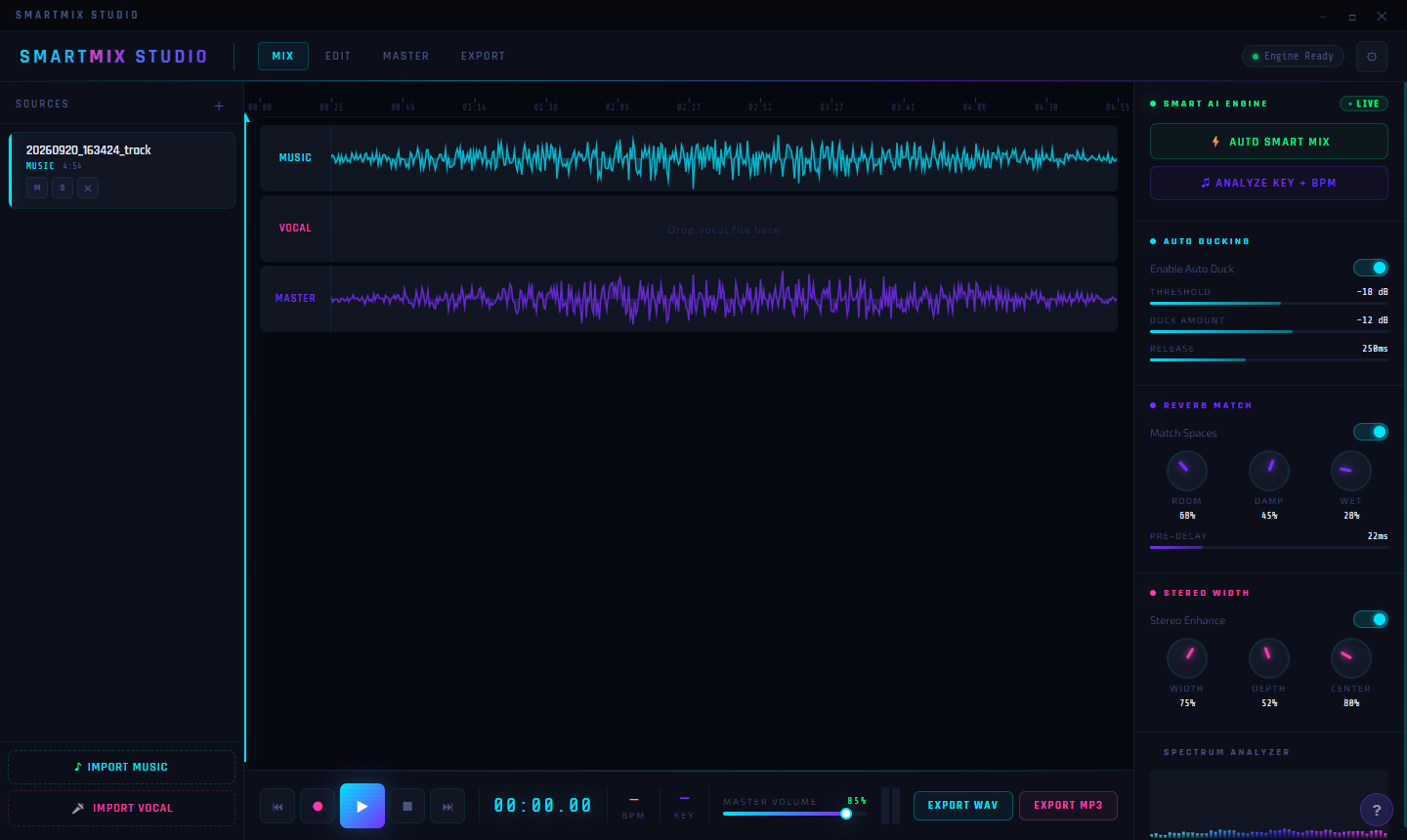
After importing a music file, the MUSIC lane fills with a cyan waveform visualization spanning the full track length. The MASTER lane simultaneously updates to show the computed output waveform. In the Sources panel on the left, the track appears with its filename and three per-track buttons: M (Mute), S (Solo), and X (Remove). Even with just music loaded, the Master output shows what the final mix will sound like. The VOCAL lane waits for the second file, showing “Drop vocal file here.”
Screen 3 — Playback Active
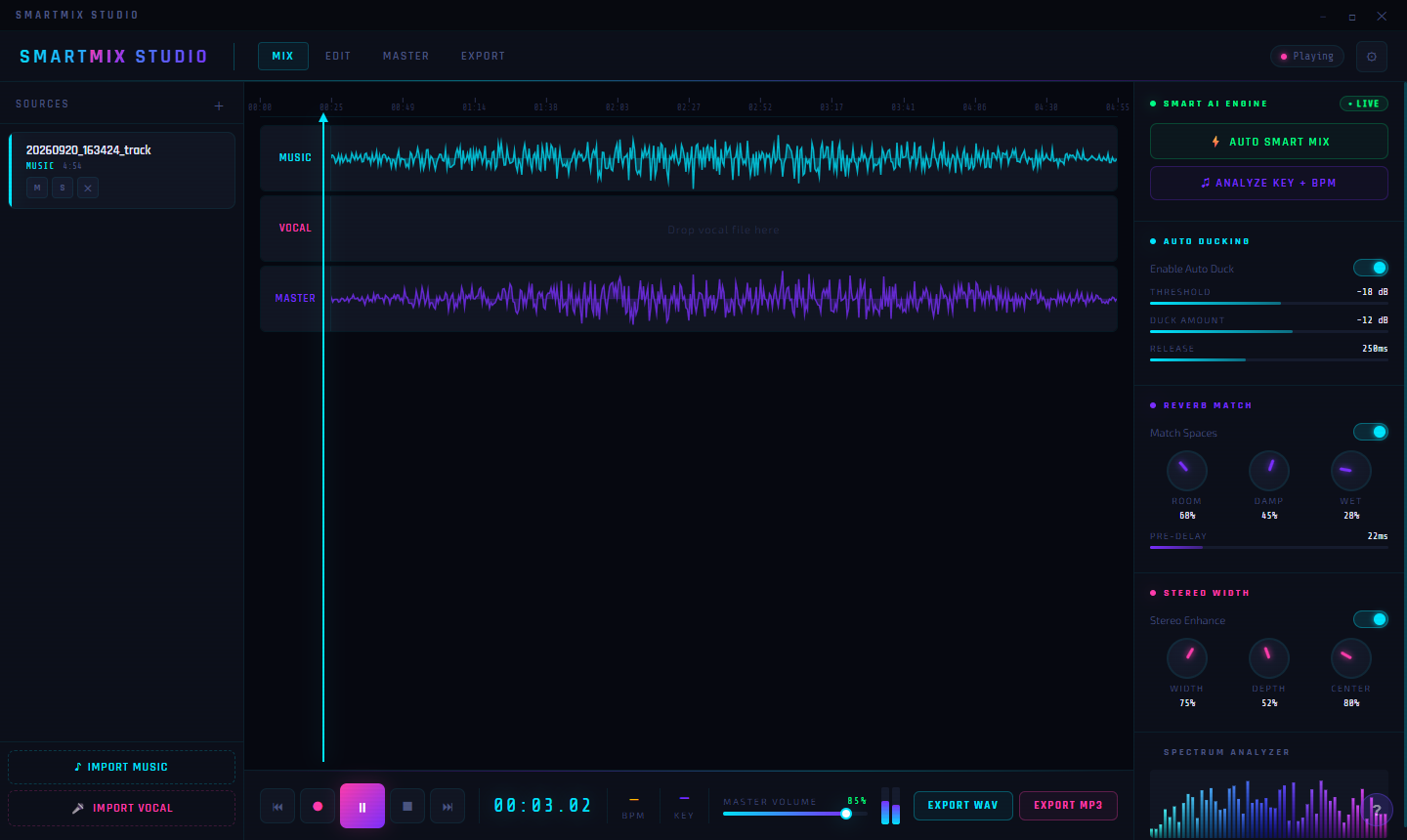
With playback running, the status indicator in the top right switches to Playing. The timeline playhead moves in real time at position 00:03:02. At the bottom of the right panel, the live Spectrum Analyzer comes alive — displaying the frequency content of the current output as a colorful real-time graph. The transport controls at the bottom (rewind, record, play/pause, stop, skip) are standard and responsive during playback.
Screen 4 — Paused View
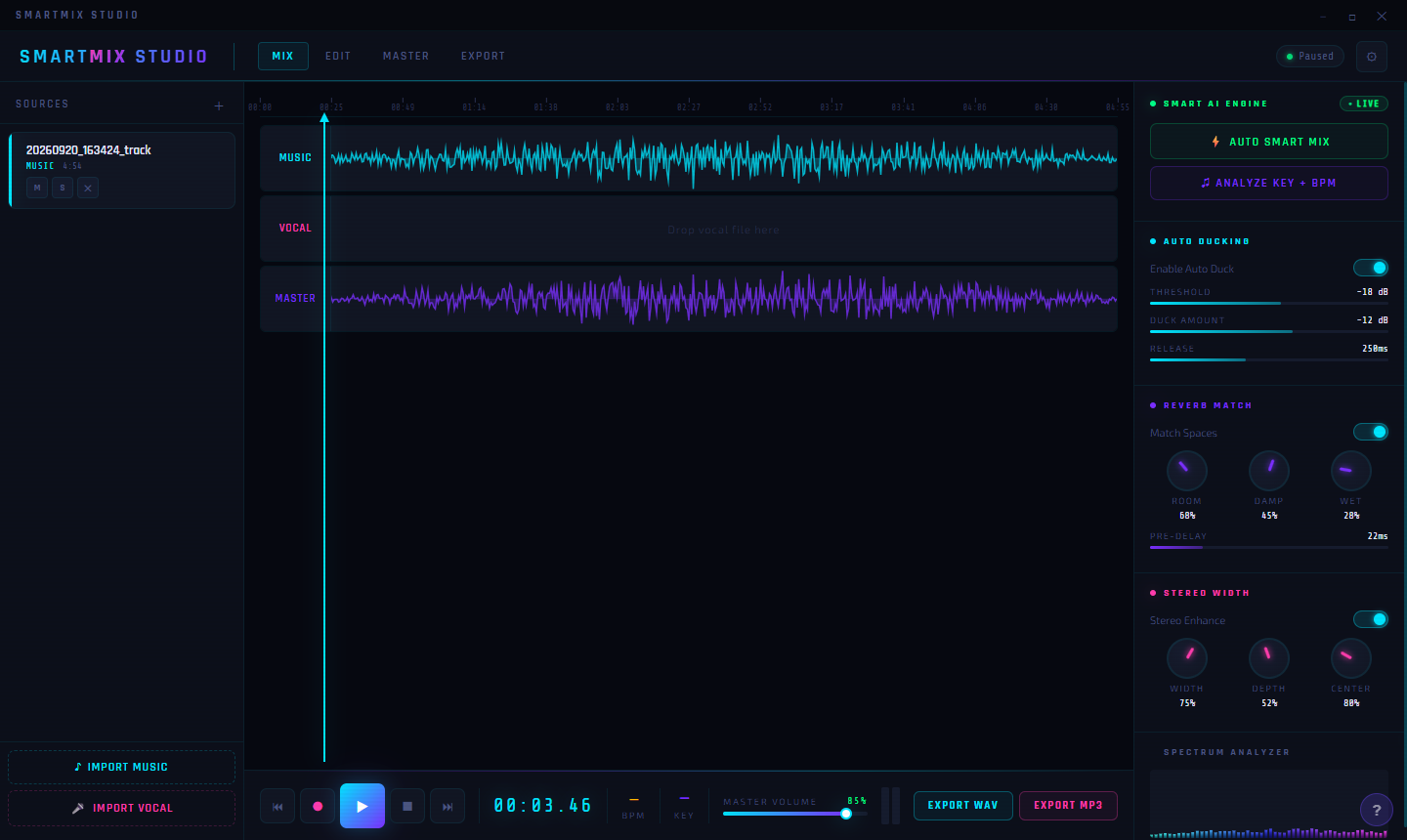
When playback is paused, the status indicator shows Paused and the playhead stays exactly at the pause point (00:03:46). This makes it easy to stop at any point in the track, review the waveforms, and resume exactly where you left off. The full AI controls and export buttons remain accessible during pause for any mid-session adjustments.
Screen 5 — Music + Vocal Loaded
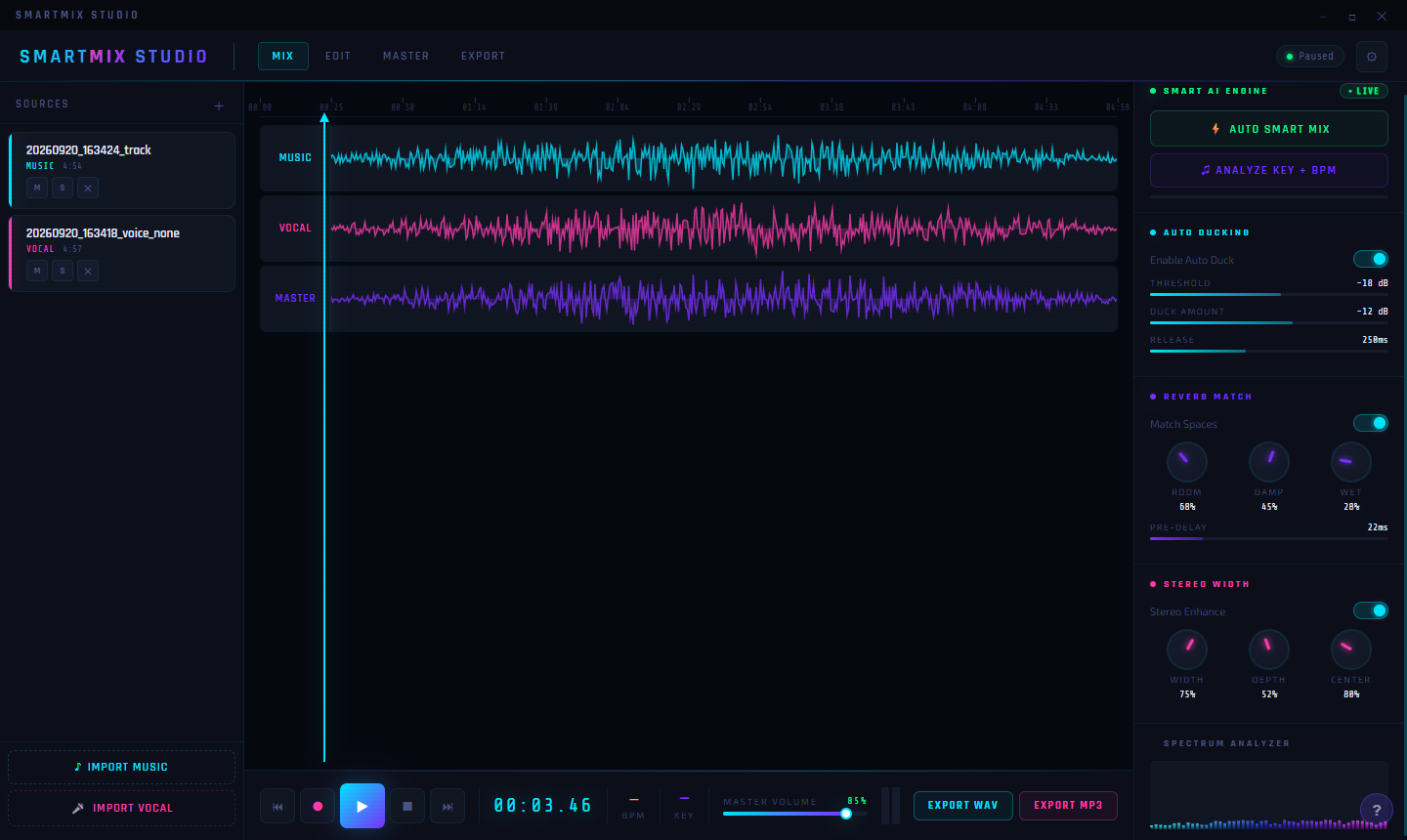
With both tracks loaded, the full three-lane view comes together. The MUSIC track (cyan waveform, 4:50 duration) and the VOCAL track (pink waveform, 4:57 duration) are now both visible and listed in the Sources panel with their own M/S/X controls. The MASTER lane shows the combined output in purple — blending both inputs in real time. This is the state where Smart Mix Studio’s AI processing becomes meaningful: two signals, different levels and acoustic characteristics, ready to be blended.
Screen 6 — Auto Smart Mix Complete
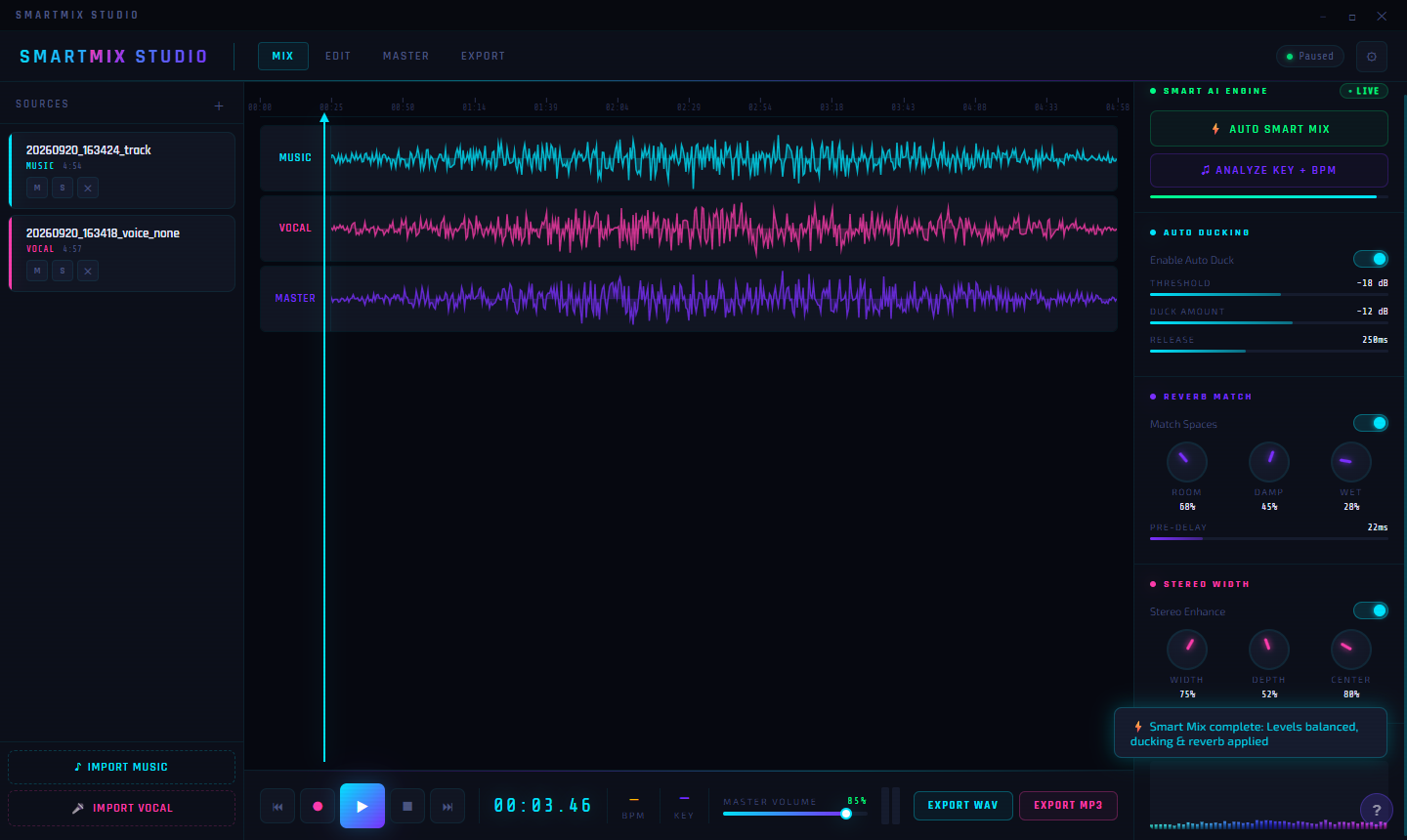
After clicking AUTO SMART MIX, the AI engine processes both tracks and applies a full set of adjustments automatically. A notification appears at the bottom of the right panel: “Smart Mix complete: Levels balanced, ducking & reverb applied.” The ANALYZE KEY + BPM button glows, indicating BPM and key detection is active. The Master output waveform now reflects the balanced mix — the vocal sits clearly over the music, the music ducks when the vocal is present, and reverb has been matched so both tracks feel like they belong in the same acoustic space. From here, you can export immediately or fine-tune any of the individual parameters.
Screen 7 — About Smart Mix Studio
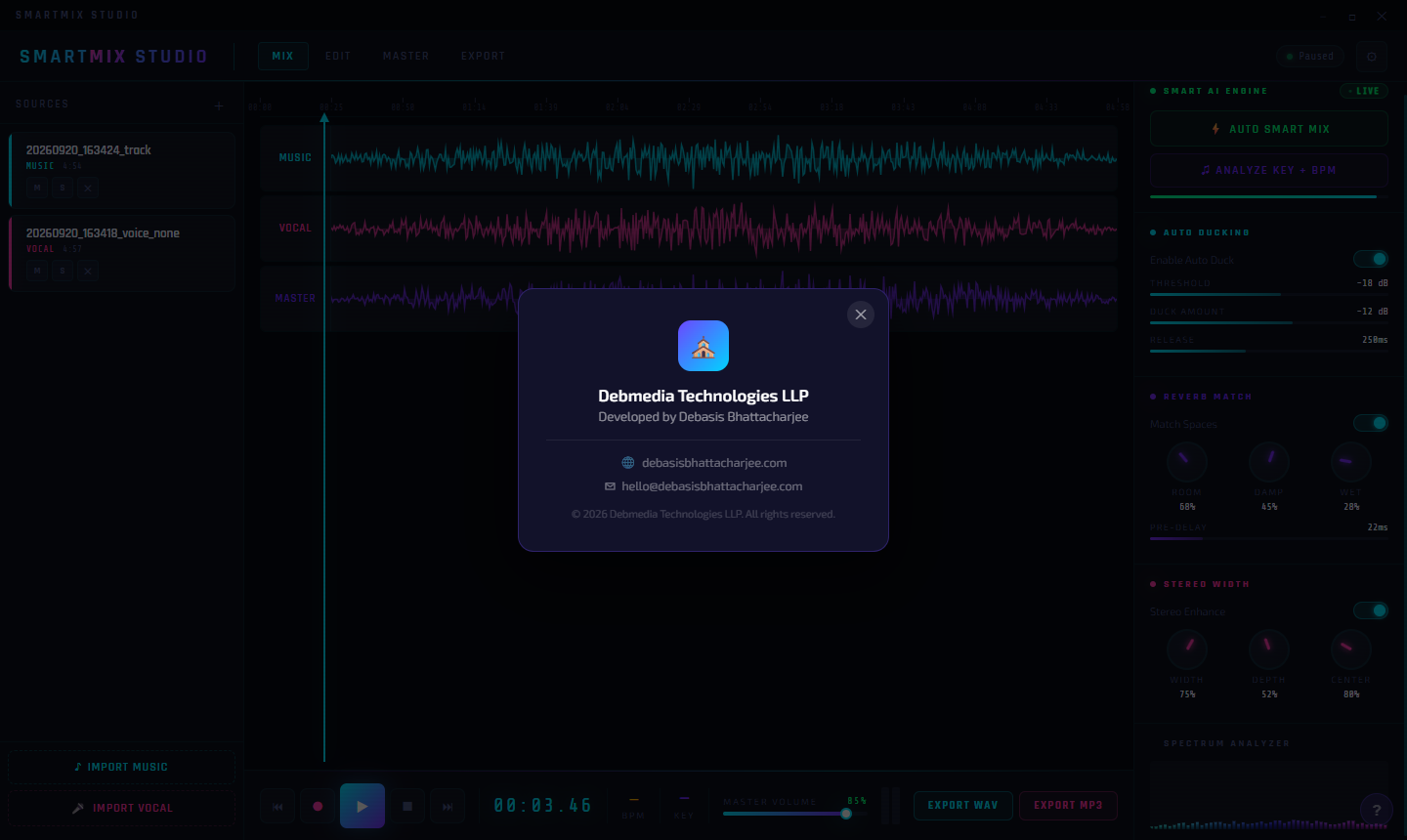
The About dialog shows Debmedia Technologies LLP, developed by Debasis Bhattacharjee. Contact is available at debasisbhattacharjee.com and hello@debasisbhattacharjee.com. Smart Mix Studio is a standalone Windows desktop application — no cloud account required, all processing runs locally on your machine.
Key Features at a Glance
- Auto Smart Mix — one-click AI mixing of music + vocal tracks
- Auto Ducking — music automatically lowers when the vocal is speaking or singing
- Reverb Match — matches the acoustic space of both tracks for a cohesive sound
- Stereo Width control — adjustable Width, Depth, and Center values for the stereo image
- Key + BPM Analysis — detects the tempo and musical key of your tracks
- Mute / Solo / Remove — per-track controls for monitoring and editing
- Live Spectrum Analyzer — real-time frequency visualization during playback
- Export WAV or MP3 — one-click export in two formats from the same screen
- Master Volume control — master level at 85% default, adjustable before export
Who Is Smart Mix Studio For?
Smart Mix Studio is for anyone who records voice content and needs music behind it — podcast hosts, YouTube creators, social media producers, voiceover artists, and musicians recording rough vocal demos over backing tracks. If you’ve struggled to make your voice sound balanced over music using a full DAW, Smart Mix Studio reduces that process to two file imports and one button click.
System Requirements
- Windows 10 / 11 (64-bit)
- .NET 6.0 Runtime or later
- 100 MB disk space
- Supports WAV, MP3, and common audio formats as input
Frequently Asked Questions
Can I adjust the mix after Auto Smart Mix runs?
Yes. All the right-panel controls — ducking threshold, reverb match, stereo width — remain editable after the AI run. Adjust and re-export as needed.
What does “Auto Duck” do exactly?
Auto Ducking automatically lowers the music volume when the vocal signal exceeds the ducking threshold (−18 dB by default), by −12 dB, then restores it 250ms after the vocal stops. This keeps the vocal intelligible without manually drawing volume automation.
Can I use it for podcast episodes?
Yes — it’s a common use case. Load your background music as the MUSIC track and your recorded episode as the VOCAL track. Auto Smart Mix handles the rest.
Smart Mix Studio takes the technical out of mixing. Two tracks in, one polished output out — in under a minute.
Download Smart Mix Studio
Multi-track audio mixing studio for music production on Windows