OptiClean
Advanced Windows PC optimizer — clean, repair, speed up and maintain
OptiClean is a comprehensive Windows optimizer covering disk cleanup, registry repair, startup management, duplicate file removal, privacy cleaning and system tweaks — delivering measurable speed improvements across every Windows subsystem.
See OptiClean in Action
A clean, modern interface designed for real-world use.
Opticlean screen 01 screenshot
OptiClean is a Windows system optimization tool that gives you a real-time dashboard of your PC’s health, a targeted disk cleanup engine, a startup manager, and configurable settings — all inside a clean, easy-to-navigate interface. At a glance you can see exactly how taxed your system is, run a one-click cleanup, and trim down the apps that slow your boot time.
Currently in active development (v1.0.0.0 Early Access), OptiClean already delivers fully working core features with more advanced modules coming in future updates.
Screen 1 — Dashboard
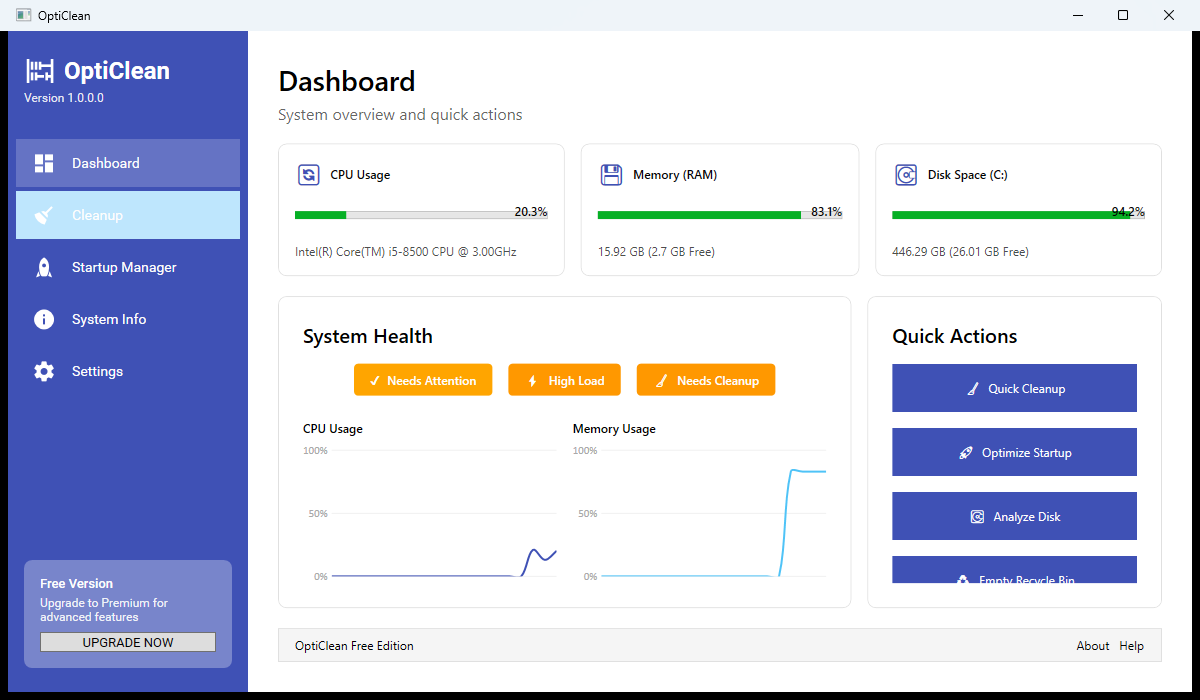
The Dashboard gives you a live system snapshot the moment you open OptiClean. Three stat cards show CPU Usage (20.3% — Intel Core i5-8500 @ 3.00 GHz), Memory/RAM (83.1% — 15.92 GB total, 2.7 GB free), and Disk Space C: (94.2% — 446.29 GB total, only 26.01 GB free). The System Health section flags three issues instantly: Needs Attention, High Load, and Needs Cleanup — with live CPU and Memory usage graphs below. The Quick Actions panel on the right puts the most common operations one click away: Quick Cleanup, Optimize Startup, Analyze Disk, and Empty Recycle Bin.
Screen 2 — Disk Cleanup
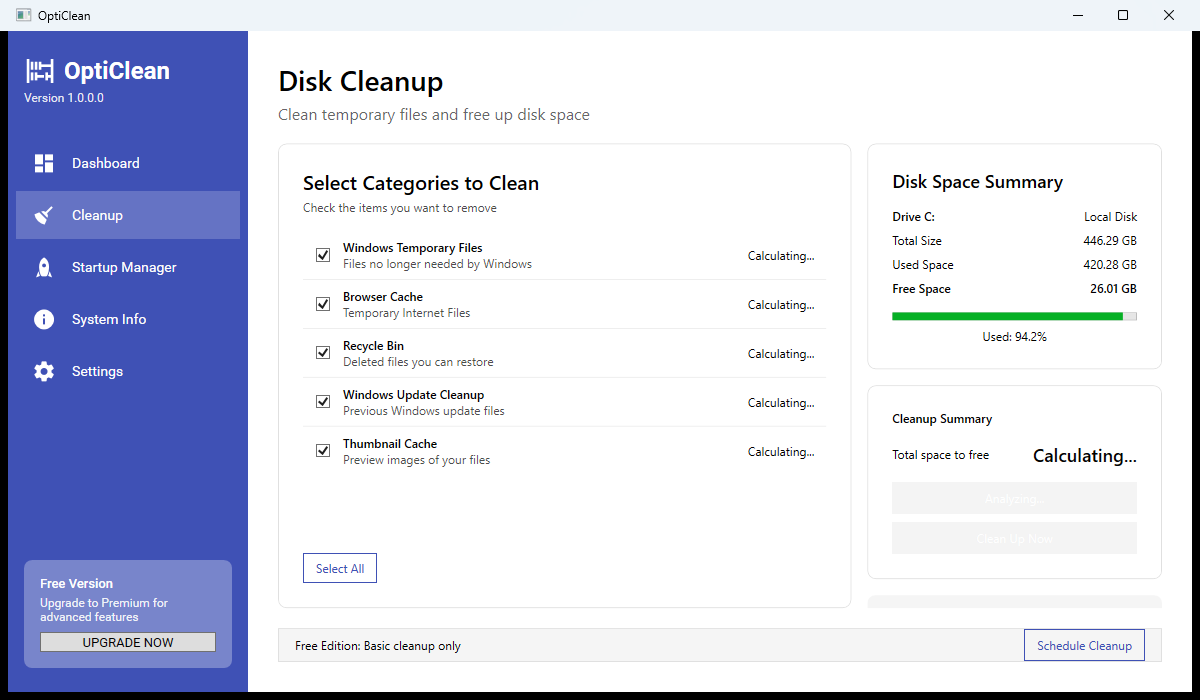
The Disk Cleanup section scans five categories of recoverable disk space, all selected by default: Windows Temporary Files (files no longer needed by Windows), Browser Cache (temporary internet files), Recycle Bin (deleted files you can still restore), Windows Update Cleanup (leftover update packages), and Thumbnail Cache (preview image files). The right panel shows a Disk Space Summary — 420.28 GB used on a 446.29 GB drive with only 26.01 GB free (94.2%). A Cleanup Summary below it will calculate the total space that can be reclaimed before you commit to cleaning. You can also schedule cleanups for off-hours with the Schedule Cleanup button.
Screen 3 — Startup Manager
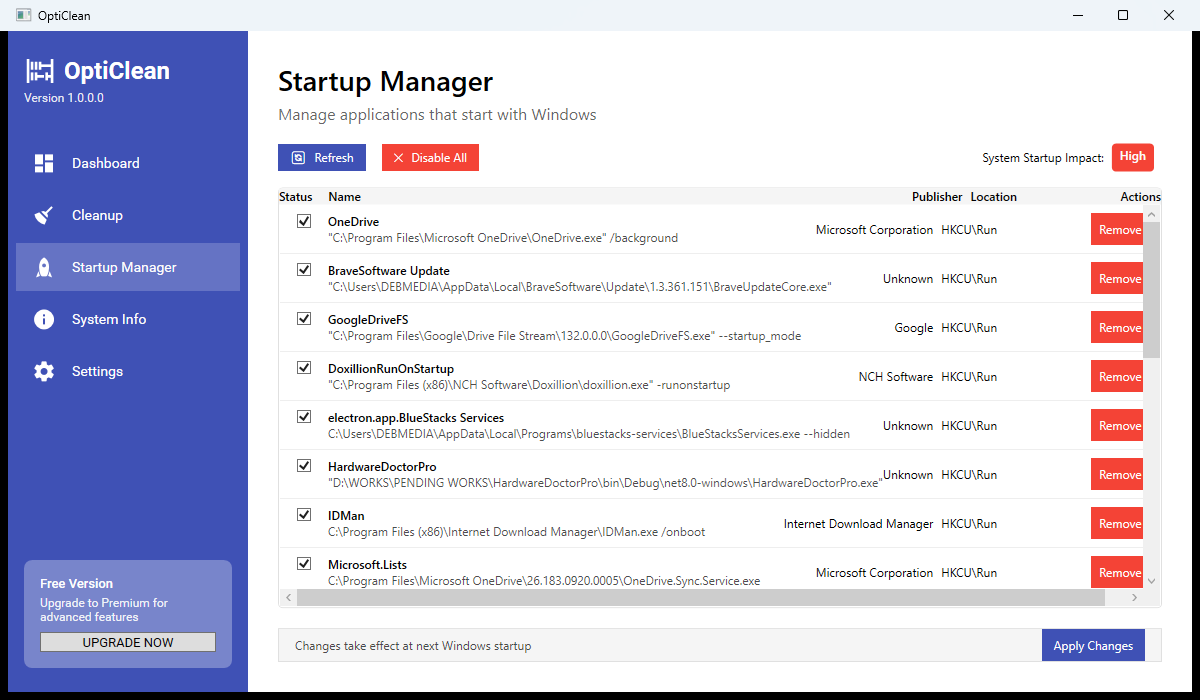
The Startup Manager lists every application that auto-runs when Windows boots, with the overall System Startup Impact rated as High. Entries shown include OneDrive (Microsoft Corporation), BraveSoftware Update, GoogleDriveFS (Google), DoxillionRunOnStartup (NCH Software), BlueStacks Services, HardwareDoctorPro, IDMan (Internet Download Manager), and Microsoft.Lists — each with its full registry path (HKCURun) and executable location. Each entry has a Remove button to prevent it from auto-starting, and a Disable All button at the top for a one-click approach. A note at the bottom confirms that changes take effect at the next Windows startup.
Screen 4 — Settings
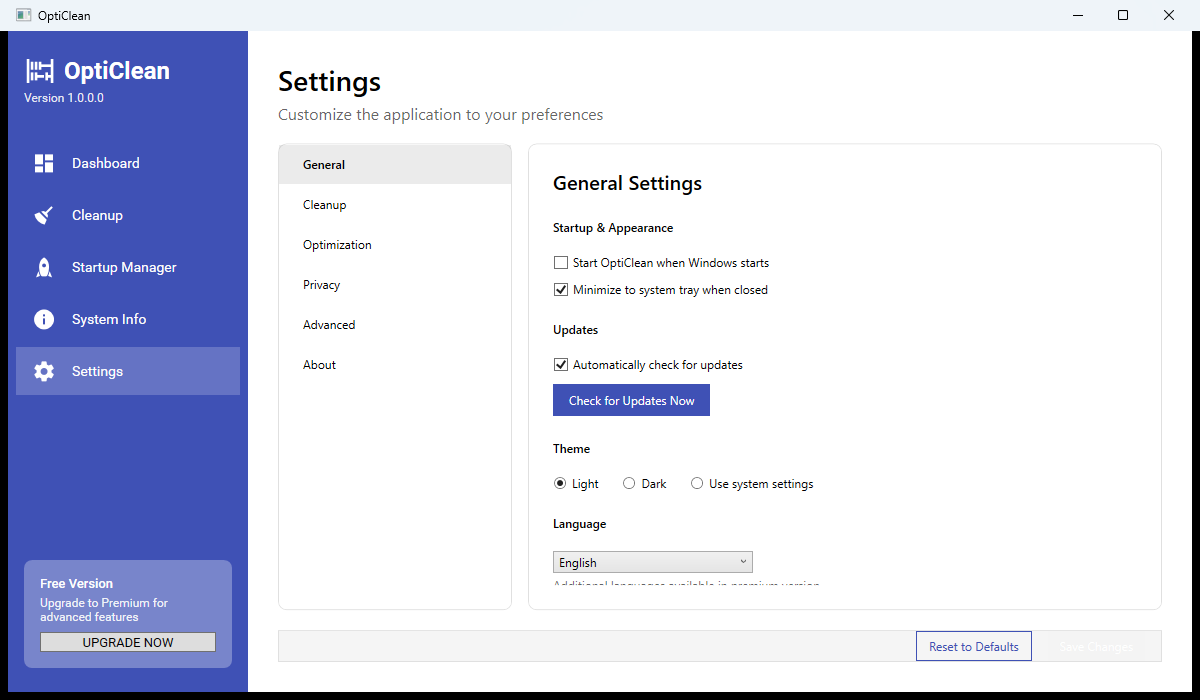
The Settings panel is organized into six sub-sections: General, Cleanup, Optimization, Privacy, Advanced, and About. The General Settings tab covers Startup & Appearance (start with Windows — off; minimize to tray when closed — on), Updates (auto-check for updates enabled, manual Check Now button), Theme (Light / Dark / Use system settings), and Language (English, with additional languages noted as a premium feature). A Reset to Defaults button at the bottom lets you undo any configuration changes cleanly.
Key Features at a Glance
- Live system dashboard — CPU, RAM, and disk usage updated in real time
- System health indicators — instant flags when your PC needs attention
- Disk cleanup — temp files, browser cache, recycle bin, update packages, thumbnail cache
- Cleanup preview — calculates space to reclaim before running any cleanup
- Schedule cleanup — set automatic cleanups for off-hours
- Startup manager — audit and disable boot-time apps by publisher and path
- Quick Actions — one-click cleanup, startup optimize, disk analyze, recycle bin empty
- Theme support — Light, Dark, or follow system settings
Who Is OptiClean For?
OptiClean is for Windows users whose PCs have slowed down over time — slow boots, low disk space, high memory pressure. It’s especially useful if you’ve never audited your startup programs or run a proper temp-file cleanup. The dashboard makes the PC’s health visible at a glance, and the tools to fix problems are right there on the same screen.
System Requirements
- Windows 10 / 11 (64-bit)
- .NET 6.0 Runtime or later
- 50 MB disk space
- Administrator rights required for system cleanup
Note on Early Access
OptiClean v1.0.0.0 is currently in active development. The Dashboard, Disk Cleanup, and Startup Manager modules shown above are fully functional. Additional premium features (advanced privacy tools, disk analyzer, registry optimizer) are being added in upcoming releases. Feedback from Early Access users directly shapes what gets built next.
Download OptiClean
Advanced Windows PC optimizer — clean, repair, speed up and maintain