Uninstaller ++
Completely remove software and all its leftover files and registry entries
Uninstaller++ removes Windows software completely — not just the main program, but every leftover file, folder, registry key and scheduled task the uninstaller misses. Force-remove stubborn apps that resist normal uninstallation.
See Uninstaller++ in Action
A clean, modern interface designed for real-world use.
Modernuninstaller screen 01 screenshot
Uninstaller++ is a sleek, modern program removal tool for Windows that goes far beyond the basic Add/Remove Programs panel. Built with a dark, professional interface, it gives you a clear view of everything installed on your PC — traditional programs, browser extensions, and Windows Store apps — organized into smart categories so you know exactly what’s taking up space and what you may no longer need.
Whether you want to free up disk space, clean up after old software, or just keep your system lean and fast, Uninstaller++ puts all the controls in one easy-to-use panel.
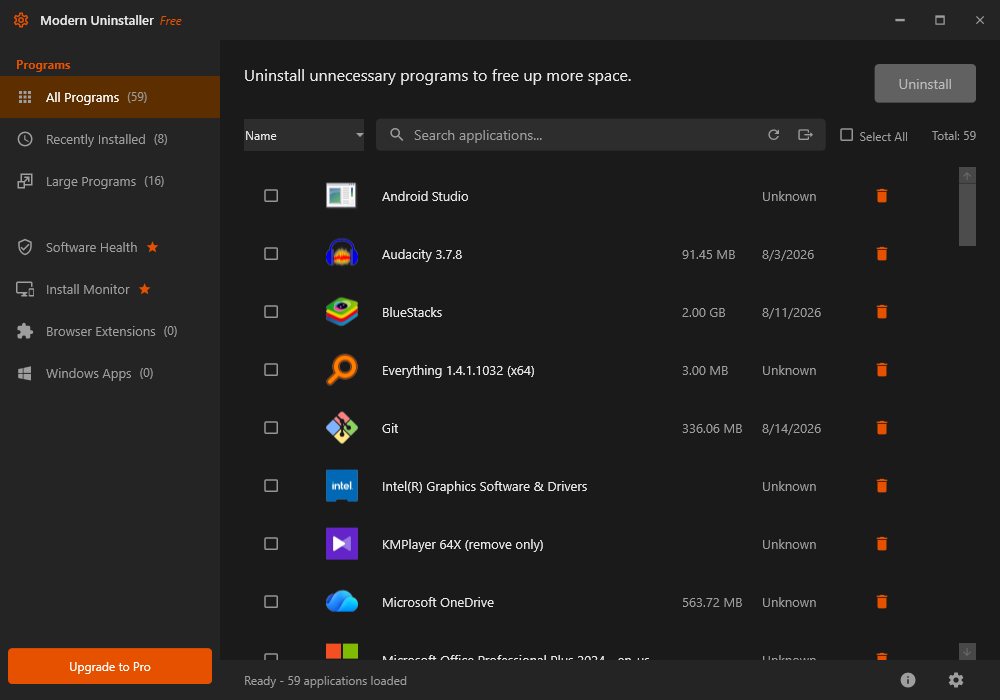
Screen 1 — All Programs Overview
The main screen loads all 59 installed programs the moment you open the app. Each entry shows the program name with its icon, install size, and install date — at a glance. A real-time search bar at the top lets you filter by name instantly. You can sort by name, size, or date, and use the Select All checkbox to batch-select programs for removal. The Uninstall button is always visible in the top-right corner, one click away.
Screen 2 — Recently Installed
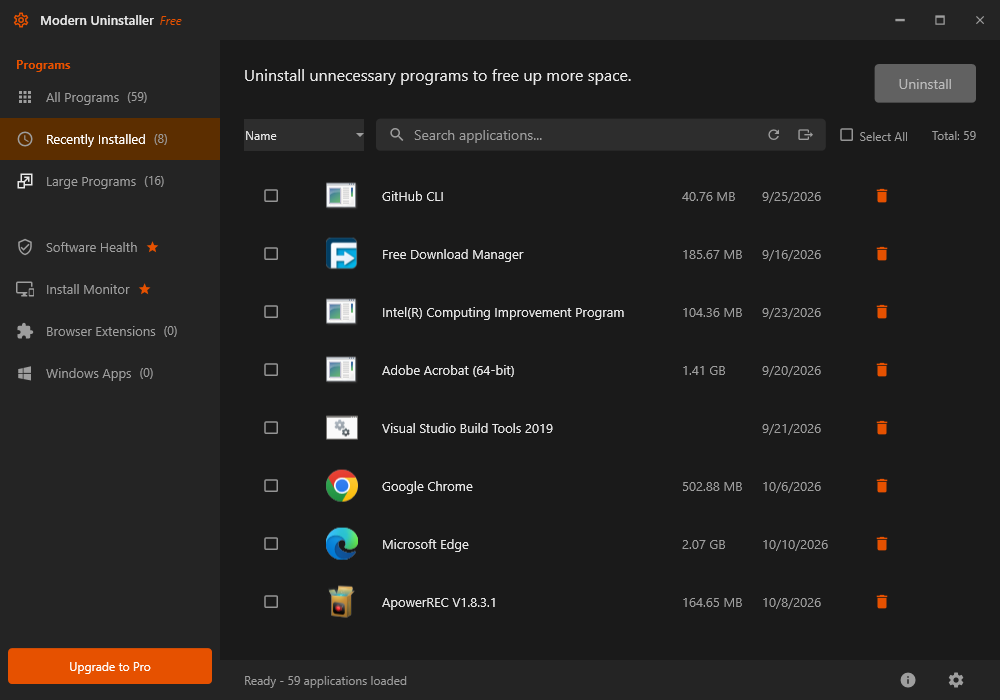
The Recently Installed filter shows you the 8 programs added to your PC most recently — sorted by install date. This is ideal for spotting bundleware or software that snuck in alongside something else you installed. Each entry shows the exact date it was added, so you can quickly trace back what arrived when and decide if it should stay or go.
Screen 3 — Large Programs
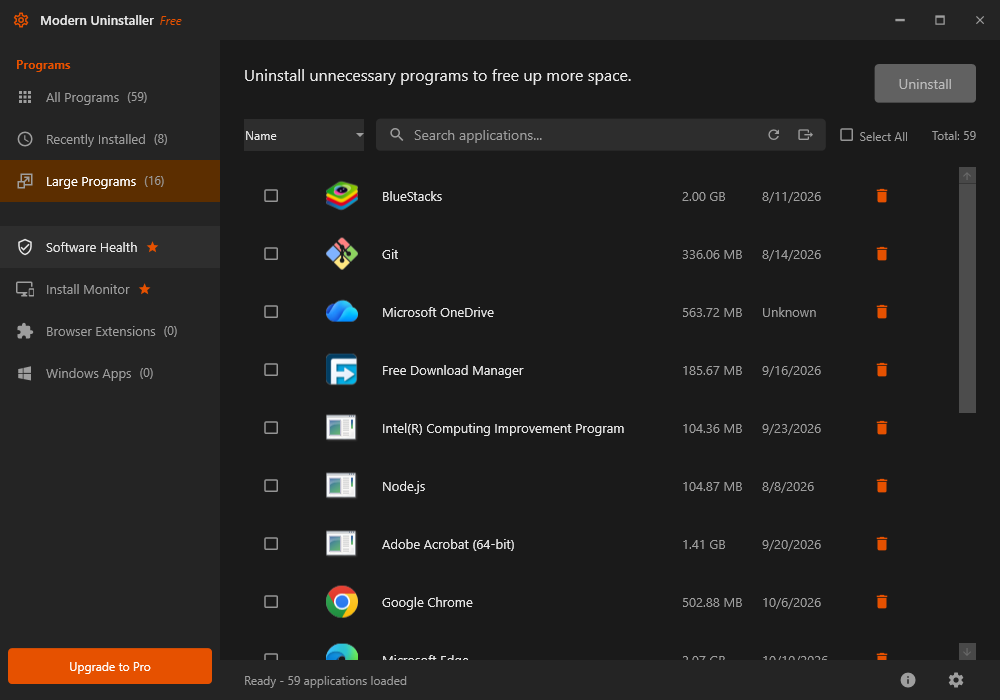
The Large Programs section filters your install list to the 16 biggest space consumers. BlueStacks takes 2.00 GB, Microsoft OneDrive 563 MB, Node.js 104 MB — all laid out so you can prioritize what to uninstall first. If your drive is running low, this view tells you immediately where the bulk of your disk space is going, without needing to dig through every installed program one by one.
Screen 4 — Pro Upgrade Panel
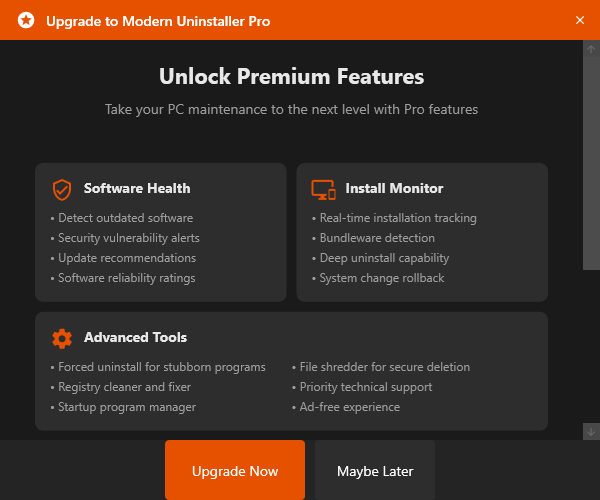
Uninstaller++ includes a clear upgrade path to the Pro version. The premium features panel highlights three major upgrade areas: Software Health (detect outdated software, security vulnerability alerts, update recommendations), Install Monitor (real-time installation tracking, bundleware detection, deep uninstall with rollback), and Advanced Tools (forced uninstall for stubborn programs, registry cleaner and fixer, startup manager, file shredder for secure deletion). The free version covers everyday uninstall needs; Pro adds proactive PC health management.
Screen 5 — Browser Extensions
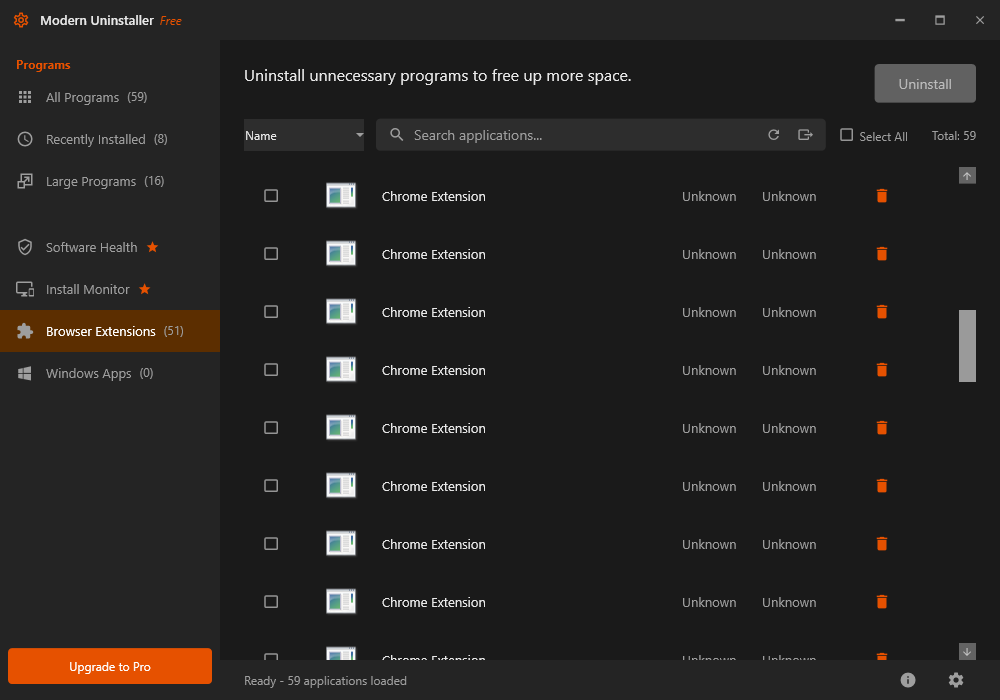
Most uninstallers ignore your browser extensions entirely. Uninstaller++ doesn’t. The Browser Extensions section enumerates all 51 Chrome extensions installed on the system, giving you a dedicated place to audit and remove browser add-ons that may be slowing down your browser, collecting data, or simply no longer needed. Each extension can be individually removed from this panel without opening the browser.
Screen 6 — Windows Apps
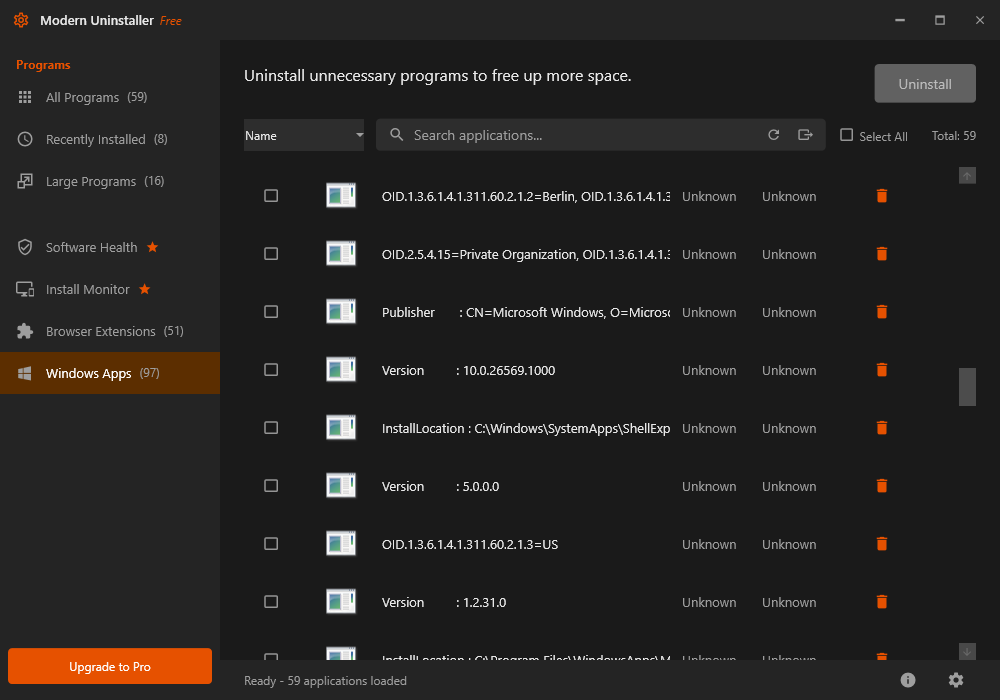
The Windows Apps category covers the 97 Microsoft Store and UWP applications on the system — the apps that the standard Control Panel uninstaller often makes difficult to remove. Uninstaller++ lists them all, including package metadata like version numbers and install locations, so you can review and remove Microsoft Store apps, system apps, and pre-installed software that you’ve never used.
Screen 7 — Confirm Uninstall Dialog
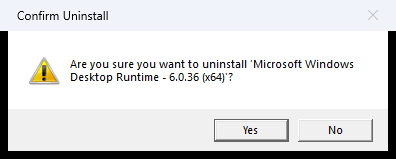
Before any uninstall runs, Uninstaller++ always asks you to confirm. The confirmation dialog clearly names the program about to be removed — here, “Microsoft Windows Desktop Runtime – 6.0.36 (x64)” — and gives you Yes / No buttons. Nothing is ever removed silently. This safety check means you can browse and select programs freely, then review your choice once more before committing.
Key Features at a Glance
- All Programs, Recently Installed, Large Programs — three smart filters help you find what to remove fast
- Browser Extension Manager — audit and remove Chrome extensions directly from the app
- Windows Apps support — handles Microsoft Store and UWP apps that standard uninstallers skip
- Real-time search — filter the full program list instantly as you type
- Sort by name, size, or date — find the biggest or newest installs in one click
- Batch uninstall — select multiple programs and remove them in one pass
- Confirm before remove — every uninstall shows a clear confirmation dialog
- Dark theme UI — easy on the eyes for extended use
Who Is Uninstaller++ For?
Uninstaller++ is for anyone who wants more control over what’s installed on their Windows PC. Power users will appreciate the browser extension management and Windows Apps coverage. Everyday users benefit from the clean interface, smart filters, and the instant visibility of large programs. If your PC feels slower than it used to, or your disk is filling up, Uninstaller++ is a great first stop.
System Requirements
- Windows 10 / 11 (64-bit)
- .NET 6.0 Runtime or later
- 50 MB disk space
- Administrator rights required for program removal
Frequently Asked Questions
Is Uninstaller++ safe to use?
Yes. It only lists programs already registered in Windows and calls the standard system uninstaller for each removal — no registry hacks or forceful deletions on the free version.
Can it remove stubborn programs that won’t uninstall normally?
Forced uninstall is a Pro feature. The free version uses the standard Windows uninstall routine.
Does it remove browser extensions from Firefox too?
Currently the browser extension module covers Chrome. Support for additional browsers is planned.
Will it remove Windows system apps?
The Windows Apps section lists all UWP packages, but system-critical apps may require Pro or elevated permissions to remove.
Uninstaller++ turns a routine chore into a few well-placed clicks. Clean up your programs list, reclaim disk space, and keep your Windows installation lean — without needing a degree in system administration.
Download Uninstaller++
Completely remove software and all its leftover files and registry entries