Hardware Doctor
Complete hardware diagnostics — CPU, RAM, GPU, storage and sensors in one app
Hardware Doctor provides detailed hardware information and diagnostics for every component in your Windows PC. The CPU panel shows your processor model, architecture, core and thread count, base and boost clock speeds, cache sizes, instruction set support and real-time temperature. RAM detail covers module count, capacity, speed, type, manufacturer and slot configuration. GPU information includes VRAM size, driver version, DirectX level and current utilization. Storage detail shows drive model, interface, capacity, health status via SMART and read/write speeds. The diagnostics engine runs stress tests and benchmarks for CPU, RAM and storage, generates a complete system report and flags any component showing signs of failure or abnormal readings.
See Hardware Doctor in Action
A clean, modern interface designed for real-world use.
Hardwaredoctor advanced features screenshot
What Is Hardware Doctor?
Hardware Doctor is a comprehensive Windows system information and health monitoring application that reads the complete hardware specification of your PC and presents it in a clear, category-organised interface. Instead of hunting through Device Manager, BIOS screens and multiple third-party tools to understand what is inside your machine, Hardware Doctor gives you every hardware detail — CPU architecture, GPU specifications, RAM configuration, motherboard identity, storage health, BIOS version, connected PCI and USB devices, TPM chip status and real-time temperature sensors — in a single application that opens in seconds.
Hardware Doctor is the tool to reach for when buying components, diagnosing hardware issues, preparing a PC for sale, verifying specifications before a software upgrade, or simply understanding what your machine is made of.
Screen-by-Screen Feature Walkthrough
1. System Overview Dashboard
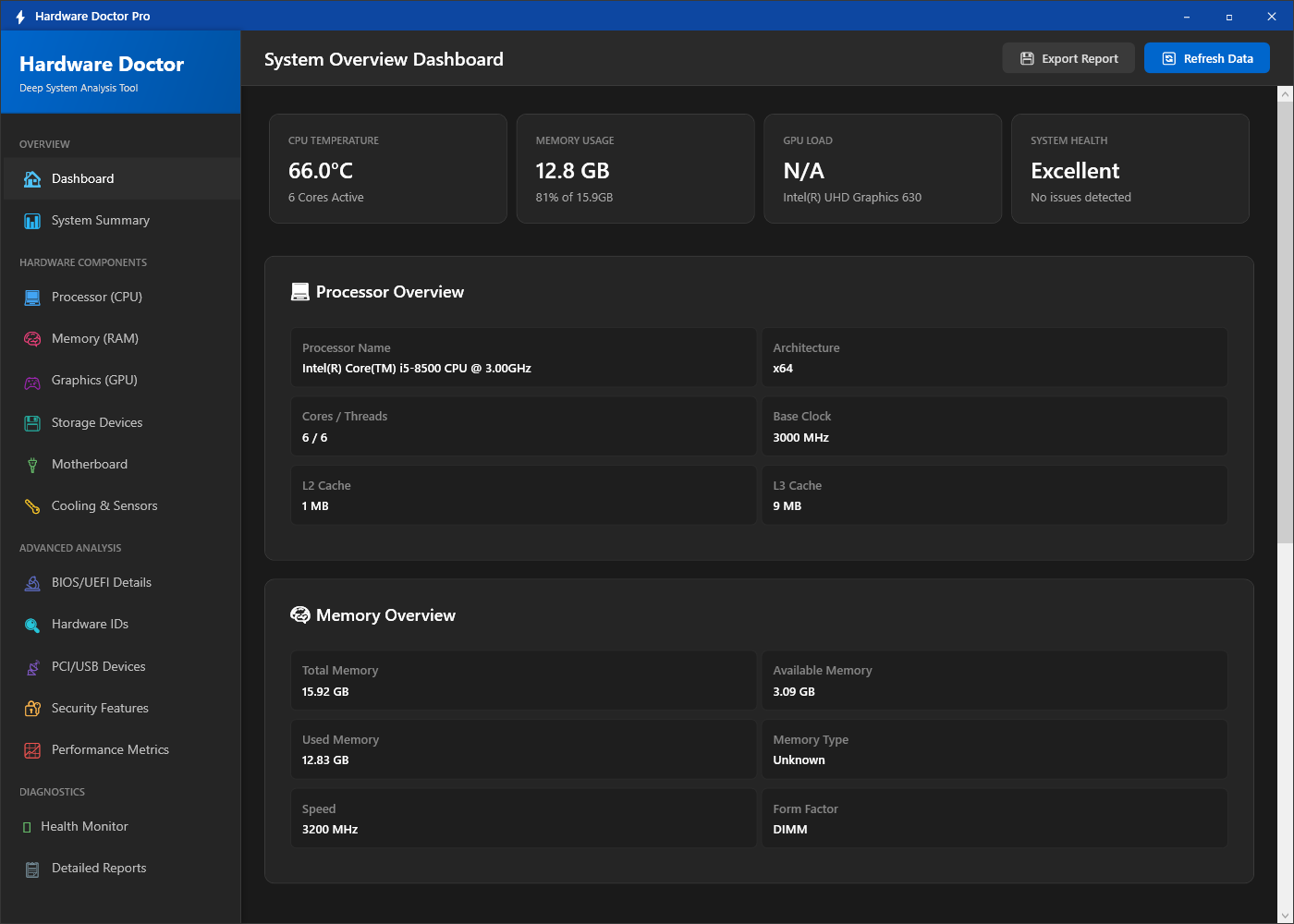
The main dashboard presents a high-level summary of every major hardware category detected in your system. CPU model, GPU name, installed RAM, primary storage device and motherboard are all visible at a glance without needing to navigate into any specific section. This overview is the fastest way to answer the question “what is in this PC?” — useful when checking a machine for compatibility before installing software, or documenting a system’s specification for support purposes. Click any category to drill into its full detail view.
2. CPU Details — Processor Specification in Full
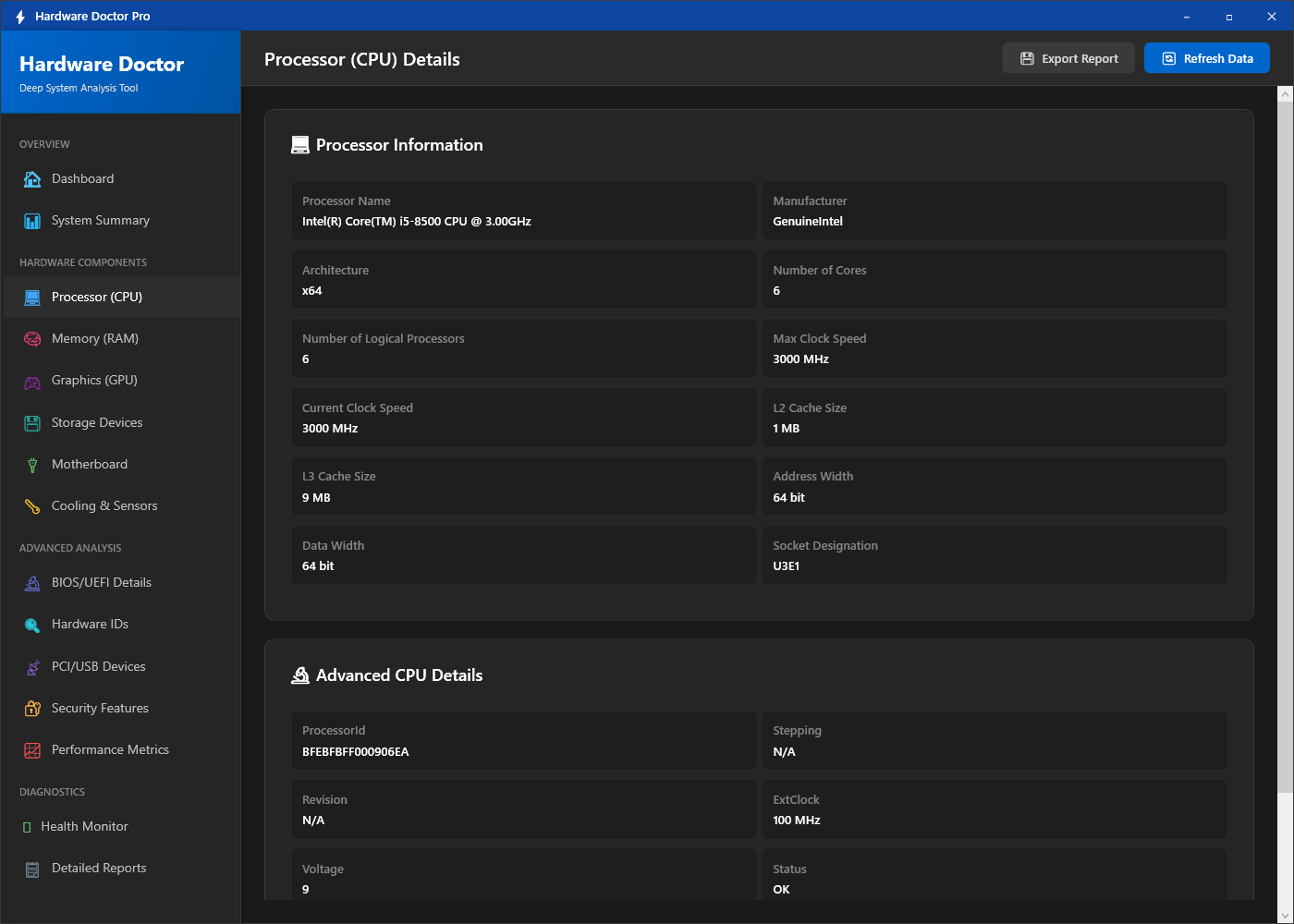
The CPU details screen reads the complete processor specification from your hardware. Model name, core count, thread count, base clock speed, boost clock speed, CPU architecture (x86-64, ARM), lithography, TDP, L1/L2/L3 cache sizes and supported instruction sets (SSE, AVX, AVX2 and others) are all displayed. This information is essential for determining whether your processor meets the requirements of specific software, games or operating system features, and for benchmarking your CPU against published specifications to verify its performance characteristics.
3. GPU Details — Graphics Card Information
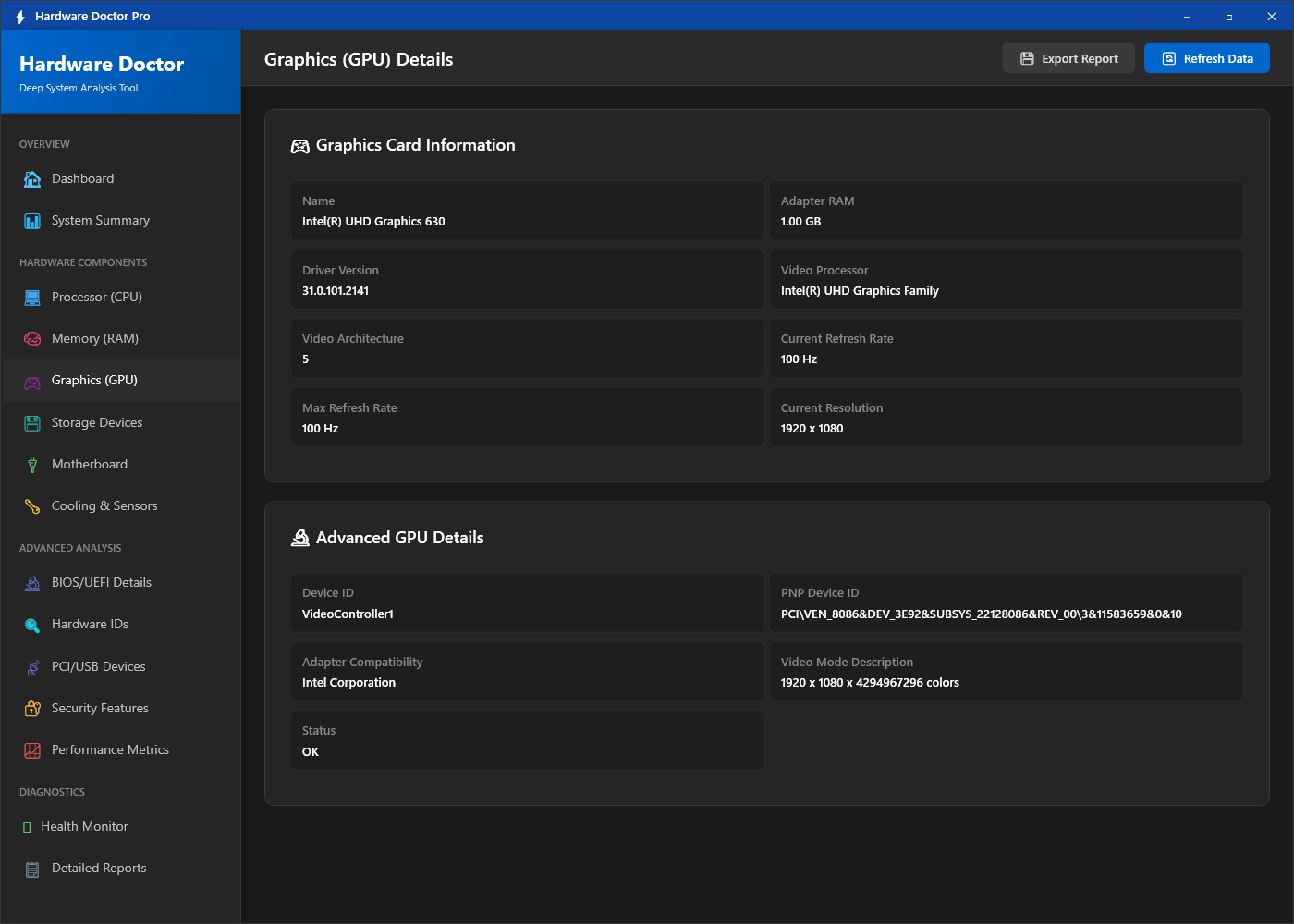
The GPU details screen identifies your graphics card with precision. Model name and manufacturer, dedicated VRAM amount, current driver version and driver date, installed display resolution, refresh rate, DirectX and OpenGL support levels are all retrieved directly from the hardware and the installed driver. This is the definitive view when troubleshooting graphics issues — confirming whether a driver is outdated, verifying VRAM capacity before running a memory-intensive application, or documenting the graphics specification for compatibility checking.
4. Memory Details — RAM Configuration
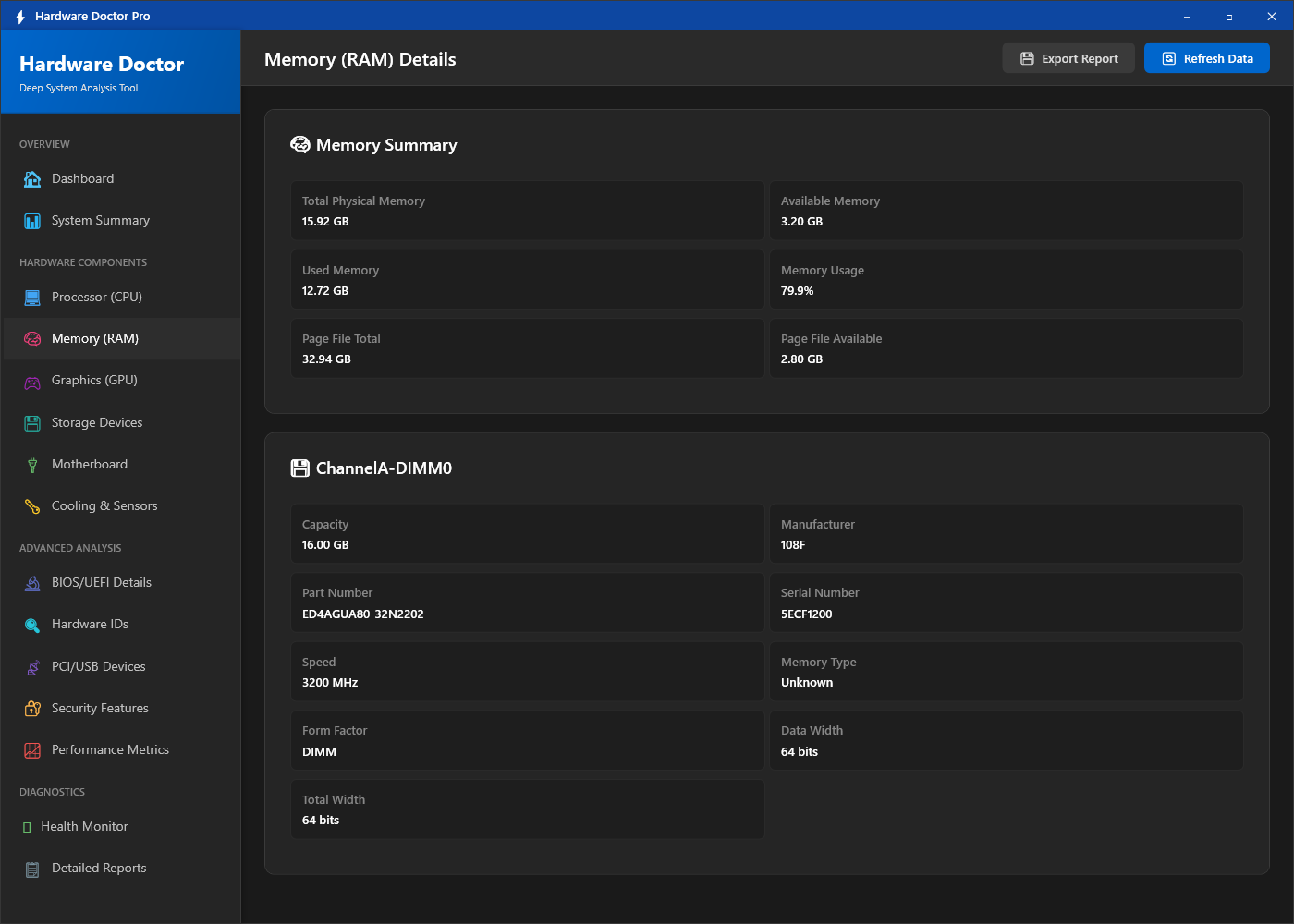
The memory details screen shows the complete RAM configuration: total installed capacity, current used and free memory, RAM speed in MHz, memory type (DDR4, DDR5 or LPDDR), channel configuration (single, dual or quad channel), and how many physical slots are populated versus total available. This information is essential when planning a RAM upgrade — knowing the current speed, type and occupied slot count tells you exactly what modules to buy and whether you have free slots available or need to replace existing modules to expand capacity.
5. Motherboard Details
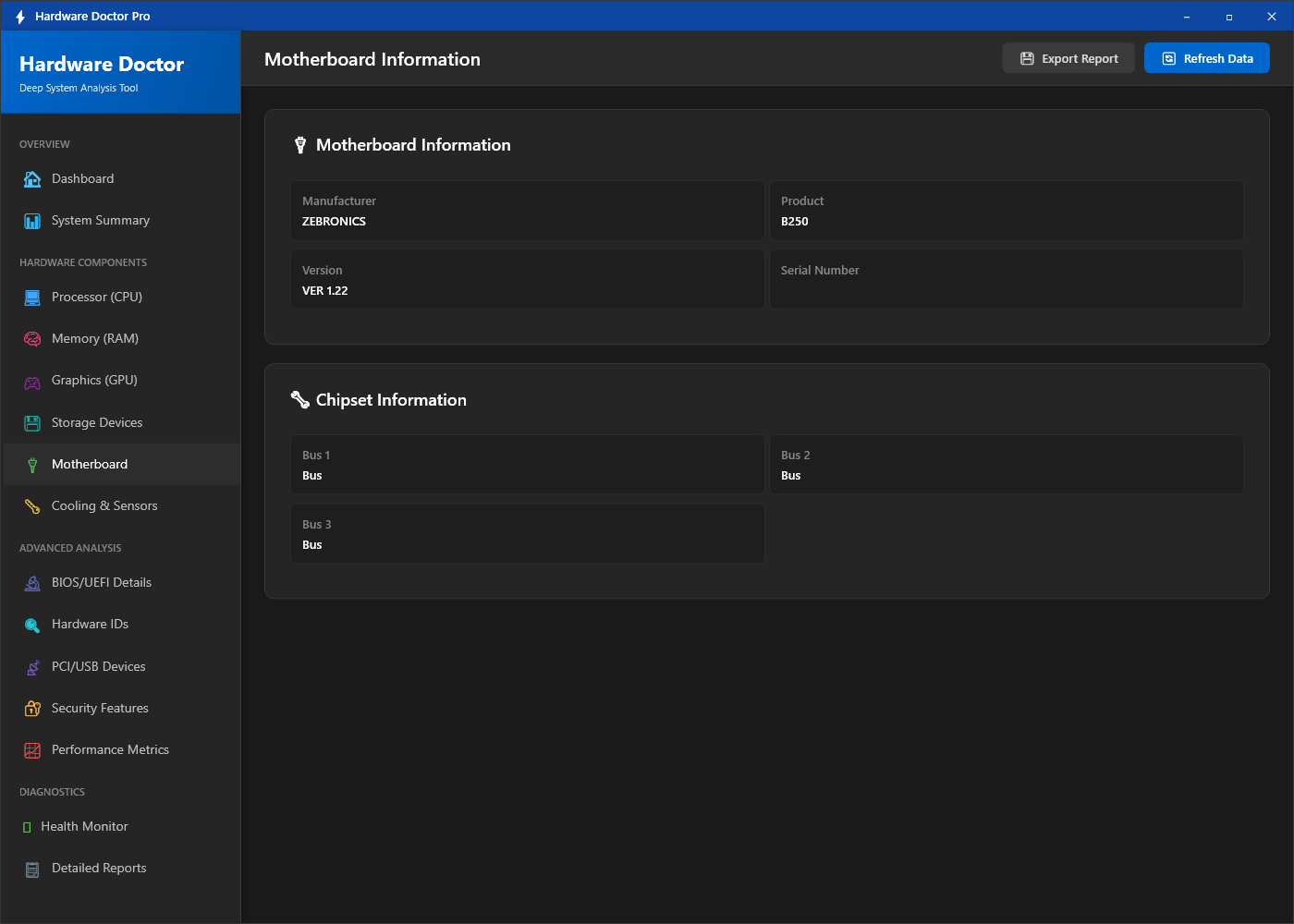
The motherboard screen identifies the board at the model level — manufacturer name, exact model number, chipset (Intel or AMD platform), PCIe generation support, and form factor. This information is required when looking for compatible CPU, RAM or expansion card upgrades, and is the fastest way to find the correct drivers, BIOS updates or firmware downloads for your specific board without reading stickers inside the PC case.
6. Storage Details — Drives and Health
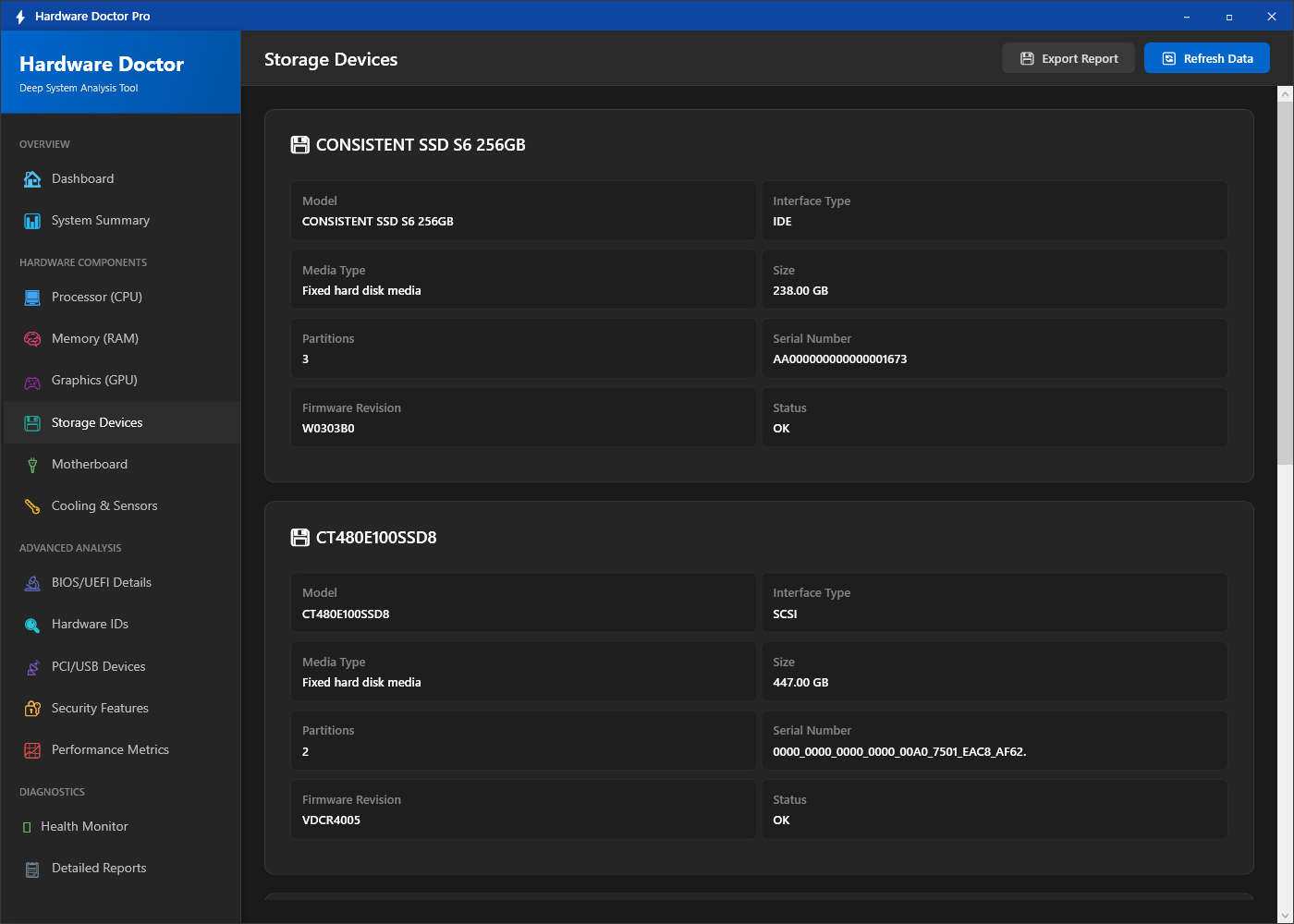
The storage screen enumerates every connected storage device — NVMe SSDs, SATA SSDs, hard drives and any external drives currently attached. For each device, Hardware Doctor displays the model name, total capacity, interface type (NVMe PCIe Gen 4, SATA III, USB 3.0), current used and free space, and a health status indicator based on S.M.A.R.T. data. The health status gives early warning of drives approaching the end of their reliable service life, helping you plan a replacement before data loss occurs.
7. BIOS Details
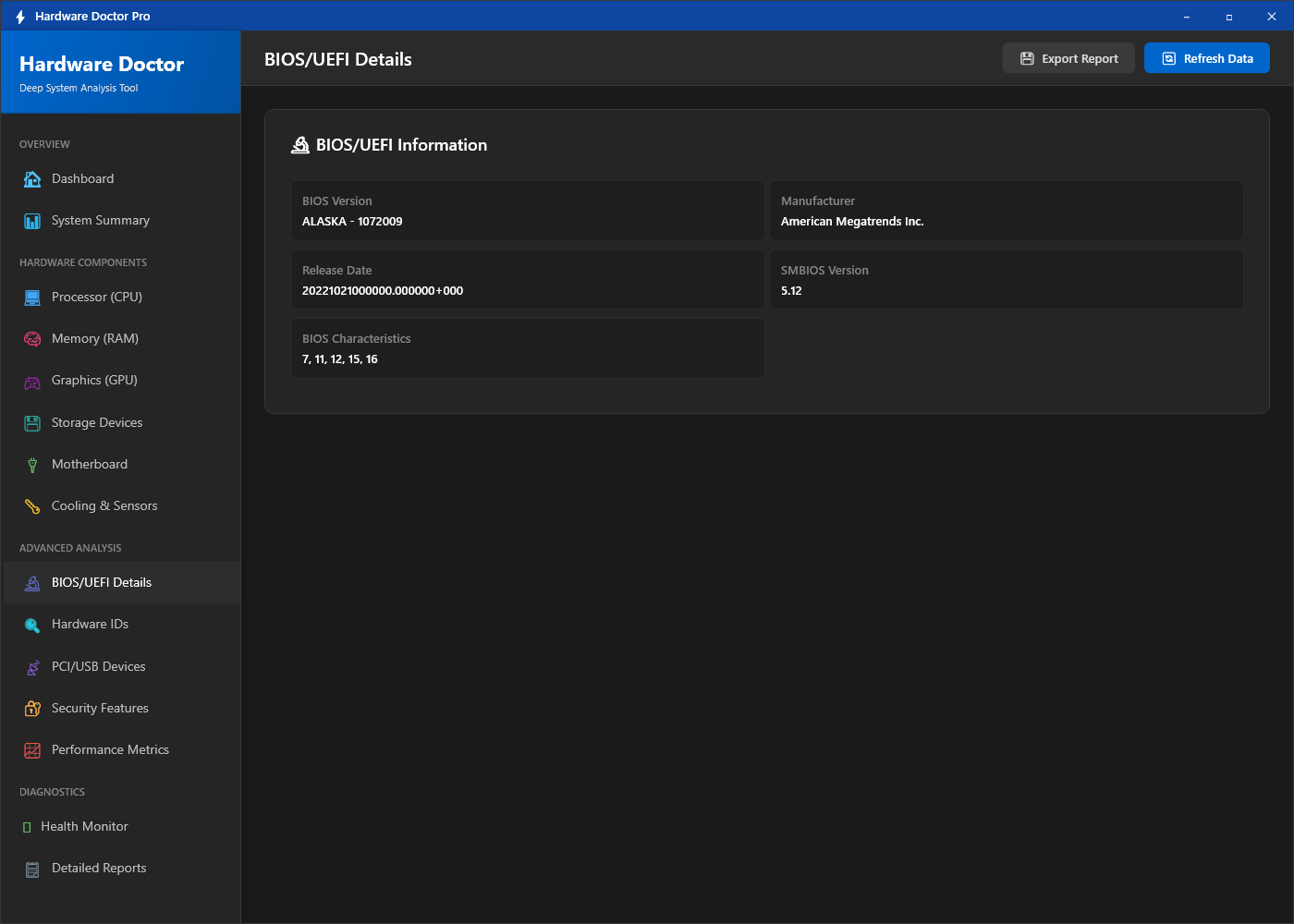
The BIOS details screen reads the firmware identity directly from the system: BIOS vendor (AMI, Phoenix, Insyde), current version string, release date, and whether the system uses UEFI or Legacy BIOS. Secure Boot status and TPM version are also shown here. This information is critical for Windows 11 compatibility checking (which requires UEFI, Secure Boot and TPM 2.0) and for determining whether a BIOS update is available — you need the current version and board model to look up the latest firmware from the manufacturer’s website.
8. PCI and USB Devices
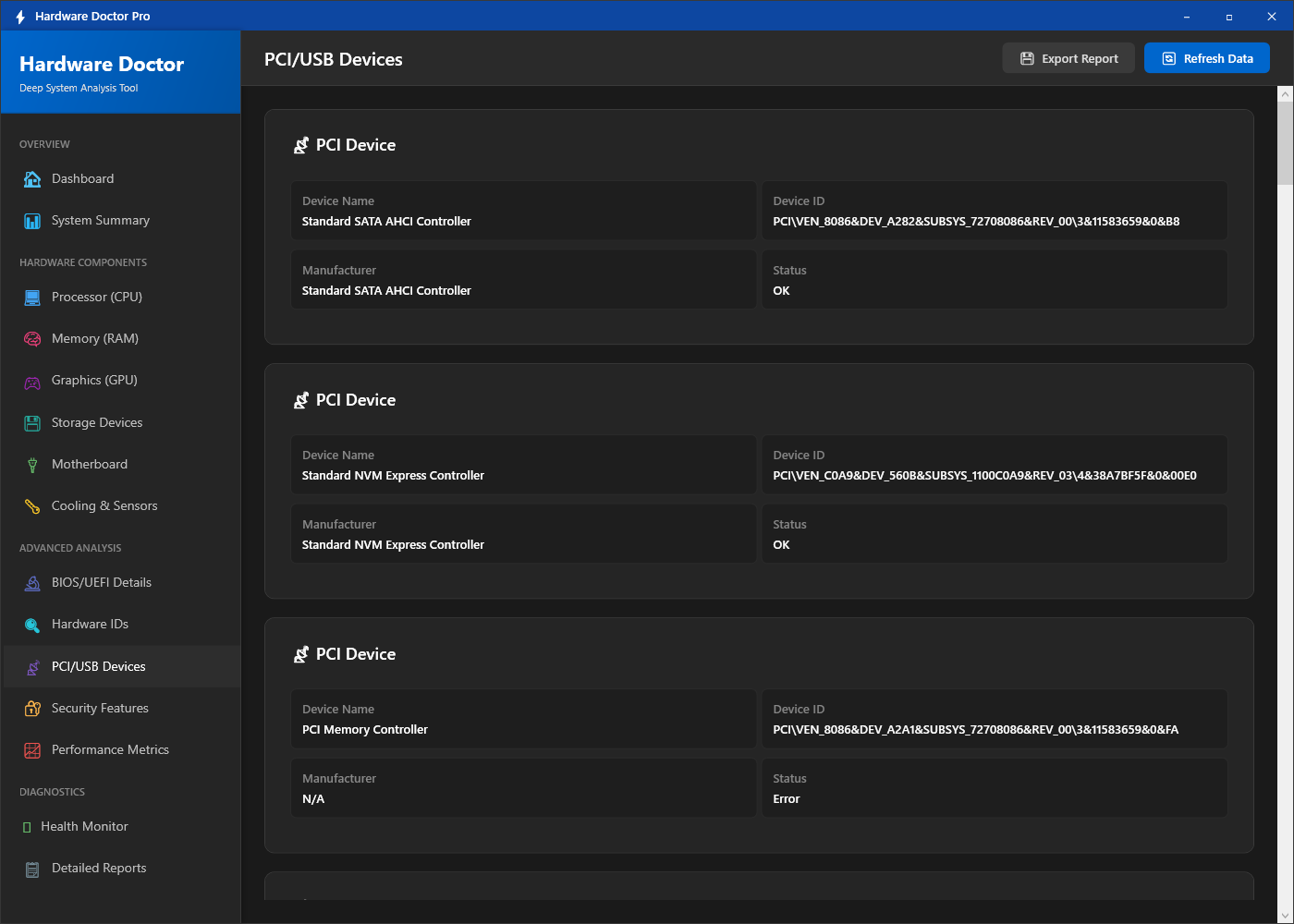
The PCI and USB devices screen enumerates every peripheral connected to the system’s expansion buses. PCIe devices (graphics cards, network adapters, sound cards, NVMe controllers, Thunderbolt cards) are listed by slot, vendor ID and device ID. USB devices are listed by port with their device name, vendor and connection speed (USB 2.0, USB 3.0, USB 3.2 Gen 2). This comprehensive device inventory is essential for driver identification — particularly for devices showing as “Unknown Device” in Windows Device Manager, where the hardware IDs from Hardware Doctor can be used to find the correct driver.
9. Cooling and Temperature Sensors
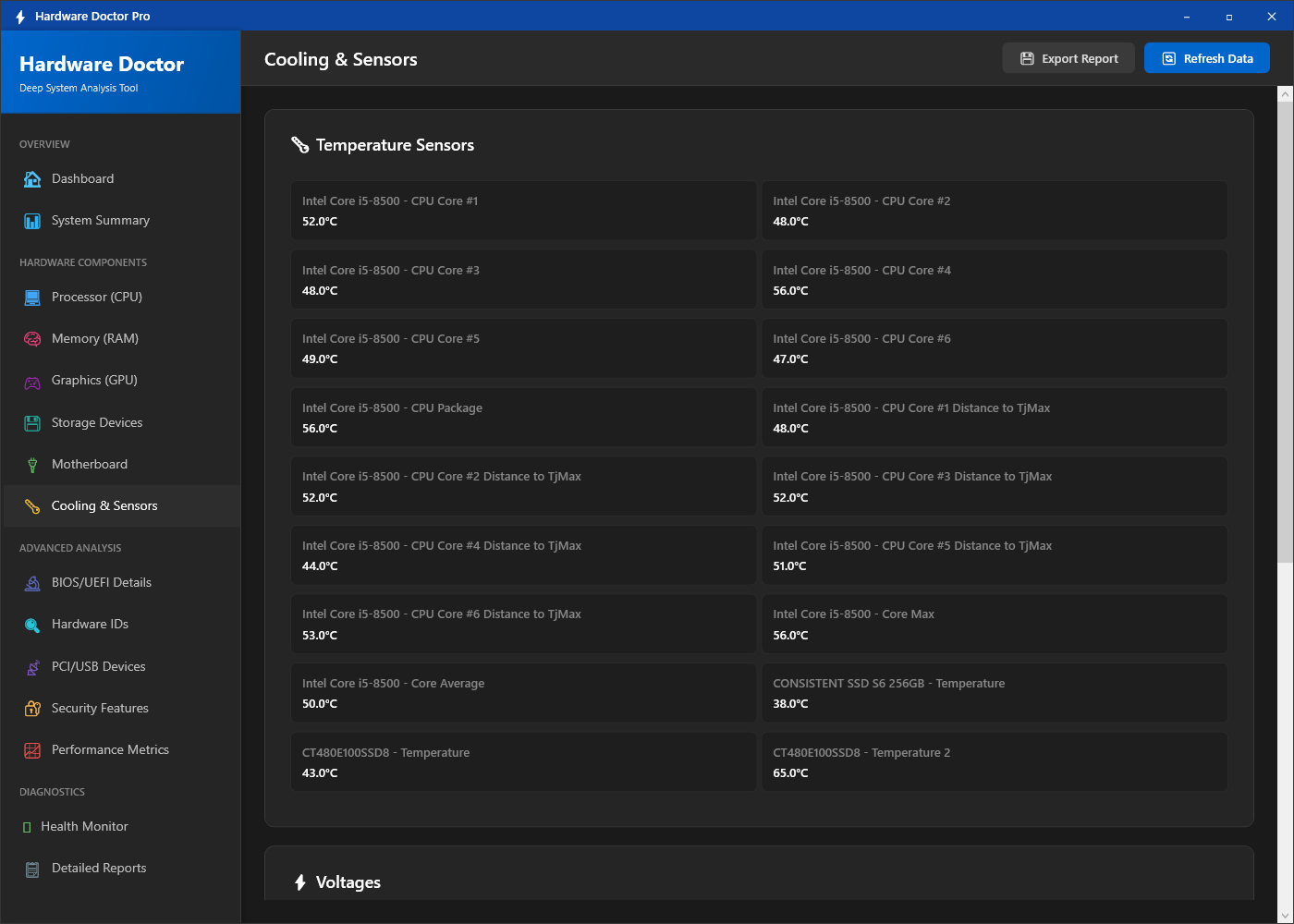
The cooling and sensors screen reads live temperature data from every hardware sensor your system exposes: CPU core temperatures, GPU temperature, motherboard temperature zones, SSD and HDD temperatures, and VRM temperatures on supported boards. Fan speeds in RPM are shown for every detected cooling fan — CPU fan, chassis fans, GPU fan. This real-time data is the primary diagnostic tool for overheating issues — if your PC is throttling, shutting down unexpectedly or running noisy fans, the sensors screen shows the thermal state of every component immediately.
10. System Health Monitor
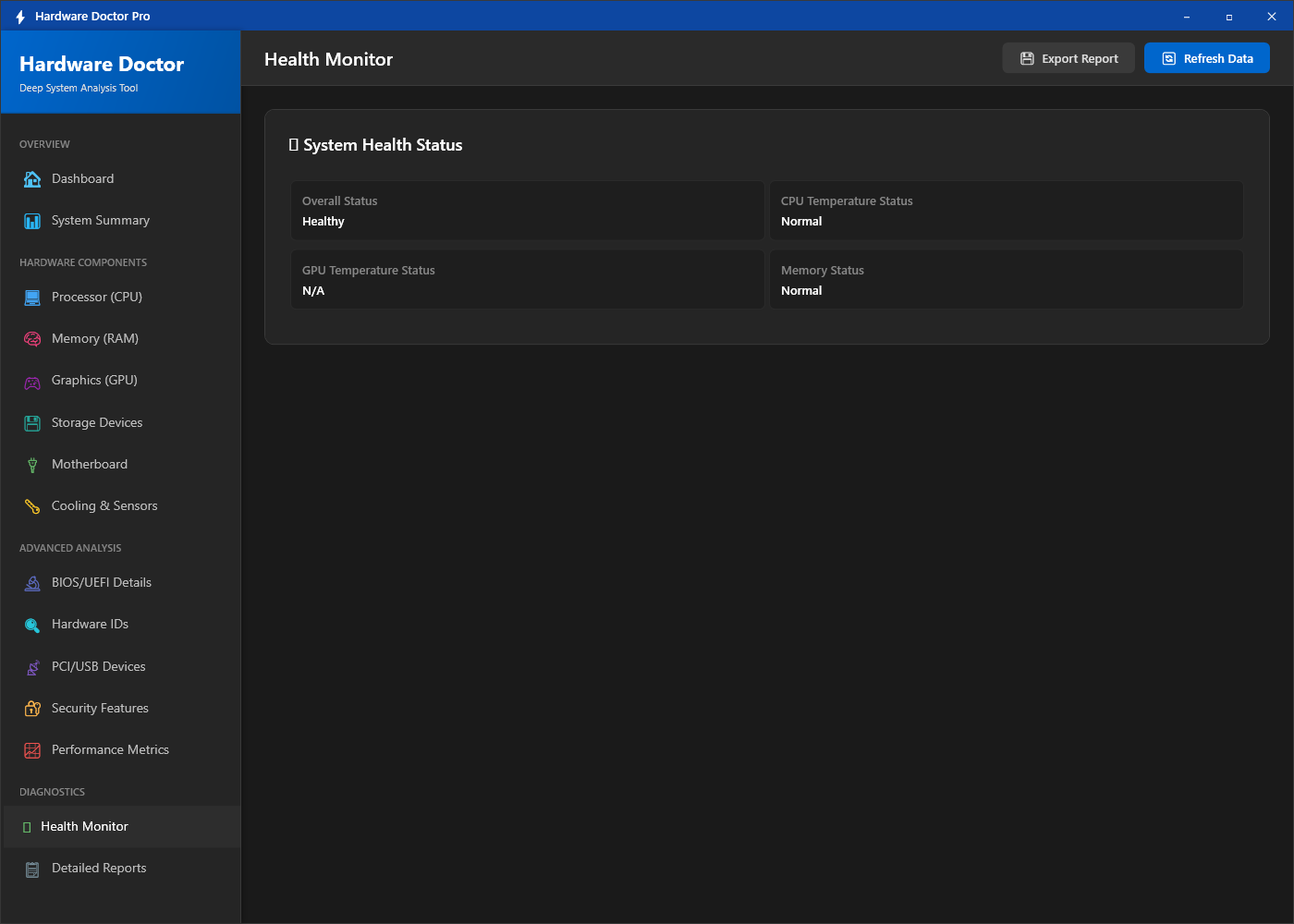
The health monitor aggregates the status of every hardware component into a single health overview. Each component receives a status indicator — healthy, warning or critical — based on S.M.A.R.T. data for storage drives, temperature thresholds for thermal sensors, and other diagnostic criteria. This is the fastest way to determine whether your system has a hardware issue that requires attention, and which component is responsible. Components showing a warning status are worth investigating further in their individual detail screens.
11. Real-Time Usage Meters
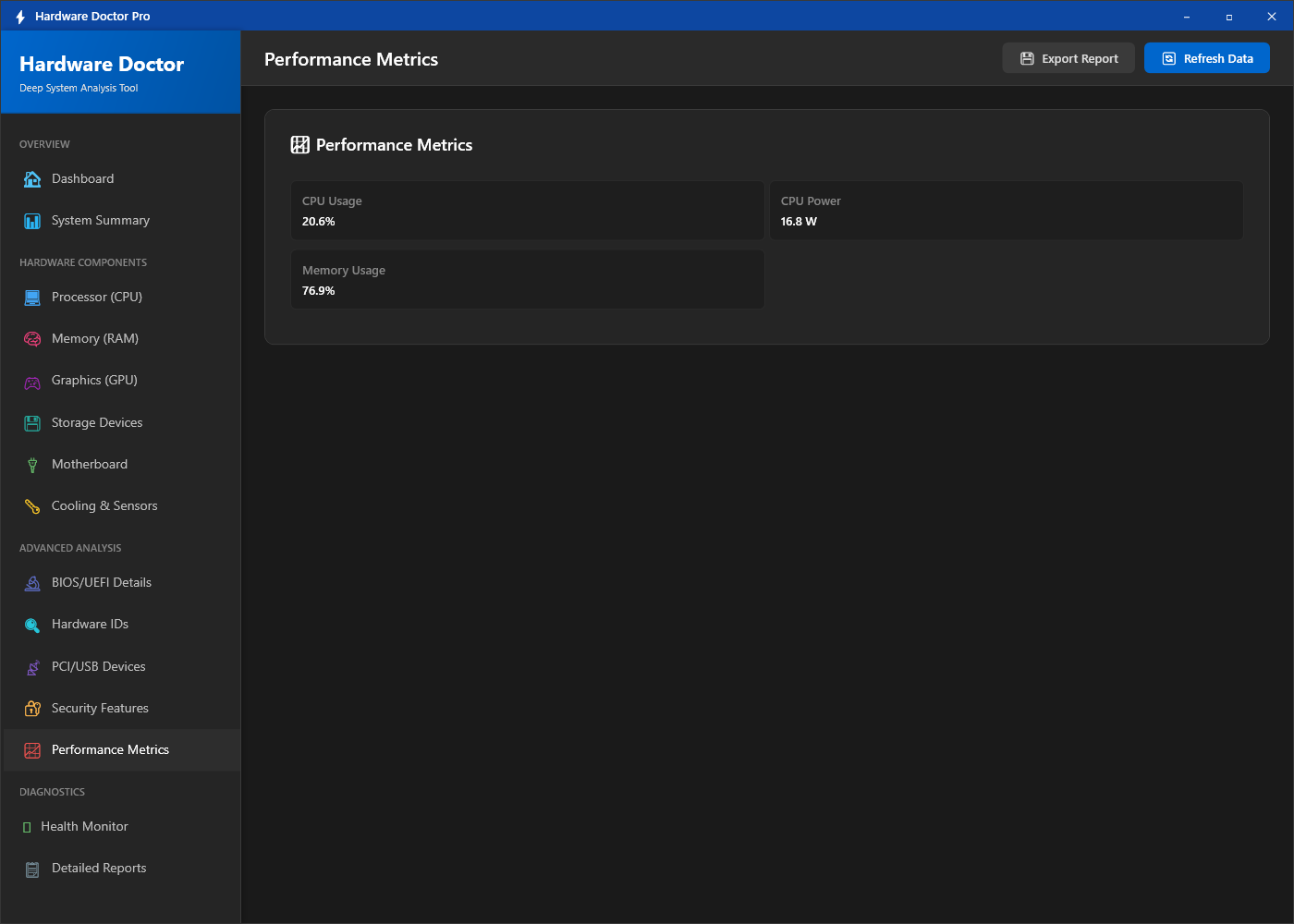
The usage meters screen shows the live utilisation of your CPU, RAM, GPU and storage simultaneously in real time. CPU percentage, RAM used versus total, GPU utilisation percentage and disk read/write activity update continuously as you watch. This is the Hardware Doctor equivalent of a detailed Task Manager performance tab, but with all resources visible together in a single view rather than requiring tab switching. Use it to identify which resource is the bottleneck when the system feels slow, or to monitor resource consumption during a benchmark or heavy workload.
12. Hardware ID
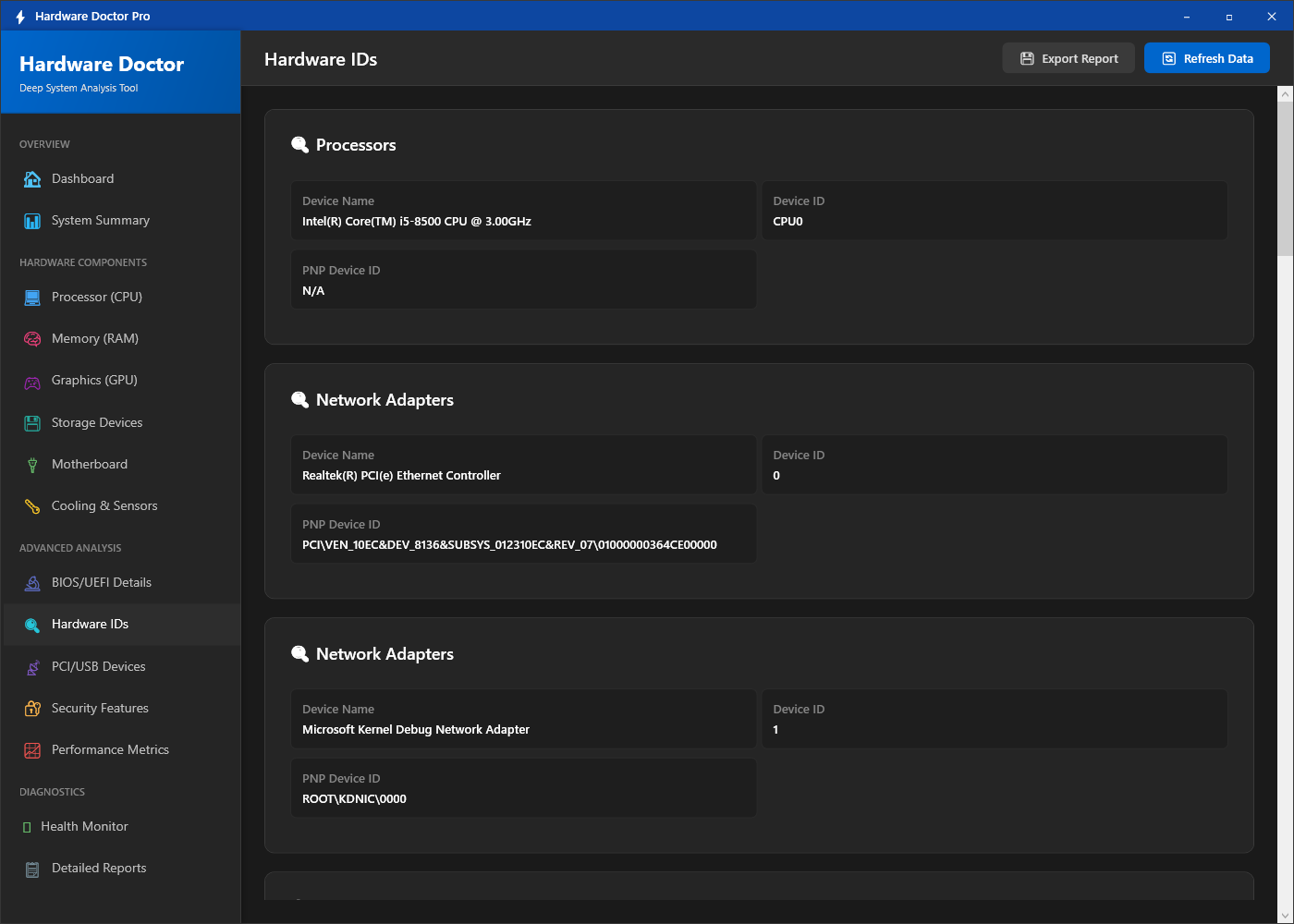
The hardware ID screen reads the unique hardware identifiers embedded in your system’s components: the system UUID (Universally Unique Identifier) embedded in the BIOS, motherboard serial number, CPU identifier and other hardware-level codes. These identifiers are used by software licensing systems, asset management tools and enterprise device management solutions to uniquely identify a specific machine regardless of what operating system is installed. Hardware Doctor reads them directly from the hardware without requiring any additional software or administrator tools.
13. TPM — Trusted Platform Module
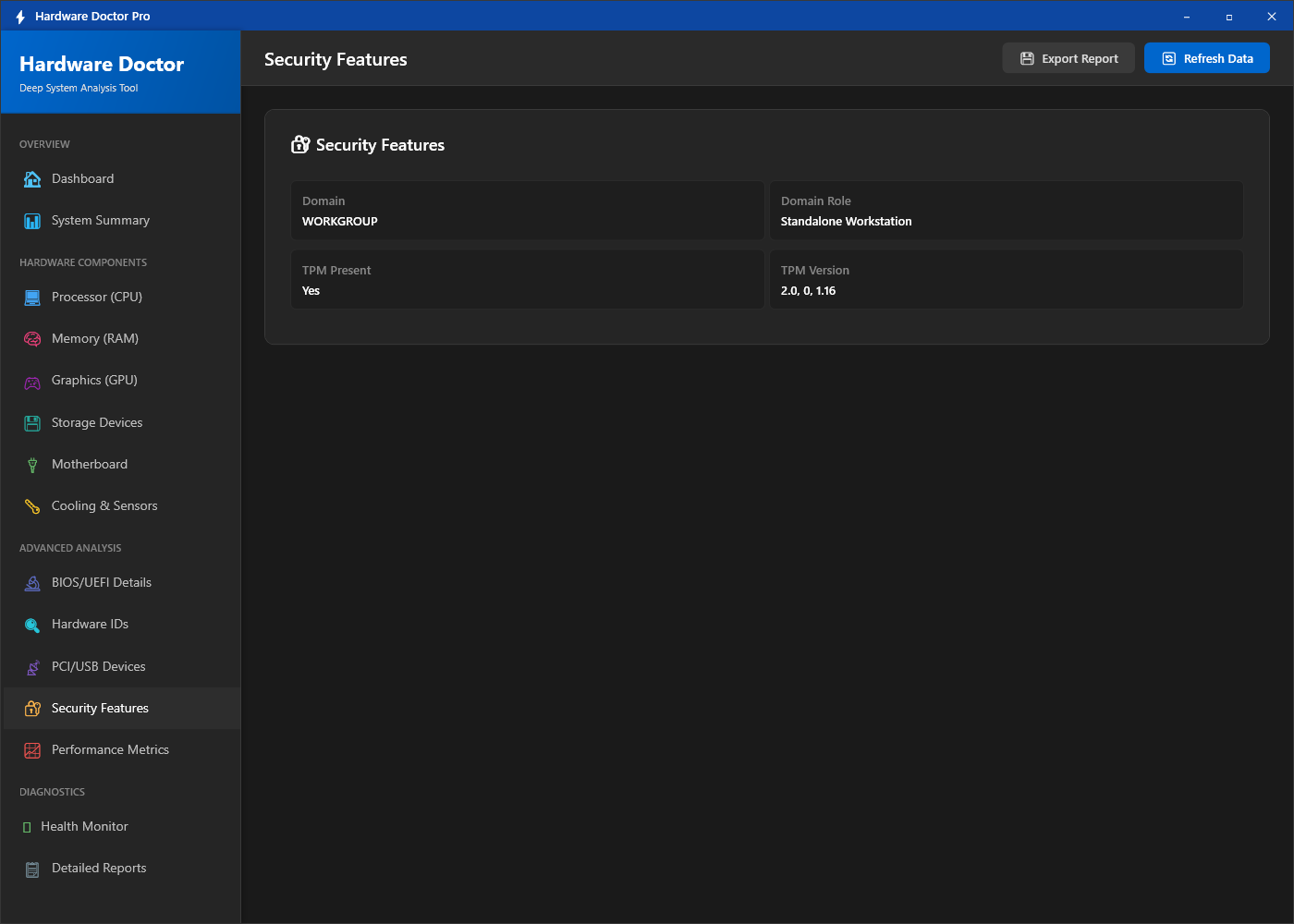
The TPM screen reads the Trusted Platform Module chip details from the system: TPM version (1.2 or 2.0), chip manufacturer, enabled/disabled status, activated status and specification version. TPM 2.0 is required for Windows 11 installation, and many enterprise security features (BitLocker, Windows Hello, Secure Boot) depend on the TPM chip being present and correctly configured. Hardware Doctor shows the TPM status at a glance without requiring you to navigate through the Windows Security settings or run BIOS configuration.
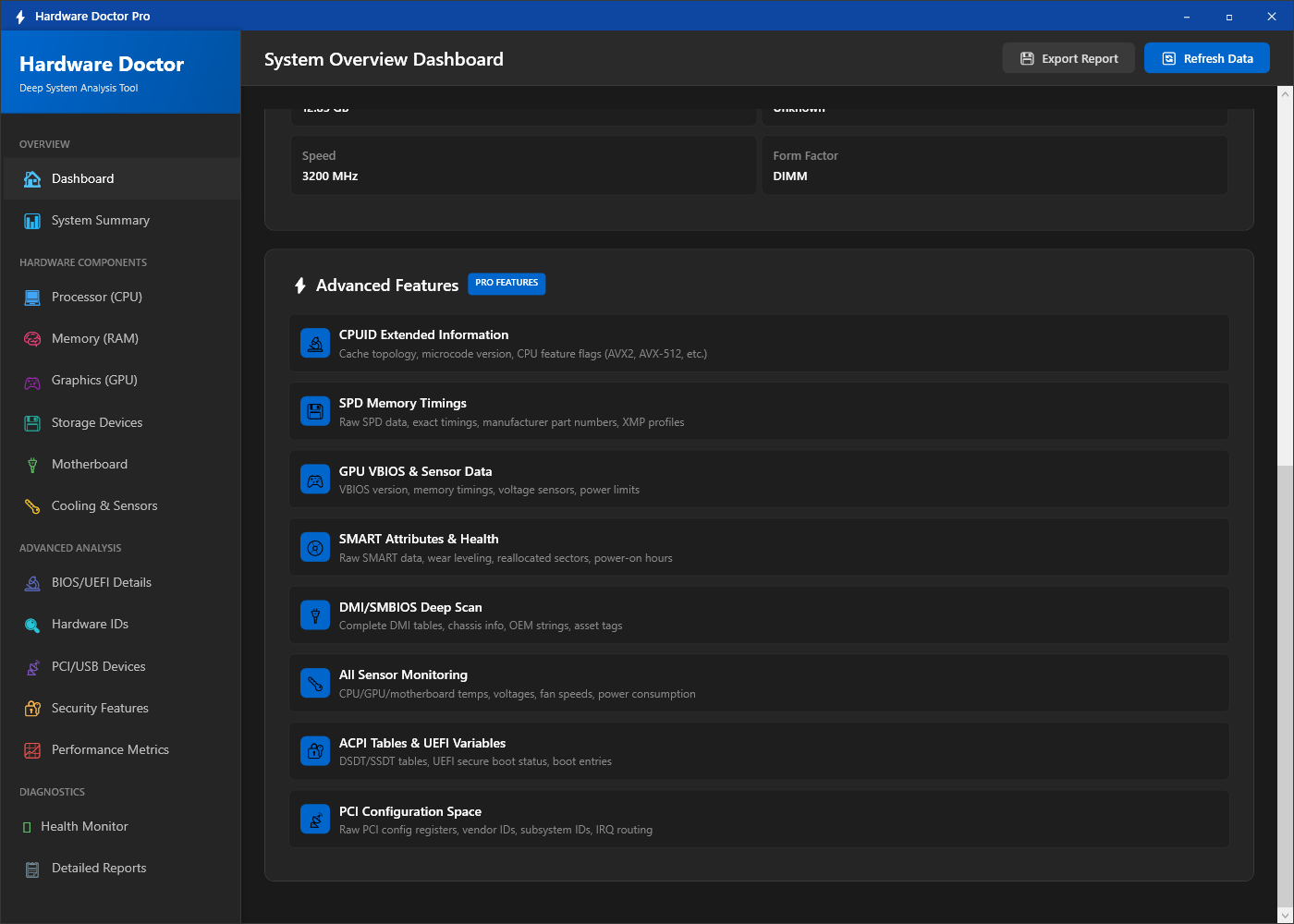
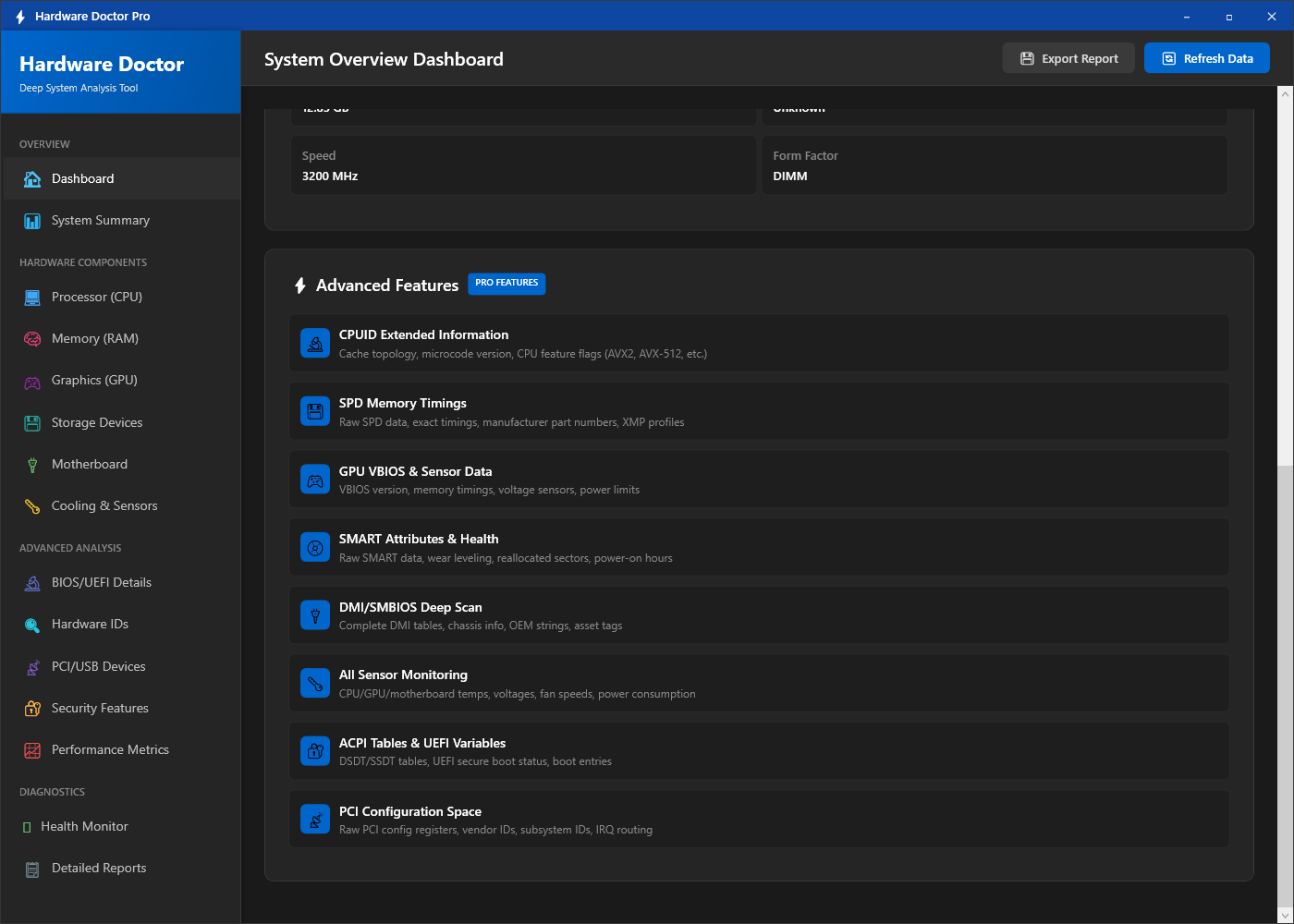
14. Advanced System Features
The advanced features screen reports on platform-level capabilities that affect what software and Windows features you can use: virtualisation support (Intel VT-x / AMD-V), Hyper-V availability, hardware Data Execution Prevention (DEP), NX bit support and other advanced processor and chipset features. This information is essential for users planning to run virtual machines, Docker containers or Windows Subsystem for Linux 2 — all of which require virtualisation to be both supported in hardware and enabled in the BIOS.
Who Is Hardware Doctor For?
- PC builders and upgraders — Get the complete specification of a system before buying components, confirming compatibility of CPU, RAM and GPU upgrades.
- Technical support professionals and IT administrators — Quickly document and diagnose system hardware without opening the case or running multiple separate tools.
- Users buying or selling a used PC — Get an independent, complete specification of a machine before purchase, or provide a verified specification sheet when selling.
- Users troubleshooting hardware problems — Thermal monitoring, S.M.A.R.T. drive health and component status indicators identify hardware issues before they become data-loss events.
- Windows 11 compatibility checking — Verify TPM 2.0, Secure Boot and CPU compatibility in a single application rather than running Microsoft’s separate PC Health Check tool.
System Requirements
- Operating System: Windows 10 (64-bit) or Windows 11
- Processor: Any modern x64 processor
- RAM: 4 GB minimum
- Storage: 80 MB for the application
- Permissions: Administrator rights recommended for complete hardware access
- Internet: Not required — fully offline
Frequently Asked Questions
Does Hardware Doctor require any special drivers to read sensor data?
No. Hardware Doctor reads temperature and fan speed data through the standard Windows WMI (Windows Management Instrumentation) interface and direct hardware polling. No additional drivers or kernel modules need to be installed.
How accurate is the S.M.A.R.T. health status for storage drives?
Hardware Doctor reads the raw S.M.A.R.T. attribute values reported by the drive’s own firmware. These values are the same data that enterprise storage monitoring tools use and provide a reliable early warning of drive degradation in the vast majority of cases.
Can it identify components in a brand-name (OEM) PC?
Yes. Hardware Doctor reads hardware identifiers at the firmware level, so it correctly identifies components in OEM systems (Dell, HP, Lenovo, etc.) that may use non-standard or rebranded hardware — including the specific OEM model number of the motherboard and other components that would show generically in Device Manager.
Does it export the system specification as a report?
Yes. Hardware Doctor can export the full system specification as a formatted text or HTML report, useful for keeping a record of a machine’s specification or sharing it with technical support.
Everything Inside Your PC, in One Place
Knowing what is inside your PC should not require opening the case, running BIOS diagnostics or cross-referencing four different tools. Hardware Doctor puts the complete hardware specification of your system — every component, every sensor, every identifier — in a single, clearly organised application that reads it all in seconds.
Whether you are buying components, diagnosing a problem, planning a Windows upgrade or simply satisfying your curiosity about what your machine is made of, Hardware Doctor is the definitive answer. Download Hardware Doctor now — free to try, no account required.
Download Hardware Doctor
Complete hardware diagnostics — CPU, RAM, GPU, storage and sensors in one app