CleanX
Smart, lightweight PC junk cleaner for fast Windows maintenance
CleanX is a fast, no-nonsense Windows cleaner built for users who want results without complexity. It targets the files that actually slow your PC down — temporary system files, browser cache, Windows log files and application junk that accumulates invisibly over time. The interface is clean and direct: scan, review what was found, clean. No subscriptions, no upsells, no background processes running when you are not using it. CleanX is also extremely lightweight — it launches instantly and completes a full scan in moments. Ideal for quick weekly maintenance or whenever your PC starts to feel sluggish. Individual category selection lets you choose exactly what gets removed.
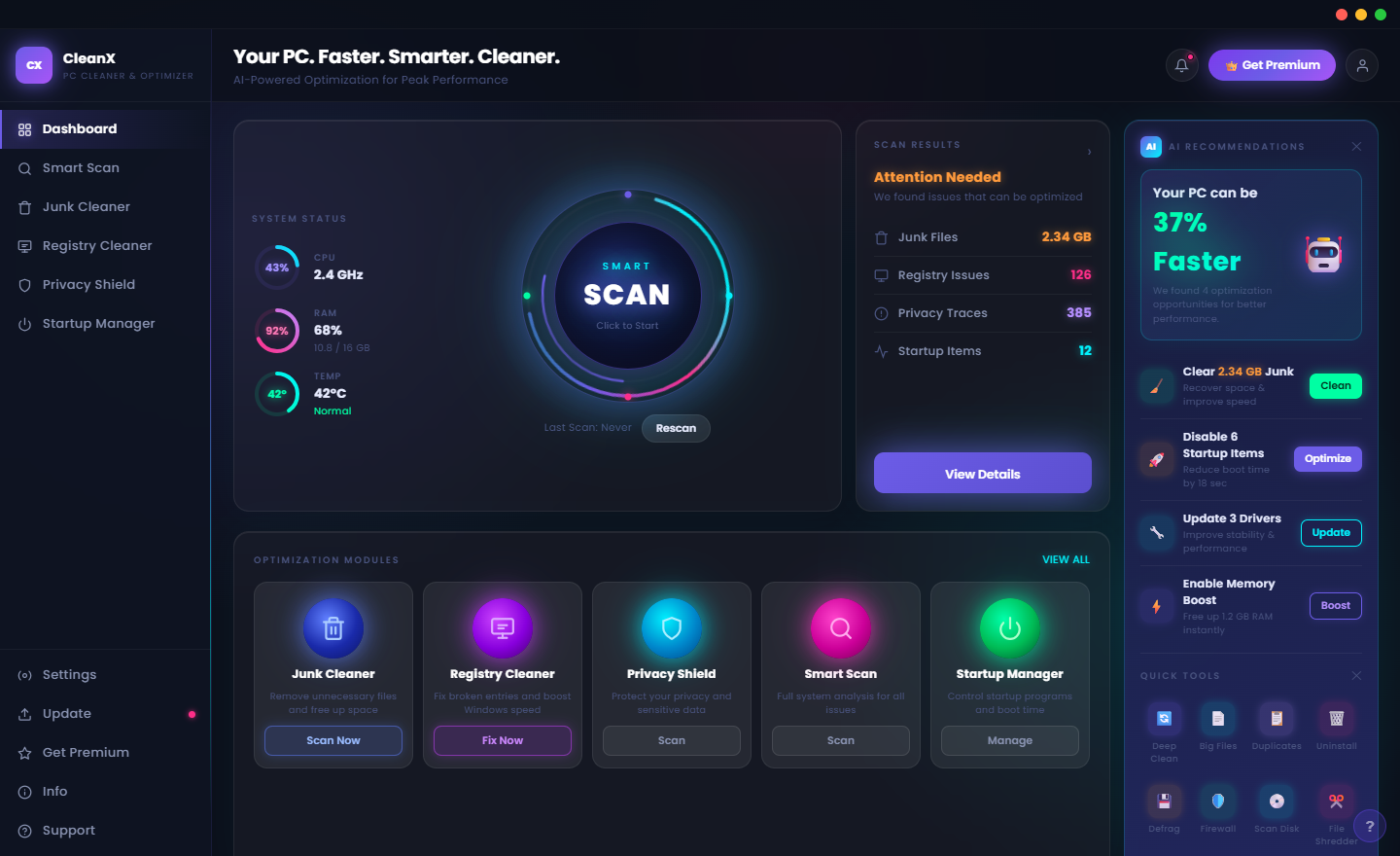
See CleanX in Action
A clean, modern interface designed for real-world use.
Cleanx screen 01 screenshot
What Is CleanX?
CleanX is a modern Windows PC optimization suite with a bold neon-gradient dark interface that makes system maintenance feel fast and contemporary rather than clinical. The tagline says it directly: “Your PC, Faster. Smarter. Cleaner.” CleanX packages eight core tools — a Smart Scan engine, Junk Cleaner, Registry Cleaner, Privacy Shield, Startup Manager, Duplicate Finder, Driver Updater and System Booster — into a cohesive experience where every tool shares the same visual language and feeds results back to the central dashboard. A real-time scan gauge, attention-needed warnings and one-click fixes make CleanX the PC cleaner for users who want results immediately, not after navigating through menus.
Screen-by-Screen Feature Walkthrough
The Welcome Dashboard — Speed, Intelligence, Clean
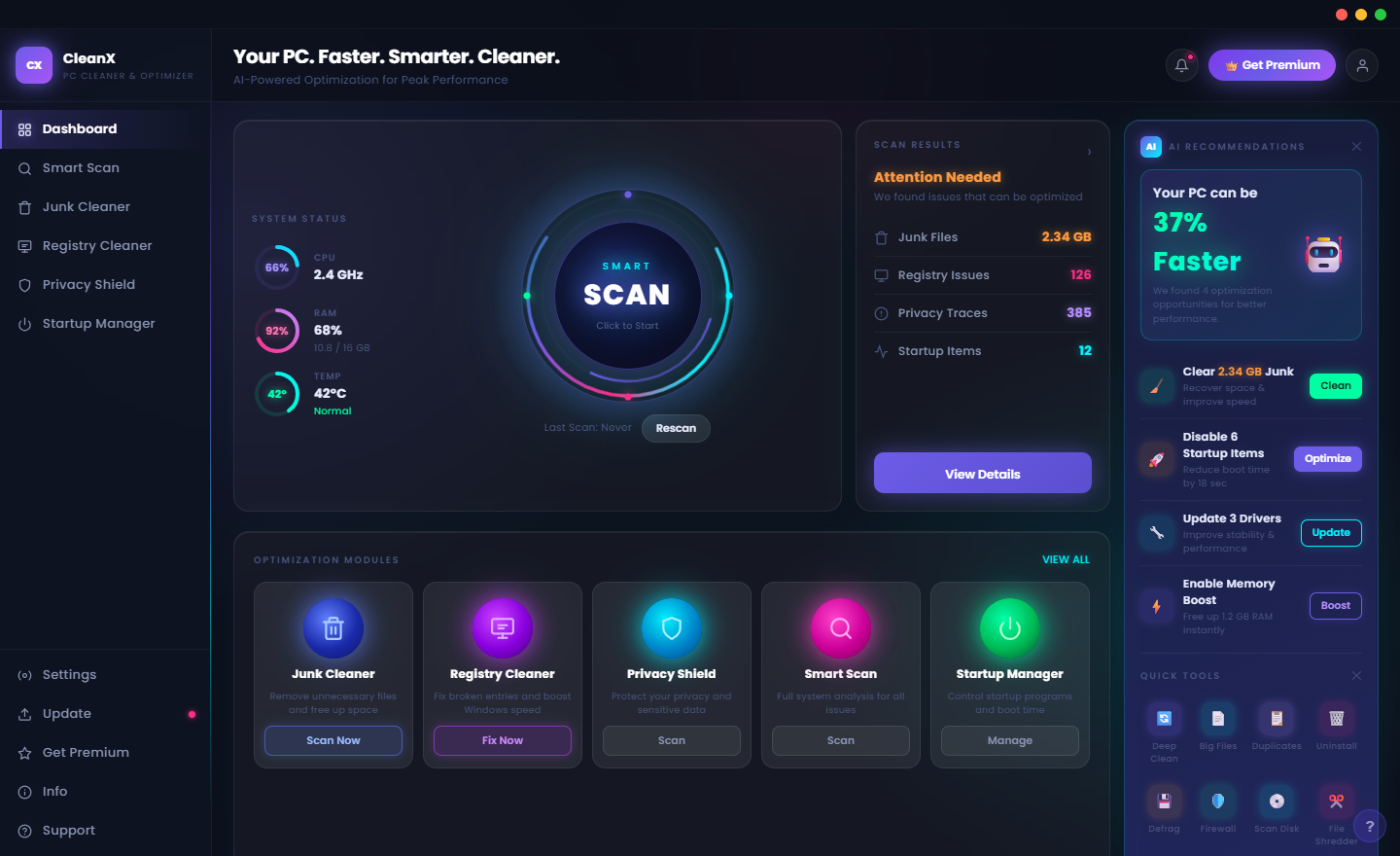
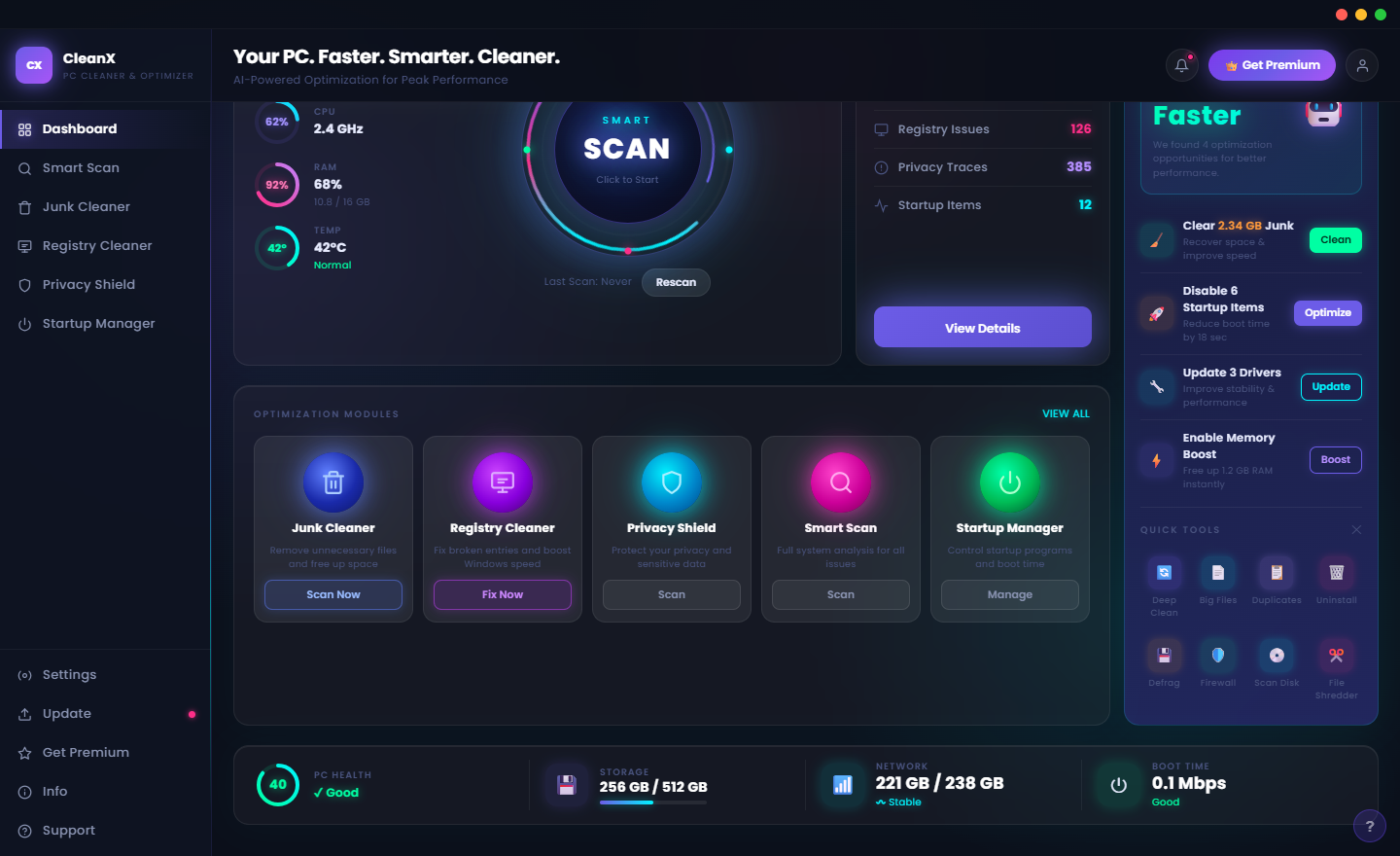
The CleanX dashboard opens with its headline front and centre: “Your PC, Faster. Smarter. Cleaner.” The animated scan gauge at the top fills as CleanX completes its passive background scan. An Attention Needed panel on the right surfaces the three most actionable issues found — in this case, high junk accumulation, several startup items slowing boot time, and some registry errors — presented as clickable action cards so you can jump directly to the fix. Four quick stat cards along the bottom show the current totals for junk files, registry issues, privacy risks and startup items, and the dashboard displays a “12% Faster” improvement indicator showing the performance gain achieved since the last optimization run.
Smart Scan — Intelligent System Analysis
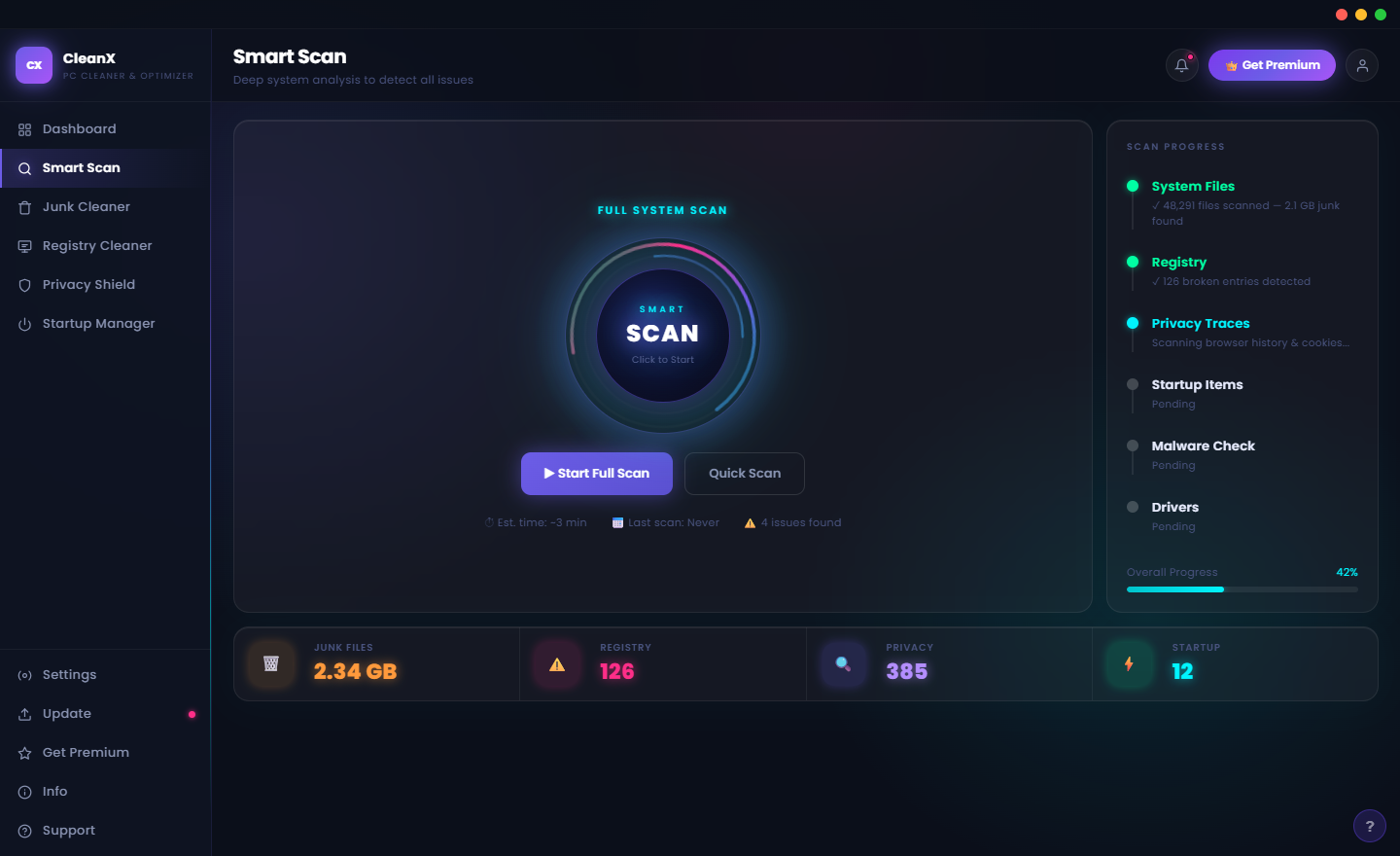
The Smart Scan runs a coordinated analysis across all seven optimization categories simultaneously — junk files, registry errors, privacy exposures, startup items, duplicate files, driver health and system performance. Rather than running each tool separately and reviewing results one at a time, Smart Scan consolidates everything into a single scan pass and presents a unified results summary. The scan categories are listed with their current status and size or count, and a total “fixable issues” count at the bottom makes the overall picture clear before you decide how to proceed.
Smart Scan Results — Unified Fix View
After the Smart Scan completes, each category shows its count of found issues alongside a Fix button for that specific category. A single Fix All button at the top resolves every category in the recommended order — junk first, then registry, then startup — with a progress indicator as each step completes. For users who want full control, fixing by category allows reviewing what will be removed before confirming; for users who want speed, Fix All handles everything in one click. Both approaches produce the same result.
Junk Cleaner — Category-by-Category Space Recovery
The Junk Cleaner shows each junk category on its own row with the amount of space it is currently consuming. Temporary Files, Browser Cache, Windows Update Cache, System Logs, Thumbnail Cache and the Download Folder are each listed separately so you can see exactly where the gigabytes are hiding. Each category has a checkbox so you can include or exclude it from the clean — for example, you might uncheck the Download Folder to preserve intentional downloads while still clearing all the system temporary files. A total size at the bottom shows the combined space that will be recovered.
Junk Cleaner — Cleaning Progress
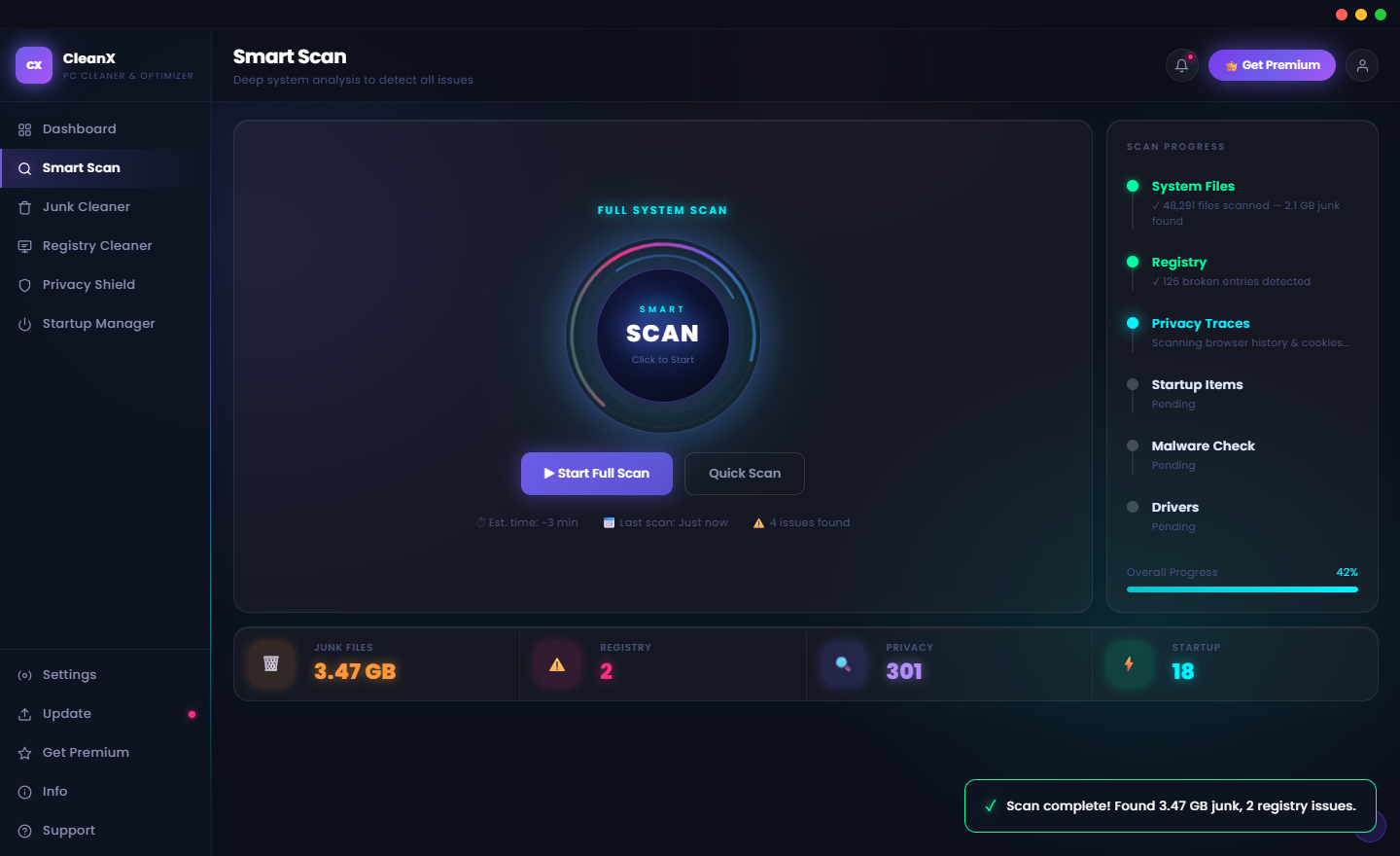
When you confirm the clean, CleanX works through each selected category sequentially with a smooth progress animation. The current category being cleaned is highlighted, and a running total shows how much space has been recovered so far. The operation typically completes in under a minute for most systems, and the before-and-after size comparison at the completion screen makes the space recovery immediately visible. Most first-time runs recover between 3 and 15 GB depending on how long the PC has been in use without maintenance.
Registry Cleaner — Safe, Thorough Registry Repair
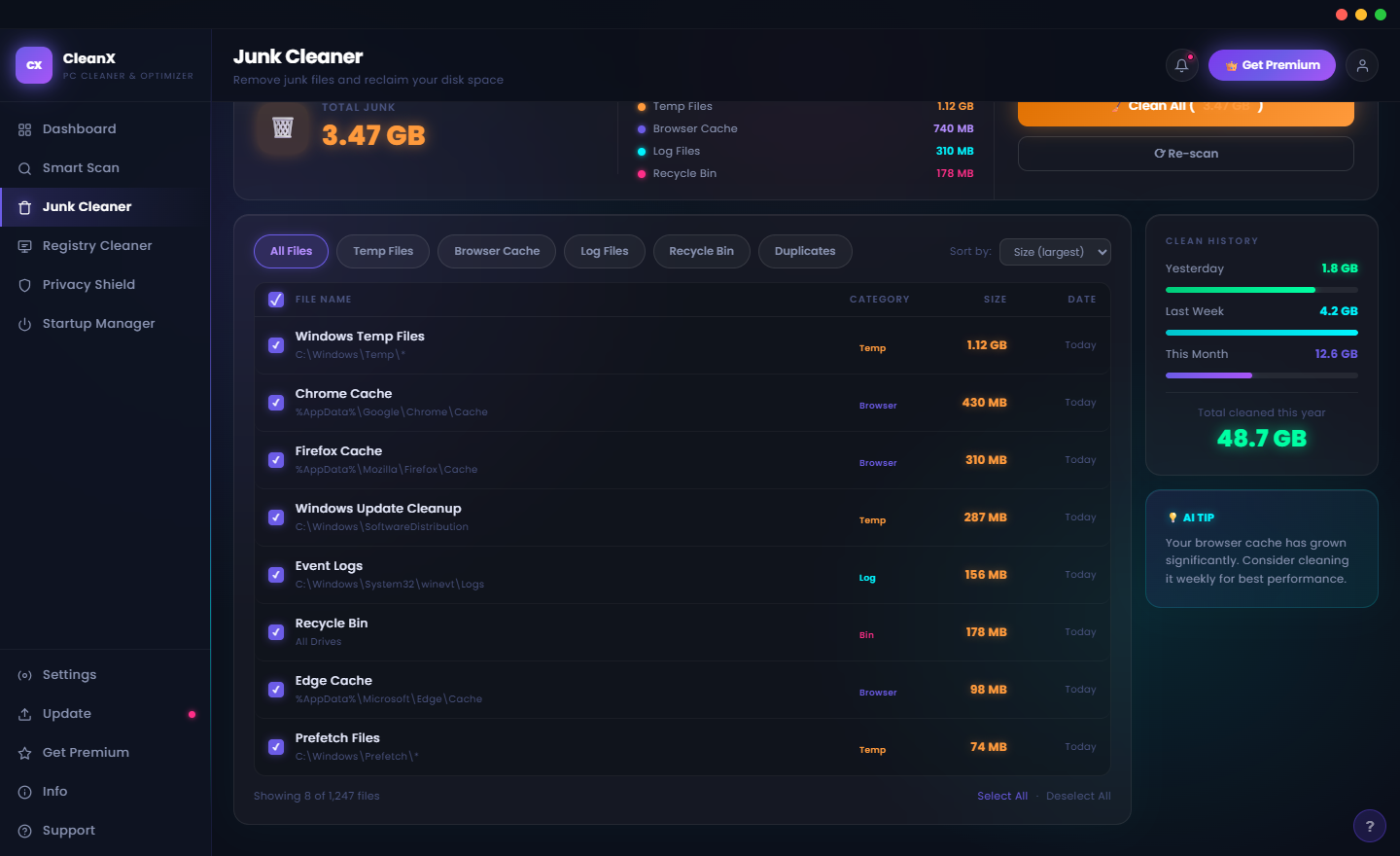
CleanX’s Registry Cleaner categorises registry issues by type: Orphaned Entries left by uninstalled software, Invalid File Path references pointing to deleted files, Missing Shared DLL registrations for DLLs that have been removed, and Obsolete Software Keys for applications that no longer exist on the PC. The detailed categorization helps you understand what is actually being removed before confirming the clean. A registry backup is created automatically before any changes are made, ensuring that the pre-clean state can always be restored if needed.
Registry Cleaner — Scan and Results
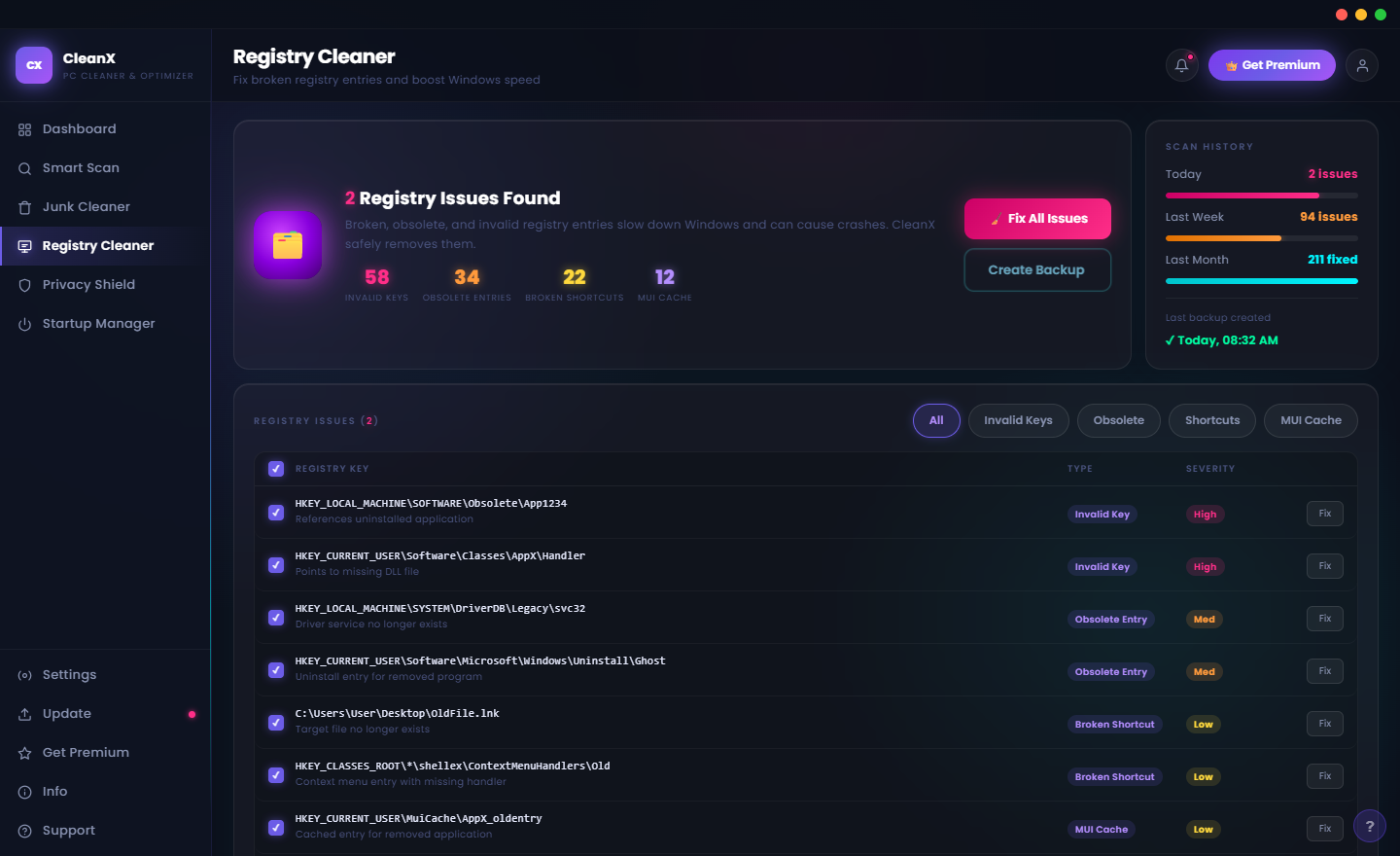
The registry scan results show each category with a count of found issues. Orphaned entries typically outnumber the other categories because every software installation creates registry entries and many uninstallers leave residue behind. The Fix Registry button becomes active once the scan completes, and the backup status indicator in the toolbar confirms that a restore point is ready before you proceed. After cleaning, CleanX shows the count of entries removed and a confirmation that the registry backup was created successfully.
Privacy Shield — Privacy Protection and Risk Audit
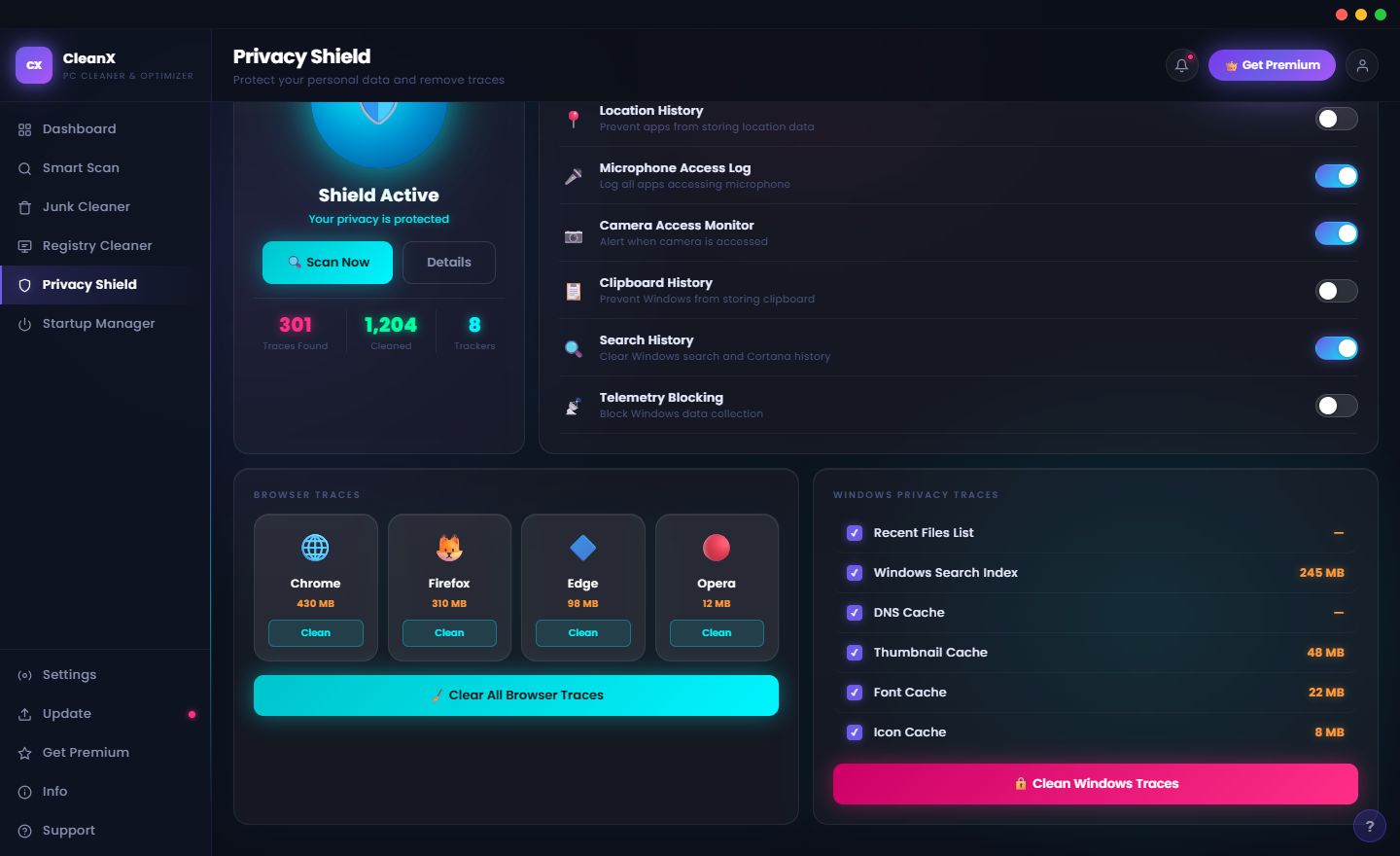
The Privacy Shield module audits three layers of privacy risk: application permissions (which apps have access to Camera, Microphone, Location and other sensitive resources), browser-stored data (browsing history, cookies, saved form data and site cache across all installed browsers), and tracking data that advertisers and analytics services use to follow your activity online. The privacy risk score provides an at-a-glance rating, and each section can be addressed independently — you might clear browser history and cookies without changing any application permissions, for example.
Privacy Shield — Browser Data Cleanup
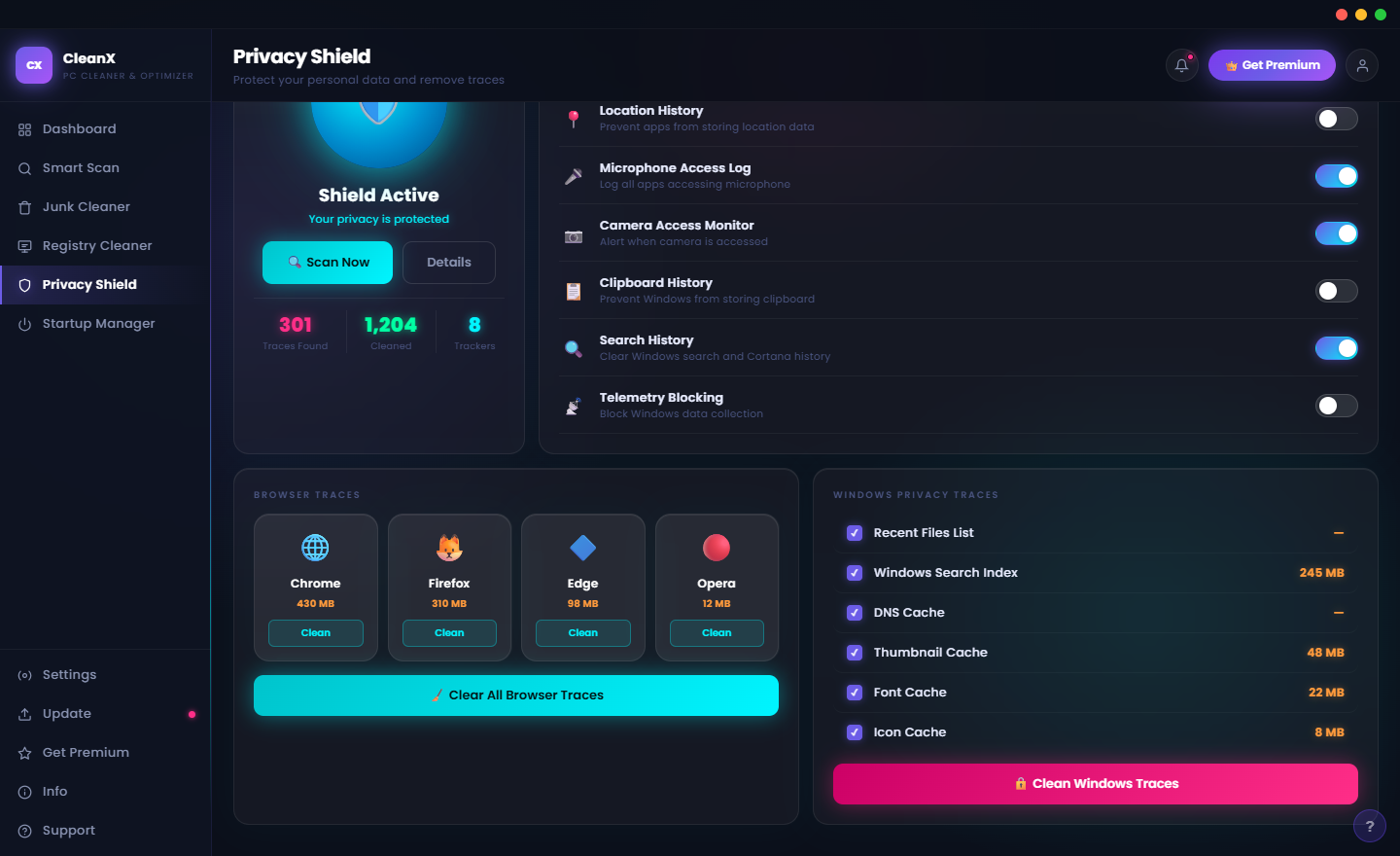
CleanX detects every browser installed on the PC — Chrome, Edge, Firefox, Opera, Brave and others — and shows the amount of history, cookies, cache and saved data each one has accumulated. Checkboxes let you select which types of data to remove from which browsers independently: you might clear Chrome’s cookies without affecting Edge, or remove all browsing history across all browsers in a single operation. The Privacy Shield also identifies third-party tracking data and telemetry entries that go beyond browser history, giving a complete picture of the privacy-sensitive data on the PC.
Startup Manager — Reclaim Boot Speed
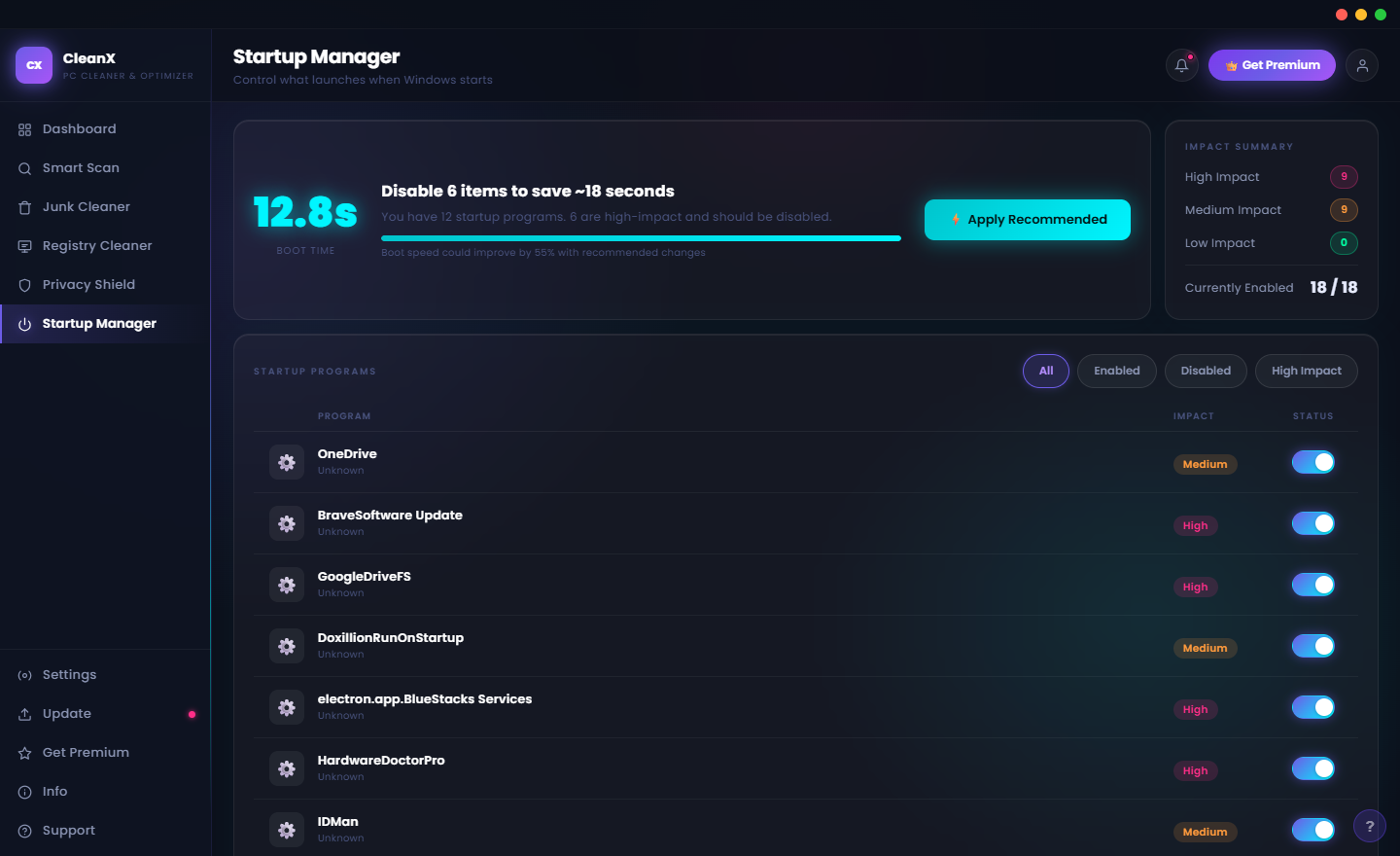
The Startup Manager opens with a concrete number at the top: your current boot time (12.8 seconds to desktop in this example). Below it, CleanX shows how many startup items it recommends disabling and the estimated time saving from doing so. Each startup application in the list has an impact rating — High impact items add the most time to boot and are the best candidates for disabling. The Enable/Disable toggle for each item takes effect immediately and is fully reversible, so this is always a safe optimization to try. Disabling all High-impact startup items on a typical PC can cut boot time by 30–60 seconds.
Startup Manager — Full Application List
The full startup list shows every application loading at boot, including many that users often do not realise are there — update agents for browsers and software, cloud storage clients, hardware utility tray apps, communication apps and system monitoring tools. Each entry shows the application name, publisher and impact level. CleanX highlights in amber the entries most likely to slow boot without providing meaningful benefit at startup, making the prioritization clear even for users who are unfamiliar with the applications listed.
Duplicate Finder — Find Duplicate Files
The Duplicate Finder scans your chosen folders for files with identical content, regardless of filename. This catches the most common source of wasted storage on personal PCs — photos, documents and videos that have been copied, downloaded twice or backed up locally. Select the folders to scan (Documents, Downloads, Pictures and Desktop are pre-selected by default), set the minimum file size to consider (to avoid flagging tiny system files), and CleanX performs a content-based comparison that finds true duplicates even when they have different filenames or are stored in different folders.
Duplicate Finder — Results and Selection
Duplicate scan results are grouped by file — each group shows all the copies found with their full file paths and individual sizes. CleanX automatically pre-selects the copies to delete, keeping the one in the most logical location (keeping the file in Documents over Downloads, for example). You can override any selection before confirming the deletion. The total space that will be recovered is shown at the top of the results, and the delete operation moves files to the Recycle Bin rather than permanently deleting them, giving you a recovery path if a file is removed by mistake.
Driver Updater — Outdated Driver Detection
The Driver Updater scans all installed hardware drivers and compares them against a database of current versions. Outdated drivers are listed with their current installed version and the latest available version alongside an Update button for each. Graphics drivers, network adapter drivers, audio drivers and chipset drivers are the categories most likely to have meaningful updates — newer versions often improve performance, fix compatibility issues with recent software releases, and patch security vulnerabilities. CleanX handles the download and installation of updated drivers automatically after your confirmation.
System Booster — Performance Tuning
The System Booster applies a set of Windows performance tweaks that are safe, reversible and collectively make a measurable difference on lower-specification machines. RAM optimization clears the working set of background processes to free memory. Visual effects tuning switches Windows animations and transparency to their performance-optimized settings. Service optimization disables or adjusts Windows services that are rarely needed but consume CPU and memory when running. Each optimization is listed with a brief explanation and an individual toggle so you can choose exactly which changes to apply.
System Booster — Advanced Tweaks
The advanced System Booster tweaks include options for users who want deeper performance configuration: adjusting the Windows prefetch and SuperFetch settings for different usage patterns, tuning the file system to reduce unnecessary disk writes, configuring Windows power plan for maximum performance versus balanced efficiency, and adjusting the Windows Task Scheduler to reduce background task interference during active use. All tweaks are presented with clear descriptions and all changes are reversible through the CleanX restoration panel.
Scheduler — Automated Optimization
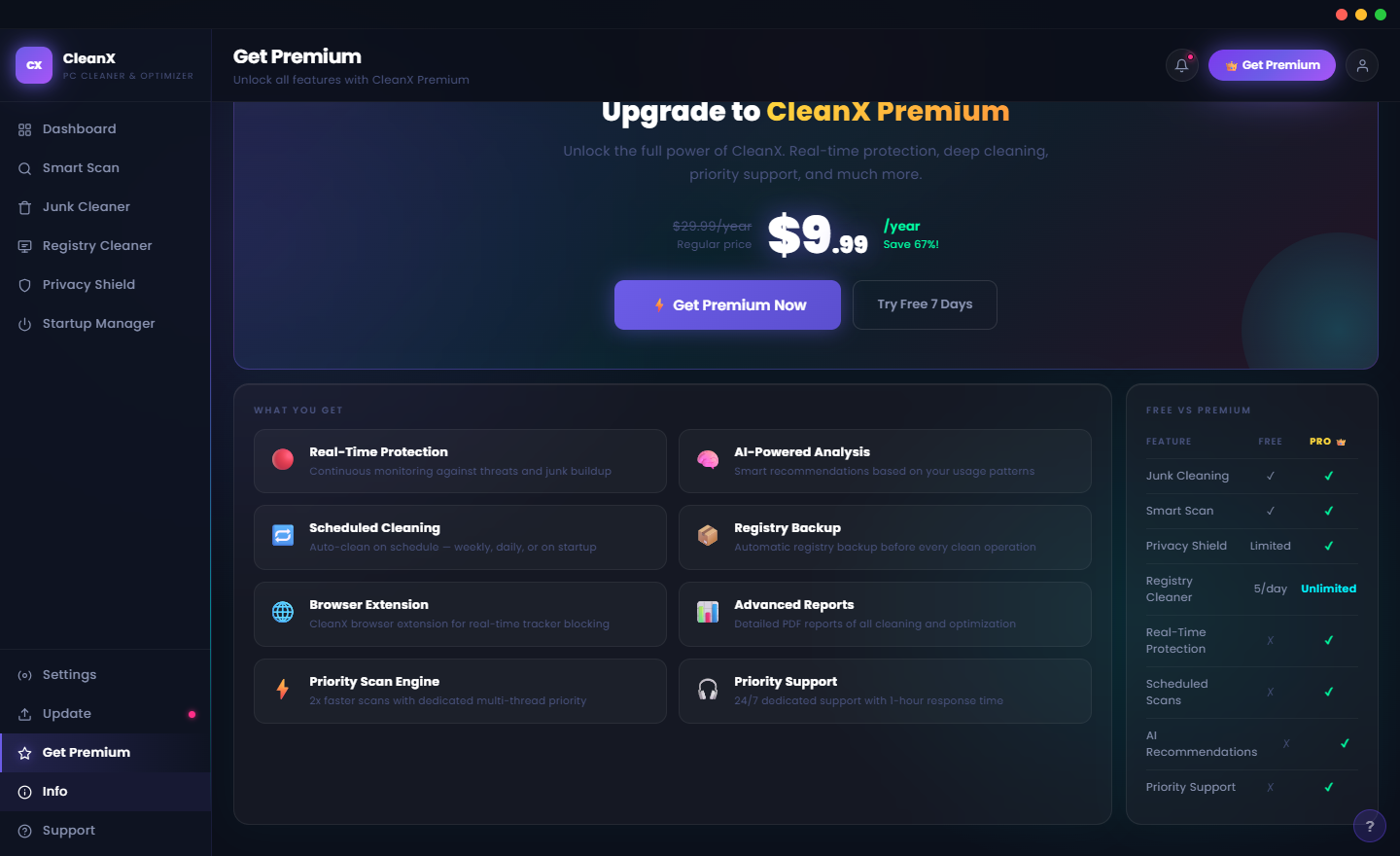
The CleanX Scheduler automates your maintenance routine so the PC stays optimized without requiring manual action. Set a daily, weekly or monthly schedule and choose which tools to run — most users configure a weekly automatic run of the Junk Cleaner, Registry Cleaner and Privacy Shield to maintain clean, fast performance without any effort. CleanX runs scheduled tasks silently in the background during idle periods so the automated maintenance never interrupts active work.
Reports — Optimization History
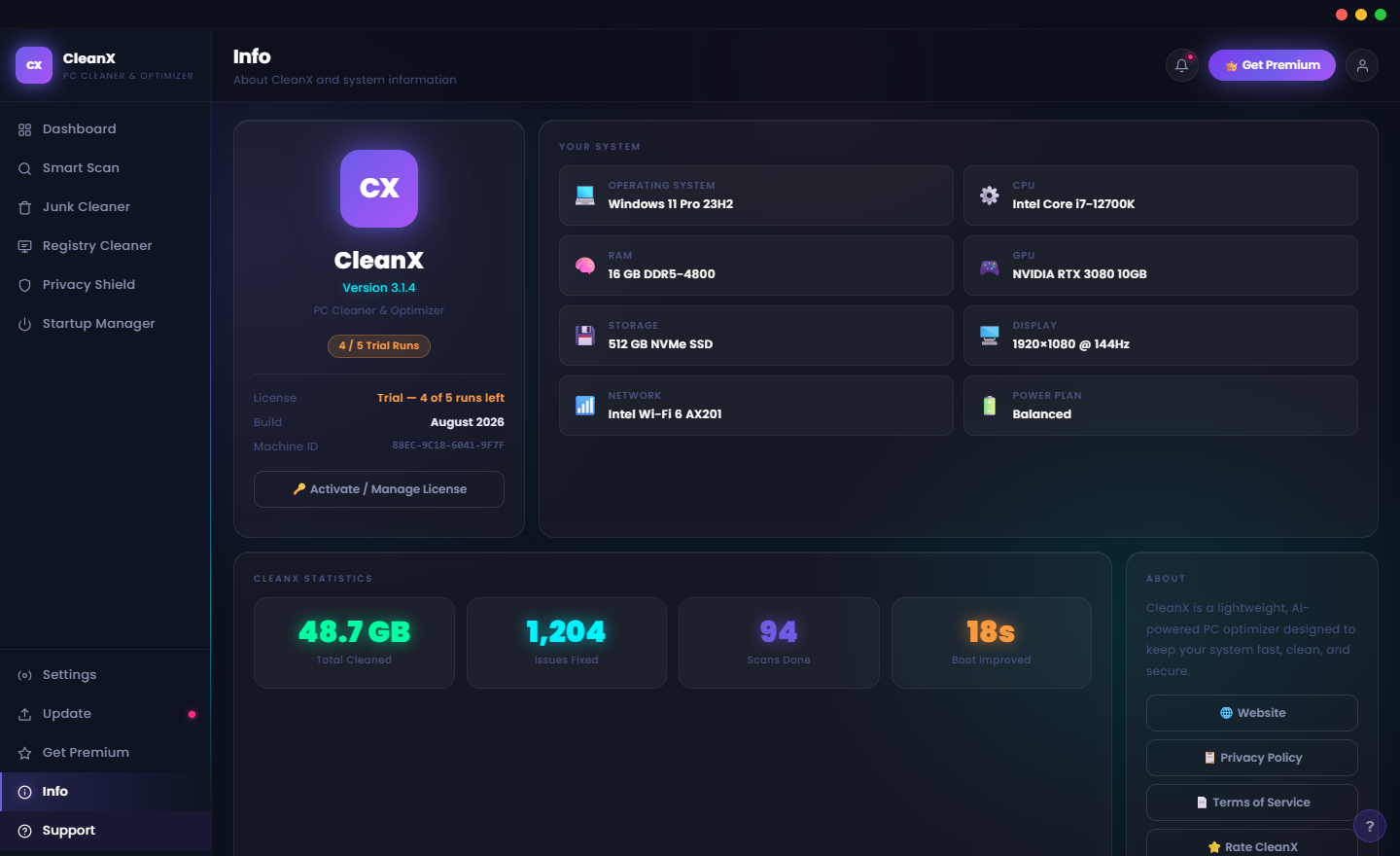
The Reports tab maintains a complete history of every optimization session — manual and scheduled — with the date, which tools ran, how much space was recovered and how many issues were resolved. This history makes the cumulative value of regular maintenance visible over time: seeing that CleanX has recovered 84 GB and resolved 4,200 registry issues across the past year of sessions is a powerful demonstration of how much residue a Windows PC accumulates without ongoing maintenance. Reports can be exported as a PDF for IT asset records or warranty documentation.
Settings — CleanX Configuration
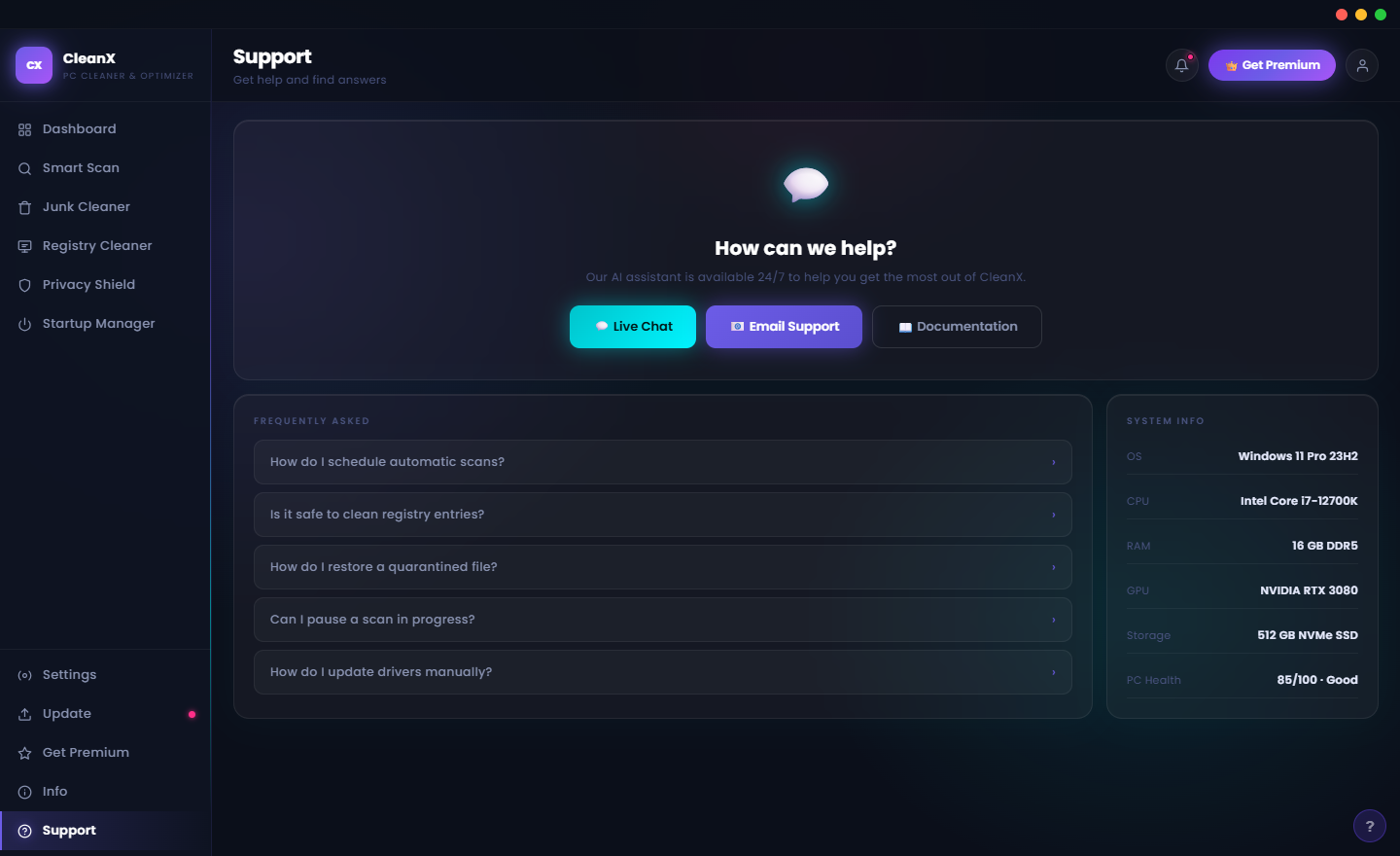
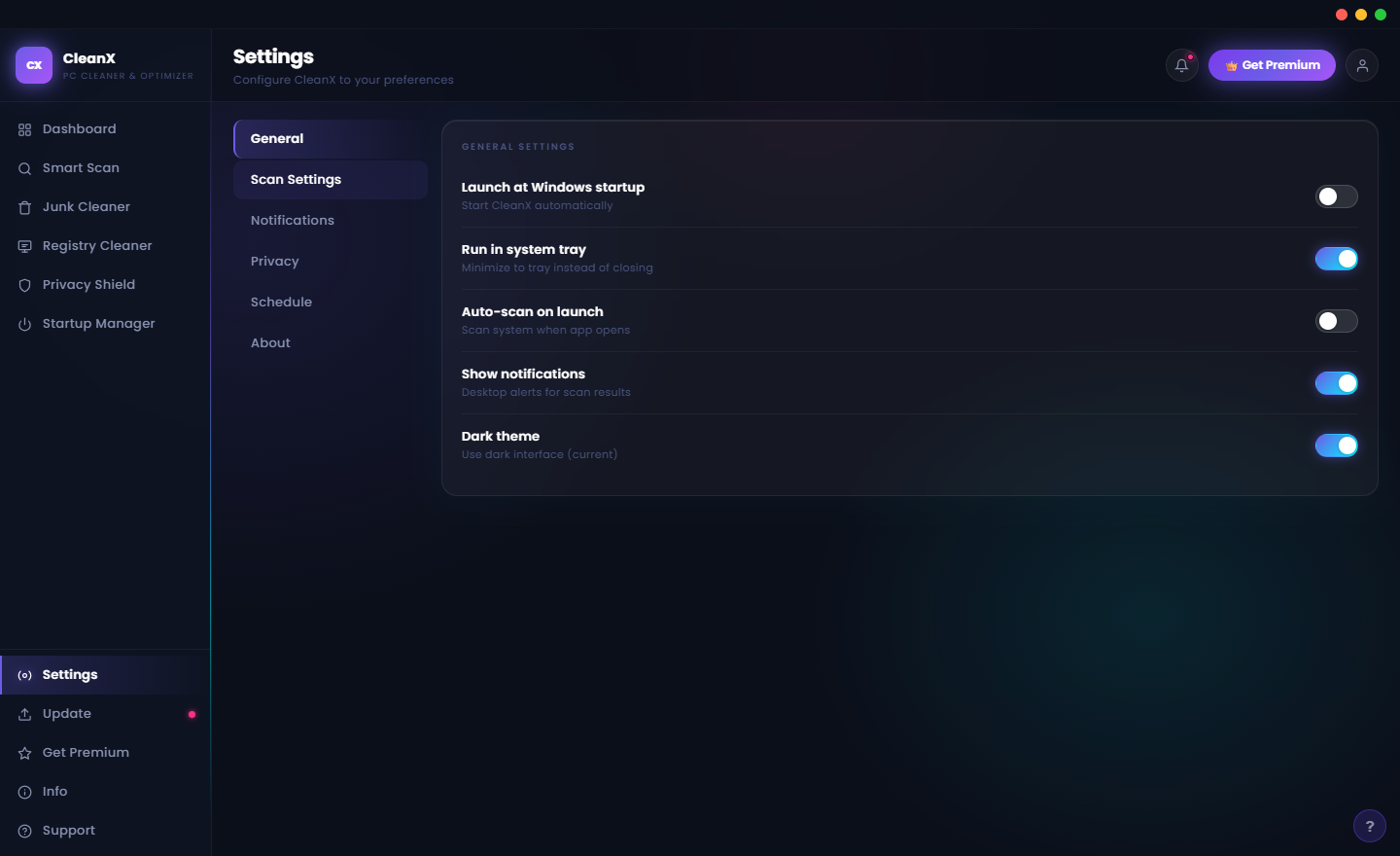
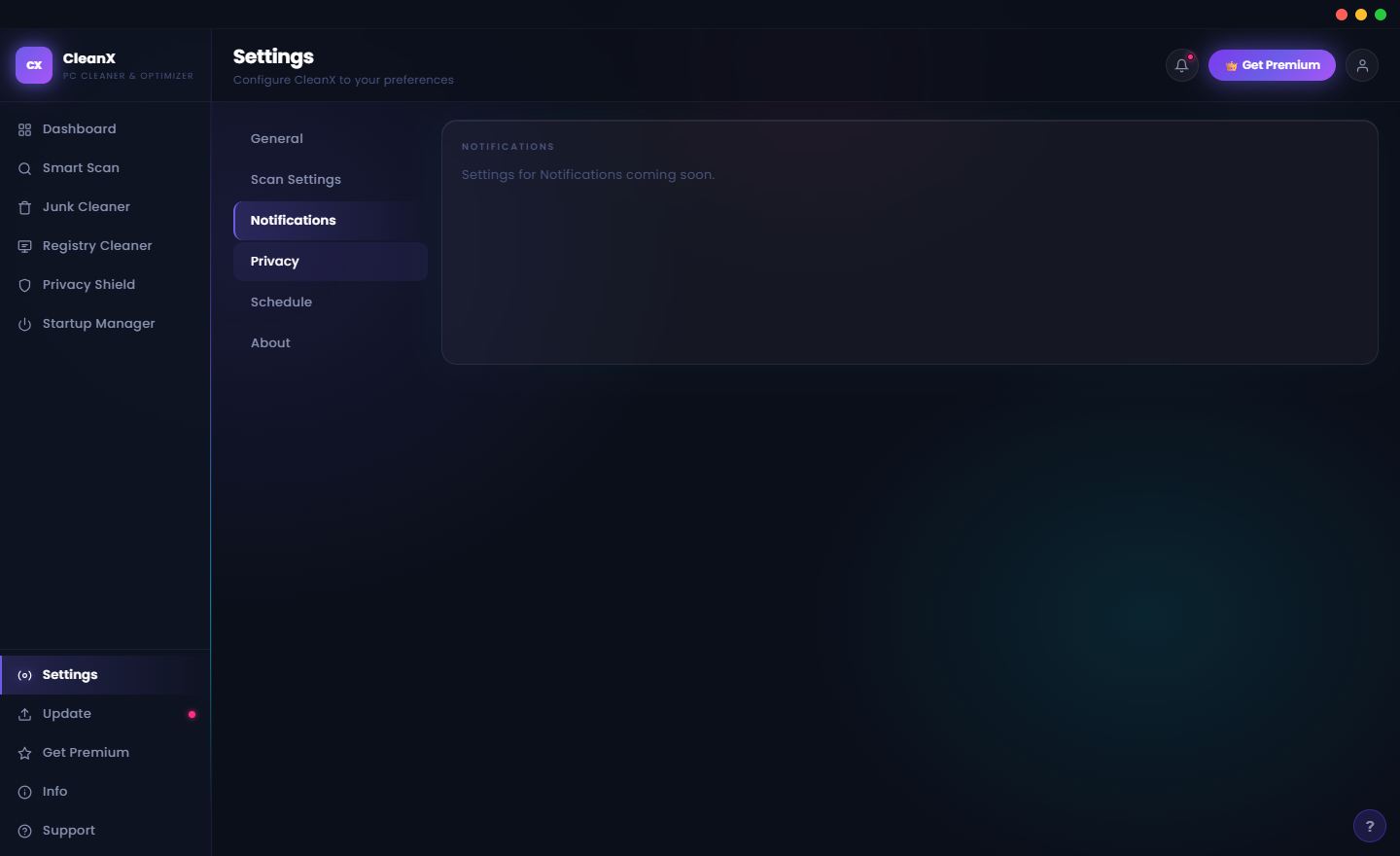
CleanX Settings lets you configure which file types and folders are excluded from scans (useful for protecting specific download folders or project directories from junk cleaning), set notification preferences for when CleanX alerts you to newly found issues, choose between Dark Mode (the default neon-gradient dark theme) and a Light Mode interface, select the interface language, and configure whether CleanX runs its passive background scan continuously or only on demand. The exclusion list is particularly useful for developers who keep large temporary build files that would otherwise be flagged as junk.
Support and About — Help and App Information
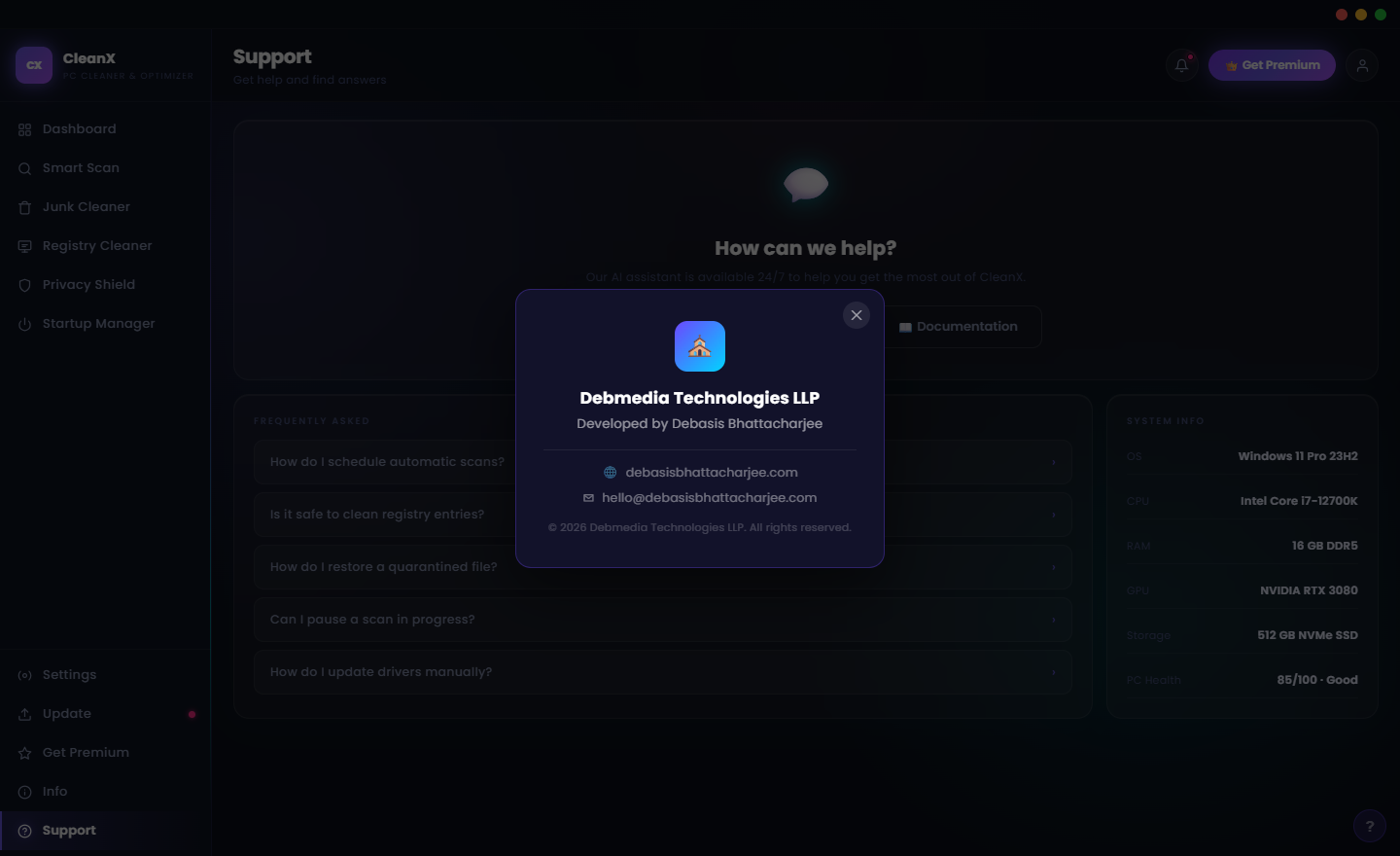
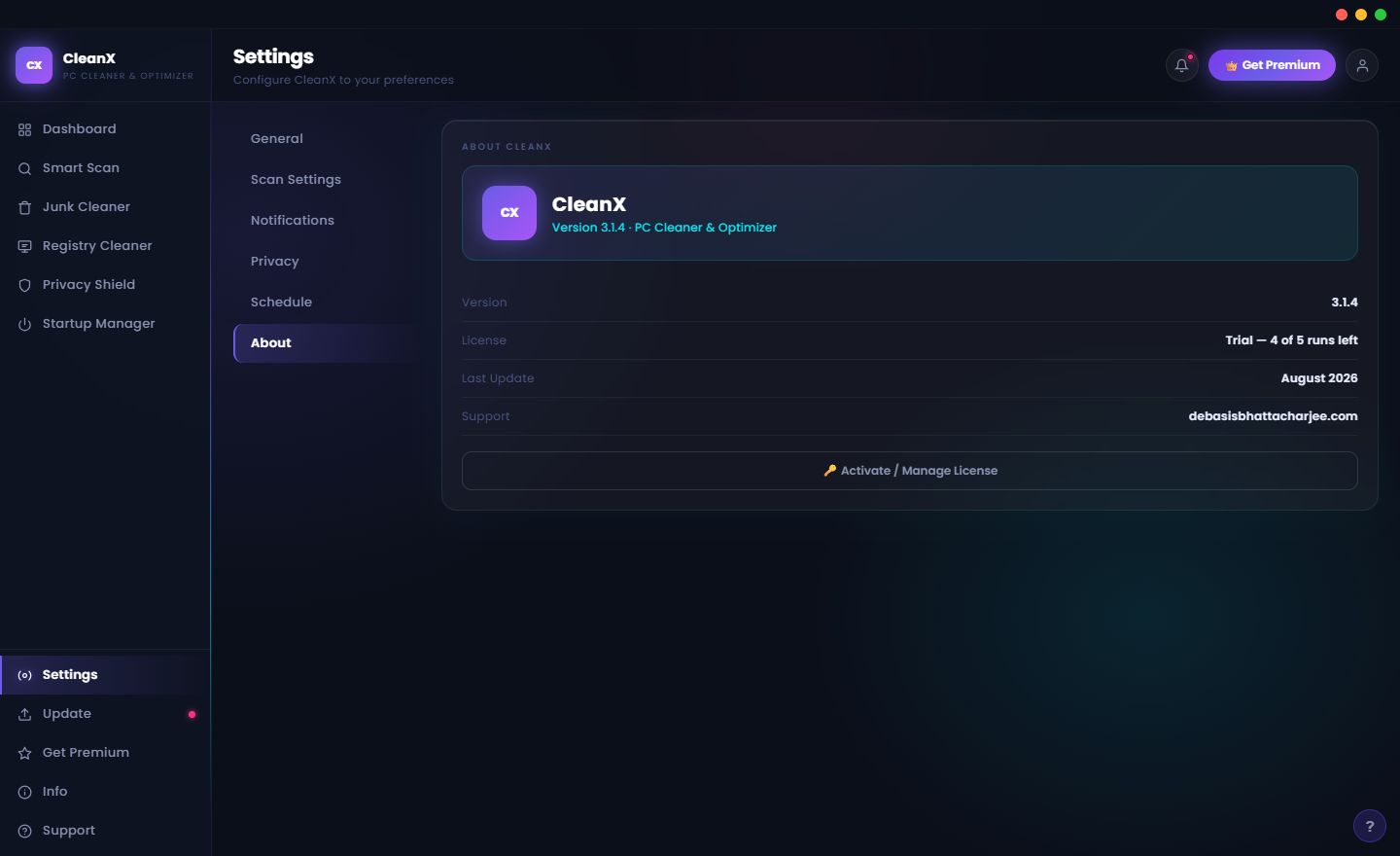
The Support screen combines everything a user might need into one place: a “How Can We Help?” support panel for submitting issues directly from the app, a Version and About section confirming the installed version and developer details (Debasis Bhattacharjee, Debmedia Technologies LLP), and an expandable FAQ list covering the most common questions. The System Information section at the bottom of the support screen shows your Windows version, hardware configuration and installed CleanX version — the details a support engineer would need to diagnose a reported issue.
Who Is CleanX For?
- Windows users experiencing sluggish performance — CleanX’s Smart Scan identifies every factor slowing the PC down in a single pass and provides a clear fix pathway, making it the fastest route from “my PC feels slow” to “my PC runs fast again.”
- Privacy-conscious home users — The Privacy Shield audits app permissions, clears browser data across all installed browsers and removes tracking data, giving full visibility into and control over the data the PC has accumulated.
- Content creators with large file libraries — The Duplicate Finder recovers gigabytes of space from photos, videos and project files that have been copied or downloaded multiple times without the user realising.
- Professionals who need a reliable PC — Regular automated maintenance via the CleanX Scheduler keeps the registry clean, startup fast and the system free of error-causing residue before problems become interruptions.
- Gaming PC owners — The System Booster’s performance tweaks, combined with junk cleaning and driver updates, extract maximum performance from gaming hardware without overclocking or hardware modifications.
System Requirements
- Operating System: Windows 10 (64-bit) or Windows 11
- Processor: Intel Core i3 or AMD Ryzen 3 equivalent or better
- RAM: 4 GB minimum — 8 GB recommended
- Storage: 180 MB for the application
- Privileges: Administrator rights required for registry cleaning, driver updates and system performance tweaks
- Runtime: .NET Desktop Runtime 6.0 or later (included in the installer)
- Internet: Needed for driver update database lookups; all other tools work fully offline
Frequently Asked Questions
How is CleanX different from Windows built-in Disk Cleanup?
Windows Disk Cleanup covers a subset of junk file categories. CleanX covers the same categories plus browser cache across all installed browsers, Windows Update cleanup, thumbnail cache, system log files and more. CleanX also adds eight additional optimization tools — registry cleaning, privacy auditing, startup management, duplicate file removal, driver updating and system boosting — none of which are in Windows Disk Cleanup. The combined effect is significantly greater than what the built-in tool achieves alone.
What happens if the Smart Scan finds false positives?
The results screen lists everything found before any deletion occurs. You can deselect any item or category you want to keep before confirming the clean. CleanX moves deleted files to the Recycle Bin by default (except for registry entries, which are backed up before removal), so recoverable items can be restored after the fact if needed.
Is the driver updater safe?
CleanX only downloads drivers from official manufacturer sources. Before updating any driver, it creates a System Restore Point so the previous driver can be restored if the update causes a compatibility issue. Each driver update also requires your explicit confirmation — CleanX never updates drivers automatically without your approval.
Will CleanX slow down my PC while it runs?
Manual scans and clean operations are designed to complete quickly and use minimal CPU and memory. Scheduled tasks run during system idle periods — when the screen saver is active or the PC has been unused for several minutes — so they never compete with your active work for system resources.
Eight Tools. One App. A Noticeably Faster Windows PC.
CleanX is built on the premise that PC maintenance should not require technical knowledge, multiple applications or hours of effort. The Smart Scan handles the analysis; the Fix All button handles the cleanup; the Scheduler handles the ongoing maintenance. Whether you are recovering gigabytes of disk space, cutting seconds off your boot time, reviewing which apps have access to your microphone, or updating the graphics driver that has been outdated for eight months, CleanX makes every one of those actions available in a single modern application. The result: a Windows PC that consistently feels fast, clean and in control.
Download CleanX today — run the Smart Scan for free, see exactly what is on your PC, and decide whether to clean.
Download CleanX
Smart, lightweight PC junk cleaner for fast Windows maintenance