Explorer ++
Modern tabbed file manager with preview panel, tags, folder sizes and AI assistant
Explorer++ is a powerful Windows file manager built as a complete replacement for Windows Explorer. Browse your files in multiple tabs, open a dual-pane layout for fast file operations between folders, and use the preview panel to see the contents of images, documents and text files without opening a separate application. Explorer++ calculates folder sizes, shows file metadata at a glance, and supports custom tags for organizing files your way. The built-in quick search finds files instantly. Keyboard-driven operation covers nearly every action for power users who prefer to keep their hands off the mouse. Explorer++ also includes a built-in AI file assistant for natural-language file operations — describe what you want and it handles the rest.
See Explorer++ in Action
A clean, modern interface designed for real-world use.
Explorerplusplus about screenshot
What Is Explorer++?
Explorer++ is a tabbed file manager for Windows that replaces the single-window limitation of the built-in Windows Explorer with a faster, more powerful alternative. It adds multi-tab browsing (open multiple folders in tabs like a web browser), a dual-pane layout for side-by-side file operations, folder size calculation (showing exactly how much disk space each directory occupies), customisable column views, and a range of keyboard shortcuts that make file navigation and management significantly more efficient than standard Windows Explorer allows.
Explorer++ is designed for users who spend meaningful time managing files — it adds the features that power users have always wished Windows Explorer had, without requiring a subscription or changing the way Windows works for other applications.
Screen-by-Screen Feature Walkthrough
1. Main File Browser — Dual-Pane Layout
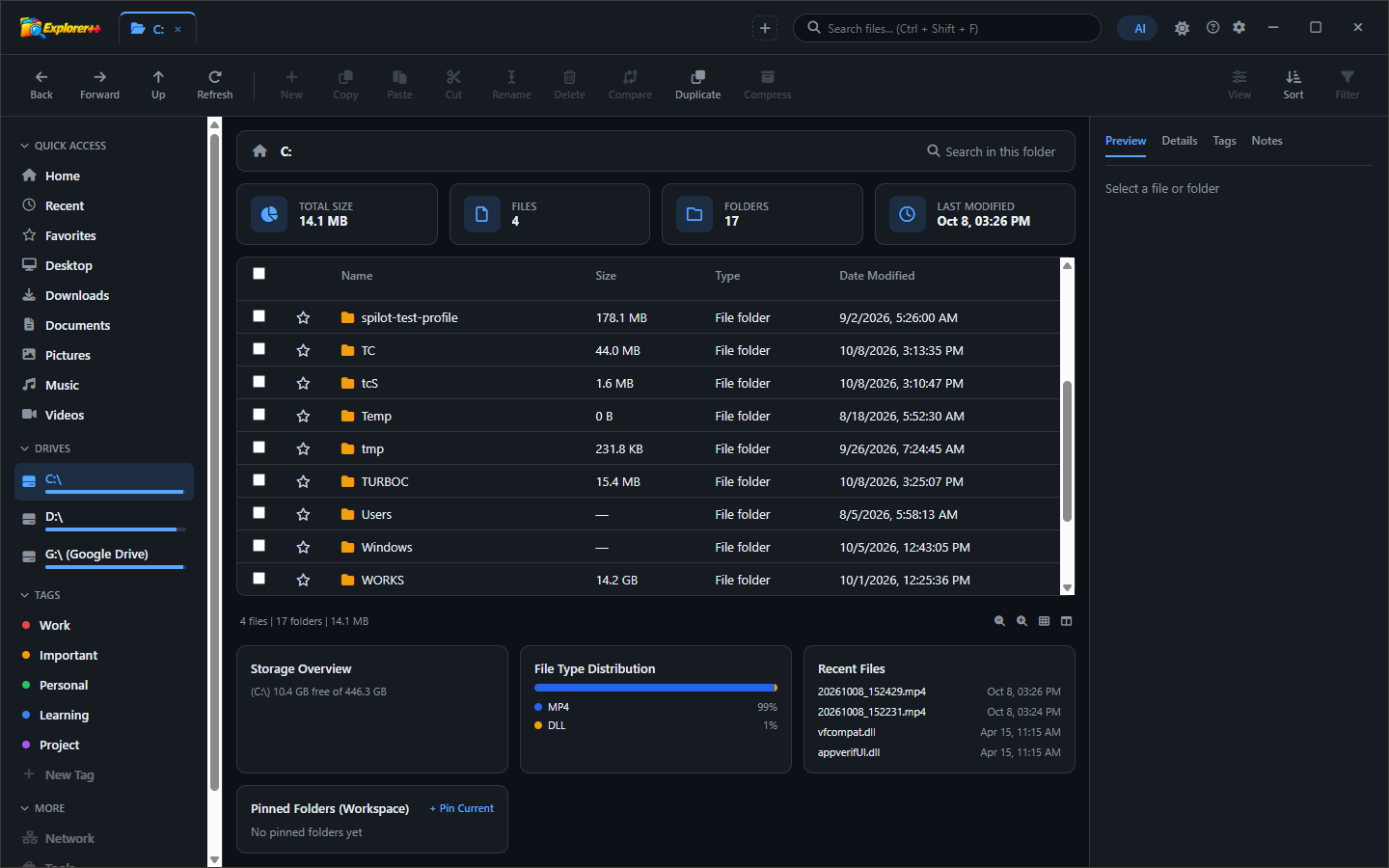
Explorer++ opens with a familiar file browser layout — directory tree on the left, file list on the right — but with meaningful additions. A tab bar at the top of the file panel lets you open multiple directories simultaneously, switching between them with a click the same way you switch between browser tabs. Column headers (Name, Size, Type, Date Modified) are all sortable and resizable. The address bar shows the current path and accepts typed paths directly. The layout is immediately familiar to any Windows user while being substantially more capable for users who need to work across multiple directories at once.
2. File Browser with Content View
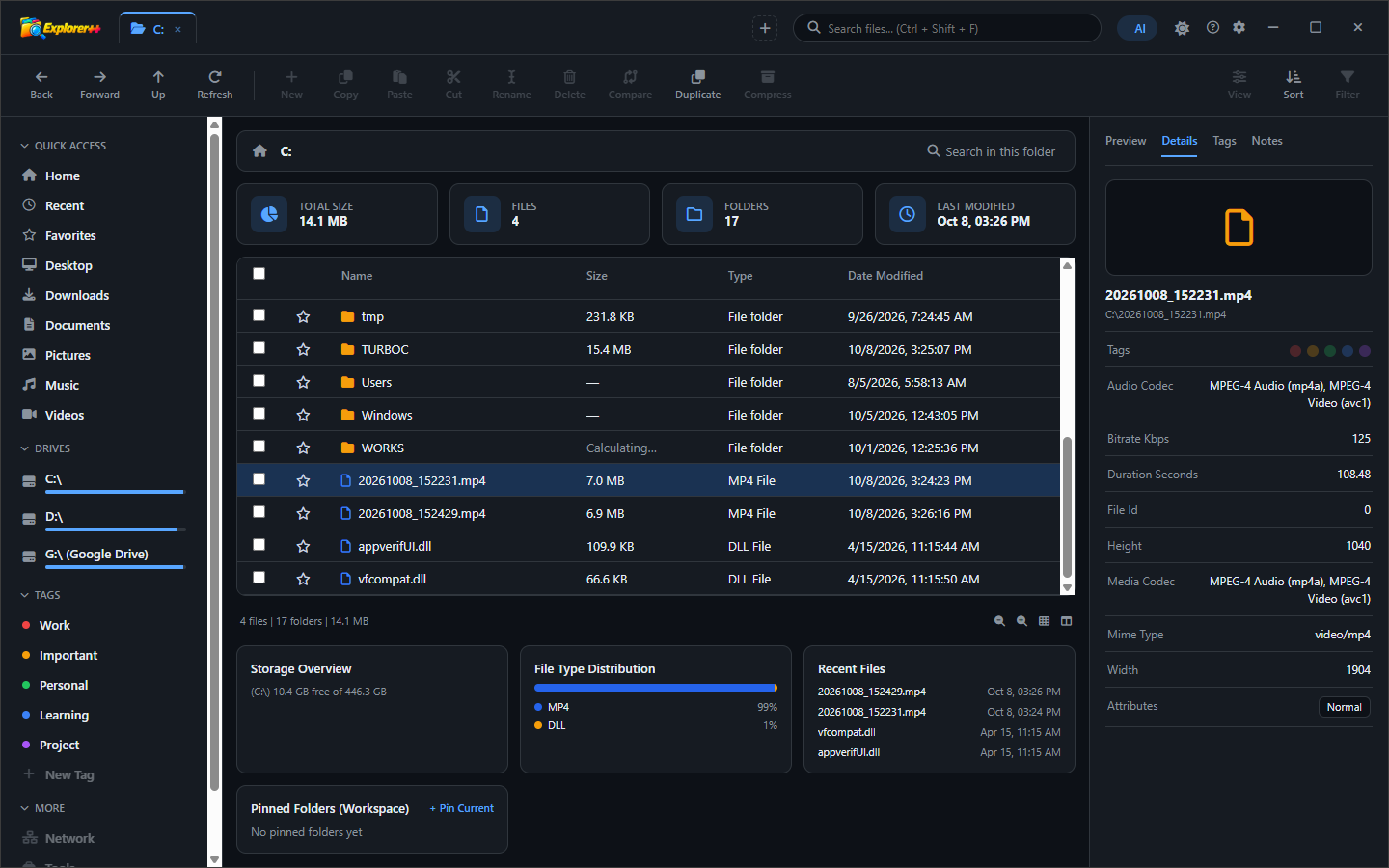
Explorer++ supports multiple view configurations for the file list — details view (with full column metadata), large icons, medium icons, small icons, list view, and tiles view. The view can be changed per-tab, so you can have one tab showing a photo folder in large icon view while another tab shows a project directory in details view with size and date columns. All view preferences are preserved between sessions, so your preferred layout for each type of folder is remembered automatically.
3. File Operations and Navigation
All standard Windows file operations work in Explorer++ — copy, paste, move, rename, delete, create new folder — with the addition of more powerful multi-selection and batch operations. Right-click context menus include all standard shell extensions registered in Windows, so any context menu option added by other software (7-Zip, antivirus tools, image editors) works identically. Keyboard shortcuts follow Windows conventions: Ctrl+C, Ctrl+V, F2 to rename, Delete to trash, Shift+Delete to permanently delete. Additional shortcuts unique to Explorer++ cover tab management, dual-pane switching and view changes.
4. Alternative File Browser View
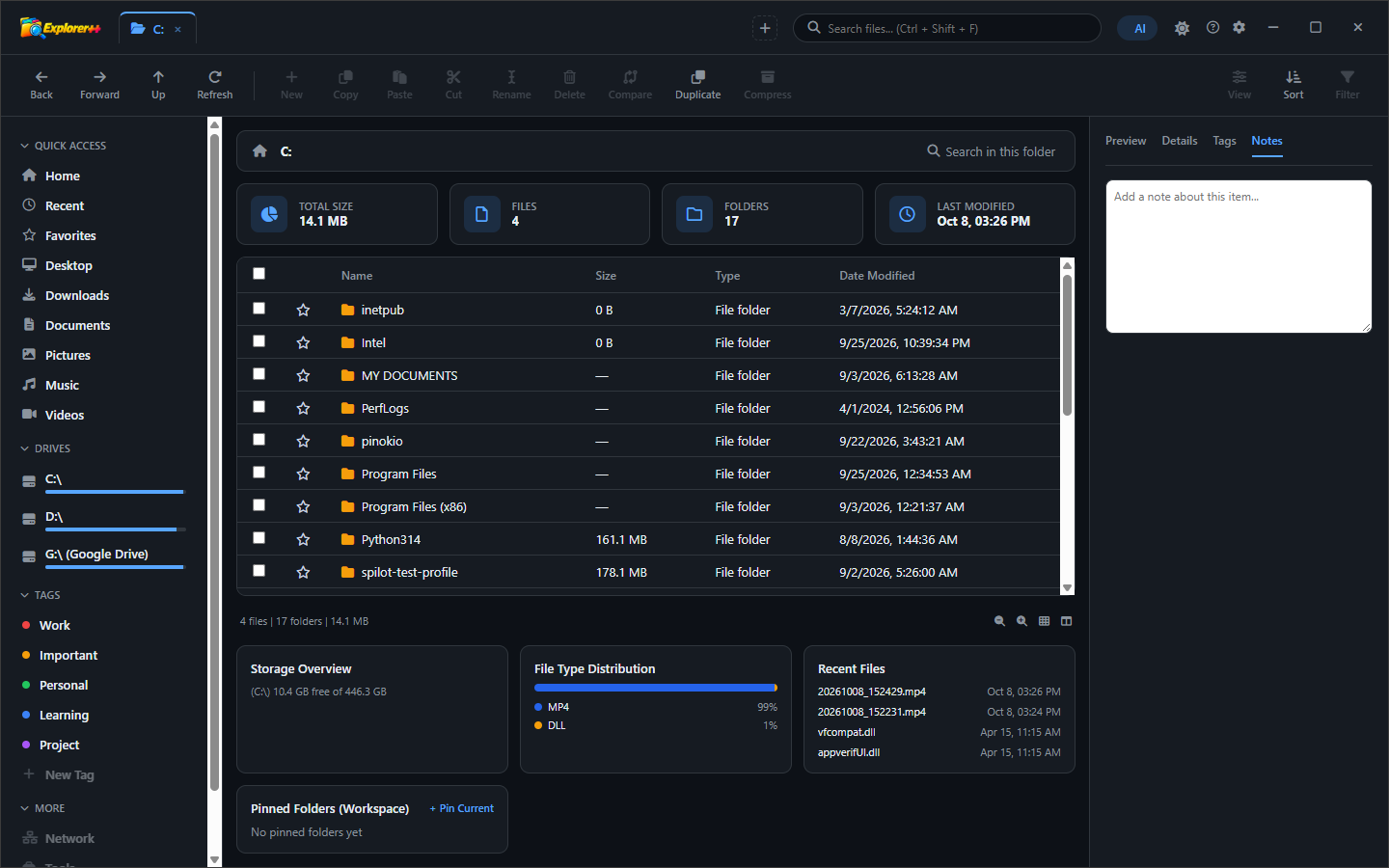
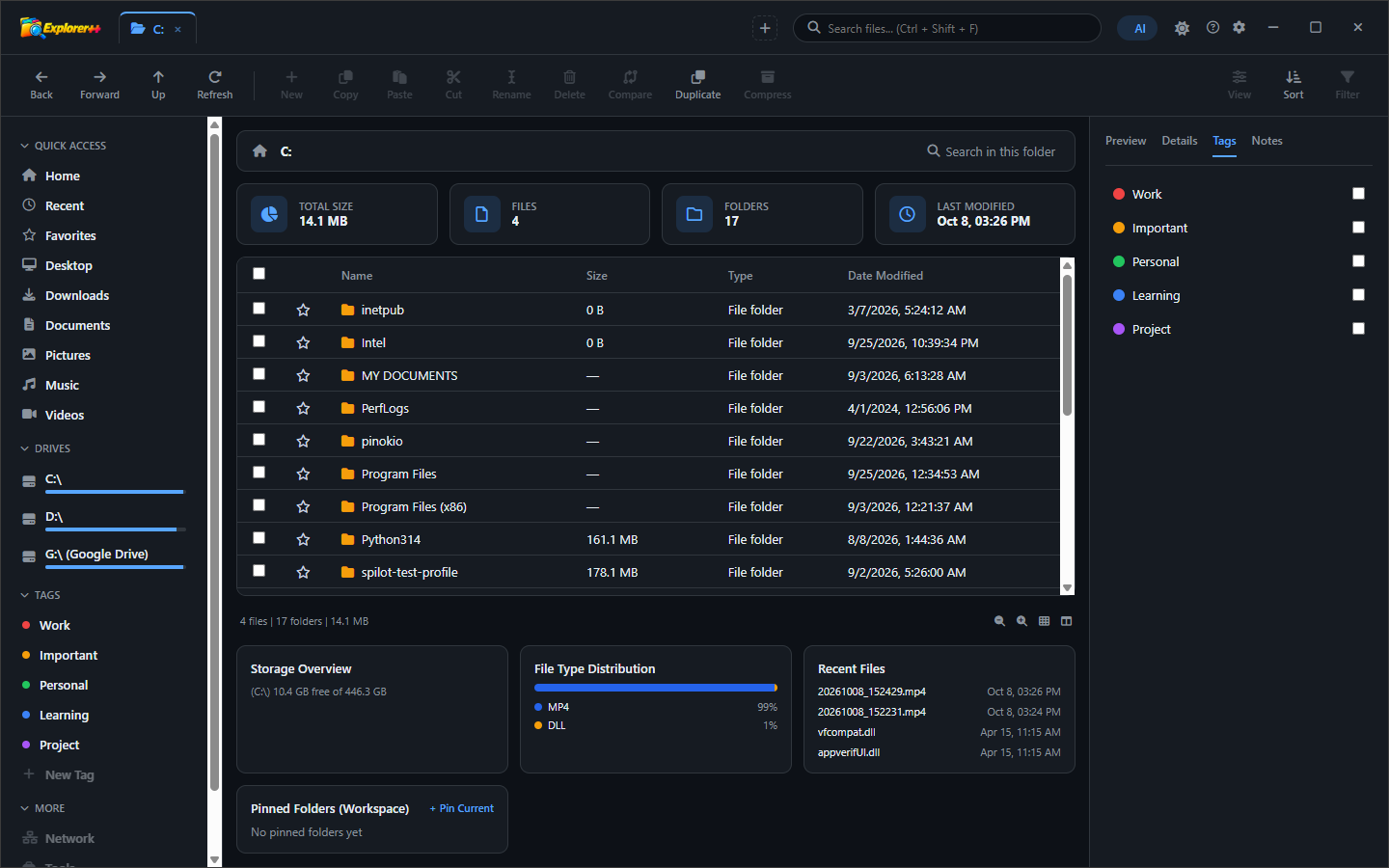
Explorer++ adapts its presentation to the contents of each directory. In folders containing many files of mixed types, the details view with sortable columns is the most efficient layout. In folders with project subdirectories, sorting by name or date and enabling folder size display creates a clear picture of where space is being used. The consistent interface across different folder contents means you build a single set of habits that works everywhere — there is no need to switch between different views or tools depending on what you are looking at.
5. Tab Bar — Multiple Folders Open Simultaneously
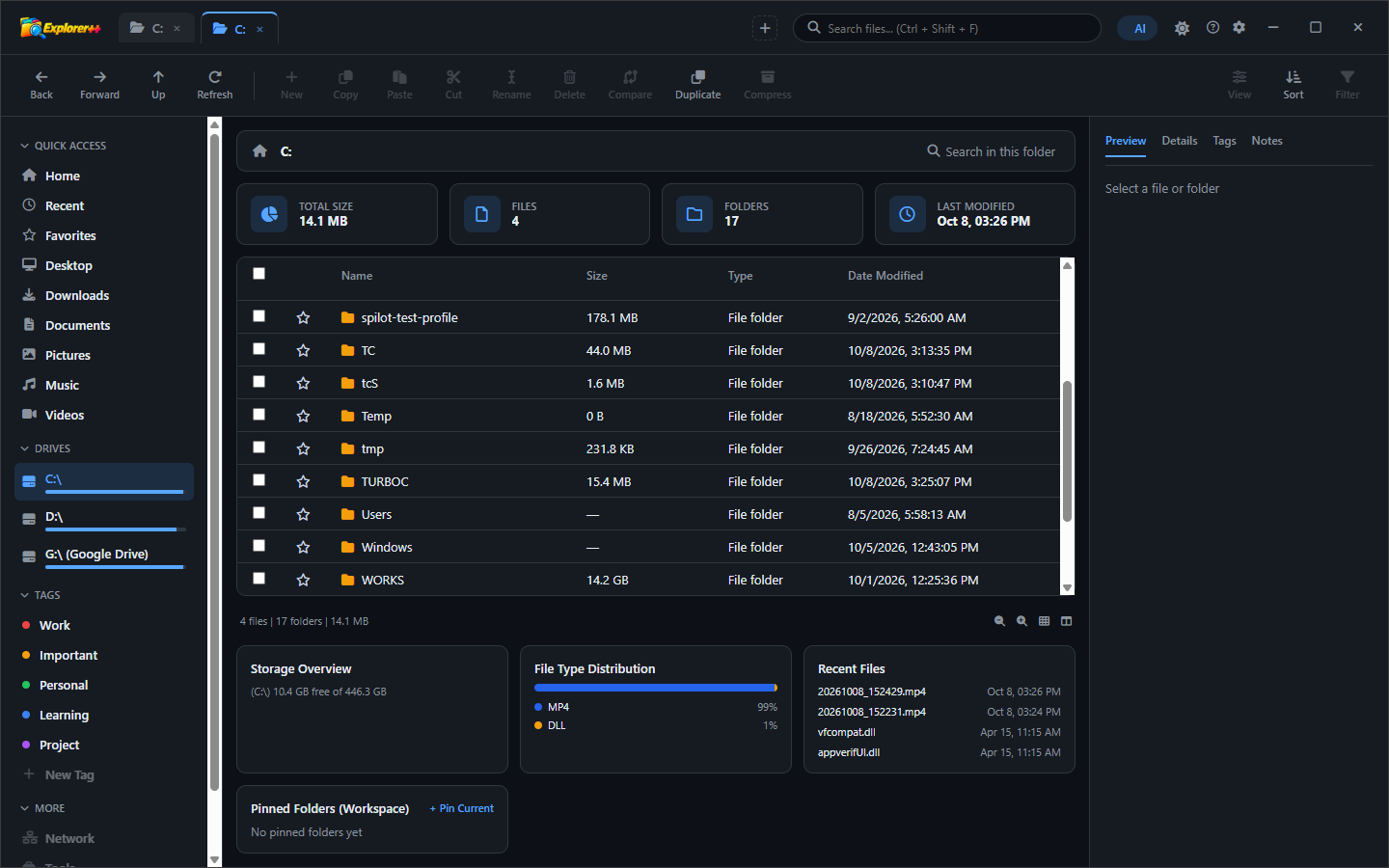
The tab bar at the top of the file panel shows every open directory as a labelled tab. A new tab button opens an additional folder browser in the same window, keeping your Windows taskbar uncluttered regardless of how many directories you have open. Tabs can be rearranged by dragging, and the open-in-new-tab option is available from the context menu for any folder. For power users who routinely work across three or four directories simultaneously — copying files between a source folder, a destination folder, and a staging area — the tab bar replaces the clumsy multi-window approach Windows Explorer requires.
6. Folder Size Calculation in Progress
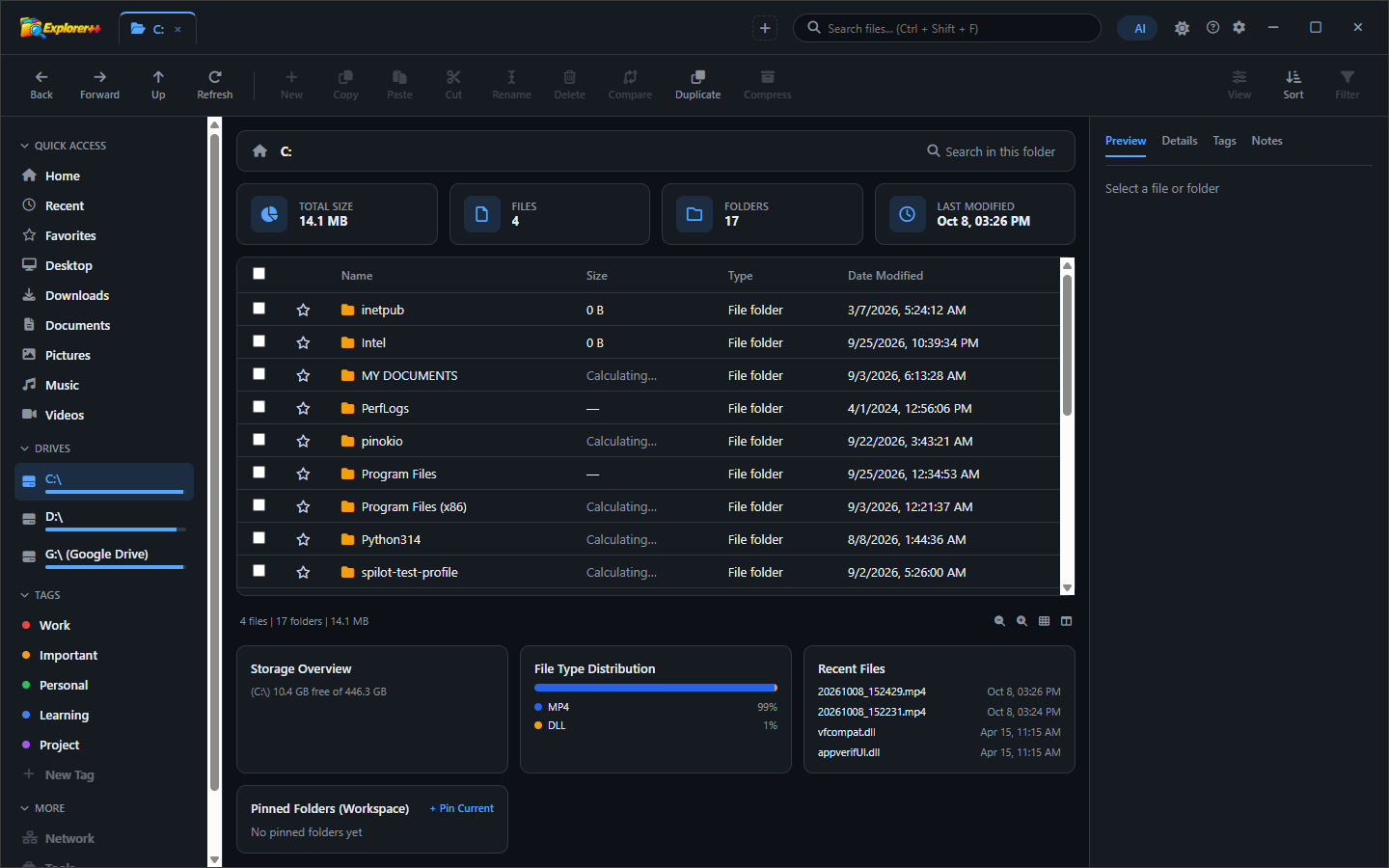
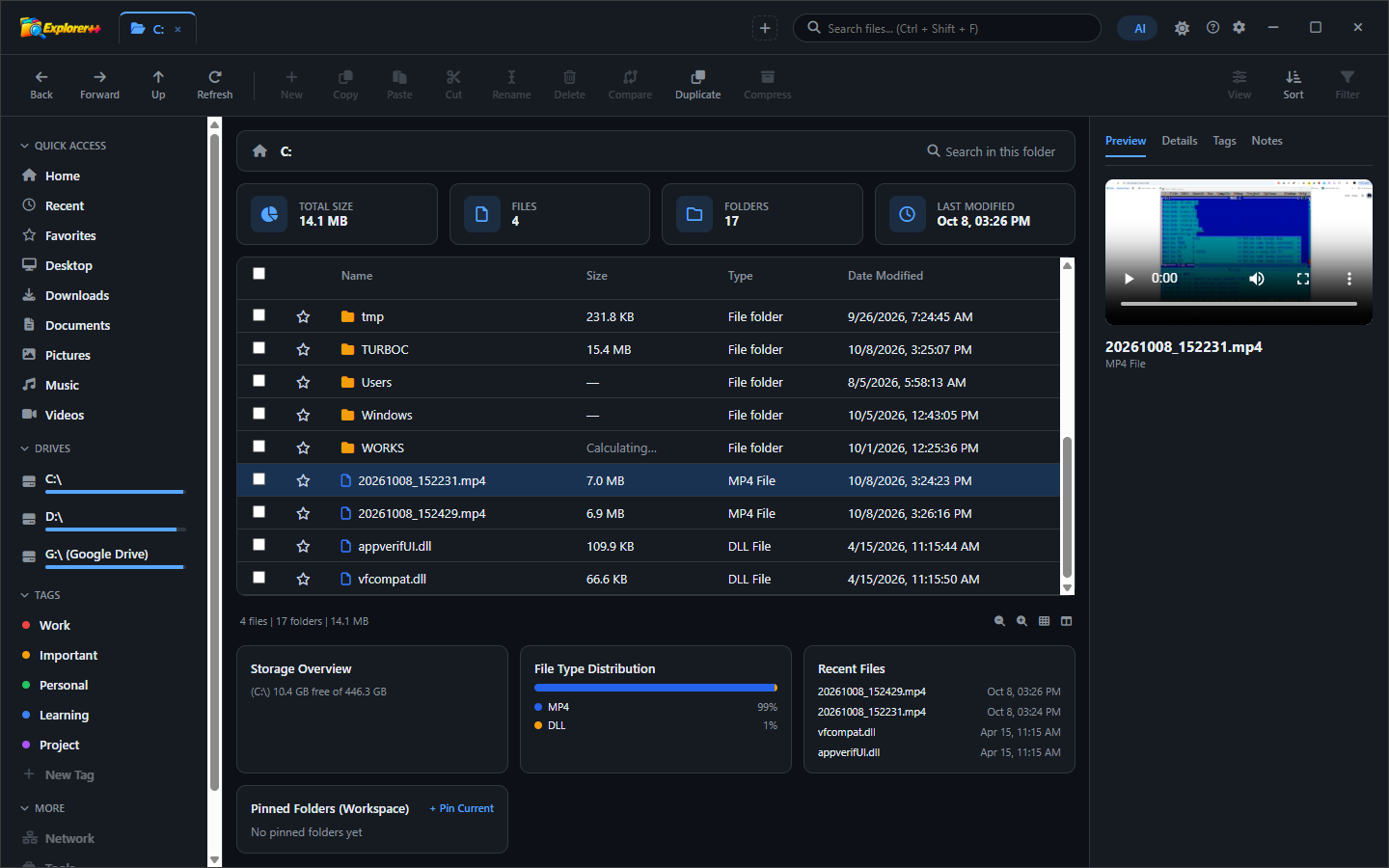
One of Explorer++’s most useful features beyond standard Windows Explorer is folder size calculation. Windows Explorer notoriously does not show how large folders are in the file list — only individual files have sizes displayed. Explorer++ can calculate and display the total size of every subdirectory in the current view. The calculation screen shows progress as Explorer++ recursively scans each subdirectory, counting file sizes and accumulating totals. On a large folder with many subdirectories and files, the calculation may take several seconds to minutes depending on drive speed.
7. Folder Sizes Displayed in the Browser
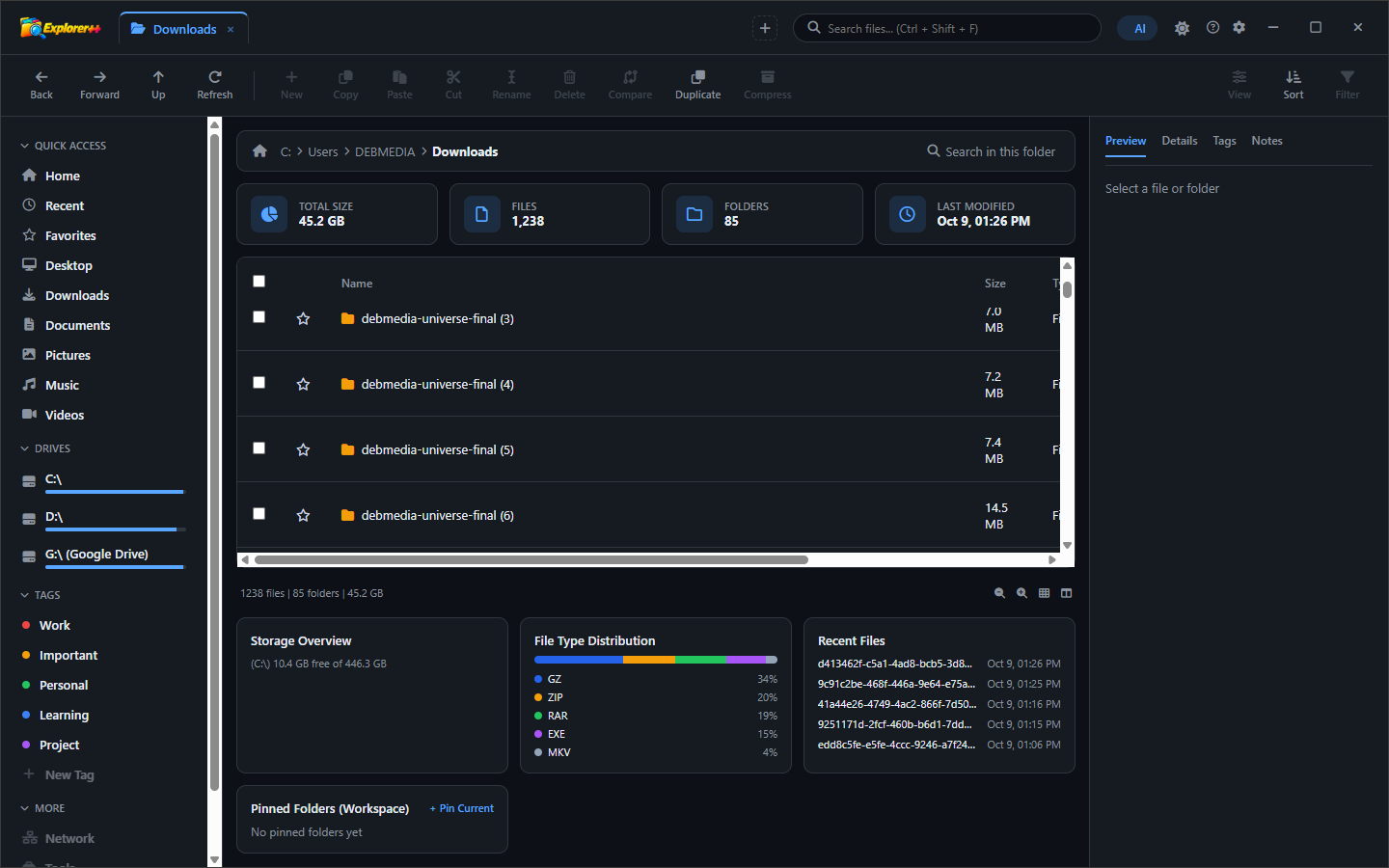
Once folder size calculation is complete, every subdirectory in the current view shows its total size in the Size column — the same column where individual file sizes appear. This immediately reveals which directories are consuming the most disk space without requiring a separate disk space analyser tool. Sorting by the Size column lists the largest directories first, making it trivial to identify where disk space has accumulated over time and which folders are safe to archive or clean up. This feature alone makes Explorer++ an essential tool for managing disk space on a busy PC.
8. Skip Restricted Folders During Size Check
During a folder size calculation that includes Windows system directories or protected folders, Explorer++ may encounter directories it does not have permission to read. A dialog gives you the choice: skip restricted folders and continue the calculation with whatever is accessible, or stop and run the calculation with administrator privileges for a complete result. For most disk space management tasks, skipping restricted system folders gives an accurate enough picture of where user-accessible data is stored. Administrator-level scanning is useful when auditing total disk usage including Windows and system files.
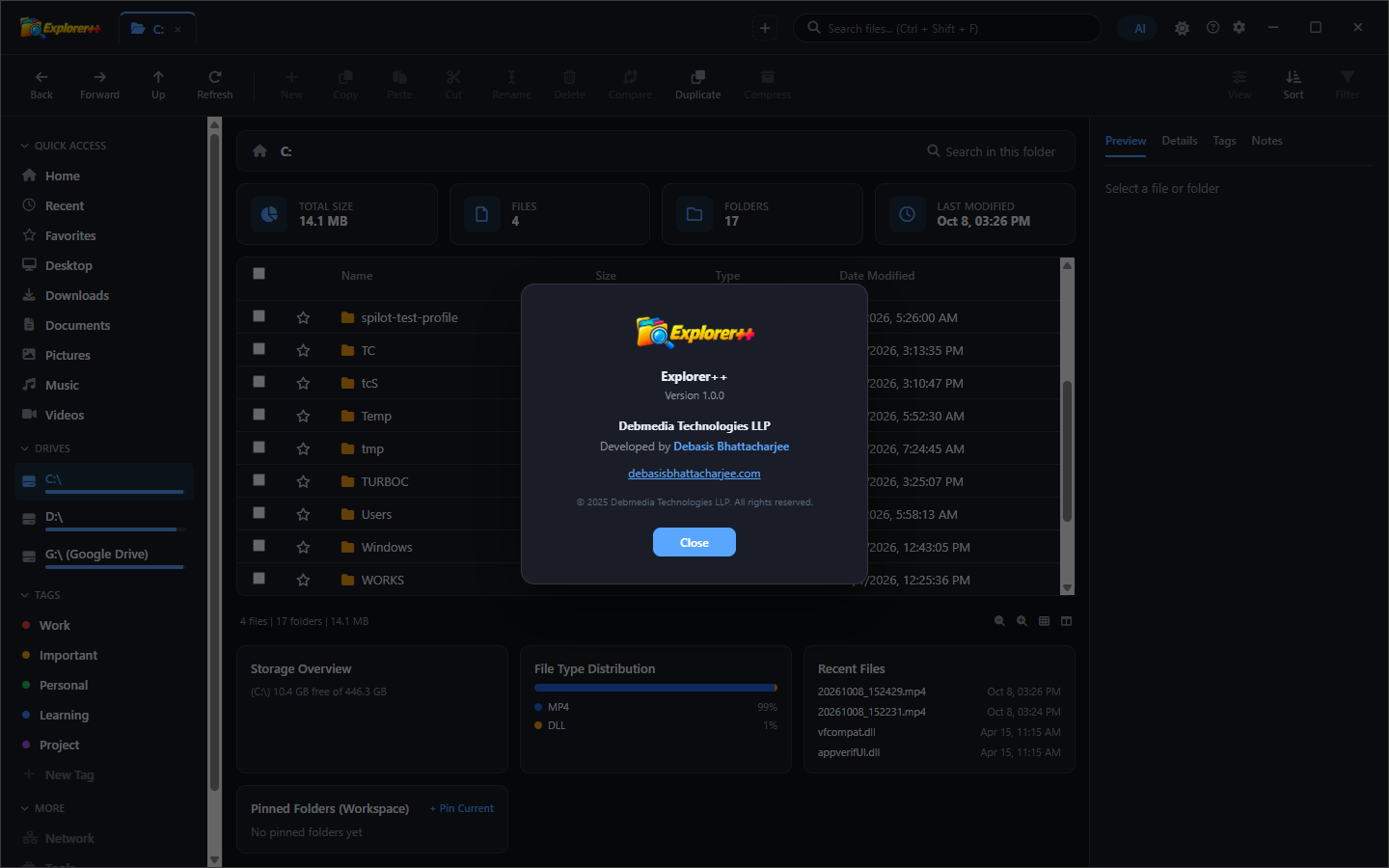
9. About Explorer++
The About dialog identifies Explorer++ and its origin: developed and published by Debmedia Technologies LLP, developed by Debasis Bhattacharjee. Version information, contact email and the official website are displayed for support and update enquiries. The About dialog is accessible from the Help menu in the main application.
Who Is Explorer++ For?
- Power users and developers — Multi-tab browsing, dual-pane layout and folder size calculation address the most common frustrations with Windows Explorer for users who manage files constantly.
- System administrators and IT professionals — Quickly navigate complex directory structures, identify disk space usage by folder, and perform file operations across multiple directories simultaneously.
- Content creators and media managers — Browse large media libraries, sort by size to find oversized files, and move assets between project folders efficiently using tabs.
- Anyone running low on disk space — Folder size display makes it immediately clear where gigabytes are hiding in your directory tree, without needing a separate disk space analyser.
- Keyboard-focused users — Explorer++ extends Windows’ standard file management keyboard shortcuts with additional bindings for tab management, pane switching and view changes.
System Requirements
- Operating System: Windows 10 (64-bit) or Windows 11
- Processor: Any modern x64 processor
- RAM: 4 GB minimum
- Storage: 80 MB for the application
- Display: 1280 × 720 minimum
- Internet: Not required — fully offline
Frequently Asked Questions
Can Explorer++ open files with the correct default application?
Yes. Double-clicking any file in Explorer++ opens it with the same default application that Windows Explorer would use — the Windows shell association is honoured exactly as normal.
Does Explorer++ replace Windows Explorer permanently?
No. Explorer++ runs as a standalone application alongside Windows Explorer. The Windows desktop, taskbar and system shell continue to use Windows Explorer normally. Explorer++ is an additional file management tool you open when you need its extra capabilities.
How accurate is the folder size calculation?
Folder sizes are calculated by recursively summing every file’s actual size on disk (not the allocated size). The result is the same number you would see if you right-clicked a folder in Windows Explorer and opened its Properties, but calculated for every visible directory simultaneously.
Can I use keyboard shortcuts to manage tabs?
Yes. Ctrl+T opens a new tab, Ctrl+W closes the current tab, and Ctrl+Tab / Ctrl+Shift+Tab cycle through open tabs. The full keyboard shortcut reference is in the Help menu.
The File Manager Windows Should Have Built
Explorer++ adds exactly the features that Windows Explorer has been missing for twenty years: tabs, folder sizes, and a dual-pane layout — all in a familiar interface that Windows users can use without any learning curve. It does not replace Windows, does not change the shell, and does not require a subscription. It is just a better file manager, installed in under a minute.
Download Explorer++ now and open your first multi-tab file browsing session today.
Download Explorer++
Modern tabbed file manager with preview panel, tags, folder sizes and AI assistant