Overview
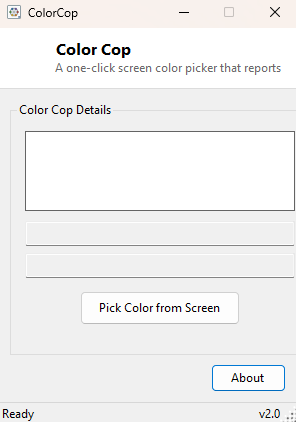
Color Cop is a one-click screen color picker. Point at any pixel on your screen — inside a browser, a photo editor, a PDF, a game, another program's window, it does not matter what application owns that pixel — click it, and Color Cop instantly tells you its exact HEX and RGB value. It is the kind of tool that sounds almost too small to bother packaging on its own, right up until the moment you need to match a color in a screenshot to a CSS value or a paint swatch and realize Windows has no built-in way to do that in under thirty seconds.
Most full graphics suites bury a color picker three menus deep behind an eyedropper tool that only works within that one application's canvas. Color Cop instead works against the entire screen — any pixel from any window, at any time — because sampling pixel color is a genuinely tiny, self-contained problem that never needed a whole image editor wrapped around it.
Key Features
- Picks color from anywhere on screen, not just inside Color Cop's own window
- Reports both HEX (#RRGGBB) and RGB(r, g, b) formats simultaneously
- Live color preview swatch updates continuously as you move the mouse while picking
- Escape key cancels a pick in progress without changing the last captured color
- No file browsing, no image loading — works directly against whatever is already on screen
- Values are shown in plain read-only text boxes, ready to select and copy
Why You Might Need This Tool
Web and UI designers reach for a tool like this constantly — a client sends a screenshot of a brand color, or a competitor's site uses a shade of blue you want to match exactly, and there is no faster way to get the precise HEX code than clicking directly on the pixel. It is equally useful outside of design work: matching a paint color from a photo of a room, pulling a color out of a chart or diagram someone emailed you, or double-checking that two elements in an application you are testing are actually rendering the identical color rather than two very close but distinct shades that only a pixel-accurate reading can tell apart.
How It Works
Color Cop uses two classic Win32 APIs directly rather than any managed screen-capture
library: GetDC(IntPtr.Zero) retrieves a device context for the entire
screen (passing a null window handle is the documented way to address the whole
desktop rather than a single window), and GetPixel from
gdi32.dll then reads the raw color value at a specific screen coordinate
directly from that device context. The coordinate itself comes from
Cursor.Position, tracked continuously while picking is active. Windows
returns color as a packed COLORREF integer in BGR byte order rather than RGB, so the
tool unpacks it with simple bit-shifting — masking the low byte for red, shifting
right eight bits and masking again for green, and shifting right sixteen bits for
blue — before converting the result into a standard .NET Color object
for display and formatting.
To let you click anywhere on the screen rather than being confined to Color Cop's own
window, the tool temporarily sets Me.Capture = True on its form the
moment you start picking. Mouse capture routes all subsequent mouse events to that
window even while the cursor is physically positioned over some other application
entirely, which is what makes the "click on any pixel anywhere" behavior possible
without needing a global system-wide mouse hook.
How to Use It
Click Pick Color from Screen. The cursor changes to a crosshair and the color swatch begins updating live as you move the mouse over anything on screen. Left-click on the exact pixel you want to sample; the swatch, HEX field and RGB field all lock to that value immediately. Press Escape at any point before clicking to cancel and leave the previously captured color untouched. Select the text in the HEX or RGB box and copy it with Ctrl+C as usual.
System Requirements & Notes
Color Cop runs on 64-bit Windows 10 and Windows 11 and needs no administrator rights — reading pixel color through a screen device context is a standard-user-level operation. It has no network access and writes nothing to disk or the registry.
Frequently Asked Questions
Can it pick colors from a video or animation mid-playback?
Yes — it samples whatever is actually rendered on screen at the moment you click,
including video frames, so pausing first just makes it easier to click the exact
frame you want.
Does it support formats other than HEX and RGB, like HSL or CMYK?
Not currently — Color Cop deliberately sticks to the two formats every downstream
tool (CSS, most paint and design software) accepts directly, to keep the interface to
a single window with no format-selection menu.
Will it work correctly across two monitors with different DPI scaling?
Yes, since it reads directly from the screen device context at the cursor's actual
coordinate rather than a cached bitmap, so it always samples the pixel that is
actually being displayed regardless of which monitor or scaling factor is involved.