Debmedia Restaurant POS
Offline billing, kitchen tickets, tables and cash counter for single-counter restaurants, cafes and takeaways in one fast Windows app
Debmedia Restaurant POS runs your restaurant counter on one Windows PC with no internet: tap-to-bill menu, Dine-In, Takeaway and Delivery, kitchen order tickets per station, a colour-coded table view, cash, UPI and card with splits, a cash drawer that must balance every night, fifteen reports and an audit log. Your data is one file on your own computer.
See Debmedia Restaurant POS in Action
A clean, modern interface designed for real-world use.
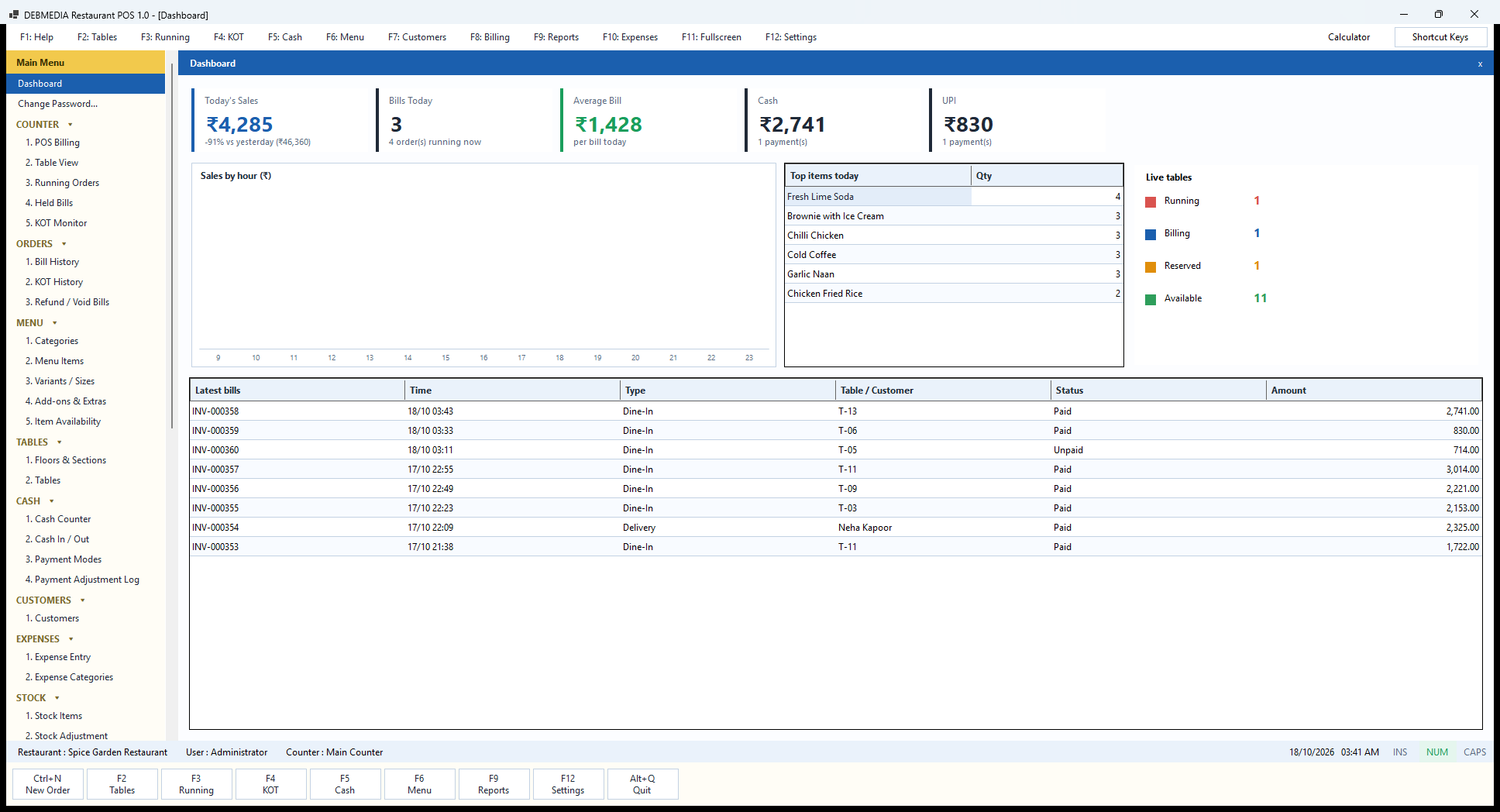
Debmedia Restaurant POS Dashboard: The Dashboard: today's sales, bills, average bill, cash and UPI collected, sales by hour, top-selling items, live table status and the latest bills.
What Is Debmedia Restaurant POS?
Debmedia Restaurant POS is a complete billing and counter-management program for a single restaurant, café or takeaway kitchen. It runs on one Windows computer at the cash counter. A waiter or cashier taps menu items to build an order, sends the right items to the right kitchen station as separate kitchen order tickets (KOTs), changes or cancels items after they have gone to the kitchen, holds a bill while a customer decides, and finally settles the bill by cash, UPI, card or a mix. Behind that fast front screen sit the tables, the menu, the cash drawer, the day-end reconciliation, the customers, the expenses, a simple raw-material stock list, fifteen sales and cash reports, and the users, roles and audit trail that a restaurant owner needs to trust what the till says.
It is a native Windows desktop application, written in VB.NET on the current .NET platform with Windows Forms, and it keeps everything in a single SQLite database file on the counter computer. There is no cloud account, no monthly subscription and no internet connection needed to take orders, print a bill, close the day or run a report. If the broadband goes down on a Saturday night, the restaurant keeps billing. The data file can be backed up with one button and copied to a pen drive or sent to your accountant like any other file.
The screen follows the keyboard-driven layout that people who learned billing on classic desktop software expect: a function-key bar across the top (F1 Help, F2 Tables, F3 Running orders, F4 KOT, F5 Cash, F6 Menu, F7 Customers, F8 Billing, F9 Reports, F10 Expenses, F11 Full screen, F12 Settings), a Main Menu down the left, the working screen in the middle, and a row of large action buttons along the bottom. Inside the billing screen the keys stay close to the work: F3 searches the menu, F4 chooses the table, F5 saves and sends the KOT, F6 holds, F7 gives a discount, F8 prints the bill and F9 settles and pays. A cashier who has billed one table has learned the whole counter.
This page walks through the program screen by screen, in the order of its Main Menu. Every screenshot comes from the real, running program with a sample restaurant loaded, and each one is explained: what the screen is for, what every column, field and button does, what the program does behind the scenes, and how that screen ties in with the others. If you only want the highlights, read the next two sections and use the contents list to jump to the part you care about. If you want to know exactly how the product behaves before you decide, read it all.
About the sample restaurant. The screenshots use a made-up restaurant, Spice Garden Restaurant of Park Street, Kolkata, with 14 tables on two floors, a 31-item menu, three staff logins, ten regular customers and about 360 bills between 1 and 18 October 2026. The restaurant name, address, GSTIN, FSSAI number, customer names and phone numbers are all fictional. The numbers on the report screens are real outputs of the program working on that sample data, so you can follow one figure from screen to screen and see the same amount again. A few screens show the quirks of sample data, such as everything being timestamped in the early hours of the morning, and where that matters this page says so.
Debmedia Restaurant POS at a Glance
| Topic | What you get |
|---|---|
| Platform | Windows desktop program (native Windows Forms, not a web page in a wrapper), built for a counter PC with keyboard, mouse or touch screen. |
| Who it is for | One restaurant, café, cloud kitchen or takeaway running its billing from one counter computer. This first edition is single-PC. |
| Data storage | One SQLite file on the counter computer, with automatic daily backups beside it. Nothing leaves the machine. |
| Internet | Not needed for billing, printing, backups or reports. |
| Order types | Dine-In (with table and guests), Takeaway and Delivery, each able to carry its own price and its own packaging or delivery charge. |
| Billing screen | Touch-friendly menu tiles with category buttons, Veg / Non-Veg / Egg filter, instant search, Half / Full sizes, add-ons, running bill with discount, charges, GST and round-off. |
| Kitchen | Separate KOT per kitchen station (Main, Tandoor, Bar and so on), additional KOT for added items, CANCEL KOT for removed items, KOT Monitor with Preparing / Ready / Served, KOT History and reprint. |
| Tables | Colour-coded Table View by floor (available, running, billing, reserved) with transfer, merge and reservation. |
| Payments | Cash, UPI and card, split payment across modes, part payment, and a log of any later correction of the payment mode. |
| Cash control | Open Day and Close Day on a cash counter session, cash in, cash out, cash expenses, expected against counted cash and a Day-End Cash Report. |
| Tax | Configurable tax rates (No Tax, GST 5%, 12%, 18% installed), prices inclusive or exclusive, CGST and SGST split in the GST report, optional service, packaging and delivery charges. |
| Reports | Fifteen reports: daily sales, date range, item-wise, category-wise, dine-in vs takeaway, payment collection, discounts, cancellations and refunds, waiter-wise, hourly, GST, day-end cash, expenses, customers and a profit snapshot. Print, preview and export to Excel, CSV or PDF. |
| Control | Admin, Cashier and Waiter roles with 21 individual permissions, forced password change on first sign-in, auto-lock, login history and an audit log of discounts, refunds, cancellations and cash-counter events. |
| Printing | ESC/POS thermal bill and KOT printing at 58 mm or 80 mm, a print preview when no printer is set, and a Test Print button. The print output has been checked byte by byte in tests but has not yet been proven on a physical thermal printer. |
| Safety | Automatic backup when the program runs each day (newest 14 kept), manual backup, restore that takes a safety copy of the current data first. |
| Licence | One restaurant, one PC, lifetime, activated with an offline licence key. No online activation server is needed. |
| Quality checks | 131 automated business-rule checks and 94 automated screen checks, passing on the last recorded run. |
How Debmedia Restaurant POS Works
A restaurant day has a natural order, and the program follows it. Understanding that order makes every screen on this page easier to read.
1. Open the day. The cashier opens a cash counter session and enters the opening cash in the drawer. Everything taken or paid in cash that day is measured against that figure, and every bill is tied to the session it was made in.
2. Take the order. On the POS Billing screen the waiter chooses Dine-In, Takeaway or Delivery, picks a table or a customer, and taps items. Items with sizes ask for Half or Full, items with add-ons offer them, and every tap updates the bill on the right.
3. Send it to the kitchen. Save and KOT turns the new items into kitchen order tickets, one per kitchen station, so the tandoor sees only the breads and kebabs, the bar sees only the drinks, and the main kitchen sees the rest. Items added later go out as an additional KOT. An item removed after it was sent goes out as a CANCEL KOT, needs the right permission and a reason, and is recorded.
4. Track the floor. The Table View shows every table as available, running, billing or reserved with the running amount and the time seated. The Running Orders list and the KOT Monitor show what is open and what the kitchen is still preparing.
5. Bill and settle. Print Bill produces the customer’s bill and puts the table in the billing state. Settle and Pay takes the money by cash, UPI, card or a split, and closes the order. A bill can be held half-way and resumed.
6. After the sale. Bill History lists every bill with its status. A cashier with the right permission can reprint a bill (marked duplicate), correct a wrongly chosen payment mode or refund part of a bill. A manager with the right permission can void a bill. Every such action goes to the audit log with the user and the reason.
7. Close the day. The cashier counts the drawer and closes the session. The program shows what the cash should be, what was counted and the difference, and keeps the session in the history. The Day-End Cash Report, Daily Sales Summary and GST report then give the owner the numbers.
All of this is stored as ordinary rows in one SQLite file. Reports are queries over those rows, not separate copies that could drift, so the Dashboard, the Daily Sales Summary, the Payment Collection report and the Cash Counter always agree.
Starting the Program: The Dashboard
Dashboard
The Dashboard is the first screen after sign-in and the one an owner glances at between customers. Across the top are five cards. Today’s Sales shows ₹4,285 for the three bills raised so far, with a comparison to yesterday (₹46,360). The comparison reads minus 91 percent here only because the sample screenshot was taken at about 3:41 in the morning with the whole of yesterday against three bills of today; on a live day it shows how today is running against the day before. Bills Today shows 3, with a note that four orders are still running. Average Bill divides sales by bills, ₹1,428 per bill. Cash and UPI show how much was collected by each mode and how many payments that was: ₹2,741 in one cash payment and ₹830 in one UPI payment.
Below the cards, Sales by hour is a chart of today’s takings across the trading hours from 9 in the morning to 11 at night, so the owner can see the lunch and dinner peaks building as the day goes on. In the screenshot the bars are empty because no bill had been raised in those hours of the sample day. Top items today ranks the dishes by quantity sold so far: Fresh Lime Soda four, then Brownie with Ice Cream, Chilli Chicken, Cold Coffee and Garlic Naan at three each.
On the right, Live tables counts the tables in each state with the same colours used on the Table View: one running (red), one waiting to be billed (blue), one reserved (amber) and eleven available (green). It answers the question “can I seat a party of six?” without leaving the screen.
The grid at the bottom lists the latest bills with number, time, type, table or customer, status and amount: INV-000358 for table T-13 at ₹2,741 paid, INV-000360 for T-05 at ₹714 still unpaid, and a delivery bill for Neha Kapoor. Bill numbers run in one unbroken series and the unpaid status is how a bill that has been printed but not yet settled shows up.
On the left is the Main Menu, which this page follows section by section. At the very bottom of the window the status bar shows the restaurant name, the signed-in user and the cash counter, and the row of large buttons offers one-touch access to New Order, Tables, Running orders, KOT, Cash, Menu, Reports, Settings and Quit.
Change Password
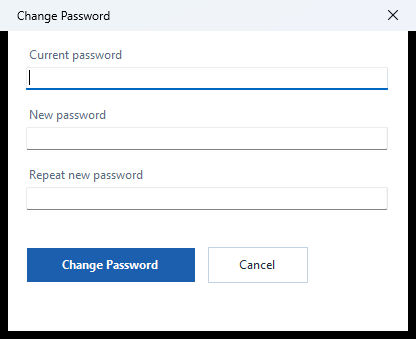
Right under Dashboard in the menu is Change Password, which opens this small dialog. The user types the current password, then the new password, then the new password a second time to guard against a typing slip, and presses Change Password. Cancel closes the dialog with nothing changed.
The same dialog appears automatically the first time the program is used. A new installation starts with a single administrator account, and the program forces that first password to be replaced before anything else can be done, so the restaurant never goes live on a well-known default. An owner can also tick “Must change password at next sign-in” on any user in the Users screen, which brings up this dialog for that person at their next login. Passwords are stored only as salted PBKDF2 hashes, never in readable form, and an administrator who needs to help a forgetful cashier uses Reset Password on the Users screen rather than reading anything back.
Because staff change over in a restaurant, it is worth giving every person their own login (the sample restaurant has an owner-administrator, a cashier and a waiter) so that the audit log, the Waiter-wise Sales report and the Bill History show who did what.
Counter: Billing, Tables, Orders and the Kitchen
POS Billing
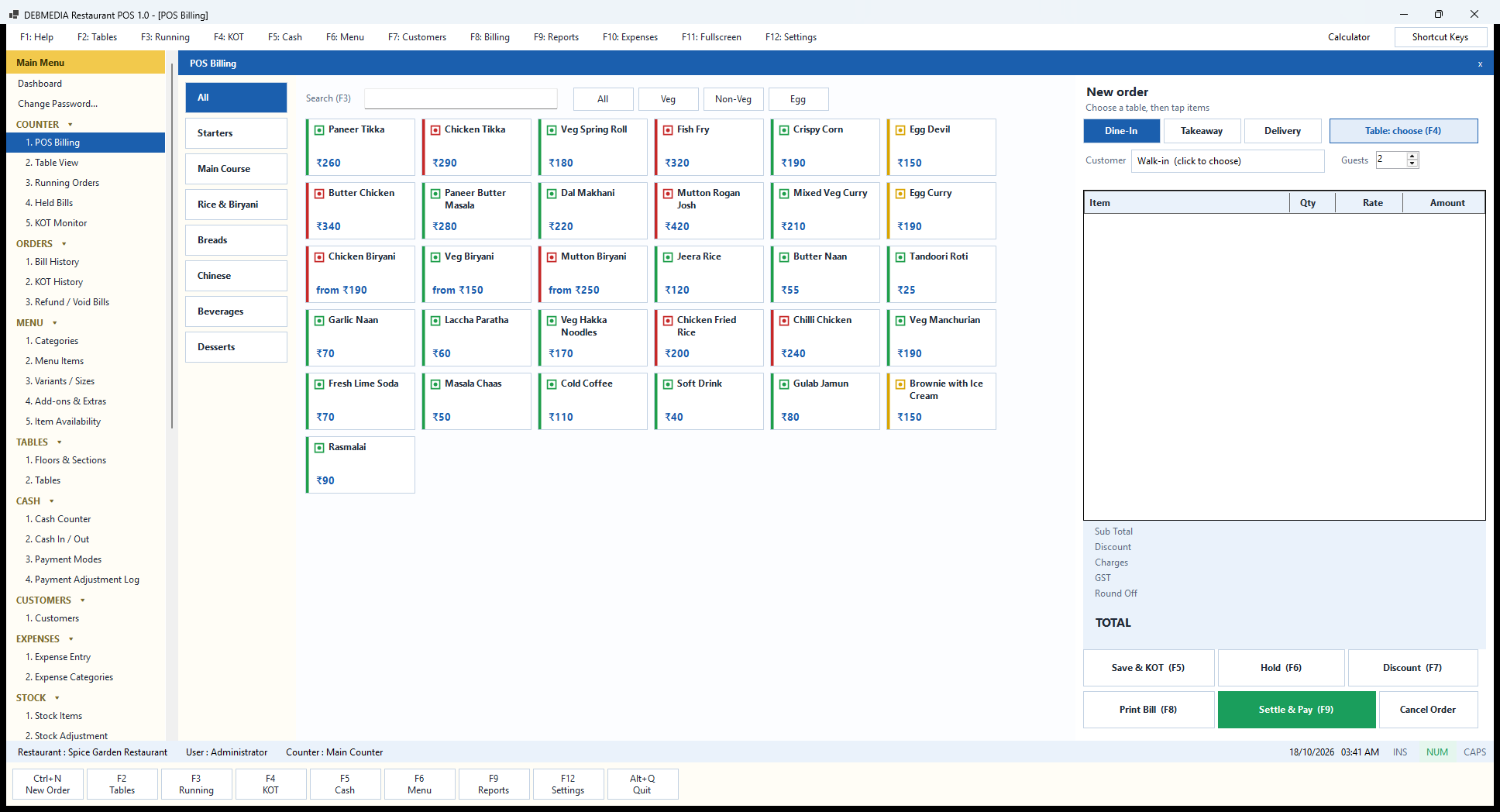
POS Billing is the screen the restaurant lives in. It is built for speed with one hand on the mouse or a finger on a touch screen. On the left is a column of category buttons: All, Starters, Main Course, Rice and Biryani, Breads, Chinese, Beverages and Desserts, in the order set in the Categories screen. At the top is a search box (F3) that filters the tiles as you type, and the All, Veg, Non-Veg and Egg buttons filter by food type. Every tile carries the item name, its price, and a small coloured mark in the corner: green for vegetarian, red for non-vegetarian and amber for egg, the familiar Indian food mark, so a waiter never has to read a name to avoid a mistake. Items with sizes, such as the three biryanis, show “from ₹190” because the price depends on the Half or Full choice made on tapping.
The right-hand side is the order. The three buttons Dine-In, Takeaway and Delivery set the type of order, and the type can change the price (an item can have a separate takeaway price) and the charges (a packaging or delivery charge applies only to the right types). Table: choose (F4) picks the table for a dine-in order, Customer attaches a regular customer from the customer list or leaves it as walk-in, and Guests records how many people are seated. As items are tapped they appear in the grid with quantity, rate and amount, and the Sub Total, Discount, Charges, GST, Round Off and TOTAL lines below fill in live.
The buttons at the bottom drive the order. Save and KOT (F5) sends the new items to the kitchen. Hold (F6) parks the order without sending it. Discount (F7) applies a discount, which needs permission and a reason. Print Bill (F8) prints the customer bill. Settle and Pay (F9), in green because it is the end of the job, takes payment. Cancel Order abandons the current order and asks for a reason. The screenshot shows a fresh, empty order so the layout is easy to read.
Table View
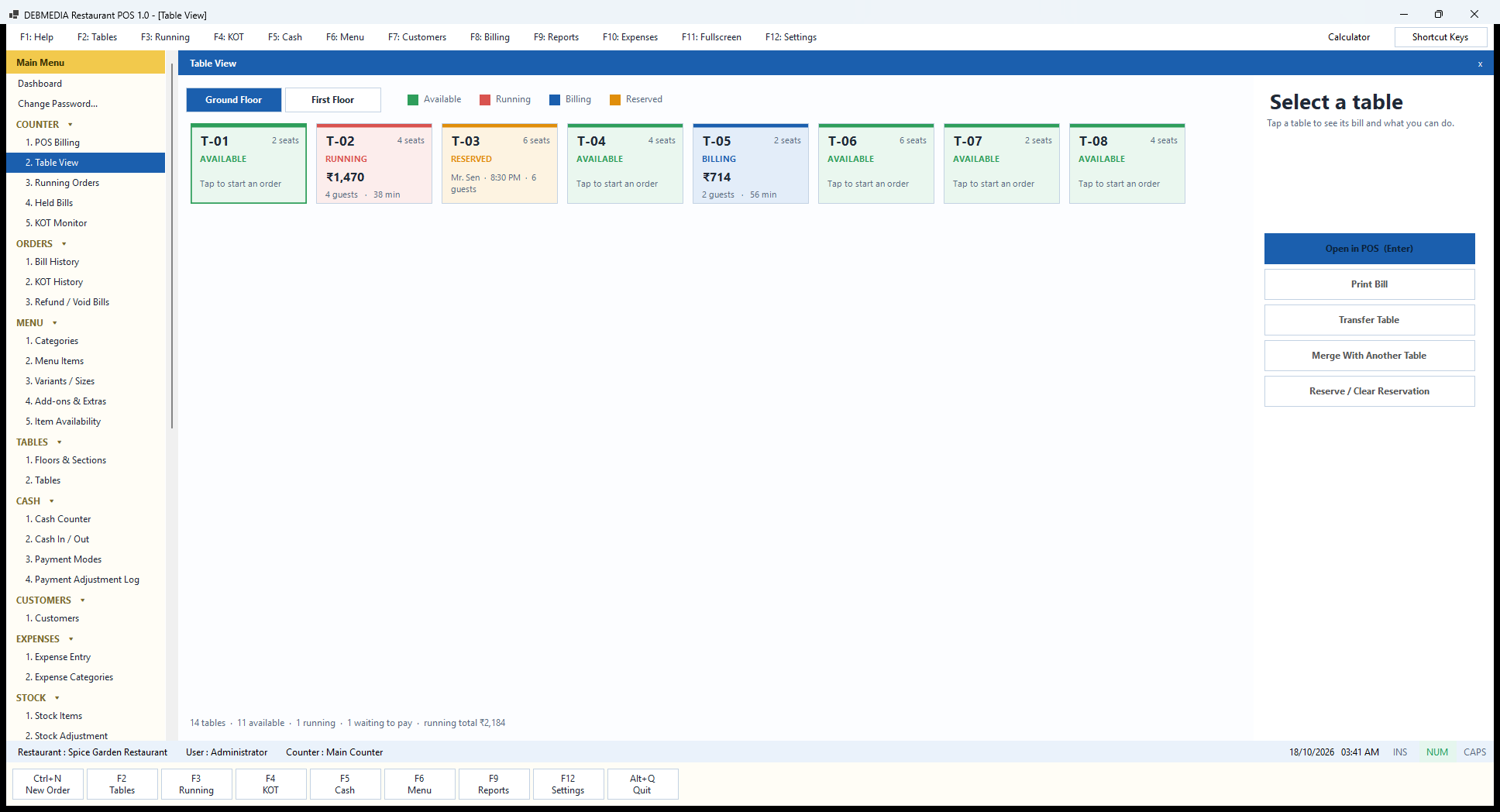
Table View is the floor plan of the restaurant as a set of cards. The two buttons at the top, Ground Floor and First Floor, switch between the floors defined on the Floors and Sections screen, and the legend explains the colours: green is available, red is running, blue is billing and amber is reserved. Each card shows the table name, the number of seats and its state. A running table shows the amount on the bill so far, the number of guests and how many minutes they have been seated: table T-02 is running at ₹1,470 with four guests for 38 minutes. A table waiting to pay shows the same details in blue, as T-05 does at ₹714 after 56 minutes. A reserved table, such as T-03 held for Mr. Sen at 8:30 PM for six guests, shows the name, time and party size so the host can see it at a glance. Available tables simply say “Tap to start an order”.
Selecting a card fills the panel on the right. Open in POS (Enter) opens that table’s order on the billing screen, or starts a new one if the table is free. Print Bill prints the bill for the table without leaving this screen. Transfer Table moves a running order to another free table when a party changes seats. Merge With Another Table combines two running tables into one bill when friends who were sitting apart decide to pay together. Reserve / Clear Reservation puts a name, time and party size against a table, or removes the reservation.
A footer summarises the floor: 14 tables, 11 available, one running, one waiting to pay and a running total of ₹2,184. The same counts feed the Live tables box on the Dashboard.
Running Orders
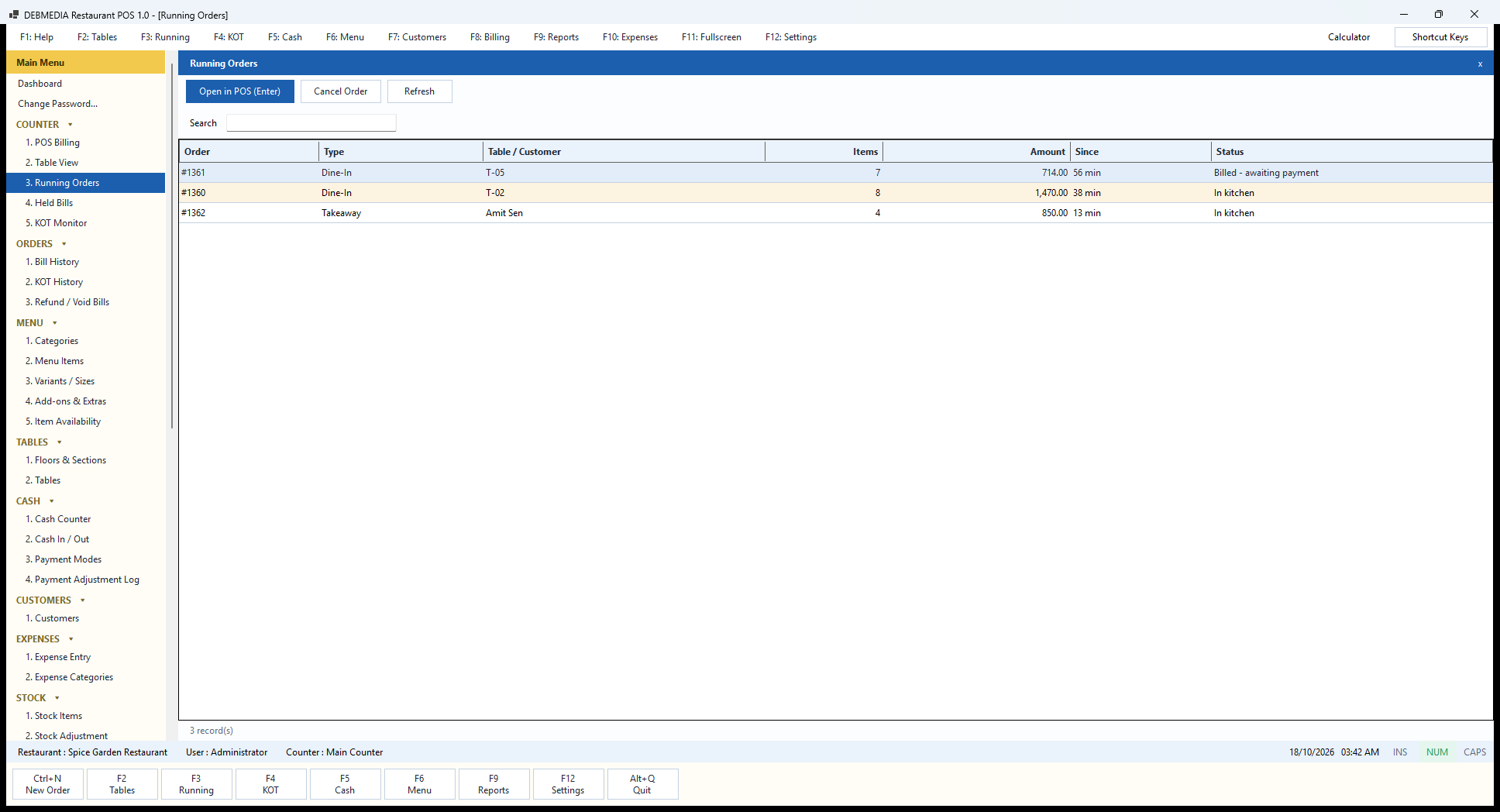
Running Orders is the list view of everything that is open right now, across dine-in, takeaway and delivery. It is the screen a manager uses to answer “what is still out there?” The columns are the order number, the type, the table or customer name, the number of items, the amount, how long ago the order started (Since) and its status. In the sample there are three open orders: #1361 on table T-05 with seven items and ₹714, billed and waiting for payment after 56 minutes; #1360 on T-02 with eight items and ₹1,470, still in the kitchen after 38 minutes; and #1362, a takeaway for Amit Sen with four items and ₹850, in the kitchen for 13 minutes. Rows are tinted by state so a bill that has been printed and is awaiting payment stands out from one the kitchen is still cooking.
The toolbar has three actions. Open in POS (Enter) opens the selected order on the billing screen for adding items, printing or settling. Cancel Order cancels the selected order. It asks why the order is being cancelled, and if the kitchen has already received tickets for it, it sends Cancel KOTs so the cooks stop. Refresh reloads the list, and the Search box finds an order by number, table or customer. The count of records at the foot of the grid says how many orders are open.
This list is also the safety net for the end of the night. Before closing the day, a cashier can look here to be sure nothing has been left open or unsettled, because an open order is revenue that has not been collected.
Held Bills
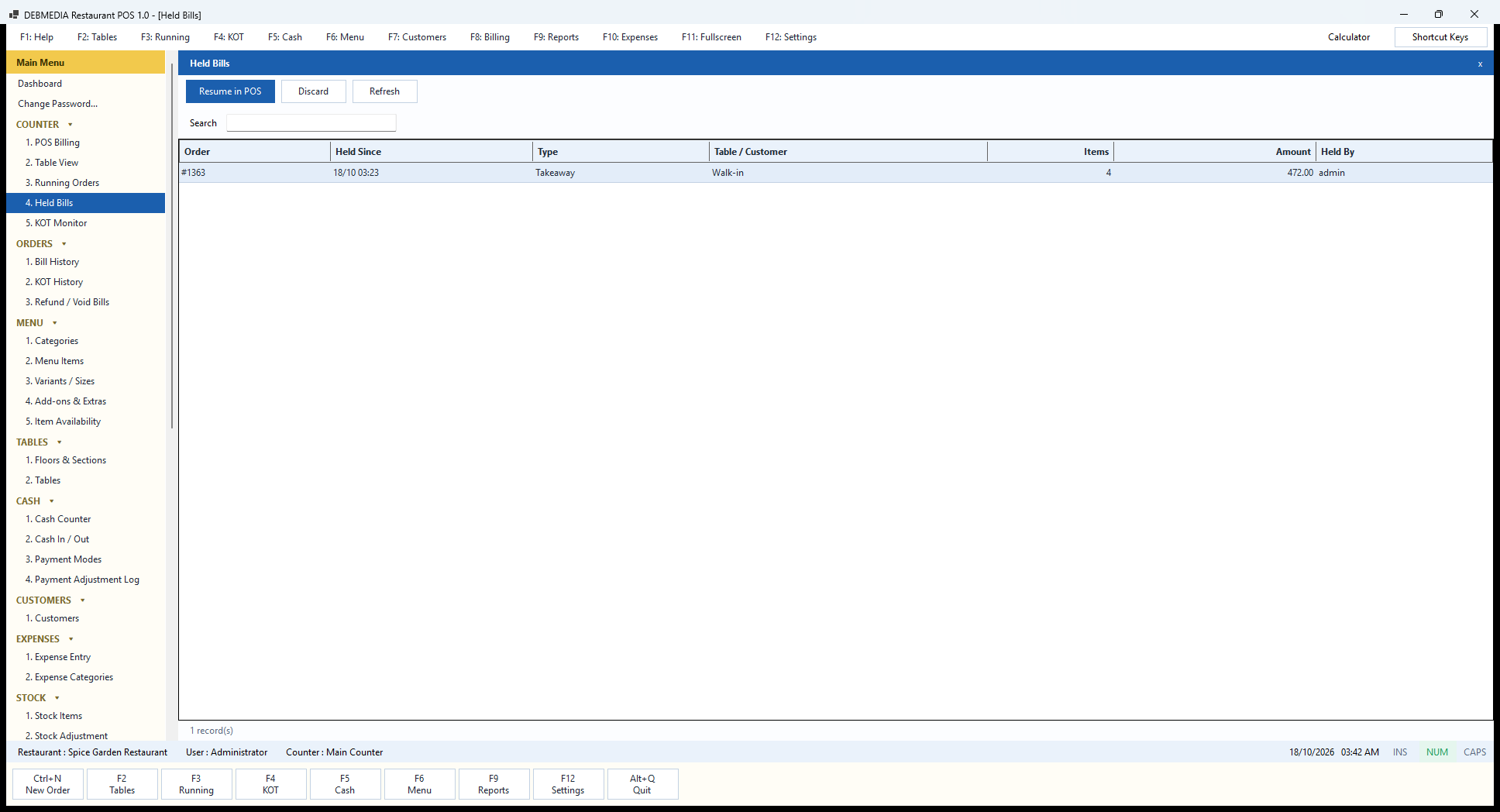
When a customer is still deciding, or goes to the car for their wallet, the cashier does not have to leave the till blocked. Pressing Hold (F6) on the billing screen parks the order, and it appears in Held Bills. The grid shows the order number, Held Since time, type, table or customer, number of items, amount and Held By user. In the sample, order #1363, a takeaway for a walk-in customer with four items and ₹472, was held at 03:23 by the admin.
Resume in POS brings the held order back onto the billing screen exactly as it was left, ready to add to, send to the kitchen or settle. Discard throws a held order away when the customer has left, and Refresh reloads the list. A held order is simply parked with its status changed to Held; it comes back as an ordinary open order when resumed.
Holding is especially useful at a busy takeaway counter, where one customer’s phone call or change of mind should never make the queue behind them wait.
KOT Monitor
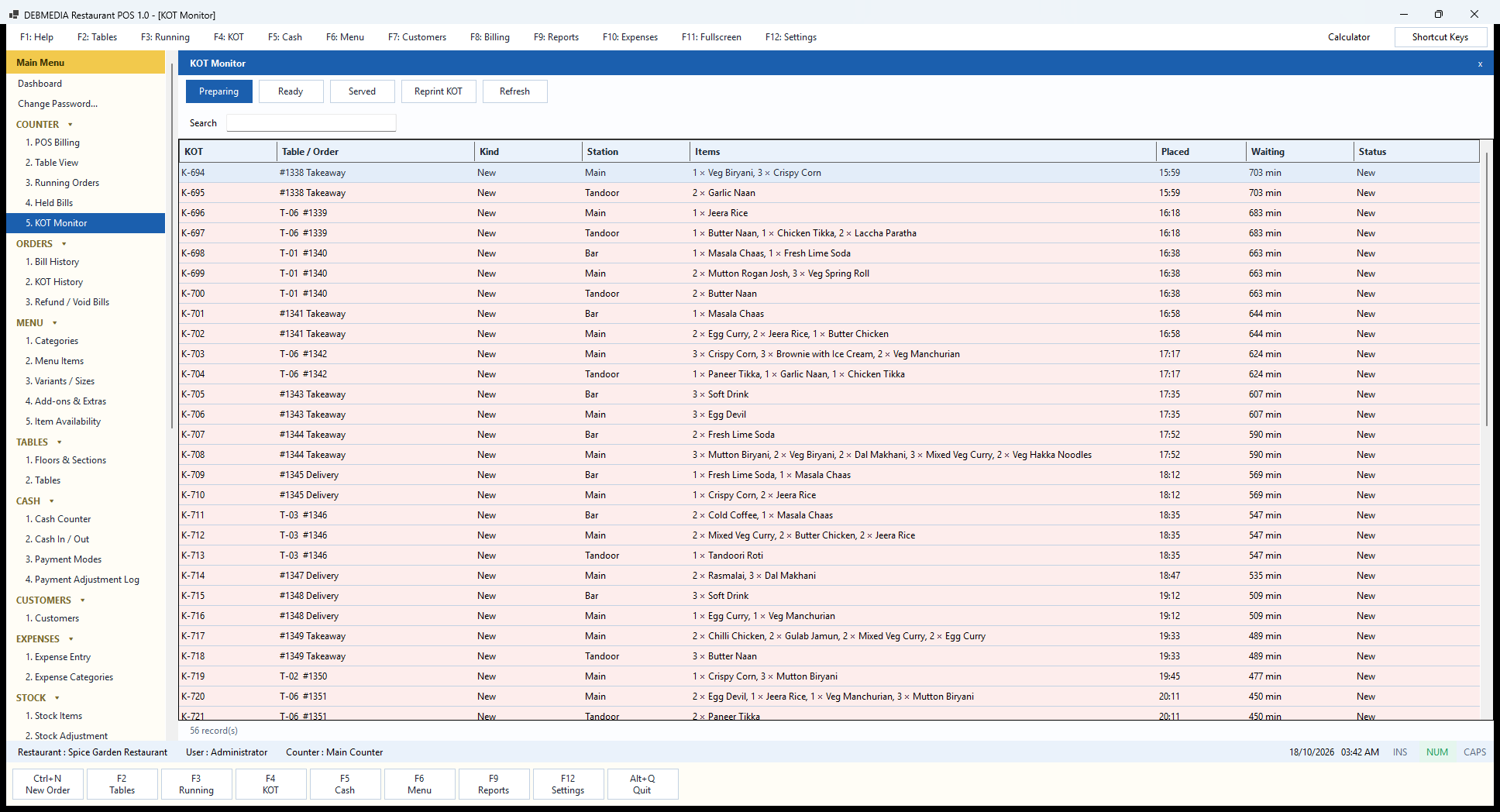
The KOT Monitor is the kitchen’s work list. Every time an order is saved, the program prints or previews one kitchen order ticket per station, and each ticket is a row here with its KOT number, the table or order it belongs to, its kind (New, Additional or Cancel), the station (Main, Tandoor, Bar), the items with quantities, the time placed, how many minutes it has been waiting and its status. In the sample, the order for table T-01 produced three tickets at the same minute: K-698 to the Bar for a Masala Chaas and a Fresh Lime Soda, K-699 to the Main kitchen for two Mutton Rogan Josh and three Veg Spring Rolls, and K-700 to the Tandoor for two Butter Naan. The Tandoor chef sees only breads and kebabs and the bartender sees only drinks.
The four buttons across the top move tickets through the kitchen: Preparing (the list currently showing), Ready when the dishes are plated, Served when they have reached the table, and Reprint KOT when a ticket is lost or a printer jams. A search box finds a ticket by table or item. Tickets that have waited are tinted so the longest-waiting order is obvious.
A note on the sample data: the 56 tickets here were generated for sample orders over several days and were never moved to Served, so they show waiting times of several hundred minutes. In a real kitchen, tickets are marked Ready and Served as the food goes out and this list holds only the live ones.
The KOT Monitor is a screen on the counter PC. It is not a separate kitchen display on its own screen; that is one of the items listed under scope and limits below.
Orders: Bill History, KOT History and Refunds
Bill History
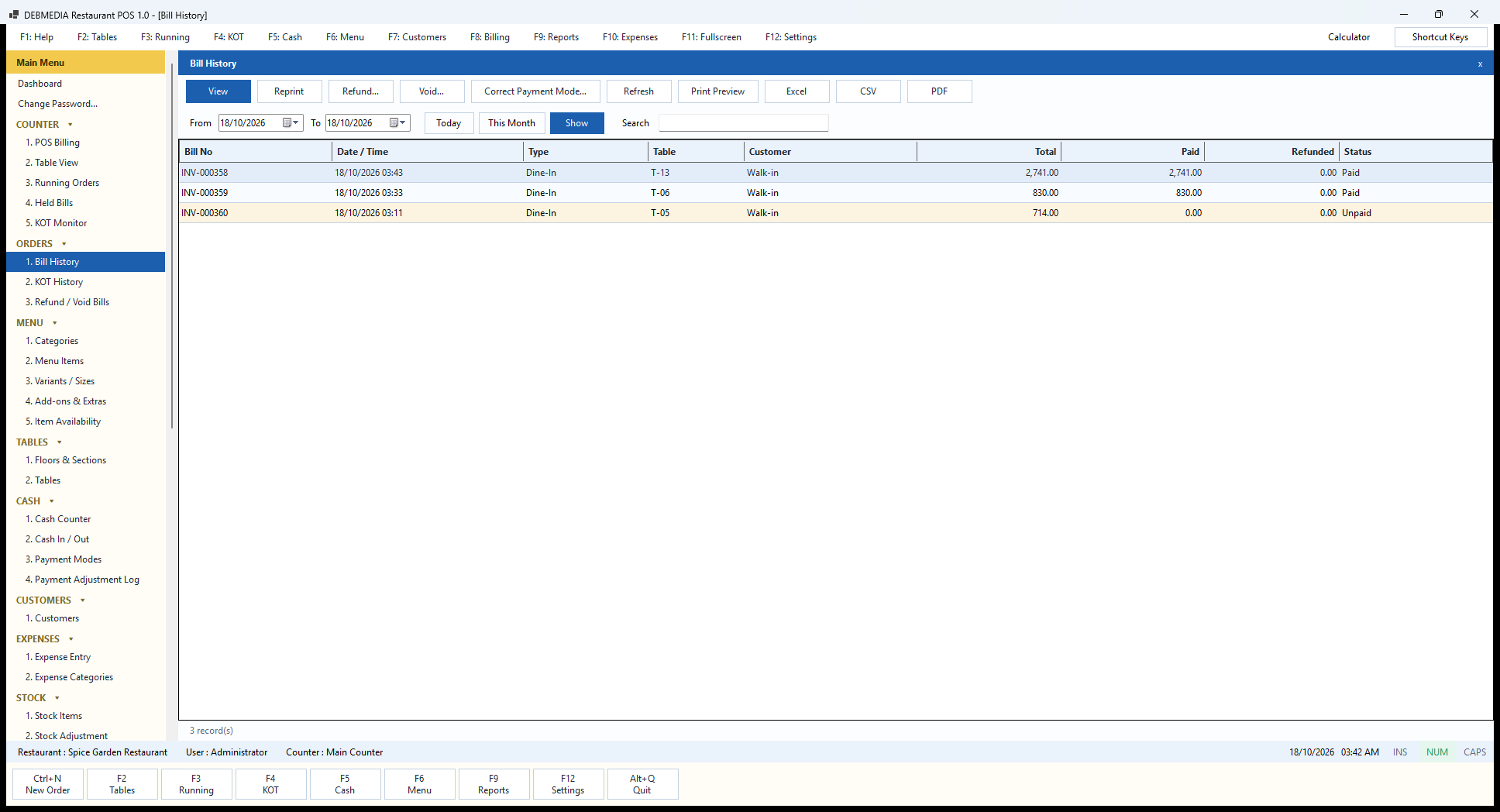
Bill History is the permanent register of every bill the restaurant has raised. The From and To date pickers, the Today and This Month shortcuts and the Show button choose the period, and the Search box narrows the list by bill number, table or customer. Each row shows the bill number (INV-000358), date and time, type (Dine-In, Takeaway or Delivery), table, customer, the bill total, the amount paid, the amount refunded and the status. In the sample, INV-000358 for table T-13 is ₹2,741 paid in full, INV-000359 for T-06 is ₹830 paid, and INV-000360 for T-05 is ₹714 with nothing paid yet, so its row is tinted amber and reads Unpaid.
The buttons across the top are the tools for after-sale questions. View opens the full bill with its items, discount, charges, tax and payments. Reprint sends the bill to the printer again; a reprint is marked as a duplicate so a copy can never be mistaken for the original. Refund returns money on a paid bill, in full or in part, and asks for the amount and a reason. Void cancels a whole bill, refunds anything already paid and asks for a reason. Correct Payment Mode fixes the common cashier slip of taking a UPI payment as cash, and asks why; the change is recorded in the Payment Adjustment Log. Refresh, Print Preview, Excel, CSV and PDF reload the list and send it to paper or a file for the accountant.
Each of the sensitive buttons is tied to a permission on the Roles and Permissions screen. A waiter sees none of this screen at all, a cashier can view and reprint but not refund or void, and only roles the owner trusts can do both. Nothing is ever deleted: a refunded or void bill stays in the list with its status, so the register always adds up.
KOT History
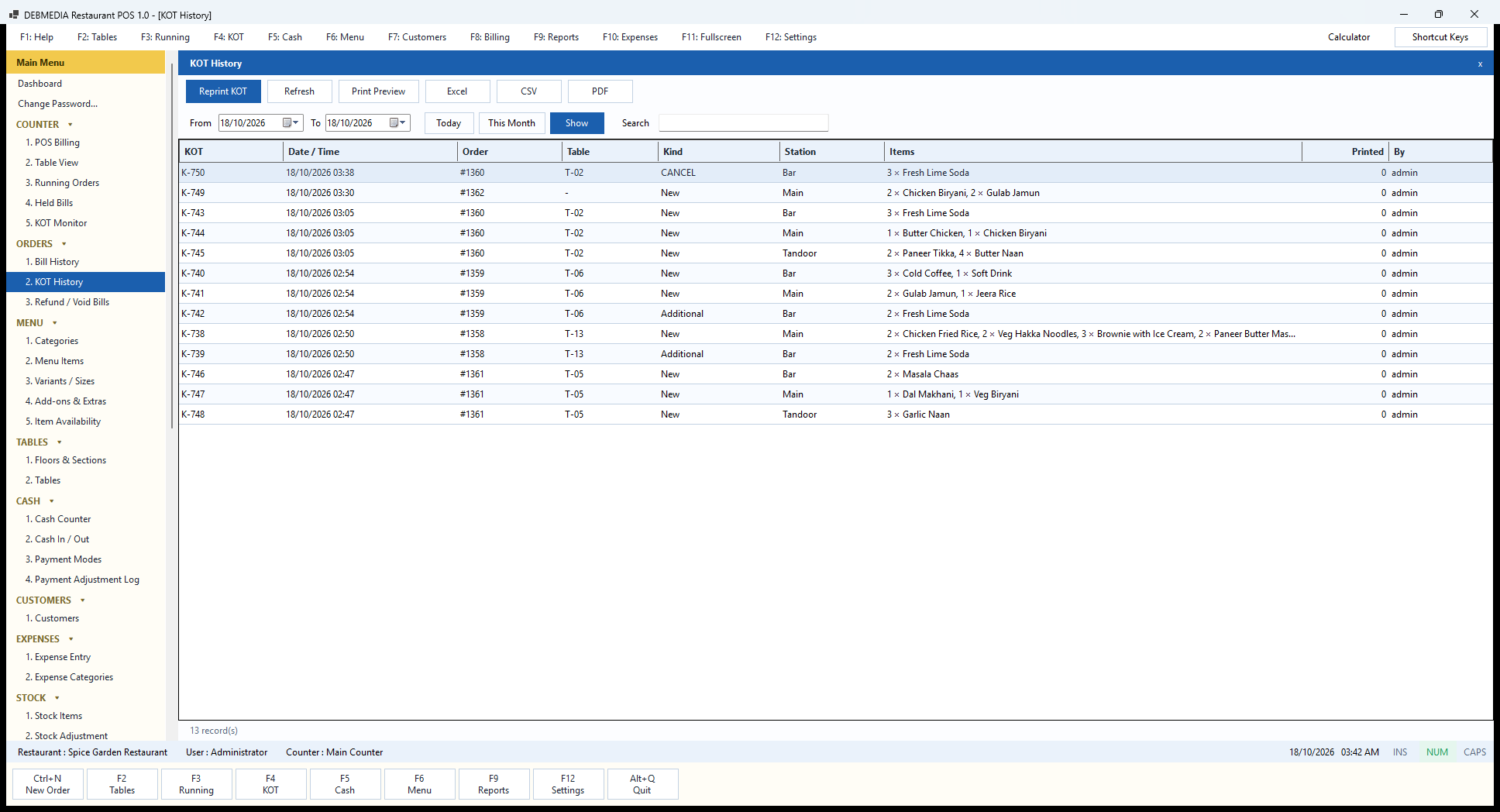
KOT History is the permanent register of kitchen tickets, the counterpart of Bill History for the kitchen. It uses the same date range controls (From, To, Today, This Month, Show) and Search box. Every row shows the KOT number, the date and time, the order number, the table, the kind, the station, the items with quantities, how many times the ticket has been printed and the user who raised it.
The kind column is the interesting one. A New ticket is produced when items are first sent. An Additional ticket is produced when more items are added to a table that has already ordered, so the kitchen sees only the new dishes and not the whole order again; K-742 and K-739 in the sample are additional Bar tickets for more Fresh Lime Sodas. A CANCEL ticket is produced when items that have already been sent are removed. K-750 in the sample is a CANCEL ticket to the Bar for three Fresh Lime Sodas on order #1360 for table T-02. It tells the Bar to stop making them and is permanently on record, along with who cancelled and why.
The station column shows the routing: order #1360 at table T-02 produced K-743 for the Bar, K-744 for the Main kitchen and K-745 for the Tandoor, all at the same minute. A ticket is also kept for orders without a table, such as takeaway order #1362.
Reprint KOT sends a selected ticket to the kitchen printer again, which increases its printed count, and Print Preview, Excel, CSV and PDF export the list. This register is useful when a customer says the kitchen never got an order, or when you want to count how many cancellations a shift produced.
Refund / Void Bills
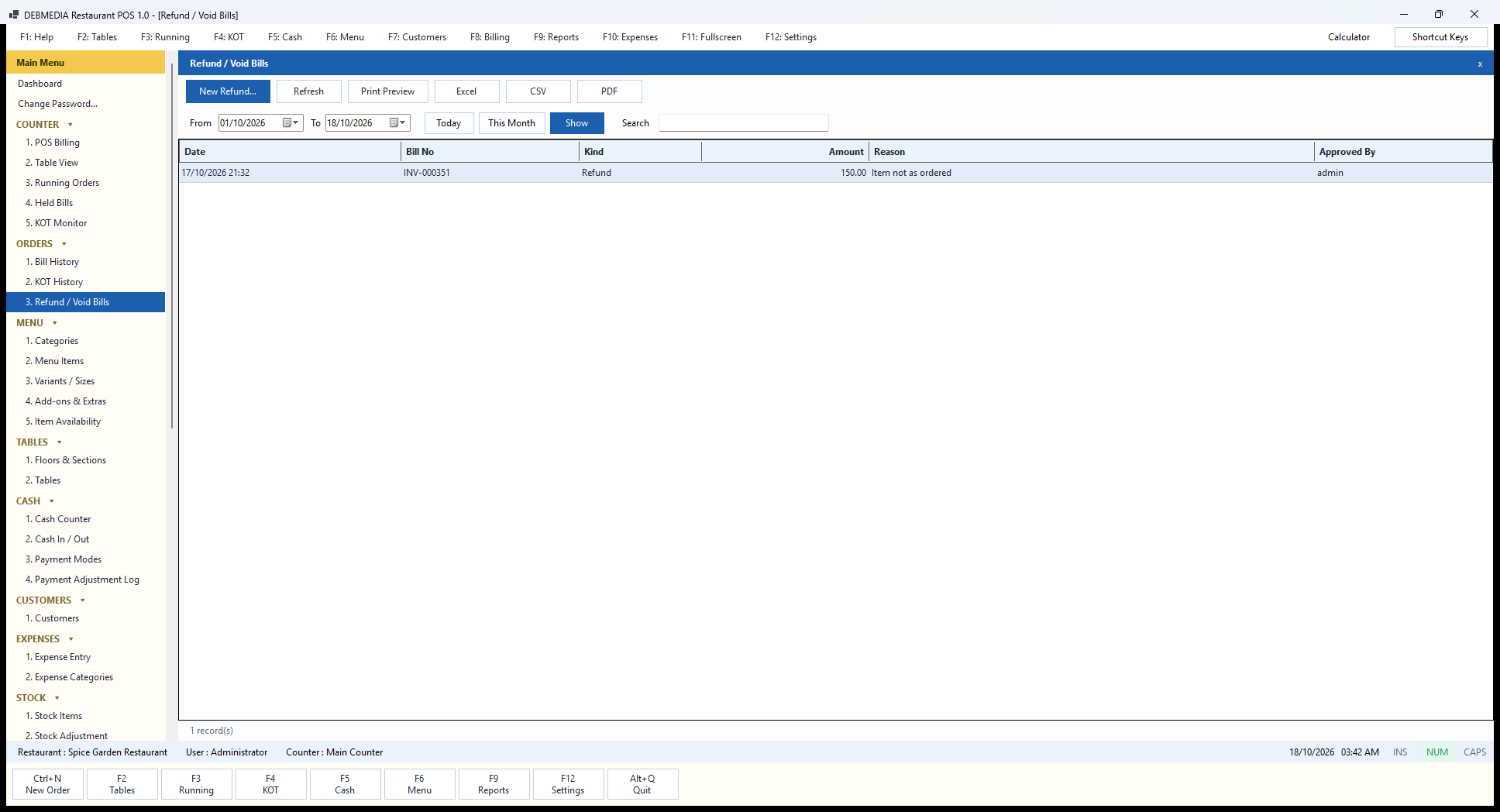
This screen is the manager’s register of money given back. It lists every refund and void in the chosen date range (here 1 to 18 October) with the date, the bill number, the kind, the amount, the reason and Approved By. The sample has one entry: on 17 October at 21:32 a refund of ₹150 on bill INV-000351 for the reason “Item not as ordered”, approved by the administrator.
New Refund lets a user with the permission refund against a bill without first finding it in Bill History: the program asks for the bill number (it suggests the INV- prefix), then opens the refund dialog with the amount and the reason, both of which are mandatory. The program checks the obvious things for you. Only a paid bill can be refunded, and a bill already refunded in full cannot be refunded again. The refund reduces the bill’s net figure and, for a cash refund, the expected cash in the drawer for that session, so the day-end reconciliation stays honest.
Refresh, Print Preview, Excel, CSV and PDF work as on the other registers. The same entries appear in the Cancellation and Refund Report and in the Audit Log, so an owner reviewing the week can see not just that money went back to customers but who authorised it and what the stated reason was. Refunds are a classic place for till leakage in restaurants, and the point of this screen is that every one is visible.
Menu: Categories, Items, Sizes, Add-ons and Availability
Categories
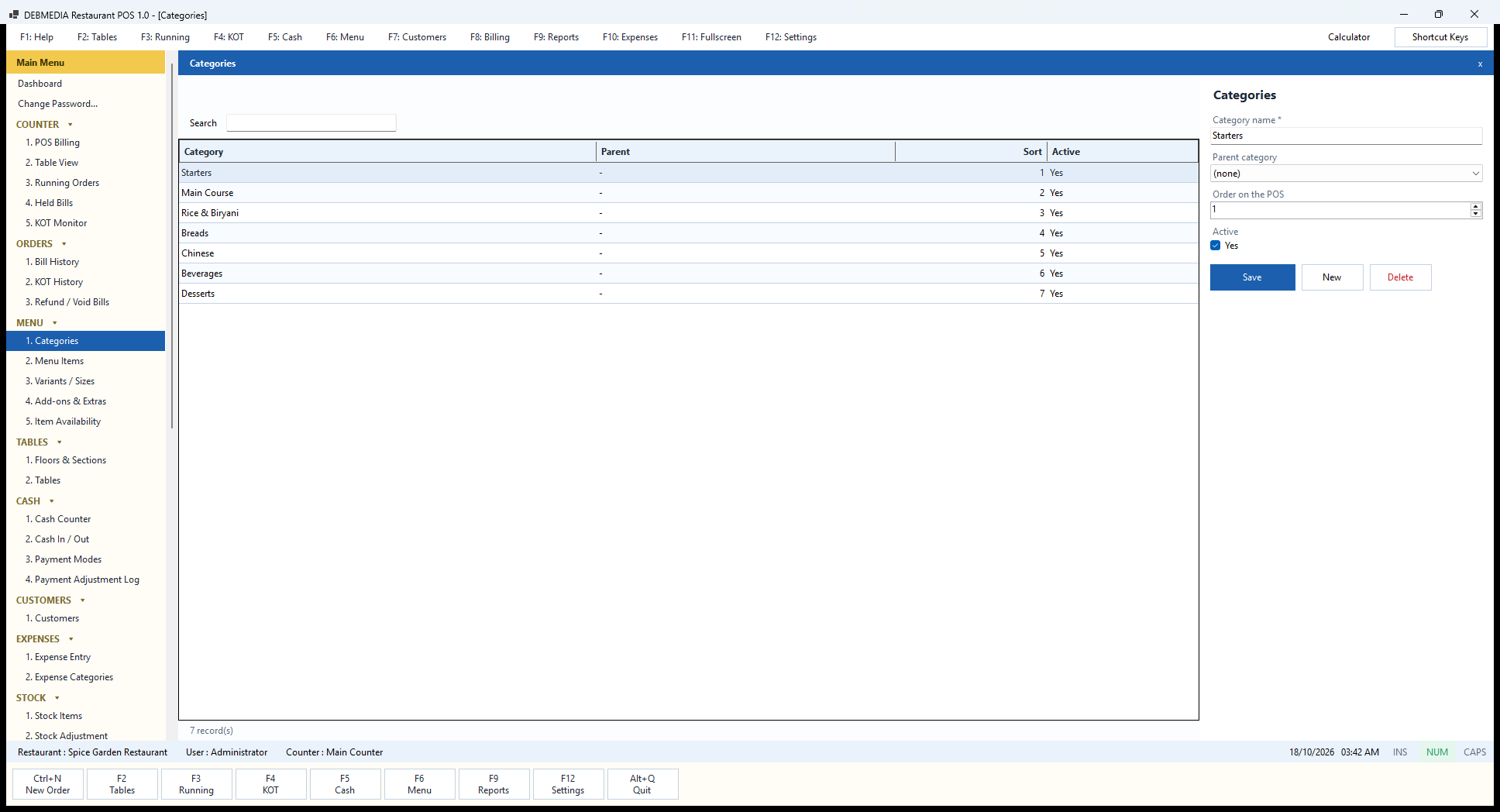
Categories are the groups of the menu and become the buttons down the left of the billing screen. The list shows the category, its parent, its sort number and whether it is active. The sample menu has seven: Starters, Main Course, Rice and Biryani, Breads, Chinese, Beverages and Desserts, numbered one to seven in the order a customer reads a menu.
The form on the right edits the selected category or adds a new one. Category name is the only required field. Parent category lets one category sit under another, for example a Drinks category with Hot and Cold beneath it, and is left at none for a flat menu. Order on the POS sets where the category’s button appears, so you can put the busiest groups first. Active switches a category off without deleting it, which is the right thing for a seasonal group such as a festival thali: the items and their sales history stay in the database, and the category simply stops showing on the billing screen. Save stores the category, New clears the form for the next one and Delete removes a category.
Good categories make billing fast, because the waiter reaches any dish in two taps. Keep them few and in the order of a meal.
Menu Items
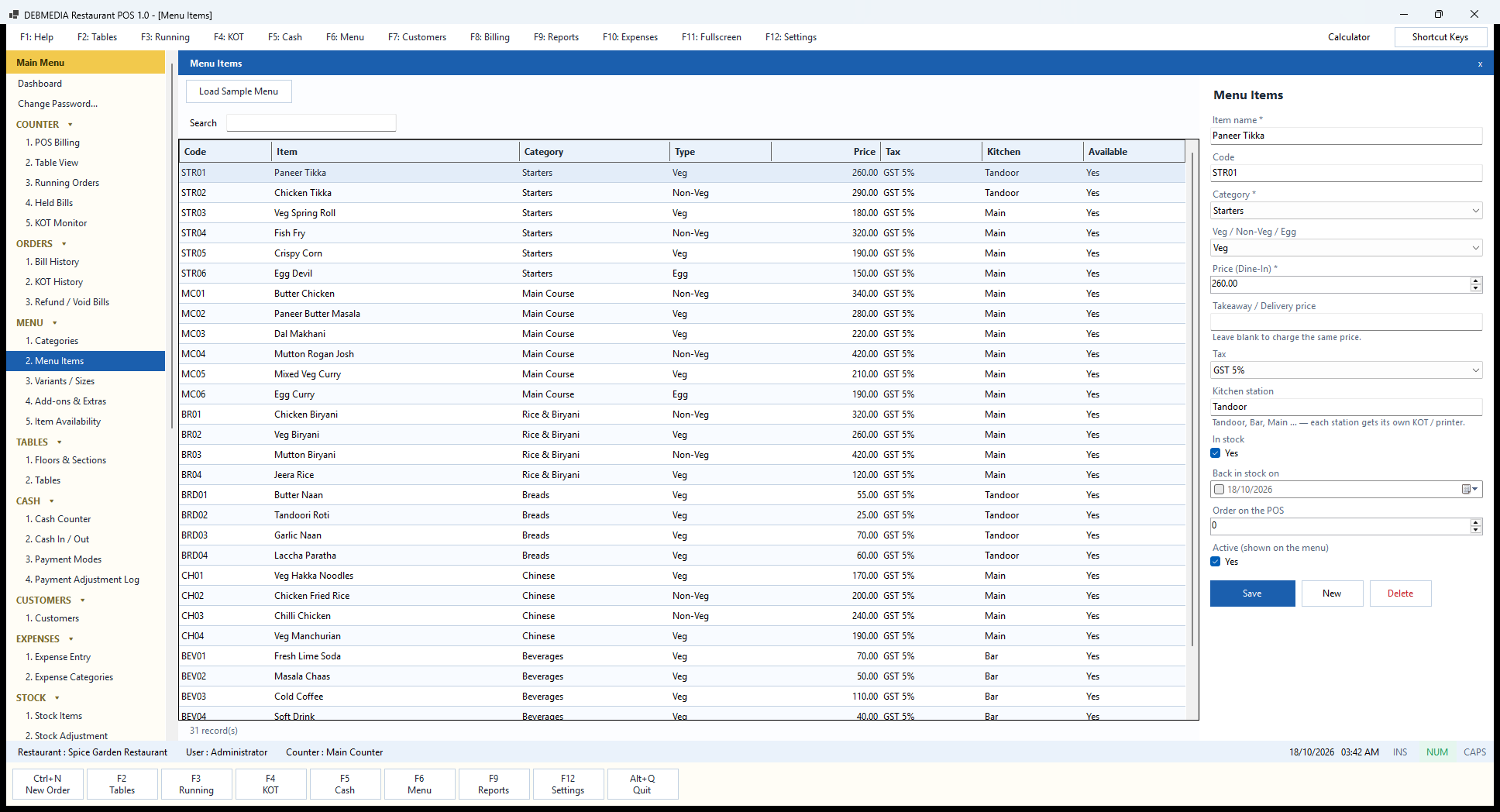
Menu Items is the master list of everything the restaurant sells. The grid shows each item’s code, name, category, type (Veg, Non-Veg or Egg), dine-in price, tax and kitchen station, and whether it is available. The sample has 31 items, for example STR01 Paneer Tikka in Starters at ₹260 with GST 5 percent and the Tandoor station, MC04 Mutton Rogan Josh at ₹420 from the Main kitchen, and BRD03 Garlic Naan at ₹70 from the Tandoor. A search box finds an item by code or name, and Load Sample Menu fills an empty menu with a ready-made set of dishes so a new restaurant can see the program working before typing its own.
The form on the right holds every setting. Item name, Code, Category and the Veg / Non-Veg / Egg mark are the basics. Price (Dine-In) is the price on the table. Takeaway / Delivery price is optional; the hint reads “Leave blank to charge the same price”, and a restaurant that prices takeaway differently simply fills it in. Tax picks one of the tax rates defined on the Tax Settings screen, GST 5 percent in the sample. Kitchen station names the station that cooks the item, and the hint explains the point: each station gets its own KOT and its own printer. In stock and Back in stock on control availability, so an item that has run out can be switched off now and set to return tomorrow automatically. Order on the POS sets the position among its neighbours and Active controls whether it appears on the menu at all.
Prices can be changed here at any time and affect only new bills; the item and rate on a past bill are kept as they were when it was raised.
Variants / Sizes
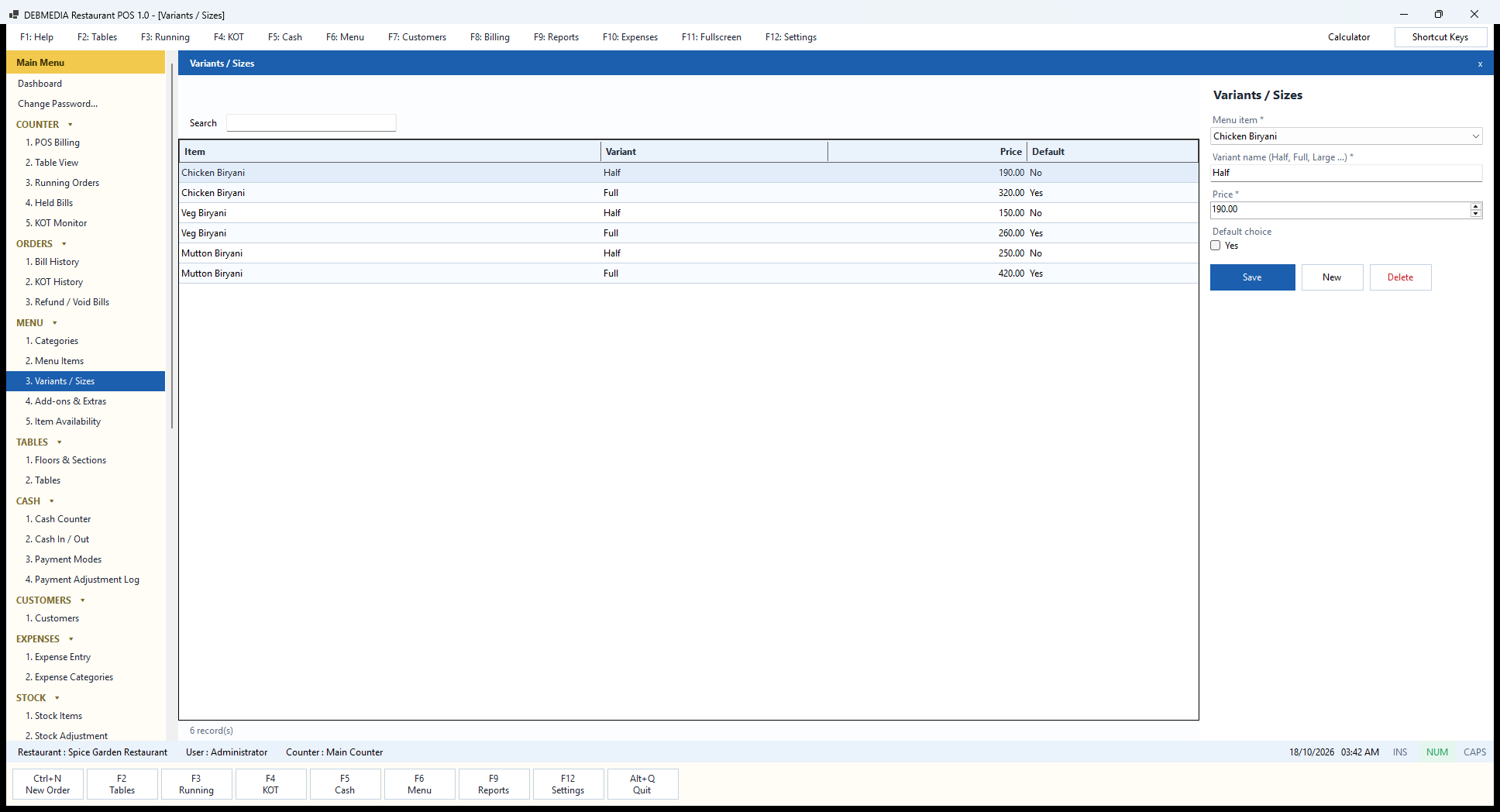
Many restaurant items come in more than one size, and this screen defines them. Each row ties a menu item to a variant name and a price, and marks one as the default. In the sample, Chicken Biryani is offered as Half at ₹190 and Full at ₹320 (the default), Veg Biryani as Half at ₹150 and Full at ₹260, and Mutton Biryani as Half at ₹250 and Full at ₹420.
The form has the Menu item to attach the variant to, the variant name (Half, Full, Large, or anything you like), the price and a Default choice tick. When a waiter taps an item that has variants on the billing screen, the program asks which size is wanted, and the chosen size and price go onto the bill and onto the kitchen ticket. On the billing screen such tiles show “from ₹190” so the cheapest price is visible before the tap. The default variant is the one pre-selected, which makes the commonest size a single confirmation.
Because variants carry their own prices, the same dish can be priced sensibly at each size without creating separate items for Half and Full, and the Item-wise Sales report still groups them under the one dish.
Add-ons & Extras
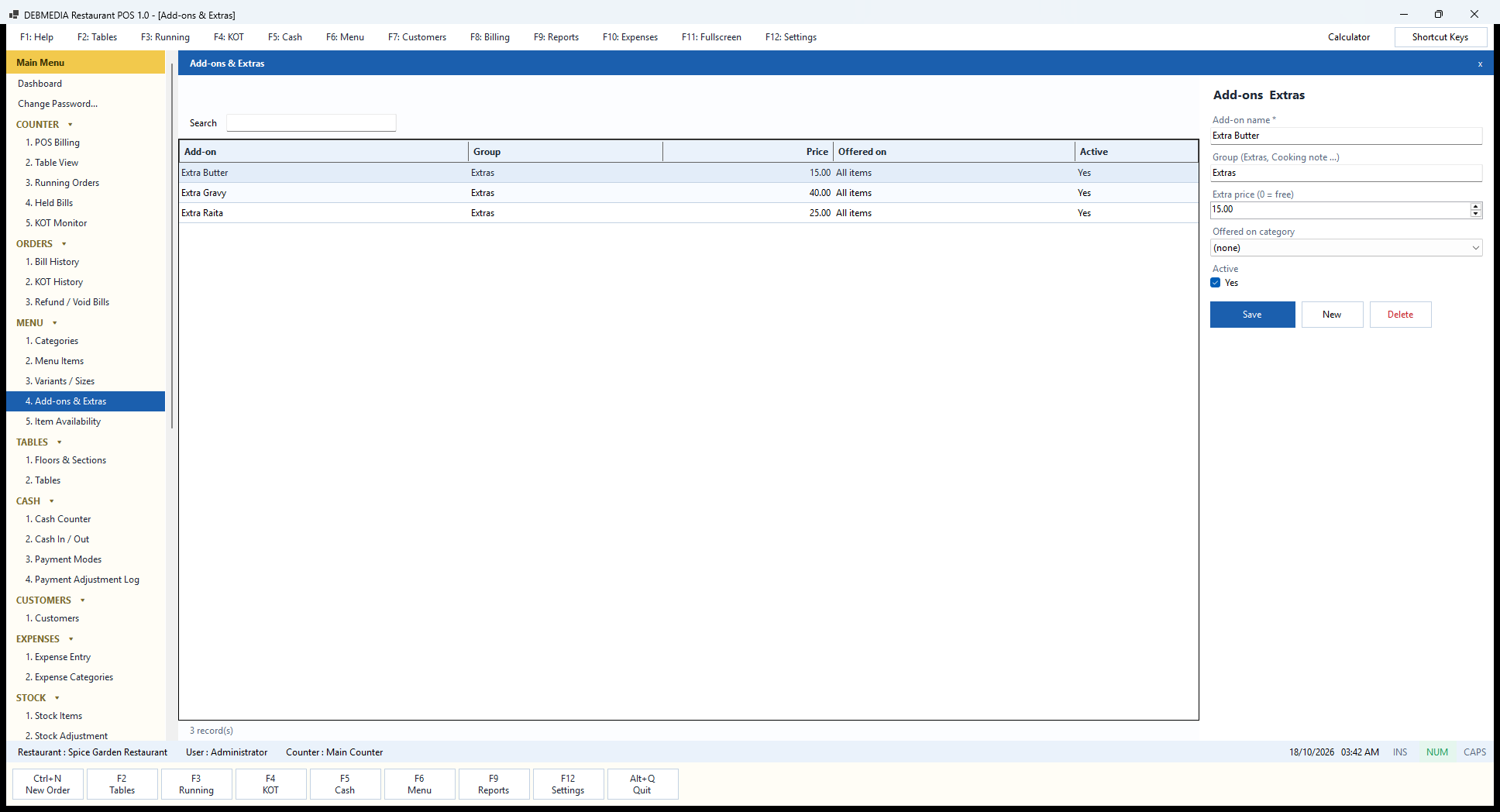
Add-ons are the small paid extras that customers ask for with a dish. The grid lists each add-on, its group, its price, where it is offered and whether it is active. The sample has three, all in the group Extras and offered on all items: Extra Butter at ₹15, Extra Gravy at ₹40 and Extra Raita at ₹25.
The form takes the Add-on name, a Group (the hint suggests Extras or Cooking note, so a no-cost instruction like “less spicy” can live in its own group), an Extra price where zero means free, an Offered on category choice that limits the add-on to one category such as Breads or leaves it available on everything, and an Active tick. When an item is tapped on the billing screen, the add-ons offered for it can be ticked, and their price is added to that line and printed on the KOT so the cook sees “Extra Gravy” next to the dish.
Selling extras is one of the easiest ways to lift the average bill, and entering them here once means no cashier has to remember a price or type a name on the fly.
Item Availability
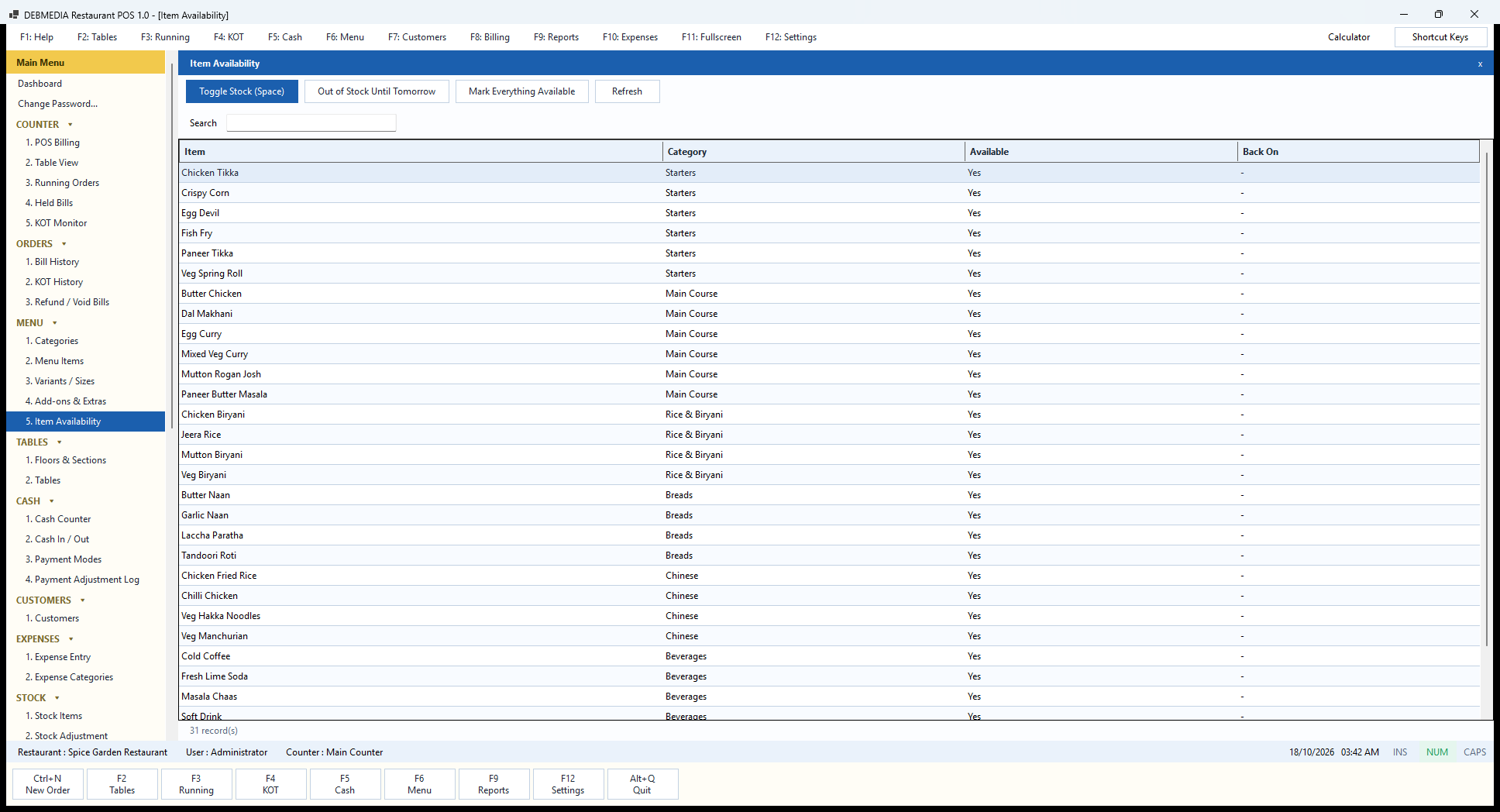
When the kitchen runs out of paneer at eight in the evening, the billing screen must stop selling it immediately. Item Availability is the screen built for that moment. It lists every item with its category, whether it is available and, if it has been switched off for a time, the Back On date. The sample shows all items available, with a dash in the Back On column.
Select an item and press Toggle Stock (Space) to flip it between available and out of stock, which is quick enough to do with the keyboard while the head cook shouts out what has finished. Out of Stock Until Tomorrow switches it off and sets it to return on its own the next day, so nobody has to remember to turn it back on in the morning. Mark Everything Available resets the whole menu at the start of a new day, and Refresh reloads the list. The search box finds an item by name.
An item that is out of stock disappears from selling on the billing screen rather than being deleted, so it keeps its price, sales history and place on the menu. This is a simple switch, not a stock count: it does not know how many portions are left, it only tells the counter what can be sold.
Tables: Floors and Seating
Floors & Sections
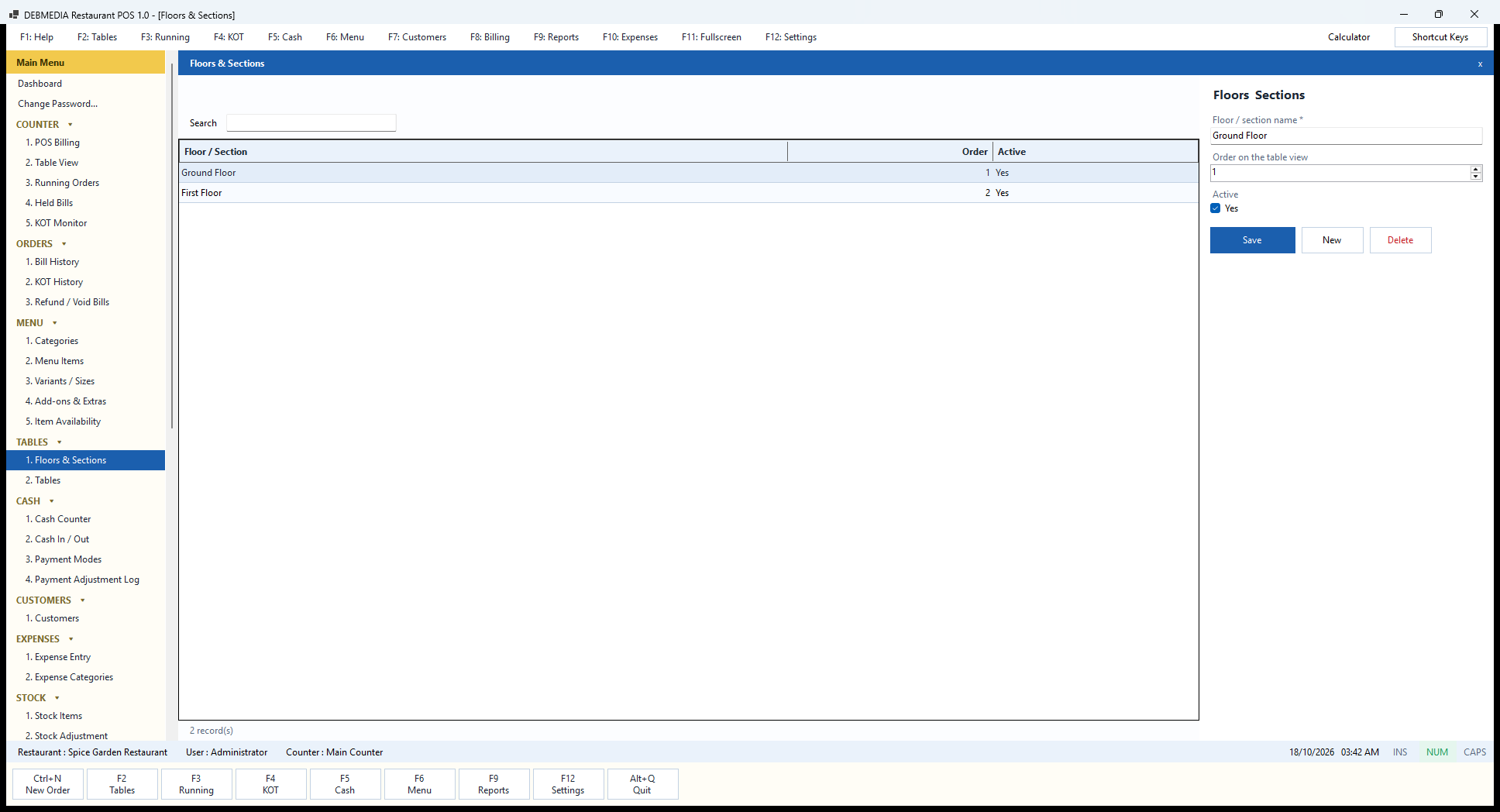
Floors and Sections define the areas of the restaurant that tables belong to, and they become the tabs at the top of the Table View. The grid lists each floor or section with its order and whether it is active. The sample restaurant has two: Ground Floor first and First Floor second.
The form takes a Floor / section name, an Order on the table view number and an Active tick. A restaurant can use the idea however it likes: real floors, or areas such as AC Hall, Garden, Terrace and Family Section. Setting one inactive hides it from the Table View while keeping its tables and history, which is useful for a rooftop that only opens in the cold months.
Floors are set up once, before the tables, and rarely touched again, but the structure matters: the Table View, the Live tables count on the Dashboard and the reports all follow it.
Tables
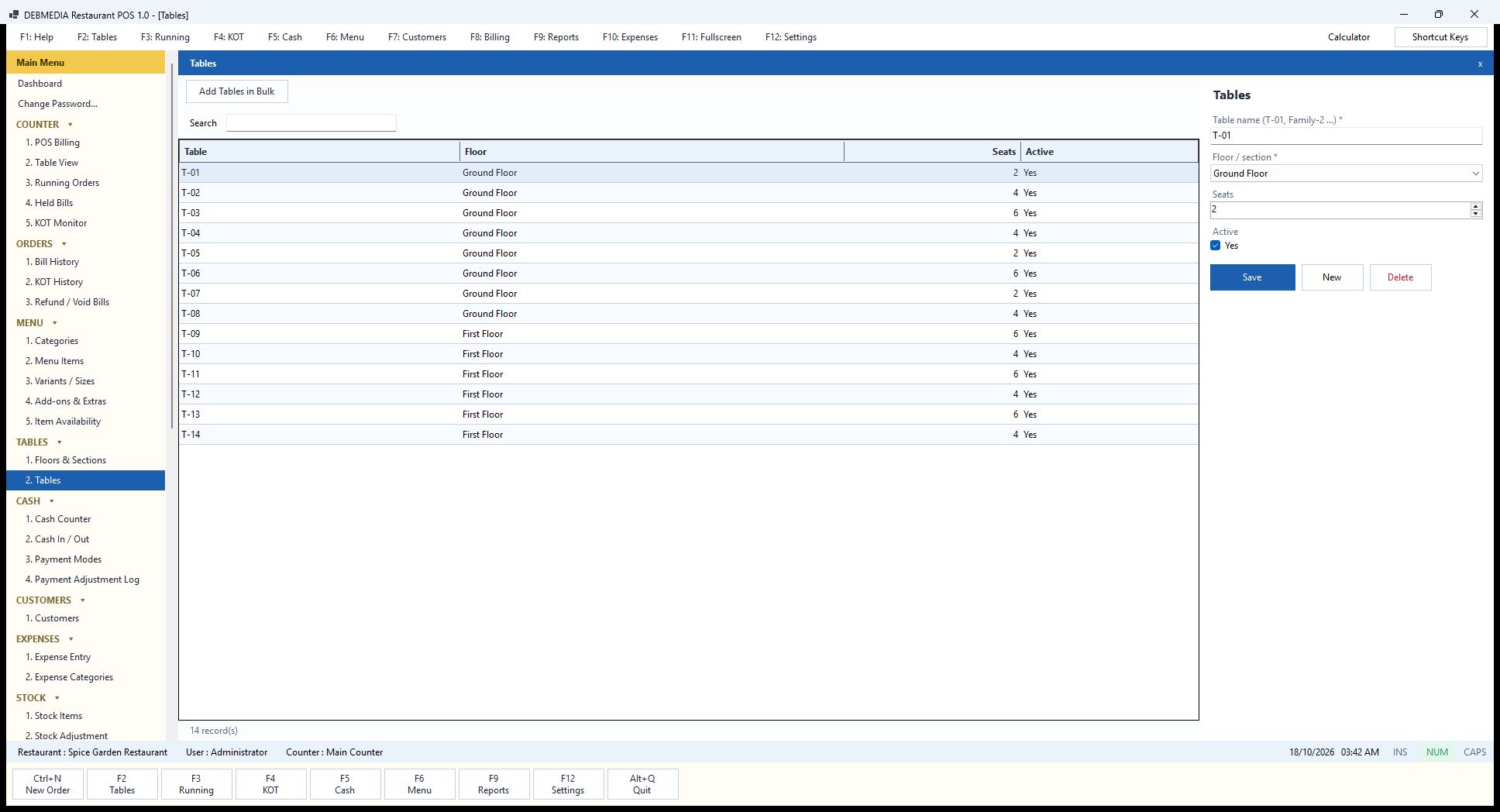
The Tables screen lists every table in the restaurant with its name, its floor and its seats. The sample has fourteen: T-01 to T-08 on the Ground Floor with two, four and six seats, and T-09 to T-14 on the First Floor. Each table in the list becomes a card in the Table View.
The form takes the table name (the hint gives T-01 and Family-2 as examples, so names do not have to be numbers), the floor or section it belongs to, the number of seats and an Active tick. For a new restaurant, Add Tables in Bulk asks how many tables to add and creates them in one go, named T-01, T-02 and so on, continuing from the last one, instead of typing each one; individual tables can then be corrected here. A table that has been removed from the floor can be made inactive so it no longer shows, while the bills that were raised on it remain in the history.
The seat count is not just decoration. It shows on the Table View card and helps the host choose a table for a party, and the guests figure entered at billing is compared with it by the person at the counter, not enforced by the program.
Cash: The Drawer, the Day and Payment Modes
Cash Counter
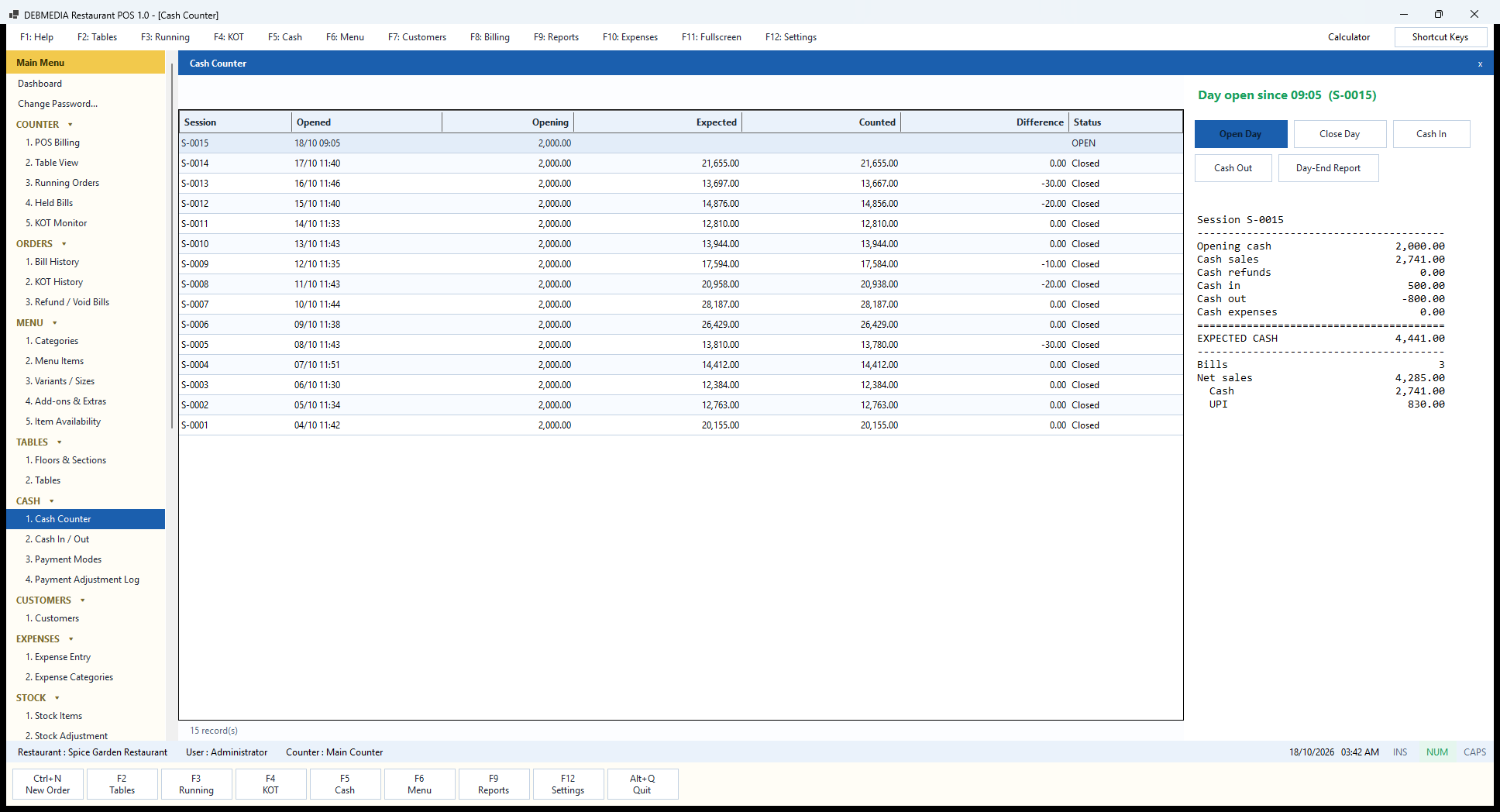
The Cash Counter is how the restaurant keeps its drawer honest. Each trading day is a session, numbered S-0001 onwards. The grid shows each session’s opening time, the opening cash, the expected cash, the counted cash, the difference and the status. The sample has fifteen sessions: fourteen closed days from 4 to 17 October, each starting with ₹2,000, and S-0015, today’s, still open. Look at the difference column of the closed days: most are zero, but a few are short by ₹10, ₹20 or ₹30, which is exactly the kind of small, real-life drawer variance the screen exists to expose.
The panel on the right shows the current state, “Day open since 09:05 (S-0015)”, and the buttons that run the day. Open Day asks for the cash in the drawer to start with. Close Day works out what the drawer should hold, asks you to count it, and if the count is short or over it says so and asks for a note explaining the difference before it will close. Cash In and Cash Out record money put into or taken from the drawer in between, each with a reason. Day-End Report prints the figures.
The text box below the buttons is the live reconciliation for the open session. In the sample: opening cash 2,000.00, cash sales 2,741.00, cash refunds 0.00, cash in 500.00, cash out minus 800.00 and cash expenses 0.00 give an expected cash of 4,441.00. It then lists the three bills in the session with net sales of 4,285.00, of which cash was 2,741.00 and UPI 830.00. Only cash modes affect the expected figure: UPI and card collections do not sit in the drawer, so they are shown but not counted.
Cash In / Out
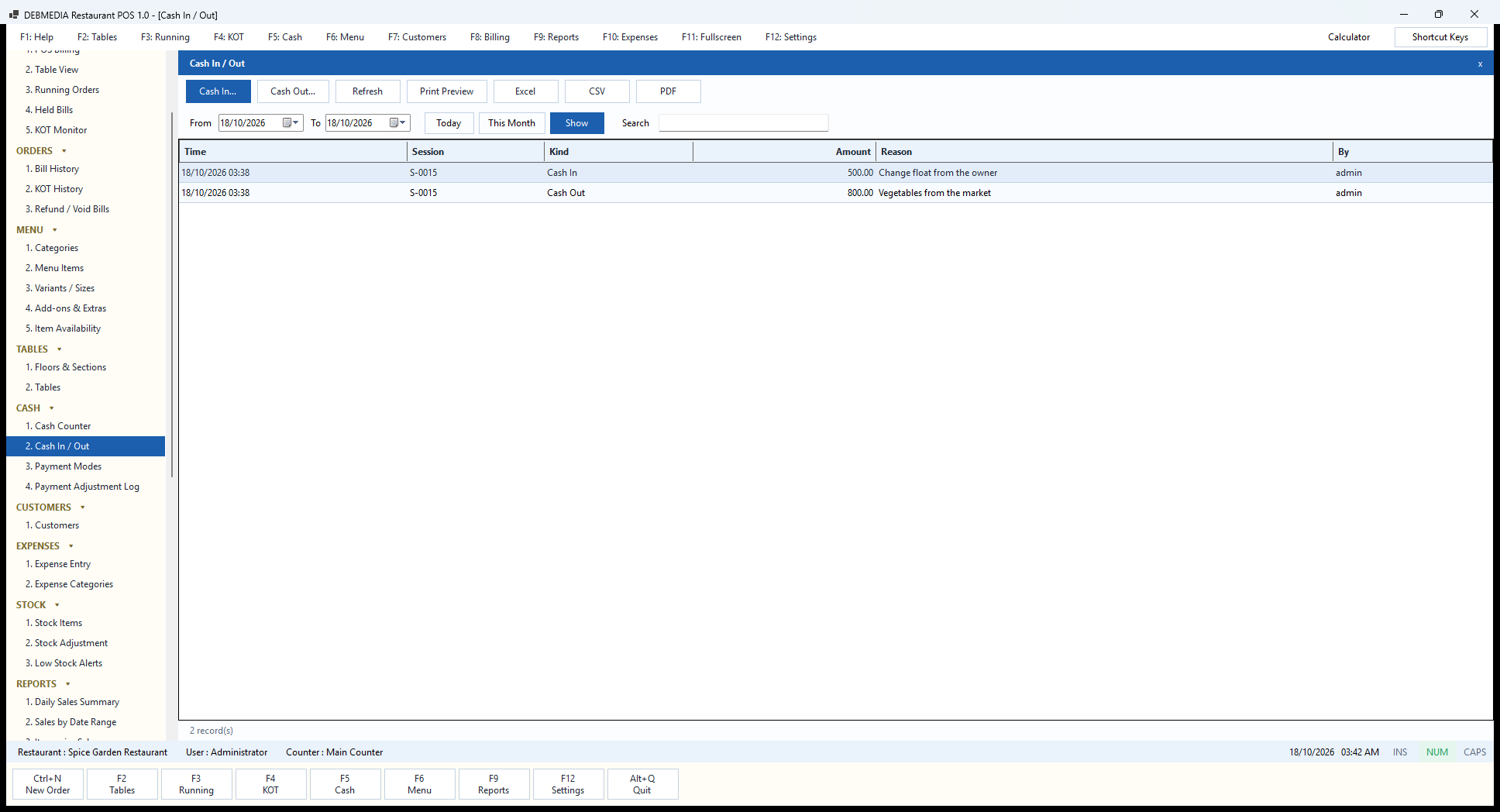
Cash In / Out is the register of drawer movements that are not sales. The date range controls choose the period, and the grid shows the time, the session it happened in, the kind (Cash In or Cash Out), the amount, the reason and the user. The sample shows two entries in session S-0015: a Cash In of ₹500 for “Change float from the owner” and a Cash Out of ₹800 for “Vegetables from the market”.
Cash In… and Cash Out… open the same dialogs as on the Cash Counter and ask for an amount and a reason; both ask for a reason. These are the two movements that most often make a drawer fail to tally at night: a float handed over by the owner that nobody wrote down, or cash taken to pay a vendor at the back door. Recording them here makes the expected cash on the Cash Counter right, and the register stays as the explanation of any difference.
Print Preview, Excel, CSV and PDF export the list. The Cash in / out permission is separate from the permission to open and close the counter, so an owner can let a cashier take sales but keep the drawer movements under a senior person’s control.
Payment Modes
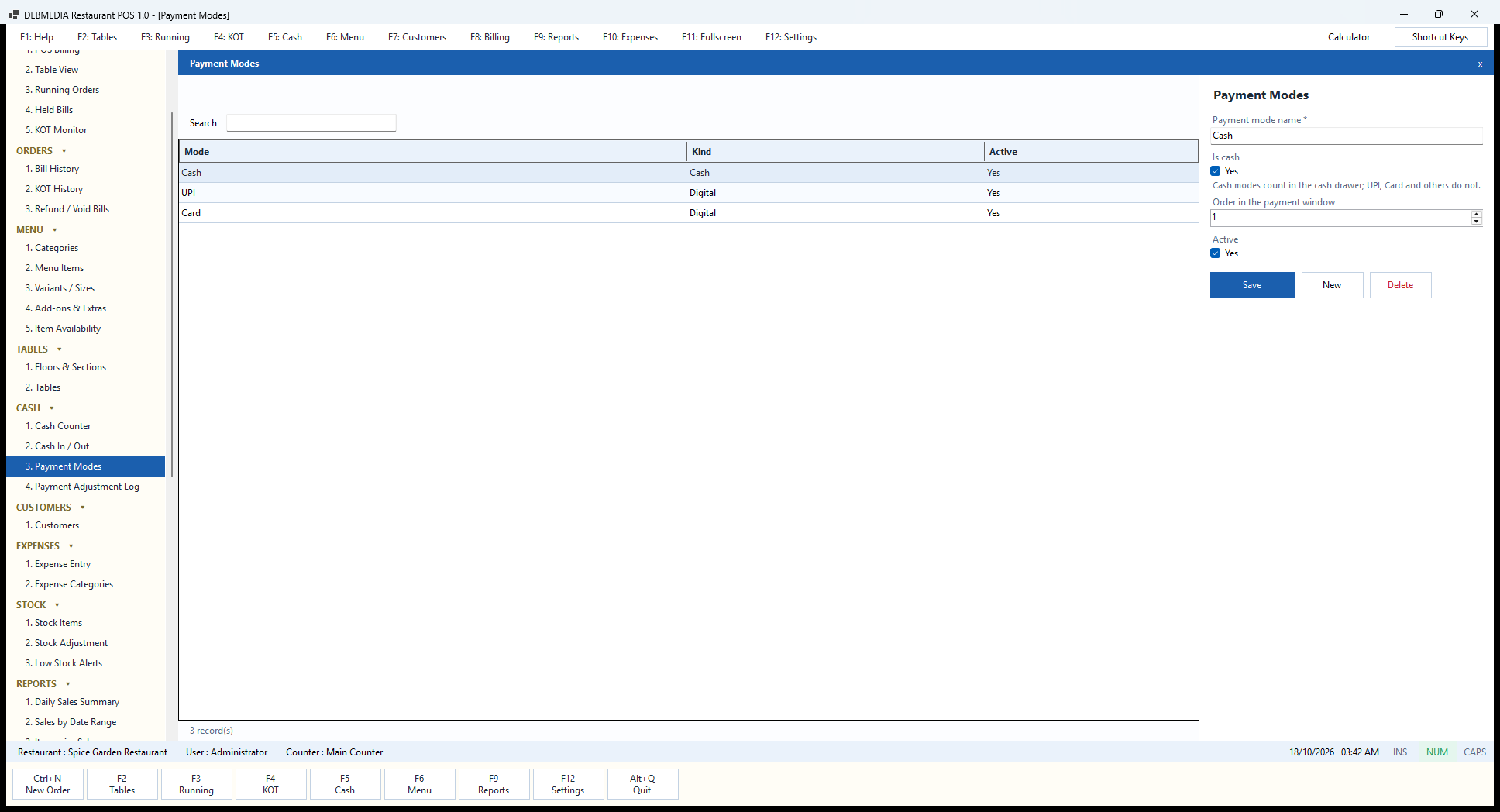
Payment Modes is the short list of ways a bill can be paid. The grid shows each mode, its kind and whether it is active. The sample has Cash (kind Cash), UPI (kind Digital) and Card (kind Digital).
The form has the payment mode name, an Is cash tick and an Order in the payment window number. The tick is the one that matters, and the hint under it explains it: cash modes count in the cash drawer, while UPI, Card and others do not. That one flag is what lets the Cash Counter calculate expected cash correctly. If a restaurant adds a new mode, for instance Wallet, Sodexo or Company Account, it is marked as non-cash and its collections will appear in the Payment Collection report without disturbing the drawer. The order number sets which buttons come first on the Settle and Pay window, so the commonest mode is the biggest and nearest.
The program supports splitting one bill across several modes, and paying part of a bill now and the rest later, using whichever modes are active here.
Payment Adjustment Log
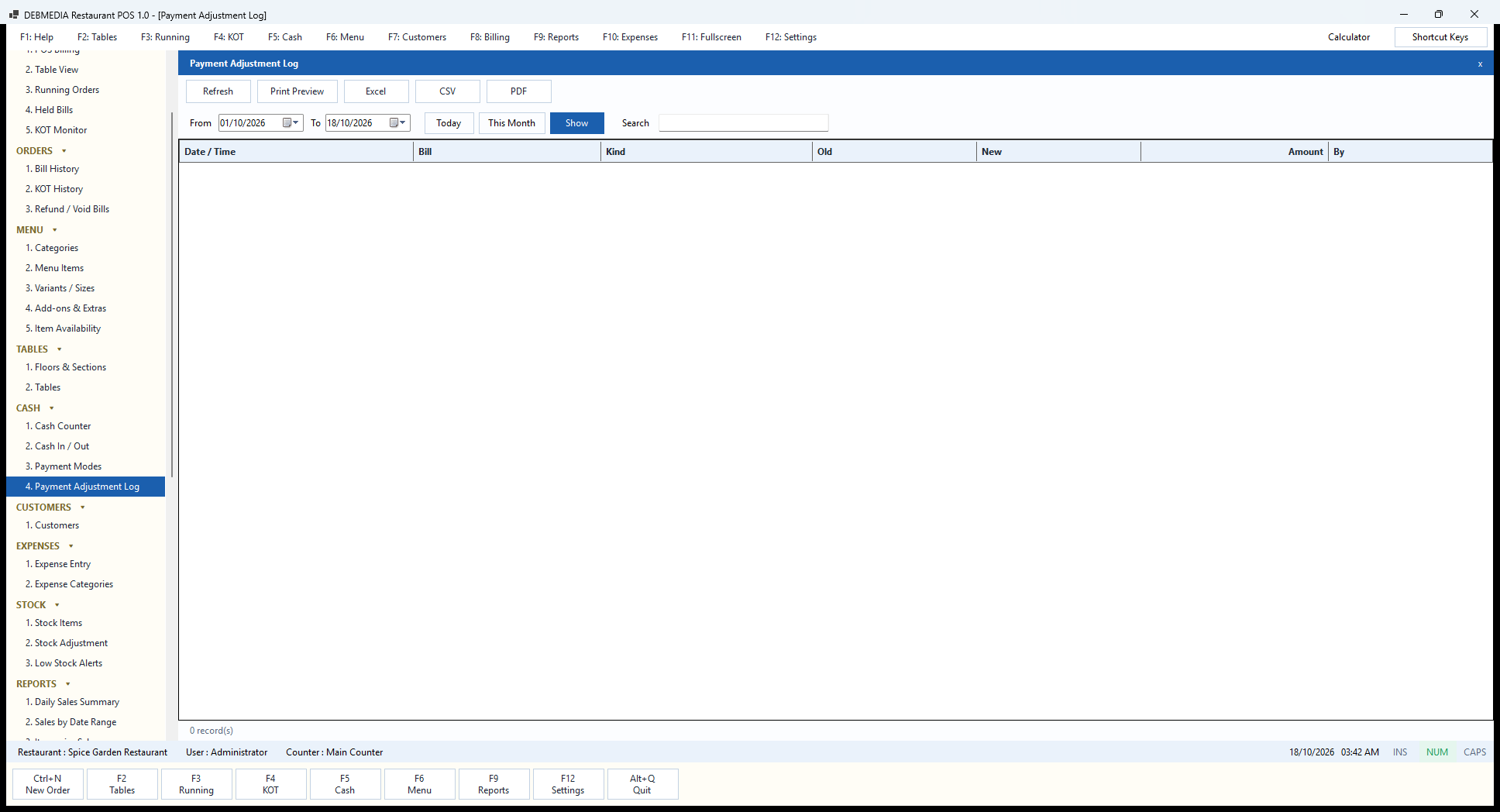
When a cashier takes a payment as cash and later realises the customer actually paid by UPI, the bill can be corrected with Correct Payment Mode on the Bill History screen. The correction is never silent: it appears here with the date and time, the bill, the kind of change, the old mode, the new mode, the amount and the user who made it. The date range, Show, Today and This Month controls choose the period and Search filters the list.
The sample list is empty, with zero records for 1 to 18 October, because no corrections were made in the sample data. That is the screen doing its job: a quiet log is a good log. The reason this register exists is that the payment mode drives both the cash drawer and the UPI and card totals, so changing it after the fact moves money between two columns of the day’s figures. An owner who reviews this log weekly can see at a glance whether anyone is moving cash to cover a shortage.
Print Preview, Excel, CSV and PDF export the register for audit.
Customers
Customers
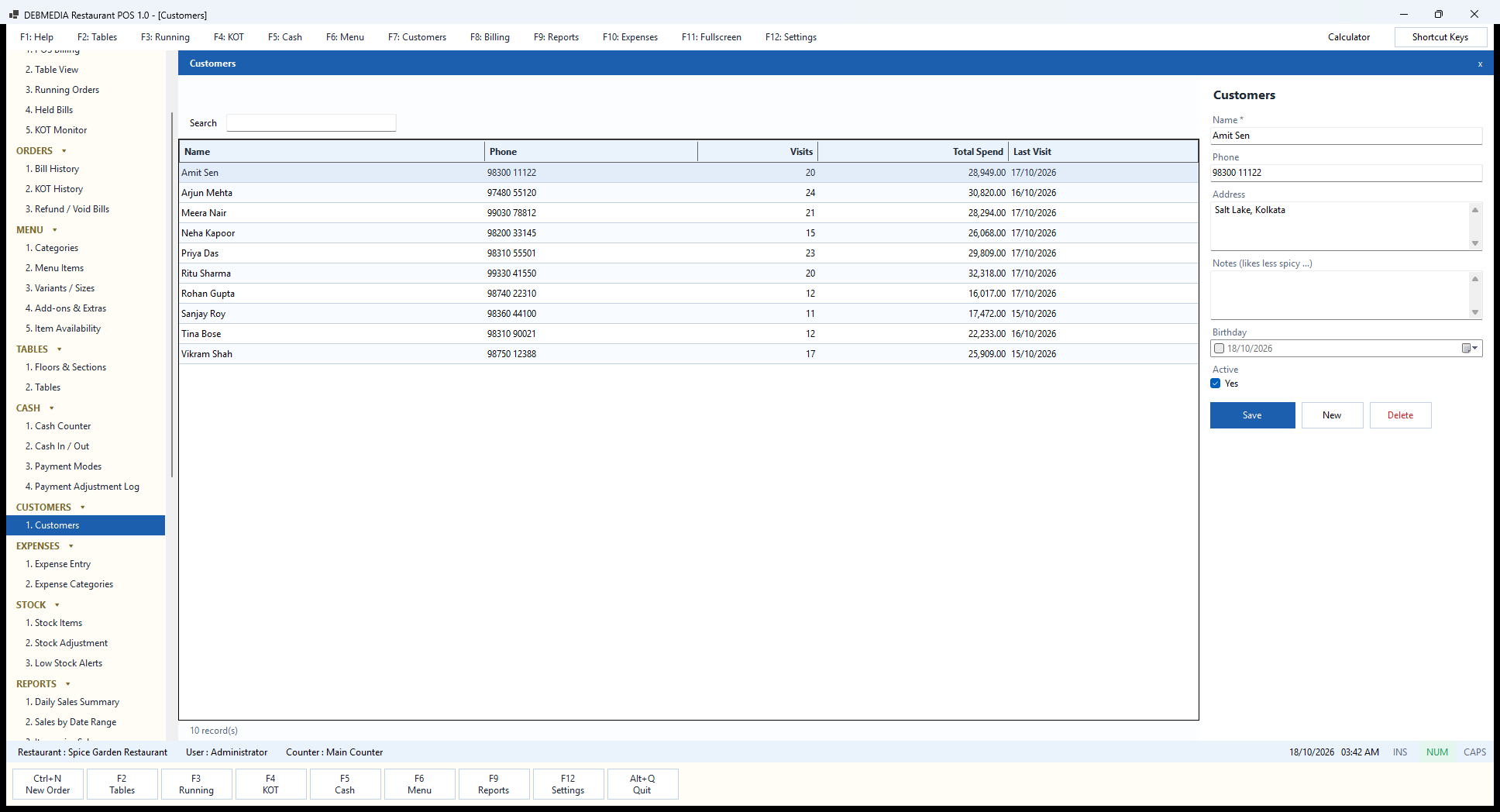
The Customers screen holds the restaurant’s regulars. The grid shows each customer’s name, phone, number of visits, total spend and last visit; the visits, spend and last-visit figures are worked out from the bills attached to that customer, not typed in. The sample has ten customers. Arjun Mehta has made 24 visits and spent ₹30,820; Ritu Sharma has spent the most at ₹32,318 over 20 visits; Sanjay Roy is the lightest at 11 visits and ₹17,472. A search box finds a customer by name or phone, which is how the cashier finds one at the till.
The form on the right takes the name (required), phone, address (useful for delivery, the sample shows Salt Lake, Kolkata), notes (the hint suggests “likes less spicy”), an optional birthday and an Active tick, with Save, New and Delete. On the billing screen the cashier clicks the Customer box to choose one of these people, or leaves the order as walk-in. A delivery order on the billing screen has its own address box, and takeaway orders show the customer’s name on the Running Orders list so the right bag goes to the right person.
The customer history is the foundation for the Customer Sales Report. The program stores names and phone numbers only on the counter computer and uses them for nothing but this list; there is no marketing or messaging feature in the first edition.
Expenses
Expense Entry
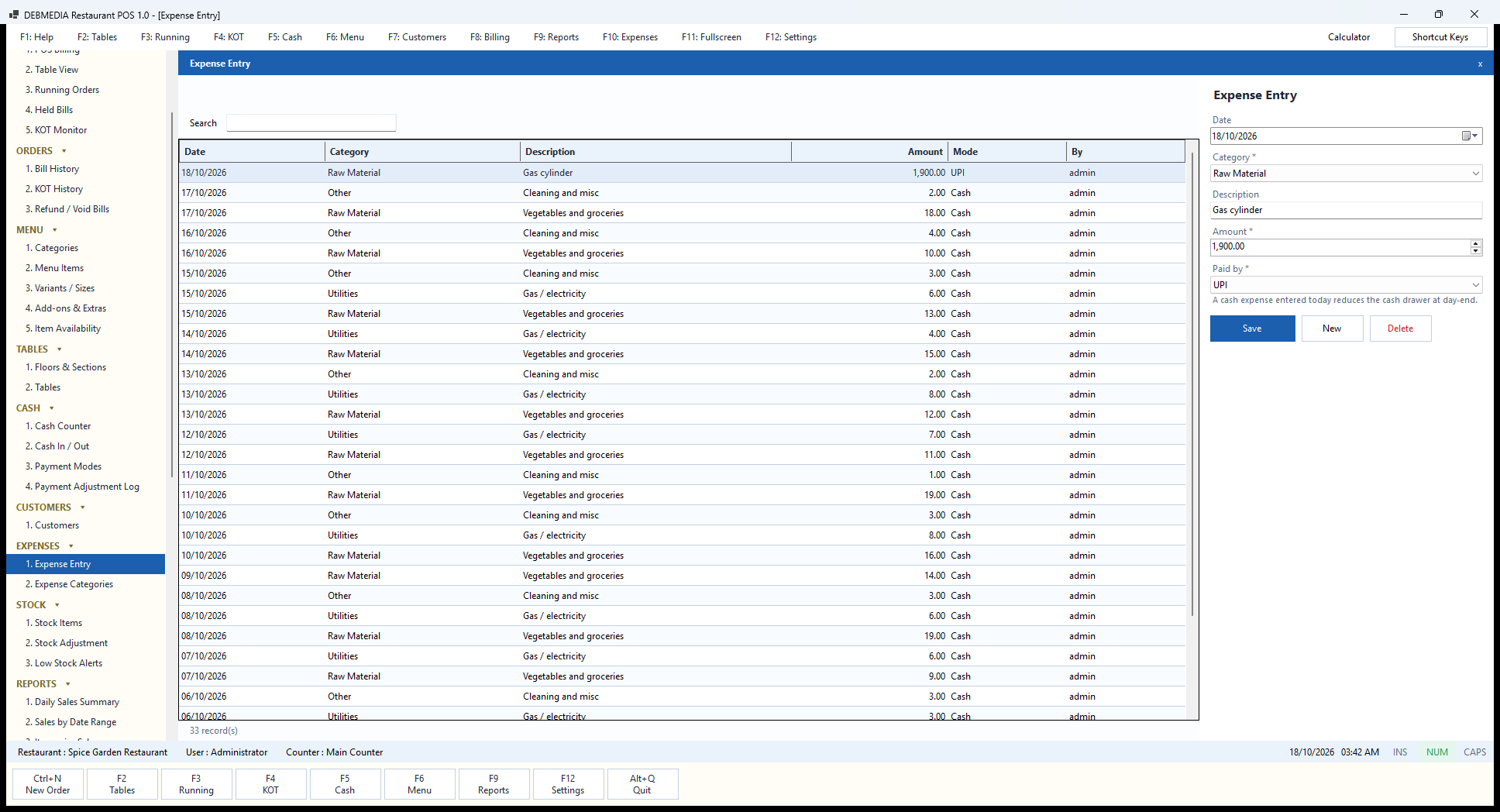
Expense Entry records the money the restaurant spends, so the owner can see profit as a real figure and the drawer reconciles. The grid shows each expense’s date, category, description, amount, mode and the user who entered it, newest first. The sample has 33 records for October: Raw Material for vegetables and groceries, Utilities for gas and electricity, and Other for cleaning and miscellaneous. The topmost entry is ₹1,900 for a gas cylinder on 18 October, paid by UPI.
The form takes the date, the category (from the Expense Categories list), a description, the amount and Paid by, which is a payment mode. The note under the form explains the one rule that matters: a cash expense entered today reduces the cash drawer at day-end. That is why the Day-End Cash Report has a Cash expenses line, and why an expense paid from the drawer need not also be entered as a cash-out.
A note on the sample data: apart from the gas cylinder, the daily amounts in this list are very small (a few rupees each), because the sample generator created token entries to fill the screen. They are not meant to look like a real restaurant’s costs, and the Profit Snapshot built from them therefore looks very rosy. With real expenses entered, that report becomes meaningful.
Expense Categories
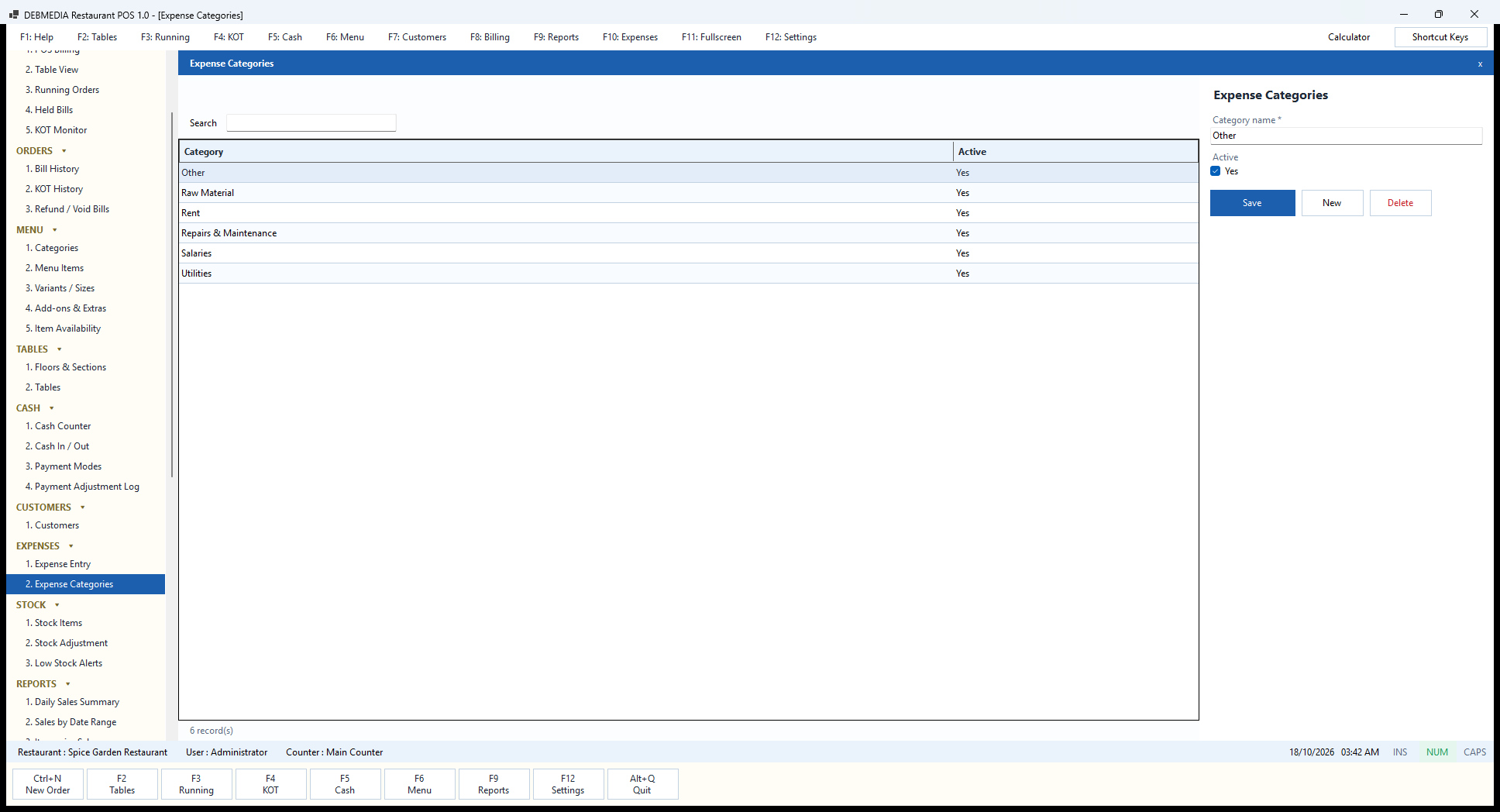
Expense Categories is the short list used to classify spending. The grid shows the category and whether it is active. The sample has six: Other, Raw Material, Rent, Repairs and Maintenance, Salaries and Utilities. The form has only a category name and an Active tick, with Save, New and Delete.
Keeping the list short makes the Expense Report useful: a report that splits spending into six or eight categories can be read in a glance, while one with fifty categories hides the pattern. A restaurant might add Packaging, Marketing or Licence Fees, or split Raw Material into Vegetables, Meat and Dairy if the owner wants to watch them separately. A category used by past expenses is made inactive rather than deleted, so the history still reads correctly.
Stock: Raw Materials and Alerts
Stock Items
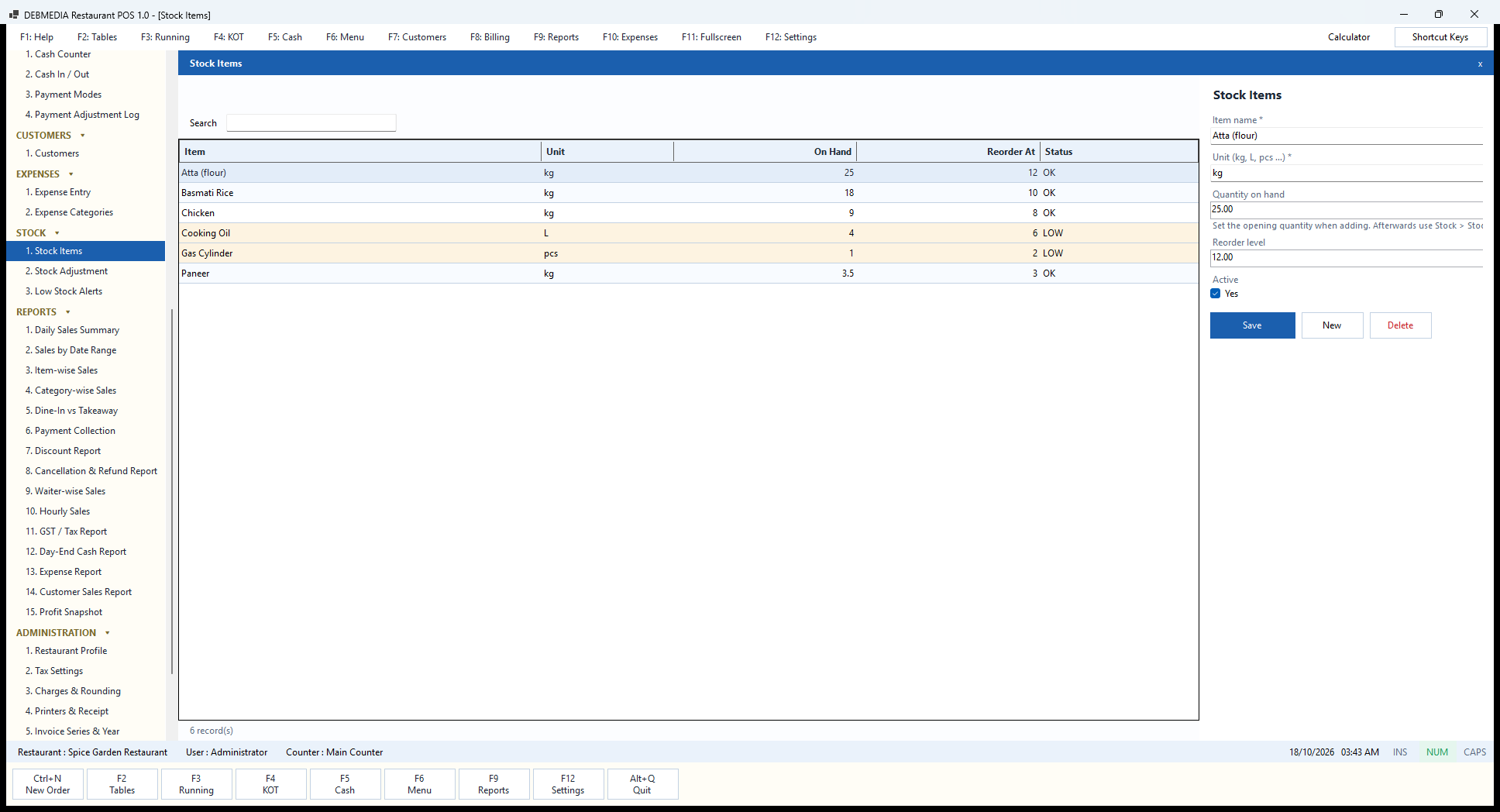
Stock Items is a simple list of the raw materials the kitchen buys, so the owner can see what is running low. The grid shows each item, its unit, the quantity on hand, the reorder level and a status. The sample has six: Atta (flour) 25 kg against a level of 12, Basmati Rice 18 kg against 10, Chicken 9 kg against 8, Cooking Oil 4 L against 6, Gas Cylinder 1 piece against 2, and Paneer 3.5 kg against 3. Items at or below their level show LOW in an amber row, which is why Cooking Oil and the Gas Cylinder stand out.
The form takes the item name, the unit (kg, L, pcs and so on), the quantity on hand, the reorder level and an Active tick. The hint warns that the quantity box sets the opening quantity only when adding a new item; afterwards, changes go through Stock Adjustment so that every change has a date, a user and a reason.
It is important to be clear about what this is. In this first edition, stock items are a counted list with alerts, not a recipe-costing inventory. Selling a plate of Butter Chicken does not automatically reduce the chicken in this list, because the program does not yet know the recipe. Quantities change when someone records an adjustment. Inventory with recipes is on the roadmap, and the scope section says so plainly.
Stock Adjustment
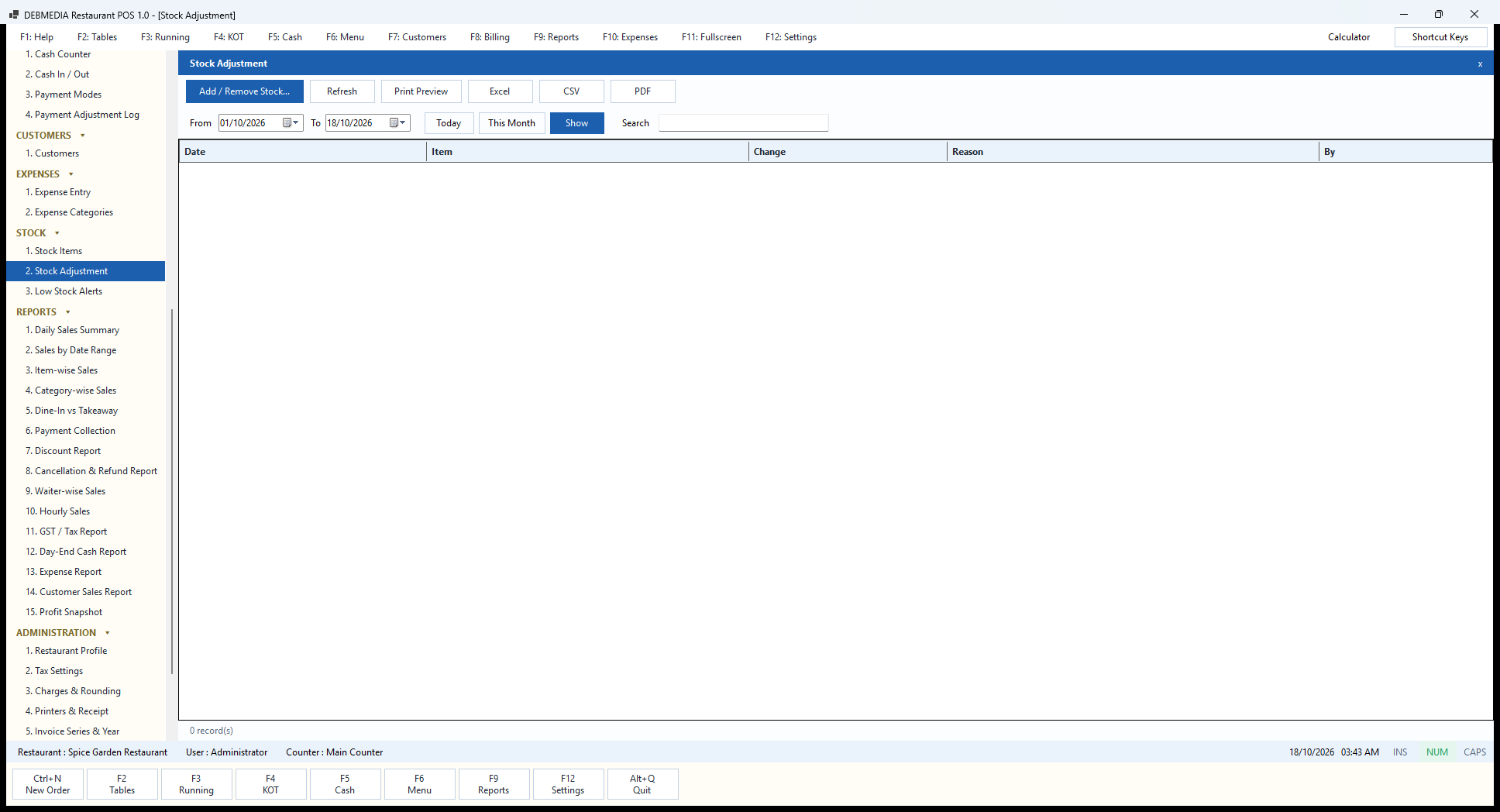
Stock Adjustment is where raw-material quantities are changed, and it keeps a register of every change. The columns are the date, the item, the change (positive for stock added, negative for stock removed), the reason and the user. The date range controls choose the period and the Search box filters by item.
Add / Remove Stock… opens a dialog in which the user chooses the item, enters the quantity to add or remove and gives a reason. The program asks for a reason, and the dialog’s own prompt suggests examples: Purchase, Wastage, Recount. After saving, the quantity on the Stock Items screen updates immediately and the change appears in this list.
The sample register is empty: no adjustments have been recorded since the sample stock was loaded. In a real restaurant it is where a delivery of rice, a spoilt tray of paneer or a physical recount at month-end becomes a permanent record, which is what lets the owner see where raw material went. Print Preview, Excel, CSV and PDF export the register.
Low Stock Alerts
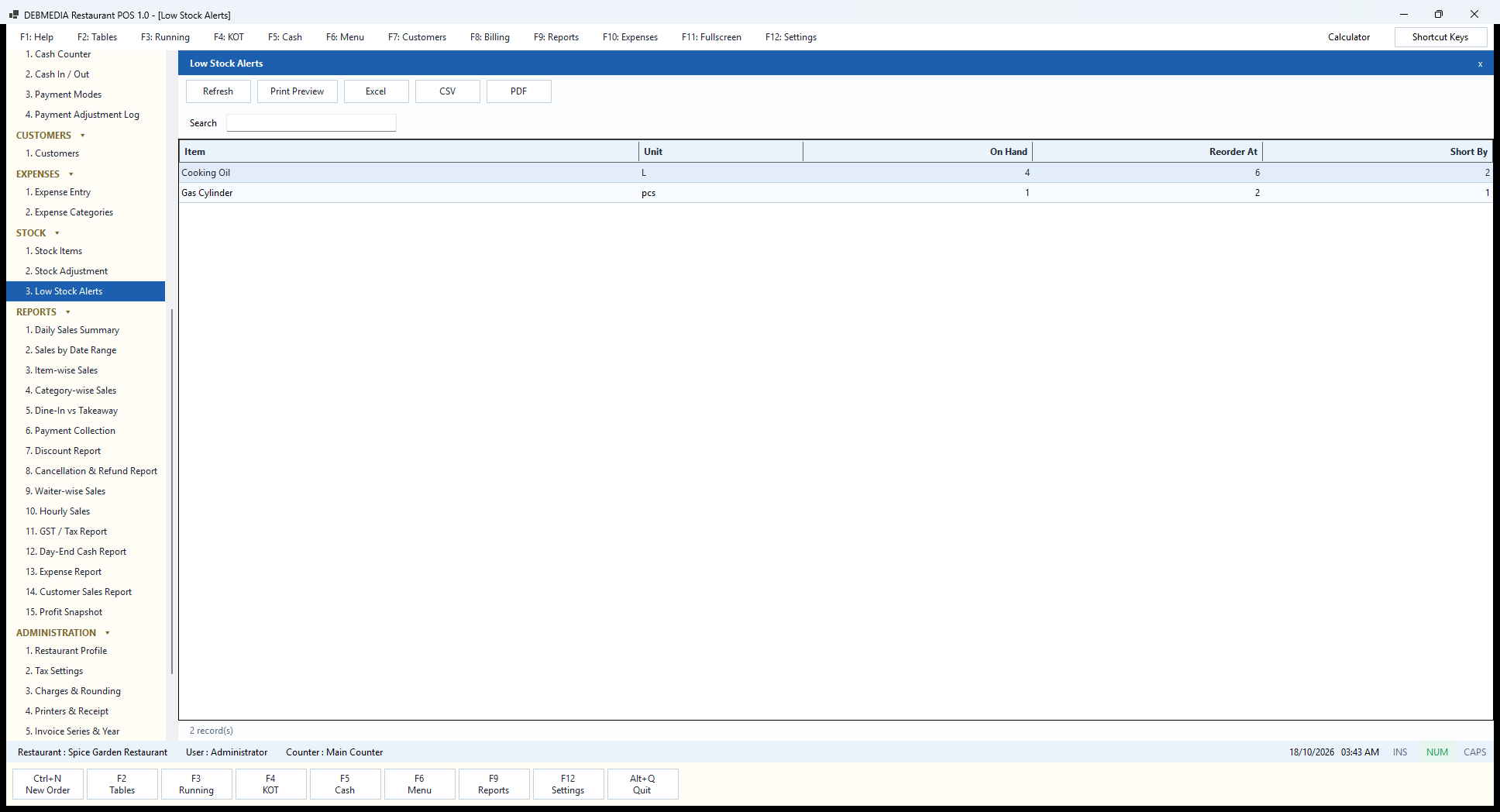
Low Stock Alerts is the shopping list. It shows only the stock items that have fallen to or below their reorder level, with the item, unit, quantity on hand, reorder level and Short By, the amount needed to get back to the level. In the sample there are two: Cooking Oil, 4 litres on hand against a level of 6 and so 2 litres short, and the Gas Cylinder, 1 piece against 2 and so 1 short.
It is a screen to open before the morning market run or before the supplier calls, and the Print Preview, Excel, CSV and PDF buttons produce a list to hand to whoever is buying. Refresh recalculates it after an adjustment and the Search box filters it.
Reorder levels are set per item on the Stock Items screen, and they are the owner’s judgement, not an automatic forecast: the program does not predict demand. Setting the level a little above the quantity you would need to cover the gap between deliveries is what makes this screen useful.
Reports: Fifteen Views of the Business
All fifteen reports share one layout. A date selector at the top (one date for the daily reports, From and To with Today and This Month shortcuts for the rest) and a Show button run the report. A label beside the buttons repeats the period so a printout is never ambiguous, and Print Preview, Excel, CSV and PDF send the result to paper or to a file. Every report reads straight from the same bills, payments and sessions as the screens before it, so figures match from one report to the next.
Daily Sales Summary
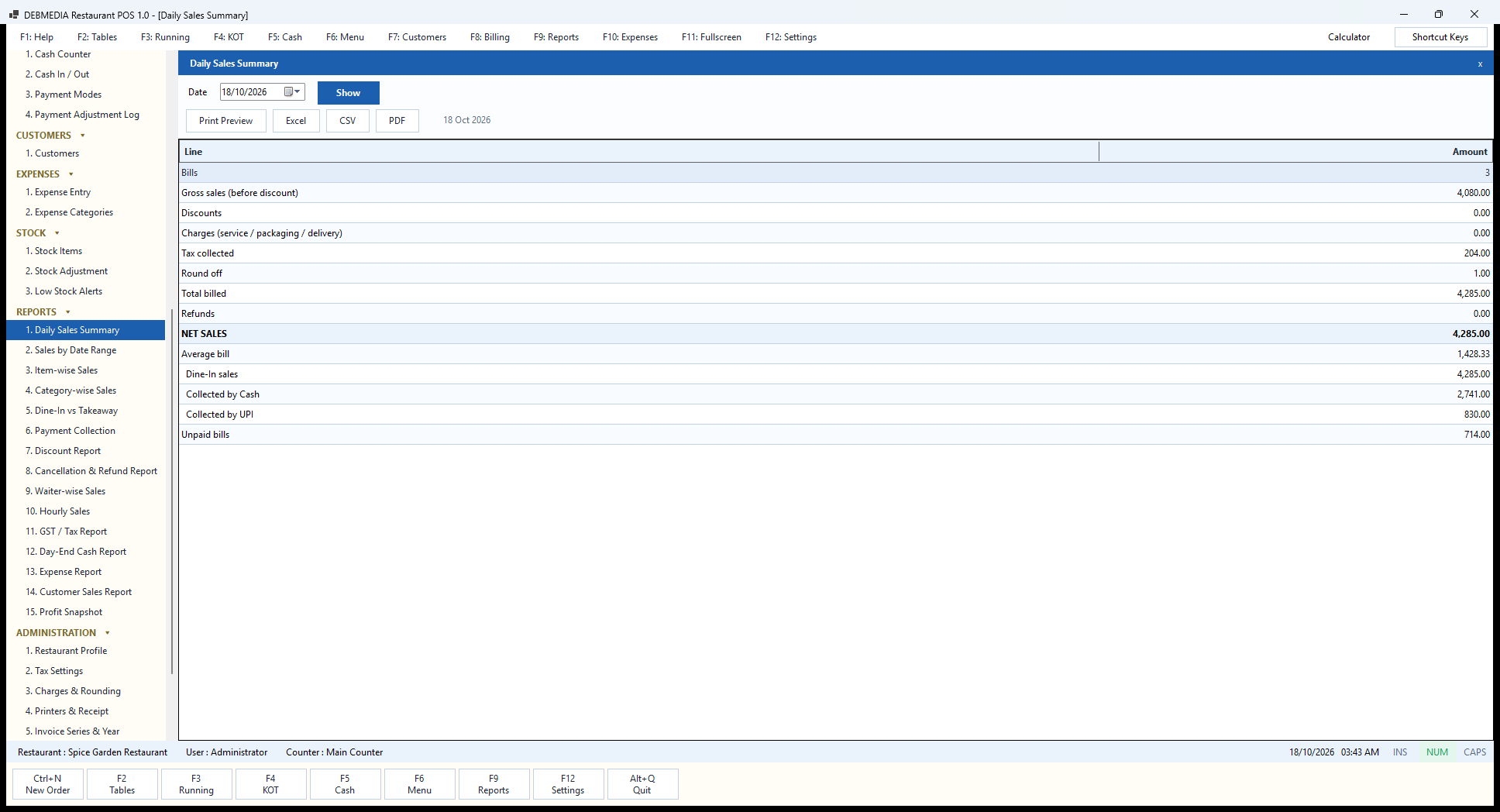
The Daily Sales Summary is the owner’s end-of-day page. Pick a date and press Show. For 18 October it reads, line by line: Bills 3; Gross sales (before discount) ₹4,080.00; Discounts 0.00; Charges (service, packaging, delivery) 0.00; Tax collected ₹204.00; Round off ₹1.00; Total billed ₹4,285.00; Refunds 0.00; and NET SALES ₹4,285.00. The tax line is exactly five percent of gross sales (5 percent of 4,080 is 204), which is a quick check that the tax engine did what the menu said it would.
The lines below break the day down. Average bill is ₹1,428.33, net sales divided by the three bills. Dine-In sales is ₹4,285.00 because all three bills were dine-in; takeaway and delivery lines appear when there are such bills. Collected by Cash is ₹2,741.00 and Collected by UPI is ₹830.00, and Unpaid bills is ₹714.00. That last line explains why cash plus UPI is ₹3,571.00, less than net sales of ₹4,285.00: bill INV-000360 for table T-05 has been billed but not yet paid. The figure is not lost, it is simply waiting to be collected, and the summary reminds the owner of it every day.
This page is what many owners print and file each night, or send by e-mail from the PDF button, so the accountant sees the same figures as the counter.
Sales by Date Range
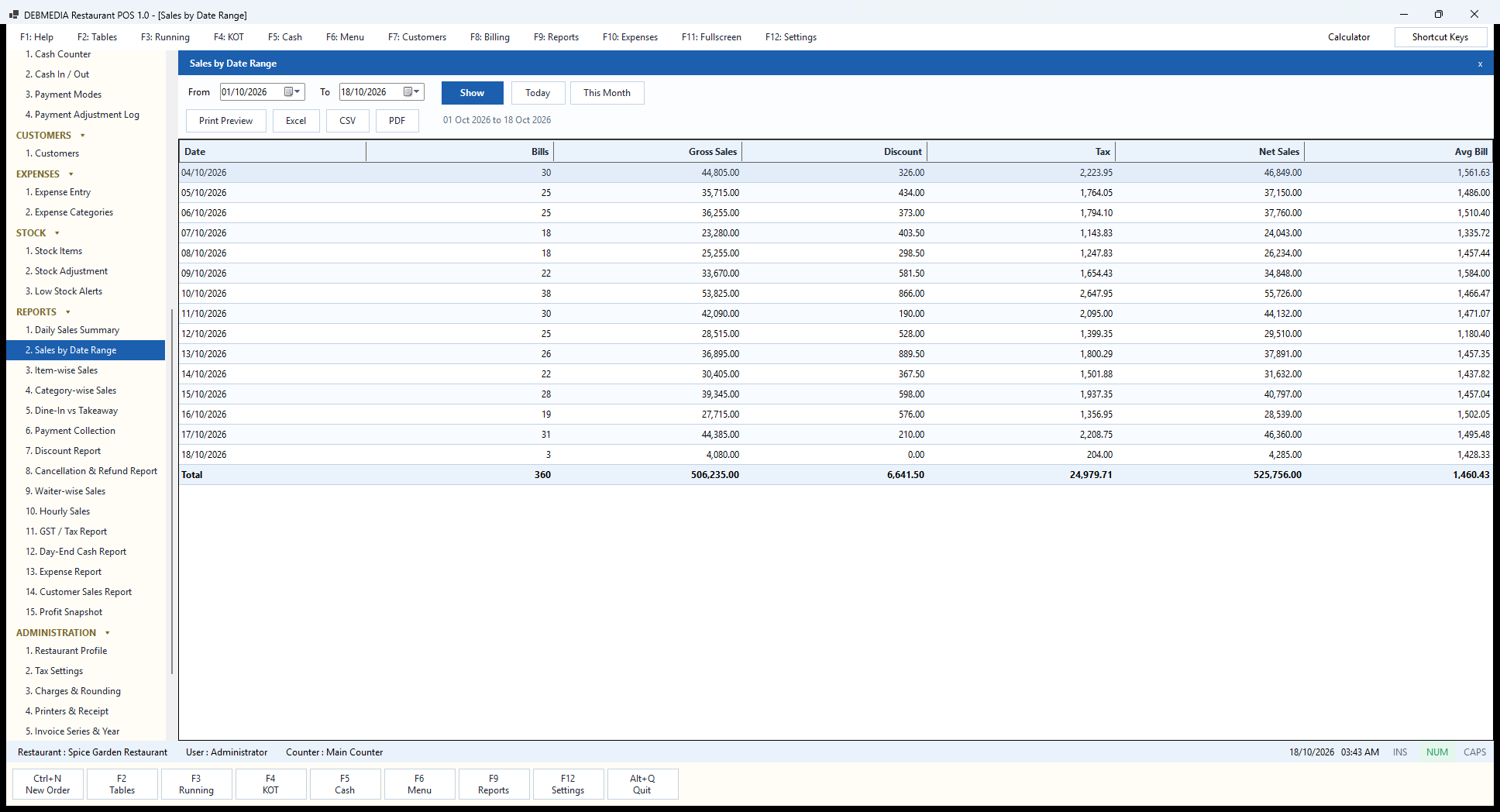
Sales by Date Range stretches the daily view over any period, one row per day. The columns are Date, Bills, Gross Sales, Discount, Tax, Net Sales and Avg Bill. For 1 to 18 October in the sample (the sample data begins on 4 October) the program shows fifteen trading days and a Total row of 360 bills, gross sales ₹5,06,235, discounts ₹6,641.50, tax ₹24,979.71, net sales ₹5,25,756 and an average bill of ₹1,460.43.
Reading down the Net Sales column is the quickest way to see the shape of a month. The busiest day was 10 October with 38 bills and ₹55,726; the quietest was 7 October with 18 bills and ₹24,043; and the average bill stays in a tight band between about ₹1,180 and ₹1,560, which is typical of a stable menu. A sudden fall in bills with a steady average points to footfall, while a falling average with steady bills points to discounting or a menu mix change. The last row, 18 October, shows only three bills because the screenshot was taken in the early hours of the sample day.
Because the report is built from the bills, the total matches the sum of the daily summaries and the figure on the Dine-In vs Takeaway, Waiter-wise and Hourly reports below.
Item-wise Sales
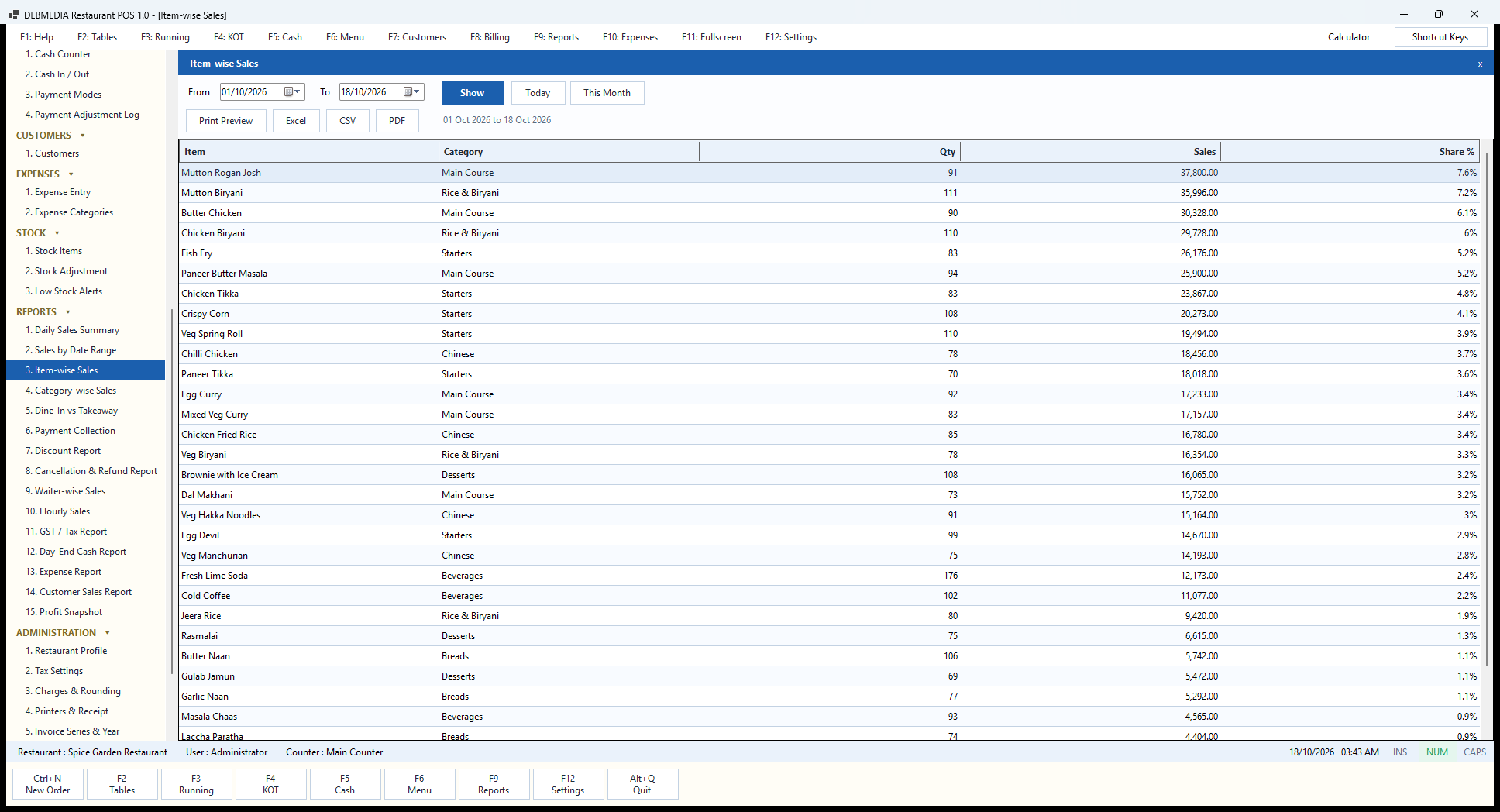
Item-wise Sales shows which dishes make the money. Each row lists the item, its category, the quantity sold, the sales value and the share of the total, ranked from the highest sales downwards. In the sample’s first eighteen days, Mutton Rogan Josh leads with 91 plates and ₹37,800 (7.6 percent), followed by Mutton Biryani at 111 plates and ₹35,996, Butter Chicken at 90 plates and ₹30,328, Chicken Biryani at 110 plates and ₹29,728 and Fish Fry at ₹26,176.
Sorting by value tells a different story from sorting by plates. Fresh Lime Soda sold the most units of anything, 176, but at ₹70 a glass its ₹12,173 is only 2.4 percent of sales, whereas the mutton dishes sell fewer plates and earn far more. The sales figures here are net of discount and before tax, which is why the totals reconcile with the Category-wise report and the taxable value on the GST report.
An owner can use this report to decide which items to promote, which to price up, and which slow items might be dropped from the menu, and the Excel export makes it easy to chart. Because it is read from the bills, an item whose price changed during the month is counted at the price it actually sold for.
Category-wise Sales
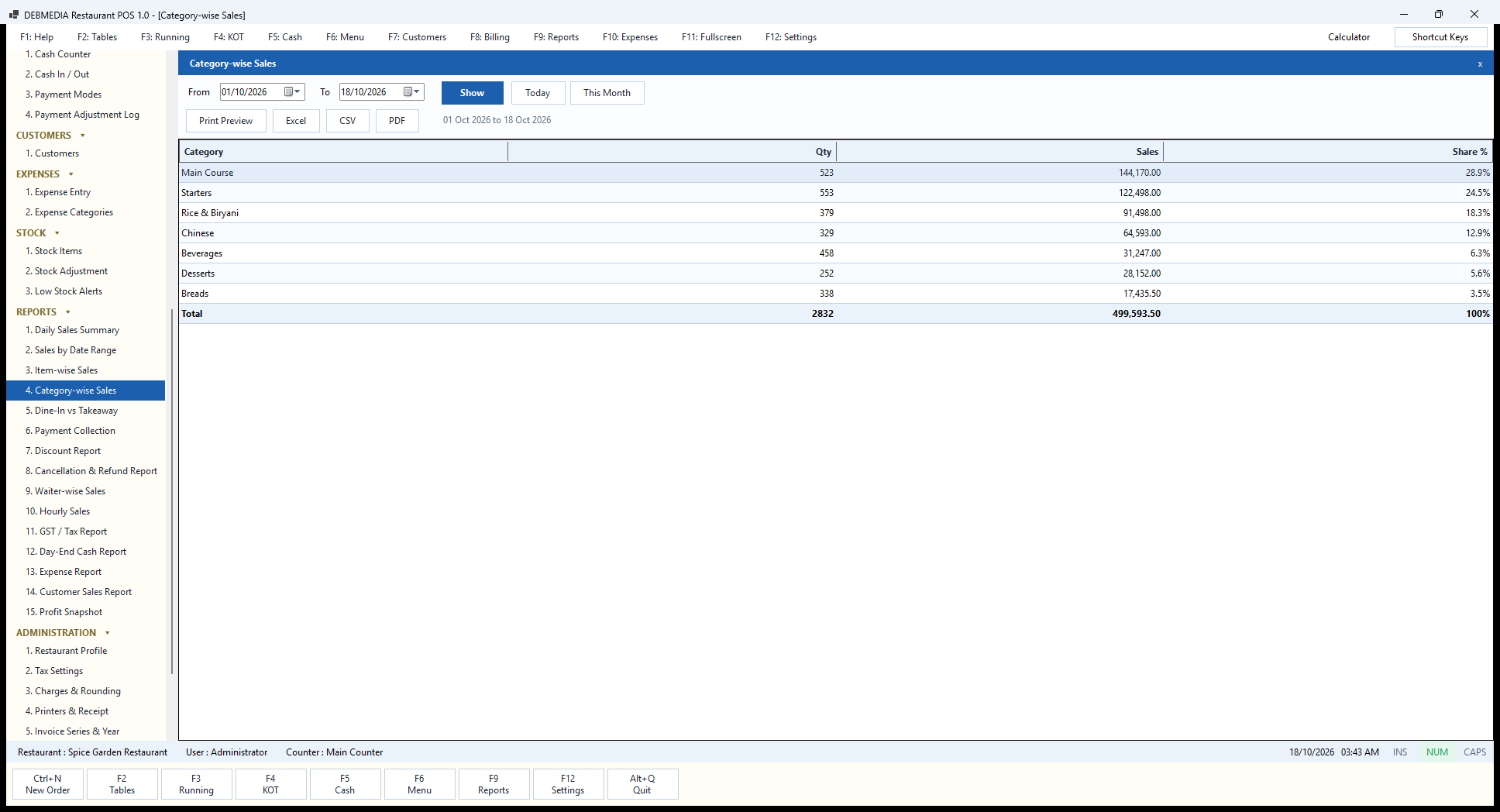
Category-wise Sales rolls the item figures up to the menu groups. For the sample period it shows Main Course with 523 items and ₹1,44,170 (28.9 percent), Starters with 553 items and ₹1,22,498 (24.5 percent), Rice and Biryani with 379 items and ₹91,498 (18.3 percent), Chinese with ₹64,593 (12.9 percent), Beverages with 458 items and ₹31,247 (6.3 percent), Desserts with ₹28,152 (5.6 percent) and Breads with 338 items and ₹17,435.50 (3.5 percent). The total is 2,832 items and ₹4,99,593.50.
That total is a useful reconciliation. It equals the Gross Sales of ₹5,06,235 on the date-range report less the ₹6,641.50 of discounts, so the category and item reports are sales after discount and before tax. Net sales of ₹5,25,756 is this figure plus the ₹24,979.71 of tax and the round-off.
The balance between categories is information for the owner. Starters nearly match Main Course in value here, which says the restaurant has a strong snack and bar-food trade, while Breads are a small value but a large quantity, which suggests a kitchen where the tandoor station is busy but not decisive for revenue.
Dine-In vs Takeaway
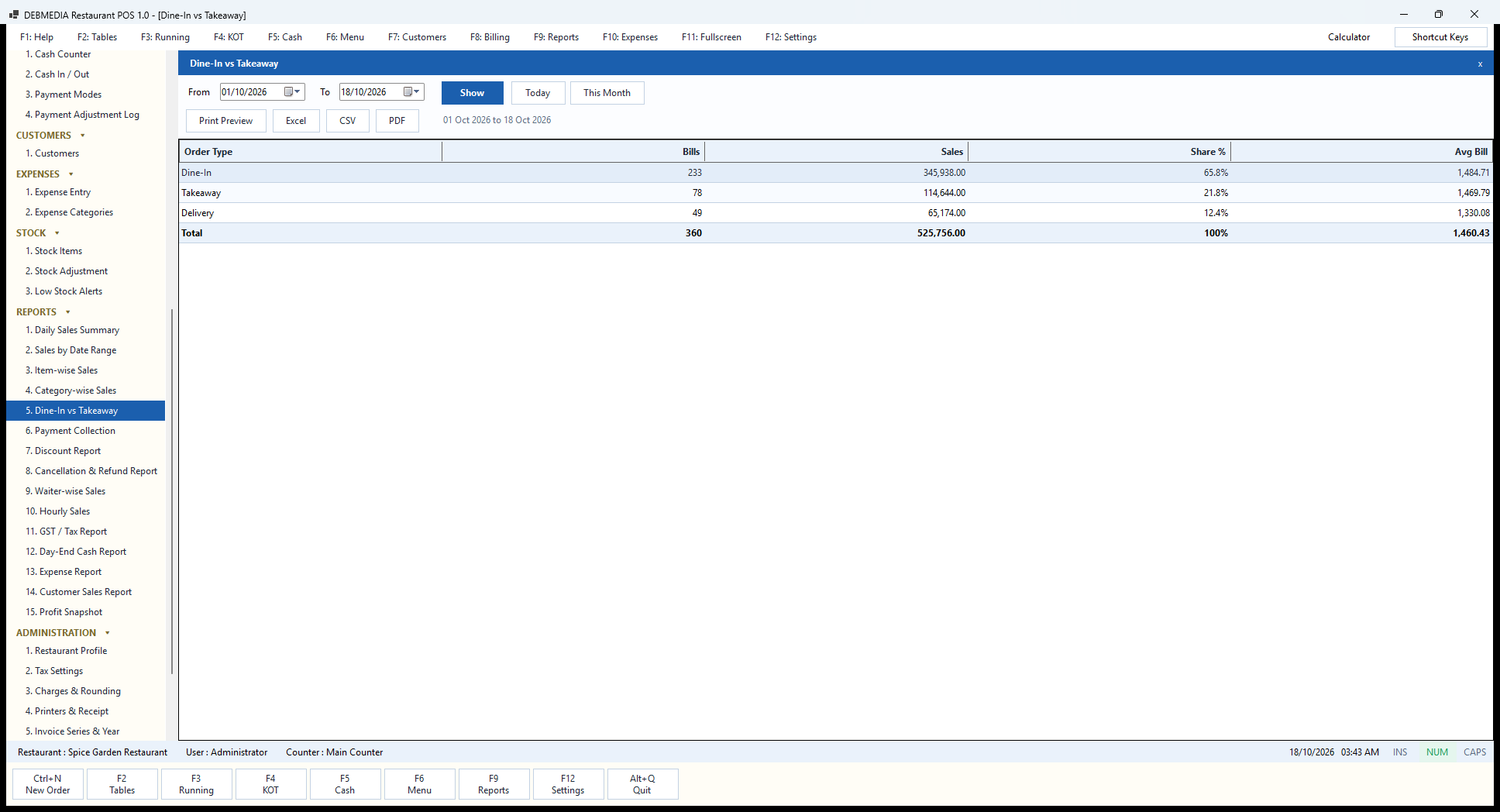
This report shows how the business splits across the three order types. The rows are Order Type, Bills, Sales, Share % and Avg Bill. In the sample, Dine-In has 233 bills and ₹3,45,938 (65.8 percent, average ₹1,484.71), Takeaway has 78 bills and ₹1,14,644 (21.8 percent, average ₹1,469.79) and Delivery has 49 bills and ₹65,174 (12.4 percent, average ₹1,330.08). The total is 360 bills and ₹5,25,756, matching every other report.
The average-bill column carries the most interesting information. Delivery orders are smaller than dine-in orders by about ₹150 a bill, a common pattern because delivery customers order fewer starters and drinks. For a restaurant that is thinking about dropping a delivery partner, joining one, or adding a packaging charge, this is the report that says whether the channel is worth the effort.
The order type is chosen at billing time with the Dine-In, Takeaway and Delivery buttons, so no extra work is needed to produce this report; it is a by-product of billing.
Payment Collection
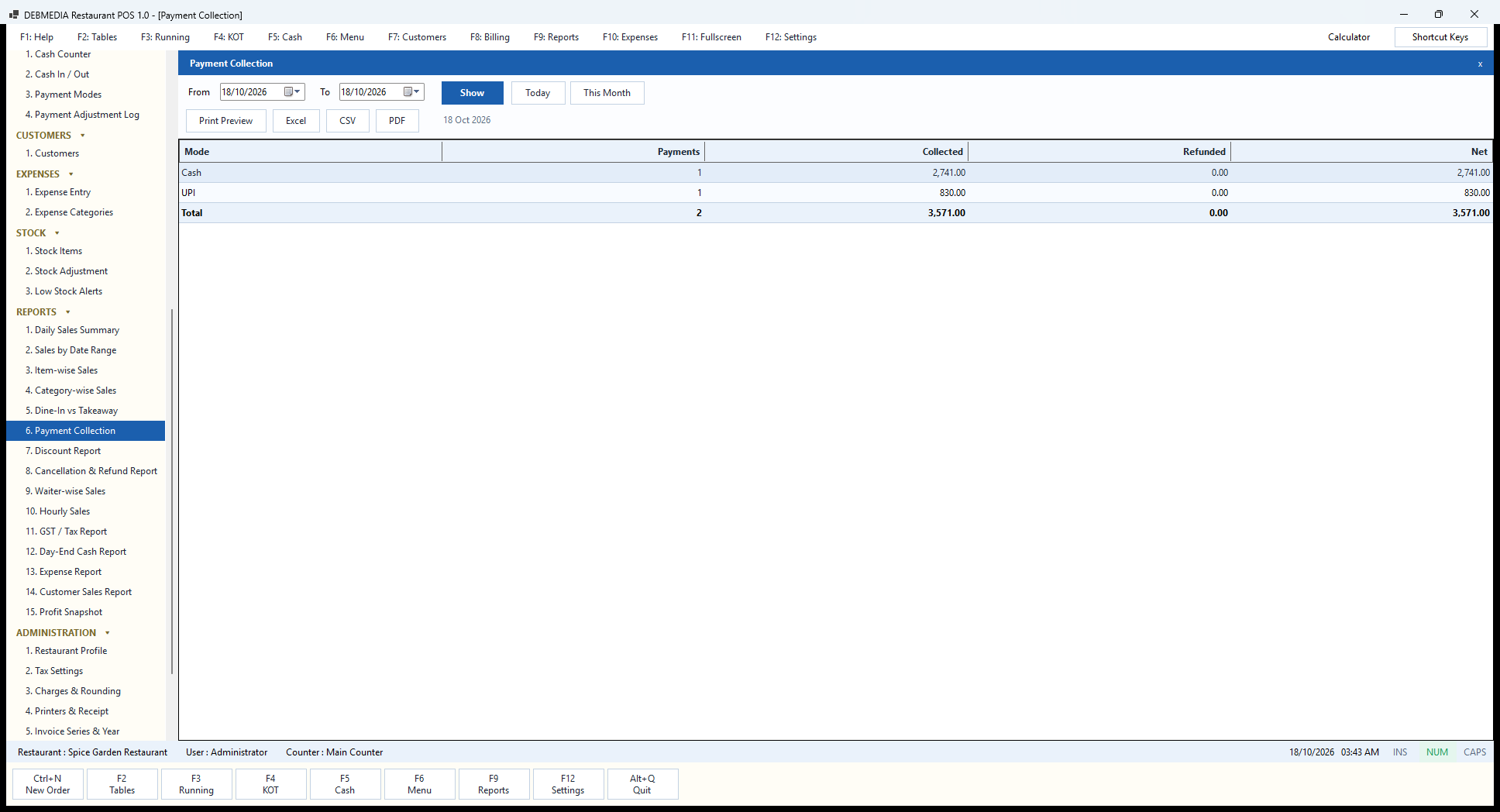
Payment Collection answers “how did people pay?” for the chosen dates. The columns are Mode, Payments, Collected, Refunded and Net. For the single day shown, 18 October, there is one cash payment of ₹2,741 and one UPI payment of ₹830, giving a total of ₹3,571 collected, nothing refunded and ₹3,571 net.
Note how this differs from the Daily Sales Summary. That report shows what was billed, ₹4,285, and this one shows what was collected, ₹3,571. The difference is the ₹714 unpaid bill for table T-05. Over a longer period, changing From and To shows the split between cash, UPI and card, which tells an owner how much to expect in bank settlements from the UPI and card providers against the cash in the drawer.
Refunds are shown against the mode they went out by, so a UPI refund reduces the UPI line and a cash refund reduces the cash line. If a payment mode was corrected after the fact through Correct Payment Mode, this report shows the corrected figure and the Payment Adjustment Log holds the original.
Discount Report
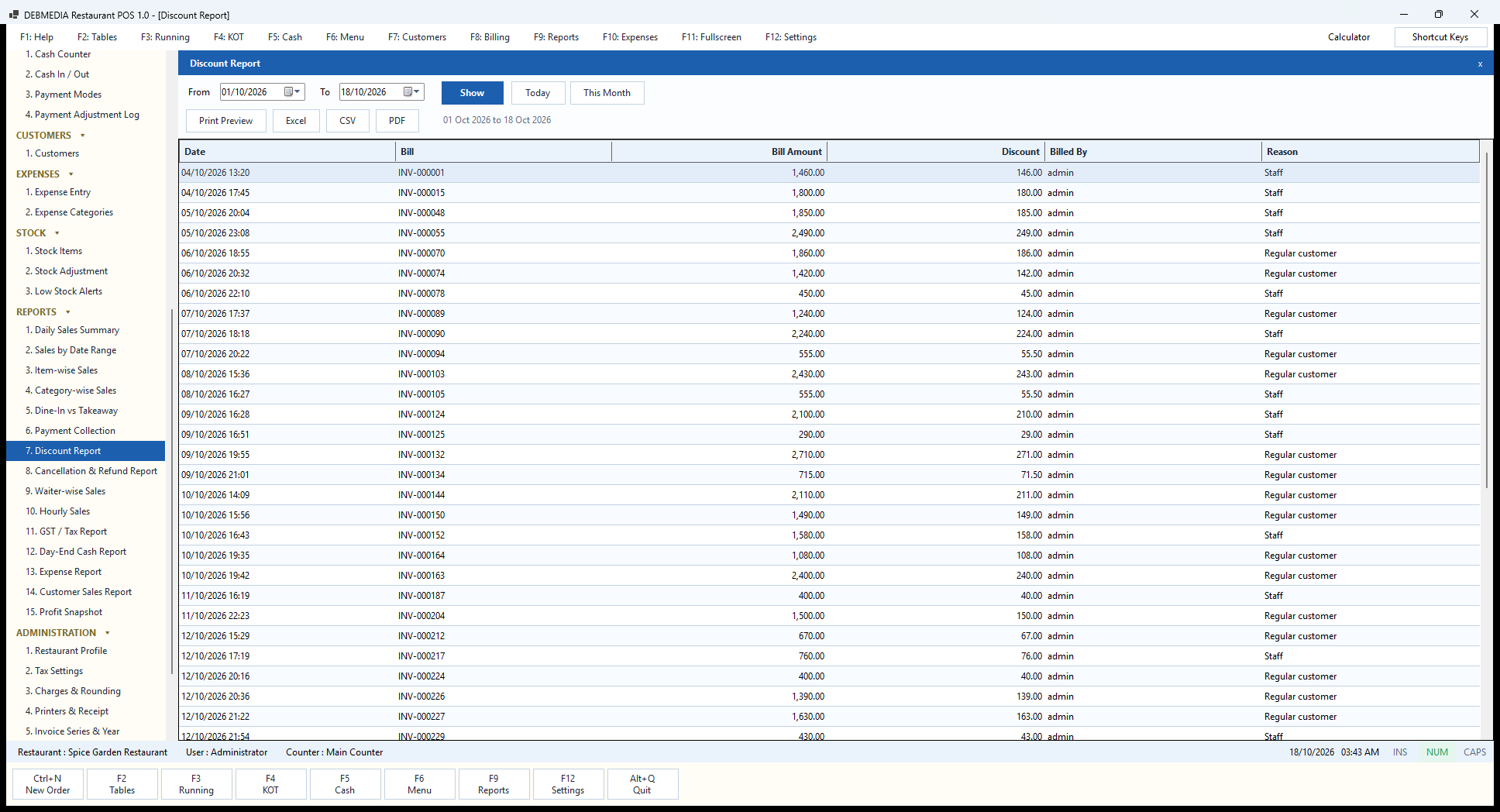
The Discount Report lists every bill that carried a discount, with the date and time, the bill number, the bill amount, the discount, who it was billed by and the reason given. In the sample, INV-000001 on 4 October for ₹1,460 carries a ₹146 discount with the reason “Staff”, INV-000015 for ₹1,800 carries ₹180 for “Staff”, and INV-000070 for ₹1,860 carries ₹186 for “Regular customer”. Every row records a reason because the discount dialog on the billing screen asks for one.
Discounts are the other classic place for leakage at the till, and this report lets an owner ask the three useful questions at a glance. How many discounts were given? Who gave them? And do the stated reasons look right? The sample’s pattern, a flat ten percent given either to staff or to regular customers, is exactly the kind of policy an owner can see here and decide whether to keep.
Only roles with the Give discounts permission can use the discount button, so the owner controls who is allowed to appear in this list. The total discount for any period ties to the Discount column of Sales by Date Range, and every discount is also in the Audit Log.
Cancellation & Refund Report
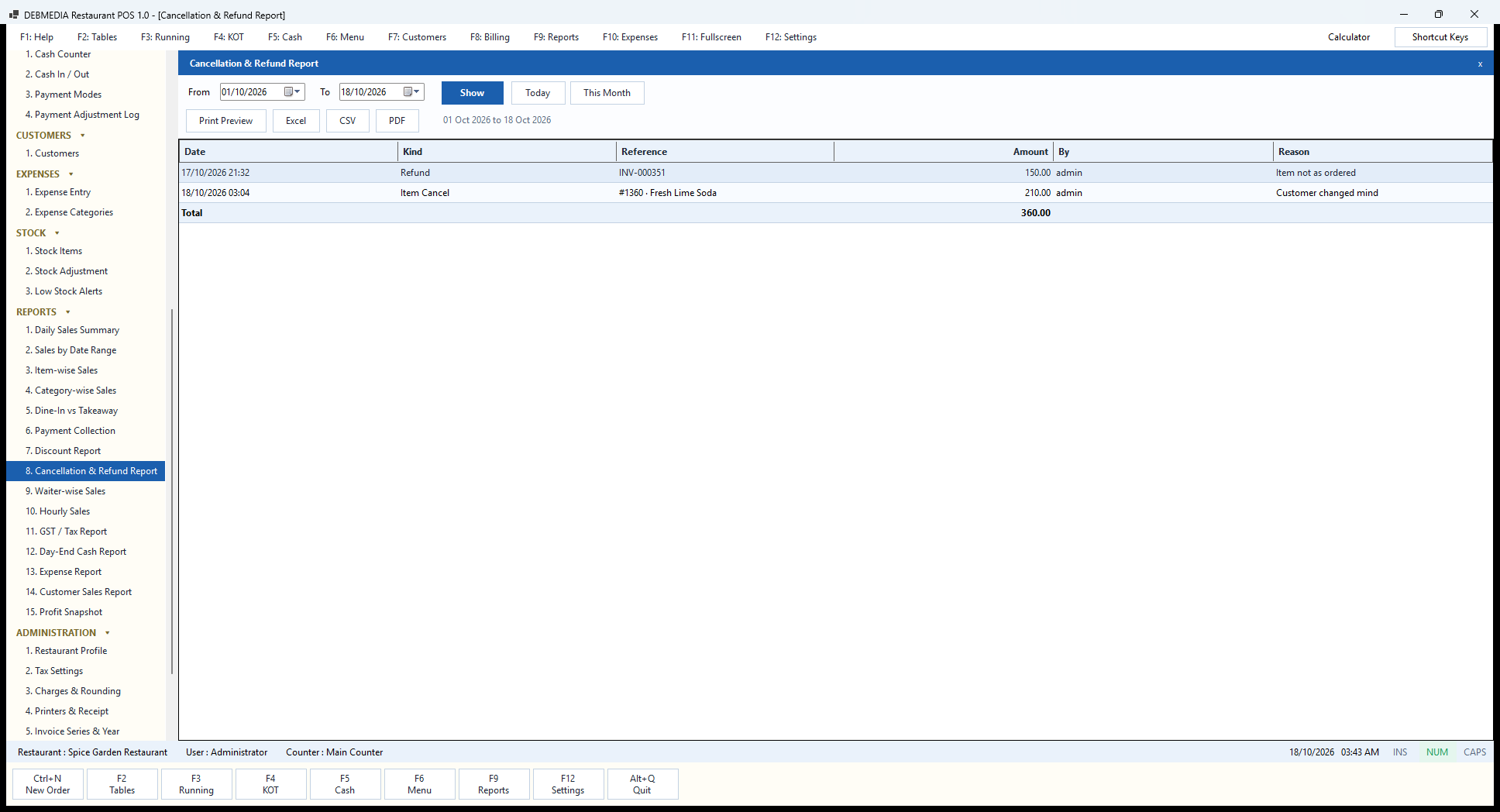
This report combines the two ways money or food is taken back after an order is placed. Each row shows the date and time, the kind, the reference, the amount, who did it (By) and the reason. The sample has two lines: a Refund of ₹150 on bill INV-000351 on 17 October for “Item not as ordered”, and an Item Cancel of ₹210 for order #1360, Fresh Lime Soda, on 18 October for “Customer changed mind”, for a total of ₹360.
The item cancel is worth following. Three Fresh Lime Sodas at ₹70 were sent to the Bar on a KOT and then cancelled; the program sent a CANCEL ticket to the Bar (K-750 on the KOT History screen), removed ₹210 from the order and recorded who did it and why. The report is how an owner sees, after the fact, the cost of mistakes and changes of mind across a shift.
A low number is a good number. A rising number of cancellations after KOT usually means the order-taking is not accurate, or that items are being removed after they have been eaten and not paid for. Because both permissions, Cancel items after KOT and Refund bills, are separate, the owner can let a cashier cancel an item but keep refunds for a manager.
Waiter-wise Sales
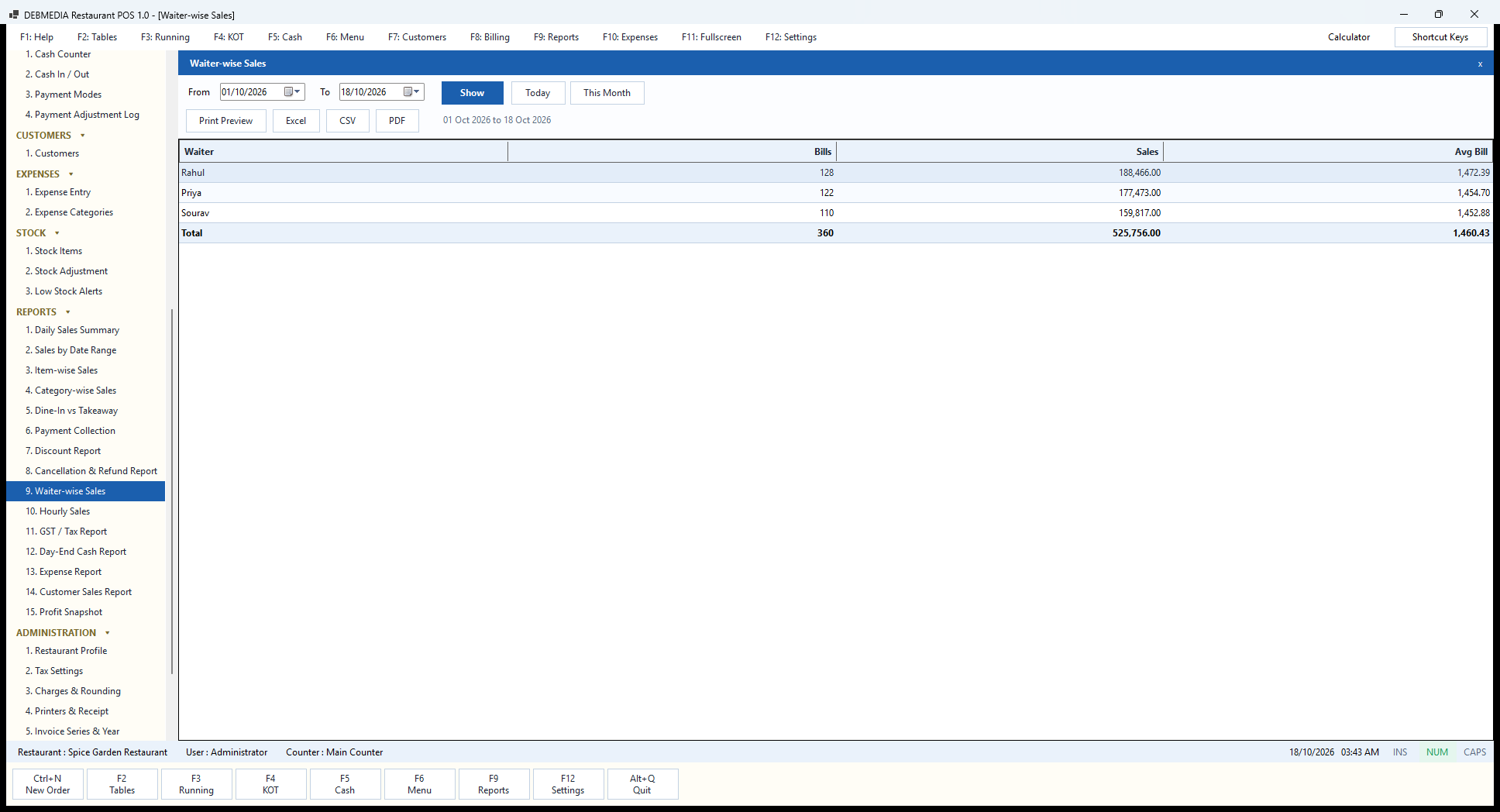
Waiter-wise Sales shows how much each person has billed. The rows are Waiter, Bills, Sales and Avg Bill. In the sample, Rahul billed 128 bills and ₹1,88,466 (average ₹1,472.39), Priya billed 122 and ₹1,77,473 (₹1,454.70) and Sourav billed 110 and ₹1,59,817 (₹1,452.88), adding to the 360 bills and ₹5,25,756 on every other total.
Each order carries a waiter name, which by default is the name of the person signed in when it was raised, so the report is most reliable when each staff member signs in with their own login. That is why the Users screen exists and why the Waiter role is so restricted. A restaurant that rewards its service staff by sales, or simply wants to see who is carrying the floor on a busy night, can print this each week or each month.
The average bill per waiter is an indicator of upselling. A waiter whose average is well below the others may be taking short orders without suggesting drinks or desserts, or may be on the quiet tables, so it is a reason to look, not an automatic verdict. The Excel and PDF exports are there for a tip-pool or incentive calculation.
Hourly Sales
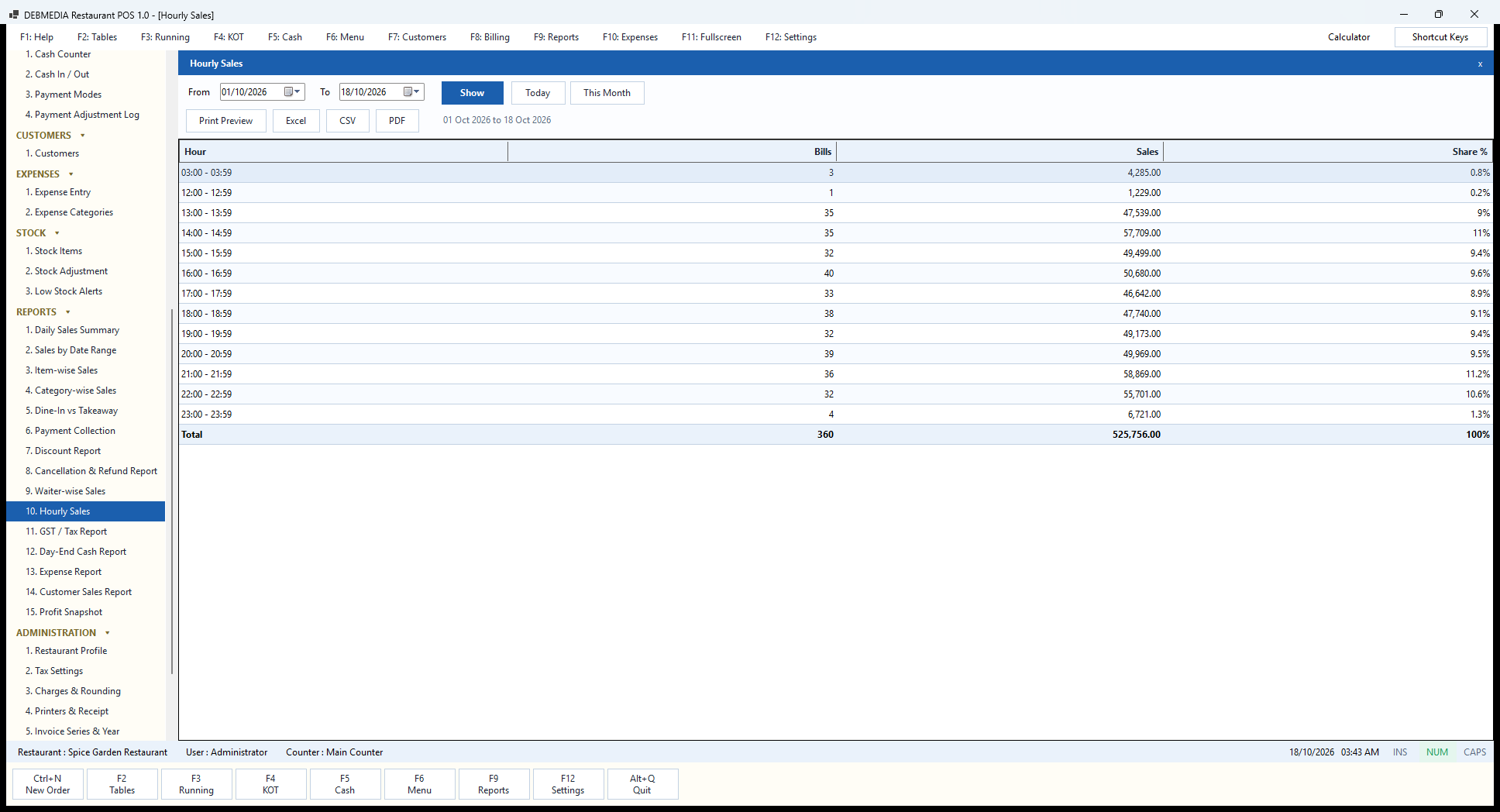
Hourly Sales folds all the bills of a period into the hour of the day they were raised. Each row is an hour band, from 12:00 to 12:59 up to 23:00 to 23:59, with the number of bills, the sales and the share of the total. In the sample, trade runs strongly from lunch to late dinner. The two peaks are 14:00 to 14:59 with ₹57,709 (11 percent) and 21:00 to 21:59 with ₹58,869 (11.2 percent), with every hour between 13:00 and 22:59 contributing between 8.9 and 11.2 percent.
Two odd bands are explained by the sample data: the 03:00 row, with 3 bills and ₹4,285, is the three bills that were created on the morning the screenshots were taken, and the 12:00 row has a single bill. In a real restaurant, the first and last rows show your real opening and closing rhythm.
This is the report for staffing and prep. If the peak hours are 14:00 and 21:00, the owner knows when the second cashier and the extra tandoor hand must be in place, when to fry and pre-cook, and which hours of the day make so little that a shorter opening time or a special offer might make sense. The share column makes the comparison easy without any arithmetic.
GST / Tax Report
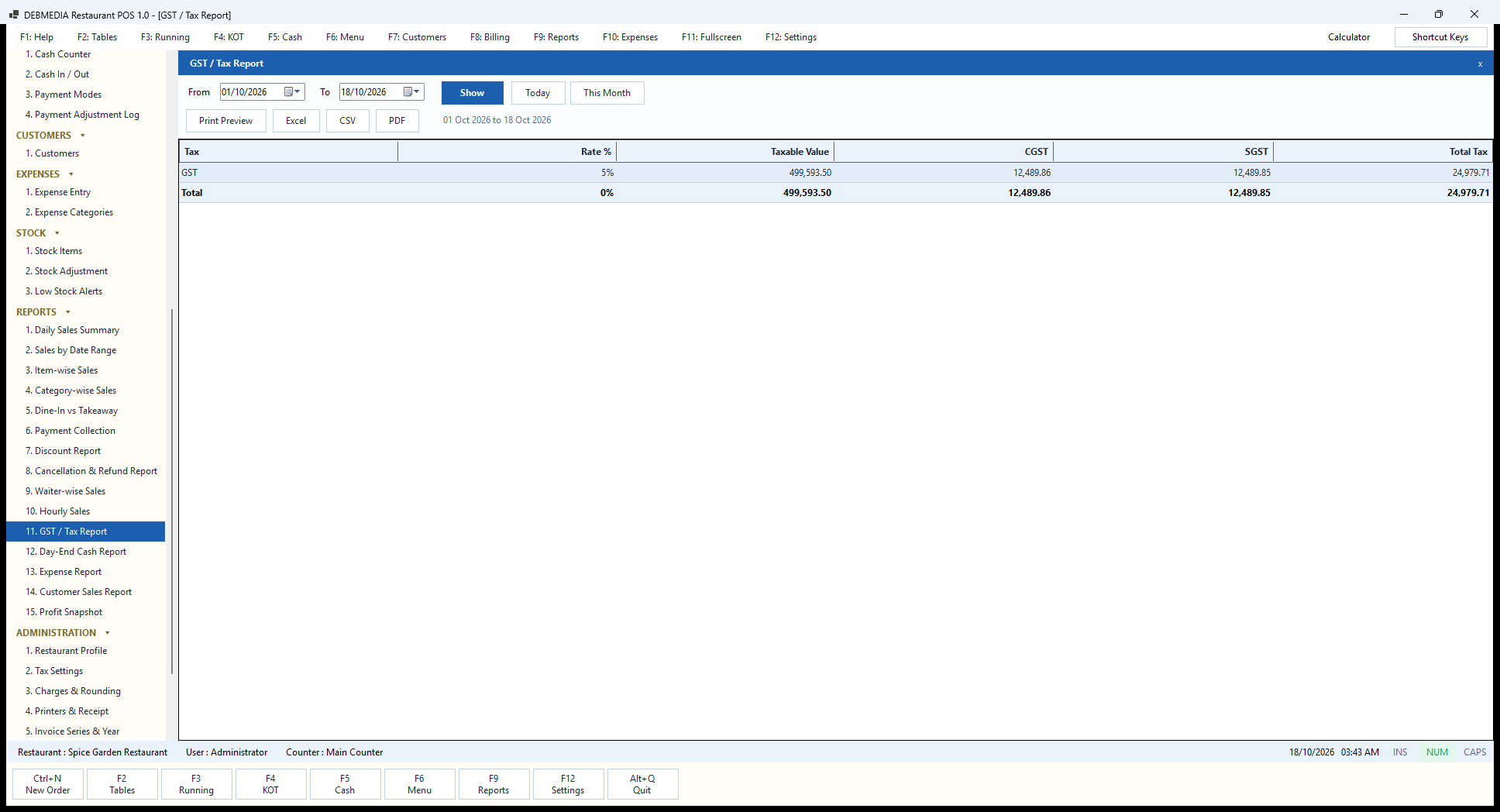
The GST / Tax Report summarises the tax the restaurant has collected so the owner or accountant can prepare the return. Each row shows a tax (the tax rate defined on the Tax Settings screen), its rate, the taxable value, the CGST, the SGST and the total tax. In the sample, all items are at GST 5 percent, so the report has one line: taxable value ₹4,99,593.50, CGST ₹12,489.86, SGST ₹12,489.85 and total tax ₹24,979.71. Note that the taxable value equals the Category-wise total, because tax is charged on the sales after discount.
The CGST and SGST are half each, and the odd paisa (₹24,979.71 does not split evenly) lands on the CGST line, so the two always add up to the total. If a restaurant sells items at more than one rate, for example 5 percent on food and 18 percent on a service item, each rate appears on its own row. The Total row’s rate cell is not meaningful, since it adds different rates, and shows zero.
The report gives the figures for filing, but the program does not file anything itself: it does not talk to the GST portal, and it is not a substitute for your tax adviser’s review. Which rate applies to which kind of restaurant, and whether input credit is available, are questions for the accountant. The Tax Settings screen is where the owner makes the rate match that advice.
Day-End Cash Report
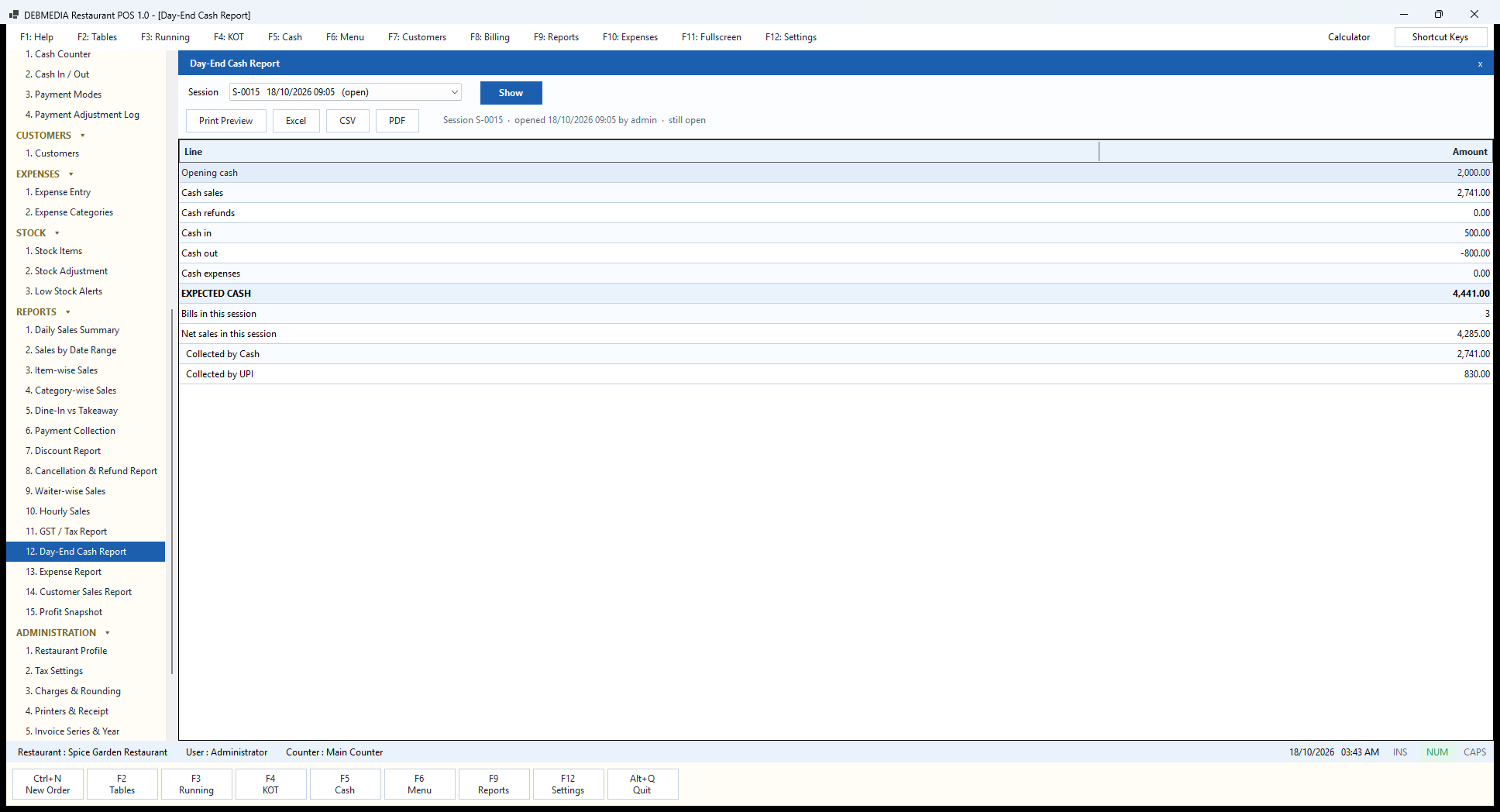
The Day-End Cash Report prints the reconciliation of one session. A Session drop-down picks the session (here S-0015, opened 18/10/2026 09:05 and “still open”) and the header repeats who opened it. The lines are Opening cash ₹2,000.00; Cash sales ₹2,741.00; Cash refunds 0.00; Cash in ₹500.00; Cash out minus ₹800.00; Cash expenses 0.00; and EXPECTED CASH ₹4,441.00. Below it come Bills in this session (3), Net sales in this session (₹4,285.00), and the split Collected by Cash (₹2,741.00) and Collected by UPI (₹830.00).
The sum is the whole logic of a drawer: what you started with, plus cash taken, plus cash put in, minus cash refunded, paid out and spent. When the cashier closes the day, they count the drawer and enter that figure, and the program shows the difference against this expected cash. The Cash Counter’s history of closed days records that difference, and this report is the printable proof behind it.
Because the report works per session rather than per calendar date, a restaurant that stays open after midnight does not have its night split across two days. Print Preview, Excel, CSV and PDF produce the page that is typically signed by the cashier and the owner and filed with the day’s collection.
Expense Report
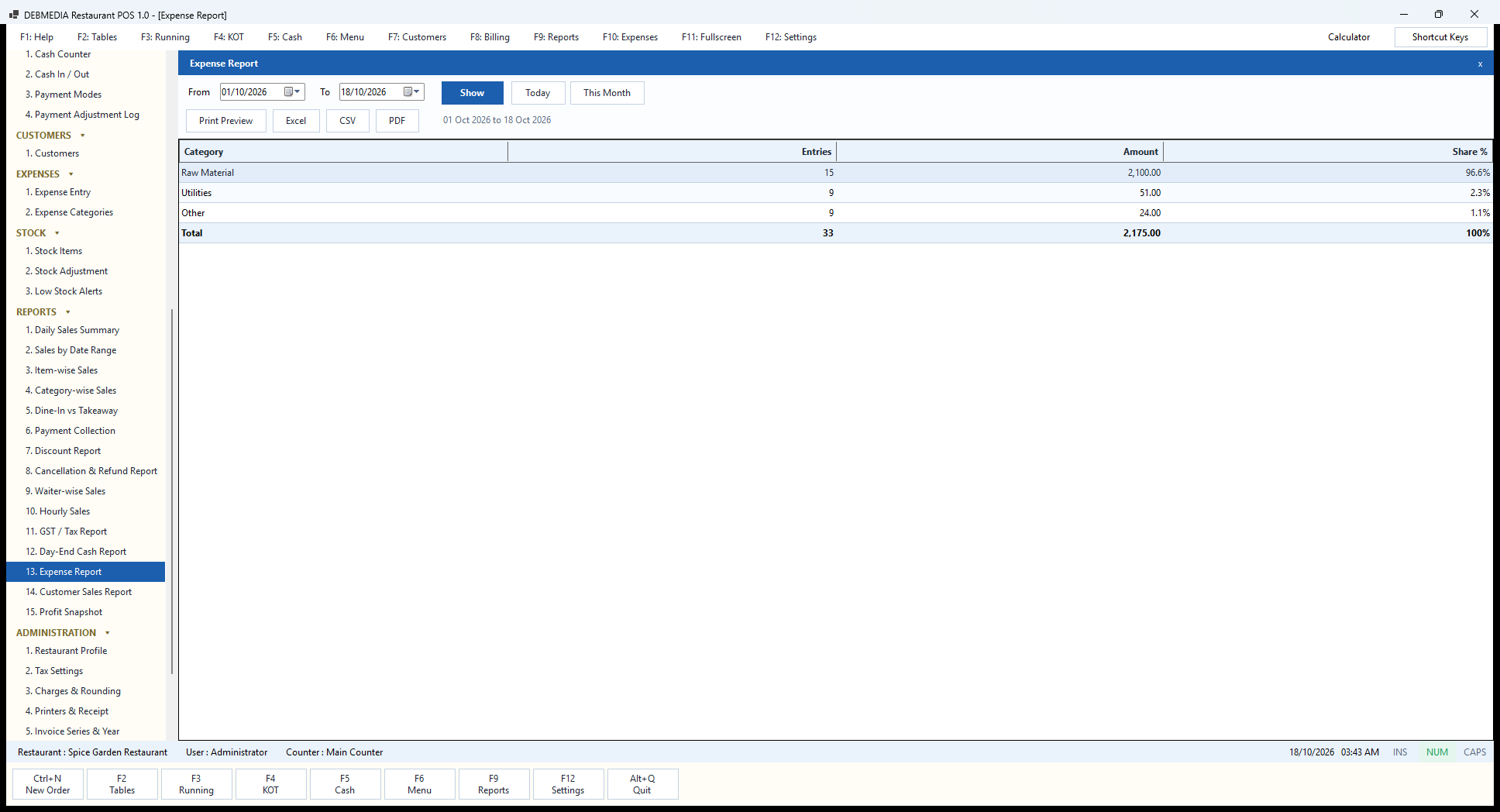
The Expense Report groups the Expense Entry list by category. The columns are Category, Entries, Amount and Share %. For October in the sample, Raw Material has 15 entries totalling ₹2,100 (96.6 percent), Utilities has 9 entries totalling ₹51 (2.3 percent) and Other has 9 entries totalling ₹24 (1.1 percent), a total of 33 entries and ₹2,175.
These figures are only as realistic as the sample, which, as noted on the Expense Entry screen, uses token amounts of a few rupees apart from one ₹1,900 gas cylinder. With real data, this report shows where the money goes: in a typical restaurant, raw material, rent and salaries dominate, and a category that grows faster than sales is the one to question.
The total of this report is exactly what the Profit Snapshot subtracts from sales, so the two always agree. The Expense Report is the number to hand to an accountant for the cost side, and Print Preview, Excel, CSV and PDF export it.
Customer Sales Report
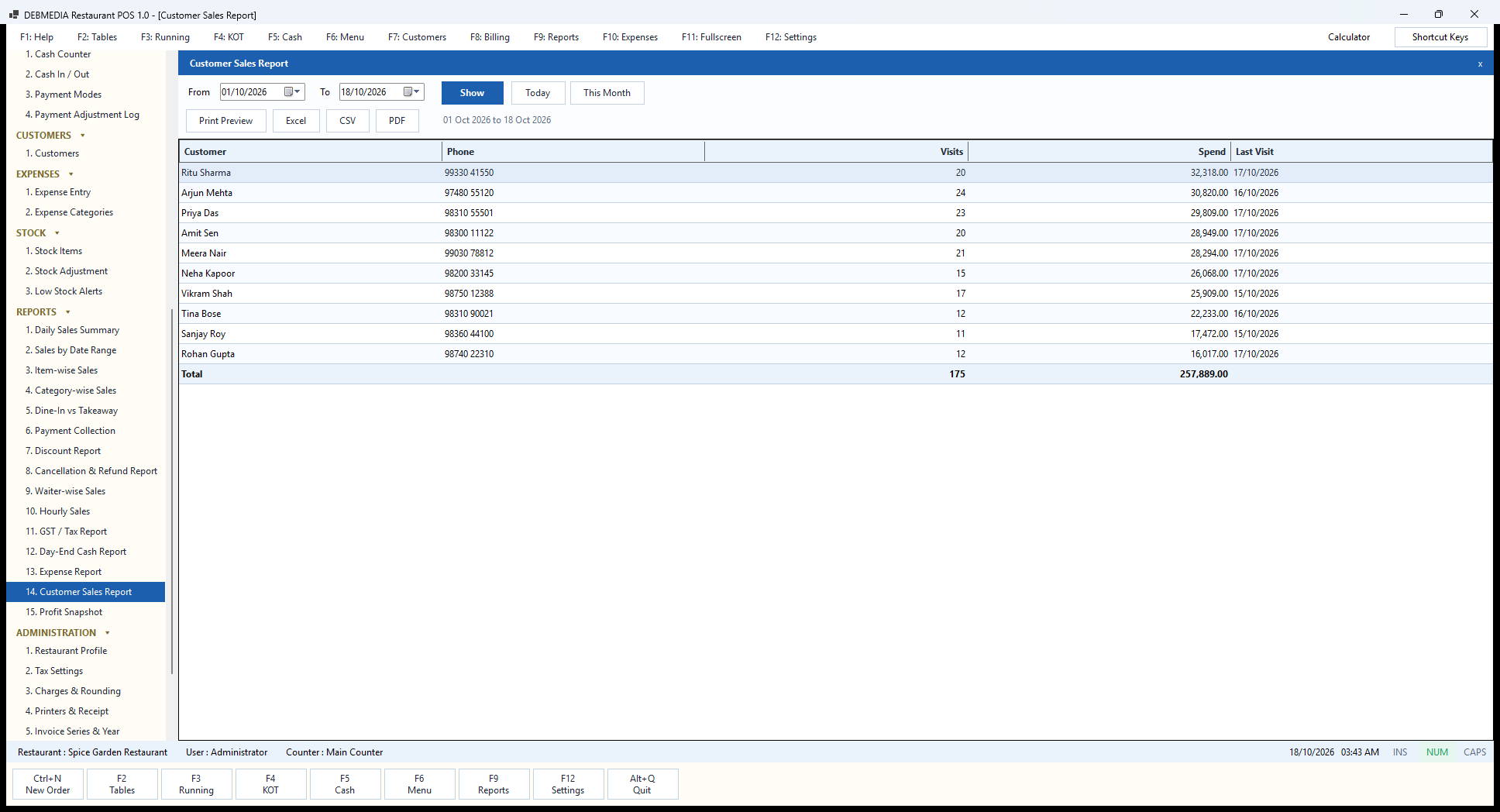
The Customer Sales Report ranks the restaurant’s named customers by what they have spent in the period. The columns are Customer, Phone, Visits, Spend and Last Visit. In the sample, Ritu Sharma is first with 20 visits and ₹32,318, followed by Arjun Mehta (24 visits, ₹30,820), Priya Das (23 visits, ₹29,809), Amit Sen (20, ₹28,949) and Meera Nair (21, ₹28,294). The total row shows 175 visits and ₹2,57,889 across the ten customers.
That total is about half of the period’s ₹5,25,756 net sales. The rest is walk-in trade with no customer attached, which is normal: you cannot name every guest. The report is most useful as a short list of the restaurant’s best regulars, for a birthday call, a table held on a busy evening or a thank-you. The last-visit column shows who has not been in lately, which is the signal to reach out.
The report works only for orders where the cashier chose a customer, so its value depends on the habit of attaching a name at the till. Phone numbers are shown so the owner can find the person, but the first edition has no built-in messaging or loyalty points.
Profit Snapshot
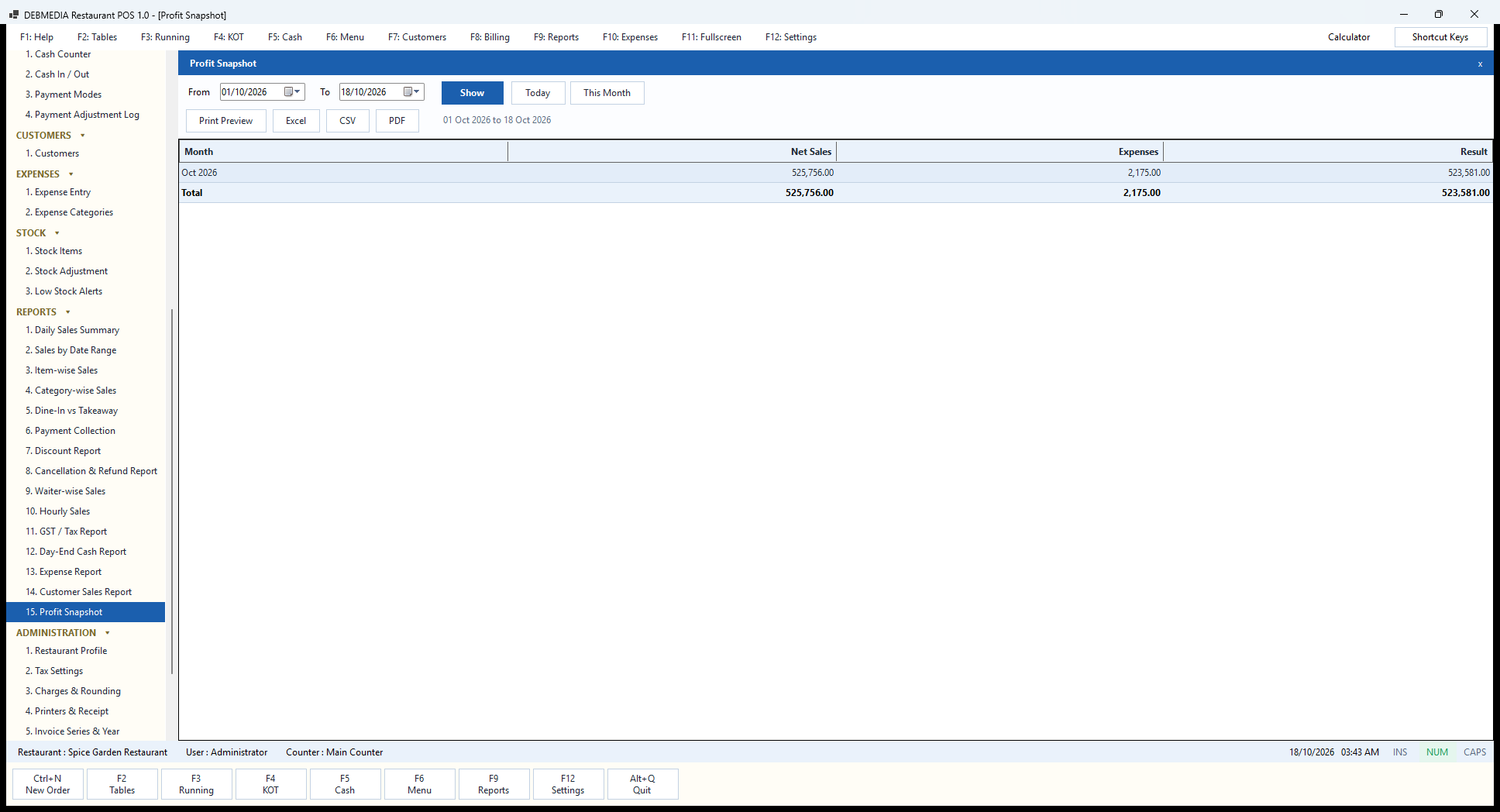
The Profit Snapshot is the quickest possible look at whether the month is making money. Each row is a month with its net sales, its expenses and the result. For October 2026 the sample shows net sales of ₹5,25,756 less expenses of ₹2,175 for a result of ₹5,23,581.
The name says what it is: a snapshot. It subtracts the recorded expenses from net sales, and nothing else. It does not know the cost of the food that was sold, because the first edition has no recipe costing, and net sales here include the GST collected, which belongs to the government. With the sample’s tiny expense entries the result looks absurdly rosy, which is a feature of the demo data, not of the program. For a real restaurant, the useful reading is relative: enter all your real expenses, including salaries, rent and raw material purchases, and compare month with month.
An owner who wants a true profit-and-loss account with cost of goods, depreciation and tax should treat this screen as a quick indicator and pass the Excel exports of the sales and expense reports to an accountant. The reporting of recipe-based food cost is on the roadmap.
Administration: Setup, Staff and Safety
Restaurant Profile
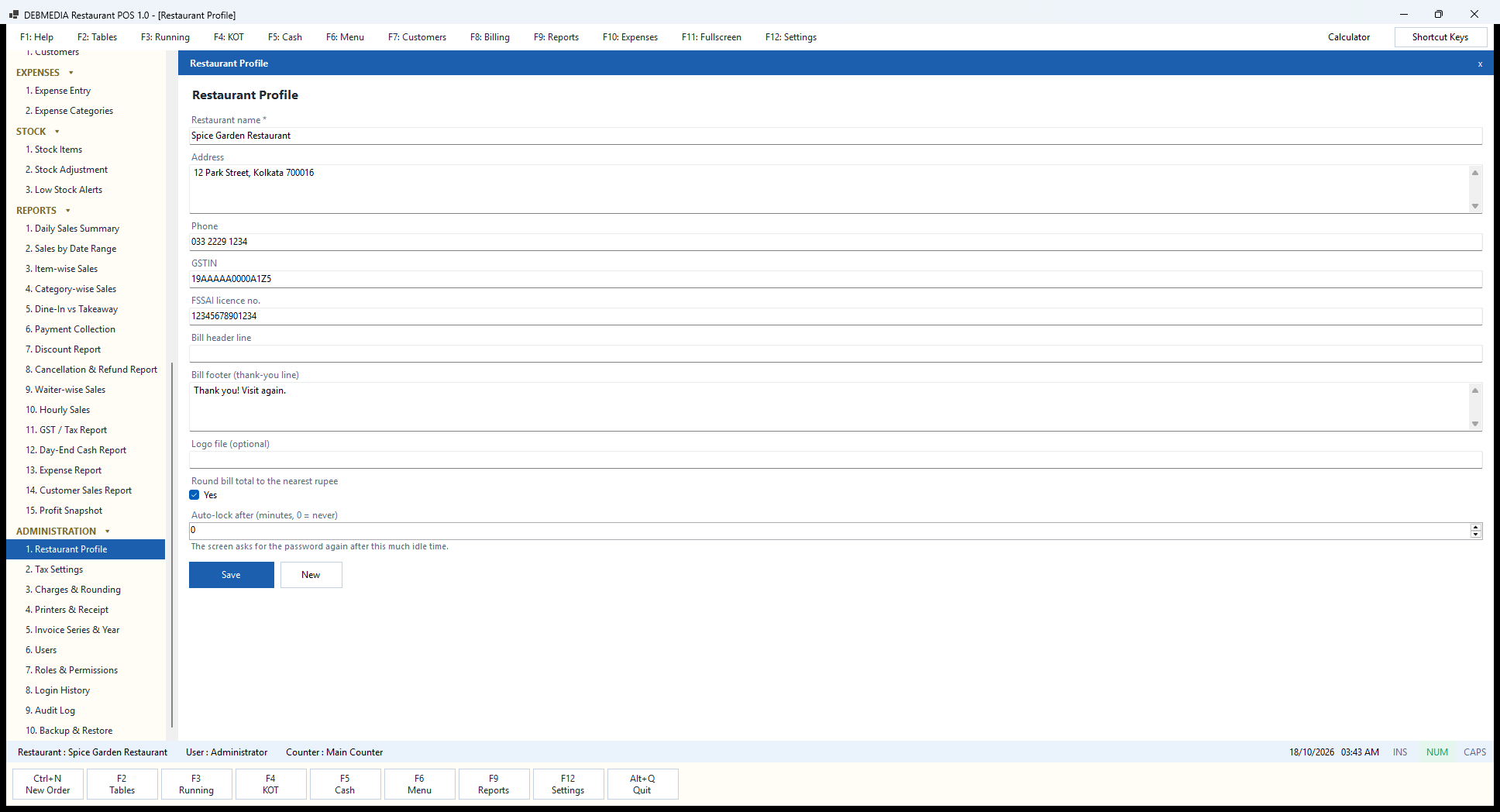
The Restaurant Profile is the first screen to fill in on a new installation. It holds the facts that appear at the top and bottom of every bill and in the status bar. The fields are Restaurant name (required), Address, Phone, GSTIN, FSSAI licence no., an optional Bill header line, a Bill footer (thank-you line), an optional Logo file path, the Round bill total to the nearest rupee tick and Auto-lock after (minutes, 0 = never). The sample restaurant is Spice Garden Restaurant, 12 Park Street, Kolkata 700016, with dummy GSTIN and FSSAI numbers and the footer “Thank you! Visit again.” These identifying numbers are fictional and are shown only to illustrate the fields.
Two of the fields change behaviour rather than just printing text. Round bill total to the nearest rupee is why the Daily Sales Summary has a Round off line; ticked, a bill that would have come to ₹4,284.60 is billed at ₹4,285.00 and the difference is kept visible rather than hidden. Auto-lock after makes the screen ask for the password again after that many idle minutes, with the hint “The screen asks for the password again after this much idle time”. Set to 5 or 10, it stops a customer or a passing staff member from using a till someone has walked away from; the sample leaves it at 0, which means never.
A caution about the logo: the first edition stores the logo path in the profile, but does not yet print the logo on the thermal bill. The header line, the footer line, the name, address, GSTIN and FSSAI number are printed. Save stores the profile, and New clears the form.
Tax Settings
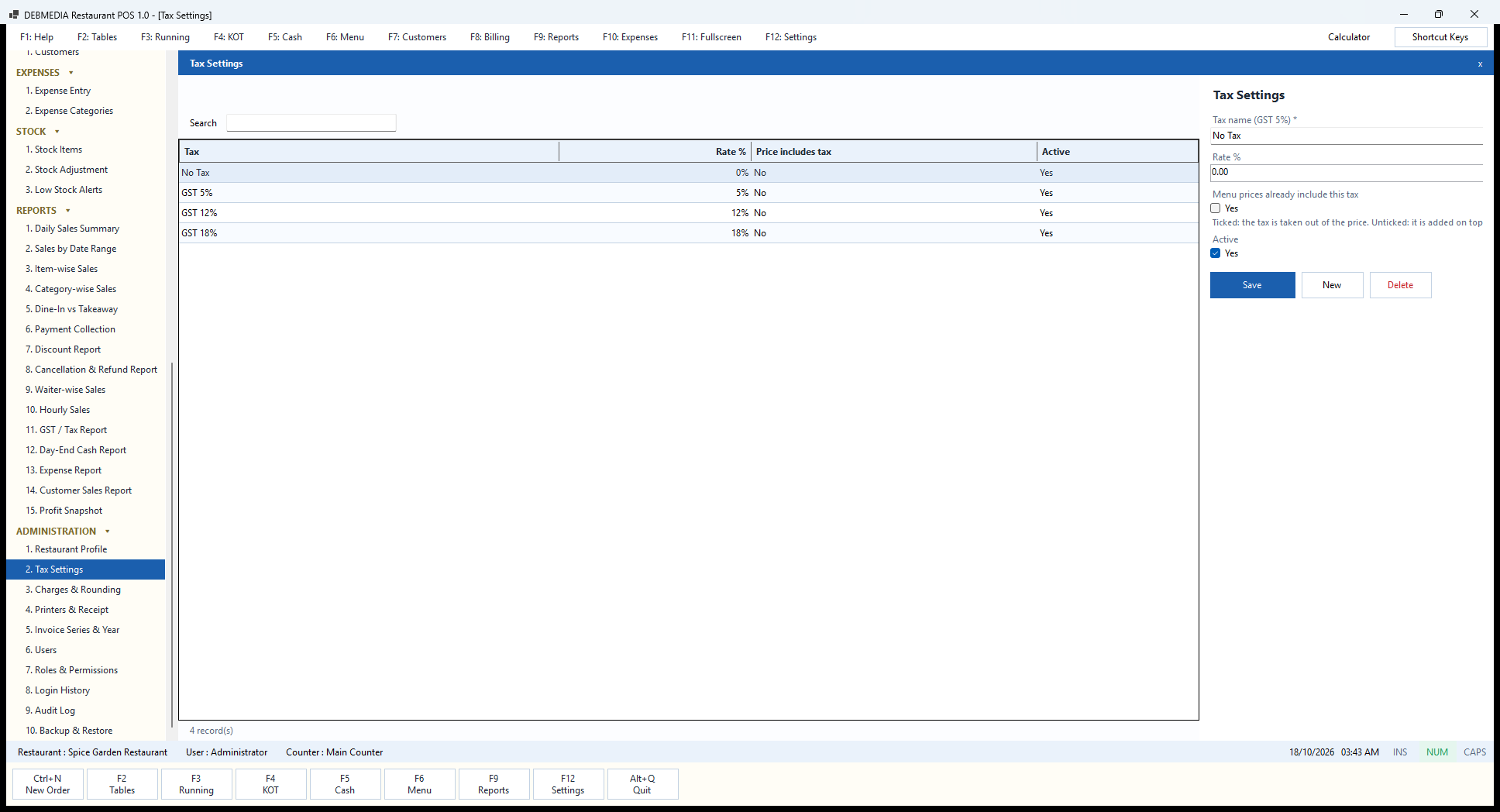
Tax Settings defines the tax rates that menu items can use. The grid shows each tax, its rate, whether the price includes the tax and whether it is active. The installed list has four: No Tax at 0 percent, GST 5%, GST 12% and GST 18%, each with prices not including tax.
The form takes a Tax name (the hint gives “GST 5%” as an example), a Rate %, a tick Menu prices already include this tax and an Active tick. The tick has a clear explanation underneath: ticked, the tax is taken out of the menu price; unticked, it is added on top. So a restaurant that prices its menu at ₹100 with tax to be added bills ₹105 at 5 percent, while one that prints tax-inclusive prices bills ₹100 and reports about ₹4.76 of it as tax. Each menu item points to one of these rates, which is how a dish and a service charge can carry different taxes on the same bill, and the GST / Tax Report groups by these rates.
The program supplies the tools, not the advice. Which rate applies to your kind of restaurant, whether you are in a composition scheme, and whether an air-conditioned or licensed-premises rate differs, are questions for your accountant. The rates are plain editable data: when a rate changes, the owner edits it here instead of waiting for a program update.
Charges & Rounding
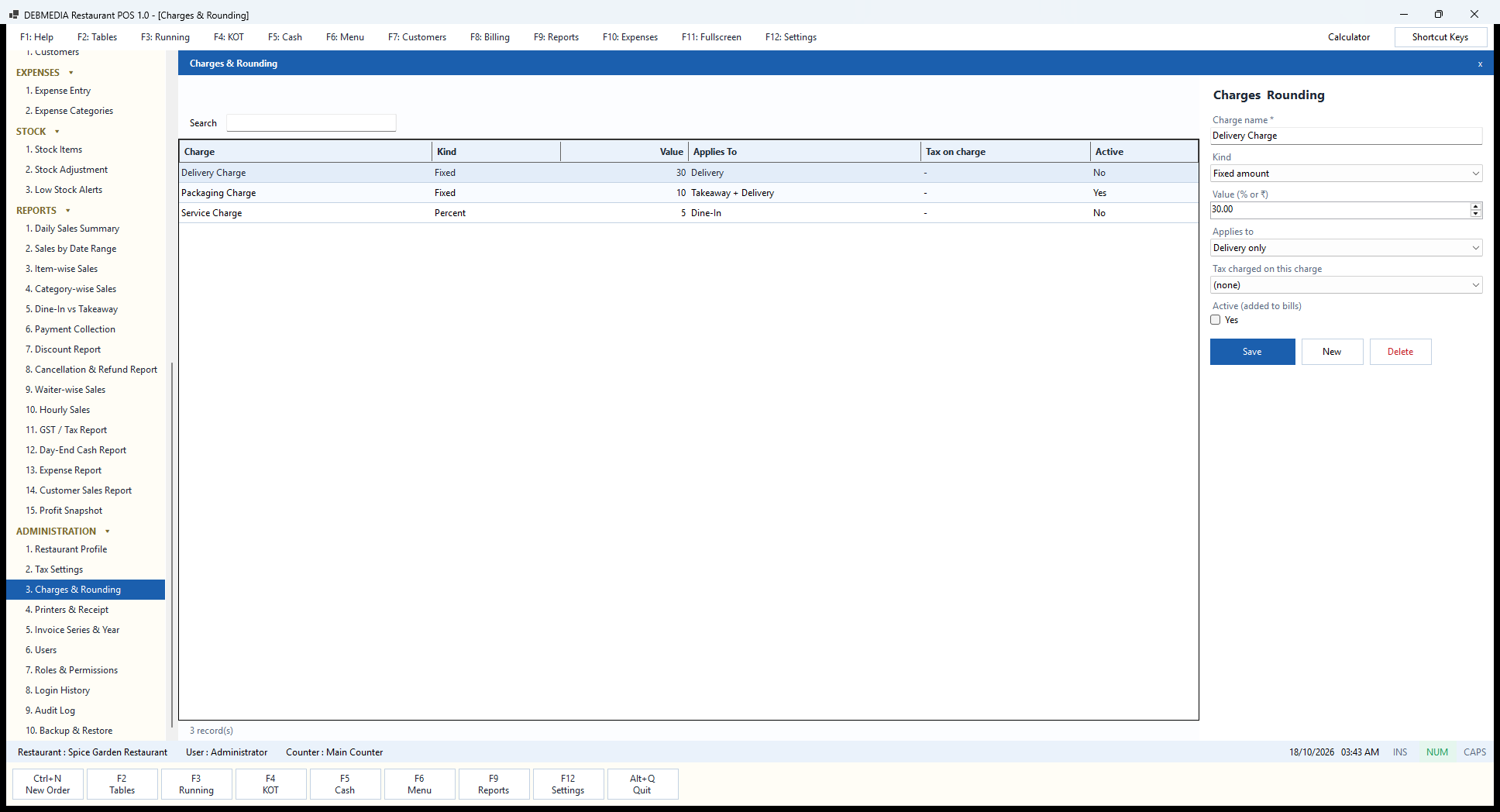
Charges are the extra lines that can be added to a bill automatically. The grid shows each charge, its kind, value, the order types it applies to, any tax on the charge and whether it is active. The sample defines three. Delivery Charge is a fixed ₹30 for delivery orders and is currently inactive. Packaging Charge is a fixed ₹10 for takeaway and delivery orders and is active. Service Charge is 5 percent for dine-in orders and is inactive.
The form takes the charge name, the kind (a fixed amount or a percentage), the value in rupees or percent, the applies to choice (dine-in only, takeaway and delivery, delivery only and so on), a tax charged on this charge drop-down that is left at none in the sample, and an Active (added to bills) tick. Only active charges are added, and only to the order types they apply to, so a packaging fee never lands on a dine-in table. On the billing screen the Charges line in the totals shows the sum.
This is the screen to talk about with an accountant before turning on a service charge, since whether a service charge is levied, how it is shown on the bill and what tax applies depend on the restaurant and on current rules. The program lets the owner configure it; it does not decide it.
Printers & Receipt
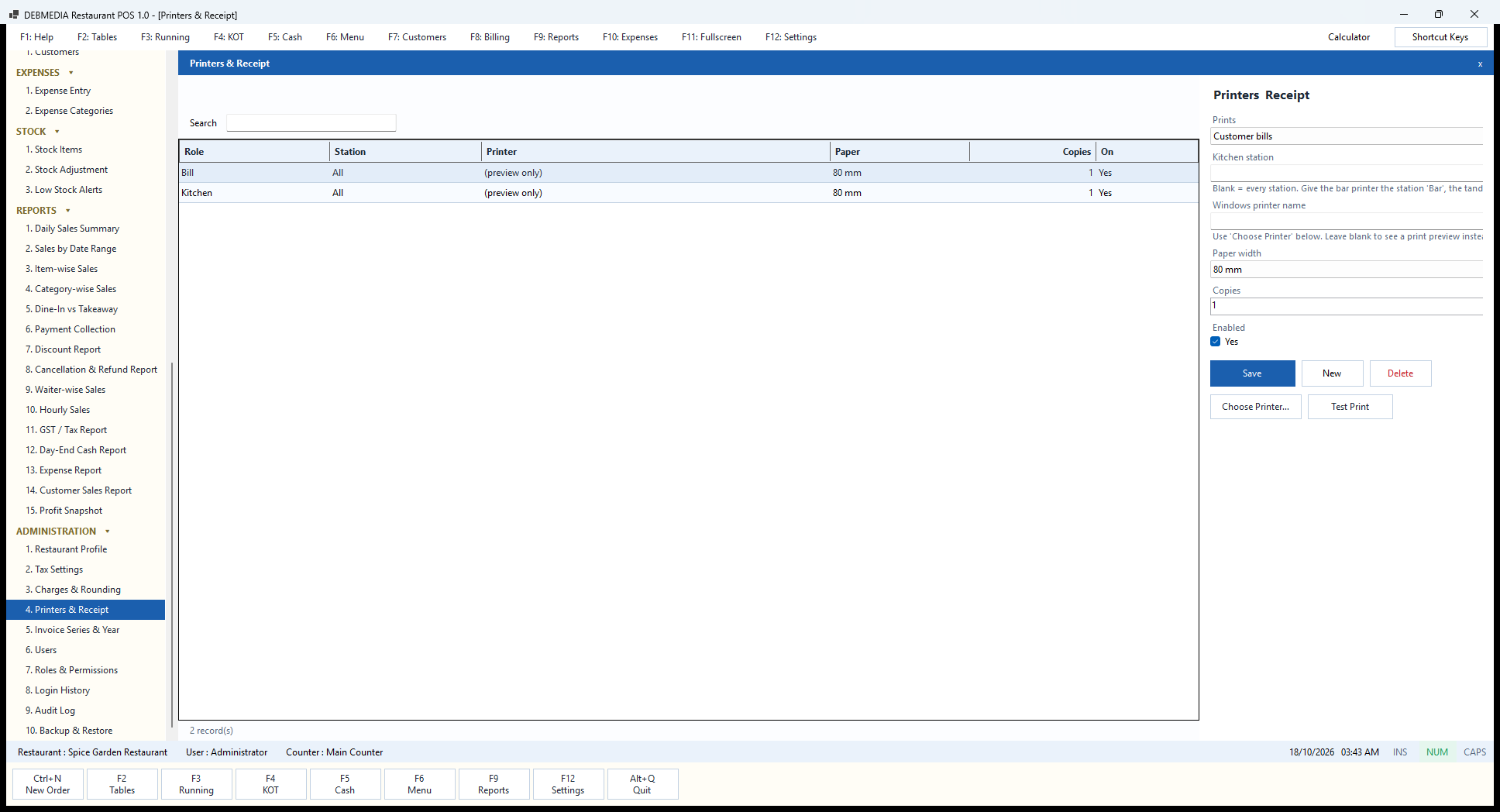
Printers & Receipt tells the program where to send paper. The grid shows each role (Bill or Kitchen), the station it serves, the printer, the paper width, the number of copies and whether it is on. The sample has a Bill printer and a Kitchen printer, both for all stations, with the printer shown as “(preview only)”, 80 mm paper and one copy each.
The form takes Prints (customer bills or kitchen tickets), a Kitchen station, the Windows printer name, a Paper width, Copies and an Enabled tick. The hints make the rules plain: leaving the station blank sends every station’s tickets to that printer, while giving the bar printer the station “Bar” and the tandoor printer the station “Tandoor” routes each ticket to the right place; leaving the printer name blank shows a print preview instead of printing, which is how the sample is set. Choose Printer… opens the Windows printer picker and Test Print sends a sample page so the paper and cut can be checked at set-up.
An honest word about printing. Bills and tickets are produced as ESC/POS commands for 58 mm and 80 mm thermal printers, and the automated tests check that output byte by byte. It has not yet been tried on a physical thermal printer in a live restaurant, so a new customer should treat their first hours as a test: use Test Print, check the width and the cutting, and keep the preview option as a fallback. The receipt layout is also limited in this edition to the profile’s header, footer and paper width.
Invoice Series & Year
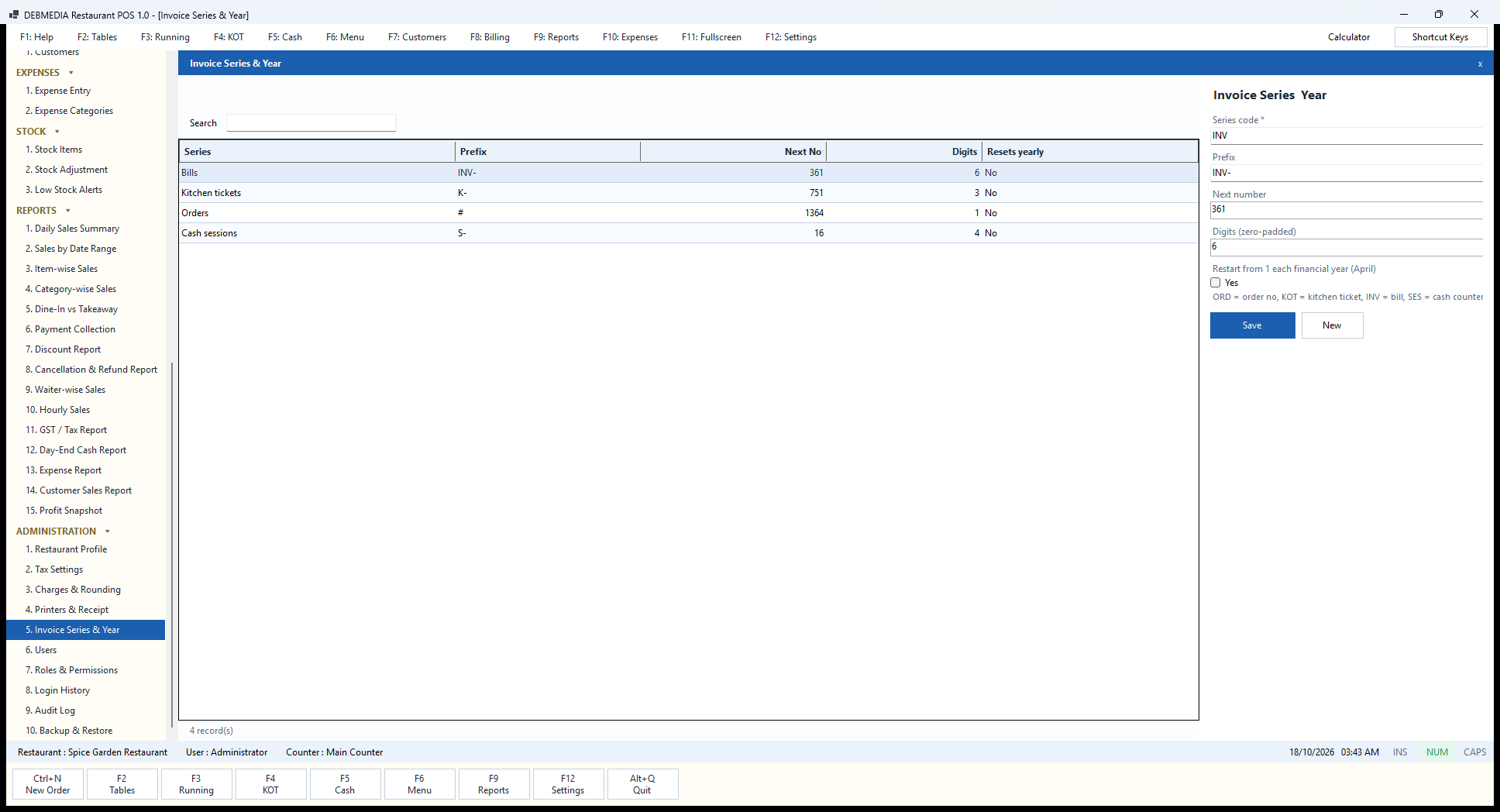
This screen controls how documents are numbered. The grid shows each series, its prefix, the next number, the number of digits and whether it resets yearly. The sample has four: Bills with the prefix INV- and next number 361 in six digits (so the next bill is INV-000361), Kitchen tickets with K- and next number 751 in three digits, Orders with # and next number 1364 in one digit, and Cash sessions with S- and next number 16 in four digits. None resets yearly.
The form takes the series code, the prefix, the next number, the digits (zero-padded) and a tick Restart from 1 each financial year (April). The note under the form decodes the series codes: ORD is the order number, KOT the kitchen ticket, INV the bill and SES the cash counter session. Bill numbers are consecutive without gaps, which is what an inspector or an accountant expects to see; a voided bill keeps its number and its status rather than leaving a hole.
Most restaurants leave the numbering alone. The reasons to open this screen are to move to a new prefix at a new branch or on a new licence, to start the series at the number of the last paper bill when moving from a manual book, or to turn on the yearly restart for an accountant who wants each financial year to start at 1.
Users
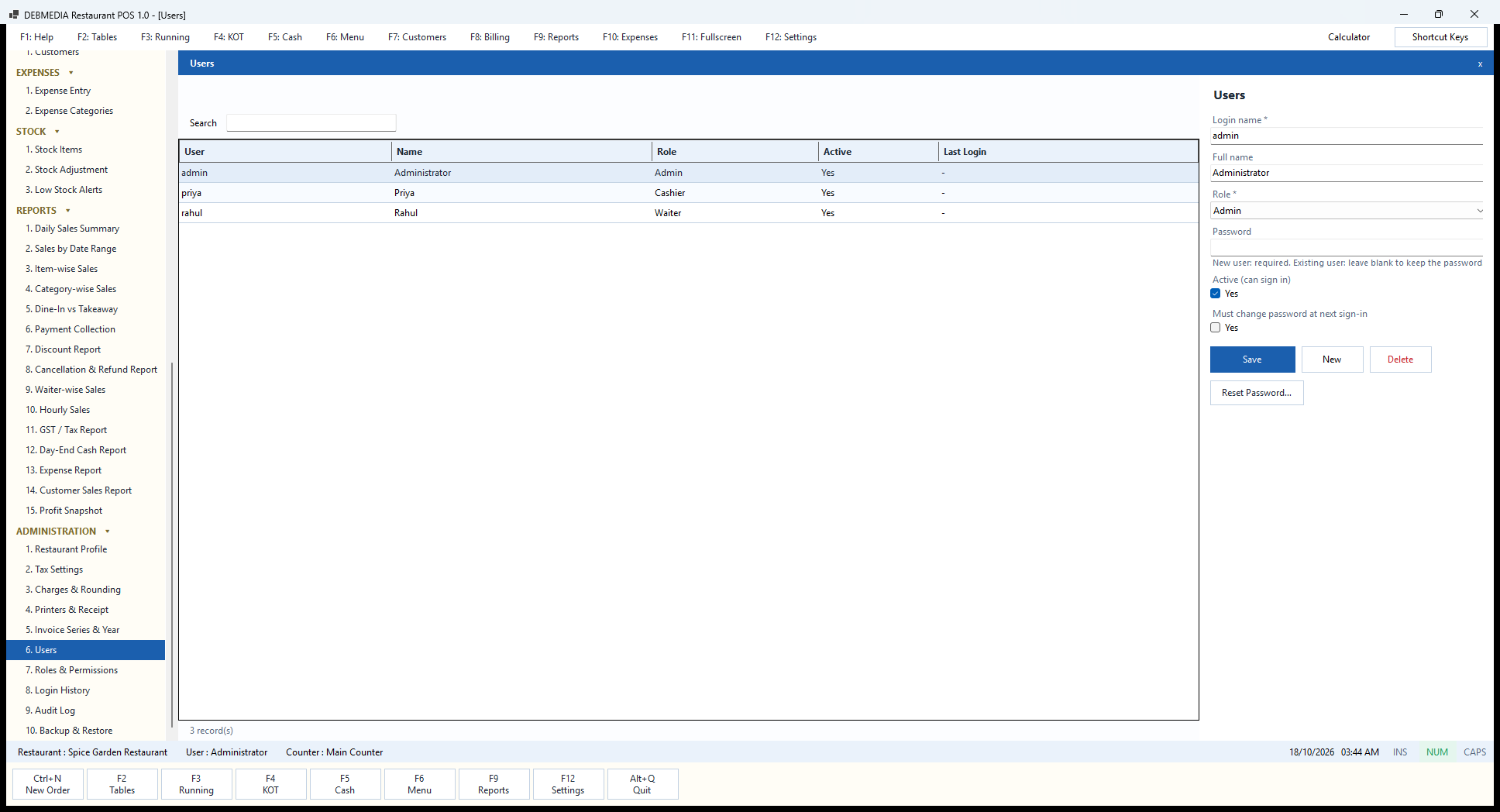
Users lists the people allowed to sign in. The grid shows the user (login), name, role, whether the account is active and the last login. The sample has three: admin, the Administrator, with the Admin role; priya, a Cashier; and rahul, a Waiter. The Last Login column shows a dash because the sample accounts have not signed in through the program.
The form takes the login name, the full name, the role (Admin, Cashier, Waiter or any role the owner has created), a password, an Active (can sign in) tick and a Must change password at next sign-in tick. The hint on the password box is a good summary of the rules: for a new user a password is required, and for an existing user leaving it blank keeps the current one. Reset Password… sets a new password for a user who has forgotten theirs, and the must-change tick makes them choose their own at the next sign-in. Passwords are stored only as salted hashes, so nobody, including the administrator, can read one back.
Give every person their own login. The audit log, waiter-wise sales and the bill history all depend on it, and a shared login makes the discount and refund registers useless. Mark a former employee inactive rather than deleting them, so their past bills keep their name. Keep a second administrator account or the first administrator’s password somewhere safe, because the first edition has no separate recovery code.
Roles & Permissions: Admin
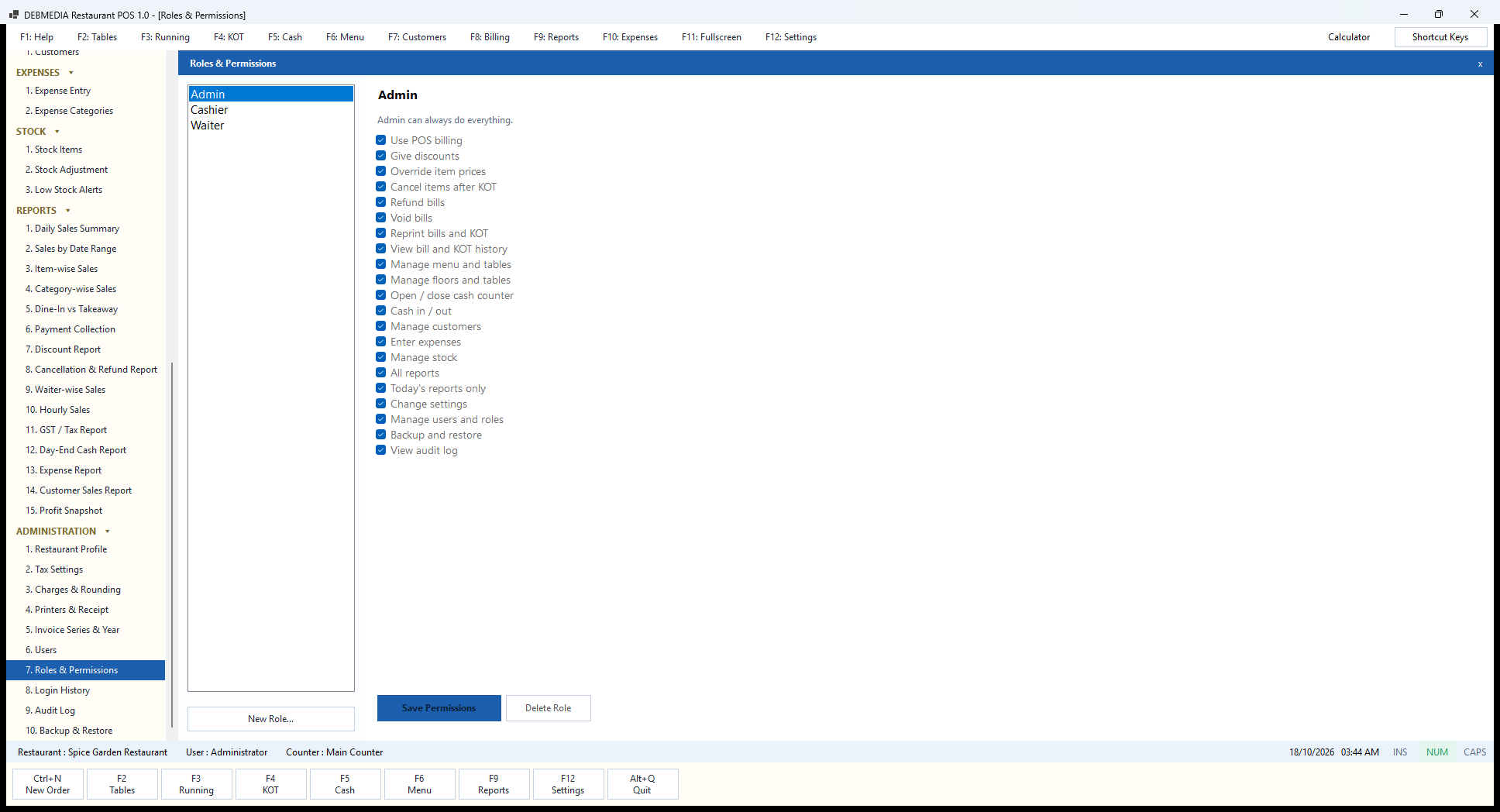
Roles and Permissions decides what each kind of user may do, with a list of roles on the left and a set of permission ticks for the selected role on the right. The three built-in roles are Admin, Cashier and Waiter, and New Role… adds a role of your own, for instance Manager or Kitchen Supervisor. Save Permissions stores the ticks, and Delete Role removes a role that you added.
The Admin role is selected here and the text says “Admin can always do everything”. All 21 permissions are listed and ticked: Use POS billing, Give discounts, Override item prices, Cancel items after KOT, Refund bills, Void bills, Reprint bills and KOT, View bill and KOT history, Manage menu and tables, Manage floors and tables, Open / close cash counter, Cash in / out, Manage customers, Enter expenses, Manage stock, All reports, Today’s reports only, Change settings, Manage users and roles, Backup and restore and View audit log.
The list reads like the list of ways a till can be abused, and that is deliberate. Each risky power has its own switch: changing a price at the table, cancelling after the kitchen has started, refunding, voiding, reprinting, taking cash out. A restaurant owner can hand out only the powers a role needs, and the Admin role is the one to keep for the owner or a most-trusted manager. The Admin role cannot be reduced, so the owner can never be locked out of their own system.
Roles & Permissions: Cashier
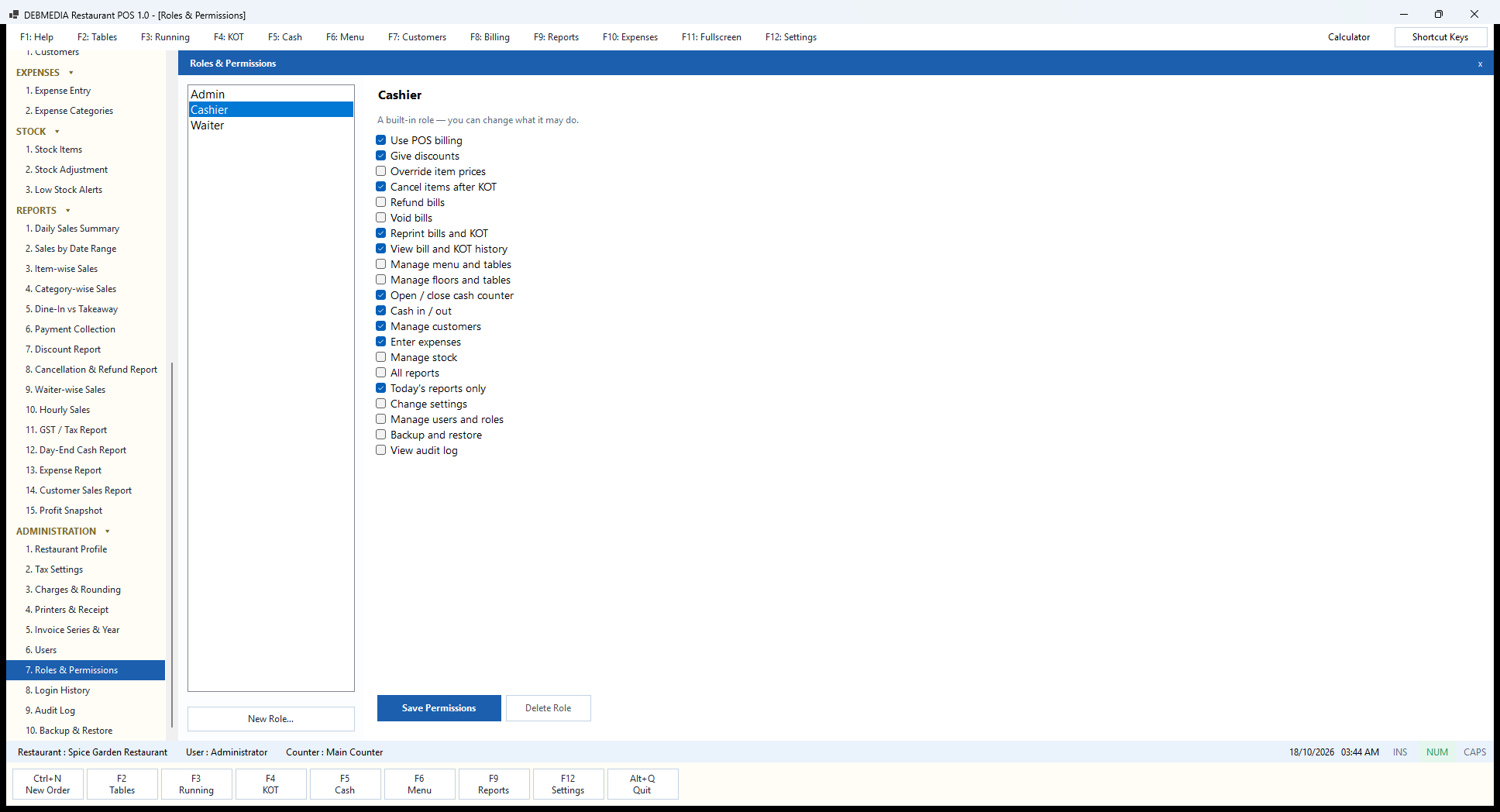
The Cashier role is selected here, with the note that it is a built-in role and that you can change what it may do. The ticked permissions are the working powers of a till operator: Use POS billing, Give discounts, Cancel items after KOT, Reprint bills and KOT, View bill and KOT history, Open / close cash counter, Cash in / out, Manage customers, Enter expenses and Today’s reports only.
What is not ticked marks the line between the cashier and the manager: Override item prices, Refund bills, Void bills, Manage menu and tables, Manage floors and tables, Manage stock, All reports, Change settings, Manage users and roles, Backup and restore and View audit log. A cashier can discount and cancel an item after the KOT (both recorded with a reason) and run the drawer, but cannot give money back, void a bill, change a price at the table, see the month’s reports or open the settings. Where a restaurant wants the cashier to see the whole month’s reports, or to handle refunds, ticking the box and pressing Save Permissions is all that is needed.
The Today’s reports only permission is a neat middle step. It lets a cashier see today’s figures for their shift without being able to browse last month’s takings.
Roles & Permissions: Waiter
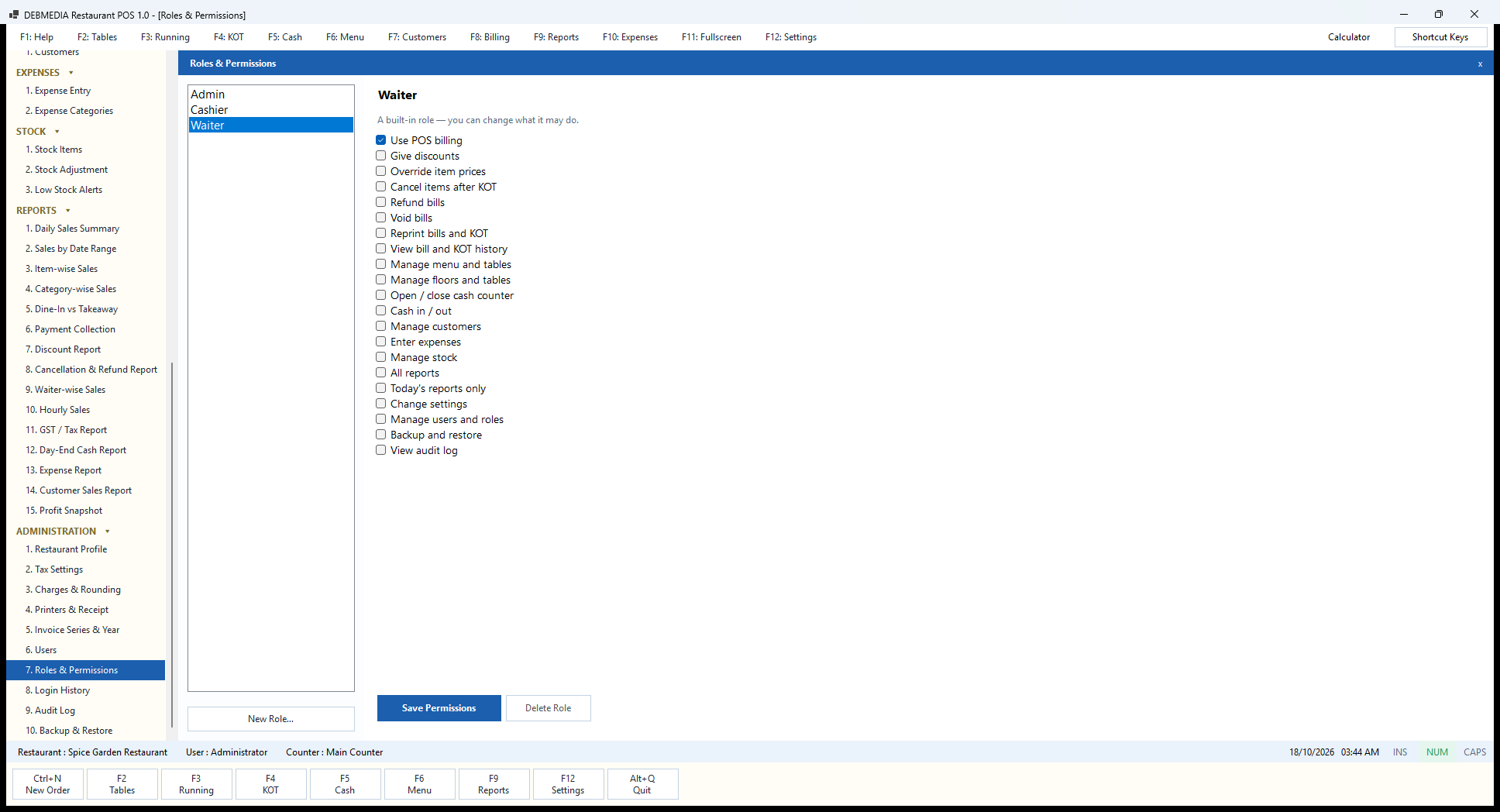
The Waiter role is the most restricted of the three. Only one permission is ticked: Use POS billing. Everything else is off. A waiter can sign in, open a table, take an order, send it to the kitchen and add to it. Cancelling anything after it has gone to the kitchen, giving a discount, reprinting, refunding, voiding, seeing history, the cash drawer, customers, expenses, stock, reports, settings, backups and the audit log are all beyond this role.
This is the right default for a handheld or shared floor terminal. Staff can be quick at the thing they do hundreds of times a night without being able to do the things that need a second pair of eyes. If your waiters take payment and handle the drawer, give them the Cashier role instead; if some trusted seniors may cancel, tick the box on a new role of your own and assign it to them.
Because these are ticks and not code, a restaurant can fit the program to its own staff structure. A family-run place where everyone is trusted can tick more; a larger place with a clear floor manager can build a Manager role between Cashier and Admin.
Login History
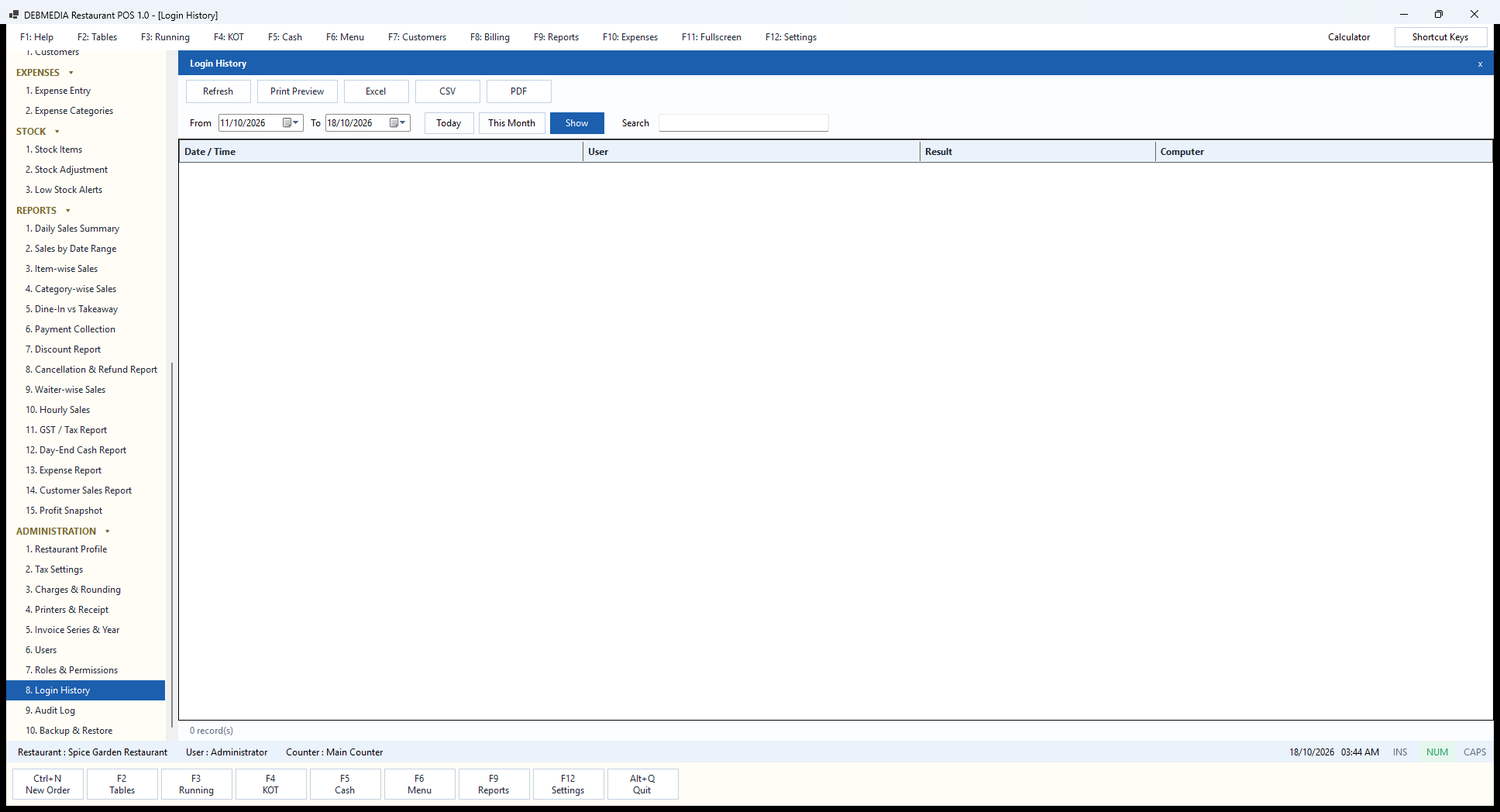
Login History is the register of who tried to sign in and whether they got in. The columns are the date and time, the user, the result and the computer. The date range controls (here 11 to 18 October), Show, Today, This Month and Search choose what to see, and Print Preview, Excel, CSV and PDF export it.
The sample screen is empty because the sample data was loaded by a data-loading tool rather than by people signing in, so no sign-ins were recorded. On a live system sign-ins appear here, which gives the owner two useful things. Each entry records the user, whether the attempt succeeded and which computer it came from. First, it shows when each person started work and on which computer. Second, repeated failed attempts against an account stand out, which is the early warning that someone is guessing a password; the program also locks an account after repeated wrong passwords.
Together with the Audit Log on the next screen, it answers the question every restaurant owner asks after something goes wrong: who was at the till, and when?
Audit Log
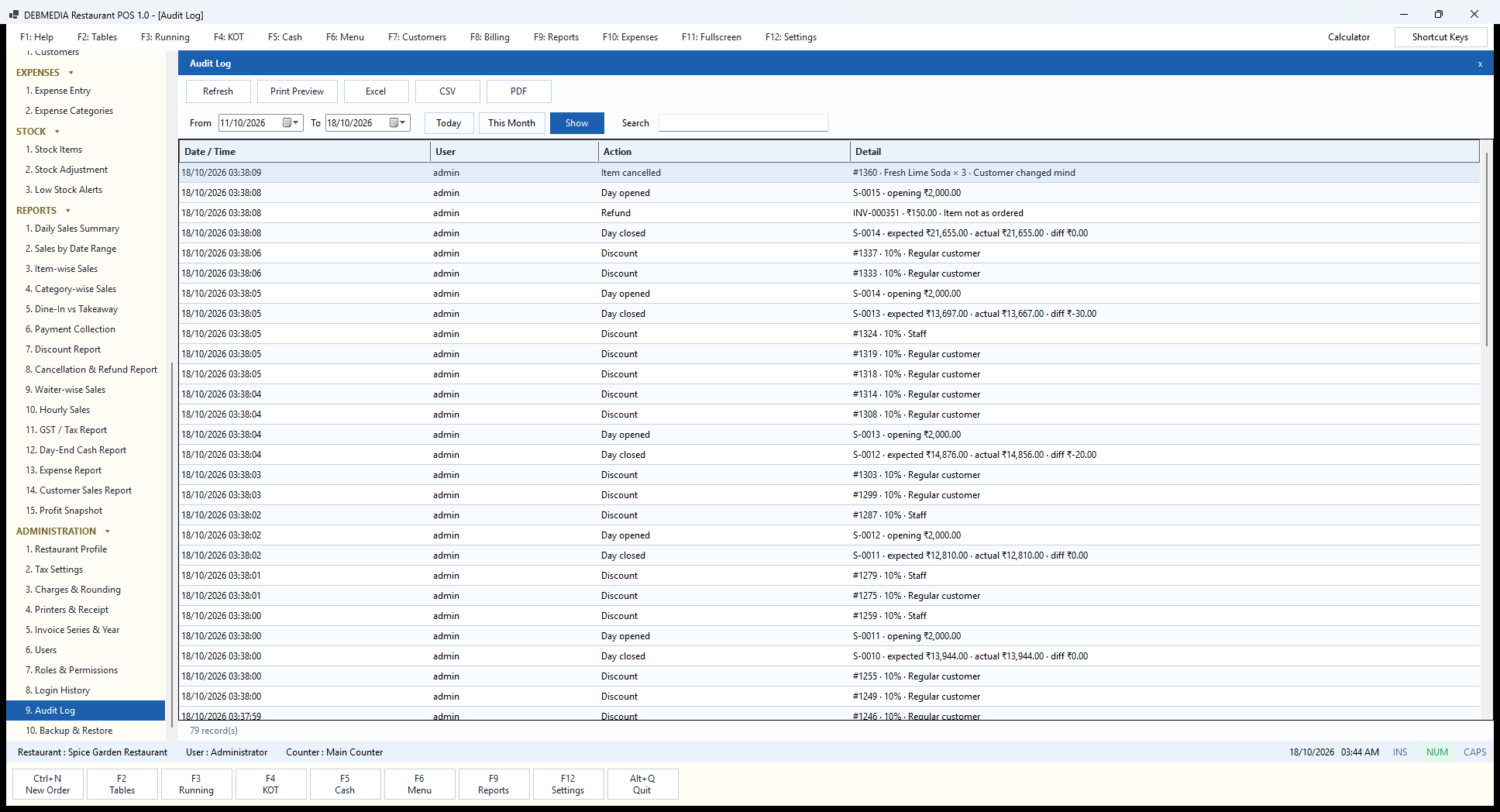
The Audit Log is the program’s memory of sensitive actions. The columns are the date and time, the user, the action and the detail. The sample shows 79 records for 11 to 18 October. Reading from the top: Item cancelled for order #1360, Fresh Lime Soda times 3, “Customer changed mind”; Day opened, session S-0015 with opening ₹2,000.00; Refund, bill INV-000351, ₹150.00, “Item not as ordered”; Day closed, session S-0014 with expected ₹21,655.00, actual ₹21,655.00 and a difference of ₹0.00; and a run of Discount entries such as “#1337 · 10% · Regular customer”.
The details are the useful part. A day-close line records the expected cash, the counted cash and the difference, so a session that ended ₹30 short on 16 October (S-0013, expected ₹13,697.00, actual ₹13,667.00) is permanently on record. A refund records the bill, the amount and the reason. A discount records the order, the percentage and the reason. In the sample every entry carries the same timestamp of about 03:38 on 18 October, because the demonstration data was generated in one run; a real log has the real times.
Only a role with the View audit log permission can open this screen, and nobody can edit or delete a line in it. For a business that wants to deter small theft and settle disputes with facts, this is the screen to review each week.
Backup & Restore
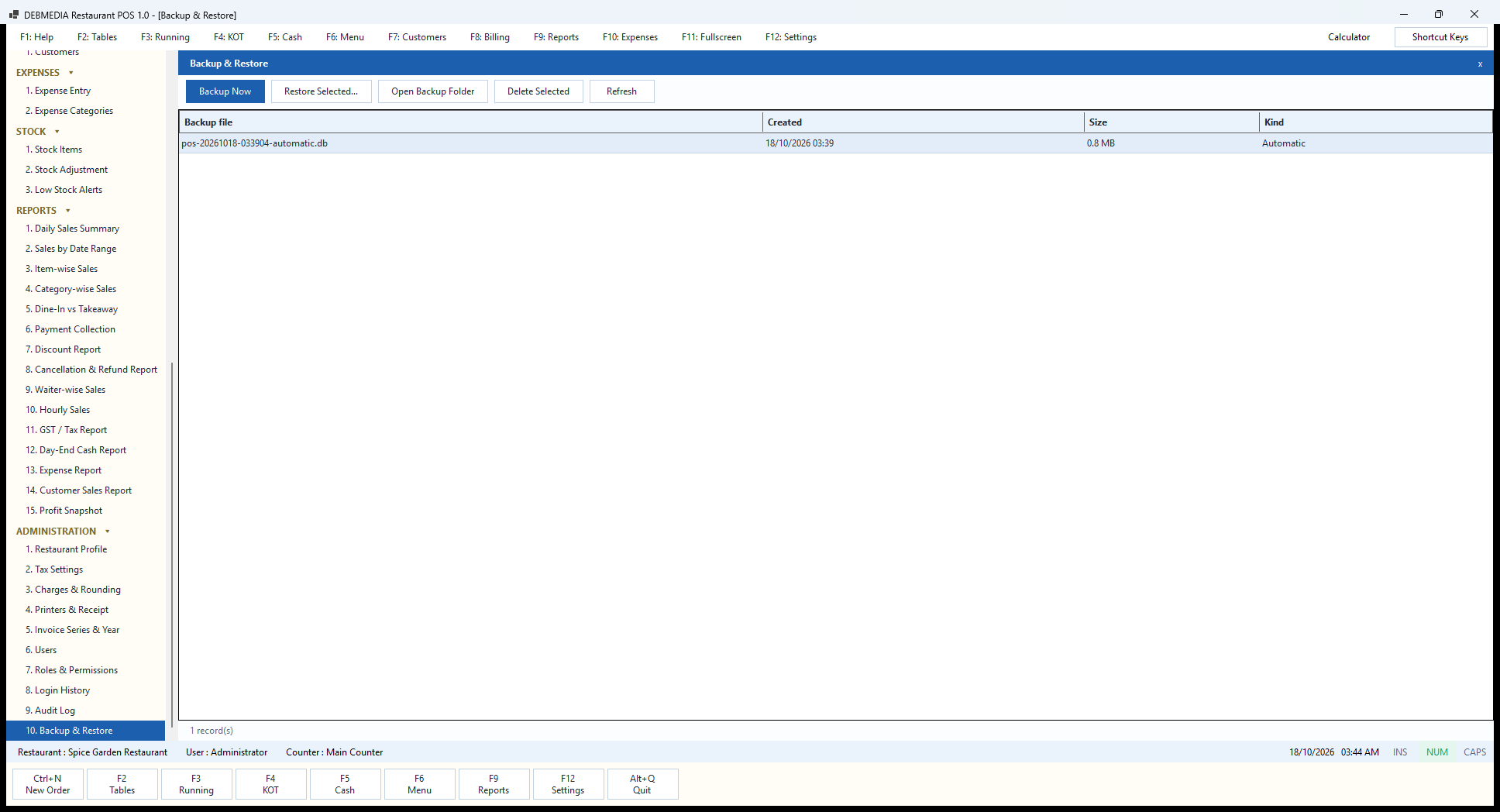
The restaurant’s whole business is one file, so protecting it matters. Backup & Restore lists the backups with the file name, the time created, the size and the kind. The sample shows one: pos-20261018-033904-automatic.db, created 18/10/2026 at 03:39, 0.8 MB, kind Automatic. The program takes an automatic backup once a day when it runs and keeps the newest fourteen, so two weeks of daily snapshots are always on the computer.
Backup Now takes a backup immediately, which is a good habit before closing the day or before any large change such as loading a new menu. Restore Selected… puts a chosen backup back in place of the live data. Because a restore throws away whatever has happened since the backup was taken, the program first saves a safety copy of the current data, so a wrong choice can itself be undone. Open Backup Folder opens the folder in Windows so the files can be copied to a pen drive, a second disk or a cloud-synced folder, and Delete Selected removes an old backup you do not need.
One caution that applies to every program of this kind: a backup on the same disk as the data protects against a mistake, not against the disk dying or the computer being stolen. Copy the backup folder somewhere else regularly. The data file lives under the Windows user profile in a folder named DebmediaRestaurantPOS, and the backups sit beside it.
A Table Followed Through the Whole System
To see how the screens fit together, follow one table in the sample, T-02, through the evening.
Four guests are seated at T-02, a four-seater on the Ground Floor, and the waiter opens the table from the Table View and starts an order on POS Billing as Dine-In with four guests. They order three Fresh Lime Sodas, one Butter Chicken, one Chicken Biryani, two Paneer Tikka and four Butter Naan. Save and KOT produces three kitchen tickets in the same minute: K-743 to the Bar for the sodas, K-744 to the Main kitchen for the Butter Chicken and the biryani, and K-745 to the Tandoor for the Paneer Tikka and the naan. They appear in the KOT Monitor with their waiting time, and in KOT History for good.
Moments later the guests change their minds about the drinks. The three sodas have already gone to the Bar, so the waiter removes them and the program asks for a reason, “Customer changed mind”, then prints a CANCEL ticket, K-750, to the Bar. The order now has eight items, and the table card on the Table View and the row on Running Orders both read ₹1,470 after 38 minutes. That figure is easy to check: ₹340 for the Butter Chicken, ₹320 for the Full Chicken Biryani, ₹520 for two Paneer Tikka and ₹220 for four Butter Naan make ₹1,400, and GST at 5 percent adds ₹70. The ₹210 of cancelled sodas is on the Cancellation and Refund Report and in the Audit Log.
When the meal is finished, Print Bill prints the bill and the table turns blue, as T-05 shows in the sample. The cashier presses Settle and Pay, picks cash, UPI or a split, and the order is closed. T-02 is still running in the sample data, so this last step is described rather than shown, but T-05 and the paid bills on the Dashboard show the same flow completed. The bill is in Bill History, the amount is in Payment Collection under the right modes, the cash part is in the session’s expected cash on the Cash Counter and the Day-End Cash Report, the sales are in the Daily Sales Summary, Item-wise Sales, Waiter-wise Sales, Hourly Sales and GST / Tax Report, and the visit is on the Customer Sales Report if a customer was attached. One order, entered once, appears in every one of those places and the figures agree.
Under the Hood: Technology, Data and Security
Debmedia Restaurant POS is a native Windows application written in VB.NET on the current .NET platform with Windows Forms. It is built in two layers, a core library that holds the business rules, the database model and the services for orders, billing, cash, reports, printing, backup and licensing, and a user-interface project that holds the screens. Keeping the rules in the core library is what allows the automated tests to exercise them without any screens.
All data is kept in a single SQLite database file on the counter computer, in a folder named DebmediaRestaurantPOS under the Windows user profile. There is no server, no installation of a database engine and no network connection needed. Backups are consistent snapshots of that file (made with SQLite’s VACUUM INTO) that the program verifies by opening the copy and running SQLite’s integrity check, kept beside the live file.
Passwords are stored only as salted PBKDF2 hashes with SHA-256, never in readable form. The first sign-in forces the default administrator password to be changed. Every sensitive action, discounts, refunds, voids, item cancellations, cash movements, day open and close, is written to the audit log with the user and, where relevant, a reason, and no screen edits or deletes that log.
The licence is one restaurant on one PC for the purchased version for as long as it is used, activated offline with an e-mail address and a licence key, with no activation server involved. Support, new versions and third-party service integrations are not part of a one-time price.
The project ships with 131 automated checks of the business rules (orders, KOT routing, billing, tax, payments, cash sessions, refunds, reports, backup and licence) and 94 automated checks of the screens, and both sets passed on the last recorded run. Automated checks are evidence that the logic is consistent, not a guarantee against every real-world situation, which is why the scope section below is blunt about what has and has not been proved.
Know Before You Decide: Scope and Current Limits
A product page should tell you what a program does not do as clearly as what it does. These are the limits of the first edition.
- One counter PC. It is a single-user, single-computer program. There is no way yet to run two billing counters against the same data, to sync several computers or to see the restaurant from a phone. A multi-PC edition is a future possibility, not a feature.
- No kitchen display, QR ordering or waiter app. Kitchen tickets are printed to a kitchen printer or shown on the counter PC’s KOT Monitor. There is no separate kitchen screen, no table QR menu for customers and no handheld ordering app.
- No Zomato or Swiggy integration. The data model has room for an order source and an external order number, but there is no live connection to any delivery platform, and orders from them are entered by hand as Delivery or Takeaway.
- No cloud sync. Everything stays on the computer. That is the privacy benefit and also the reason a backup copied elsewhere matters.
- Stock is a counted list, not recipe inventory. Raw materials with quantities and reorder alerts are tracked, but selling a dish does not reduce them, and food cost per dish is not calculated. The Profit Snapshot is sales minus recorded expenses, not an accounting profit.
- Printing is not yet proven on hardware. ESC/POS bill and kitchen output is checked in tests at 58 mm and 80 mm but has not been run on a physical thermal printer in service. Use the preview and the Test Print button at set-up.
- Receipt layout is basic. Name, address, phone, GSTIN, FSSAI number, a header line, the items, tax, totals and a footer line are printed. The logo path is stored but not yet printed, and there is no layout designer.
- No GST portal connection. The GST / Tax Report gives the figures; it does not file anything. Confirm your tax treatment with your accountant.
- No menu import. The menu is entered through the Menu Items screen, or started from the sample menu.
- Windows only. It needs a Windows computer.
If one of these is a deal-breaker for your restaurant, it is far better to know now than after a purchase.
Who Debmedia Restaurant POS Is For
It suits an owner-run restaurant, café, bakery counter, sweet shop, juice bar, food-court stall or cloud kitchen with one billing computer, a menu of a few dozen to a few hundred items and a handful of staff. It suits people who value a bill that prints even when the internet is down, a till they can audit, and software they buy once and keep.
It is a good fit when you want to stop the daily argument about the drawer (the Cash Counter and Day-End Cash Report make shortages visible the same night), when you want to know which dishes and which hours make your money, and when you want discounts, cancellations and refunds to leave a trail.
It is not the right tool for a chain that needs central reporting across outlets, a restaurant that must have a customer-facing QR menu or a kitchen display from day one, or a business that wants delivery-platform orders to flow in automatically. For those, a cloud-based system is the better choice today.
Frequently Asked Questions
Do I need the internet?
No. Taking orders, printing, backups and reports all work without it.
Where is my data stored?
In one database file on the counter computer, in a DebmediaRestaurantPOS folder under your Windows user profile, with backups beside it. Nothing is sent to Debmedia or to any cloud.
Can I try it first?
Use the Download Now button at the top of this page to request a trial. Requests are answered by hand with the download link, to the e-mail address you give.
Which printers does it work with?
It produces ESC/POS output for 58 mm and 80 mm thermal printers and can print through any Windows printer name. It has not yet been proven on a physical thermal printer in service, so test your printer with Test Print before you rely on it, and use print preview as a fallback.
Can I use it with a touch screen?
The billing screen uses large menu tiles that can be tapped, and every action also has a keyboard shortcut. We have not certified specific touch monitors, so try yours before you buy.
Can two computers use it at the same time?
No. This edition is for one counter computer.
Does it connect to Zomato or Swiggy?
No. Enter those orders by hand as Delivery or Takeaway.
How do I stop staff giving free food or wrong discounts?
Give each person their own login and their own role. Discounts, price changes, post-KOT cancellations, refunds, voids and cash movements each have their own permission, and the Discount Report, Cancellation and Refund Report, Payment Adjustment Log and Audit Log show what was done, by whom and why.
What if I record a payment under the wrong mode?
Use Correct Payment Mode on the Bill History screen. The bill is updated and the change is kept in the Payment Adjustment Log.
What if a customer asks for a refund?
Use Refund on Bill History or New Refund on the Refund / Void Bills screen. Enter the amount and a reason. Only a paid bill can be refunded, a bill refunded in full cannot be refunded twice, and a cash refund reduces the drawer’s expected cash.
How do I start, and what is the first password?
After activation, sign in with the starting administrator login. The program asks you to choose a new password at once. Then fill in the Restaurant Profile, Tax Settings, the menu and the tables.
What if I forget the administrator password?
Another administrator can use Reset Password on the Users screen. The first edition has no separate recovery code, so keep a second administrator account or note the password somewhere safe.
Does it keep GST figures for my returns?
Yes, the GST / Tax Report gives taxable value, CGST, SGST and total tax by rate for any period, and exports to Excel, CSV and PDF. It does not file anything for you, and your accountant should confirm your tax treatment.
What happens if the computer fails?
Install the program on another computer and restore your latest backup. This is why copying the backup folder to another disk matters.
Does it track ingredients and food cost?
Only in a basic way. You can keep a list of raw materials with reorder levels and alerts, but selling a dish does not reduce them and food cost per dish is not calculated in this edition.
What does the licence cover?
One restaurant on one PC for as long as you use it, activated offline. Support, new versions and third-party integrations are not included in a one-time price; an optional yearly maintenance plan covers remote support and minor updates.
In Summary
Debmedia Restaurant POS gives a single-counter restaurant a fast, keyboard-and-tap billing screen, kitchen tickets that go to the right station, a floor view of every table, a cash drawer that has to balance every night, and fifteen reports that all agree because they all read the same bills. Discounts, cancellations, refunds and cash movements each carry a permission, a reason and a place in the audit log, and the whole business sits in one file that backs itself up every day. It does not pretend to be a chain system: it has no kitchen display, no QR ordering, no delivery-app link, no recipe costing, and its printing awaits proof on real hardware. If your restaurant is one counter and you want a till you can trust and software you own, use the Download Now button at the top of this page to request a trial.
Choose Your Plan
Start free, white-label it, get the full source, or let us build a custom version just for you.
- ✓ Full feature preview
- ✓ No credit card required
- ✓ Works right out of the box
- ✓ Your brand, your name
- ✓ Sell to unlimited clients
- ✓ Full installer & assets
- ✓ Complete source code
- ✓ Modify anything
- ✓ Commercial use rights
- ✓ Any modules you need
- ✓ Tailored to your business
- ✓ Agreed price, no surprises