Debmedia Accounts
Offline GST accounting and inventory for small Indian businesses: sales, purchase, stock, TDS and double-entry books in one fast Windows app
Debmedia Accounts keeps your sales, purchases, stock, expenses, GST and TDS in one offline Windows program. Every invoice, receipt, payment and credit note posts balanced double-entry entries automatically, so the Trial Balance, Balance Sheet, GST return data and stock always agree. Your books are one file on your own computer.
See Debmedia Accounts in Action
A clean, modern interface designed for real-world use.
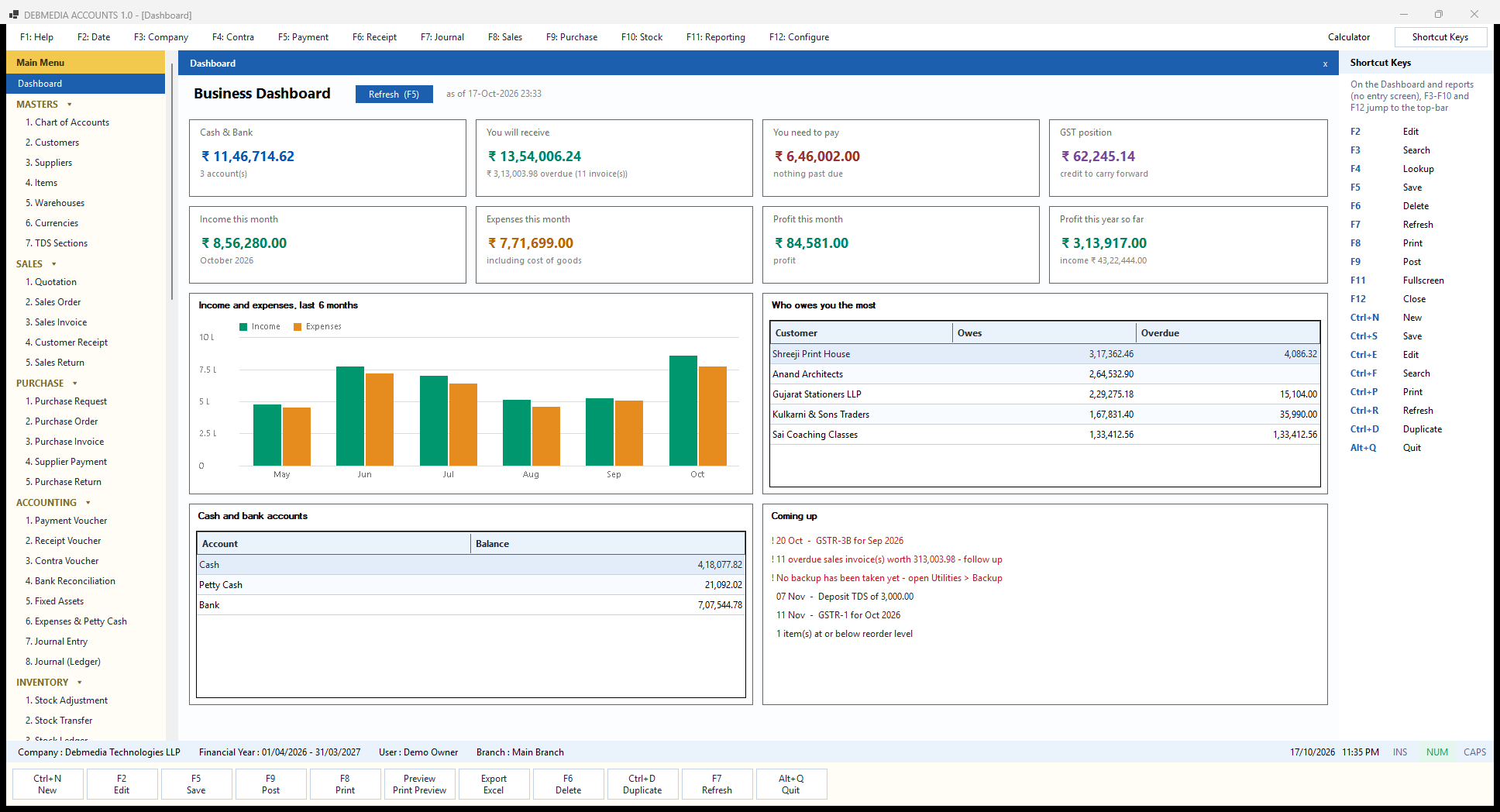
Debmedia Accounts Dashboard: The Business Dashboard: cash and bank, who owes you, what you owe, GST position, this month's income, expenses and profit, a six-month chart, the biggest debtors, bank balances and what is coming up.
What Is Debmedia Accounts?
Debmedia Accounts is a complete accounting, GST and stock program for a small Indian business, made for one person at one Windows computer. You make quotations, sales orders, tax invoices, credit notes, purchase bills, supplier payments, petty-cash expenses and ordinary cash and bank vouchers, and the program turns every one of them into balanced double-entry accounting by itself. The Trial Balance, Profit and Loss, Balance Sheet, GST returns data, TDS registers, stock valuation and customer and supplier balances are never typed in afterwards. They are read from the same set of posted entries, so they agree with each other to the paisa.
It is a native Windows desktop application, written in VB.NET on the current .NET platform with Windows Forms, and it keeps each company in a single SQLite database file on your own computer. There is no cloud account, no subscription and no internet connection needed to work, to print an invoice, to take a backup or to prepare your GST return data. Nothing is sent anywhere. The file can be copied, backed up, e-mailed to your accountant or moved to a new computer like any other file.
The screen is laid out the way people who learned accounting on keyboard-driven desktop software expect: a function-key bar across the top (F4 Contra, F5 Payment, F6 Receipt, F7 Journal, F8 Sales, F9 Purchase and so on), a collapsible Main Menu on the left, the screen itself in the middle, a list of shortcut keys on the right, and an action bar along the bottom. The same keys do the same job on every screen, so once you have entered one invoice you already know how to enter a payment.
This page walks through the program screen by screen, in the order of its Main Menu. Every screenshot is taken from the real, running program with a sample company loaded, and each one is explained: what the screen is for, what every field, column and button does, what the program does behind the scenes when you press a button, and how that screen ties in with the rest of the system. If you only want the highlights, read the next two sections and use the contents list to jump to the part you care about. If you want to know exactly how the product behaves before you decide, read it all.
About the sample company. The screenshots use a made-up trading business, Sunrise Office Solutions of Pune, Maharashtra, with seven months of activity from 1 April to 17 October 2026: about 120 sales invoices, 26 purchase bills, a bank statement, three fixed assets and a stock count. All names, GSTINs and figures are fictional. The numbers are real outputs of the program working on that data, so you can follow one transaction from screen to screen and see the same amounts again.
Debmedia Accounts at a Glance
| Topic | What you get |
|---|---|
| Platform | Windows 10 and Windows 11 desktop program (native Windows Forms, not a web page in a wrapper). |
| Who it is for | One owner or one accounts person running a small Indian business that issues GST invoices. This edition is single-user. |
| Data storage | One SQLite file per company, kept on your own computer. Nothing leaves the machine. |
| Internet | Not needed for daily work, printing, backups or preparing GST files. |
| Accounting model | True double-entry. Every document posts a balanced journal entry through one posting routine that refuses an unbalanced entry. |
| GST | CGST + SGST or IGST decided from your state and the customer’s state, tax-inclusive or tax-exclusive pricing, reverse charge, TCS, HSN/SAC on every line, GSTR-1 and GSTR-3B data, HSN summary, input tax credit register and JSON files for the portal. |
| TDS and TCS | Section master with PAN and threshold rules, suggested deduction on supplier payments, TDS deducted by customers, deposit status, Form 26Q data. |
| Sales cycle | Quotation, Sales Order, Tax Invoice, Customer Receipt and Sales Return (credit note), each convertible into the next. A4 invoice print and PDF with your logo, bank details, UPI id and terms. |
| Purchase cycle | Purchase Request, Purchase Order, Purchase Invoice, Supplier Payment and Purchase Return (debit note). |
| Accounting | Payment, Receipt, Contra and Journal vouchers, expenses and petty cash with input GST, fixed assets with depreciation, bank reconciliation, opening balances, period lock, year-end close. |
| Stock | Stock ledger, weighted-average valuation, stock adjustment after a physical count, transfers between warehouses, low-stock report. |
| Reports | Trial Balance, Profit and Loss, Balance Sheet, Day Book, Cash Book, Bank Book, General Ledger, Cash Flow, customer and supplier statements and outstanding, sales and purchase registers, item-wise profit, expense and asset registers. Print, preview and export to Excel, CSV or PDF from every report. |
| Bringing data in | Import customers, suppliers, items and accounts from Excel or CSV (every row checked first), or from a Tally XML export. |
| Safety | Password chosen on first launch with a one-time recovery code, login history, audit log, period lock, automatic daily backup when you close the program (newest 14 kept), verified backups and restore. |
| Quality checks | 581 automated checks cover GST, TDS, stock, bank reconciliation, cancellations and year-end close, and all of them pass on the current build. |
How Debmedia Accounts Works
Everything in the program rests on a few simple rules, and knowing them makes every screen easier to understand.
One posting routine. Every invoice, receipt, payment, return, voucher, expense, depreciation run and stock adjustment is turned into a journal entry by a single piece of code. That routine refuses to save an entry whose debits and credits differ, so the books cannot go out of balance. The screens never add up tax or balances themselves: GST is worked out in one place, and balances are always read back from posted entries rather than stored and edited.
Draft, then post. A document starts as a draft. A draft can be changed freely (sales and purchase invoices can even be saved, reopened and edited again). When you press Post the program numbers the document, checks the credit limit and the period lock, creates the accounting entry and moves the stock. A posted document cannot be edited. If it was wrong you Cancel it with a reason and the program posts an exact reversing entry and brings the stock back, so both the original and the cancellation stay on record. A posted invoice that the customer partly returns is corrected with a credit note instead.
Numbers restart every year. Each document type has a series that restarts for every financial year, so you get numbers such as INV-2627-000124 (invoice 124 of financial year 2026-27). The Document Numbering screen lets you change the prefix and the next number before the series is first used.
The financial year. Everything is dated and belongs to a financial year running from 1 April to 31 March. The current year is shown in the status bar at the bottom of every screen. When a year is complete you close it, and the program moves its profit to Retained Earnings and starts the next one. You can also lock the books up to a date you have filed, so older entries cannot be changed by mistake.
Tax is decided by the states. Your own state is set once in the Company Profile. Each customer and supplier has a state too. If the two match, a sale or purchase carries CGST and SGST; if they differ it carries IGST. Every line also carries the item’s HSN or SAC code and a GST rate, which is what the return screens group by.
TDS has a fixed meaning. On a supplier payment, the Amount is the full figure settled against the supplier’s bill, the TDS is the part you withhold and owe to the government, and the bank is paid the difference. The same logic runs in reverse when a customer deducts TDS from what they pay you.
Starting the Program: The Dashboard
Dashboard
When you sign in the program opens on the Dashboard. On the very first launch you are asked to choose your name and a password and are shown a one-time recovery code to write down; after that you only enter the password. The Dashboard is a summary: nothing on it can be edited, and it is rebuilt from your posted entries every time you open it or press Refresh (F5). The small as of time beside the button tells you how fresh the figures are.
The top row has four cards. Cash & Bank (₹11,46,714.62 across three accounts) adds up the cash, petty cash and bank ledgers. You will receive (₹13,54,006.24) is the money customers owe you, with the overdue part underneath: ₹3,13,003.98 across 11 invoices that are past their due date. You need to pay (₹6,46,002.00) is what you owe suppliers, and the line below says “nothing past due”. GST position (₹62,245.14) compares the tax you have collected with the input credit you have paid; here it reads “credit to carry forward” because the business has paid more input tax than it has collected. When tax is payable, the same card turns into an amount to pay.
The second row is about the current month. Income this month (₹8,56,280.00 for October 2026), Expenses this month (₹7,71,699.00, which includes the cost of the goods sold) and Profit this month (₹84,581.00) come straight from the Profit and Loss, and Profit this year so far (₹3,13,917.00 on income of ₹43,22,444.00) is the same figure you will find as Net Profit on the Profit and Loss and as unclosed profit on the Balance Sheet.
Below the cards, the bar chart compares income and expenses for the last six months, May to October, so a slow month stands out at once. Who owes you the most lists the five biggest debtors with what they owe and how much of it is overdue (for example Shreeji Print House owes ₹3,17,362.46, of which ₹4,086.32 is overdue, while Sai Coaching Classes owes ₹1,33,412.56 and all of it is overdue). Cash and bank accounts shows each balance separately: Cash ₹4,18,077.82, Petty Cash ₹21,092.02 and Bank ₹7,07,544.78.
The last panel, Coming up, is a to-do list the program builds for you. It shows the next GST return dates (GSTR-3B for September is due on 20 October, GSTR-1 for October on 11 November), the TDS you must deposit by 7 November (₹3,000), the overdue invoices worth following up, the item that has reached its reorder level, and a reminder that no backup has been taken yet. Urgent items appear in red. On a brand-new company the same panel tells you to set your state, enter your GSTIN and import your data, which makes it a handy checklist for the first day.
The panels around the Dashboard are worth knowing about too. The gold Main Menu on the left lists every screen in sections and can be collapsed; the Shortcut Keys panel on the right lists what F2 to F12 and Ctrl+N, Ctrl+S, Ctrl+E, Ctrl+F, Ctrl+P, Ctrl+R, Ctrl+D and Alt+Q do on a screen; and the status bar at the bottom shows the company, the financial year, the signed-in user and the branch.
Setting Up the Company
Company Profile
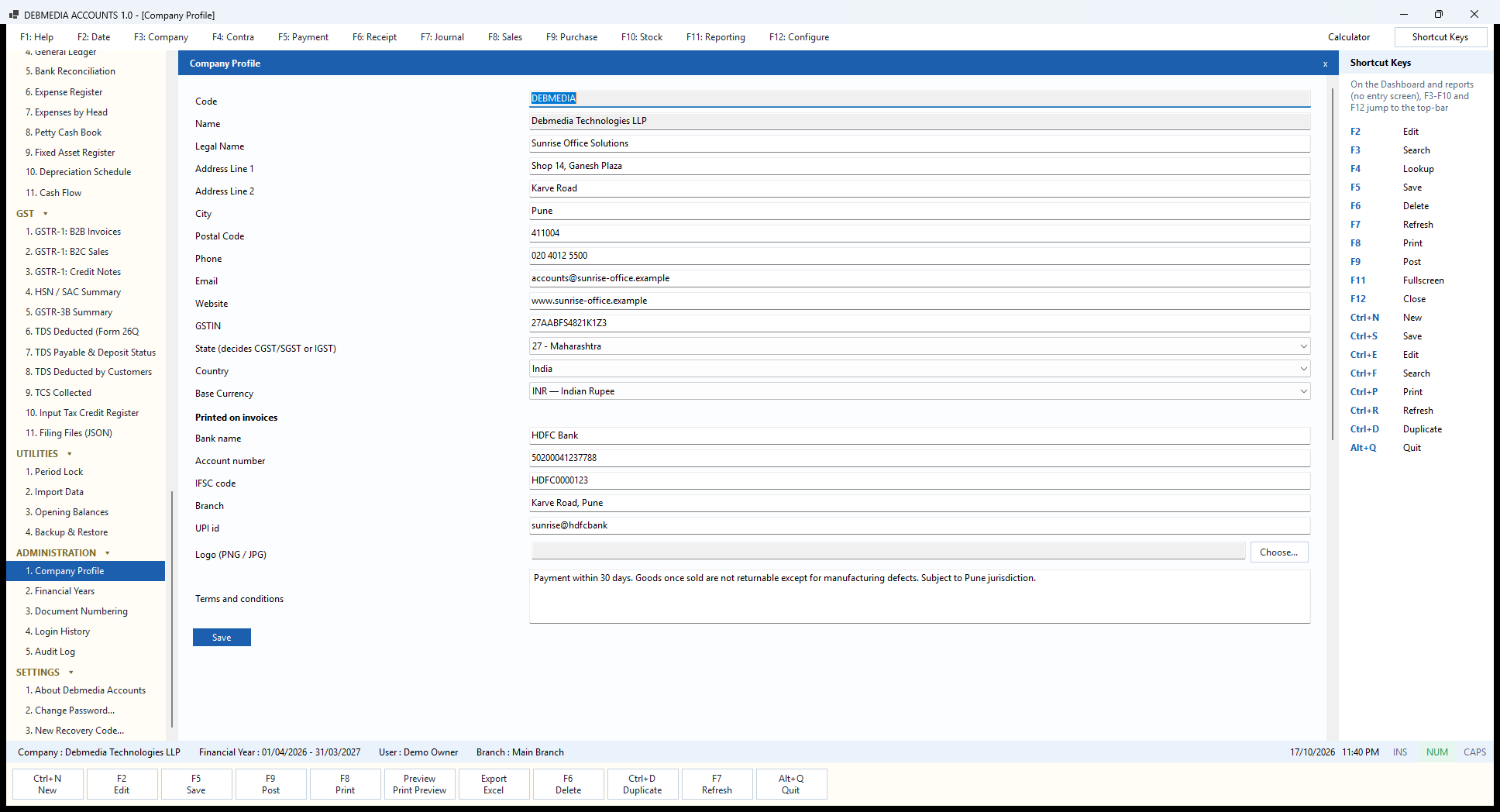
Everything starts with the company. The top half of the Company Profile holds the identity of the business: the Legal Name that appears on invoices (Sunrise Office Solutions in the sample), the address in two lines with city and PIN code, phone, e-mail and website, and the GSTIN. The program checks the GSTIN as you save it: the format has to be right and the final check character has to agree with the other fourteen characters, so a mistyped number is caught at once instead of on the portal. The first two digits of a GSTIN are the state code, so when you leave the box the State below fills itself in, and you get a warning if the number and the chosen state contradict each other.
The State box is the one that matters most for tax. The label says it plainly: “State (decides CGST/SGST or IGST)”. Every sale compares this state with the customer’s place of supply, so setting it wrongly would put the wrong tax on every invoice. Country and Base Currency (India and Indian Rupee here) complete the section. The Code and Name fields at the very top are the internal identity of the company record and are fixed; the Legal Name is the one you edit and the one customers see.
The second half, Printed on invoices, is what makes the A4 tax invoice look finished: bank name, account number, IFSC code (checked against the standard format, four letters, a zero and six letters or digits), branch, UPI id, a Logo that you pick with the Choose button (PNG or JPG), and a box for Terms and conditions. The sample reads “Payment within 30 days. Goods once sold are not returnable except for manufacturing defects. Subject to Pune jurisdiction.” Press Save and every invoice printed or saved as PDF from then on carries these details.
The Dashboard will keep reminding you until the state and the GSTIN are filled in, so this is the first screen to visit in a new company.
Document Numbering
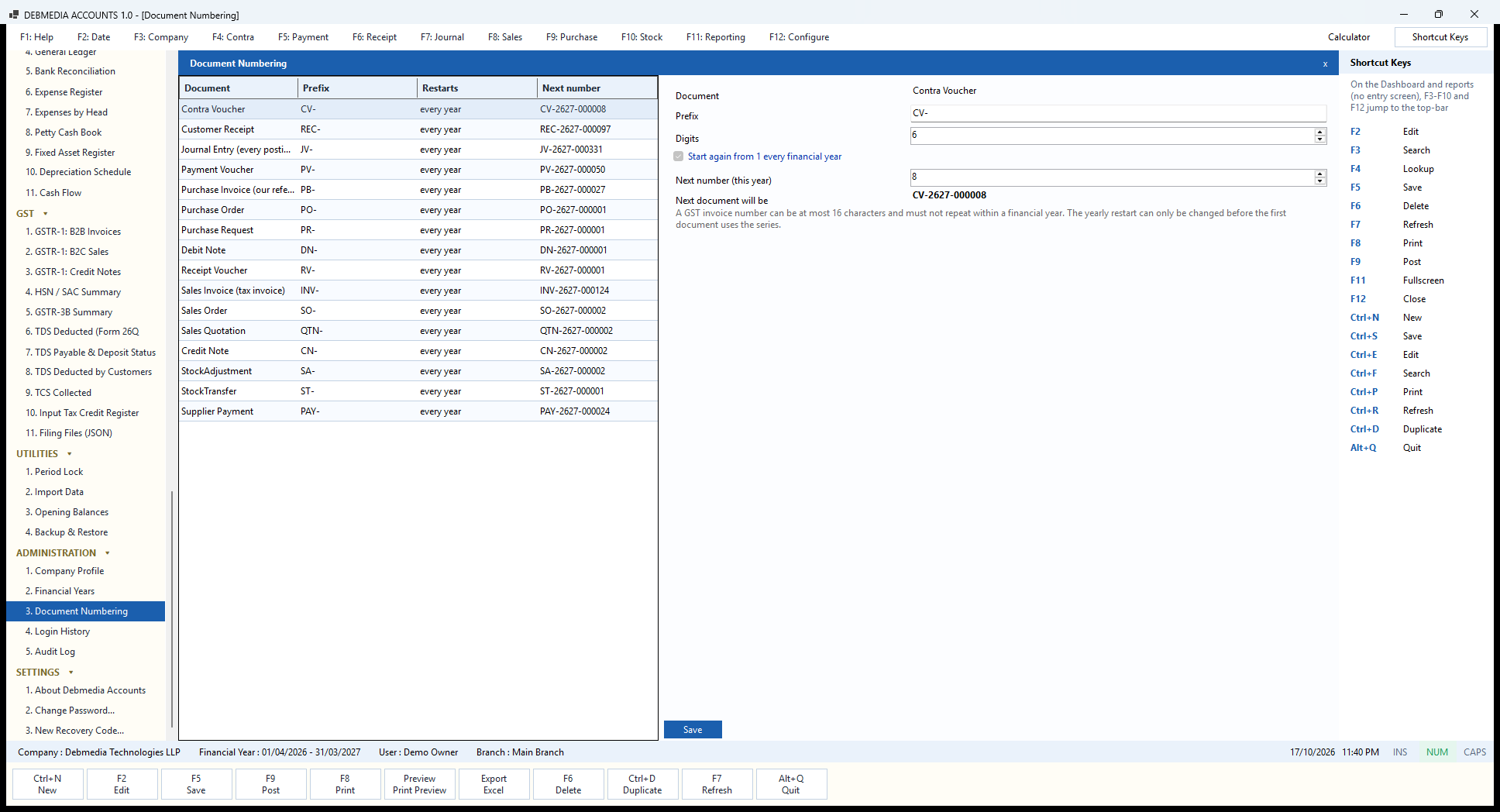
Document Numbering shows every numbered document the program creates, one per row: Contra Voucher (CV-), Customer Receipt (REC-), Journal Entry (JV-), Payment Voucher (PV-), Purchase Invoice (PB-), Purchase Order (PO-), Purchase Request (PR-), Debit Note (DN-), Receipt Voucher (RV-), Sales Invoice (INV-), Sales Order (SO-), Sales Quotation (QTN-), Credit Note (CN-), Stock Adjustment (SA-), Stock Transfer (ST-) and Supplier Payment (PAY-). The columns show the prefix, whether the series restarts every year, and the number the next document will get, for instance INV-2627-000124 for the next sales invoice.
Select a row and the right side lets you change its Prefix and the number of Digits (six by default), and set the Next number (this year). The line “Next document will be” shows the result before you save. The tick-box Start again from 1 every financial year is how the program keeps invoice numbers unique within a year, which the GST rules require; it can be changed only before the first document of that series has been made, which is why it appears greyed out on a series already in use.
The note on the screen states the rule that drives the whole design: “A GST invoice number can be at most 16 characters and must not repeat within a financial year.” The default numbers, such as INV-2627-000124, fit that limit with room to spare. This matters when you move from older software: set the next number here to carry on from your last paper or spreadsheet invoice, and the sequence continues without a gap.
Import Data
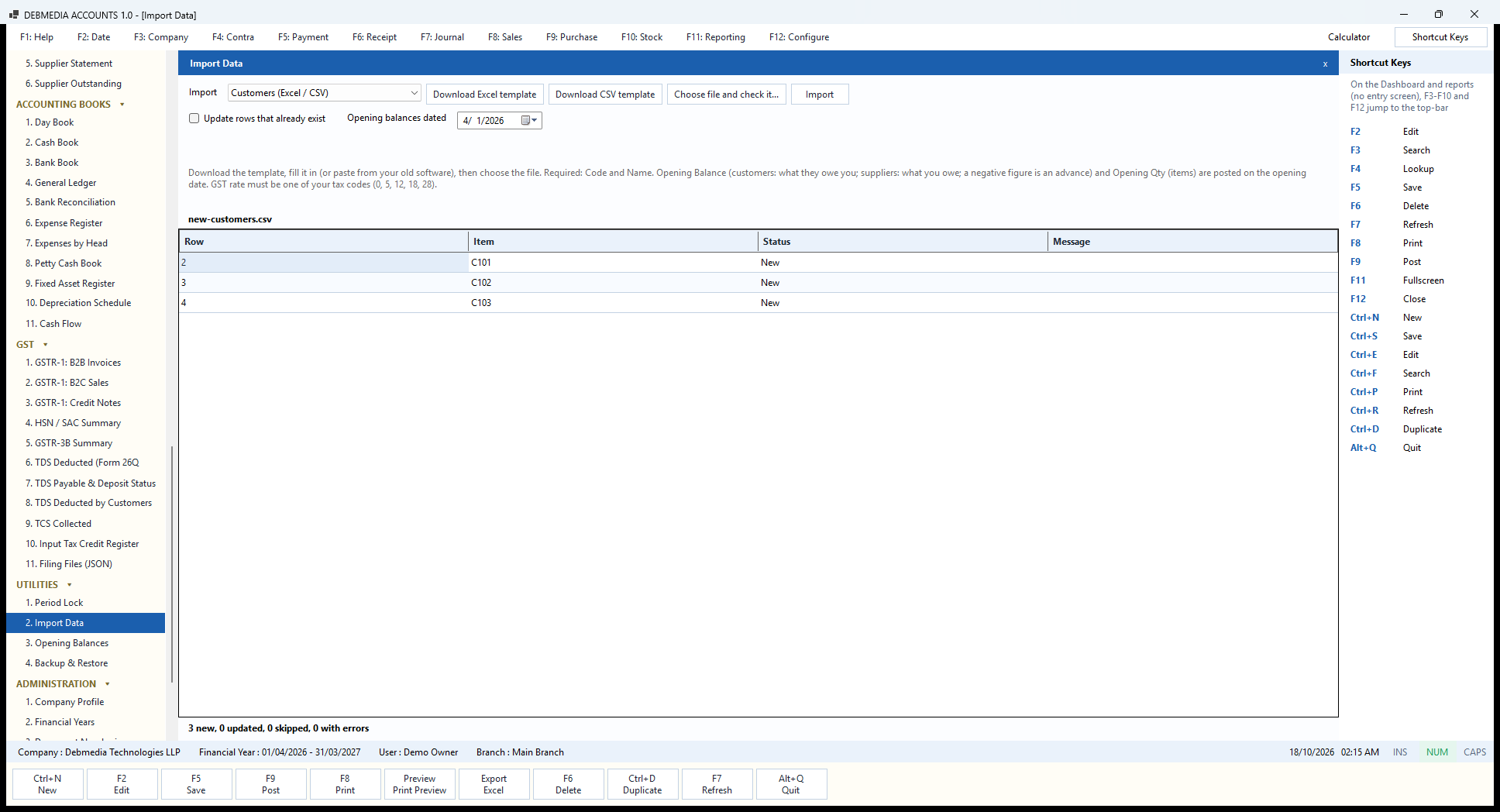
Most people do not start with an empty book, and Import Data is how the old data comes in. The first drop-down chooses what you are importing: customers, suppliers, items or accounts from Excel or CSV, or a Tally XML export. Download Excel template and Download CSV template give you a ready-made file with the right column headings and one sample row, so you only have to paste your own data under them. The help text under the buttons lists the rules: Code and Name are required, Opening Balance means what a customer owes you or what you owe a supplier (a negative figure is an advance), Opening Qty is the stock on the shelf, and the GST rate must be one of your tax codes (0, 5, 12, 18 or 28).
Press Choose file and check it… and nothing is imported yet. The program reads every row and shows the result in the grid: the Row number in the file, the Item (the code), the Status and a Message that explains any problem. In the picture the file is new-customers.csv and the three rows, C101, C102 and C103, are all New. The summary line under the grid, “3 new, 0 updated, 0 skipped, 0 with errors“, is the verdict. A row with a GSTIN that fails its check, a PAN in the wrong format, an unknown state or a bad GST rate is listed as an error with the reason, so you can fix the file and check it again before anything is saved.
Only when you are happy do you press Import. The tick-box Update rows that already exist lets you re-import a corrected file to change records instead of duplicating them, and Opening balances dated sets the date on which the opening figures are posted, normally the first day of the financial year. The balances are posted through the normal accounting routine, so the Trial Balance and the customer and supplier reports agree with the masters from the first day.
The Tally XML option reads a Tally export and brings in the ledgers as customers (Sundry Debtors), suppliers (Sundry Creditors) or chart-of-accounts entries, the stock items as items, and the opening balances and opening stock. Tally’s accounting vouchers come in as journal entries, which carries your ledger history across; invoices, stock movements and GST returns are not rebuilt from them, so open customer and supplier bills should be moved across as opening balances. Importing the same file twice does not duplicate anything.
Opening Balances
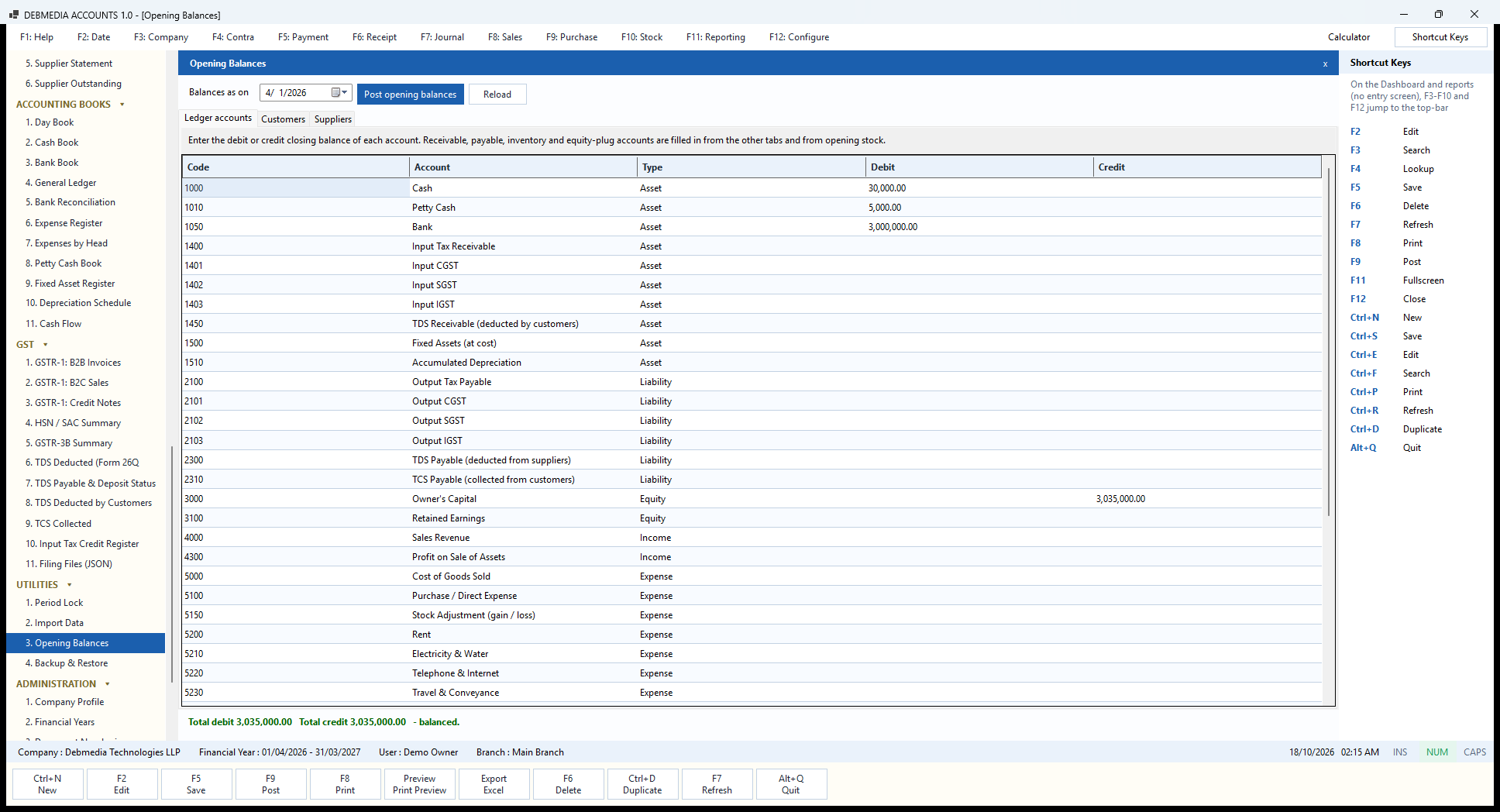
Opening Balances is where you enter the closing figures of your old books as of the first day of the year, so the new books start from the truth. Set Balances as on (normally 1 April), fill in the figures and press Post opening balances; Reload reads what has already been posted. The three tabs split the work: Ledger accounts, Customers and Suppliers.
On the Ledger accounts tab the grid lists every account with its Code, Account name and Type, and two columns to type in, Debit and Credit. The note above it says what to do: enter the debit or credit closing balance of each account; the receivable, payable, inventory and equity-plug accounts are filled in from the other tabs and from opening stock, so you do not type those. The sample company starts with cash of ₹30,000.00, petty cash of ₹5,000.00 and a bank balance of ₹3,000,000.00 on the debit side, balanced by Owner’s Capital of ₹3,035,000.00 on the credit side. On the Customers and Suppliers tabs you enter what each customer owes you and what you owe each supplier, which become their opening balances and show in the statements and ageing.
The line at the bottom is the check: “Total debit 3,035,000.00, Total credit 3,035,000.00 – balanced.” If the two do not agree, the difference is parked in an Opening Balance Equity account and the program tells you before posting, so you can decide whether to find the error or accept the plug. Opening stock is not typed here; it is posted per item on the Items screen with Post Opening Stock, or through the Opening Qty column of an import.
You can post once or merge more figures later, and everything goes through the same posting routine as any other entry, so the period lock and the closed-year rules apply to it too.
Financial Years
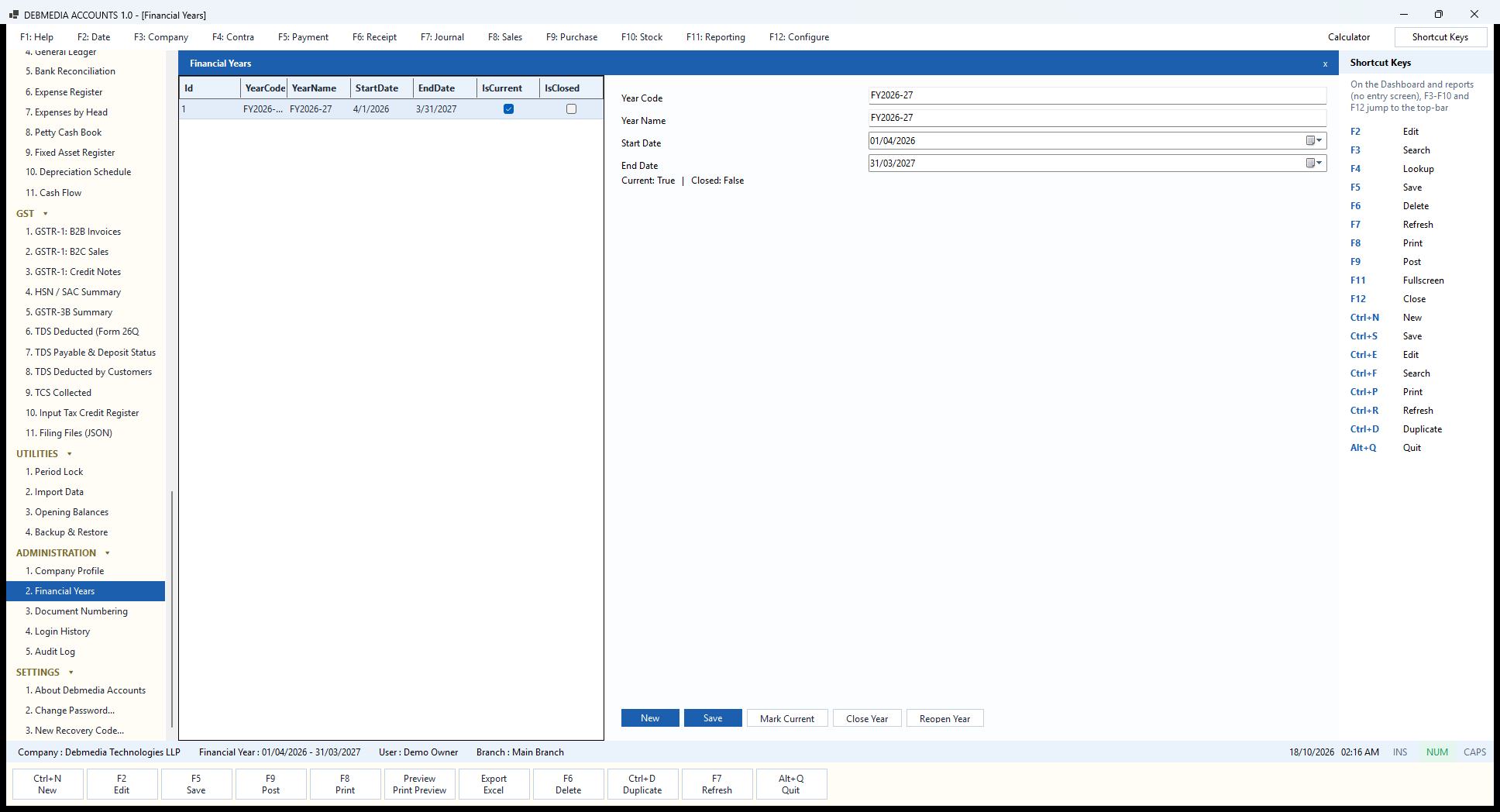
Everything in the program belongs to a financial year, and Financial Years is where they are managed. The grid shows each year’s YearCode, YearName, StartDate, EndDate, whether it is the current year (IsCurrent) and whether it is IsClosed. The sample has one, FY2026-27, from 1 April 2026 to 31 March 2027, current and not closed. The form shows the same year with its code, name, start and end dates and the line “Current: True | Closed: False”.
The buttons run the year-end routine. New and Save add the next year; its numbering series start again from 1. Mark Current makes a year the one the program works in, which is the year shown in the status bar. Close Year moves the year’s profit or loss into Retained Earnings, seals the year so nothing can be posted, changed or cancelled inside it, and creates the next year if it does not exist. Reopen Year reverses the closing for the rare case that something has to be corrected, and both actions are recorded in the Audit Log.
Close a year only when it is truly finished: the depreciation has been posted, the stock has been counted, the returns are filed and the accountant has signed off. Take a backup first, and restart the program after closing so every screen picks up the new year. For the months in between, the lighter safeguard is the Period Lock, which seals the books up to a date without closing the year.
Masters: The Reference Data
Chart of Accounts
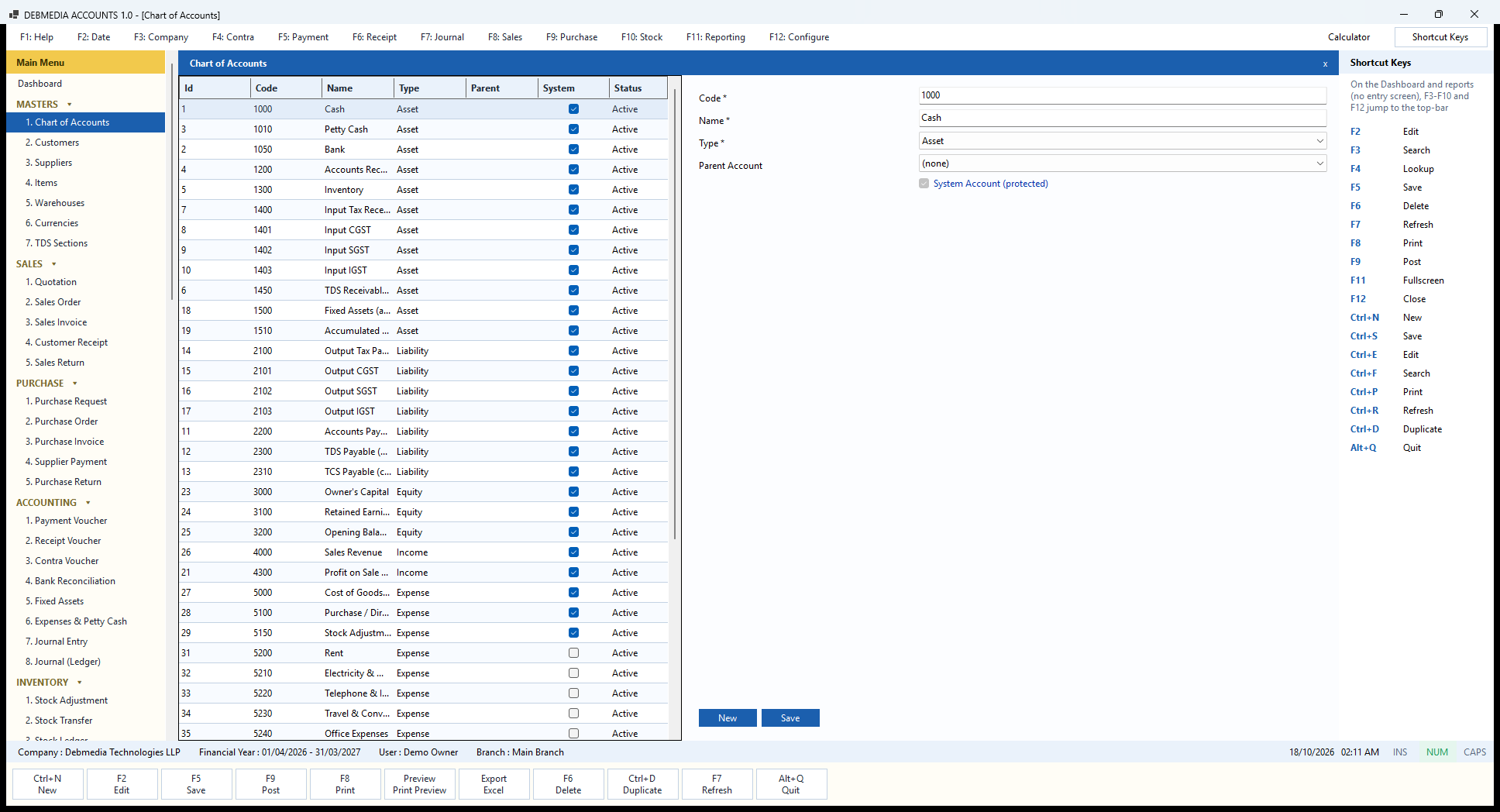
The Chart of Accounts is the list of every account the books can post to. The grid shows each account’s Code, Name, Type, Parent account, a tick in the System column if the program itself depends on it, and its Status. The numbering follows the usual convention: 1000s are assets (Cash 1000, Petty Cash 1010, Bank 1050, Accounts Receivable 1200, Inventory 1300, the three Input GST accounts 1401 to 1403, TDS Receivable 1450, Fixed Assets 1500 and Accumulated Depreciation 1510), 2000s are liabilities (the Output GST accounts 2101 to 2103, Accounts Payable 2200, TDS Payable 2300 and TCS Payable 2310), 3000s are equity (Owner’s Capital, Retained Earnings and Opening Balance Equity), 4000s are income (Sales Revenue and Profit on Sale of Assets) and 5000s are expenses.
The tick-box column shows which accounts are system accounts. These are the accounts the posting routines write to automatically, such as Accounts Receivable when you post an invoice or Output CGST when tax is collected. They are protected: the form shows “System Account (protected)” with the box ticked and greyed out for Cash, and the program refuses to edit one. Accounts you or the starting chart added, such as Rent (5200), Electricity & Water (5210), Telephone & Internet (5220) and Travel & Conveyance (5230), are not system accounts and can be changed.
The form on the right has Code and Name, both required, the Type (asset, liability, equity, income or expense) and an optional Parent Account for grouping. New clears the form and Save stores a new or changed account. The starting chart is complete for a trading business, including all the GST, TDS and TCS accounts, so most owners only ever add a handful of expense heads here, for example “Software subscriptions” under the 5000 range. Every report, from the Trial Balance to the General Ledger, picks a new account up as soon as it exists.
Customers
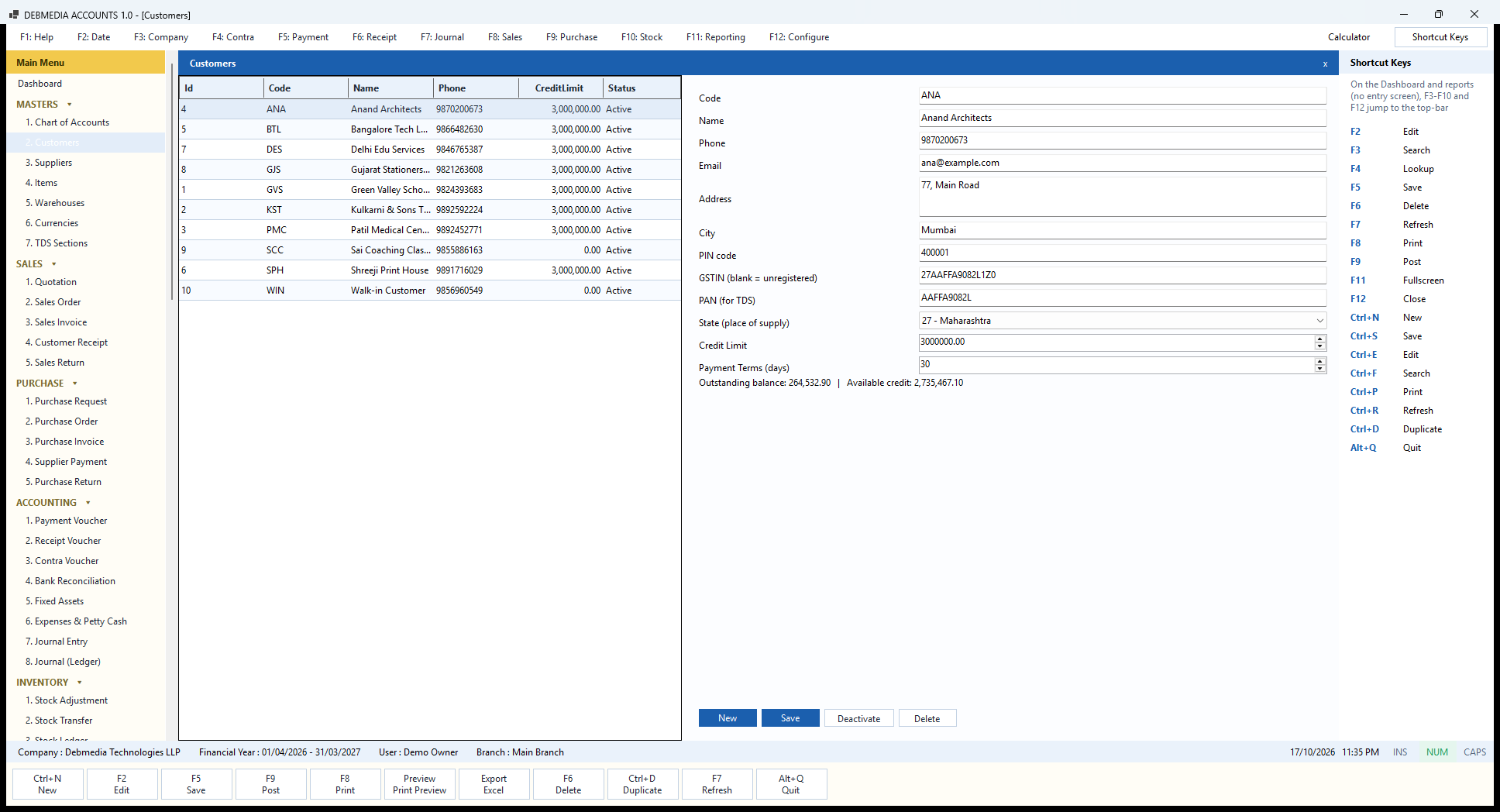
The Customers screen has the list on the left (code, name, phone, credit limit and status) and the record of the selected customer on the right. Clicking a row loads it. The fields are Code, Name, phone, e-mail, address, city and PIN code, then the tax details: GSTIN (leave it blank for an unregistered customer), PAN (needed for TDS) and State (place of supply). In the picture, Anand Architects of Mumbai has GSTIN 27AAFFA9082L1Z0 and state 27 – Maharashtra, which is the same state as the business, so every invoice to this customer carries CGST and SGST.
Two fields control how the customer is treated when you sell. Credit Limit is the most the customer may owe at any time; when you post an invoice that would take them over it, the program refuses and tells you the available credit. Payment Terms (days) sets the due date printed on the invoice and drives the overdue figures on the Dashboard and the ageing of the receivable. A limit of zero means no limit is set, which is how the walk-in customer and the small coaching class are set up in the sample.
The line under the form is calculated live from the books: Outstanding balance 264,532.90 | Available credit 2,735,467.10. You can check it against the Customer Statement and the Customer Outstanding report, which show the same figures for this customer.
The buttons at the bottom do what they say. New clears the form for a new customer, Save stores a new or changed customer, and Deactivate hides a customer from the pick-lists without losing any history. Delete works only for a customer who has never been used in a document; once there are invoices you deactivate instead, so old reports never lose a name.
Suppliers
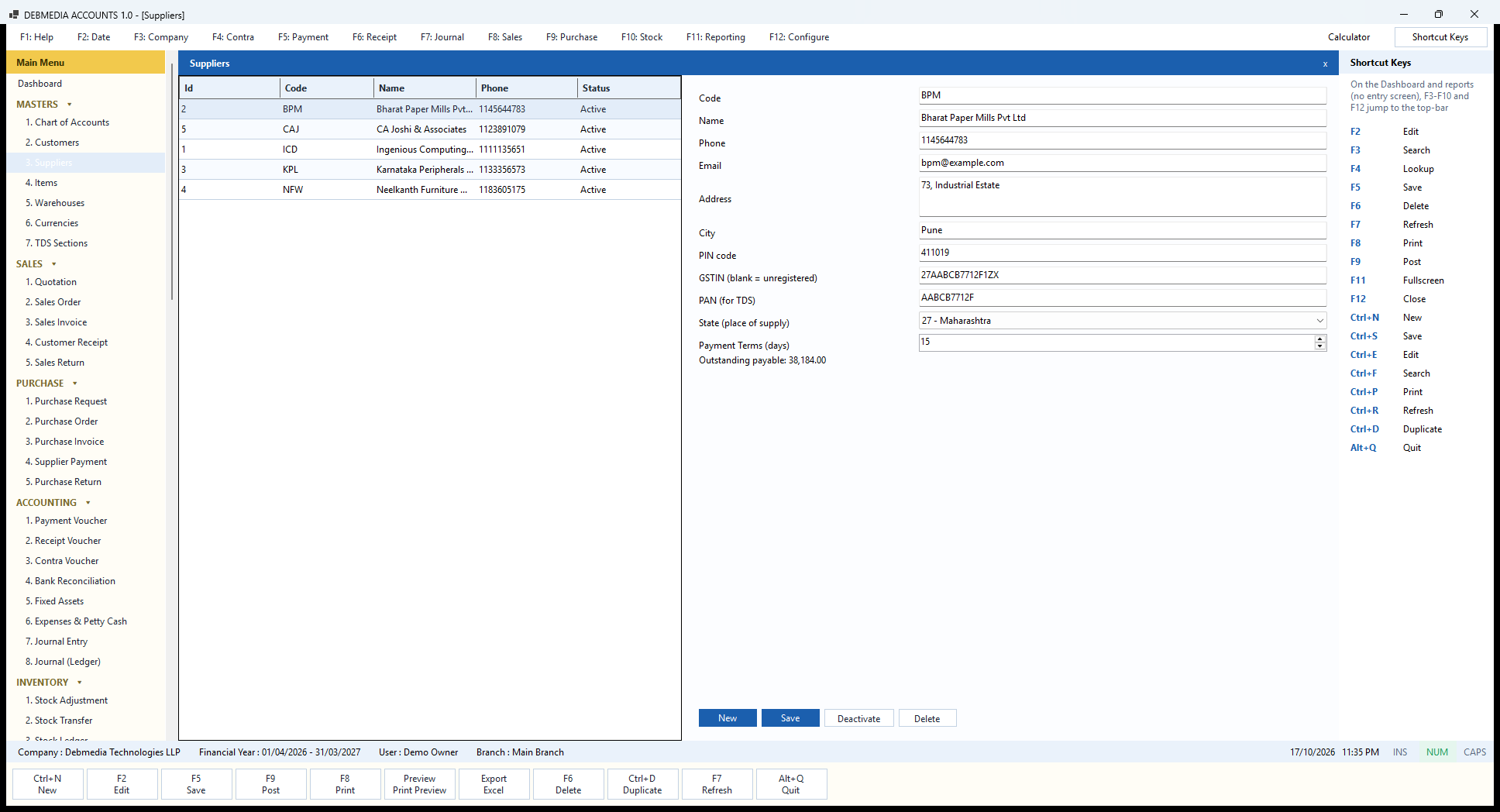
The Suppliers screen mirrors the customer screen, because a supplier is the same kind of party on the other side of the books. The list on the left shows the five suppliers of the sample company (a paper mill, a computer distributor, a peripherals maker, a furniture maker and a firm of chartered accountants). The record on the right holds the code, name, contact details, address, GSTIN, PAN, State (place of supply) and Payment Terms (days). There is no credit limit, because the question here is not how much they may owe you but how much you owe them.
The state does real work. Bharat Paper Mills of Pune carries state 27 – Maharashtra, the same as the buyer, so its bills split into CGST and SGST and the whole tax becomes input credit. A supplier in another state, such as the Bengaluru peripherals maker in the sample, produces IGST instead. The PAN matters for payments: when a payment to a supplier is made, the program uses the PAN and the amounts already paid in the year to suggest the TDS to withhold, and a supplier with no PAN is taxed at the higher rate.
At the bottom of the form the screen reports Outstanding payable: 38,184.00, the unpaid balance on this supplier’s bills, calculated from posted purchase invoices, payments and debit notes. The payment terms (15 days here) set the due date on each bill, which is what the Dashboard uses to decide whether something is past due.
New, Save, Deactivate and Delete behave as on the Customers screen: a supplier that has been used is deactivated rather than deleted, so the history on old statements stays readable.
Items
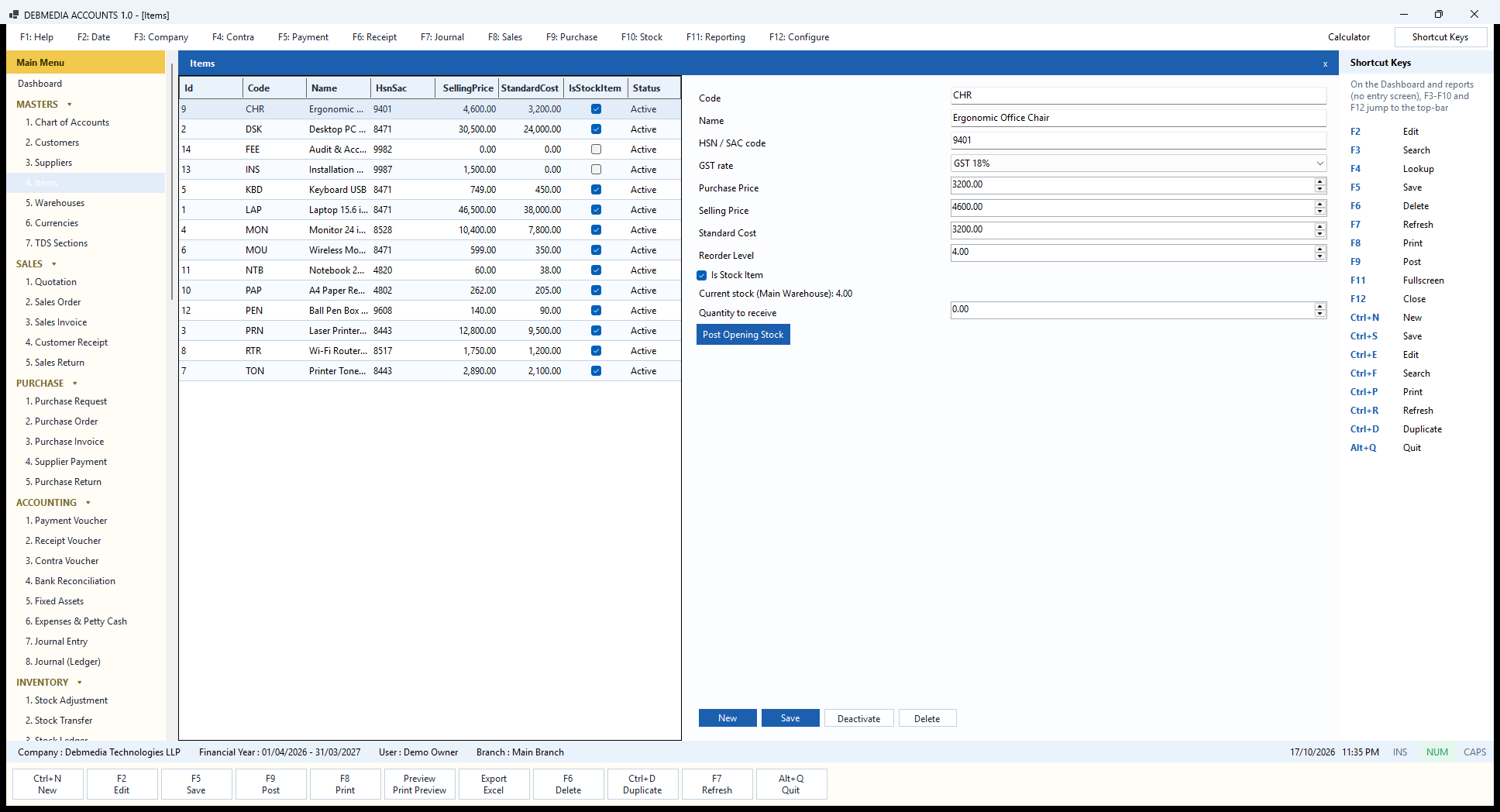
Items holds everything you sell or buy, goods and services alike. The grid on the left shows the code, name, HSN/SAC code, selling price, standard cost, whether it is a stock item and its status. The sample has thirteen goods, from laptops to notebooks, and two services: installation (SAC 9987) and audit and accounting fees (SAC 9982).
On the right, the selected item (an ergonomic office chair, HSN 9401) shows its Code, Name, HSN / SAC code, GST rate (18% here, picked from the tax codes 0, 5, 12, 18 and 28 that are built in), Purchase Price, Selling Price, Standard Cost and Reorder Level. Prices are only suggestions: they fill in when you add the item to a document and can be overwritten on the line. The HSN or SAC code and the rate are copied onto every invoice line when it is made, so a later change to the item never alters a document already issued. They are also what the HSN Summary groups by.
The tick-box Is Stock Item separates things that have a quantity from things that do not. A service such as installation is not a stock item, so selling it posts income but moves no stock. For a stock item the screen shows Current stock (Main Warehouse): 4.00, read from the stock ledger, and the program values it by weighted average cost.
The last group is for stock that is already on the shelf when you start. Type the count in Quantity to receive and press Post Opening Stock. The program adds that quantity to the stock ledger at the item’s cost and posts the matching accounting entry to the Inventory account, so the stock report and the Balance Sheet agree from the first day. When the chair reaches its reorder level of 4, as it has here, it appears on the Low Stock report and on the Dashboard.
Warehouses
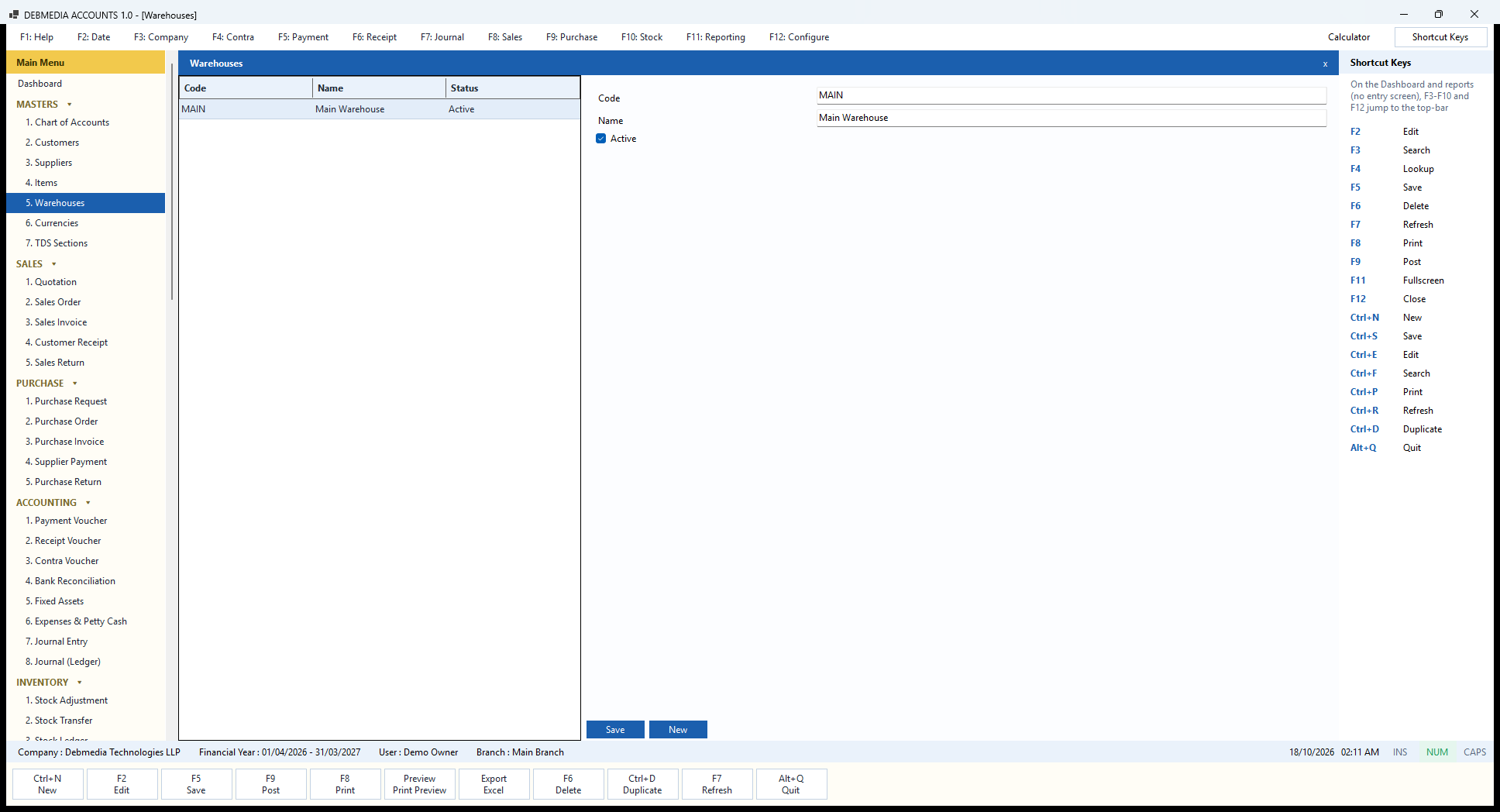
Warehouses is the short list of places where you keep stock. The grid shows each warehouse’s Code, Name and Status, and every company starts with one, MAIN, Main Warehouse. The form on the right has the Code, the Name and an Active tick-box. Save stores a new or changed warehouse and New clears the form for the next one.
For most small businesses the Main Warehouse is all there is, and every sale, purchase and stock report simply uses it. A second warehouse is worth adding when stock really is in two places, for example the shop and the godown, or your premises and a branch. Once there are two, the Stock Transfer screen can move goods between them, the Stock Adjustment screen counts each separately, and the Stock Summary, Stock Movement Summary and Low Stock reports can be run for one location or for all of them.
A warehouse that is no longer used is made inactive rather than removed, so the stock ledger entries that refer to it keep their meaning.
Currencies
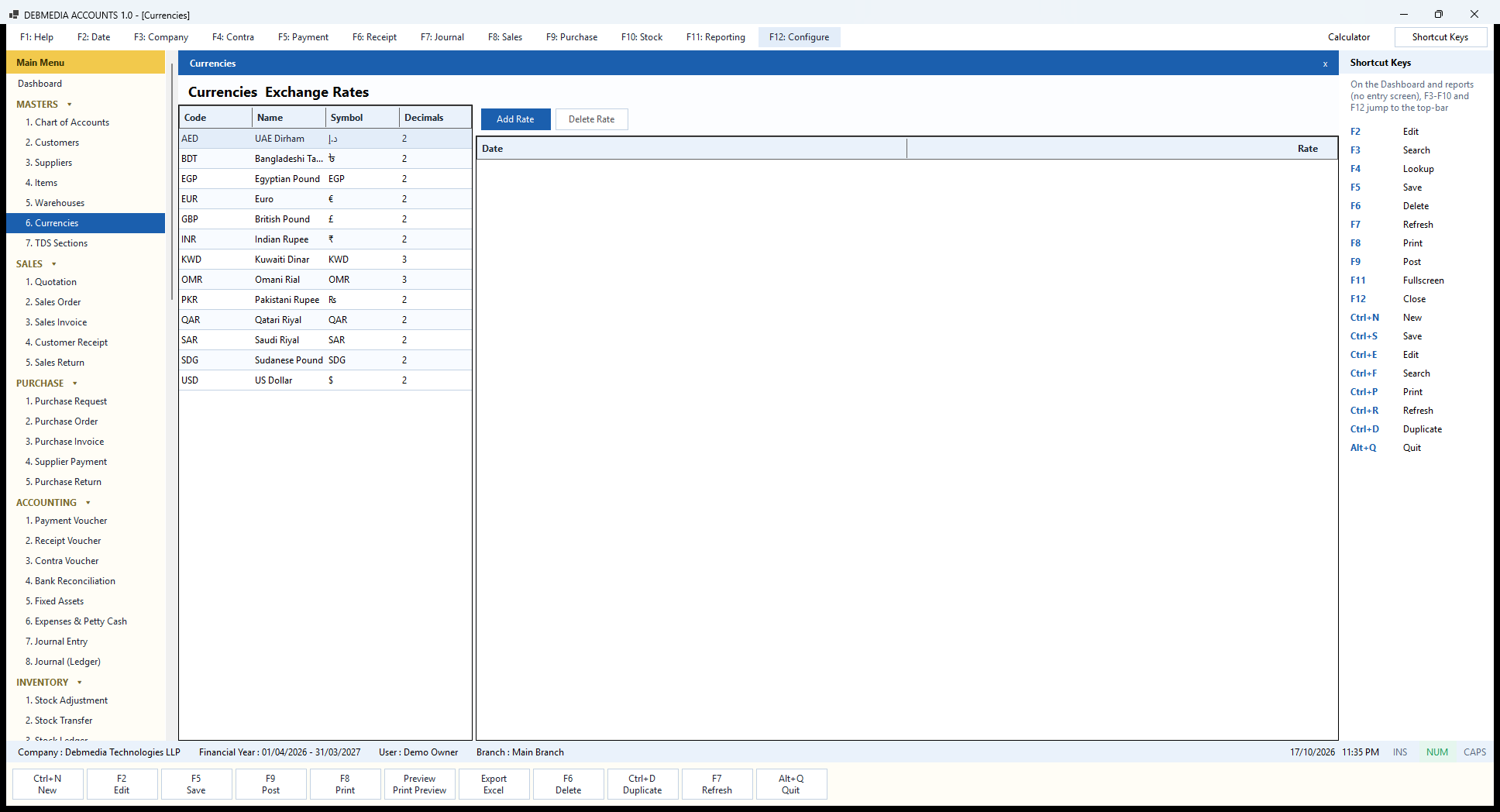
The Currencies screen is a reference list that the rest of the program leans on. The left grid lists the currencies installed with the program: the Indian Rupee, the US Dollar, the Euro, the British Pound and several Gulf and South Asian currencies, each with its code, name, symbol and number of decimal places (three for the Kuwaiti Dinar and Omani Rial, two for the rest). The Indian Rupee is the base currency of the company, which is why every document in this edition shows INR with a rate of 1.
The right-hand grid holds the exchange rates of the selected currency by date. Add Rate records a rate effective from a date, and Delete Rate removes a mistaken one. A document keeps its own currency and rate, so a later change to this table does not rewrite an old invoice. The screen is empty in the picture because the sample company deals only in rupees.
Debmedia Accounts is built for Indian GST accounting, and the day-to-day screens work in rupees. The currency table exists so a document can carry a currency and a rate when you need it, and so the amounts on reports stay consistent.
Adding a rate. Select a currency, press Add Rate, choose the date and type the rate against the Indian Rupee. The rate table is kept for each currency separately, newest first, so you can see the history. The list of currencies is installed with the program and covers the countries a small Indian business is most likely to trade with.
TDS Sections
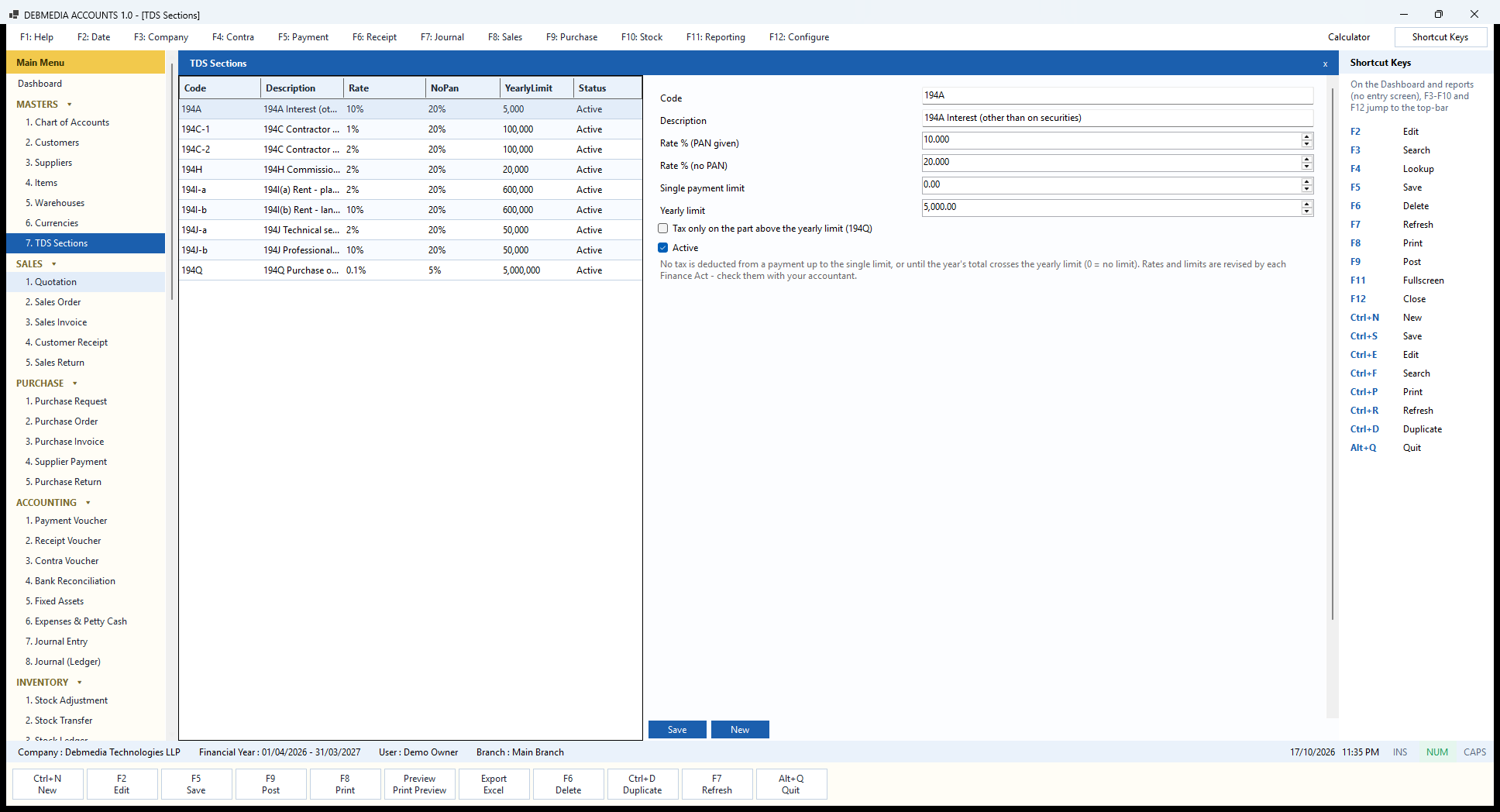
TDS Sections is the rule book the program uses to work out tax deducted at source. The grid lists the sections that come installed: 194A interest, 194C contractor payments at 1% (individuals and HUF) and 2% (others), 194H commission, 194I rent for plant and machinery (2%) and for land and buildings (10%), 194J technical services (2%) and professional fees (10%), and 194Q purchase of goods (0.1%). The columns show the Rate when the payee has given a PAN, the higher rate that applies without a PAN (20%, or 5% for 194Q), and the YearlyLimit below which no tax is deducted.
Select a section and the form shows its settings. Rate % (PAN given) and Rate % (no PAN) are the two rates. Single payment limit is the amount a single payment must exceed before tax is deducted, and Yearly limit applies to the year’s total paid to the same party; a zero means no limit. The tick-box Tax only on the part above the yearly limit (194Q) is for the purchase-of-goods rule, where tax applies only to the value above fifty lakh rupees in the year. Active switches a section on or off.
The program does the sums when you pay a supplier: on the Supplier Payment screen the Suggest button looks up the supplier’s PAN, adds the earlier payments of the year, applies the right section’s limits and proposes the tax to deduct. The note on the screen carries the honest warning: rates and limits are revised by each Finance Act, so confirm them with your accountant. Because the table is editable (Save and New), updating a rate after a Budget is a matter of changing one number.
Sales: From Order to Credit Note
Quotation
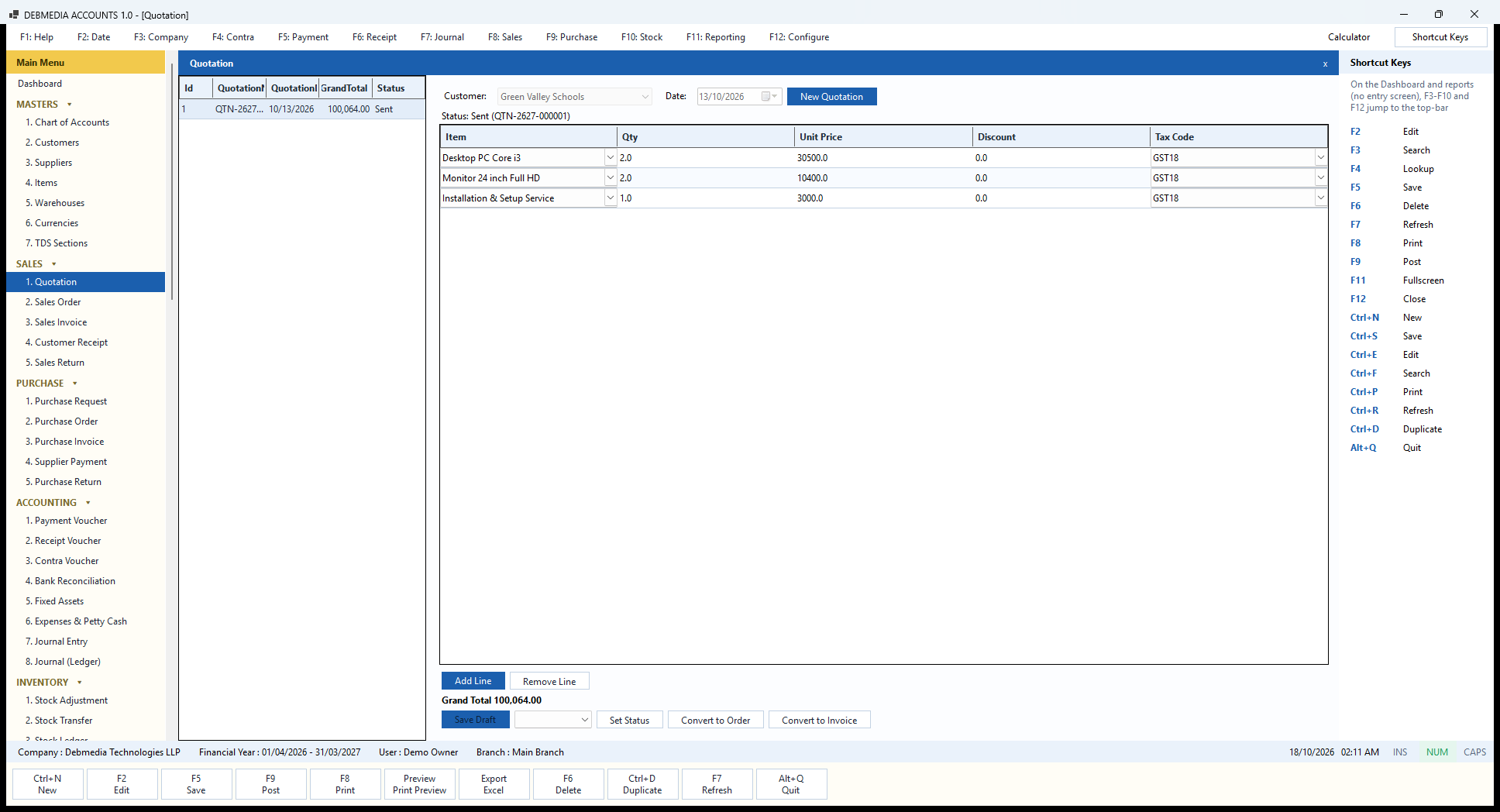
A quotation is the first step of the sales cycle, an offer of prices that changes nothing in the books. The list on the left shows each quotation with its number, date, GrandTotal and Status. The sample has one, QTN-2627-000001 of 13 October 2026 to Green Valley Schools for ₹100,064.00, with the status line “Sent (QTN-2627-000001)”.
The header takes the Customer and the Date, and New Quotation starts another. The grid has the same columns as an order: Item, Qty, Unit Price, Discount and Tax Code. This quotation offers a school two desktop PCs at ₹30,500 and two monitors at ₹10,400, plus an installation service at ₹3,000, all at GST 18%: ₹84,800.00 before tax and ₹15,264.00 of GST, which is the Grand Total of 100,064.00 under the grid.
A quotation moves through statuses: Draft, Sent, Accepted, Rejected, Expired, Converted or Cancelled. You change it with the drop-down beside Save Draft and the Set Status button, so the list always shows where each offer stands. When the customer says yes, Convert to Order makes a sales order from the quotation’s lines, and Convert to Invoice goes straight to a draft sales invoice when no separate order is needed. Either way nothing is retyped, the quotation is marked Converted, and it keeps a link to what it became. A quotation that has been saved is not edited again; if the offer changes, cancel it and enter a new one.
Sales Order
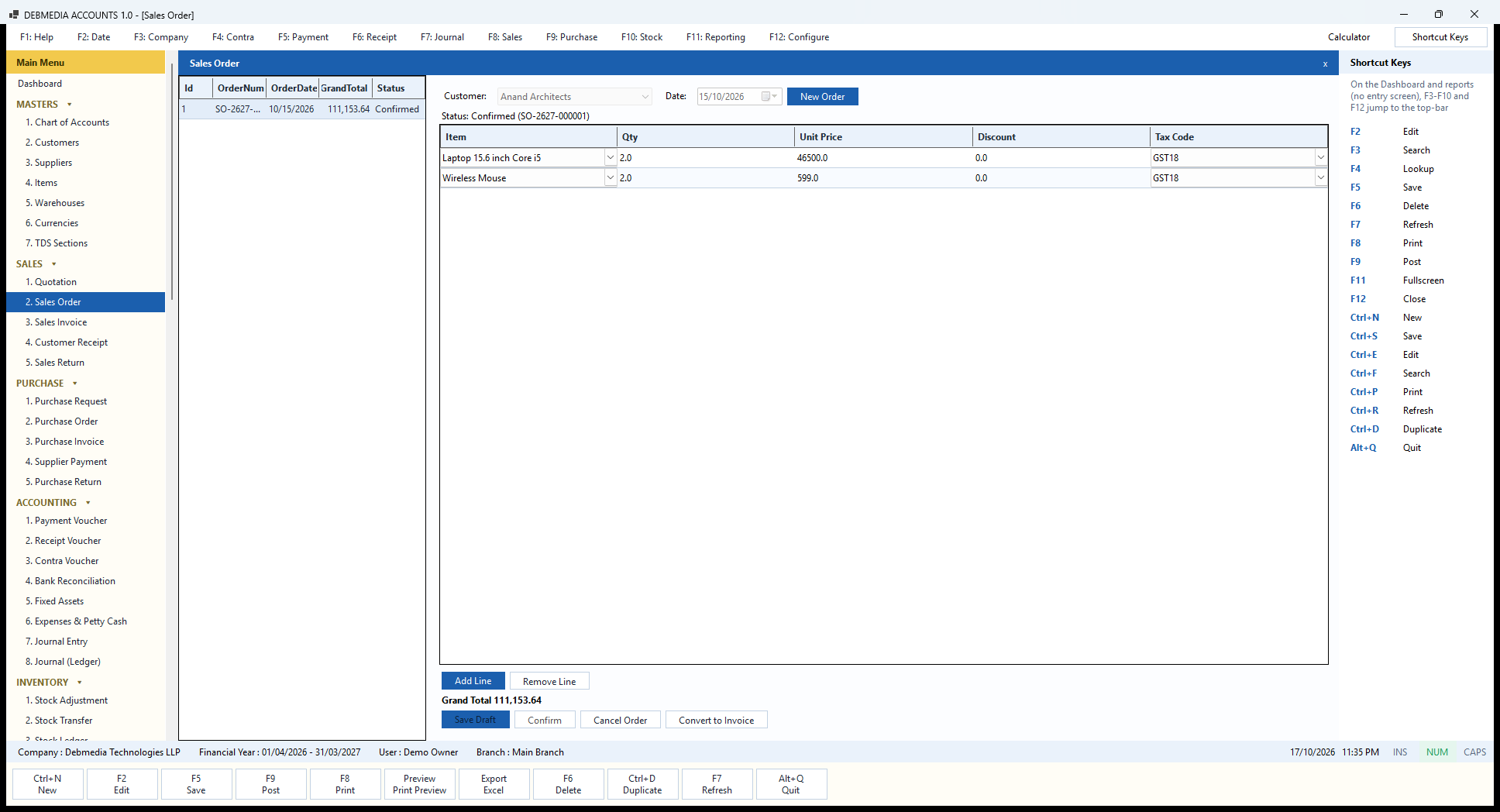
A sales order records what a customer has agreed to buy before anything is delivered or billed. The list on the left shows the orders (the sample has one, SO-2627-000001, dated 15 October 2026 for ₹111,153.64, status Confirmed). On the right, the header gives the Customer (Anand Architects) and the Date, with a New Order button to start another, and a status line that reads “Status: Confirmed (SO-2627-000001)”.
The lines grid has one row per item: Item (a drop-down of your items), Qty, Unit Price, Discount and Tax Code. This order is for two Core i5 laptops at ₹46,500 and two wireless mice at ₹599, both at GST 18%, which is ₹94,198.00 before tax and ₹16,955.64 of GST, making the Grand Total 111,153.64 shown under the grid. Add Line and Remove Line change the rows, and the total recalculates as you type.
The buttons along the bottom carry the order through its life. Save Draft stores the order while you are still working on it. Confirm turns it into a firm commitment and logs it. Cancel Order withdraws it. Convert to Invoice creates a draft sales invoice from the order’s lines, so nothing is retyped; you check it, adjust it if needed and post it. The order is then marked Completed and keeps a link to the invoice. An order does not touch the books, the stock or the customer’s balance: those change only when the invoice is posted.
Quotations work the same way one step earlier. A quotation is sent to the customer, and when accepted it converts into a sales order or straight into an invoice. Two things to know about editing: an order or quotation that has been saved is not edited again, so if a customer changes their mind you cancel it and enter a new one, whereas an invoice can be saved, reopened and corrected as often as you like until it is posted.
Sales Invoice
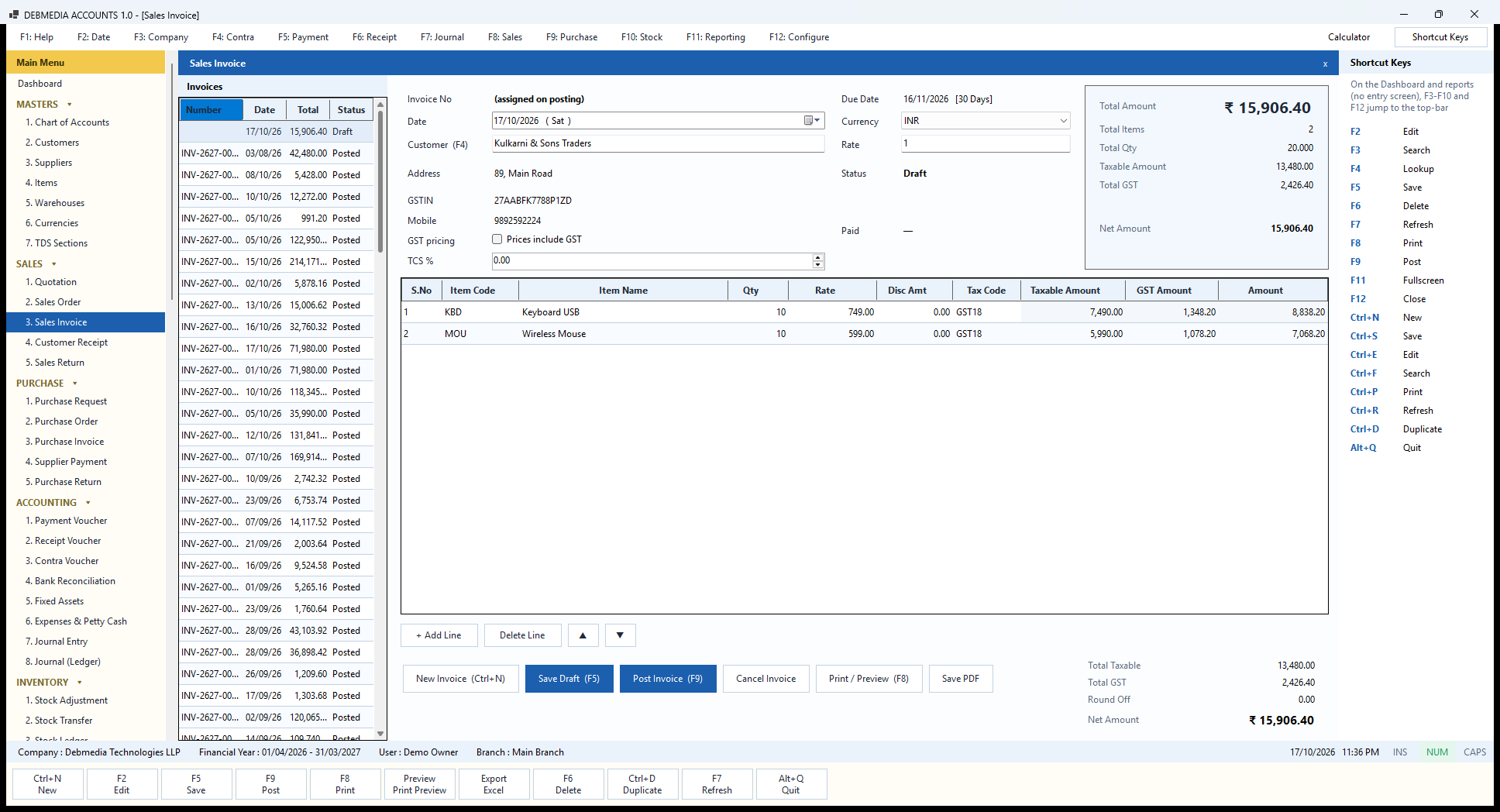
The Sales Invoice is the screen you will use most. The left column lists every invoice with its number, date, total and status (Draft or Posted). The right side is the invoice itself. At the top is the Invoice No, which says “(assigned on posting)” until you post, then the Date and the Customer. Press F4 in the customer box to look one up. As soon as a customer is chosen, the screen fills in their address, GSTIN and mobile number, works out the Due Date from their payment terms (here 16 November 2026, “30 Days”), and compares their state with yours to decide between CGST + SGST and IGST.
Two tax options sit under the customer. The tick-box Prices include GST lets you type the rate the customer actually pays and have the program split the tax out of it, instead of adding tax on top. TCS % adds tax collected at source when the sale attracts it. Currency and Rate show INR and 1 for a rupee invoice.
The line grid has the columns S.No, Item Code, Item Name, Qty, Rate, Disc Amt, Tax Code, Taxable Amount, GST Amount and Amount. In the picture a draft invoice to Kulkarni & Sons Traders carries ten USB keyboards at ₹749 (taxable ₹7,490.00, GST ₹1,348.20) and ten wireless mice at ₹599 (taxable ₹5,990.00, GST ₹1,078.20). The item’s HSN or SAC code and GST rate are copied onto each line when it is saved, so the return screens group by the code that was in force on that day. The arrows and the Add Line and Delete Line buttons reorder and edit the rows.
The box at the top right and the totals at the bottom show Total Taxable 13,480.00, Total GST 2,426.40, Round Off 0.00 and Net Amount ₹15,906.40, with the item count and total quantity. Every number comes from one tax routine, never from the screen.
The buttons do the following. Save Draft (F5) stores the invoice without any accounting effect. Post Invoice (F9) numbers it (INV-2627-000125, for instance), checks the customer’s credit limit and the period lock, and posts the entry. For the first sale in the sample, the entry was: debit Accounts Receivable ₹3,852.70; credit Sales ₹3,265.00 and Output IGST ₹587.70; debit Cost of Goods Sold ₹1,170.00 and credit Inventory ₹1,170.00. The stock leaves the warehouse at the same moment. Cancel Invoice asks for a reason and posts the exact reverse, including the stock. Print / Preview (F8) opens the A4 tax invoice, with your logo, GSTINs, HSN codes, the tax split, the amount in words in rupees, your bank details, UPI id and terms, and Save PDF writes the same page to a file to e-mail.
Customer Receipt
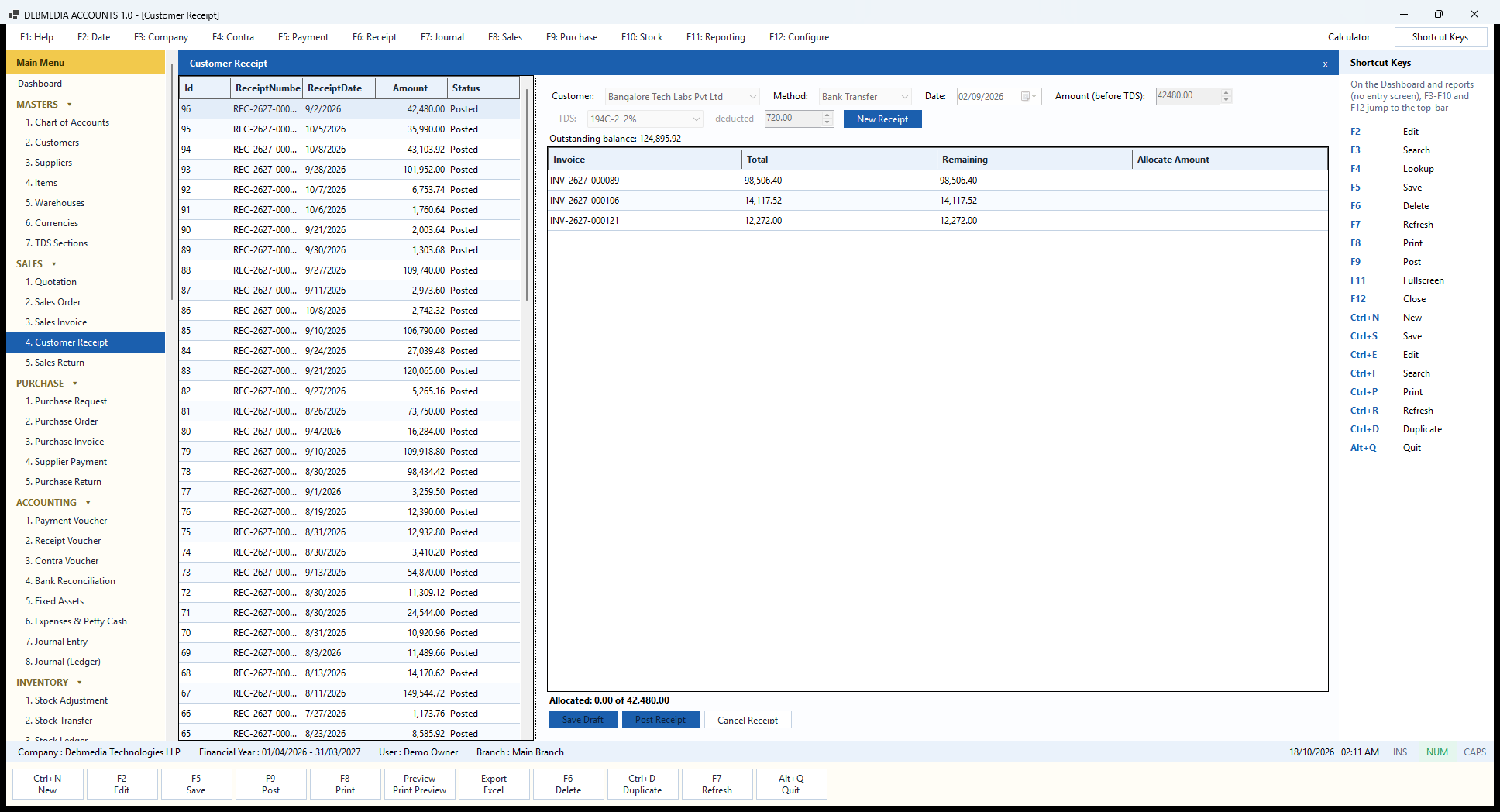
Customer Receipt records money received from a customer against their invoices. The list on the left shows every receipt with its number, date, amount and status; the sample has 96 of them, all Posted. On the right you choose the Customer, the Method (Bank Transfer or Cash) and the Date, and type the Amount (before TDS), which is the full figure being settled against the customer’s bills. The line below the header, “Outstanding balance: 124,895.92“, is what this customer owes in total.
The second row handles tax deducted by the customer. In the picture the customer, Bangalore Tech Labs Pvt Ltd, settled ₹42,480.00 with the section 194C-2 at 2% and 720.00 deducted. Two per cent of the ₹36,000 taxable value is ₹720, so ₹41,760.00 reaches the bank and ₹720.00 goes to the TDS Receivable account, which is tax the customer has paid to the government on your behalf and that you can claim when you file your own return. The invoice is treated as fully paid.
The grid in the middle lists the customer’s open invoices with their Total and the amount Remaining, and a box for the Allocate Amount against each, so one receipt can clear one invoice, several invoices or only part of one. The footer shows how much of the receipt has been allocated. Save Draft keeps a receipt you are still preparing, Post Receipt makes it final, and Cancel Receipt reverses a posted one: the entry is undone and the invoices reopen. The program refuses to cancel a receipt whose bank line has already been matched on a statement, so a finished reconciliation cannot be broken by accident.
Posting does the accounting in one entry: debit the bank or cash account for the money actually received, debit TDS Receivable for the tax deducted, and credit Accounts Receivable for the whole amount settled. The receipt then appears in the customer’s statement, the Cash Book or Bank Book, the Cash Flow report and, if TDS was deducted, in the TDS Deducted by Customers register.
Sales Return (Credit Note)
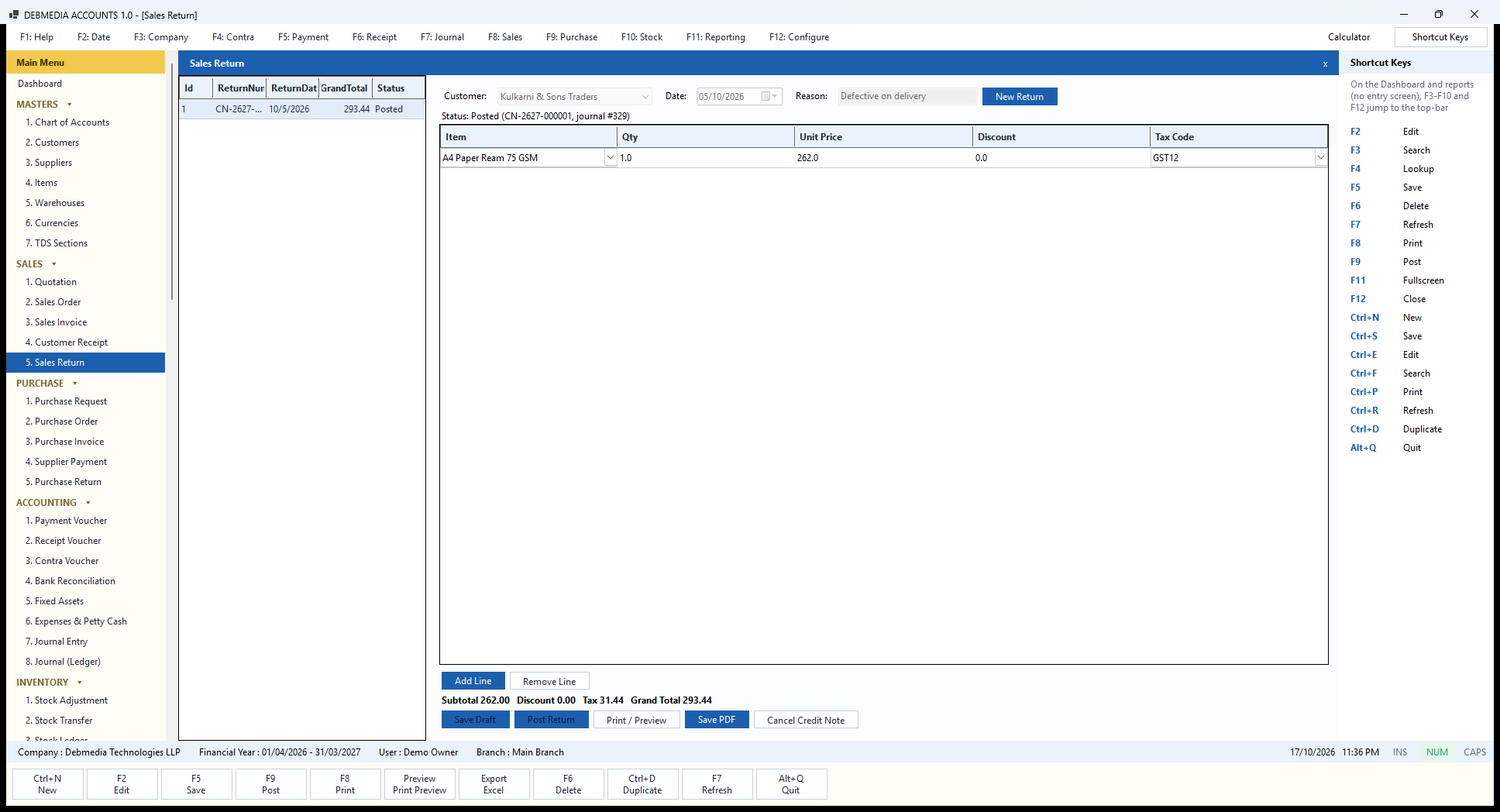
When a customer sends goods back or you owe them a price reduction, you issue a credit note from the Sales Return screen rather than changing the original invoice. The list on the left shows the credit notes (the sample has one, CN-2627-000001 of 5 October 2026 for ₹293.44, status Posted). The header carries the Customer (Kulkarni & Sons Traders), the Date and the Reason (“Defective on delivery”), and the status line says “Status: Posted (CN-2627-000001, journal #329)”, which tells you the journal entry the credit note created.
The line grid works like an invoice line: Item, Qty, Unit Price, Discount and Tax Code. Here a single ream of A4 paper is returned at ₹262.00 with GST 12%, so the figures under the grid read Subtotal 262.00, Discount 0.00, Tax 31.44, Grand Total 293.44. The credit note is linked to the original invoice (INV-2627-000013), and that link is what the GSTR-1 credit-note table reports.
Posting a credit note does two things at once. In the accounts it reverses the sale: debit Sales ₹262.00, Output CGST ₹15.72 and Output SGST ₹15.72, credit Accounts Receivable ₹293.44, so the customer’s balance falls. In the stock it brings the returned item back into the warehouse at the cost it left at, and posts the matching debit to Inventory and credit to Cost of Goods Sold (₹205.00). Together that makes the ₹498.44 total shown against journal 329 on the Journal screen.
Save Draft keeps a credit note you are not ready to post, Post Return makes it final, Print / Preview and Save PDF produce the credit note document, and Cancel Credit Note withdraws one raised by mistake with an exact reversal, which restores the customer’s debt and takes the stock back out.
Purchase: From Request to Payment
Purchase Request
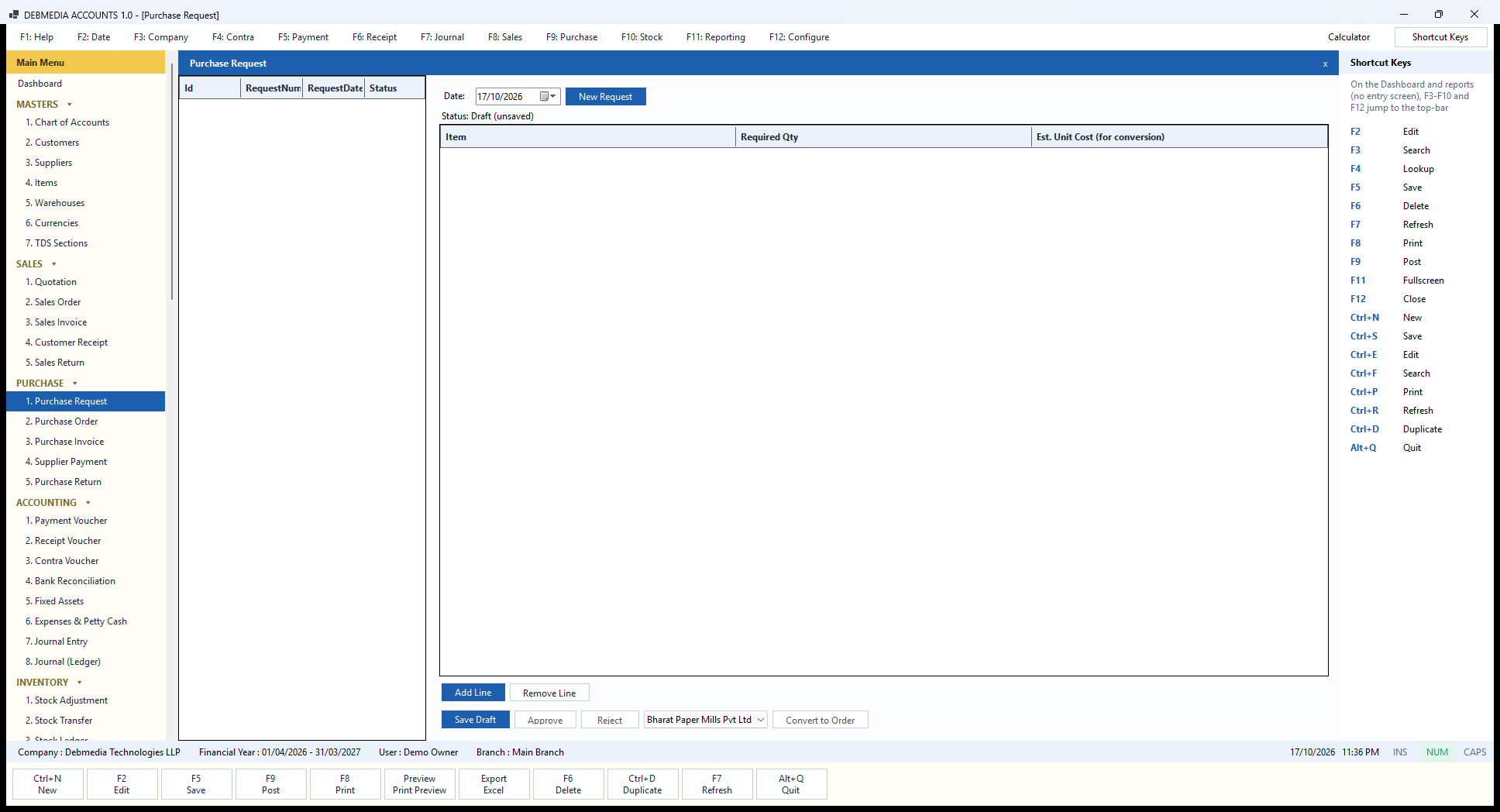
A purchase request is an internal note that says “we need these”. It is useful when the person who notices a shortage is not the person who places orders, and it is optional: you can go straight to a purchase order or a purchase invoice. The list on the left shows requests (empty in the sample), and the form on the right has a Date, a New Request button and a status line that reads “Draft (unsaved)”.
The grid asks only for what is needed to decide: the Item, the Required Qty and an Est. Unit Cost (for conversion), which is used as the price when the request later becomes an order. Nothing about tax is asked at this stage, because a request is not a commercial document.
The buttons set the request’s progress. Save Draft stores it, Approve and Reject record the decision, and the supplier drop-down next to Convert to Order picks who the order goes to (Bharat Paper Mills Pvt Ltd in the picture). Converting makes a purchase order from the request’s lines, and the request is marked as converted. A request has no effect on the books or the stock.
Why use one. In a business with a few staff, a purchase request is a way for the person at the counter to say what is short without placing the order themselves. The owner or buyer approves or rejects each request, and an approved request is converted into an order for the chosen supplier without retyping a line. Rejected and converted requests stay in the list, so you can always see what was asked for and what became of it.
Purchase Order
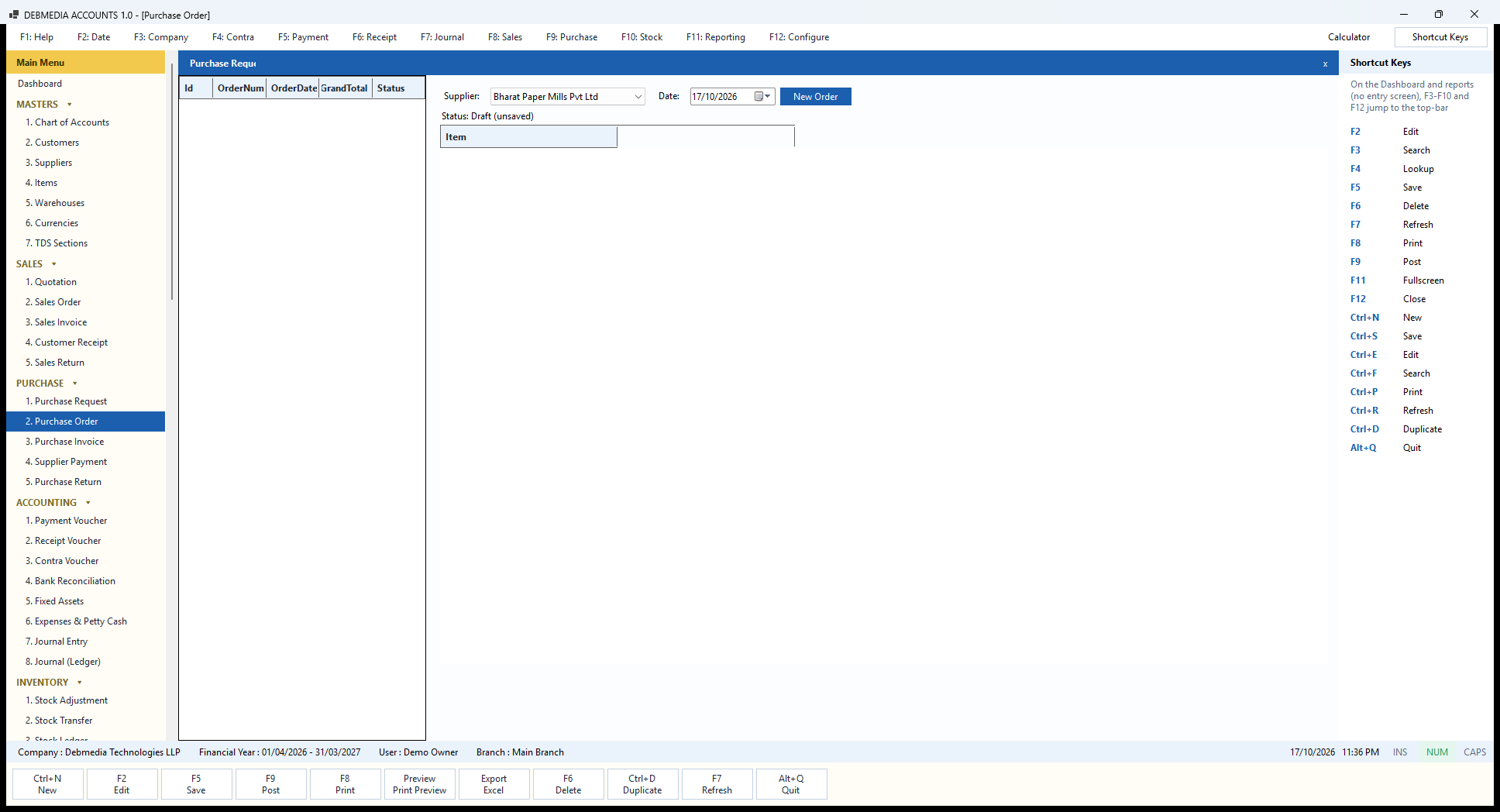
A purchase order is your commitment to a supplier. The list on the left shows orders by number, date, total and status (none yet in the sample). On the right you choose the Supplier and the Date, press New Order, and fill the lines: Item, Qty, Unit Cost, Discount and Tax Code. The screenshot shows a new order that has not been filled in, with the status “Draft (unsaved)”.
The buttons mirror the sales order. Save Draft stores the order, Confirm turns it into a firm order, Cancel Order withdraws it, and Convert to Invoice creates the purchase invoice from the order’s lines when the goods and the bill arrive. Like the other pre-invoice documents it does not change the books or the stock; that happens only when the invoice is posted.
Using orders gives you a record of what was agreed, which makes it easy to compare against the bill when it comes. It also means that when the supplier’s invoice arrives you do not retype the items: one click turns the order into a draft invoice that you check, adjust for any price difference and post.
When to use it. Use orders when what you buy is agreed in advance, for example when a supplier needs a written order or when you want to compare the bill with what you asked for. For small, immediate purchases you can skip the order and enter the purchase invoice directly. A cancelled order simply stays on record as cancelled. Because an order never touches the books or the stock, it is safe to create, change by cancelling, and recreate as often as you need.
Purchase Invoice
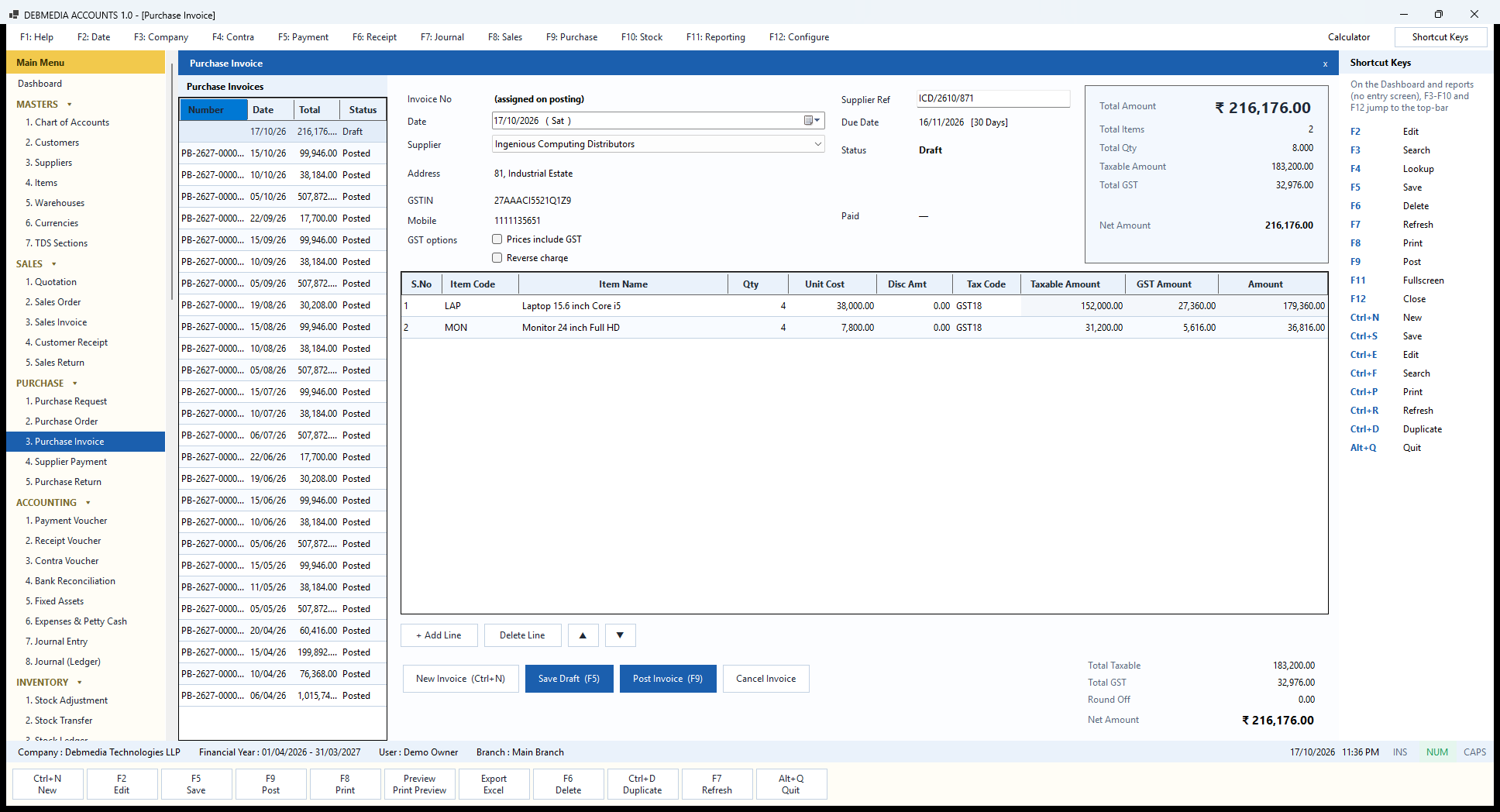
The Purchase Invoice records a bill from a supplier. The left list shows every bill with its own number (PB-2627-…), date, total and status. On the right, the header holds the Date, the Supplier (with address, GSTIN and phone filled in once chosen), the Supplier Ref, which is the number printed on the supplier’s own invoice (ICD/2610/871 here), and the Due Date from the supplier’s terms (16 November 2026, 30 days). Keeping the supplier’s reference matters for the input credit register, because that is the number the supplier will report in their own return.
Under the supplier are the GST options. Prices include GST splits the tax out of a tax-inclusive bill. Reverse charge is for purchases on which you, not the supplier, owe the GST; the program then records the tax liability and the matching credit and reports it in the right table of GSTR-3B.
The lines show Item Code, Item Name, Qty, Unit Cost, Disc Amt, Tax Code, Taxable Amount, GST Amount and Amount. This draft is a restock from Ingenious Computing Distributors: four laptops at ₹38,000 (taxable ₹152,000.00, GST ₹27,360.00) and four monitors at ₹7,800 (taxable ₹31,200.00, GST ₹5,616.00), a Net Amount of ₹216,176.00. Because supplier and buyer are both in Maharashtra, the GST is split equally into CGST and SGST.
Post Invoice (F9) posts the bill. The first purchase in the sample shows what it does: credit Accounts Payable ₹1,015,744.00; debit Inventory ₹860,800.00 and debit Input CGST ₹77,472.00 and Input SGST ₹77,472.00. The stock arrives in the warehouse at the same moment, at its cost, and the average cost of each item is recalculated. The stock is valued at the taxable cost after any discount, because the input GST goes to its own accounts and is not part of what the goods cost you. Cancel Invoice reverses the entry and takes the stock back out at the cost it came in at. The invoice-list columns make it easy to spot the bills still unpaid.
Supplier Payment
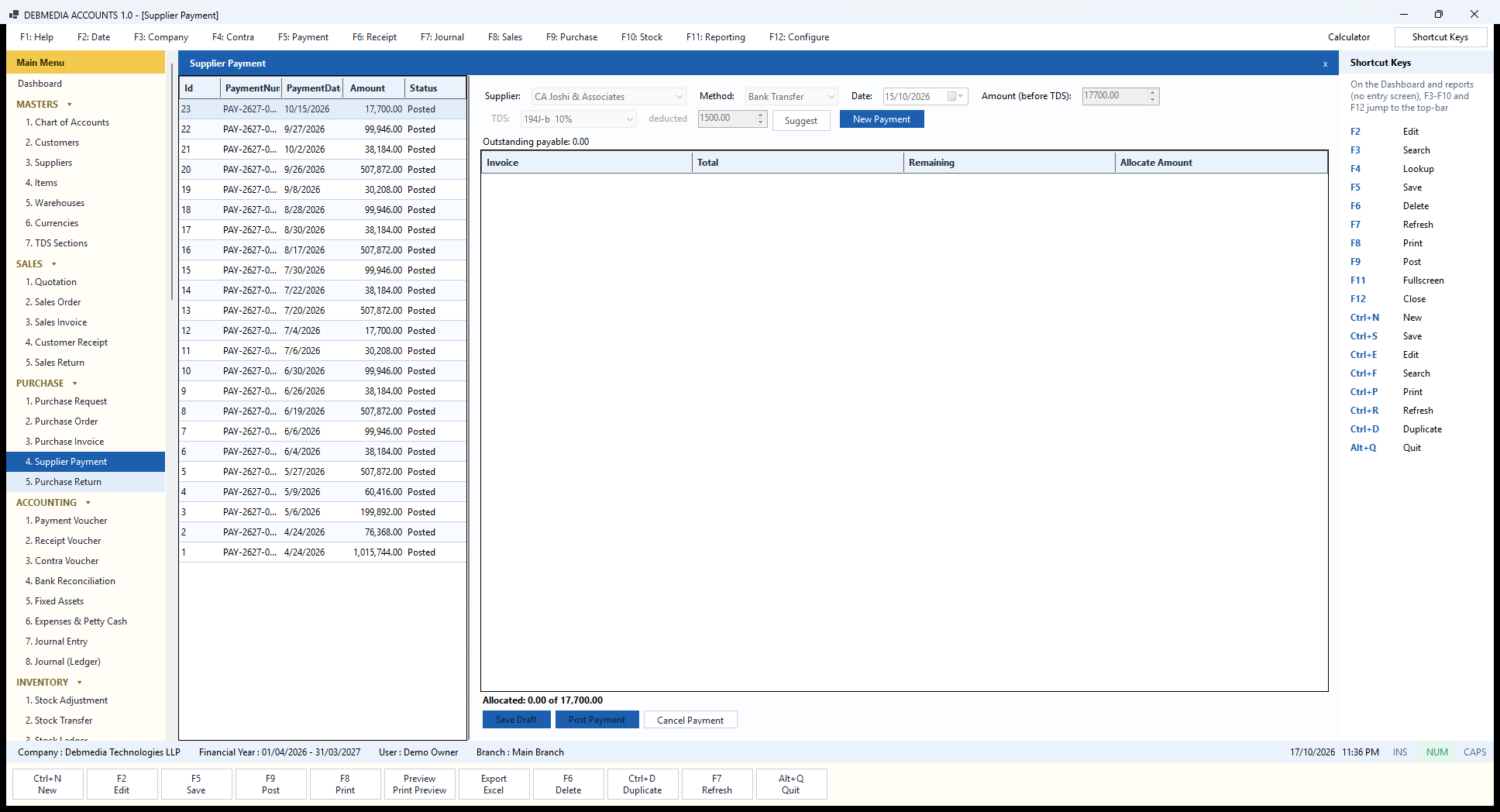
The Supplier Payment screen records money you pay against a supplier’s bills. The list on the left holds all the payments made so far, 23 in the sample, from the first big payment on 24 April to the CA firm’s fee on 15 October. On the right you choose the Supplier, the Method (Bank Transfer or Cash) and the Date, and type the Amount (before TDS), which is the figure you are settling against the bills. The line “Outstanding payable” shows what you still owe that supplier.
The second row handles TDS. In the picture a payment to CA Joshi & Associates of ₹17,700.00 has the section 194J-b 10% selected and ₹1,500.00 deducted. The 10% is worked on the fee before GST (₹15,000.00), which is the correct base, so the supplier receives ₹16,200.00 and ₹1,500.00 is kept to be deposited with the government. The Suggest button fills the section and amount for you from the supplier’s PAN, the section’s thresholds and what has already been paid to that supplier this year.
The grid in the middle lists the supplier’s open bills with their Total, the amount Remaining and a box in which to type the Allocate Amount, so a payment can settle one bill, several bills or part of one. The footer reads “Allocated: x of y” and shows how much of the payment is still unallocated.
Save Draft keeps a payment you are preparing, Post Payment makes it final, and Cancel Payment reverses a posted one. Posting does the accounting: debit Accounts Payable for the full amount, credit the bank for the amount actually paid, and credit TDS Payable for the tax withheld. The deduction then appears in the TDS Deducted (Form 26Q data) report and in the TDS Payable and Deposit Status screen, which tells you what is due to be deposited by the 7th of next month.
Purchase Return (Debit Note)
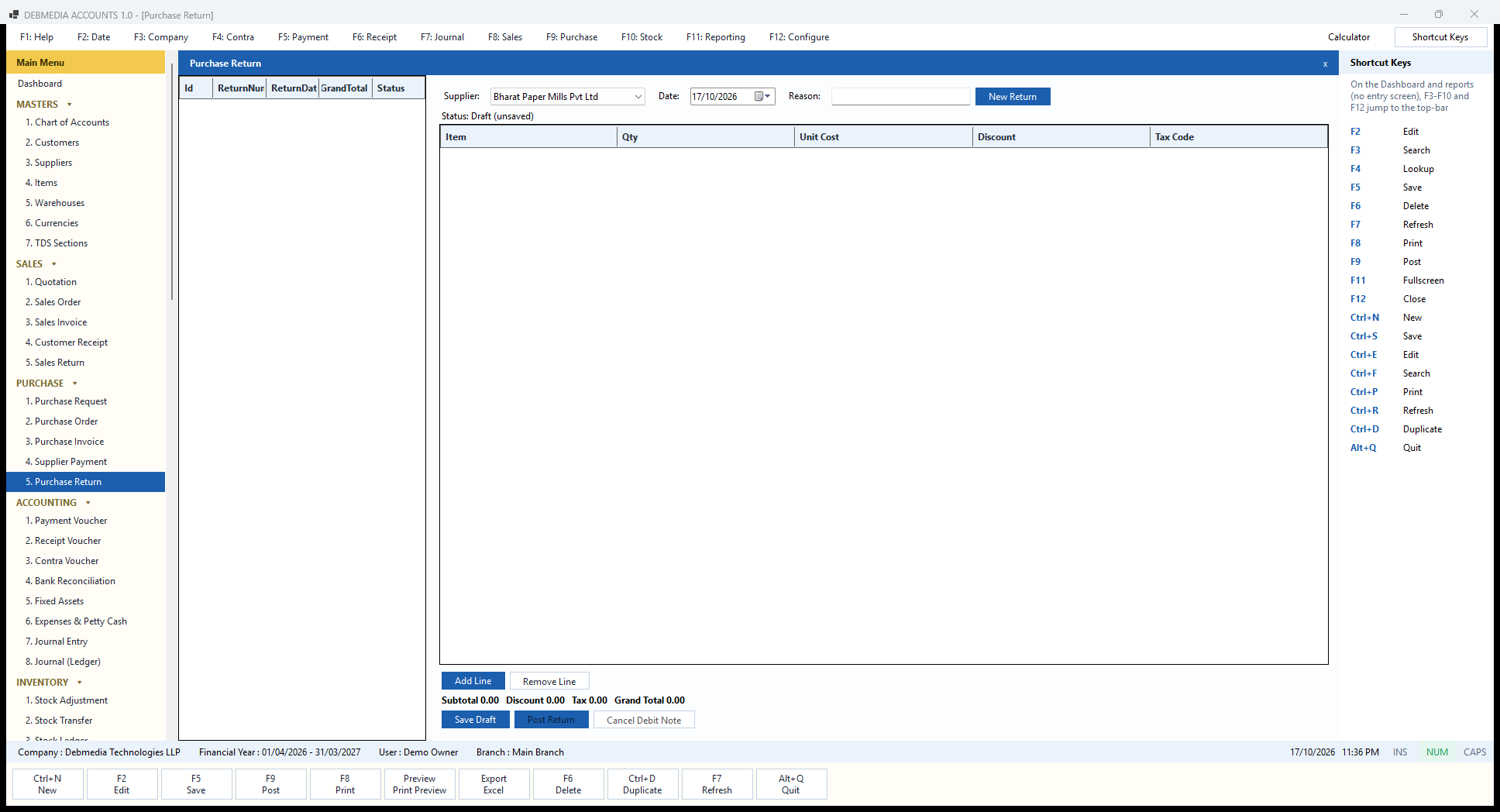
When you send goods back to a supplier, or a supplier agrees a reduction, you record a debit note on the Purchase Return screen. The list shows earlier returns (none in the sample company), and the form takes a Supplier, a Date and a Reason. The grid has Item, Qty, Unit Cost, Discount and Tax Code, and the line below it keeps a running Subtotal, Discount, Tax and Grand Total.
Posting the debit note reduces what you owe the supplier: debit Accounts Payable, credit Inventory, and reverse the input GST that you had claimed on the returned goods, which is why the tax routine treats it as a reduction of input credit in the return data. The stock goes out of the warehouse at its cost. Save Draft, Post Return and Cancel Debit Note work as on the sales side, and cancelling a posted debit note brings the stock back in and restores the payable.
If a bill is wrong in full, cancelling the purchase invoice is simpler than a debit note; the return is for the common case where part of what you bought goes back and the rest stays.
Linking to the bill. Choose the supplier, add the items being returned with the quantity and the cost at which they were bought, and give the reason. The tax code on each line is the one the goods were bought under, so the input credit that is reversed matches the credit that was claimed. A debit note that is posted can be printed for the supplier’s file, and the Purchase Return Register lists all of them for the period.
Accounting: Vouchers, Expenses and Assets
Payment Voucher
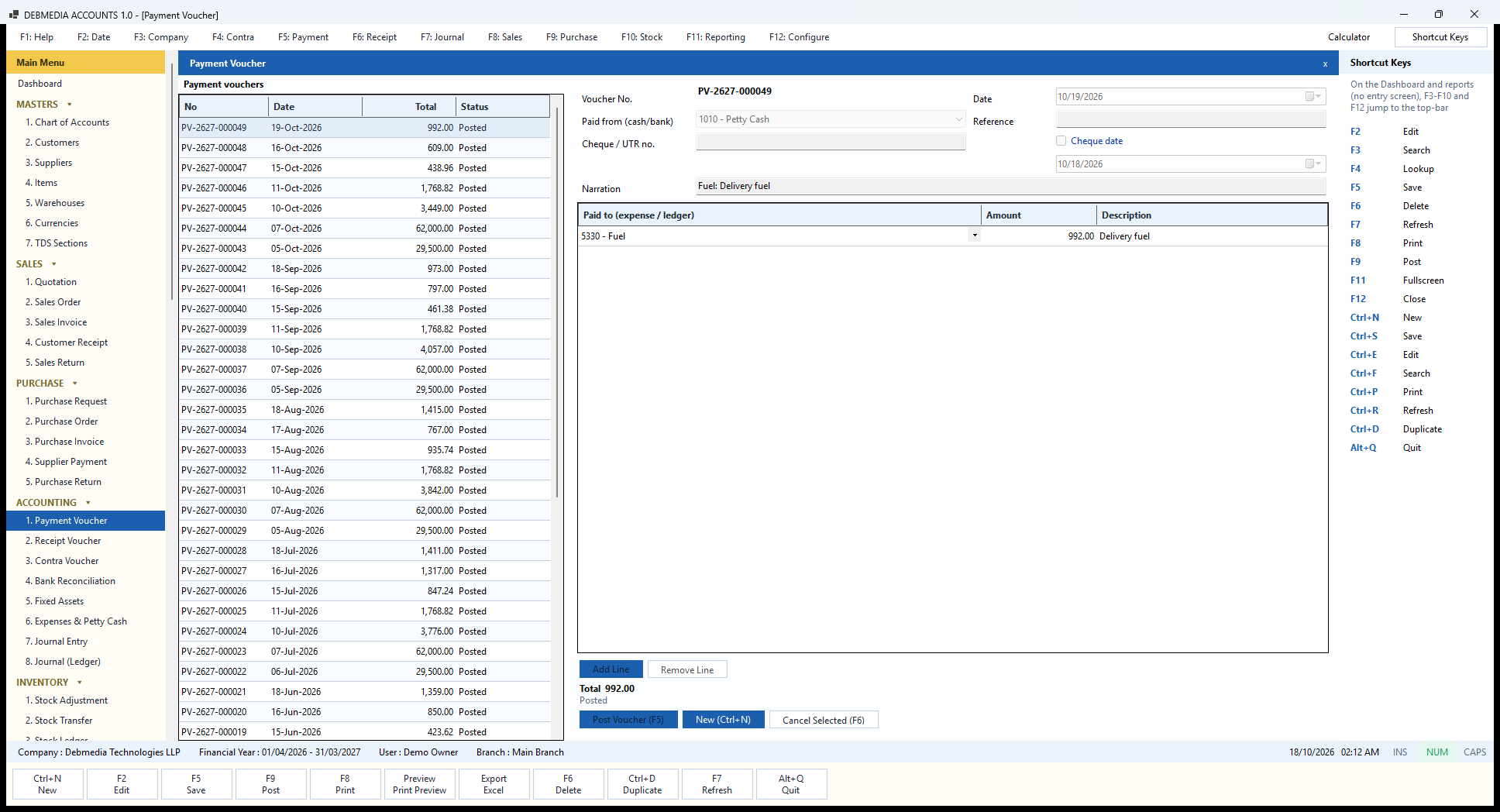
The Payment Voucher records money going out of cash, petty cash or the bank to an expense or ledger account. The list on the left shows each voucher by No, Date, Total and Status. It includes every voucher you enter here and also those that the Expenses screen creates, because an expense is posted as a payment voucher with its GST attached; you can see the monthly rent (₹29,500), staff salaries (₹62,000), electricity and the small petty-cash bills in the same list.
The selected voucher, PV-2627-000049, shows the layout. Paid from (cash/bank) is “1010 – Petty Cash”, the Date and Reference come next, then a Cheque / UTR no. and, for a cheque, a tick-box and date. The Narration, “Fuel: Delivery fuel”, is what shows in the Day Book and ledgers. The grid headed Paid to (expense / ledger) has one row per account: here “5330 – Fuel”, Amount 992.00 and a Description. The total and the word “Posted” sit under the grid, and a posted voucher is read-only.
Use a payment voucher for things that are not bills from a supplier: salaries, loan repayments, owner’s drawings, tax payments, and the deposit of TDS to the government (debit TDS Payable, credit Bank). Supplier bills go through Purchase Invoice and Supplier Payment so the payable is tracked, and everyday bills with input GST go through Expenses. Post Voucher (F5) posts the entry, New (Ctrl+N) starts the next voucher, and Cancel Selected (F6) reverses a posted one, unless its bank line has already been cleared on a statement.
Receipt Voucher
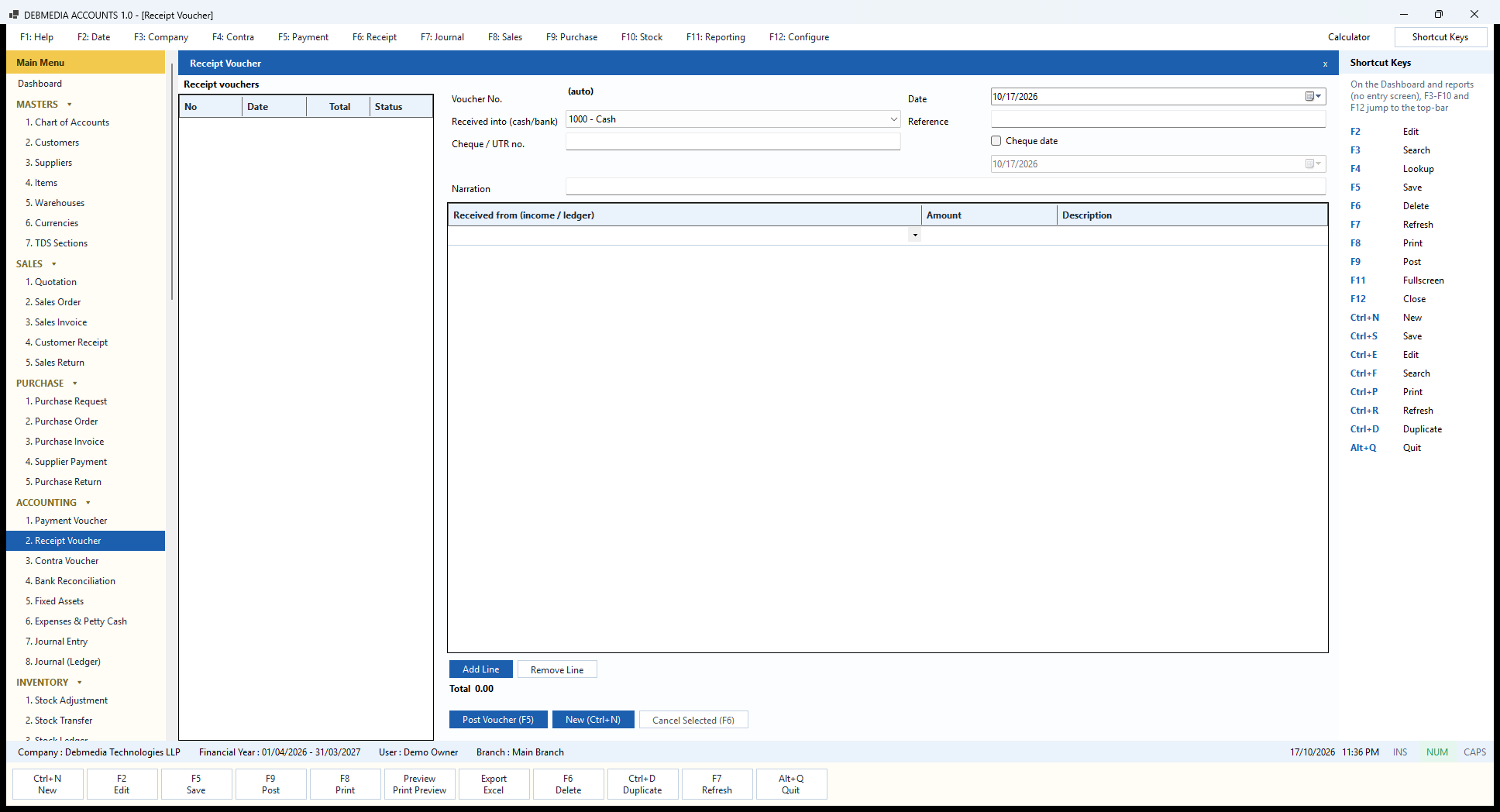
The Receipt Voucher records money coming in that is not payment against an invoice: interest from the bank, a commission, a refund, the owner putting in capital. (Money from customers against their bills goes through Customer Receipt, which allocates it to invoices.) The list on the left shows earlier vouchers by number, date, total and status.
At the top you choose where the money went, Received into (cash/bank), here “1000 – Cash”, and give the Date, a Reference, a Cheque / UTR no. and, if it is a cheque, tick Cheque date and enter it. The Narration is the sentence that will appear in the Day Book and ledgers. The grid below lists where the money came from: Received from (income / ledger), an Amount and a Description for each line, so one receipt can be split across several accounts. The Total is shown at the bottom.
Post Voucher (F5) posts the entry at once: debit the cash or bank account, credit each line’s account. New (Ctrl+N) starts the next voucher. Cancel Selected (F6) reverses a voucher chosen from the list, with one safeguard: if the bank line has already been matched on a bank statement, the program refuses, because that would quietly break a reconciliation you have finished.
Receipt, Payment and Contra vouchers are reachable from the function-key bar (F6, F5 and F4), and each posts one balanced entry through the same routine as every other document.
Contra Voucher
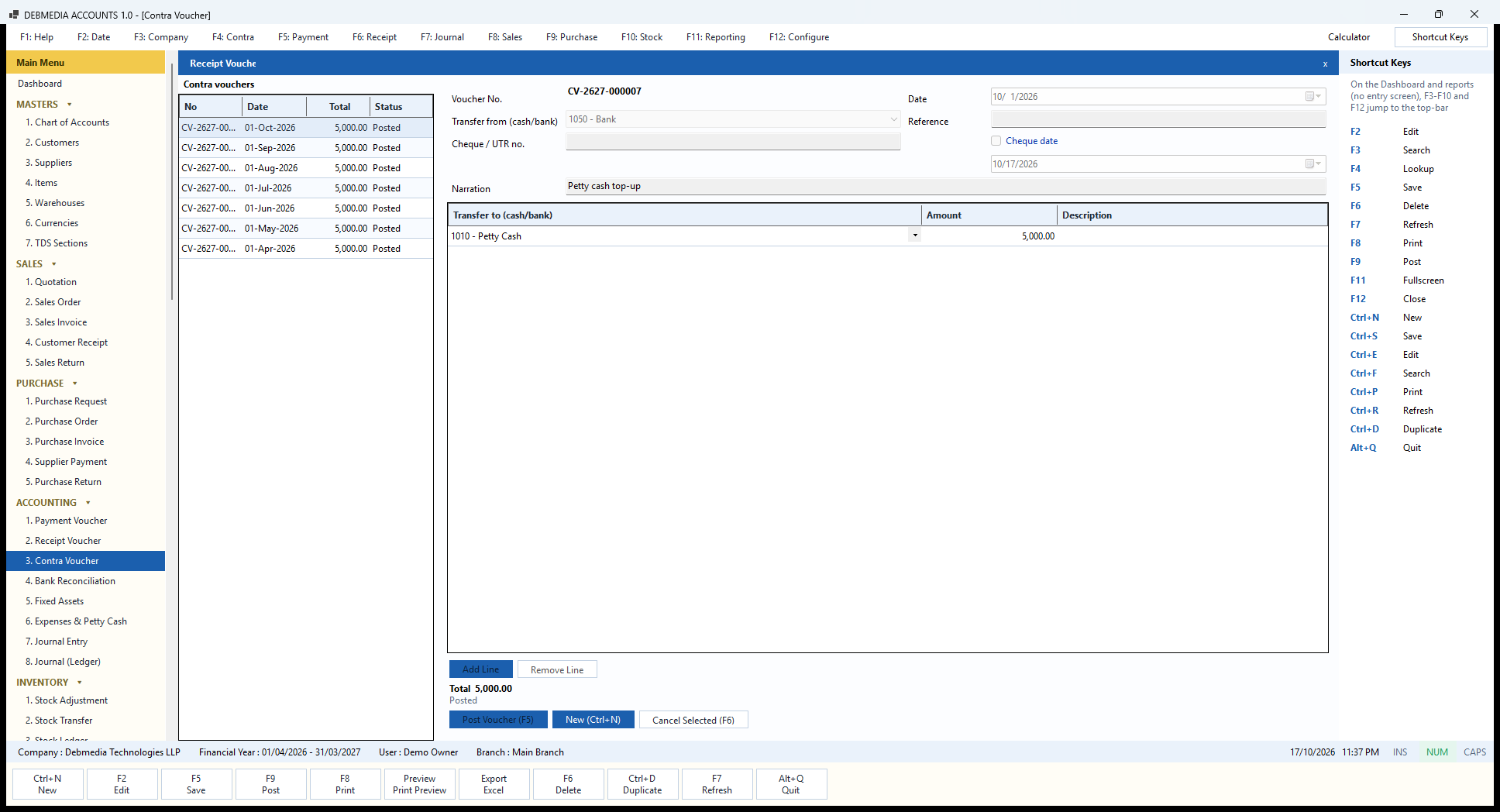
A contra voucher moves money between two of your own cash or bank accounts. It is not income or expense, so it never reaches the Profit and Loss. The list on the left shows the seven monthly top-ups in the sample, CV-2627-000001 on 1 April to CV-2627-000007 on 1 October, each ₹5,000.00 and each Posted.
The selected voucher shows the layout. Transfer from (cash/bank) is “1050 – Bank”, the Narration is “Petty cash top-up”, and the grid, now headed Transfer to (cash/bank), has one line: “1010 – Petty Cash”, Amount 5,000.00. The status under the total says “Posted”, and because the voucher is posted the form is read-only; only Cancel Selected (F6) can undo it.
The program enforces the idea of a contra. Only cash and bank accounts can be chosen on either side, and the opposite is also true: a payment or receipt voucher refuses a cash or bank account on the lines and tells you to use a contra instead, which keeps ordinary expenses and real transfers apart.
Petty cash is the classic use. You take ₹5,000 from the bank into the petty-cash box with a contra voucher, then record the small bills (tea, couriers, fuel) from the petty-cash account on the Expenses screen. The Petty Cash Book report shows how the box rises and falls.
Bank Reconciliation
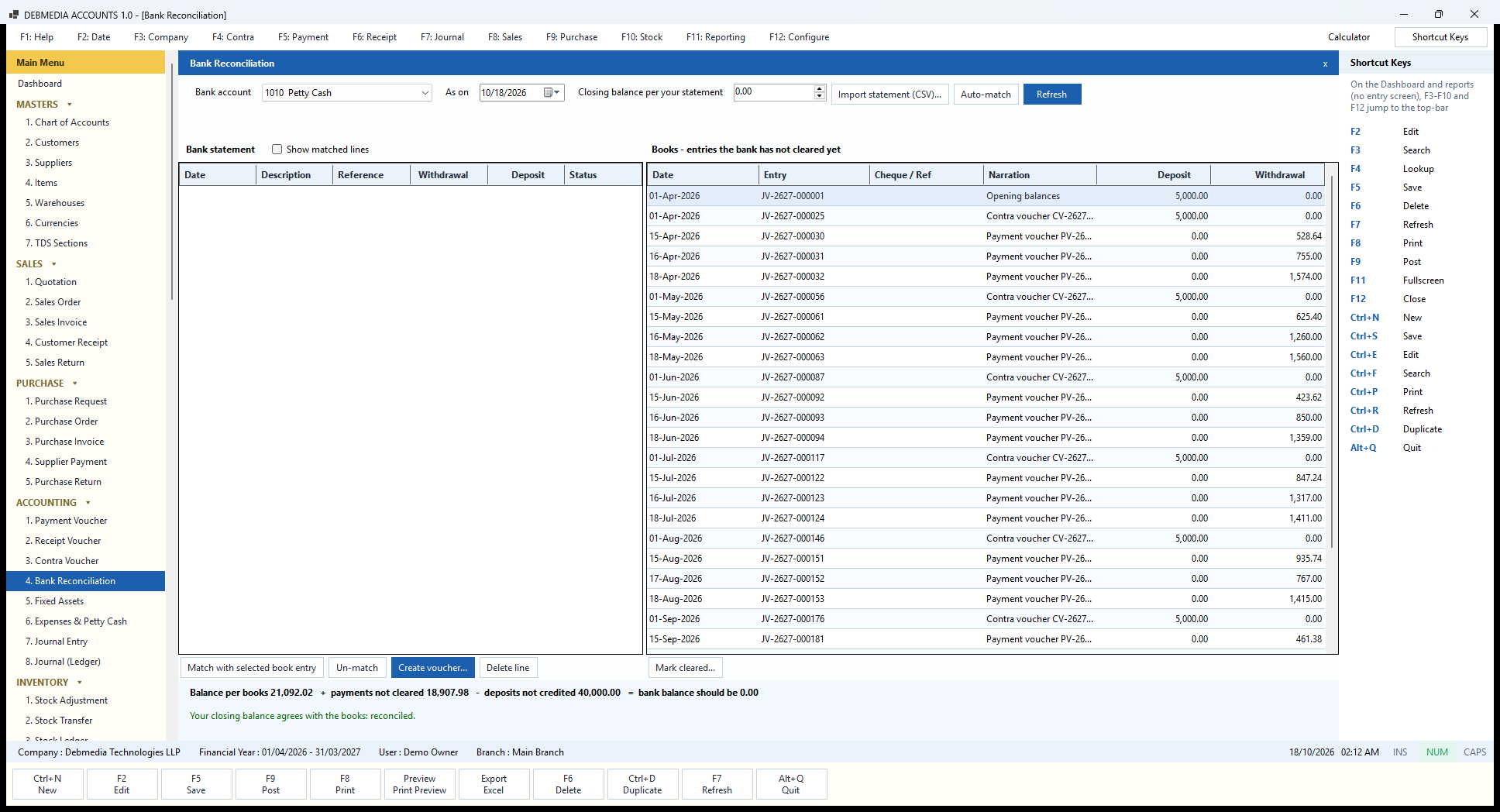
Bank Reconciliation is the working screen that proves your books agree with the bank. At the top you choose the Bank account and an As on date, type the Closing balance per your statement, and use Import statement (CSV)…, Auto-match and Refresh. The picture was taken with the Petty Cash account selected, which has no bank statement, so the left grid is empty; choose the Bank account to see statement lines.
The left half, Bank statement, lists the lines imported from the bank’s CSV file: Date, Description, Reference, Withdrawal, Deposit and Status, with a tick-box Show matched lines that includes the ones already dealt with. The importer finds the columns by their headings, shows any row it cannot read instead of skipping it quietly, and refuses to import the same line twice, so you can safely load a statement that overlaps the last one. The right half, Books – entries the bank has not cleared yet, lists the entries in your books for that account that have not yet been matched: Date, Entry number, Cheque / Ref, Narration, Deposit and Withdrawal.
Auto-match pairs statement lines with book entries by amount and date (within a week) and by cheque reference. For the rest, select one line on each side and press Match with selected book entry; Un-match undoes a pair. When something is on the statement but not in your books, such as bank charges or interest, select the line and press Create voucher…: the program posts the payment or receipt voucher straight from the statement line and matches it in one step. Delete line removes a statement line imported by mistake, and Mark cleared… clears a book entry by hand when you only have a paper statement.
The summary under the grids is the proof: “Balance per books 21,092.02 + payments not cleared 18,907.98 – deposits not credited 40,000.00 = bank balance should be 0.00“, followed in green by “Your closing balance agrees with the books: reconciled.” (or in red by the difference). Matching stamps the book entry with the date the bank cleared it, which is what the Bank Reconciliation Statement report uses, and an entry that has been cleared cannot be cancelled by accident.
Expenses & Petty Cash
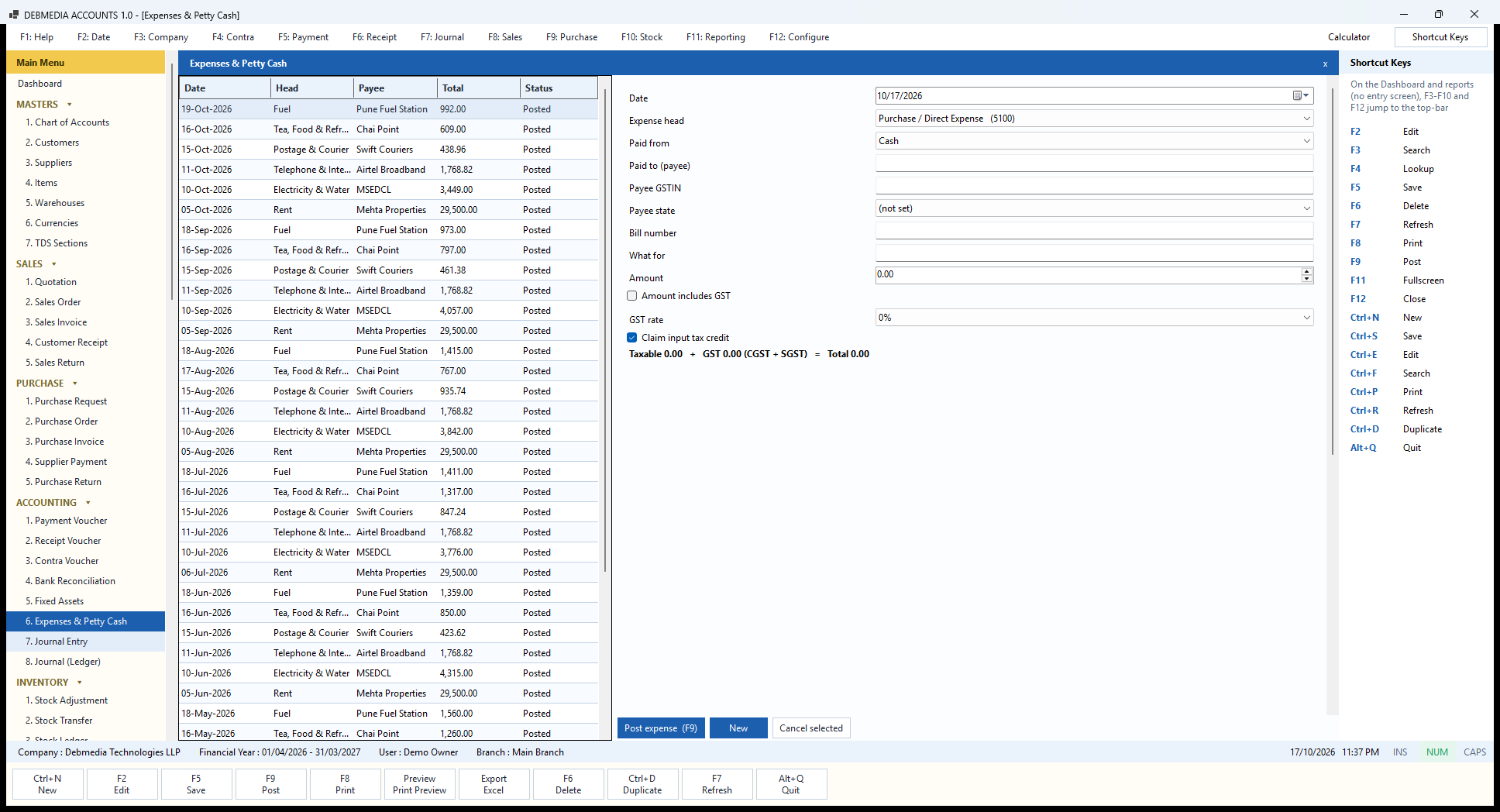
Everyday spending has its own screen so that the GST on it is not lost. The list on the left is the register of expenses already posted: date, head, payee, total and status. In the sample you can see the monthly pattern: shop rent of ₹29,500.00 to Mehta Properties (₹25,000.00 plus 18% GST), broadband of ₹1,768.82, electricity, courier charges, tea and fuel.
The form on the right takes the Date, the Expense head (a drop-down of expense accounts such as Rent, Electricity & Water, Fuel and Tea, Food & Refreshments), Paid from (cash, petty cash or bank), Paid to (payee) and, for a registered payee, the Payee GSTIN and Payee state, the Bill number and What for. Then come the Amount, the tick-box Amount includes GST and the GST rate.
The tick-box Claim input tax credit decides whether the GST can be set off against your output tax. Under the form a live line shows the split before you post, in the form “Taxable 0.00 + GST 0.00 (CGST + SGST) = Total 0.00“. The split is CGST + SGST when the payee’s state matches yours and IGST otherwise.
Post expense (F9) posts a payment voucher: debit the expense account and, if claimed, the input GST accounts; credit the cash or bank account. The bill then appears in the Input Tax Credit Register and in GSTR-3B, which is exactly why a rent bill belongs here rather than in a plain payment voucher. Cancel selected reverses a posted expense.
Fixed Assets
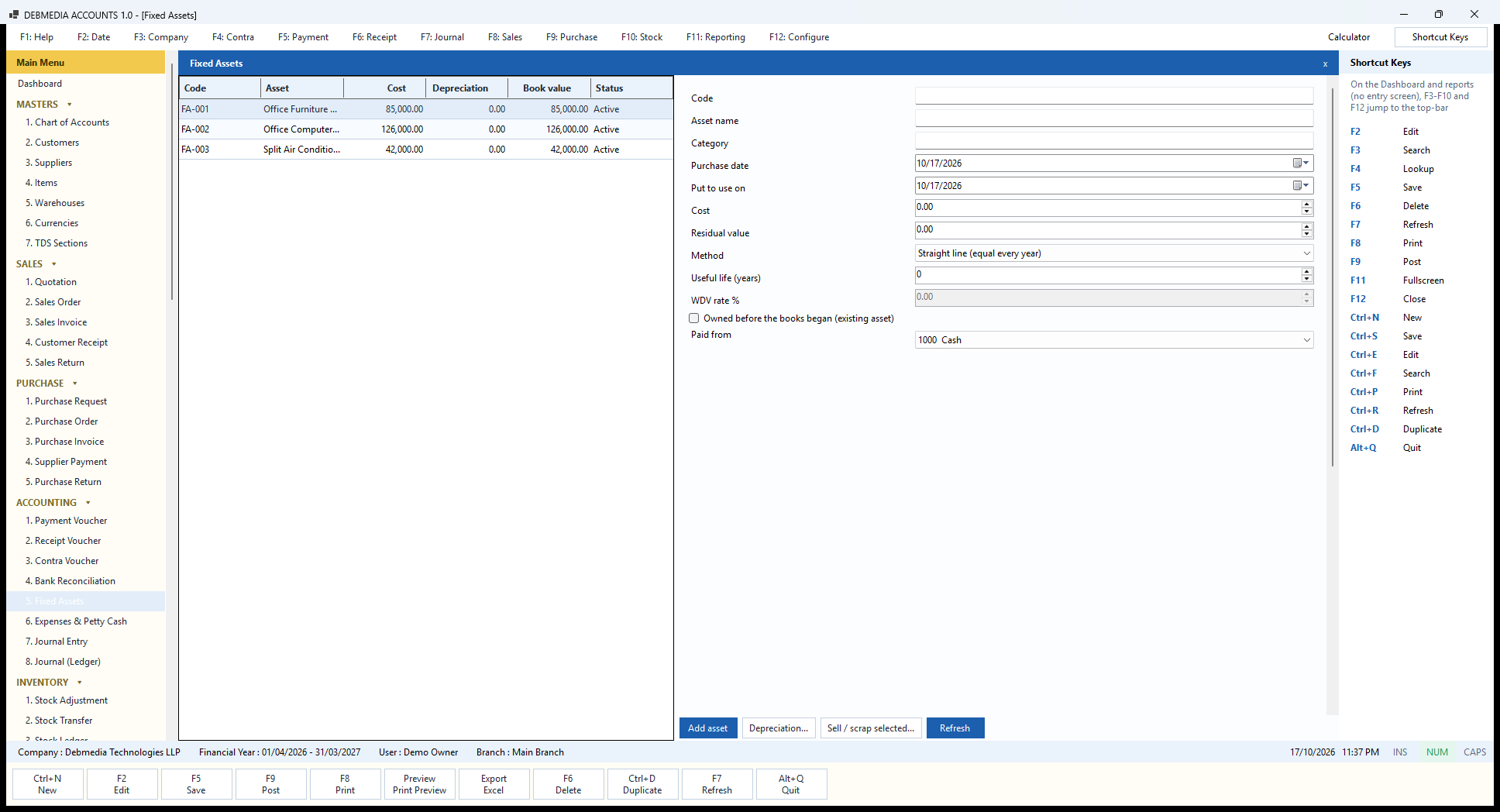
The Fixed Assets screen is the register of what the business owns. The grid shows each asset’s code, name, Cost, Depreciation so far, Book value and status. The sample has three, bought from the bank in April and May: office furniture and racks (₹85,000), three office computers (₹126,000) and a split air conditioner (₹42,000), with a total cost of ₹253,000.
To add an asset you fill the form: Code, Asset name, Category, Purchase date, Put to use on (the date from which depreciation runs), Cost and Residual value. The Method is either “Straight line (equal every year)” with a Useful life (years), or written-down value with a WDV rate %. An asset you already owned before the books began is ticked as “Owned before the books began (existing asset)”, which also asks for the depreciation already charged. Paid from chooses the account the money came from: cash, bank or, for an asset the owner contributed, the owner’s capital.
Add asset posts the purchase: debit Fixed Assets at cost, credit the account chosen. The grid shows depreciation as zero because it has not been run. At the end of the year, Depreciation… shows what each asset would be charged for the year and posts it in one entry: debit Depreciation Expense, credit Accumulated Depreciation. A part-year charge is calculated from the date the asset was put to use, a straight-line asset is never depreciated below its residual value, and a year’s run can be reversed. Sell / scrap selected… records a disposal, charges the depreciation to the date of sale and posts the profit or loss on sale to its own account. Refresh reloads the grid.
The Fixed Asset Register and Depreciation Schedule reports in the Accounting Books section read from this screen.
Journal Entry
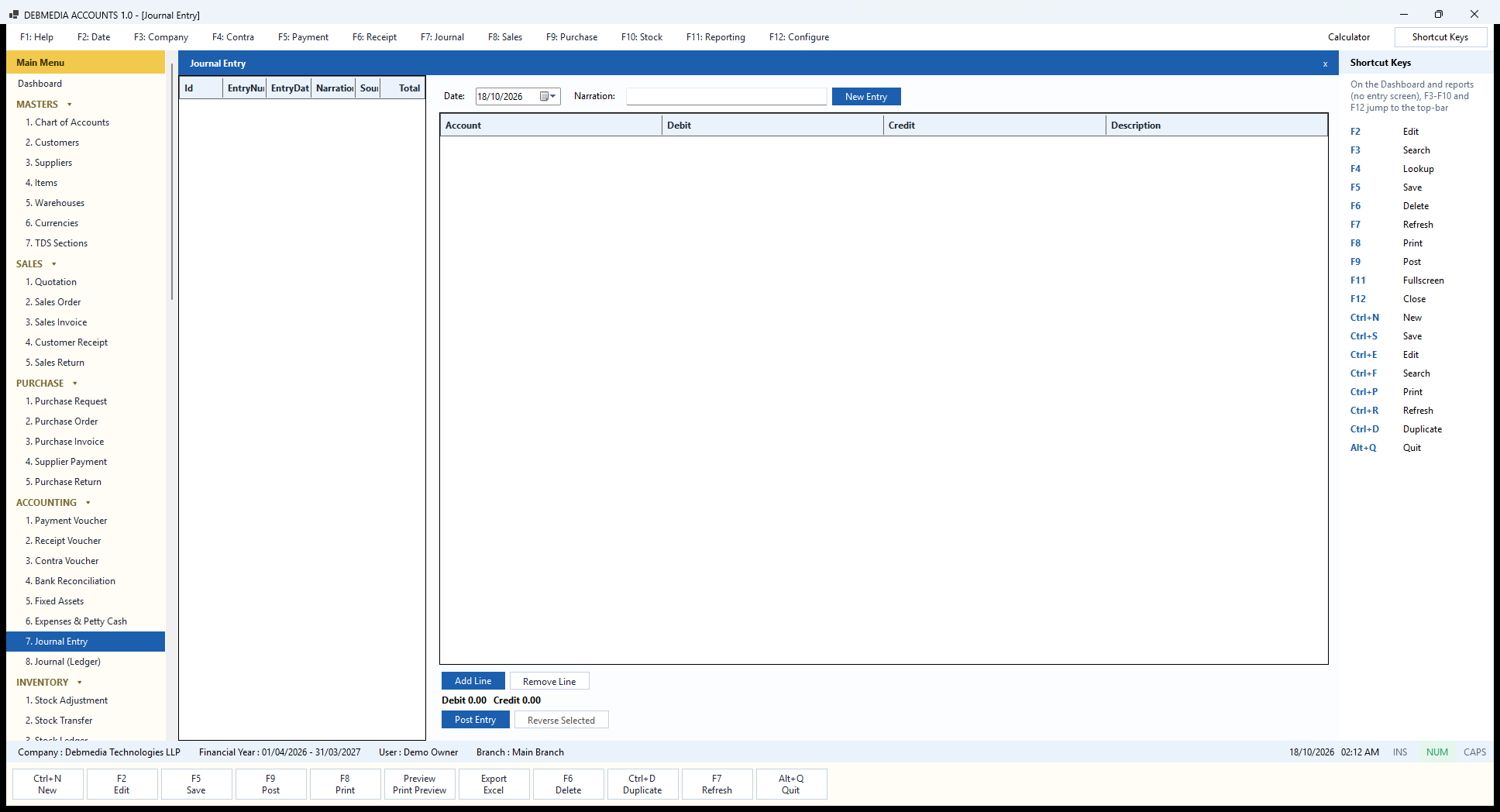
Journal Entry (F7) is for the adjustments that no ordinary document covers: correcting an account, booking a year-end provision, moving a balance between ledgers. The list on the left shows manual journals already posted, by Id, EntryNumber, EntryDate, Narration, source and Total. The sample company has none, because every figure in it came from a normal document.
To make an entry, set the Date, type a Narration and press New Entry. In the grid, each line has an Account (a drop-down of the chart), a Debit or a Credit amount and an optional Description; Add Line and Remove Line change the rows. Under the grid the running totals read “Debit 0.00, Credit 0.00” at the start and update as you type.
Post Entry will not save unless the two sides are equal, because the posting routine refuses an unbalanced entry, and it respects the period lock and the closed financial years like every other screen. Reverse Selected posts the exact opposite of an entry chosen from the list, which is how a mistaken journal is undone: the original and its reversal both stay in the books. Because a manual journal can touch any account, it is worth limiting its use to someone who understands the effect, and the Audit Log records who made it.
Journal (Ledger)
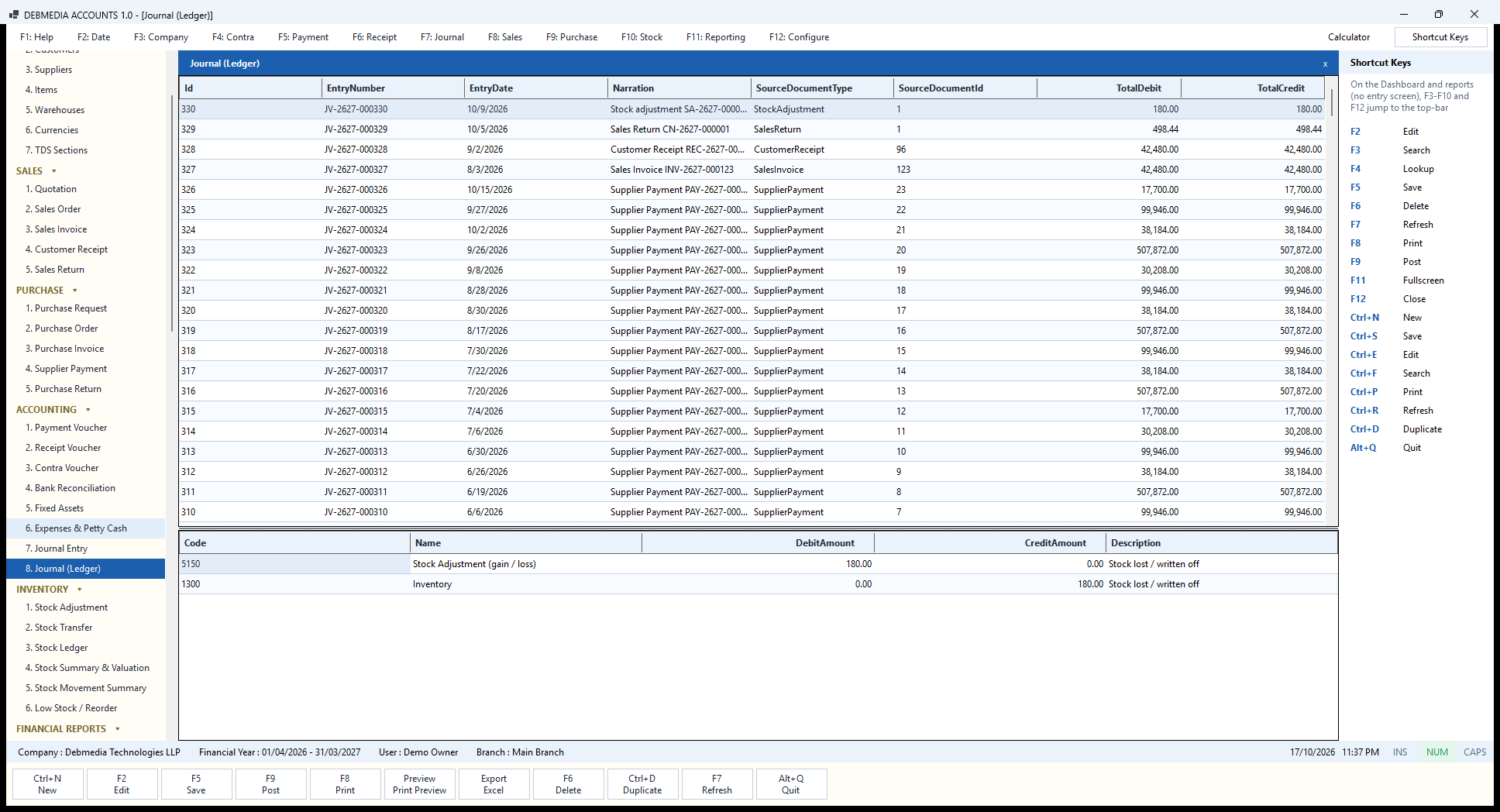
If you want to see the double-entry underneath, this is the screen. Journal (Ledger) lists every journal entry in the books, newest first, with its EntryNumber (JV-2627-000330 and so on), EntryDate, Narration, the SourceDocumentType and SourceDocumentId that created it, and the TotalDebit and TotalCredit, which are always equal. The first rows show the variety: a stock adjustment, a sales return, a customer receipt, a sales invoice and a run of supplier payments.
Click an entry and the lower grid shows its lines: the account Code and Name, the DebitAmount and CreditAmount and a Description. The selected entry, JV-2627-000330, is the stock adjustment from the sample company’s physical count: debit 5150 Stock Adjustment (gain / loss) ₹180.00, credit 1300 Inventory ₹180.00, described “Stock lost / written off”, the value of two boxes of pens that were missing.
Because every document goes through the same posting routine, this list is complete: an invoice, a payment, a depreciation run and a bank voucher all appear here, each tied to the document that made it. Corrections are visible too, because a cancelled document leaves both its original entry and an exact reversing entry.
The related Journal Entry screen (F7) lets an accountant post a manual journal when no ordinary document fits, for example a year-end adjustment. It takes any number of debit and credit lines, refuses to save unless the two sides balance, and respects the period lock like everything else.
Inventory: Stock You Can Explain
Stock Adjustment
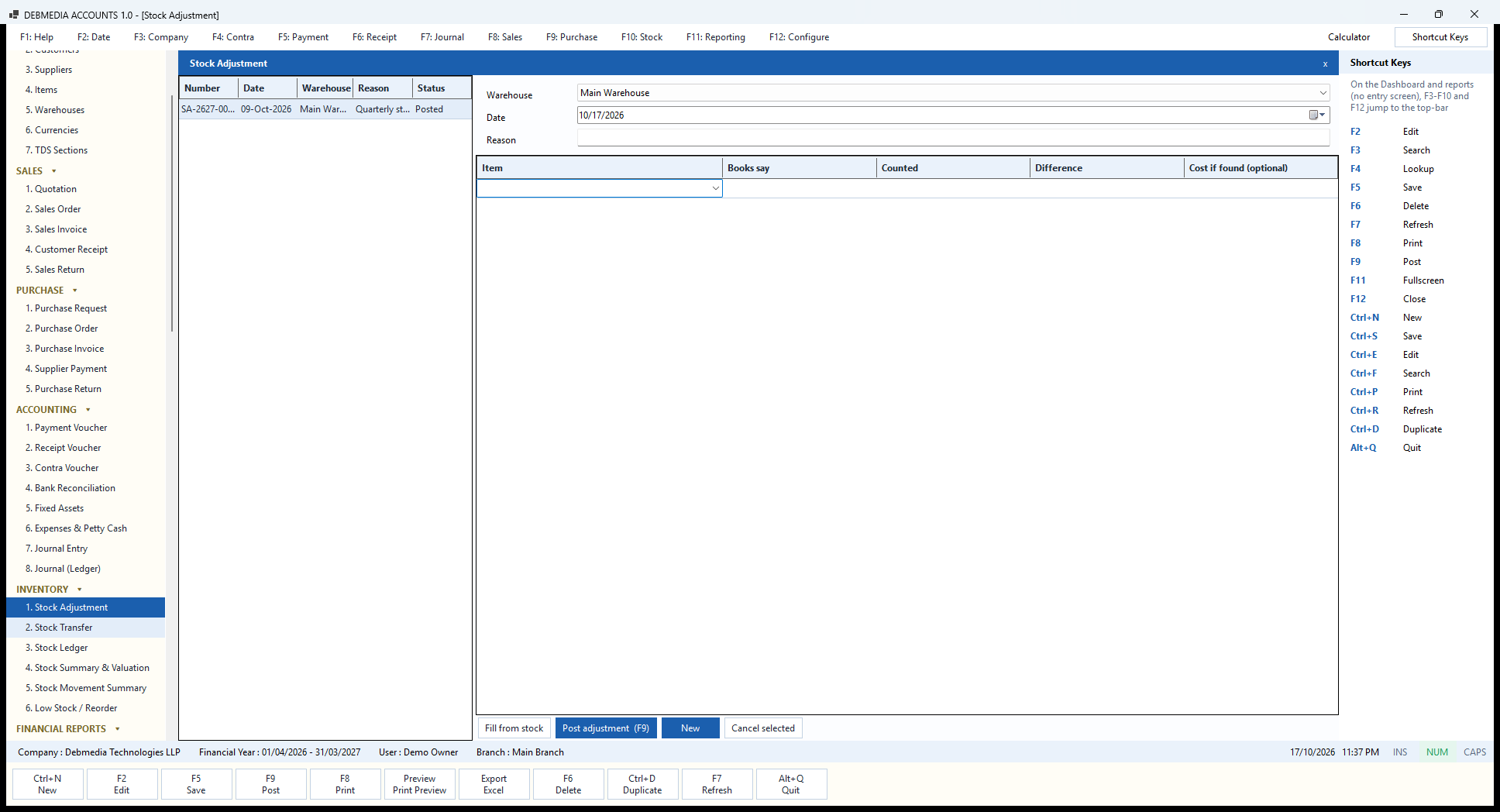
After you count the shelves, the books and the shelves rarely agree, and Stock Adjustment is how you make them agree without losing track of why. The list on the left shows earlier adjustments; the sample has one, SA-2627-000001 of 9 October 2026, reason “Quarterly stock count”, status Posted. On the right you choose the Warehouse, the Date and a Reason, which is required and is kept with the entry (physical count, damage, theft and so on).
The button Fill from stock loads every item with its current quantity into the grid, whose columns are Item, Books say, Counted, Difference and Cost if found (optional). You walk the shelves, type the counted quantity against each item and the Difference column works itself out. An item whose count matches the book has a difference of zero and changes nothing; only real differences post. Cost if found is for stock that turns up which the books did not know about: if you leave it blank the program uses the item’s current valued cost.
Post adjustment (F9) posts the whole sheet as one document. A shortage takes the quantity out of the stock ledger and posts the value to the Stock Adjustment (gain / loss) account; an excess brings the quantity in and posts a gain. The sample adjustment found 105 boxes of pens against 107 in the books, so two boxes at ₹90.00 were written off for a loss of ₹180.00, which you can see as journal JV-2627-000330 on the Journal screen. New clears the sheet, and Cancel selected reverses a posted adjustment, bringing the stock back to what it was.
Because the adjustment is a document with a number, a reason and an audit-log entry, a stock-take leaves a trail. You can always answer the question “why did the stock change on that date”.
Stock Transfer
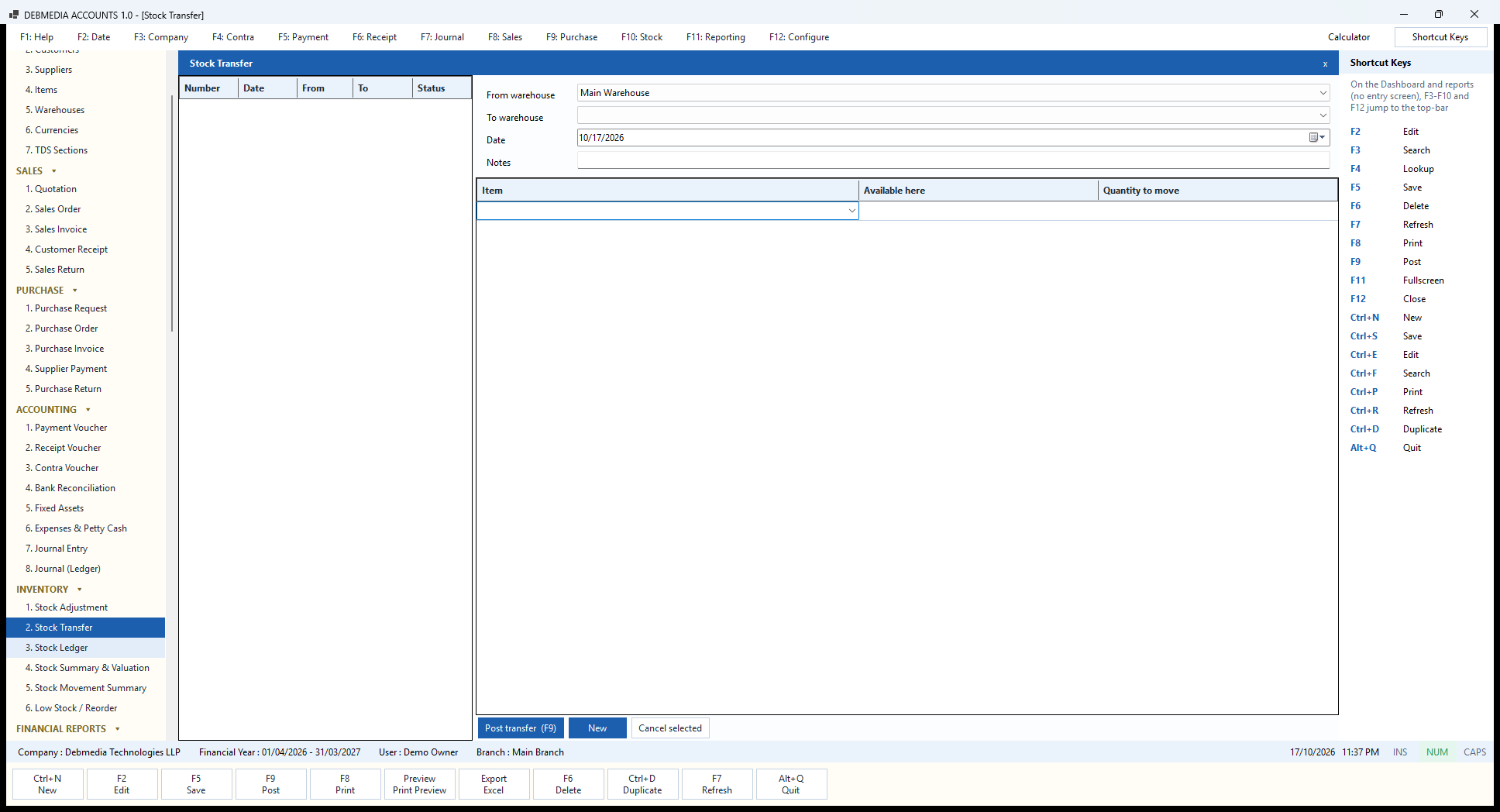
When a business keeps stock in more than one place, Stock Transfer moves goods from one warehouse to another without pretending that anything was sold or bought. The list on the left shows earlier transfers by number, date, from, to and status (none in the sample, which has a single Main Warehouse, so the To warehouse box is empty).
You pick the From warehouse and the To warehouse, a Date and optional Notes. The grid has three columns: Item, Available here, which shows how much of the item the source warehouse actually holds, and Quantity to move. You must choose two different warehouses and every quantity must be above zero.
Post transfer (F9) takes the quantities out of the source warehouse and puts the same quantities into the destination at the same cost. The value of stock in total does not change, so there is no entry in the Profit and Loss and no effect on the Balance Sheet; the Stock Ledger shows an Out line in one warehouse and an In line in the other. New starts another, and Cancel selected reverses a posted transfer.
New warehouses are added on the Warehouses screen in Masters. Reports such as the Stock Summary can then be run for one warehouse or for all of them.
Stock Ledger
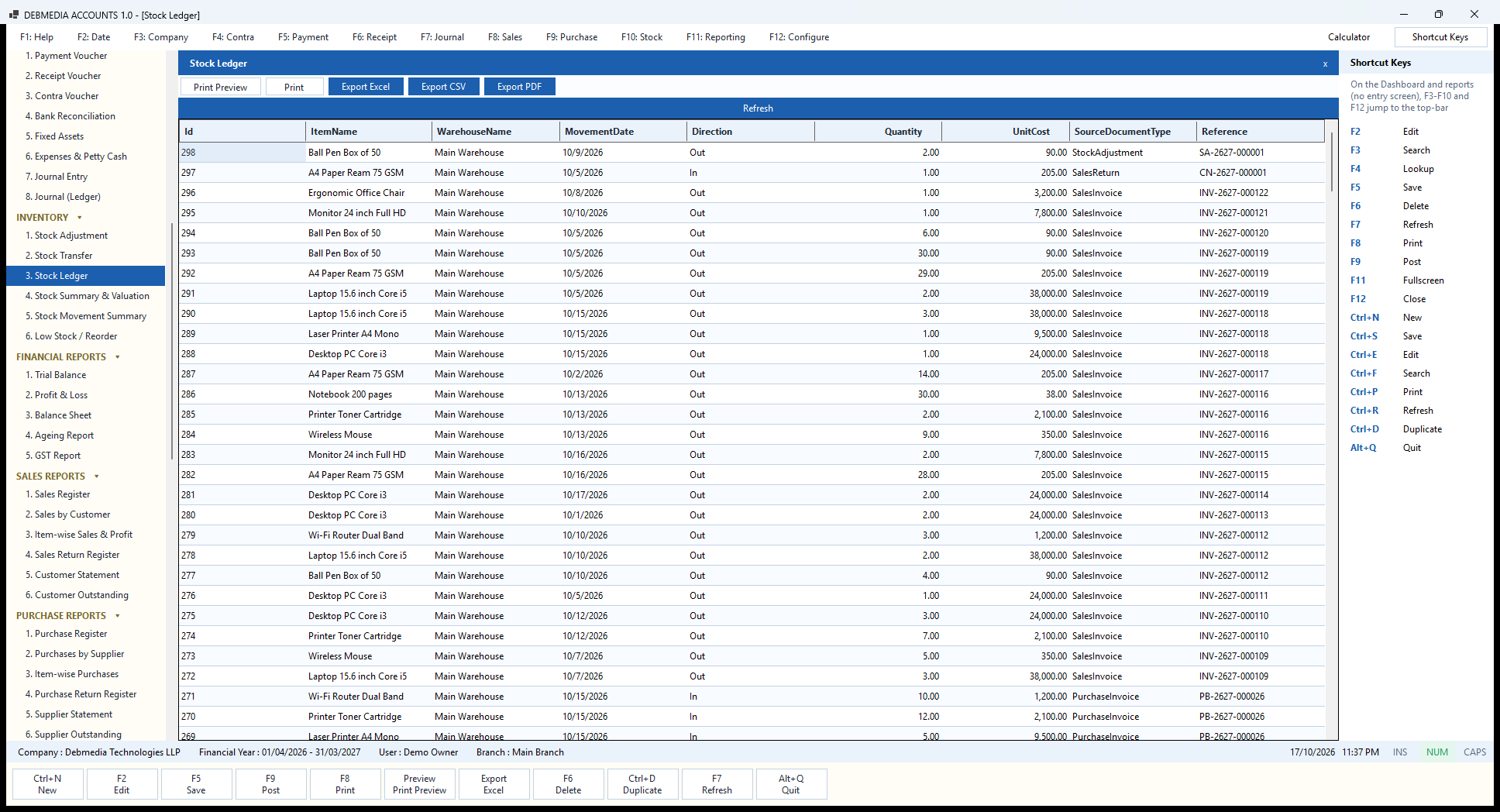
The Stock Ledger is the heart of the inventory. The quantity of any item in the program is not stored as a number that somebody edits; it is the sum of the movements in this ledger. The columns are ItemName, WarehouseName, MovementDate, Direction (In or Out), Quantity, UnitCost, the SourceDocumentType that caused the movement and its Reference.
Read down the picture and the whole story of the stock appears. The newest rows show the pens that left on a stock adjustment (SA-2627-000001), the ream of paper that came back on the credit note (CN-2627-000001) and a string of sales invoices taking chairs, monitors, laptops and printers out. Further down are purchase invoices bringing stock in: ten Wi-Fi routers at ₹1,200 and twelve toner cartridges at ₹2,100 on PB-2627-000026. Every line carries the cost per unit at that moment, which is how the cost of goods sold on each invoice is worked out.
The toolbar at the top is the same on every report: Print Preview, Print, Export Excel, Export CSV and Export PDF, and the blue Refresh bar reloads the data. Costing is by weighted average: each purchase updates the average cost of the item, and each sale takes stock out at that average. If a posted purchase or sale is cancelled, the ledger is recalculated so the average stays correct.
Because the ledger is the single source, the Stock Summary, the Low Stock report, the item-wise profit report and the Inventory account on the Balance Sheet all agree.
Stock Summary & Valuation
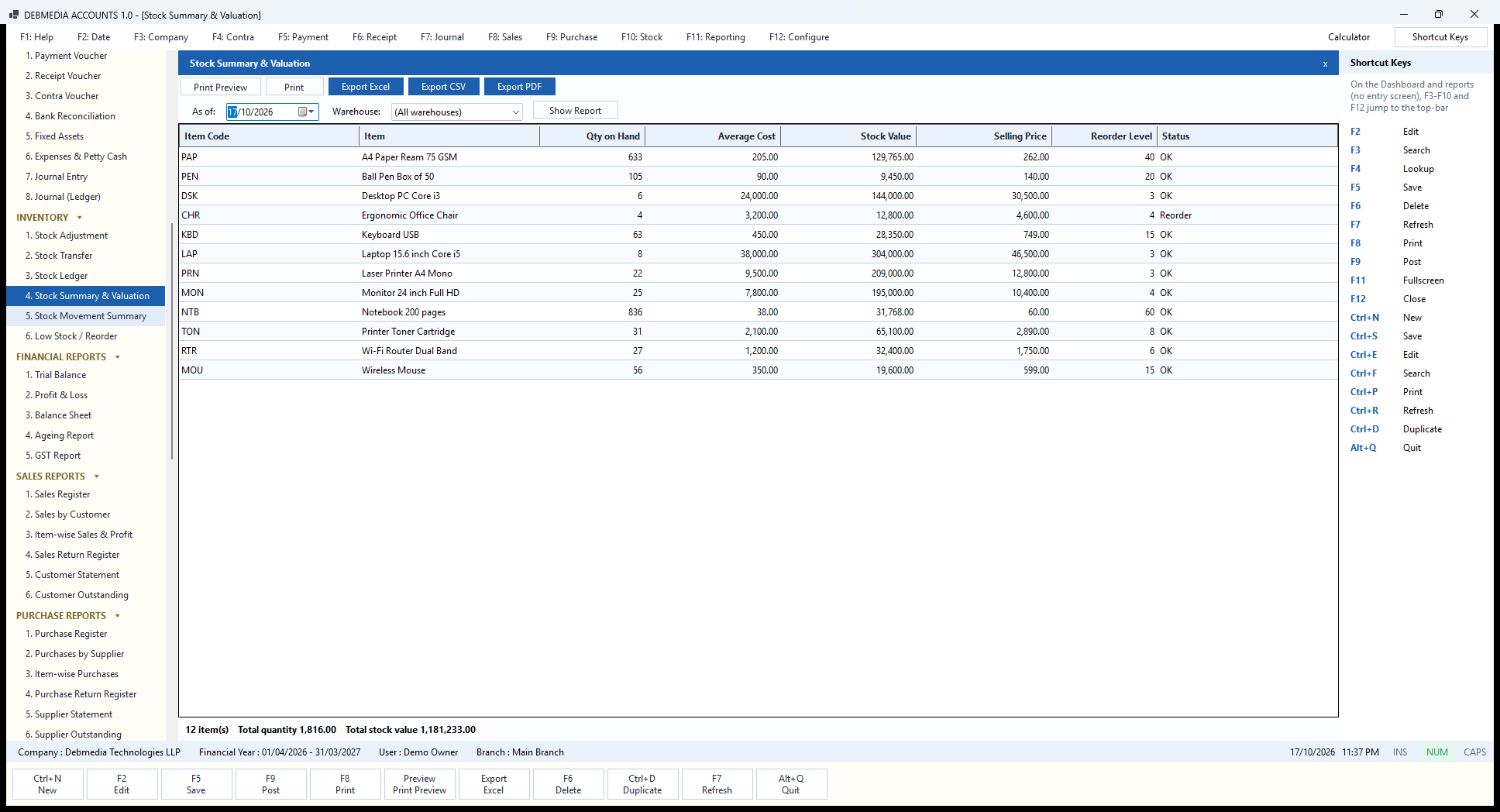
Stock Summary & Valuation answers “what do I have and what is it worth”. Choose an As of date and a Warehouse (or all warehouses), press Show Report, and the grid lists each item with its Qty on Hand, Average Cost, Stock Value, Selling Price, Reorder Level and a Status of OK or Reorder.
In the sample, A4 paper (633 reams at ₹205) is worth ₹129,765, laptops (8 at ₹38,000) are worth ₹304,000, and the ergonomic chair has reached its reorder level of 4 and is flagged Reorder. The footer sums it all up: “12 item(s), Total quantity 1,816.00, Total stock value 1,181,233.00”. That final figure is not a coincidence. It is exactly the balance of the Inventory account on the Trial Balance and the Balance Sheet, because both are read from the same stock ledger and the same postings. If the two ever differed, something would be wrong, and the checks that ship with the program test for exactly that.
Because the date is chosen by you, the report can be run for a past date to see what the stock was worth at the end of last quarter, and the warehouse box gives the value location by location. All five toolbar buttons are available: preview, print, and export to Excel, CSV or PDF.
Stock Movement Summary
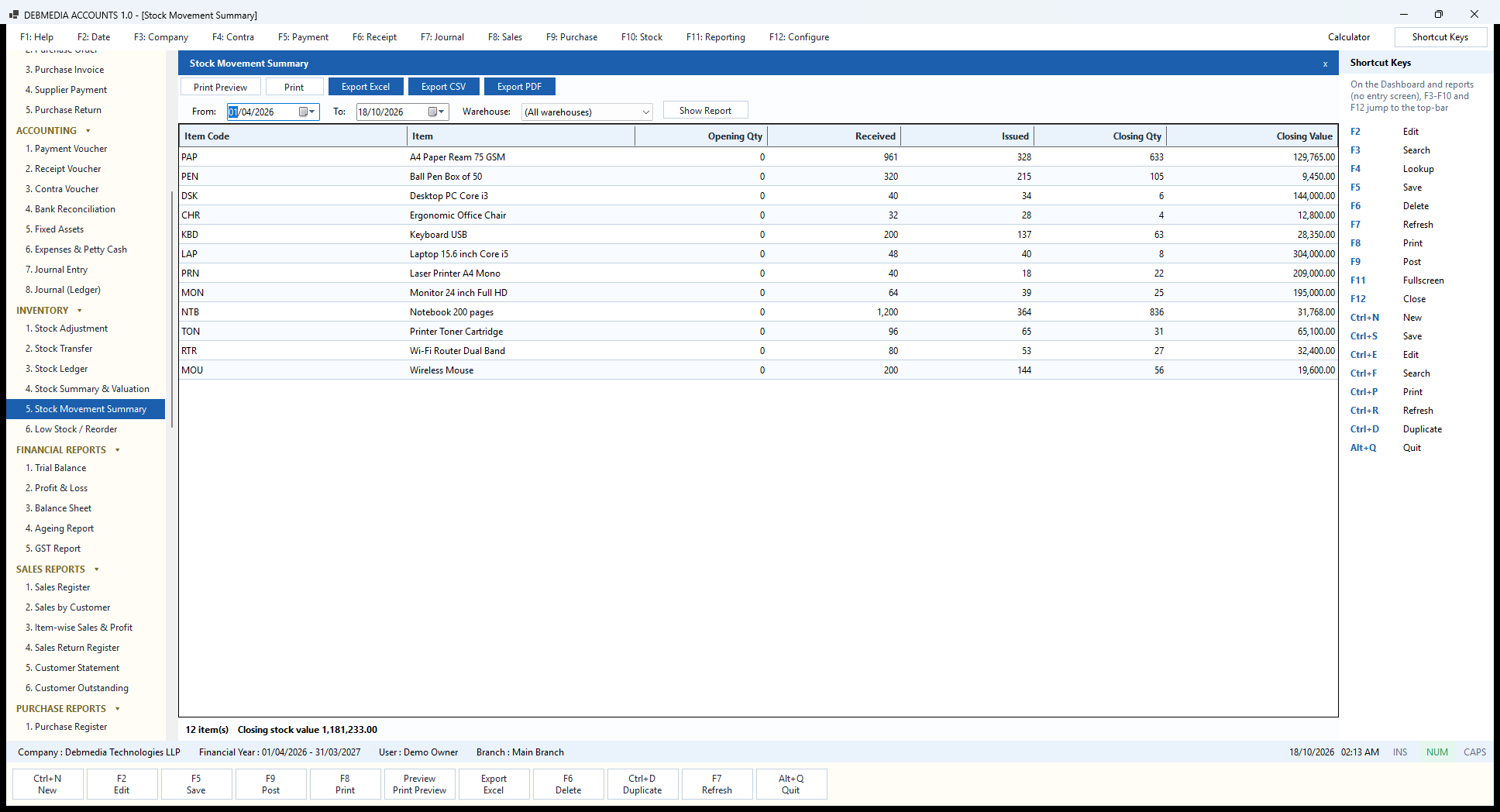
Stock Movement Summary explains how each item’s quantity got from its opening figure to its closing figure. Set From and To, choose a Warehouse or all of them, press Show Report, and each item shows its Opening Qty, the quantity Received (purchases, sales returns, stock found and transfers in), the quantity Issued (sales, purchase returns, stock lost and transfers out), the Closing Qty and the Closing Value.
In the sample, which began trading on 1 April with no opening stock, every opening quantity is zero. A4 paper shows 961 received (960 bought and 1 returned by a customer) and 328 issued, leaving 633 reams worth ₹129,765. The ball pens show 320 received and 215 issued, but the closing figure is 105, not 105 plus the two missing boxes, because the stock-take adjustment of 9 October is counted as issued. Laptops show 48 received, 40 issued and 8 left, worth ₹304,000.
The footer, “12 item(s), Closing stock value 1,181,233.00”, is the same total as the Stock Summary and the Inventory account on the Trial Balance. The report is the one to use at the end of a quarter to see how much came in, how much went out, and whether the difference is what you expect. It is built from the stock ledger, so it needs no extra entry, and the toolbar prints it or exports it to Excel, CSV or PDF.
Low Stock / Reorder
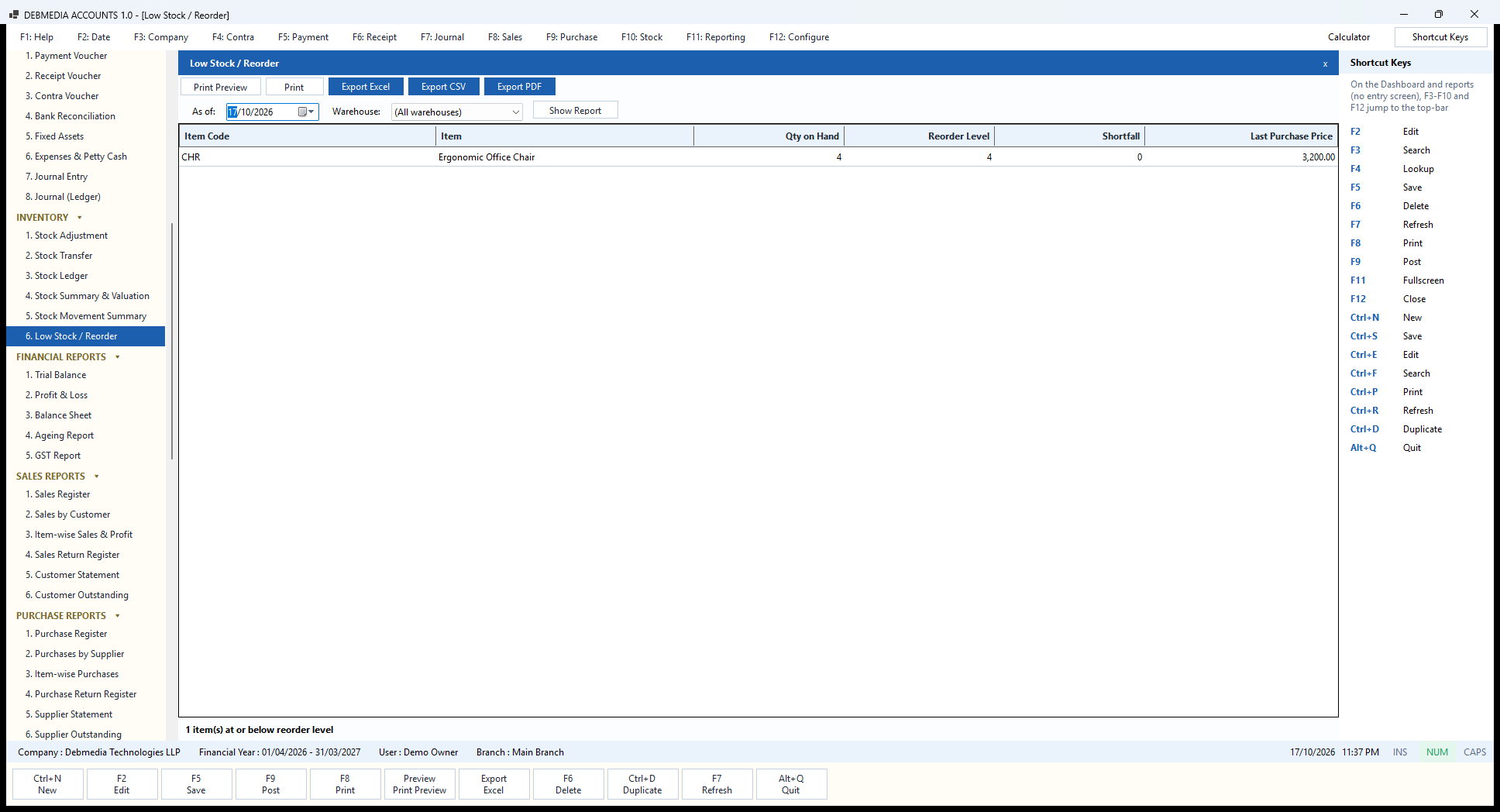
Low Stock / Reorder is the report you open on Monday morning before placing orders. It lists only the items whose quantity on hand has fallen to or below the Reorder Level set on the item. For each one it shows the Qty on Hand, the Reorder Level, the Shortfall and the Last Purchase Price, so you know roughly what the reorder will cost.
In the sample company one item qualifies: the ergonomic office chair, with 4 on hand against a reorder level of 4 (shortfall 0 because it is exactly at the level), last bought at ₹3,200. The footer says “1 item(s) at or below reorder level”, which is the same item the Dashboard counts in its Coming up panel. Items whose reorder level is zero are never reported, so services and slow movers do not clutter the list.
Choose an As of date and a Warehouse, press Show Report, and use the toolbar to print the list or send it to Excel, CSV or PDF.
Setting the levels. The report is only as useful as the reorder levels on the Items screen. A level of zero means “do not report this item”, so set a level on each stocked item, based on how much you sell in the time a supplier takes to deliver. When an item appears here, the Last Purchase Price and the supplier on the last bill tell you where to order and roughly what it will cost.
The report counts the stock across all warehouses unless you pick one in the Warehouse box, and it counts an item as low when it is at the reorder level or below it. The Dashboard shows the same count, so the Monday-morning glance and the detailed list always agree. The toolbar prints the list or exports it to Excel, CSV or PDF, ready to be sent to a supplier or a buyer.
Financial Reports
Trial Balance
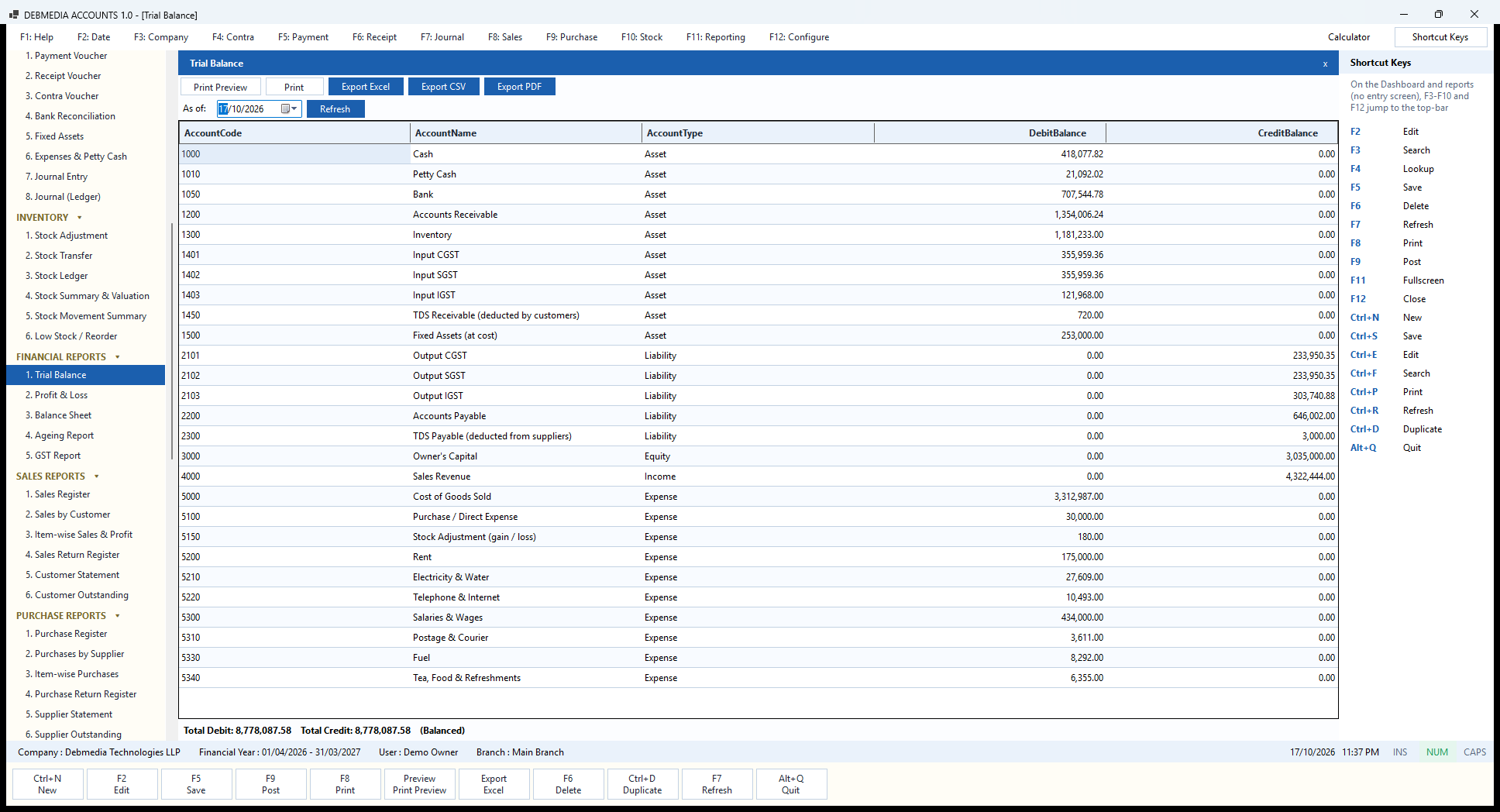
The Trial Balance lists every account that has a balance, with its type, and puts the balance in the debit or the credit column. Pick the As of date and press Refresh. The sample shows the whole company on 17 October 2026: assets such as Cash ₹418,077.82, Bank ₹707,544.78, Accounts Receivable ₹1,354,006.24, Inventory ₹1,181,233.00 and the input GST accounts; liabilities such as Accounts Payable ₹646,002.00, the output GST accounts and TDS Payable ₹3,000.00; Owner’s Capital ₹3,035,000.00; Sales Revenue ₹4,322,444.00; and the expenses, from Cost of Goods Sold ₹3,312,987.00 to Rent, Salaries, Electricity, Telephone, Postage, Fuel and Tea.
At the bottom the screen prints “Total Debit: 8,778,087.58, Total Credit: 8,778,087.58 (Balanced)“. Debits equal credits because the posting routine refuses any entry where they differ; this line is a visible proof, and if the two ever disagreed it would say so instead of “Balanced”.
Every figure agrees with another screen. The receivable is the total of the Customer Outstanding report, the inventory is the total of the Stock Summary, cash and bank match the Cash Book and Bank Book closing balances, and the GST accounts are the figures in GSTR-3B. The toolbar prints, previews and exports the report, and an accountant can take the Excel file straight into their own working papers.
Profit & Loss
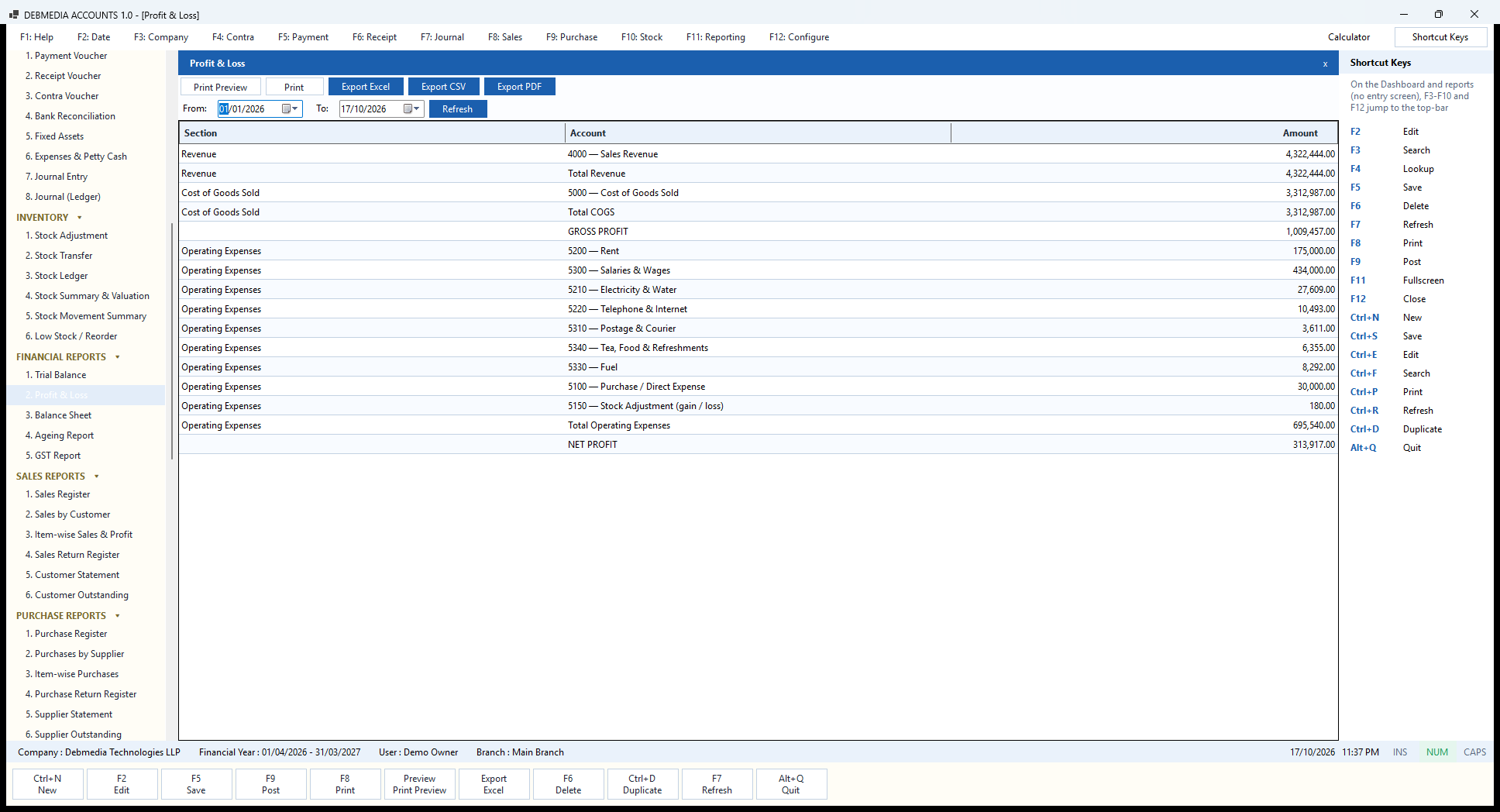
The Profit & Loss shows how the business has done over any period you choose with From and To and Refresh. It is built in sections. Revenue lists income accounts: here Sales Revenue of ₹4,322,444.00, the value of goods and services sold before GST. Cost of Goods Sold is ₹3,312,987.00, the cost of the stock that left the warehouse on those sales. The difference is the Gross Profit of ₹1,009,457.00, a margin of 23.35%, which agrees with the Item-wise Sales and Profit report.
Operating Expenses then lists each expense account: Rent ₹175,000, Salaries and Wages ₹434,000, Electricity and Water ₹27,609, Telephone and Internet ₹10,493, Postage and Courier ₹3,611, Tea, Food and Refreshments ₹6,355, Fuel ₹8,292, accountant’s fees booked as Purchase / Direct Expense ₹30,000, and the Stock Adjustment loss of ₹180, for a total of ₹695,540.00. Net Profit is ₹313,917.00, the same number you saw on the Dashboard as “Profit this year so far”.
Notice what is not in the expenses. Input GST that you can claim back is not a cost, so the ₹31,500 of GST on the rent never appears here; only the ₹175,000 does. GST collected from customers is not income for the same reason. Only the business’s own income and cost reach the profit. Depreciation will appear as an expense once the year’s run is posted, and a loss on selling an asset shows here too.
Balance Sheet
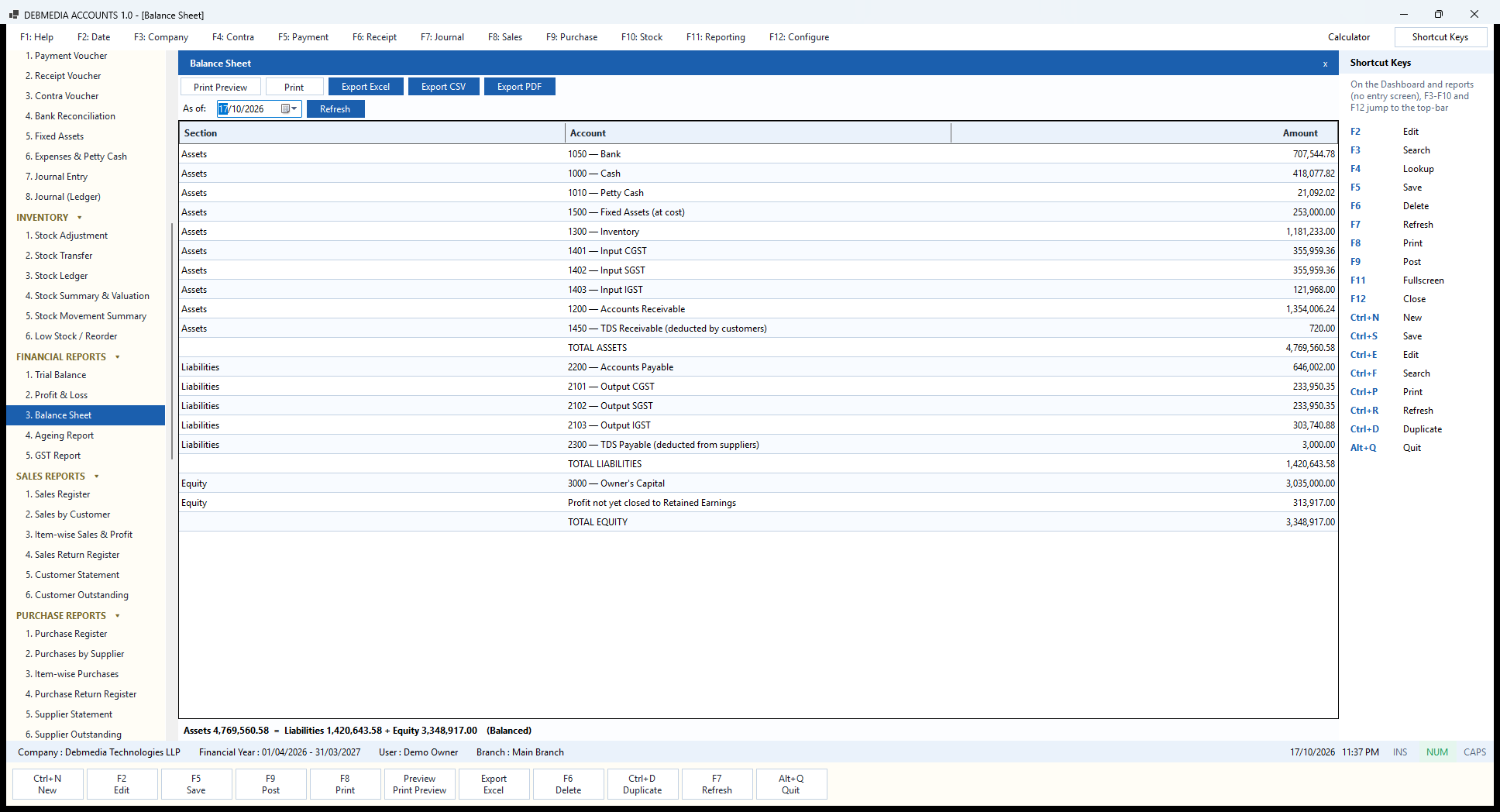
The Balance Sheet lists what the business owns, what it owes and what is left for the owner on the chosen As of date. Assets total ₹4,769,560.58: bank, cash and petty cash, fixed assets at cost, inventory, the three input GST accounts, accounts receivable and the TDS that customers have deducted and that you can claim. Liabilities total ₹1,420,643.58: accounts payable, the three output GST accounts and TDS payable to the government.
Equity is the owner’s capital of ₹3,035,000.00 plus a line that says “Profit not yet closed to Retained Earnings”, ₹313,917.00, which is the year’s profit so far. That line is why the sheet balances in the middle of a year: the profit has been earned but the year has not been closed. When you close the financial year, the program moves the profit into Retained Earnings and starts the next year with clean income and expense accounts.
The footer proves it: “Assets 4,769,560.58 = Liabilities 1,420,643.58 + Equity 3,348,917.00 (Balanced)”. The same toolbar prints, previews and exports it. Fixed assets are shown at cost here; once you post depreciation, the accumulated depreciation appears against them.
How to read it. The Balance Sheet is a snapshot at the date you choose, not a total for a period, so you can run it for any past date and see the position at that moment. Fixed assets are shown at cost, and once depreciation is posted the accumulated depreciation appears as its own line among the assets. The three GST input accounts are assets, because they are tax you may claim back, and the three GST output accounts and TDS Payable are liabilities, because you owe them to the government.
The Profit line in the equity section carries the year’s result before the year is closed, so the sheet balances at any date. Closing the financial year moves it into Retained Earnings and starts the next year with empty income and expense accounts. Use the toolbar to print, preview or export the sheet to Excel, CSV or PDF for your bank or your auditor.
Ageing Report
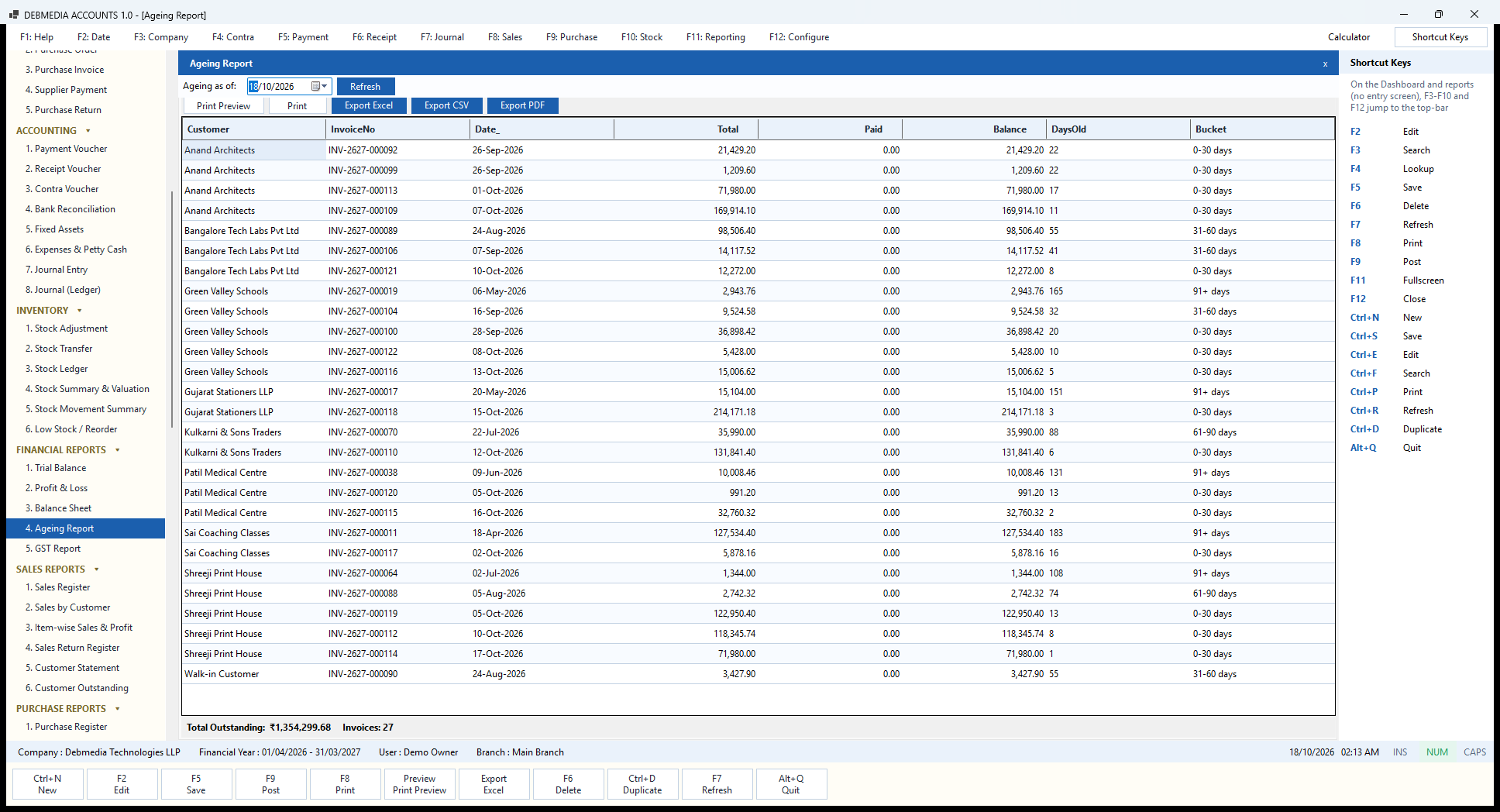
The Ageing Report sorts the money customers owe you by how long it has been owed. Choose the Ageing as of date and press Refresh. Each row is one open invoice: the Customer, the InvoiceNo, its date, the Total, the amount Paid, the Balance, the DaysOld and the Bucket: 0-30 days, 31-60 days, 61-90 days or 91+ days. The list is grouped by customer, so you can see at a glance which customers have several old invoices.
The sample has 27 open invoices. Most are recent: Anand Architects’ invoices of late September and October sit in the 0-30 bucket. A few are not. Sai Coaching Classes’ invoice of 18 April for ₹127,534.40 is 183 days old and Green Valley Schools’ invoice of 6 May is 165 days old, both in the 91+ bucket; Kulkarni & Sons’ invoice of 22 July is 88 days old, in 61-90. Those are the ones to chase first. The footer gives the total of the open invoices and their number.
The age is counted from the invoice date, so the report is independent of the credit terms. Combine it with the customer’s terms on the Customers screen to decide which balances are genuinely late. The Dashboard’s “overdue” figure uses the terms, whereas this report uses plain age. The toolbar prints, previews and exports the list as Excel, CSV or PDF, which makes it a good attachment for a collections meeting.
GST Report
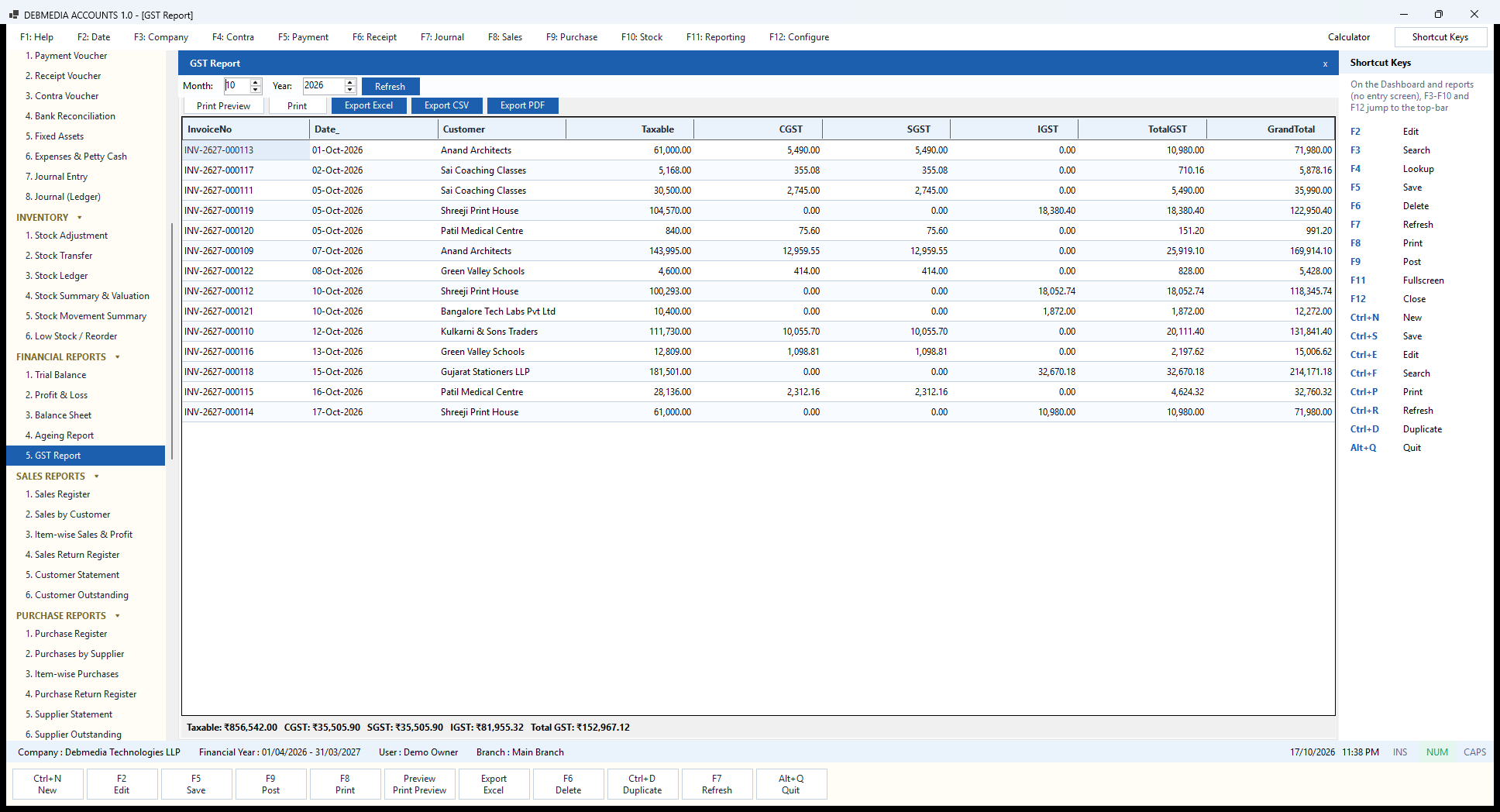
The GST Report is the quick monthly view of output tax. Set the Month and Year, press Refresh, and the grid lists every posted sales invoice of that month with its customer, Taxable value, CGST, SGST, IGST, TotalGST and GrandTotal. October 2026 has fourteen invoices in the sample. Invoices to Maharashtra customers show CGST and SGST in equal halves (Anand Architects, ₹61,000 taxable, ₹5,490 + ₹5,490), while invoices to Gujarat and Karnataka customers show IGST (Gujarat Stationers LLP, ₹181,501 taxable, ₹32,670.18 IGST).
The footer totals the month: Taxable ₹856,542.00, CGST ₹35,505.90, SGST ₹35,505.90, IGST ₹81,955.32, Total GST ₹152,967.12. The Dashboard’s “Income this month” of ₹856,280 is this taxable figure less the ₹262 credit note raised in October, which is a good example of the screens agreeing with each other.
For filing, the GST menu goes further: the GSTR-1 and GSTR-3B screens, the HSN summary and the input credit register that follow in this page group the same data the way the return asks for it.
How to use it. Change the month and year and press Refresh to see another month. The report lists posted sales invoices only, so drafts and cancelled invoices are not in it, and credit notes are reported separately in the GSTR-1 credit-note table. Use it as a first check before you build the filing files: if the total looks wrong, the cause is almost always one invoice with the wrong tax code or the wrong customer state, and it is easy to spot in a list of this length.
The split between CGST + SGST and IGST is decided by the customer’s state, so a customer set up with the wrong state will show up here with the wrong kind of tax. The three buttons Export Excel, Export CSV and Export PDF, together with Print Preview and Print, are at the top. For returns, the dedicated GSTR-1, HSN and GSTR-3B screens use the same data.
Sales Reports
Sales Register
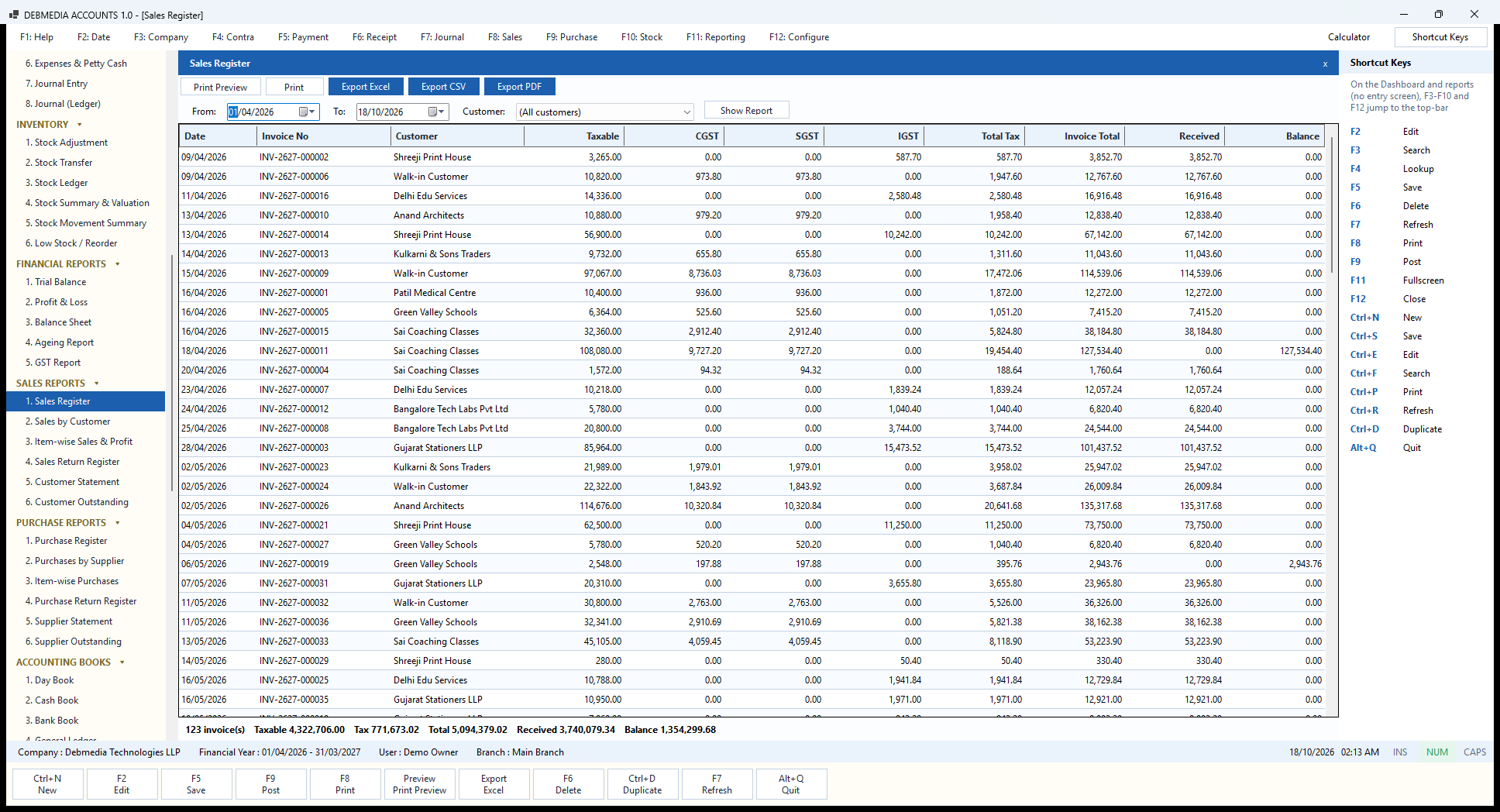
The Sales Register is the list of everything sold in a period, optionally for one customer. Set From and To, choose a customer or leave “(All customers)”, and press Show Report. Each row has the Date, Invoice No, Customer, Taxable value, CGST, SGST, IGST, Total Tax, Invoice Total, the amount Received and the Balance.
Reading the first rows shows how the tax splits. The 9 April invoice to Shreeji Print House of Ahmedabad carries IGST of ₹587.70 on ₹3,265.00, because Gujarat is a different state from Maharashtra, while the invoice to the walk-in customer the same day carries CGST and SGST of ₹973.80 each on ₹10,820.00. The 18 April invoice to Sai Coaching Classes for ₹127,534.40 shows nothing received, so its whole amount is still in the Balance column.
The footer totals the period: “123 invoice(s), Taxable 4,322,706.00, Tax 771,673.02, Total 5,094,379.02, Received 3,740,079.34, Balance 1,354,299.68”. The register lists invoices as issued; credit notes appear in the Sales Return Register, which is why the taxable total here is ₹262 higher than the Sales Revenue on the Profit and Loss, the amount of the one credit note. The taxable figure is also exactly the sum of the two GSTR-1 tables (B2B ₹3,133,861 plus B2C ₹1,188,845), which is a handy check before you file.
Sales by Customer
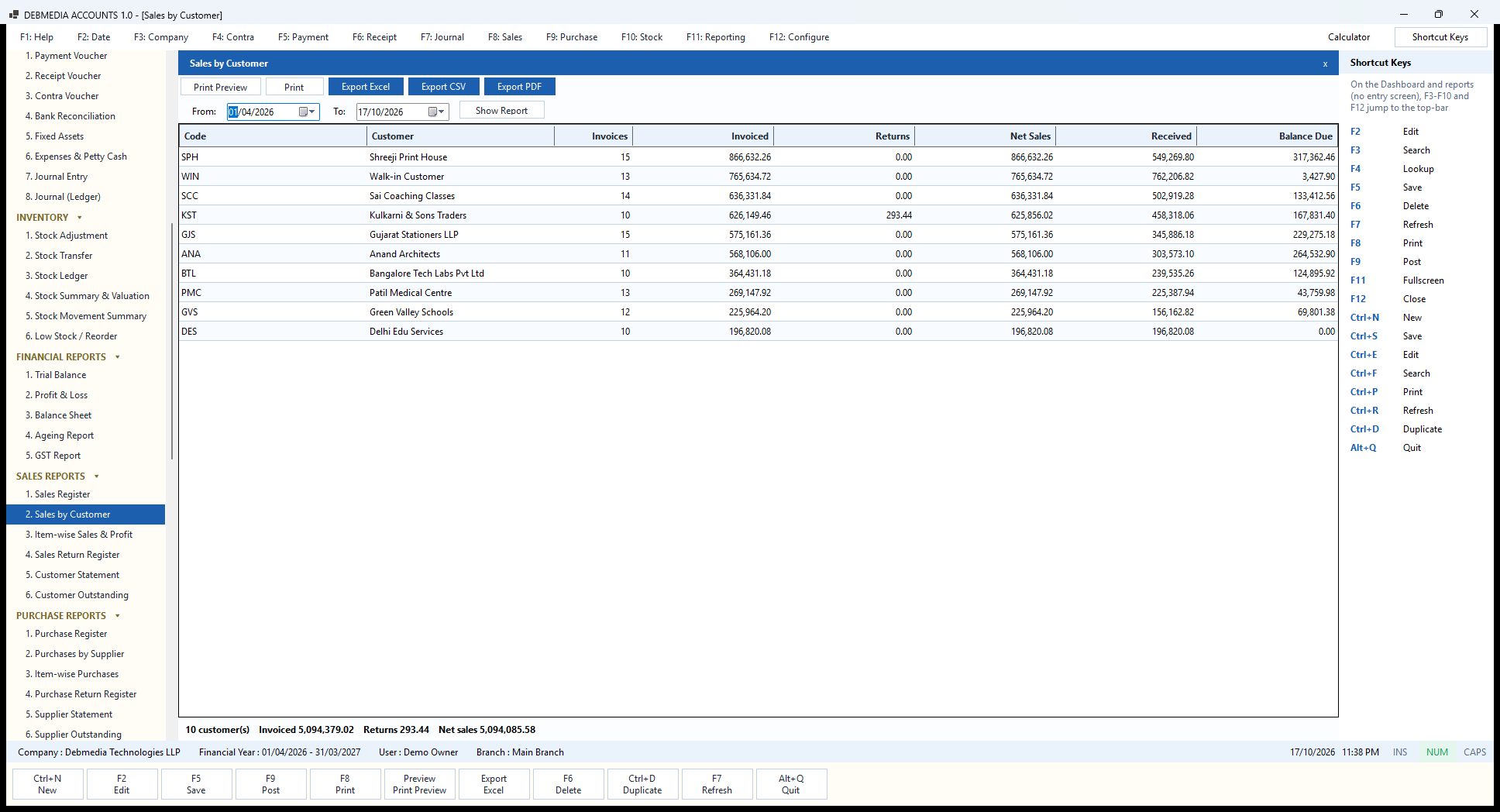
Sales by Customer ranks your customers. For a chosen period it shows, for each one, the number of Invoices, the amount Invoiced, any Returns, Net Sales, the amount Received and the Balance Due. The list is sorted by value, so the biggest customers come first: Shreeji Print House (15 invoices, ₹866,632.26), the walk-in customer, Sai Coaching Classes, Kulkarni & Sons Traders, Gujarat Stationers LLP and the rest.
The footer reads “10 customer(s), Invoiced 5,094,379.02, Returns 293.44, Net sales 5,094,085.58”. These are invoice totals including GST. Sales Revenue on the Profit and Loss (₹4,322,444.00) is the same business before GST, which is why the two numbers differ.
The report is useful for deciding who to visit, who to chase and who to offer a better price. A customer with large sales and a large balance due, such as Shreeji Print House, deserves a call; one with large sales and nothing due, such as Delhi Edu Services, deserves a thank-you. The toolbar prints and exports the list.
Reading the columns. Invoiced is the total of the customer’s posted invoices including GST, Returns is the total of credit notes against them, and Net Sales is the difference. Received is what they have paid. Because the report is by period, you can run it for a quarter, for the whole year or for a single month, and compare customers fairly over the same dates.
It is the quickest way to find the customers who matter most to the business. The top three customers in the sample account for about 45 per cent of all sales, which is exactly the kind of dependence an owner should know about. Choose the dates, press Show Report, and print or export the result as Excel, CSV or PDF.
Item-wise Sales & Profit
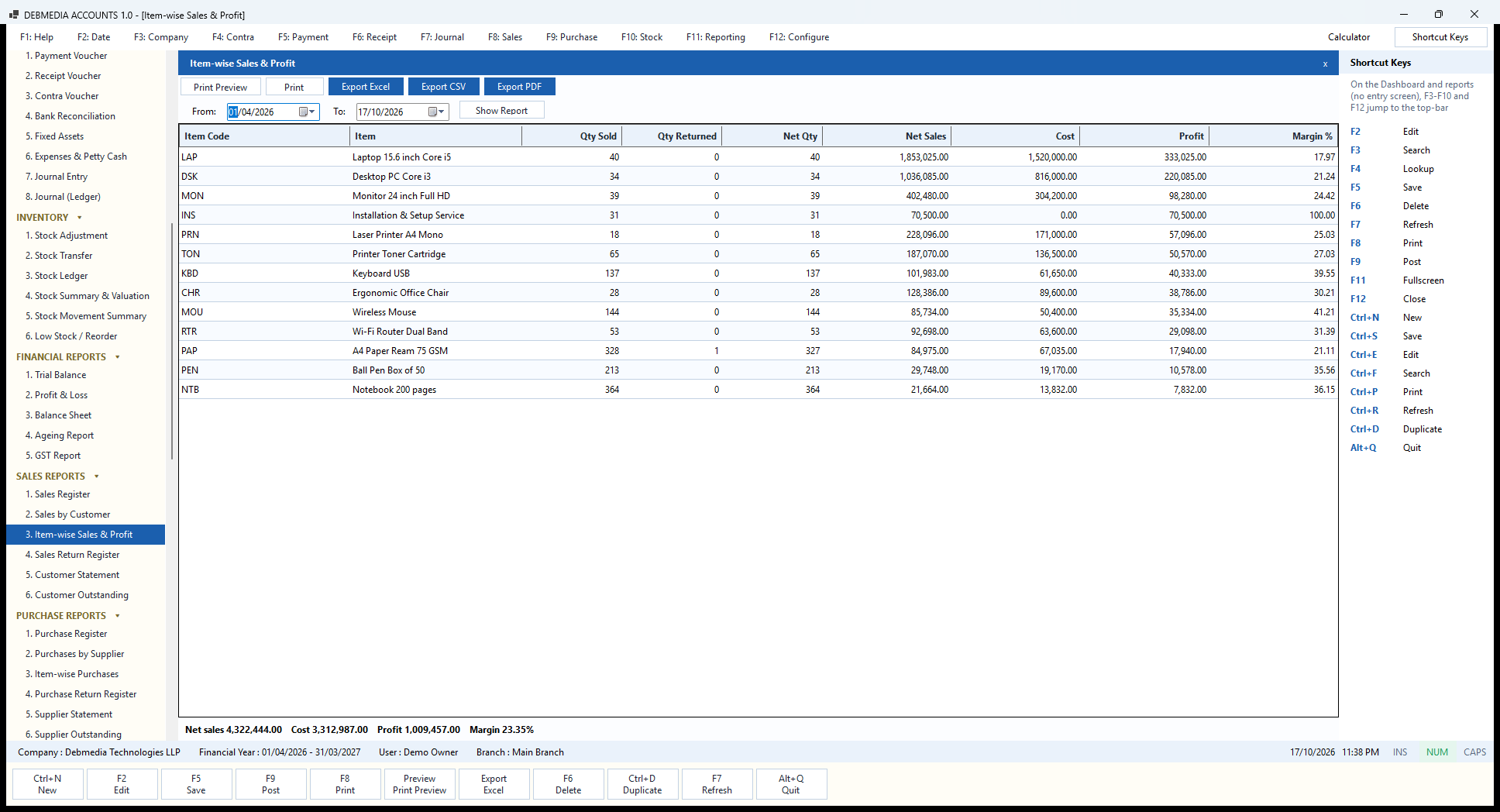
Item-wise Sales & Profit tells you which products actually make money. For a chosen period each item shows the Qty Sold, Qty Returned, Net Qty, Net Sales, Cost, Profit and Margin %. The cost is the weighted-average cost of the stock at the moment each sale was posted, so the profit is the true profit and not a guess based on today’s price list.
The sample company shows a clear pattern. Laptops bring in the most money (₹1,853,025 from 40 sold) but at the thinnest margin, 17.97%. Mice and keyboards sell at 41% and 40%, and installation, a service with no stock cost, is 100%. A4 paper shows 328 reams sold and 1 returned, so the net quantity is 327. The footer gives the overall result: net sales ₹4,322,444.00, cost ₹3,312,987.00, profit ₹1,009,457.00 and a margin of 23.35%, exactly the gross profit of the Profit and Loss.
This is the report to look at before agreeing a discount. If an item’s margin is 18%, a 10% discount takes away more than half of the profit on it.
Using it for pricing. Run it for a quarter and compare the margins. A product with high sales and a low margin deserves attention: either the buying price can come down or the selling price can go up. A product with a high margin but low sales may be worth promoting. Services appear with a cost of zero and therefore a hundred per cent margin, which is correct arithmetic but not a reason to ignore the time they take.
The cost on each line is the stock’s average cost at the time of sale, not a standard cost, so a purchase at a higher price changes the margin on later sales automatically. Returns are netted off in the quantity and the sales. The toolbar prints the report or exports it to Excel, CSV or PDF, and the totals can be compared with the Profit and Loss.
Sales Return Register
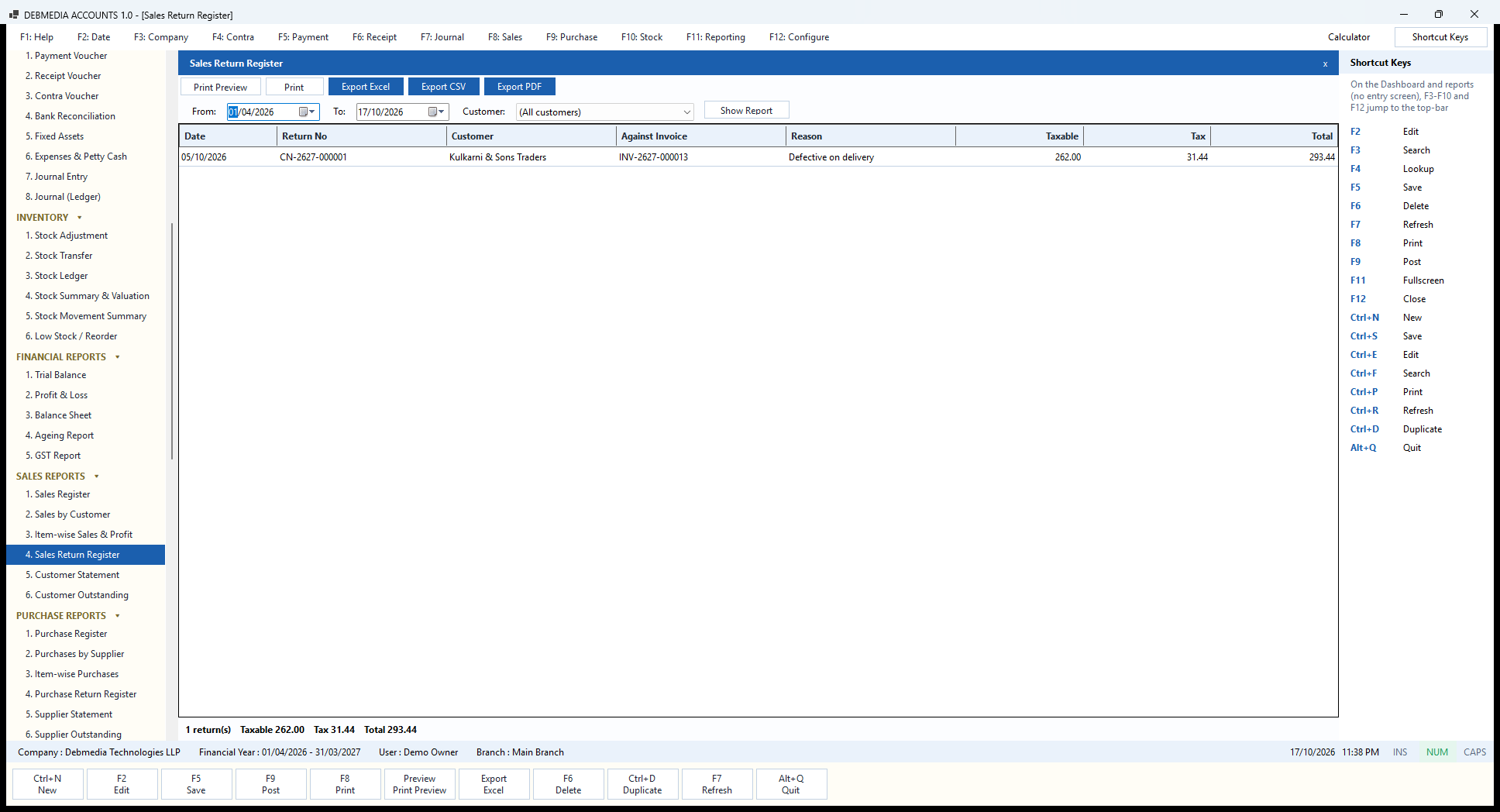
The Sales Return Register lists the credit notes you have issued in a period, optionally for one customer. Each row gives the Date, the Return No, the Customer, the invoice it was Against, the Reason, and the Taxable amount, Tax and Total. The sample has one: CN-2627-000001 of 5 October to Kulkarni & Sons Traders against invoice INV-2627-000013, “Defective on delivery”, ₹262.00 plus ₹31.44 tax, ₹293.44.
The footer sums the period: “1 return(s), Taxable 262.00, Tax 31.44, Total 293.44”. A rising number of returns, or a recurring reason, is a quality signal worth acting on. It is also the working paper behind the GSTR-1 credit-note table, which you will see later on this page, so the two always agree.
How to use it. Choose the dates and, if you want, one customer from the drop-down, then press Show Report. Only posted credit notes are included. A credit note that was cancelled is left out, because its effect has been undone in the books.
The register is a useful early-warning device. Several returns of the same item suggest a supplier or product problem, and several returns for the same customer suggest a delivery or specification problem. For tax, the taxable value and tax shown here are what reduce your outward liability, and they are carried into the credit-note table of GSTR-1 and into the GSTR-3B totals. Print or export the register as Excel, CSV or PDF from the toolbar whenever your accountant asks for the credit notes of a month.
Customer Statement
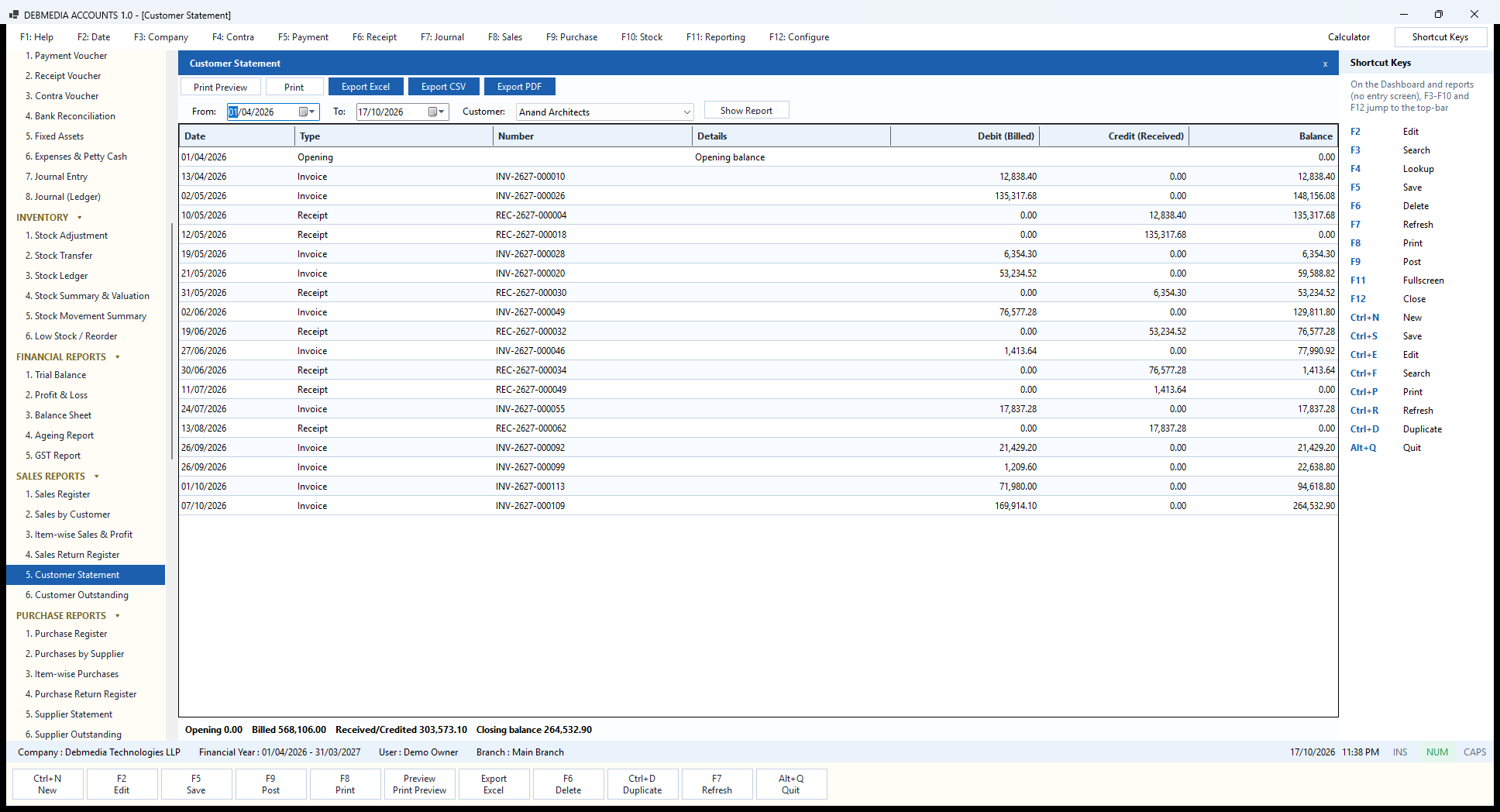
The Customer Statement is the document you send when a customer says “we don’t think we owe that”. Choose a Customer and a period and the grid shows each event in date order: the Opening balance, each Invoice as a debit (Billed), each Receipt as a credit (Received) and the running Balance.
The sample statement is for Anand Architects. It starts at nil, shows the 13 April invoice of ₹12,838.40, the 2 May invoice of ₹135,317.68, the two receipts that cleared them on 10 and 12 May, and so on through the year. By 7 October the balance is ₹264,532.90, and the footer repeats it: “Opening 0.00, Billed 568,106.00, Received/Credited 303,573.10, Closing balance 264,532.90”. That is the same balance shown on the Customers screen and on the Dashboard’s list of who owes you the most.
Because the statement is read from posted invoices, receipts and credit notes, it cannot disagree with the ledger. Print or preview it, or save it as a PDF to e-mail to the customer.
Using it. The statement for a customer is built only from posted documents: invoices, receipts and credit notes. A receipt that carried a TDS deduction shows as a credit for the full amount settled, because that is what clears the invoice, and a cancelled document disappears along with the entry that it reversed. Choose a different customer in the drop-down and press Show Report to see another account.
The opening balance on the first line is what the customer owed at the start of the period, which lets you send a statement for any date range and still have it add up. Use Print Preview to check the layout, Export PDF to e-mail it, or Excel and CSV to take the data elsewhere. It is the best document to send before a collections call, because it lists exactly which invoices are unpaid.
Customer Outstanding
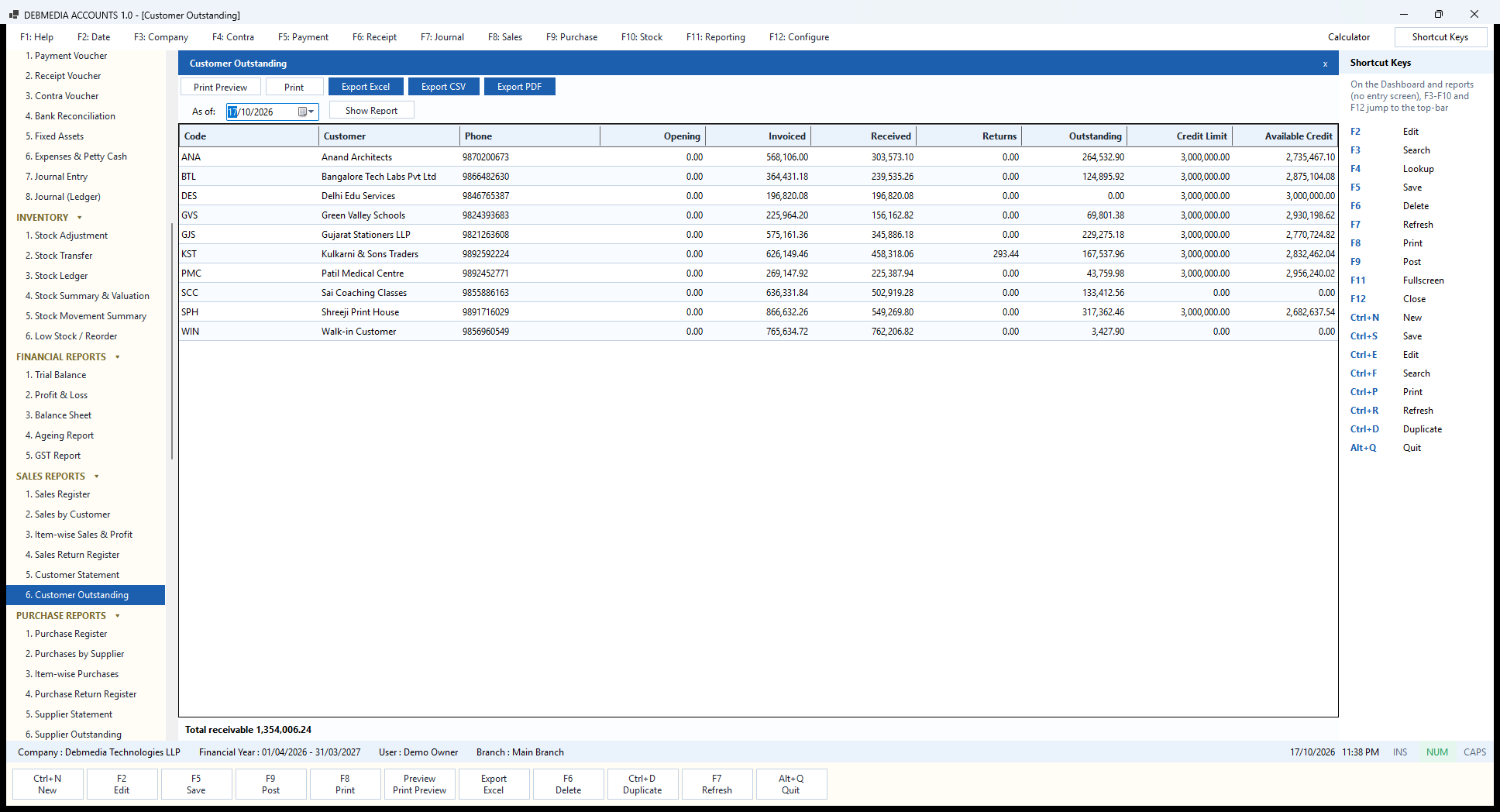
Customer Outstanding is a one-page picture of everything customers owe you on a chosen date. The columns are Opening, Invoiced, Received, Returns, Outstanding, Credit Limit and Available Credit. The last two connect the report to the credit control on the Customers screen: you can see at a glance who has room to buy more and who is near the limit.
In the sample, Shreeji Print House owes ₹317,362.46, Anand Architects ₹264,532.90 and Gujarat Stationers LLP ₹229,275.18, while Delhi Edu Services has paid in full. The credit note raised for Kulkarni & Sons Traders appears in the Returns column (₹293.44) and reduces what that customer owes.
The footer, “Total receivable 1,354,006.24“, is the balance of the Accounts Receivable account on the Trial Balance and the figure on the Dashboard’s “You will receive” card. Customers with a zero credit limit, such as the small coaching class and the walk-in customer, show no limit at all.
Using it for collections. Set the As of date and press Show Report. Every customer appears with what they have been invoiced in total, what they have paid, any returns credited and what remains outstanding. Work down the Outstanding column from the largest figure, and compare it with the Dashboard’s list of who is overdue to see which of those balances are already past their due date.
The Available Credit column is the credit limit less the outstanding balance, which is the same calculation the program makes when you post an invoice; it is why a sale to a customer who is over the limit is refused with a message showing the available credit. The report can be printed for a collections meeting or exported to Excel, CSV or PDF, and the Customer Statement gives the detail behind any single line.
Purchase Reports
Purchase Register
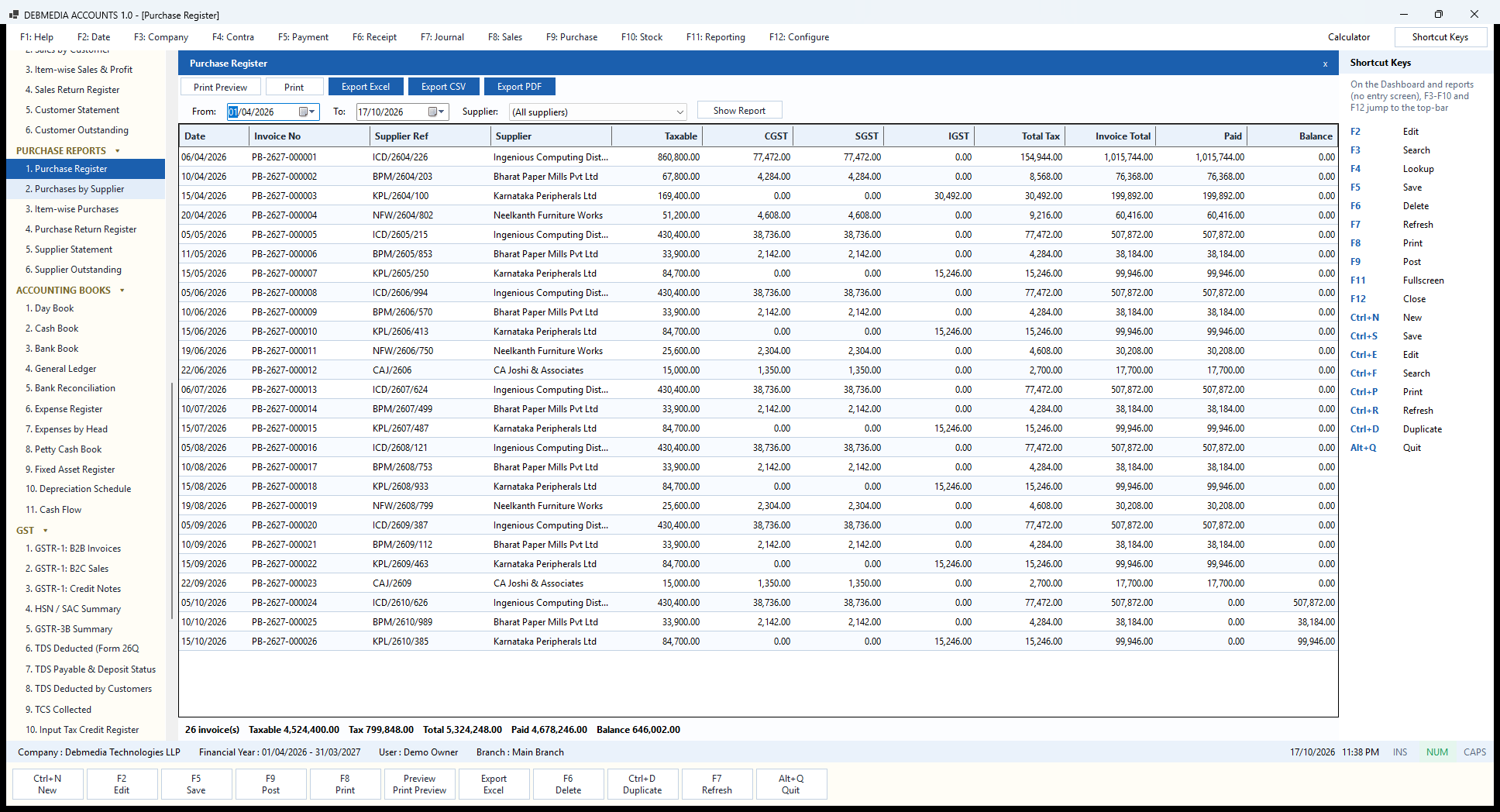
The Purchase Register is the list of everything bought in a period, optionally for one supplier. Each row shows the Date, the program’s own Invoice No (PB-2627-…), the Supplier Ref, the Supplier, the Taxable value, CGST, SGST, IGST, Total Tax, Invoice Total, the amount Paid and the Balance.
The sample has 26 bills. Bills from Pune suppliers show CGST and SGST, bills from the Bengaluru supplier show IGST (₹30,492 on the April bill), and the two bills from the chartered accountants show ₹15,000 taxable plus ₹2,700 GST. The first bill, on 6 April, was for ₹1,015,744; the last three, from October, are unpaid and show their full balance (₹507,872, ₹38,184 and ₹99,946).
The footer totals the register: “26 invoice(s), Taxable 4,524,400.00, Tax 799,848.00, Total 5,324,248.00, Paid 4,678,246.00, Balance 646,002.00”. That balance is what the Dashboard calls “You need to pay” and what Accounts Payable shows on the Trial Balance.
Using it at month end. Set the dates to the month, leave the supplier on “(All suppliers)” and press Show Report. The tax columns, CGST, SGST and IGST, add up to the input credit you will claim for those bills, and the Paid and Balance columns show which of them are still to be settled. Choosing a single supplier turns the register into a list of that supplier’s bills.
Because the bill’s own number and the supplier’s reference sit side by side, it is easy to check a supplier’s statement against your books or to find a bill when the supplier asks about it. Only posted bills are listed; a cancelled bill is removed from the register because its entry has been reversed. The register can be printed, previewed or exported to Excel, CSV or PDF, and its tax columns tie in with the Input Tax Credit Register and with GSTR-3B.
Purchases by Supplier
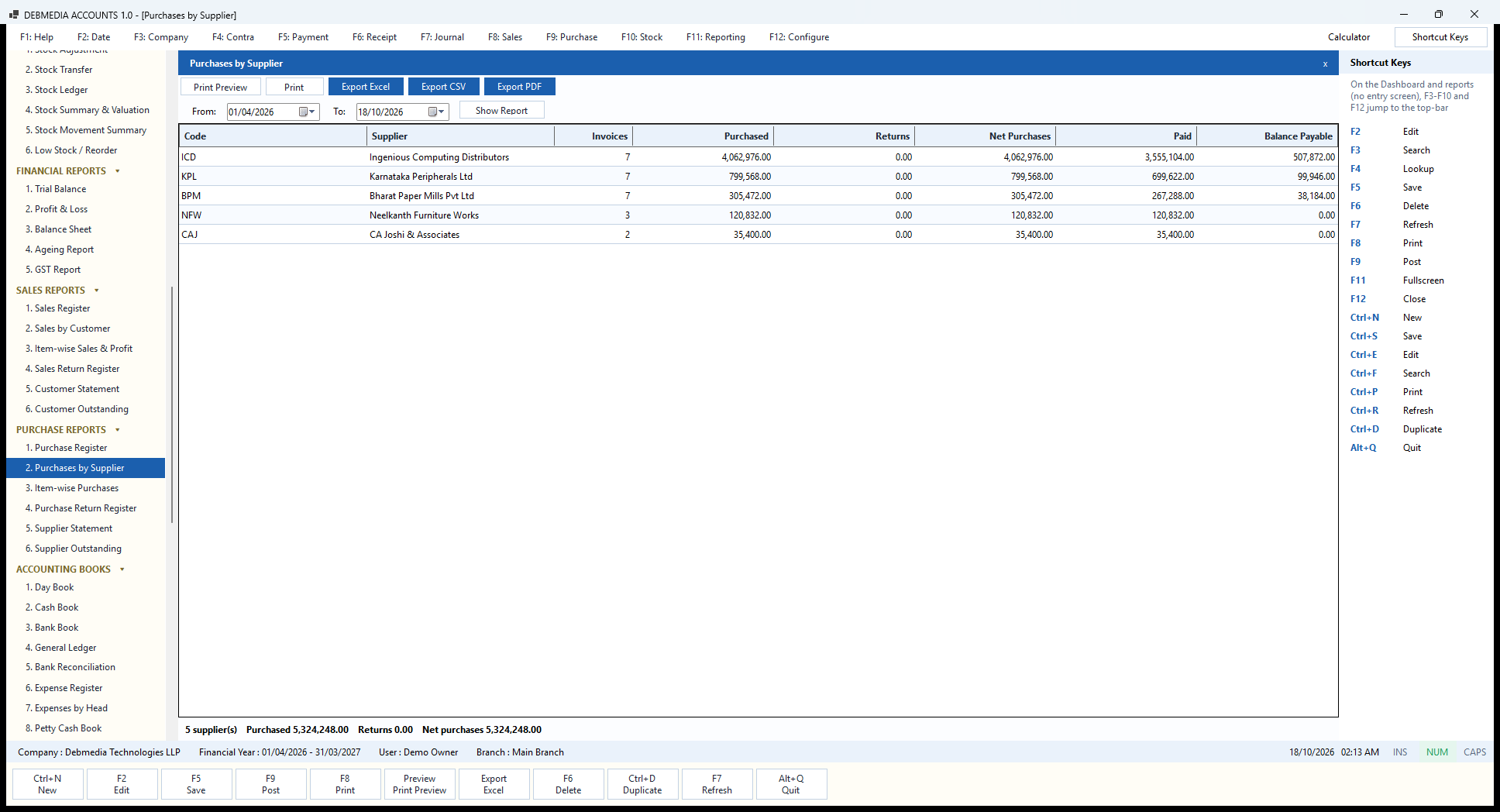
Purchases by Supplier ranks your suppliers for a period. For each one it shows the number of Invoices, the amount Purchased (including GST), any Returns, the Net Purchases, the amount Paid and the Balance Payable. Set the dates and press Show Report.
In the sample, Ingenious Computing Distributors accounts for seven bills worth ₹4,062,976.00, of which ₹3,555,104.00 has been paid and ₹507,872.00 is still due. Karnataka Peripherals Ltd has seven bills worth ₹799,568.00 with ₹99,946.00 payable; Bharat Paper Mills seven bills worth ₹305,472.00 with ₹38,184.00 payable; Neelkanth Furniture Works three bills, fully paid; and CA Joshi & Associates two bills of ₹17,700.00 each, fully paid. The footer, “5 supplier(s), Purchased 5,324,248.00, Returns 0.00, Net purchases 5,324,248.00”, matches the total of the Purchase Register.
The report shows at a glance how dependent the business is on one supplier: here a single distributor supplies about three quarters of all purchases, which is useful when negotiating terms or thinking about risk. It also shows where the money you owe is concentrated, so you know whom to pay first. The toolbar prints it or exports it to Excel, CSV or PDF.
Item-wise Purchases
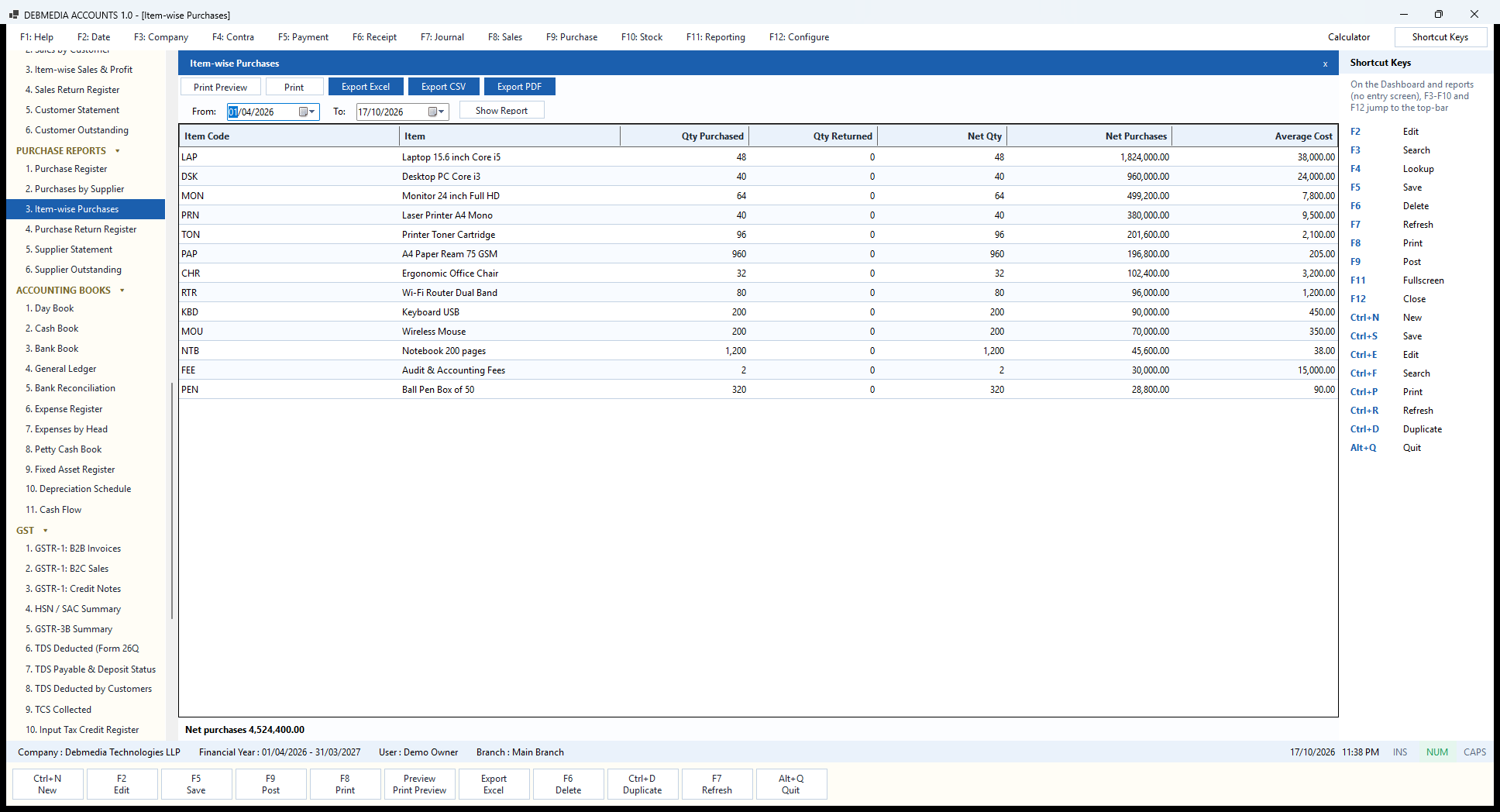
Item-wise Purchases turns the bills around and looks at them by item. For each item it shows the Qty Purchased, Qty Returned, Net Qty, Net Purchases and the Average Cost. In the sample, laptops lead with 48 bought for ₹1,824,000 (average ₹38,000), followed by desktops, monitors and printers, and the service line for the accountants’ fees shows 2 units at ₹15,000.
The footer, “Net purchases 4,524,400.00”, equals the taxable total in the Purchase Register, because it is the same data cut a different way. Buyers use this report to spot items where the price has crept up, or to decide where a volume discount can be negotiated. The Average Cost column shows exactly what the stock is being valued at.
What to look for. Because the report shows the average cost beside the quantity, it is a quick way to see whether you paid the same price each time. If an item’s average sits well above the price in your last quote, one of the bills was probably entered at the wrong rate, and the Purchase Register will tell you which one. The quantity returned column fills in when a debit note is posted against the item, and the net quantity and net purchases are worked out after the return.
Services are included as well as goods, which is why the accountants’ fees appear in the list as an item with a unit cost of ₹15,000. Choose the dates at the top and press Show Report; the report can be printed, previewed or exported to Excel, CSV or PDF. Used together with the Item-wise Sales and Profit report it completes the picture for every product: what you paid, what you sold it for and what you made.
Purchase Return Register
The Purchase Return Register is the supplier-side twin of the sales return register. It lists the debit notes issued in the chosen period, optionally for one supplier, with the Date, Return No, Supplier, the invoice it was Against, the Reason and the Taxable value, Tax and Total.
In the sample company no goods have been returned to a supplier, so the report is empty and the footer reads “0 return(s), Taxable 0.00, Tax 0.00, Total 0.00”. An empty report is shown rather than hidden, so you can tell the difference between “nothing to report” and “report broken”. When a return exists, its tax feeds the “ITC reversed” line of GSTR-3B.
How to use it. Choose the dates and, if you wish, a single supplier, then press Show Report. Only posted debit notes are listed: a draft that has not been posted, or a debit note that was cancelled, does not appear, so the register always reflects what really reduced your payable.
A debit note is raised on the Purchase Return screen and always refers to the bill it relates to, which is why the register has an Against Invoice column. That link matters at the end of the month: the tax on each return is deducted from your input credit in GSTR-3B (row 4(B)(2)), and this register is the list of the returns behind that number. Print Preview, Print, Export Excel, Export CSV and Export PDF are on the toolbar as on every other report, so the register can go to your accountant with the rest of the month’s papers.
Supplier Statement
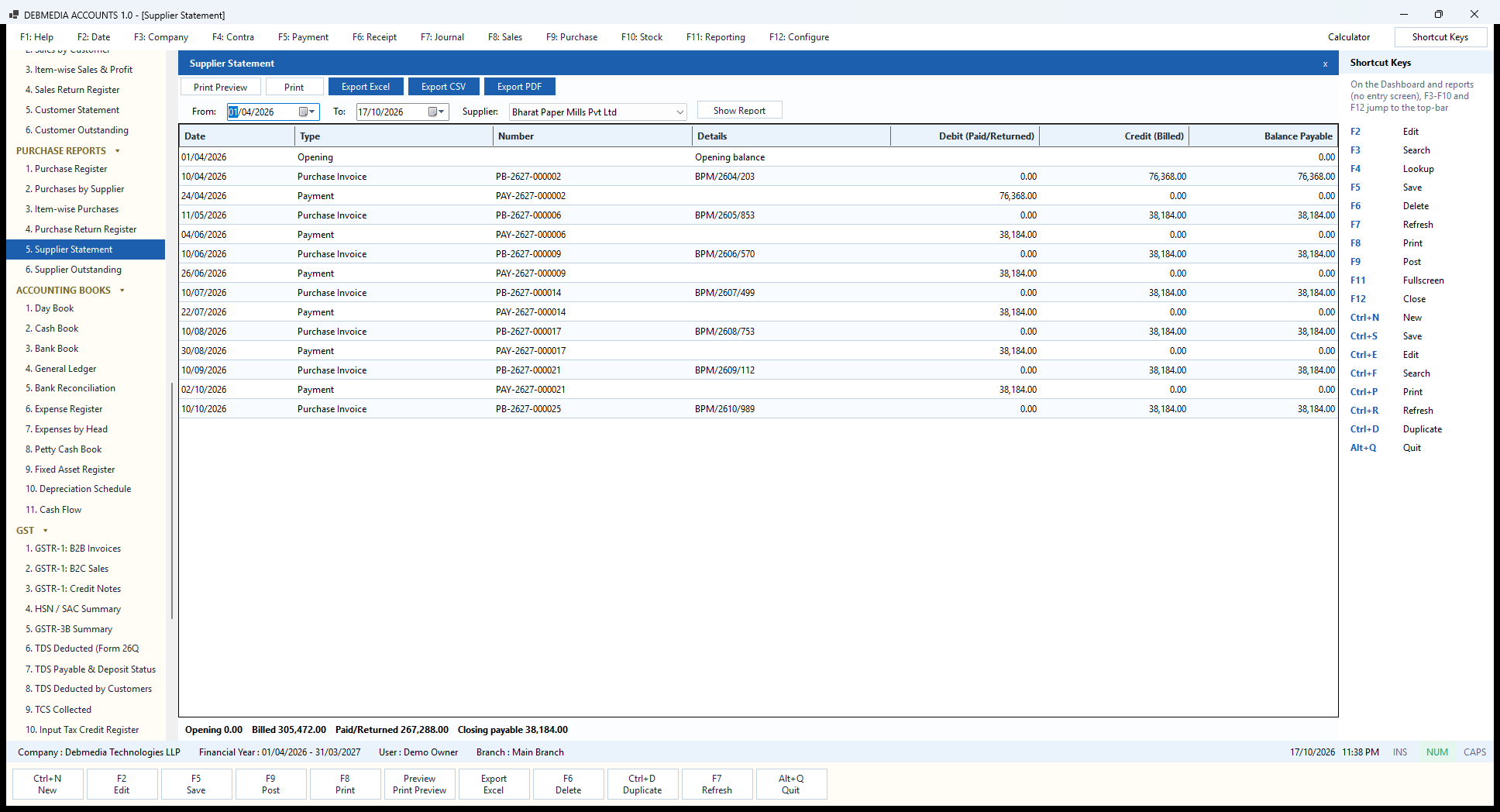
The Supplier Statement is the mirror of the customer statement and the document to reconcile against when a supplier sends their own statement of account. Choose the Supplier and a period, press Show Report and the grid lists, in date order, each Purchase Invoice as a credit (Billed), each Payment as a debit (Paid/Returned) and the running Balance Payable.
The sample shows Bharat Paper Mills Pvt Ltd. A bill of ₹76,368 on 10 April is paid on 24 April; a bill of ₹38,184 on 11 May is paid on 4 June; and the pattern repeats monthly. The last bill, PB-2627-000025 of 10 October for ₹38,184, is still unpaid. The footer says “Opening 0.00, Billed 305,472.00, Paid/Returned 267,288.00, Closing payable 38,184.00”, the same figure the Suppliers screen shows as this supplier’s outstanding payable.
Each bill carries the supplier’s own reference (BPM/2604/203 and so on) in the Details column, so you can match a line against the supplier’s own paperwork at once.
Using it. Run it for the whole year to reconcile against a supplier’s own statement, or for a single month to answer a query. A line that appears in your statement but not in theirs is usually a bill they have not yet recorded or a payment that has not reached them; a line in theirs but not in yours is a bill you have not entered, which is a good moment to enter it.
Part payments show up as a payment smaller than the bill, leaving a balance. A payment on which TDS was withheld is shown at the full amount settled against the bill, because that is what clears it. Debit notes appear as reductions. The statement can be printed or saved as a PDF to send to the supplier, or exported to Excel or CSV.
Supplier Outstanding
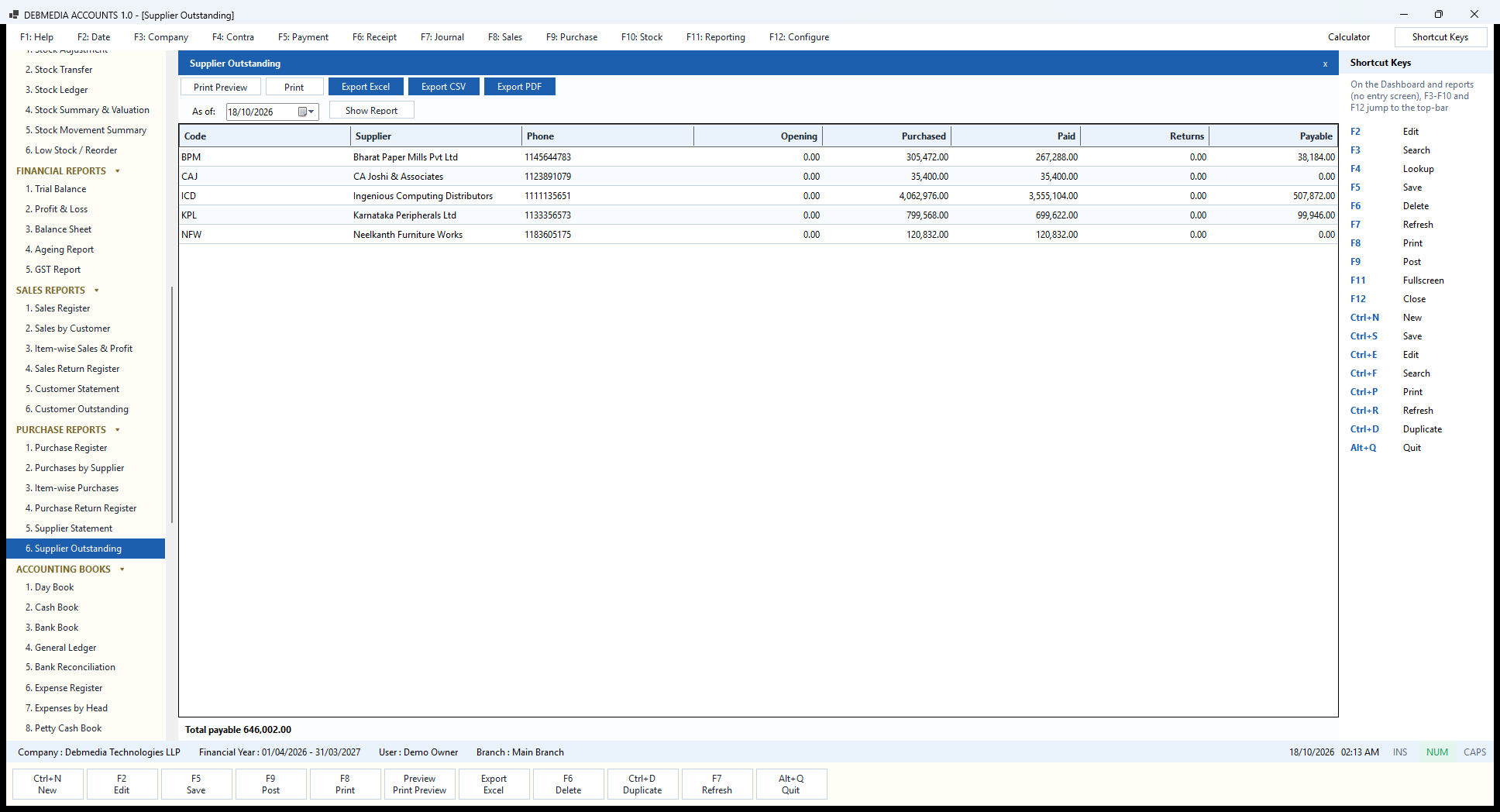
Supplier Outstanding is the one-page view of everything you owe. Choose the As of date and press Show Report. For every supplier it lists the Phone number and then Opening (what you owed at the start, from opening balances), Purchased, Paid, Returns (debit notes) and Payable.
The sample shows ₹507,872.00 owed to Ingenious Computing Distributors, ₹99,946.00 to Karnataka Peripherals and ₹38,184.00 to Bharat Paper Mills, while the furniture maker and the accountants have been paid in full. The footer, “Total payable 646,002.00“, is exactly the Accounts Payable balance on the Trial Balance and the “You need to pay” card on the Dashboard, so the three can be checked against each other in seconds.
Use it before a payment run: it tells you which suppliers to pay and how much, and the phone number is there for the call. The Supplier Statement gives the bill-by-bill detail behind any line, and the Supplier Payment screen is where you settle them. As on every report, Print Preview, Print, Export Excel, Export CSV and Export PDF are on the toolbar.
Accounting Books
Day Book
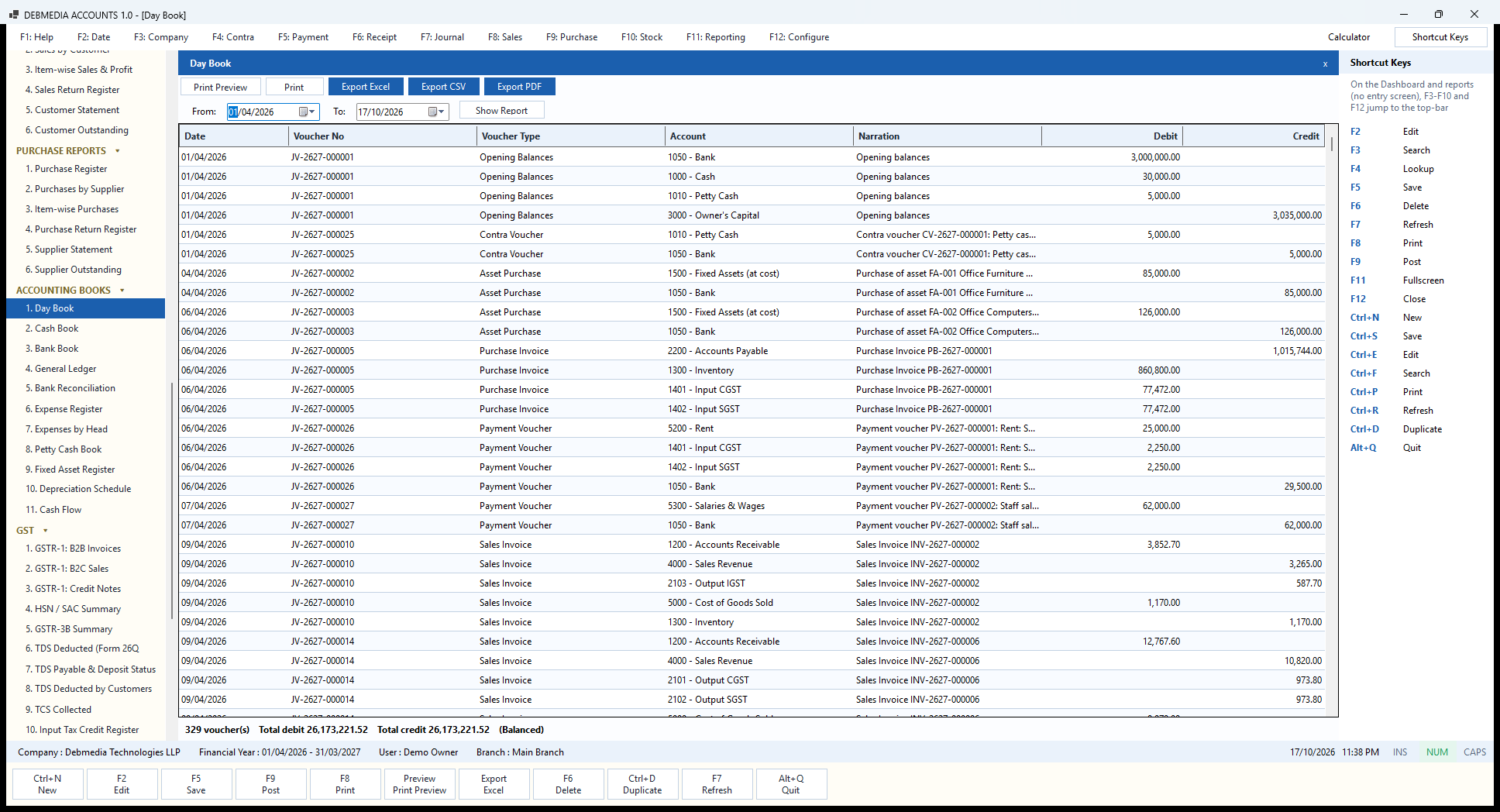
The Day Book is the complete diary of the business. Set From and To, press Show Report, and every posted entry appears in date order, one row per debit or credit line, with the Date, the Voucher No, the Voucher Type, the Account, the Narration and the Debit and Credit amounts.
Reading the first rows of the sample is like watching the business begin. On 1 April the opening balances go in: debit Bank ₹3,000,000, Cash ₹30,000 and Petty Cash ₹5,000, credit Owner’s Capital ₹3,035,000. Then the petty-cash top-up, then the purchase of office furniture (debit Fixed Assets, credit Bank ₹85,000) and computers (₹126,000). On 6 April the first purchase bill posts four lines: credit Accounts Payable ₹1,015,744.00, debit Inventory ₹860,800.00 and debit Input CGST and Input SGST ₹77,472.00 each. The shop rent that day posts rent ₹25,000 plus input GST ₹2,250 + ₹2,250 against the bank ₹29,500. By 9 April the first sales invoices appear, each with four or five lines: receivable, sales, output tax, and the cost of goods sold against inventory.
The footer is the grand check of the whole book: “329 voucher(s), Total debit 26,173,221.52, Total credit 26,173,221.52 (Balanced)“. Every entry balances, so the whole day book balances.
It is the first place an auditor or an accountant looks, because it shows every posting with its explanation and nothing is hidden or summarised. To trace any entry back to the document that created it, use the voucher number, which is the same number printed on the document.
Cash Book
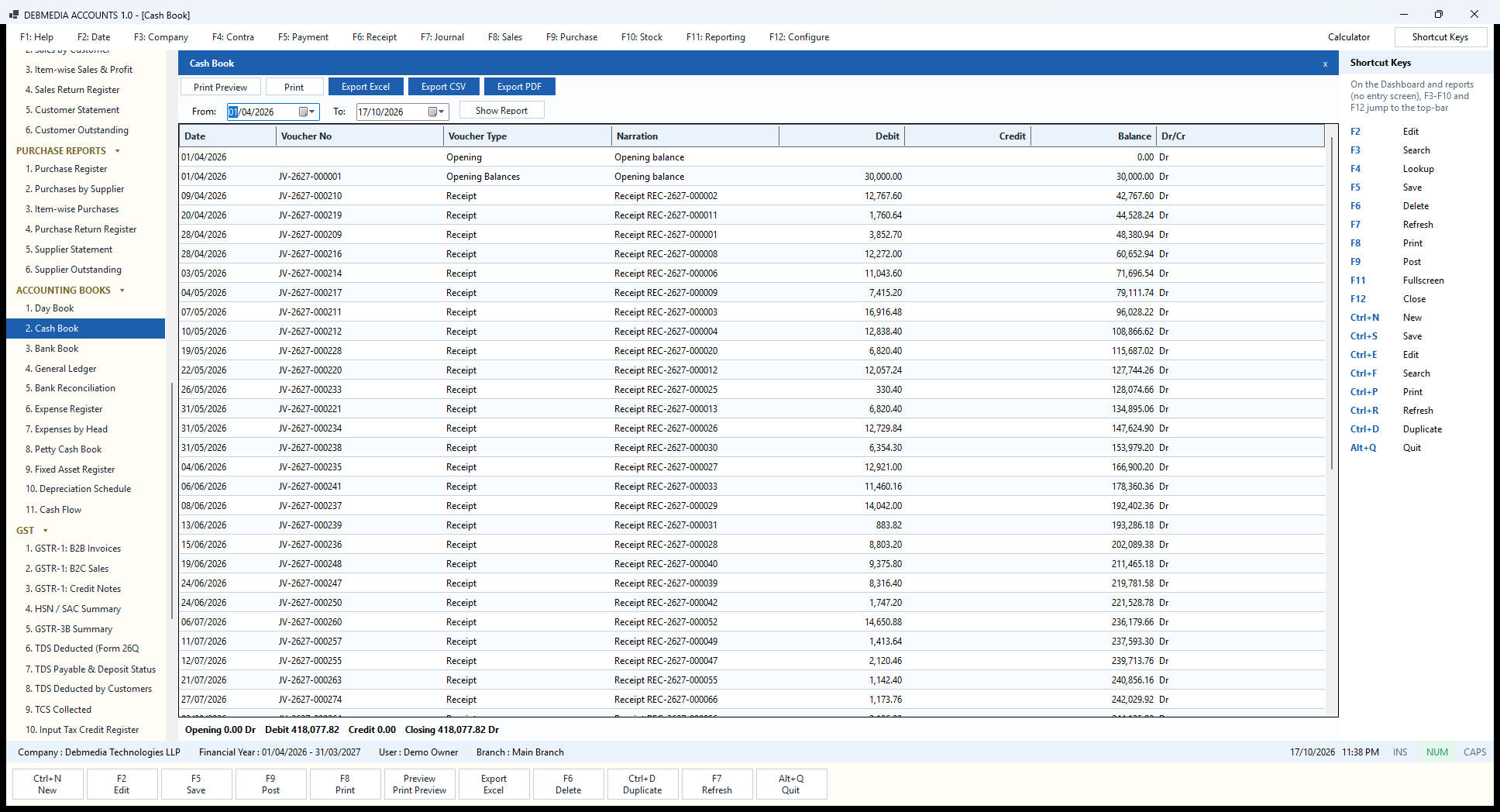
The Cash Book lists the movements of the Cash account over a period, in date order, with the Date, Voucher No, Voucher Type, Narration, Debit (cash in), Credit (cash out), the running Balance and whether it is a Dr/Cr balance. It starts with the opening line and carries the balance forward after each entry, so the figure on the last row is what should be in the cash box.
In the sample, the book opens with ₹30,000 on 1 April and then grows with the small cash receipts from customers: ₹12,767.60 on 9 April, ₹1,760.64 on 20 April and so on. In this sample company, receipts below ₹20,000 were collected in cash and larger ones went to the bank. The footer summarises the period: “Opening 0.00 Dr, Debit 418,077.82, Credit 0.00, Closing 418,077.82 Dr”, the same figure as the Cash line on the Trial Balance and the Dashboard.
Printing it at the end of the day gives the cashier a sheet to count the drawer against. A separate Petty Cash Book does the same job for the petty-cash account.
Reading it. A debit in the Cash Book is cash received and a credit is cash paid out. This sample shows only debits for the period because every cash payment in the sample company was made from petty cash rather than the main cash account; in a shop that pays small bills from the till you would see credits too. The running balance on the right is what the till should hold after each entry.
The Cash Book is built from posted vouchers, customer receipts and expenses paid in cash, so a cash sale becomes a line here only when its receipt is posted. Set the dates, press Show Report, and use the toolbar to print for the day’s cash count or export as Excel, CSV or PDF. It always agrees with the General Ledger of the Cash account and with the Cash figure on the Trial Balance.
Bank Book
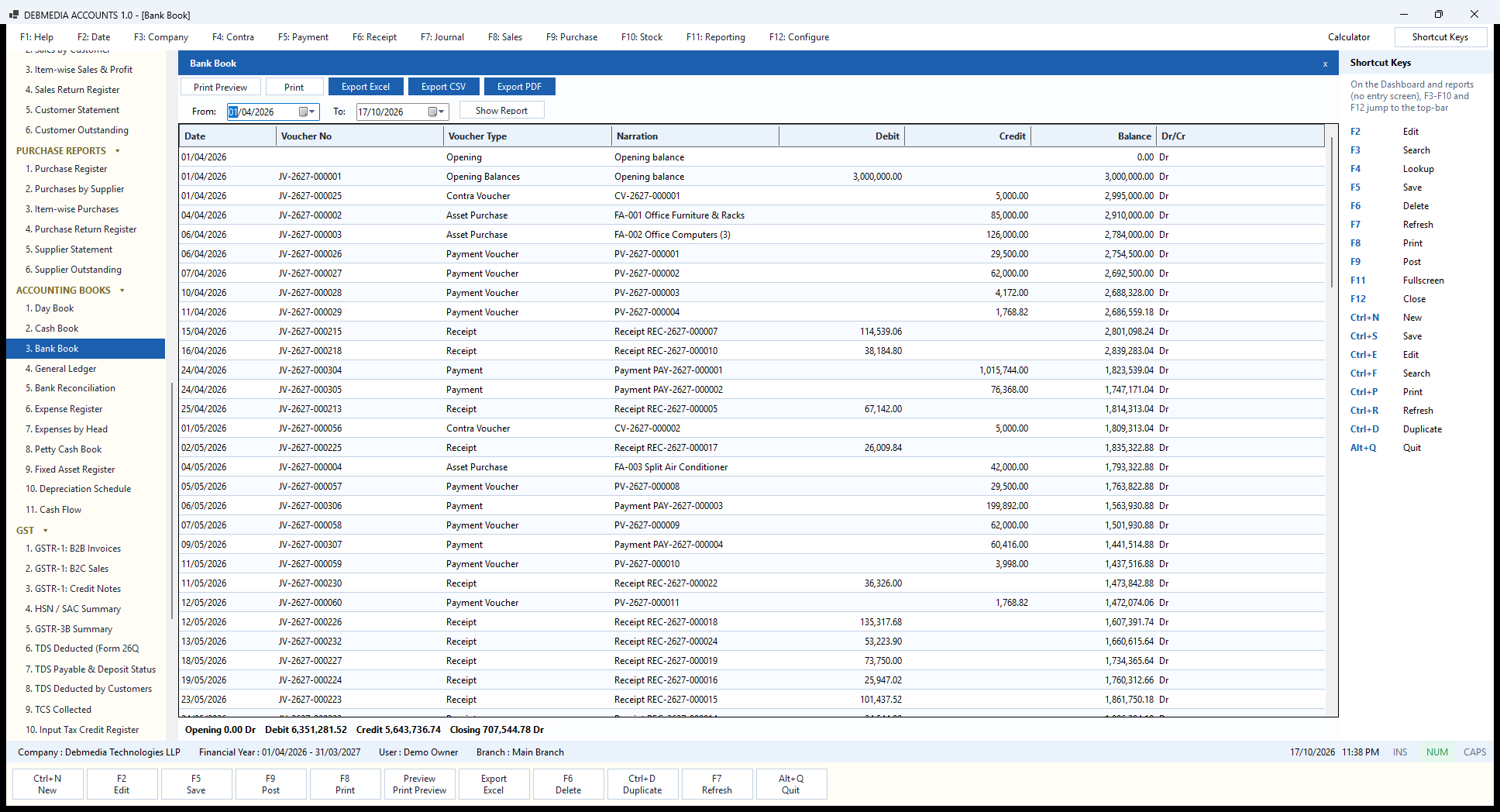
The Bank Book is the cash book’s equivalent for the bank account, with the same columns and the same running balance. Each line is a posted entry that touched the Bank account: receipts from customers, supplier payments, rent and salary vouchers, asset purchases and petty-cash top-ups.
The sample begins with the opening balance of ₹3,000,000 on 1 April, then shows the first week’s withdrawals: the petty-cash top-up (₹5,000), the furniture (₹85,000), the computers (₹126,000), the rent (₹29,500) and the staff salaries (₹62,000). On 15 April the first customer receipt arrives (₹114,539.06), and on 24 April the first large supplier payment leaves (₹1,015,744.00). The footer closes the period: “Opening 0.00 Dr, Debit 6,351,281.52, Credit 5,643,736.74, Closing 707,544.78 Dr”, which is the bank balance on the Dashboard, the Trial Balance and the Balance Sheet.
The Bank Book shows what your own books say. What the bank says is on its statement, and putting the two side by side is the job of bank reconciliation, which follows.
What the columns mean. For the Bank Book, Debit means money paid into the bank and Credit means money paid out, the usual accounting convention for an asset account, and the Dr/Cr column states whether the running balance is a debit balance (money in the bank) or a credit balance (an overdraft). Each row’s narration names the document that created it, such as a receipt, a supplier payment or a payment voucher, so a line can be traced back to its source.
The book covers every kind of entry that touches the bank account: customer receipts, supplier payments, expense bills paid by bank, payment and receipt vouchers, asset purchases and contra transfers to petty cash. Set From and To and press Show Report; the toolbar prints, previews and exports it. It is the book you open with the bank statement in front of you.
General Ledger
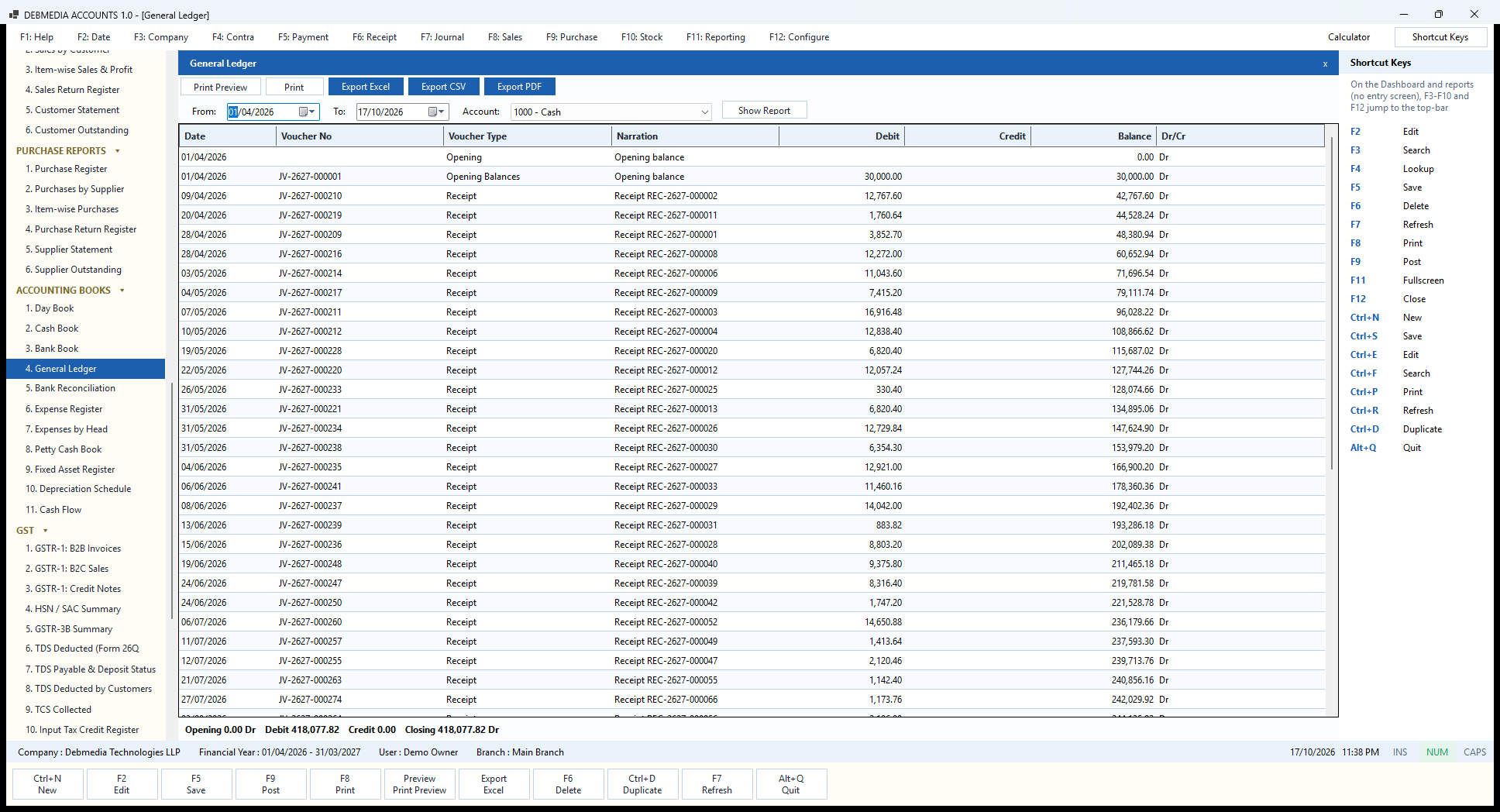
The General Ledger is the account book for any account. Pick the Account from the list (cash, bank, a customer’s control account, sales, a particular expense, input GST, anything in the chart of accounts), set the period and press Show Report. The columns are the same as in the Cash and Bank Books: Date, Voucher No, Voucher Type, Narration, Debit, Credit, Balance and Dr/Cr.
The picture shows the ledger of account 1000, Cash, which is identical to the Cash Book because the Cash Book is simply a ledger with a friendlier name. Change the drop-down to Sales Revenue and you get every sale credited to it; choose Output CGST and you get the tax you have collected, invoice by invoice, which is what you need when the GSTR-3B figure does not match your expectation and you want to see what makes it up.
Whenever a total anywhere in the program surprises you, the ledger of the account behind it is the place to look. Each row names the voucher that posted it, and that voucher number leads straight back to the invoice, receipt or payment on its own screen.
Tracing a total. Because each row carries the voucher number, the ledger is the tool for answering “what is in this number”. Choose an expense account to see every bill charged to it, a GST account to see every invoice that made up the tax, or the account of Accounts Payable to see the movements that make up what you owe. The balance on the last line is the same figure as the account’s line on the Trial Balance, and the toolbar prints or exports the ledger.
Bank Reconciliation Statement
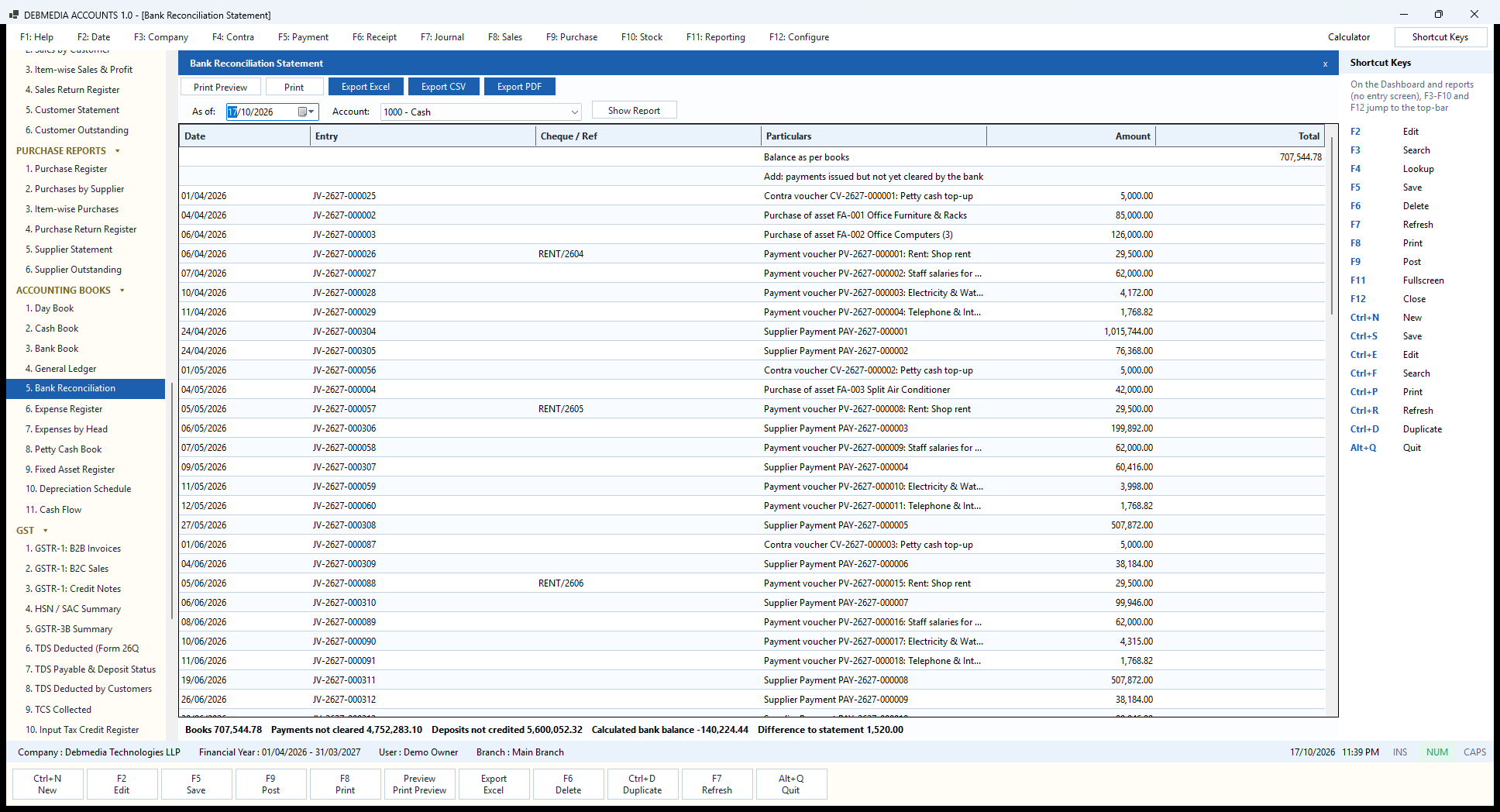
Bank reconciliation is how you prove that your Bank Book and the bank’s own statement tell the same story. On the Bank Reconciliation screen (shown earlier, in the Accounting menu) you import the bank’s CSV file and match each statement line to an entry in your books; matching stamps that entry with the date the bank cleared it. This report, the Bank Reconciliation Statement, then lays out the result in the classic form.
It starts from the Balance as per books (₹707,544.78 here). It then lists, with date, journal number, cheque or reference and particulars, the payments issued but not yet cleared by the bank, and the deposits not yet credited, and adds and subtracts them to reach the calculated bank balance. If a bank statement has been imported, the last line compares that calculated balance with the statement’s own closing balance and prints the Difference to statement. A difference of zero means every entry on the statement has been accounted for.
The figures in this picture come from a demonstration statement, and it is worth reading them honestly. The sample imported only the last six weeks of statement lines and started its running balance from zero, so most of the year’s entries show as “not cleared” and the calculated balance is not a real bank balance. What is real is the difference line: ₹1,520.00 is exactly the interest credit of ₹1,874 less the two bank charges of ₹59 and ₹295 that appear on the statement but are not yet in the books. Those are the lines you would turn into vouchers with Create voucher on the Bank Reconciliation screen, after which the difference falls to zero.
With a real statement imported in full, the “not cleared” lists shrink to the handful of cheques and deposits genuinely in transit. The toolbar prints, previews and exports the statement as Excel, CSV or PDF, ready to hand to the auditor.
Reading it step by step. Start at the top line, the balance in your books. Add the payments you have issued that the bank has not yet debited (cheques not yet presented, transfers still in progress) and subtract the deposits the bank has not yet credited. The result is the balance the bank should be showing. If it is the same as the statement, you are reconciled; if not, the difference line tells you by how much.
A reconciled book is a good defence against errors and fraud, and doing it monthly keeps the job small. The report can be run for any date, printed or saved as PDF for the file, and exported as Excel or CSV. Entries marked as cleared on the Bank Reconciliation screen drop out of the “not cleared” lists as soon as they are matched.
Expense Register
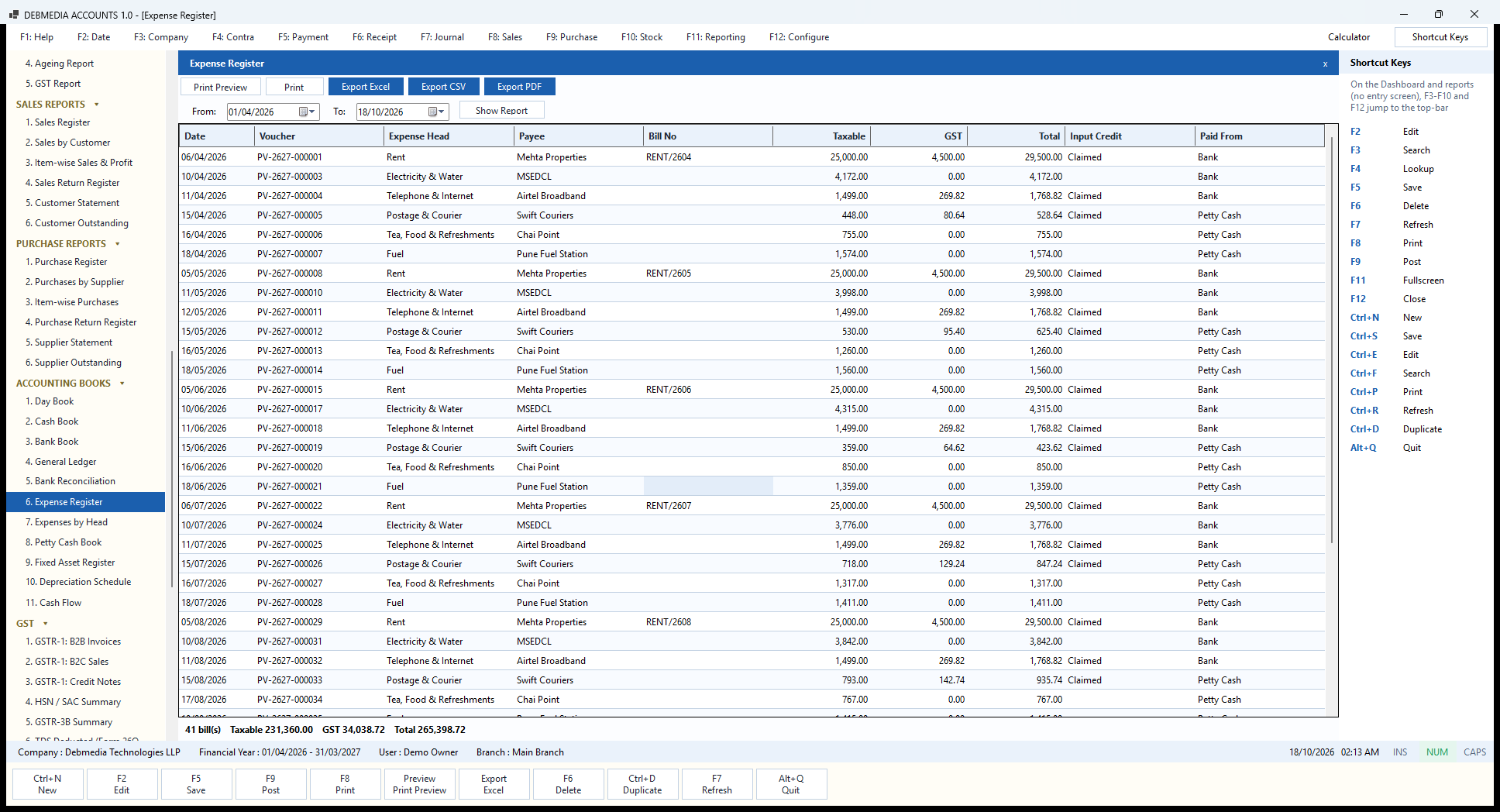
The Expense Register lists, bill by bill, everything entered on the Expenses screen in a period. The columns are the Date, the Voucher number (PV-2627-…), the Expense Head, the Payee, the Bill No, the Taxable amount, the GST, the Total, whether Input Credit was “Claimed”, and Paid From (Bank or Petty Cash).
The sample register shows a regular monthly rhythm: rent to Mehta Properties of ₹25,000.00 plus ₹4,500.00 GST, claimed, with a bill number such as RENT/2604; electricity to MSEDCL with no GST; broadband from Airtel with ₹269.82 of claimed GST; courier charges from Swift Couriers, paid from petty cash; and tea and fuel, also from petty cash, with no GST. The footer reads “41 bill(s), Taxable 231,360.00, GST 34,038.72, Total 265,398.72”. The same figures, grouped by account, are on Expenses by Head, and the claimed GST is part of the input credit in GSTR-3B.
Use it to check that nothing is missing: a month with no rent line is a month someone forgot to enter it. The “Claimed” tag shows at a glance which bills carry input credit and which do not. The toolbar prints it or exports it to Excel, CSV or PDF for your accountant.
Expenses by Head
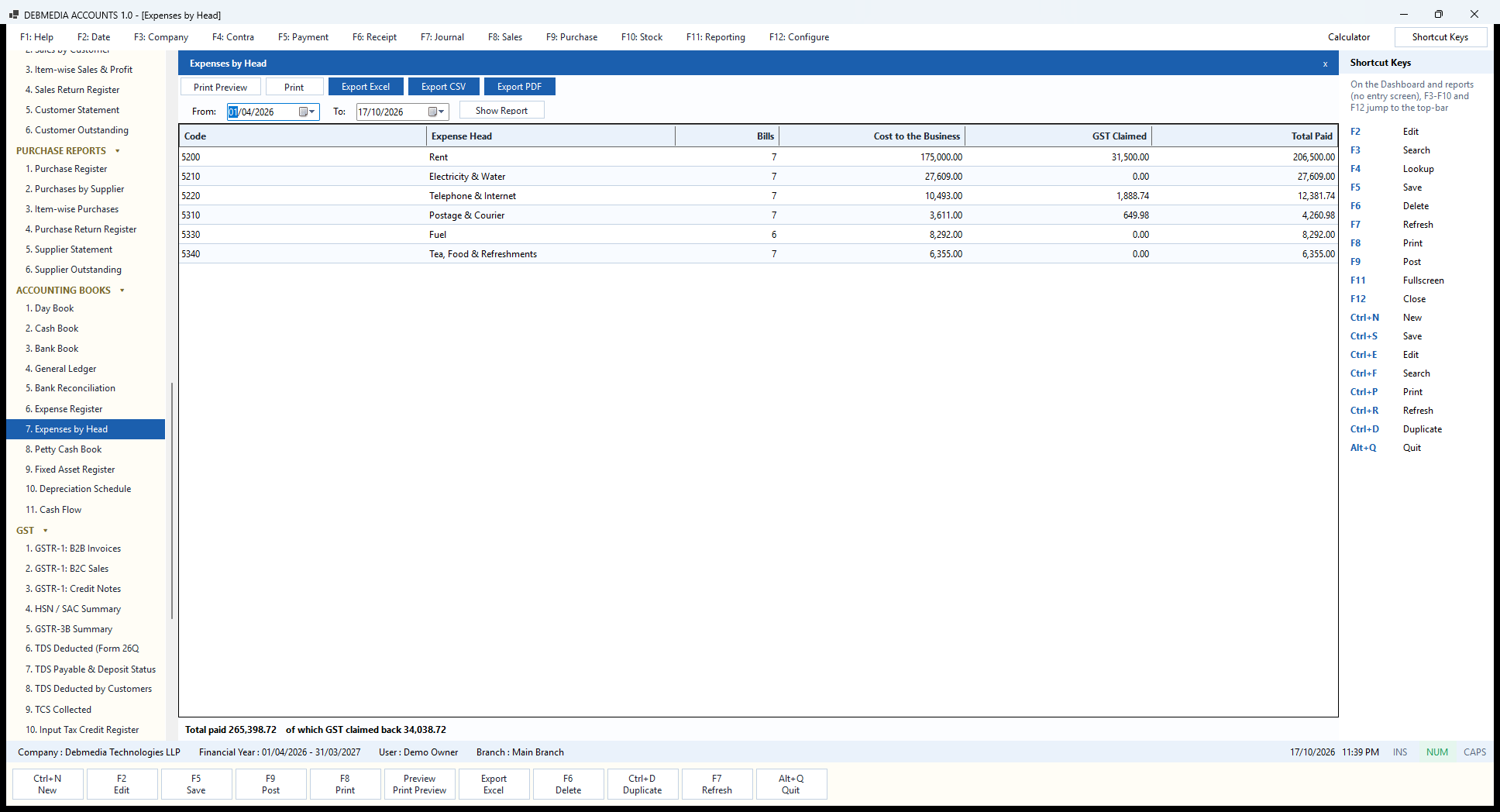
Expenses by Head groups everything posted on the Expenses screen by expense account. For each head it shows the number of Bills, the Cost to the Business (what reaches the Profit and Loss), the GST Claimed back as input credit and the Total Paid.
In the sample, rent is seven bills costing ₹175,000.00, on which ₹31,500.00 of GST was claimed, so the total paid was ₹206,500.00. Broadband (₹10,493 plus ₹1,888.74 GST) and courier charges (₹3,611 plus ₹649.98) carry GST; electricity, fuel and tea carry none. The footer sums it up: “Total paid 265,398.72 of which GST claimed back 34,038.72”.
The report shows why the Expenses screen is worth using. A rent bill typed into a plain payment voucher would have lost ₹31,500 of input credit; here it is recorded and flows into the input tax credit register and GSTR-3B. The split between cost and claimed GST is also a quick sanity check on the tax-inclusive bills you entered.
Why the split matters. The Cost to the Business column is what reaches the Profit and Loss; GST Claimed is what goes to the input credit accounts and out of your GST payable; Total Paid is the money that left cash, petty cash or the bank. For a head with no GST, such as electricity or fuel in this sample, the three figures are equal in a way that is easy to check.
Choose the dates and press Show Report. Because each head is a row, the report doubles as a list of where the money goes in a typical month, which is a good start for any cost-saving conversation. A bill cancelled on the Expenses screen is reversed and disappears from the totals. The report can be printed or exported as Excel, CSV or PDF.
Petty Cash Book
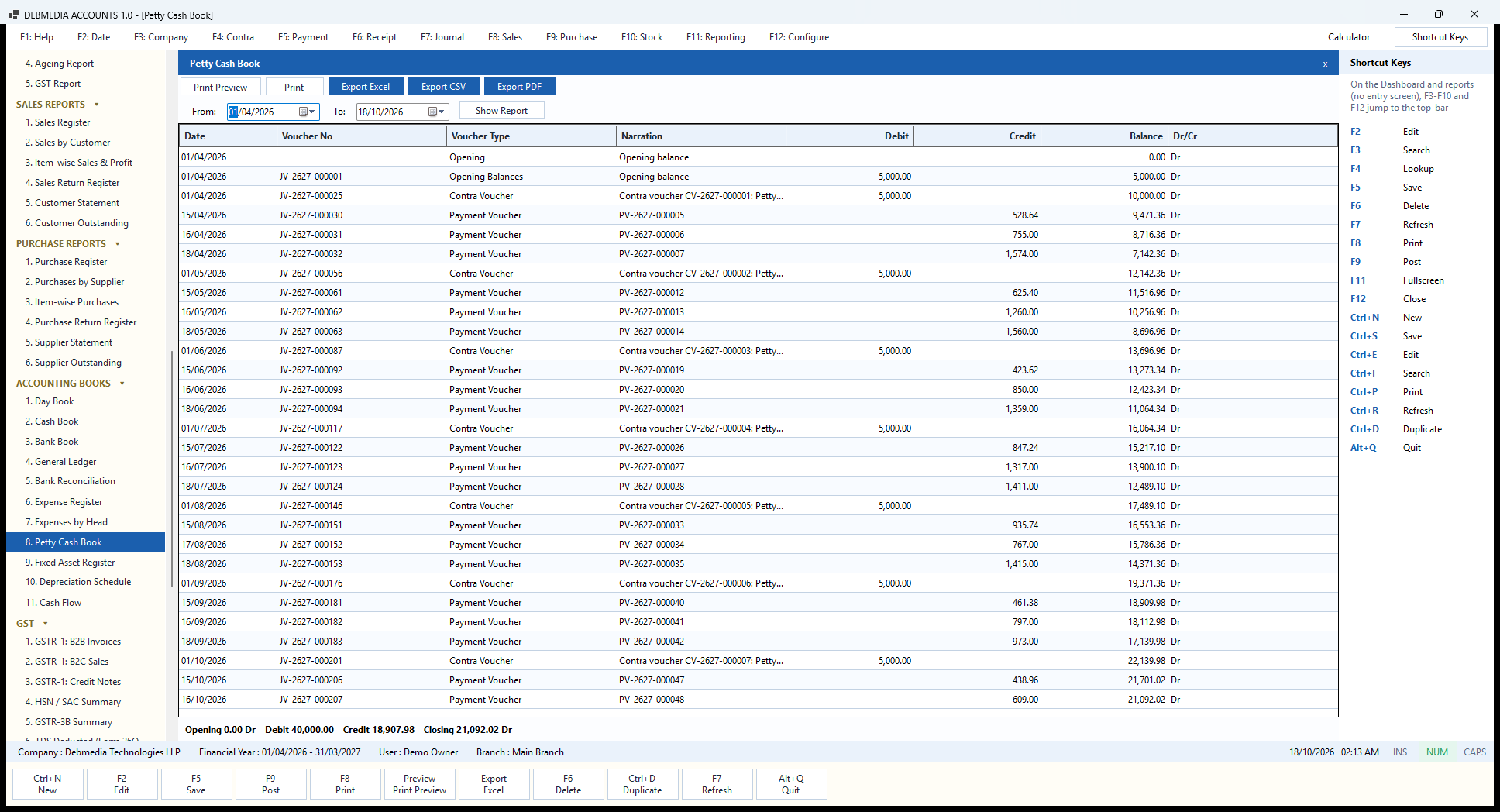
The Petty Cash Book is the cash book for the petty-cash box. It has the same columns as the Cash and Bank Books: Date, Voucher No, Voucher Type, Narration, Debit (money in), Credit (money out), the running Balance and Dr/Cr. Set From and To and press Show Report.
The sample tells the whole story of an imprest. The box opens with ₹5,000.00 on 1 April, and on the first of every month a contra voucher tops it up by ₹5,000.00 from the bank. In between, small bills go out: courier charges, tea and snacks and fuel, each on its own date, which you can see as credits of a few hundred to about fifteen hundred rupees. The balance rises with each top-up and falls with each bill. The footer says “Opening 0.00 Dr, Debit 40,000.00, Credit 18,907.98, Closing 21,092.02 Dr”, and ₹21,092.02 is the Petty Cash figure on the Dashboard and the Trial Balance.
The point of an imprest system is that the box is counted against this report. If the cash in the box is not the closing balance shown here, something has been spent without a voucher. The bills themselves are entered on the Expenses screen with their GST, so they also appear in the Expense Register and in the input tax credit register.
Fixed Asset Register
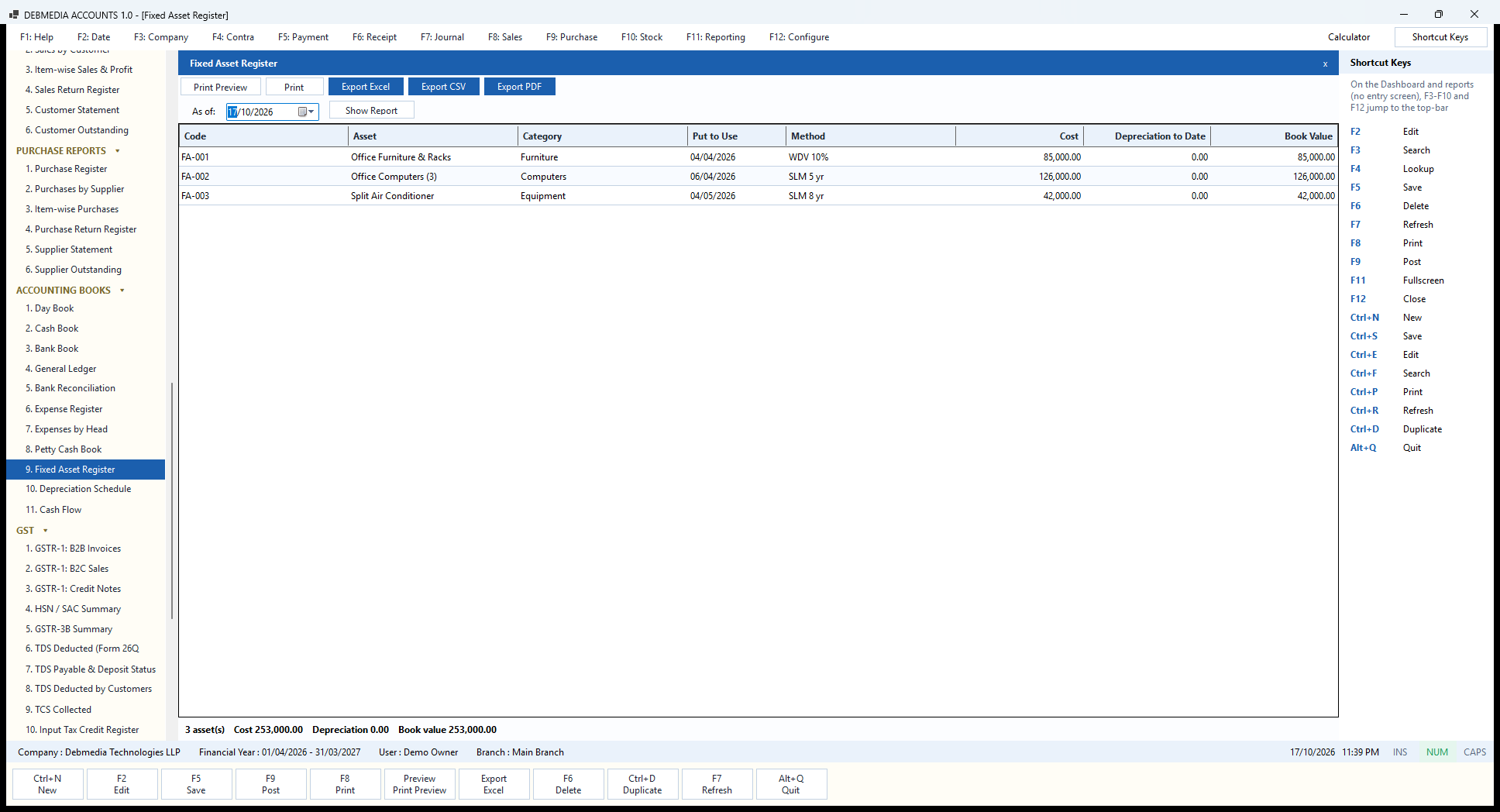
The Fixed Asset Register is the report version of the Fixed Assets screen. For an As of date it lists every asset with its Code, Asset name, Category, Put to Use date, Method and rate, Cost, Depreciation to Date and Book Value.
The sample’s three assets show the two methods: office furniture and racks on WDV 10% (written-down value at 10% a year) and the computers and air conditioner on SLM 5 yr and SLM 8 yr (straight line over five and eight years). The footer reads “3 asset(s), Cost 253,000.00, Depreciation 0.00, Book value 253,000.00”, because no year-end depreciation run has been posted yet.
A fixed asset register is a statutory expectation, and this one is built from the same entries as the Balance Sheet, so the total cost here equals the Fixed Assets line there. Assets that have been sold or scrapped drop out, with their profit or loss already booked.
Choosing the date. Because the report takes an As of date, you can run it for the end of any past period and see what each asset had been written down to at that time. The depreciation to date is read from the depreciation entries actually posted, so an asset bought in April shows no depreciation here until the year’s run has been made.
The method column is a quick reminder of how each asset is being written off: “SLM 5 yr” is straight line over five years, “WDV 10%” is ten per cent of the reducing balance. Together with the cost and the book value this is what an auditor expects from a fixed-asset schedule, and the toolbar exports it to Excel, CSV or PDF. Assets that have been sold or scrapped no longer appear as active assets, and the profit or loss on their disposal has already been posted to the books.
Depreciation Schedule
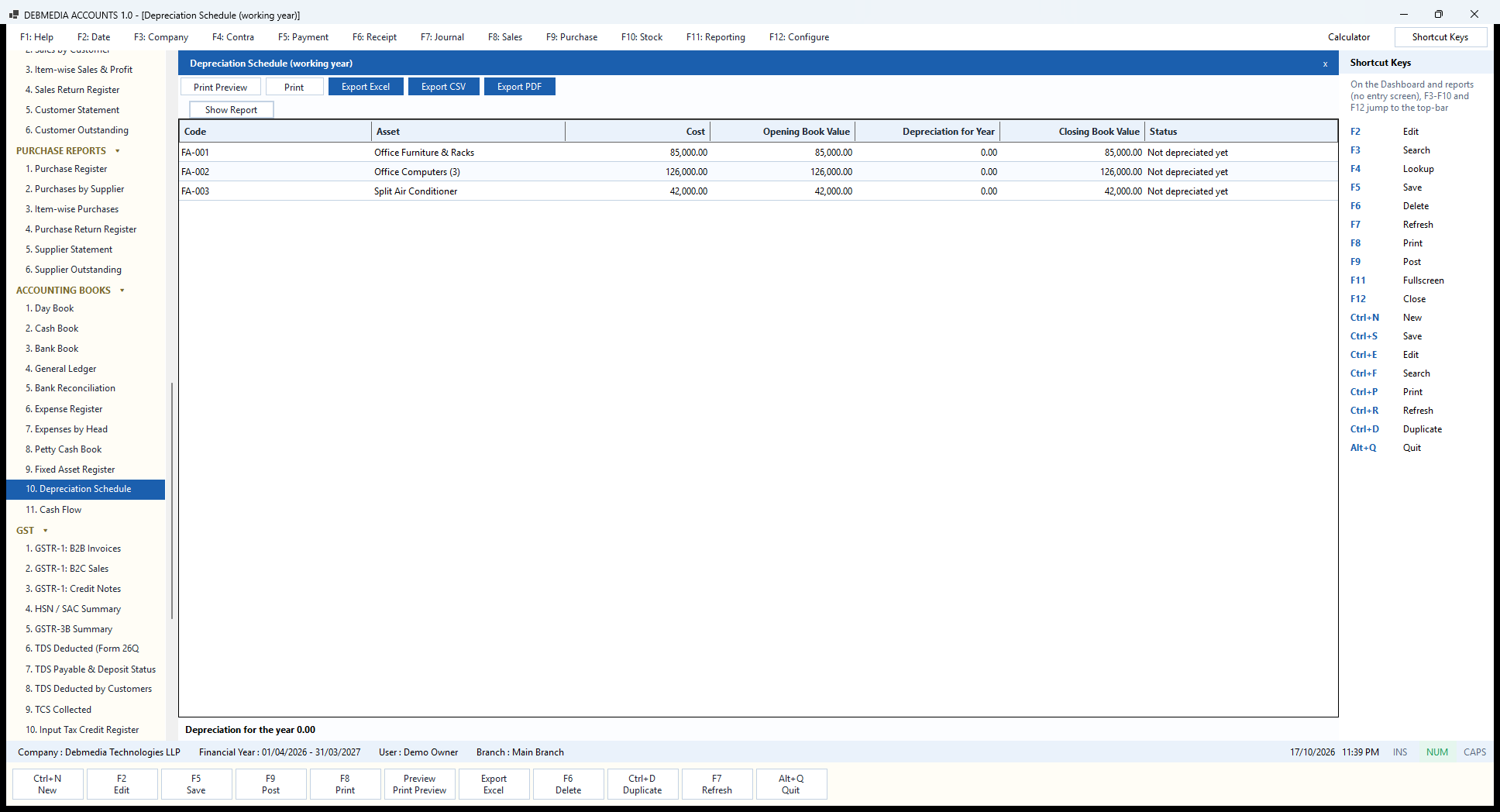
The Depreciation Schedule (working year) previews what the year’s depreciation will be. For each asset it shows the Cost, the Opening Book Value, the Depreciation for Year, the Closing Book Value and a Status. Here every line says “Not depreciated yet” and the footer reads “Depreciation for the year 0.00”, because the charge is posted once, at year end, from the Fixed Assets screen.
When you do run it, the program works out each asset’s charge for the year. A straight-line asset gets an equal share of cost less residual value for each year of life, a written-down-value asset gets its rate on the opening book value, and an asset put to use part-way through the year is charged only from that date. No asset is depreciated below its residual value. The result posts as one entry that debits Depreciation Expense and credits Accumulated Depreciation, and the Balance Sheet then shows the assets net of what has been written off.
If you run the depreciation and find a mistake, the year’s run can be reversed and redone. The schedule is a good thing to show your accountant before posting.
Before you post. Run this report before the year-end depreciation, and again afterwards. Before posting, it shows what each asset would be charged; afterwards, the Depreciation for Year column shows the charge as posted and the Closing Book Value falls. Because the schedule is for the working year, it follows the financial year selected in the program.
If a figure looks wrong, check the asset’s method, life, residual value and the date it was put to use on the Fixed Assets screen; those four settings drive the charge. A year’s depreciation that has been posted can be reversed and run again, which is the safe way to correct a mistake. The toolbar prints the schedule or exports it to Excel, CSV or PDF for your accountant.
Cash Flow
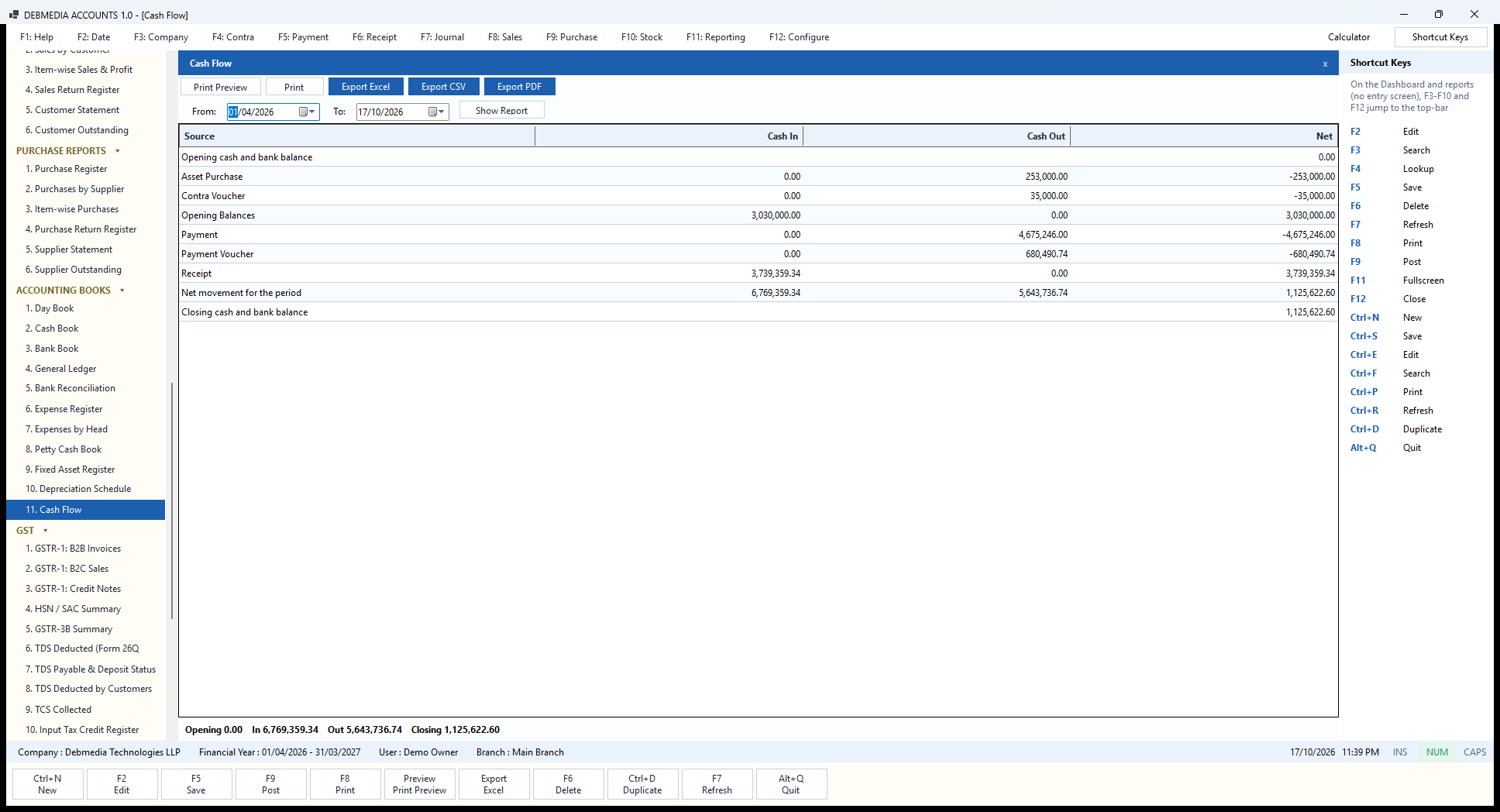
The Cash Flow report explains where cash and bank money came from and where it went. For a chosen period the rows are grouped by the type of entry that moved the money, with a Cash In, a Cash Out and a Net column: Opening Balances in ₹3,030,000; Receipt (customer receipts) in ₹3,739,359.34; Payment (supplier payments) out ₹4,675,246.00; Payment Voucher (rent, salaries and other vouchers) out ₹680,490.74; Asset Purchase out ₹253,000.00; and Contra Voucher out ₹35,000.00 for the petty-cash top-ups.
The block of lines ends with “Net movement for the period“, Cash In ₹6,769,359.34, Cash Out ₹5,643,736.74, net ₹1,125,622.60, and “Closing cash and bank balance” of ₹1,125,622.60. That closing figure is the Cash account (₹418,077.82) plus the Bank account (₹707,544.78) on the Trial Balance. Petty cash is its own book and is not included, which is why the Dashboard’s Cash & Bank card, which does include it, is ₹21,092.02 higher.
The report answers the owner’s perennial question, “I made a profit, so where is the money?”: here you can see that most of the cash coming in went straight out again to suppliers.
How it is built. The report groups the money that moved through cash and bank accounts by the kind of entry that moved it. It reads the posted entries, so it needs no extra data entry and can never disagree with the books. Contra vouchers appear as an outflow here only because the money went to petty cash, which is outside the cash and bank total; a transfer between the cash and bank accounts themselves would cancel itself out.
Choose From and To and press Show Report. A good habit is to run it monthly and compare Receipts with Payments: if receipts are consistently lower than payments, the business is financing itself from the opening capital, whatever the Profit and Loss says. The toolbar exports the report as Excel, CSV or PDF.
GST and TDS
GSTR-1: B2B Invoices
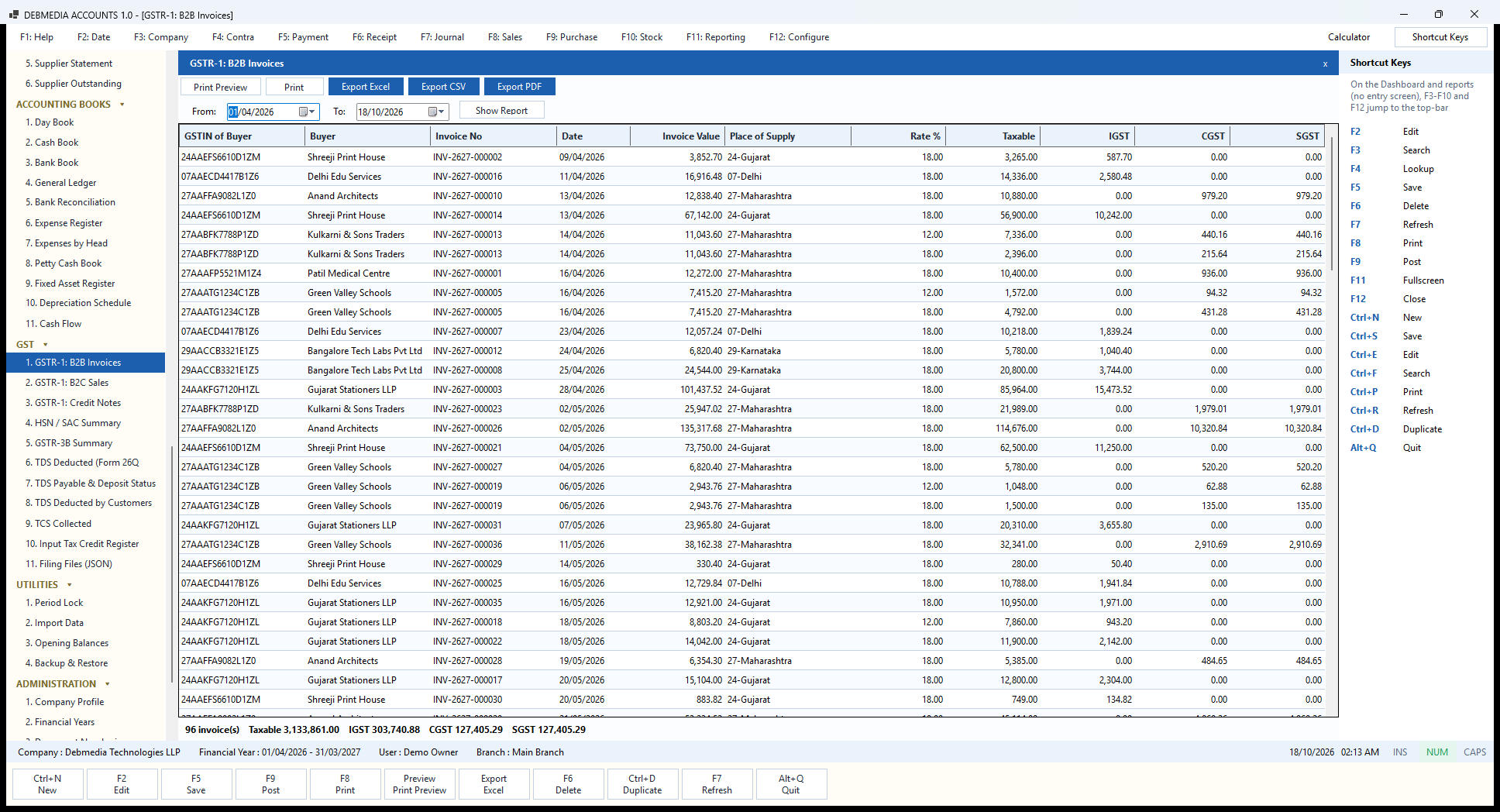
GSTR-1: B2B Invoices is the main table of the monthly sales return: every invoice to a customer who has a GSTIN. Choose the From and To dates and press Show Report. Each row gives the GSTIN of Buyer, the Buyer name, the Invoice No and Date, the Invoice Value, the Place of Supply (for example 24-Gujarat or 27-Maharashtra), the Rate %, the Taxable value and the IGST, CGST and SGST.
An invoice that carries more than one tax rate appears as one row per rate, which is how the return wants it. Invoice INV-2627-000013 to Kulkarni & Sons Traders has a row at 12% (taxable ₹7,336.00, CGST and SGST ₹440.16 each) and another at 18% (taxable ₹2,396.00, ₹215.64 each), both showing the same invoice value of ₹11,043.60. Sales to customers in another state show IGST, for example Shreeji Print House of Gujarat on invoice INV-2627-000002, and sales within Maharashtra show CGST and SGST.
The footer totals the table: “96 invoice(s), Taxable 3,133,861.00, IGST 303,740.88, CGST 127,405.29, SGST 127,405.29”. All the IGST of the year is in this table, because the sample’s out-of-state customers are all registered. Added to the B2C table (₹1,188,845.00 taxable), it makes the ₹4,322,706.00 on the Sales Register. The GSTIN comes from the customer record, which is why the program checks it when you save a customer. The Filing Files screen turns the same data into the JSON file for the portal.
GSTR-1: B2C Sales
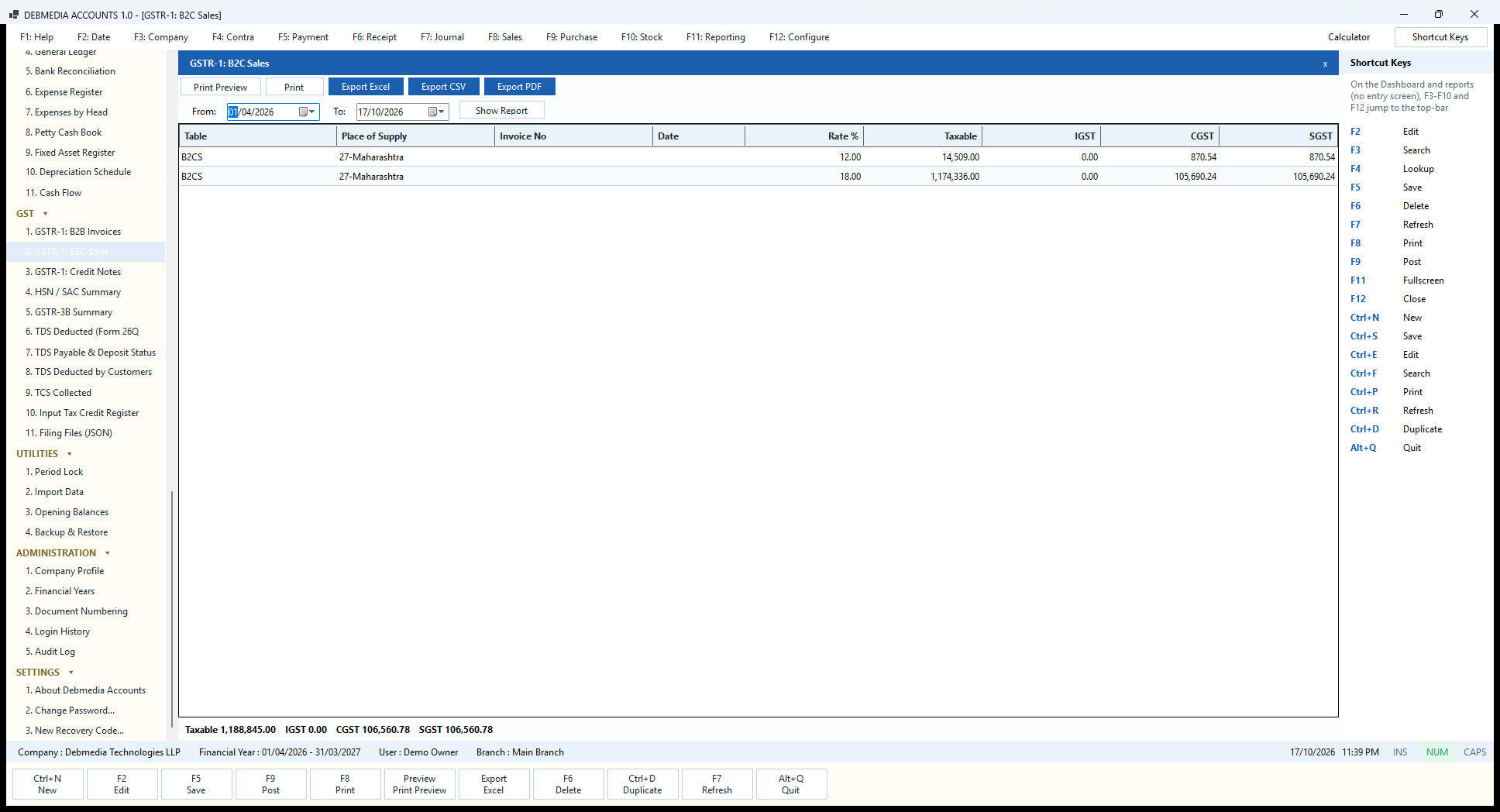
The GST menu prepares the figures for your returns. GSTR-1: B2C Sales covers sales to customers who have no GSTIN. Following the rules for the return, small business-to-consumer sales are not listed invoice by invoice but summed up by Place of Supply and Rate %, which is exactly how the grid is built: the Table (B2CS), the place of supply, the rate, the Taxable value and the IGST, CGST and SGST.
In the sample, all B2C sales are in Maharashtra, so there are two rows: 12% (taxable ₹14,509.00, CGST ₹870.54 and SGST ₹870.54) and 18% (taxable ₹1,174,336.00, CGST ₹105,690.24 and SGST ₹105,690.24). The footer totals them: “Taxable 1,188,845.00, IGST 0.00, CGST 106,560.78, SGST 106,560.78”.
The rate comes from the line itself, not from today’s item master, and the place of supply from the invoice, so the table always matches what was actually billed. A companion screen, GSTR-1: B2B Invoices, lists the invoices to registered customers one by one with the customer’s GSTIN, which is the other big table in the return. The date range is yours to choose, so the same screen produces a month, a quarter or a year.
Why it is summarised. A shop that sells to hundreds of walk-in customers does not list each sale in its return; the return asks only for the total by state and rate. This table does that grouping for you, so there is nothing to add up. Only posted invoices count, and credit notes to unregistered customers are netted off within the same rows. Choose the dates and press Show Report; the toolbar prints or exports the table as Excel, CSV or PDF.
GSTR-1: Credit Notes
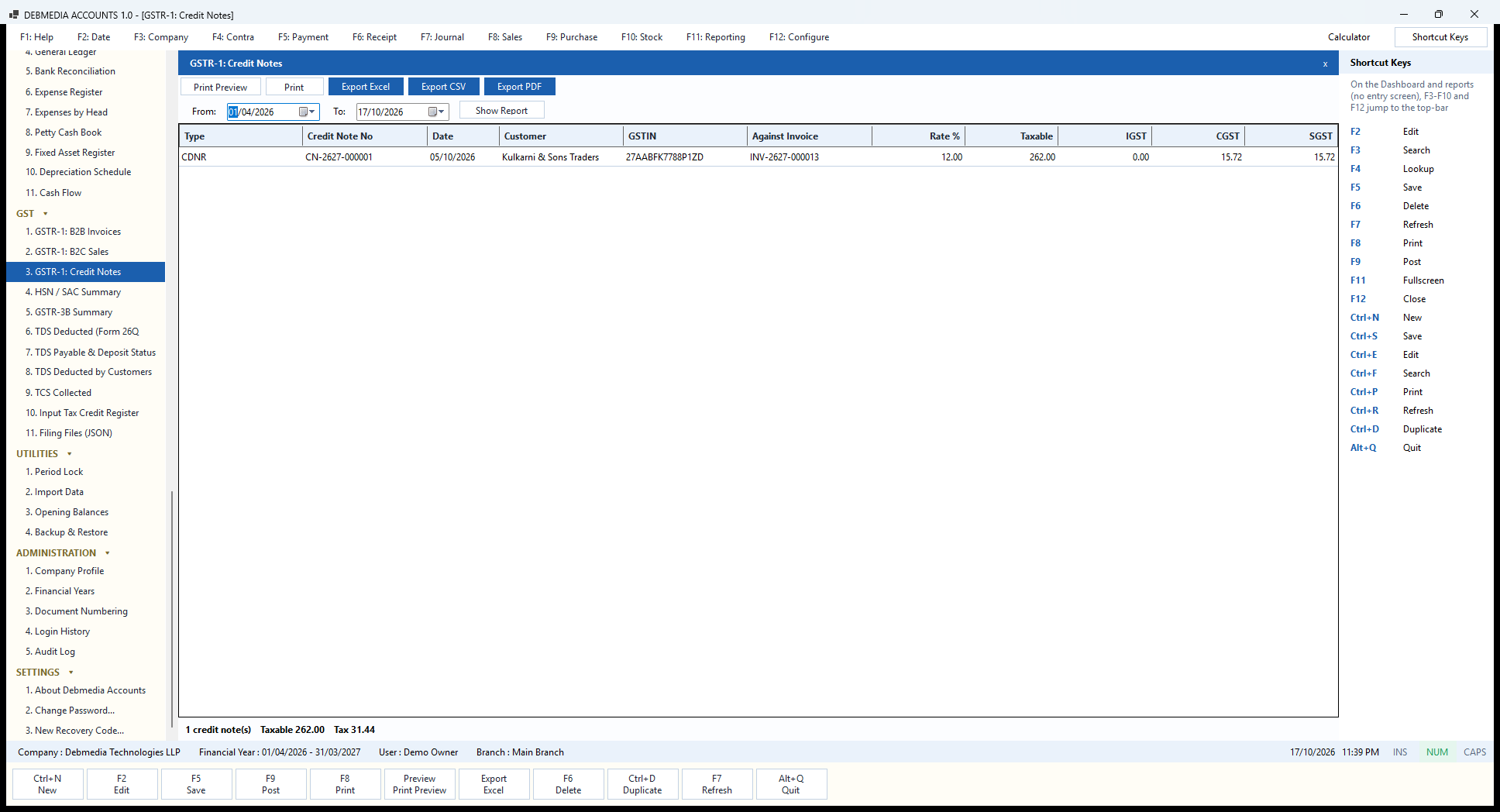
GSTR-1: Credit Notes is the table in which credit notes to registered customers are reported. Each row gives the Type (CDNR, credit or debit notes to registered persons), the Credit Note No, the Date, the Customer with their GSTIN, the original invoice the note is Against, the Rate %, and the Taxable value with IGST, CGST and SGST.
The sample has one: CN-2627-000001 of 5 October 2026 to Kulkarni & Sons Traders (27AABFK7788P1ZD), against invoice INV-2627-000013, at 12%: ₹262.00 taxable with CGST ₹15.72 and SGST ₹15.72. The footer: “1 credit note(s), Taxable 262.00, Tax 31.44”. This is the same credit note you saw on the Sales Return screen and in the Sales Return Register.
The link to the original invoice number is not optional in a credit-note return, and it is kept automatically because a credit note is raised against an invoice on the Sales Return screen. The tax shown is the tax that was reversed, so the figures reduce your liability in the return exactly as they reduced it in your books.
Notes on the table. This table lists only credit notes to registered customers, which is what the CDNR table in GSTR-1 is for. A credit note to an unregistered customer is reported within the B2C figures instead. The date range is yours to set, so the same screen gives you the credit notes of a month for filing, or of a year for review.
Because every credit note is linked to the invoice it was raised against, the table can show the invoice number beside it without any typing at the time of filing, and a credit note that was cancelled is excluded. The same figures feed the file built on the Filing Files screen. Use the toolbar to print the table or export it as Excel, CSV or PDF for your accountant.
HSN / SAC Summary
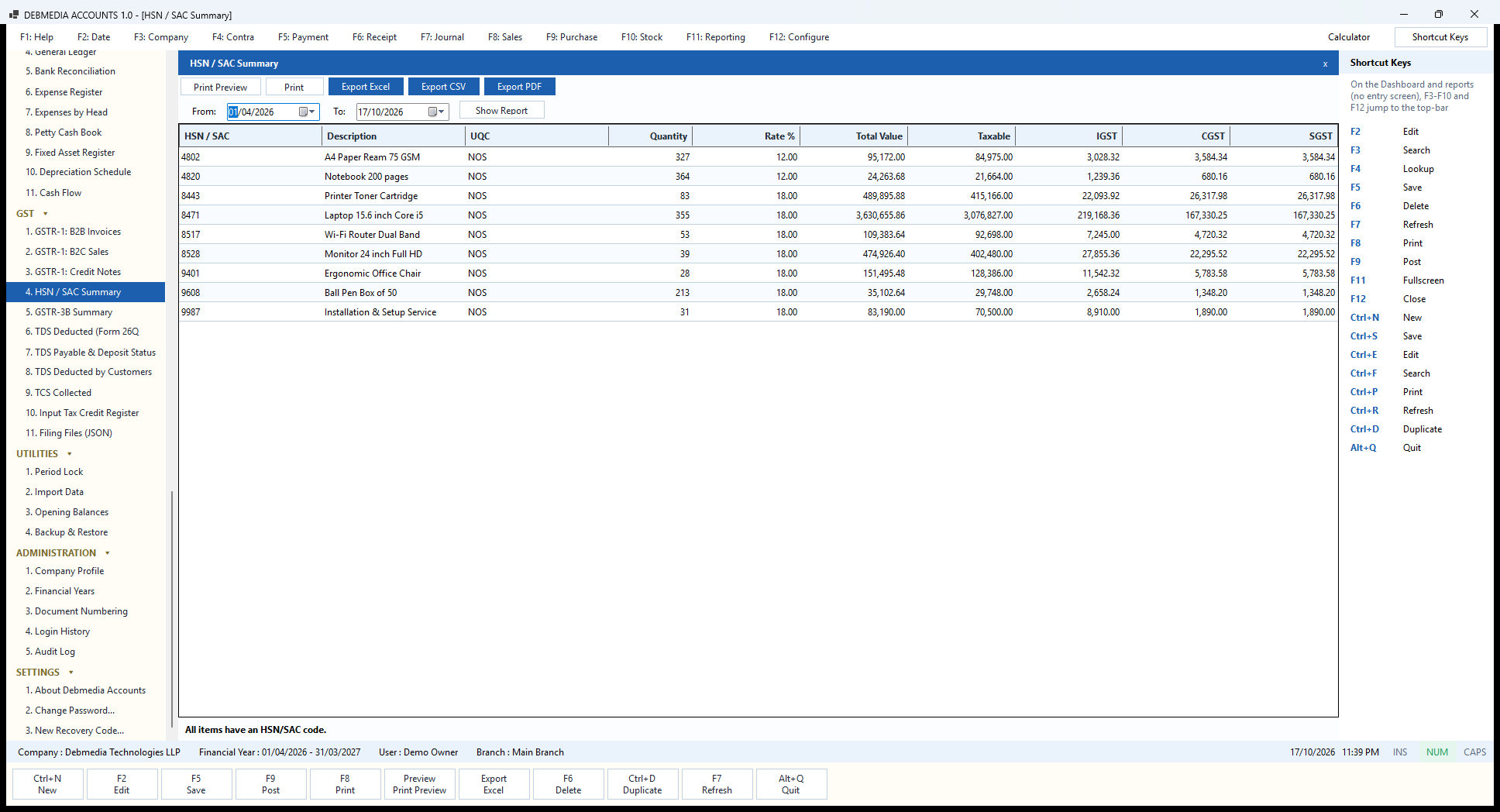
The HSN / SAC Summary groups the period’s sales by the item’s HSN (goods) or SAC (services) code, as the GSTR-1 return requires. Each row shows the HSN / SAC code, a Description, the unit of quantity (UQC, NOS here), the Quantity, the Rate %, the Total Value, the Taxable value and the IGST, CGST and SGST.
The nine rows in the sample cover the whole range: paper at 12% (4802, 327 reams net of the returned one), notebooks at 12% (4820), toner and printers together under 8443, laptops, desktops, keyboards and mice together under 8471 (355 units), routers under 8517, monitors under 8528, chairs under 9401, pens under 9608 and the installation service under SAC 9987. Items that share a code are added together, and the description shown is that of the first item with the code. Quantities are net of credit notes.
The note at the bottom, “All items have an HSN/SAC code“, is the program checking itself. If an item without a code had been sold, the line would instead warn you which items are missing one, so you can fix it before the file is built rather than discover it on the portal. Because each invoice line stores the code in force when it was issued, this summary stays correct even if an item’s code is changed later.
GSTR-3B Summary
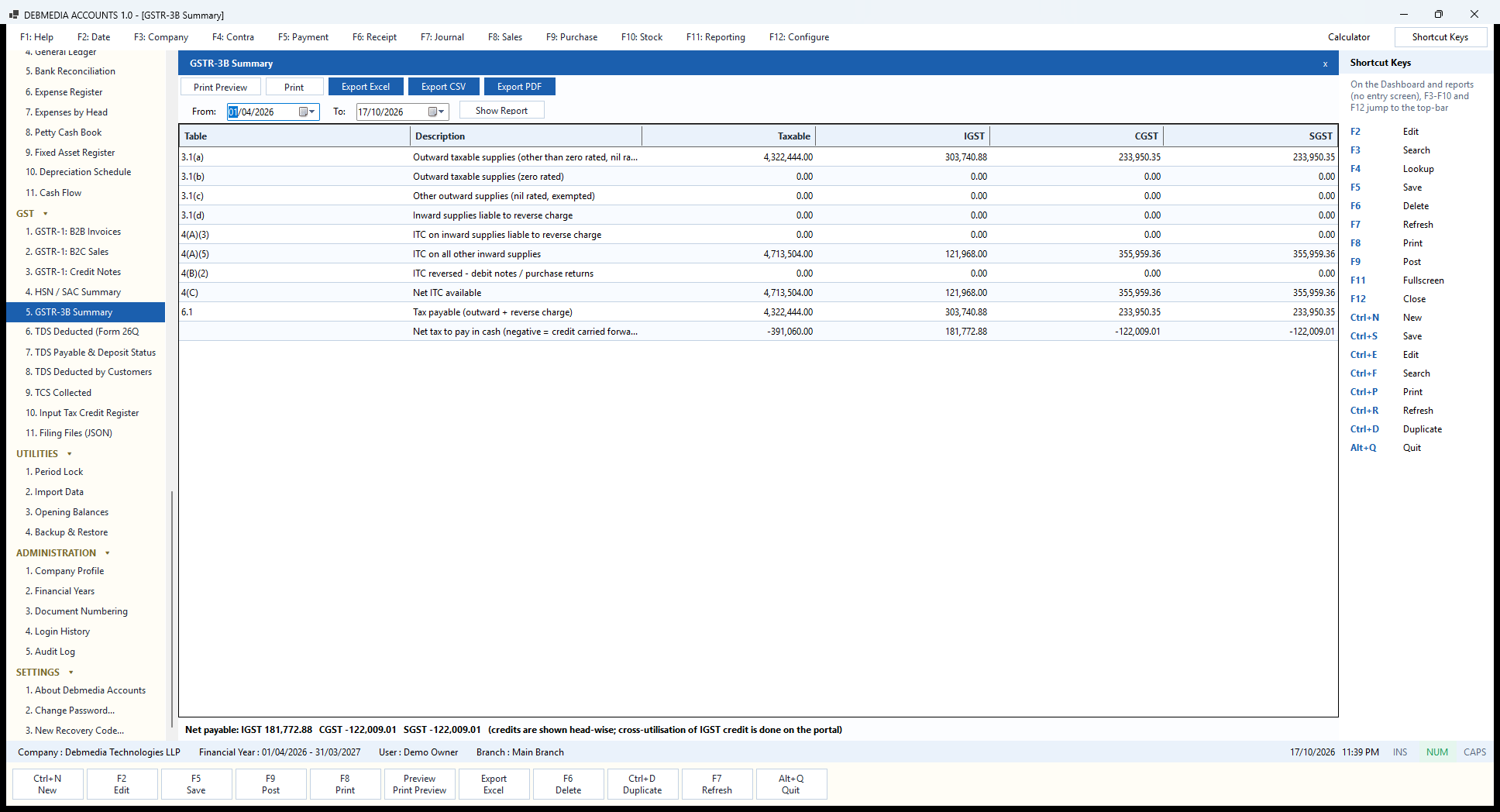
GSTR-3B Summary arranges your tax position in the sequence of the monthly return, with the portal’s own table numbers in the first column. 3.1(a) shows outward taxable supplies: here ₹4,322,444.00 with IGST ₹303,740.88, CGST ₹233,950.35 and SGST ₹233,950.35. Rows 3.1(b), 3.1(c) and 3.1(d) cover zero-rated, nil-rated or exempt supplies and inward supplies liable to reverse charge, which are nil in the sample.
The input credit block follows. 4(A)(5), “ITC on all other inward supplies”, carries the tax on purchases and on the expense bills where credit was claimed: taxable ₹4,713,504.00, IGST ₹121,968.00, CGST ₹355,959.36 and SGST ₹355,959.36. 4(A)(3) is credit on reverse-charge purchases, 4(B)(2) is credit reversed because of debit notes or purchase returns, and 4(C) is the net ITC available. Row 6.1 is the tax payable on outward supplies.
The last row is the answer: “Net tax to pay in cash (negative = credit carried forward)“. For the sample it is IGST ₹181,772.88 to pay, with CGST and SGST each showing a credit of ₹122,009.01. The note under the grid is deliberate: credits are shown head by head, and the set-off of IGST credit against CGST and SGST is done on the portal, which applies its own order of utilisation. Overall the business has more input credit than output tax, so the Dashboard shows a GST position of ₹62,245.14 to carry forward.
The figures agree with the Trial Balance’s GST accounts and with the Input Tax Credit Register, and the same data feeds the JSON file you can build for GSTR-3B on the Filing Files screen.
TDS Deducted (Form 26Q data)
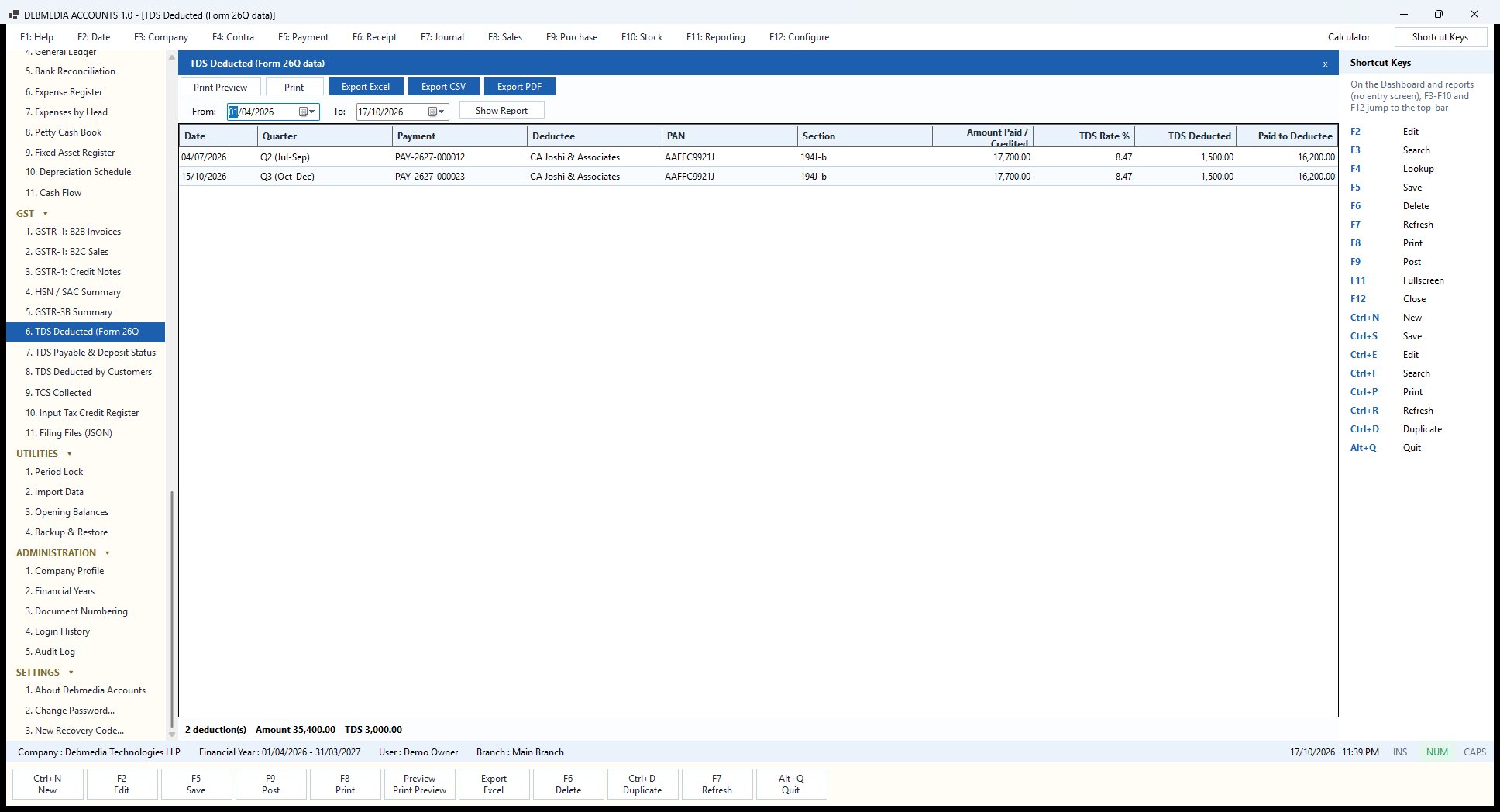
When you withhold tax from a supplier, you must deposit it and file a quarterly return, Form 26Q. The TDS Deducted (Form 26Q data) report is the register behind that return. Each row is one deduction: the Date, the Quarter (Q1 Apr-Jun to Q4 Jan-Mar), the Payment number, the Deductee, their PAN, the Section, the Amount Paid / Credited, the TDS Rate %, the TDS Deducted and the amount Paid to Deductee.
The sample has two deductions, both from payments to CA Joshi & Associates under section 194J-b: on 4 July (Q2) and 15 October (Q3), each of ₹17,700.00 with ₹1,500.00 deducted and ₹16,200.00 paid. The footer totals “2 deduction(s), Amount 35,400.00, TDS 3,000.00”, which is the balance of the TDS Payable account on the Trial Balance until it is deposited. The rate column reads 8.47%, which is ₹1,500 as a share of the whole ₹17,700 payment. The tax itself was worked out at 10% on the ₹15,000 fee before GST, which is the base the rules use.
A companion screen, TDS Payable & Deposit Status, shows what you owe the government and when it is due (by the 7th of the following month); you deposit with a payment voucher to TDS Payable and quote the challan number as the reference. Together with the PAN stored on each supplier, this report gives your accountant everything needed to prepare the return.
TDS Payable & Deposit Status
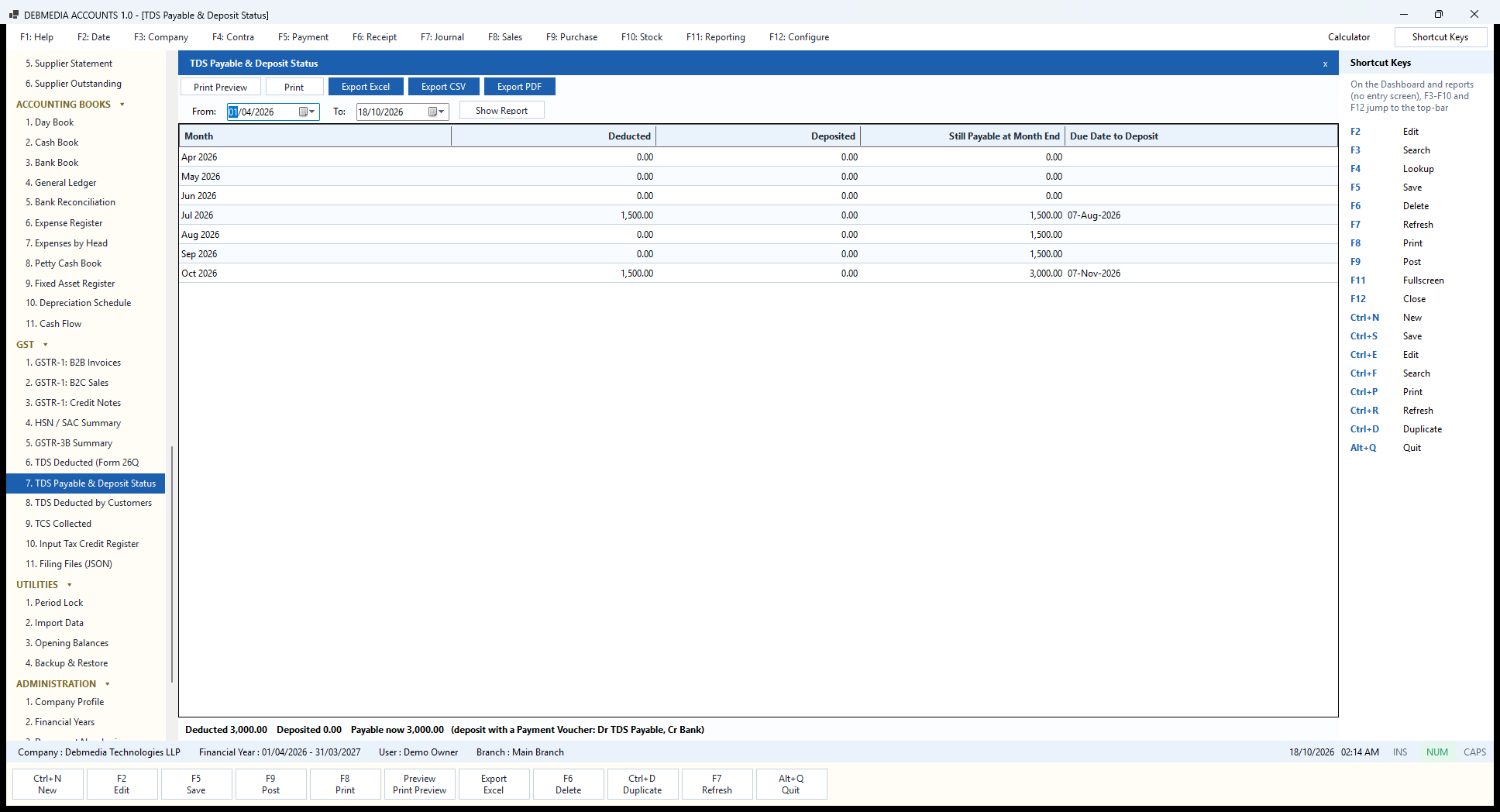
Tax you deduct from suppliers belongs to the government until you deposit it, and TDS Payable & Deposit Status tracks exactly that. Choose the dates and press Show Report. Each month has a row with the amount Deducted, the amount Deposited, the amount Still Payable at Month End and, for any month in which tax was deducted, the Due Date to Deposit, the 7th of the following month.
The sample shows two months with deductions. In July ₹1,500.00 was deducted, which should have been deposited by 7 August 2026, and in October another ₹1,500.00, due by 7 November 2026. Nothing has been deposited, so the “still payable” column carries ₹1,500 through August and September and shows ₹3,000.00 at the end of October. The footer says it plainly: “Deducted 3,000.00, Deposited 0.00, Payable now 3,000.00 (deposit with a Payment Voucher: Dr TDS Payable, Cr Bank)”. On 18 October, with the 7 August deadline already gone, the report is telling the owner that the July deposit is late, which is exactly the kind of lapse that attracts interest and notices.
To deposit, make a Payment Voucher that debits TDS Payable and credits the bank, and quote the challan number as the reference. The “Deposited” column then picks it up and the balance falls to nil. Together with the Form 26Q data report it is everything needed for the quarterly TDS return.
TDS Deducted by Customers (check 26AS)
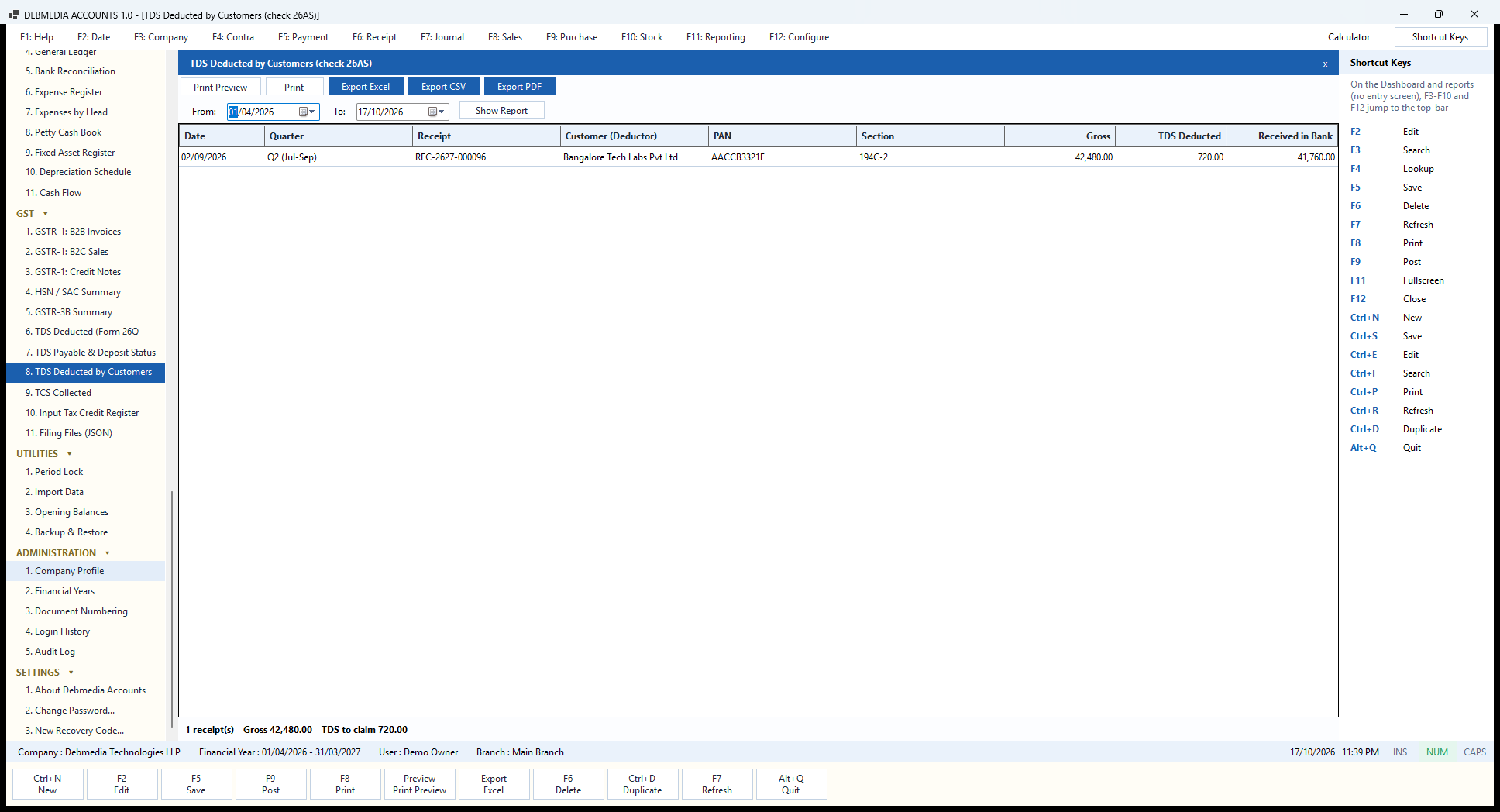
The other side of TDS is when your customers deduct tax from what they pay you. That money is yours to claim back when you file your income tax return, and the TDS Deducted by Customers (check 26AS) report lists it so you can compare with the Form 26AS the tax department shows for your PAN. Each row has the Date, Quarter, the Receipt number, the Customer (Deductor) and their PAN, the Section, the Gross amount, the TDS Deducted and the amount Received in Bank.
In the sample, Bangalore Tech Labs Pvt Ltd paid an installation invoice on 2 September: the receipt REC-2627-000096 settled ₹42,480.00 gross under section 194C-2, they withheld ₹720.00 (2% of the ₹36,000 taxable value) and ₹41,760.00 reached the bank. The footer says “1 receipt(s), Gross 42,480.00, TDS to claim 720.00”. The same ₹720 sits in the TDS Receivable account on the Balance Sheet as an asset, because the tax department owes you that credit.
When you record a customer receipt, a TDS section and amount can be entered, and the invoice is shown as fully paid while only the net cash goes to the bank. If your 26AS shows a different figure, you know to ask the customer whether they deposited what they deducted.
TCS Collected
Some sales require you to collect tax at source from the buyer and pay it to the government. TCS Collected lists those collections: the Date, the Quarter, the Invoice number, the Buyer, the buyer’s PAN, the Invoice Value (with GST), the TCS Rate % and the TCS Collected. Set the dates and press Show Report.
You collect TCS by entering a percentage in the TCS % box on the Sales Invoice screen. When the invoice is posted, the tax collected is credited to the TCS Payable account (2310) along with the sale, and it shows in this report. The sample business sells no goods that carry TCS, so the report is empty and the footer reads “0 invoice(s), TCS collected 0.00”. An empty report is shown rather than hidden, so you can tell the difference between “nothing to report” and “report broken”.
When you do collect TCS, the deposit works like TDS: pay the amount to the government with a Payment Voucher that debits TCS Payable and credits the bank, and use this report as the data for the quarterly TCS return.
Input Tax Credit Register
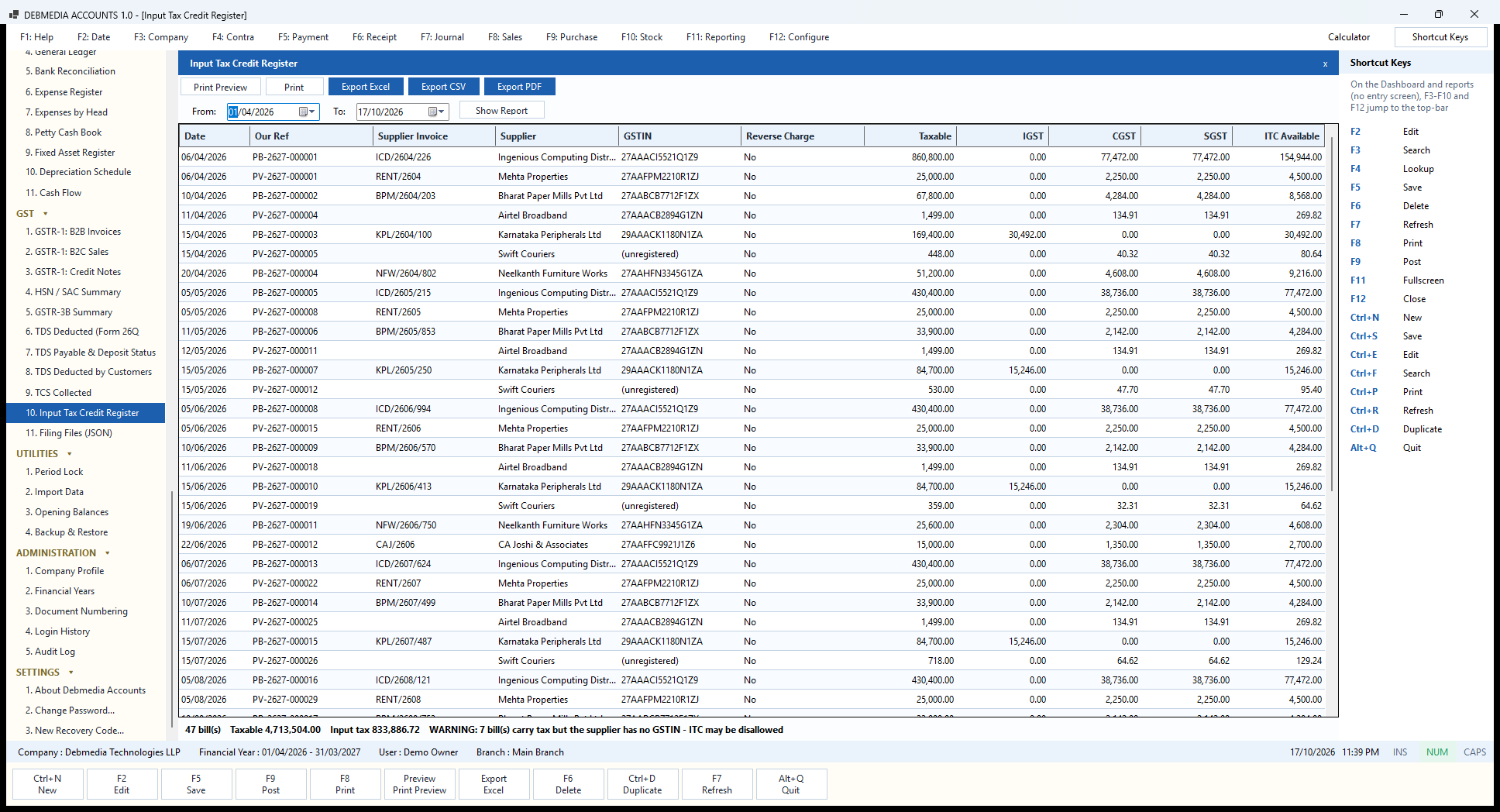
The Input Tax Credit Register is the list of every bill on which you can claim GST back. It combines two sources: purchase invoices and expense bills posted on the Expenses screen. Each row gives the Date, Our Ref (PB- for purchase invoices, PV- for expenses), the Supplier Invoice number, the Supplier and GSTIN, whether it is Reverse Charge, the Taxable value, IGST, CGST, SGST and the ITC Available.
The sample register has 47 bills with total input tax of ₹833,886.72. You can read the mix directly: the computer distributor’s bills carry CGST and SGST (₹38,736 each on ₹430,400), the Bengaluru supplier’s carry IGST (₹15,246 on ₹84,700), the landlord’s rent bills carry ₹2,250 + ₹2,250 each and the accountants’ fees ₹1,350 + ₹1,350.
The footer carries an important warning: “WARNING: 7 bill(s) carry tax but the supplier has no GSTIN – ITC may be disallowed“. The courier bills in the sample come from an unregistered supplier and show “(unregistered)” in the GSTIN column. The portal will not allow credit on such a bill, so the program flags it instead of letting you claim it silently. In this edition, input credit is otherwise treated as fully eligible: blocked credits (for example on certain personal-use items) are not modelled, so you remain responsible for reversing those.
This register is the working paper for the ITC side of GSTR-3B, row 4(A)(5), and its total matches that row.
Filing Files (JSON)
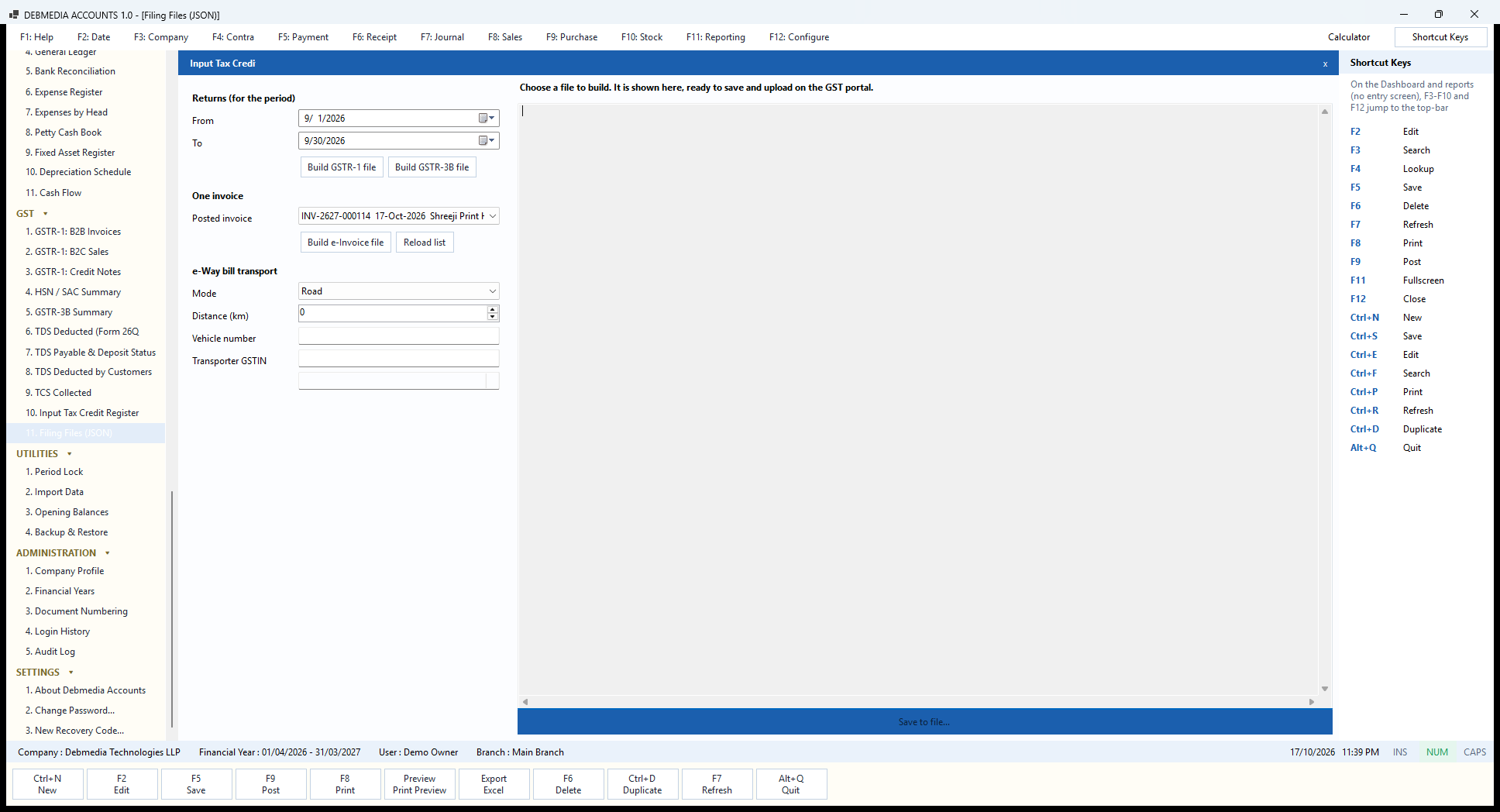
The last screen in the GST menu turns the figures into files. Filing Files (JSON) builds the data files that the GST portal accepts, so you upload them instead of typing the figures in by hand. The left panel has three groups.
Returns (for the period) takes a From and To date and has two buttons: Build GSTR-1 file and Build GSTR-3B file. One invoice lets you pick any posted invoice from the drop-down (there is a Reload list button) and press Build e-Invoice file to get the JSON for that invoice. e-Way bill transport takes the transport Mode (Road is the default), the Distance (km), the Vehicle number and the Transporter GSTIN, and Build e-Way bill file prepares the file for goods on the move.
The large pane on the right shows the file once it is built, as text you can read before saving (the picture shows it before anything has been built, with the line “Choose a file to build. It is shown here, ready to save and upload on the GST portal.”). The blue Save to file… bar at the bottom writes it to disk.
Two honest points. First, the program builds files; it does not connect to the portal. You upload the file yourself, and you should confirm it with your accountant before filing. Second, a file is built only if the data is complete. If a customer lacks a PIN code, or an item lacks an HSN code, the screen does not produce a half-correct file; it lists exactly what is missing so you can fix it and build again.
Utilities, Control and Safety
Period Lock
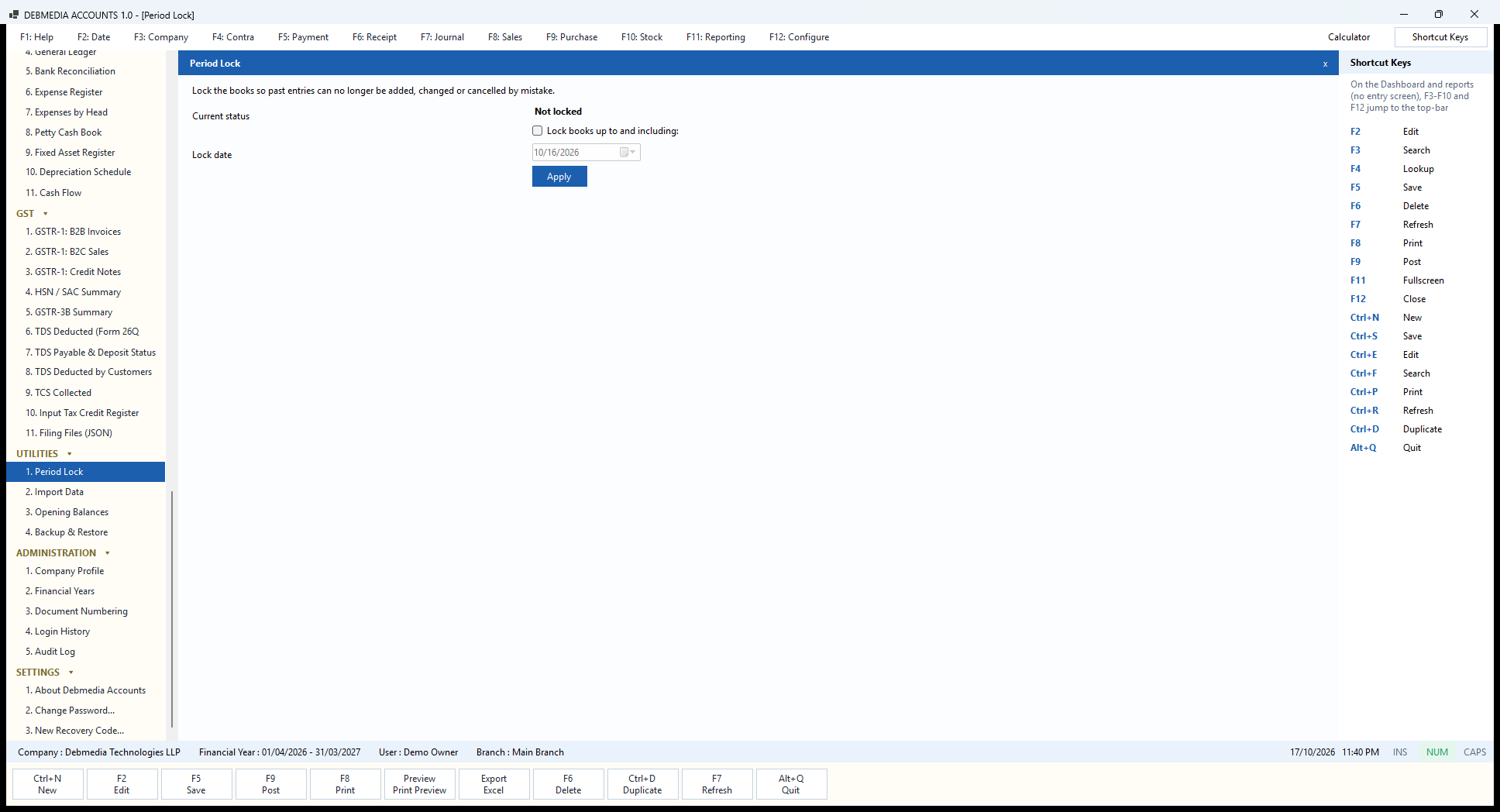
Once you have filed a return or closed a month, you do not want anyone, including you, to alter it by accident. Period Lock is the switch. The page says it directly: “Lock the books so past entries can no longer be added, changed or cancelled by mistake.” The Current status reads “Not locked” in the sample. To lock, tick Lock books up to and including, choose the Lock date and press Apply.
From then on, every screen that posts or cancels checks the lock first. An invoice dated on or before the lock date cannot be posted or cancelled, a payment voucher cannot be entered into the locked period, and a depreciation run or stock adjustment is refused in the same way. The check is made in the posting routine, not on each screen, so there is no way round it from a different menu.
The usual habit is to lock to the last day of the month whose GST return you have filed. If you ever need to correct something in a locked period, you remove or move the lock deliberately, which is itself an action in the audit log. At year end the same safeguard is built into Financial Years: closing a year seals it and moves its profit to Retained Earnings.
Backup & Restore
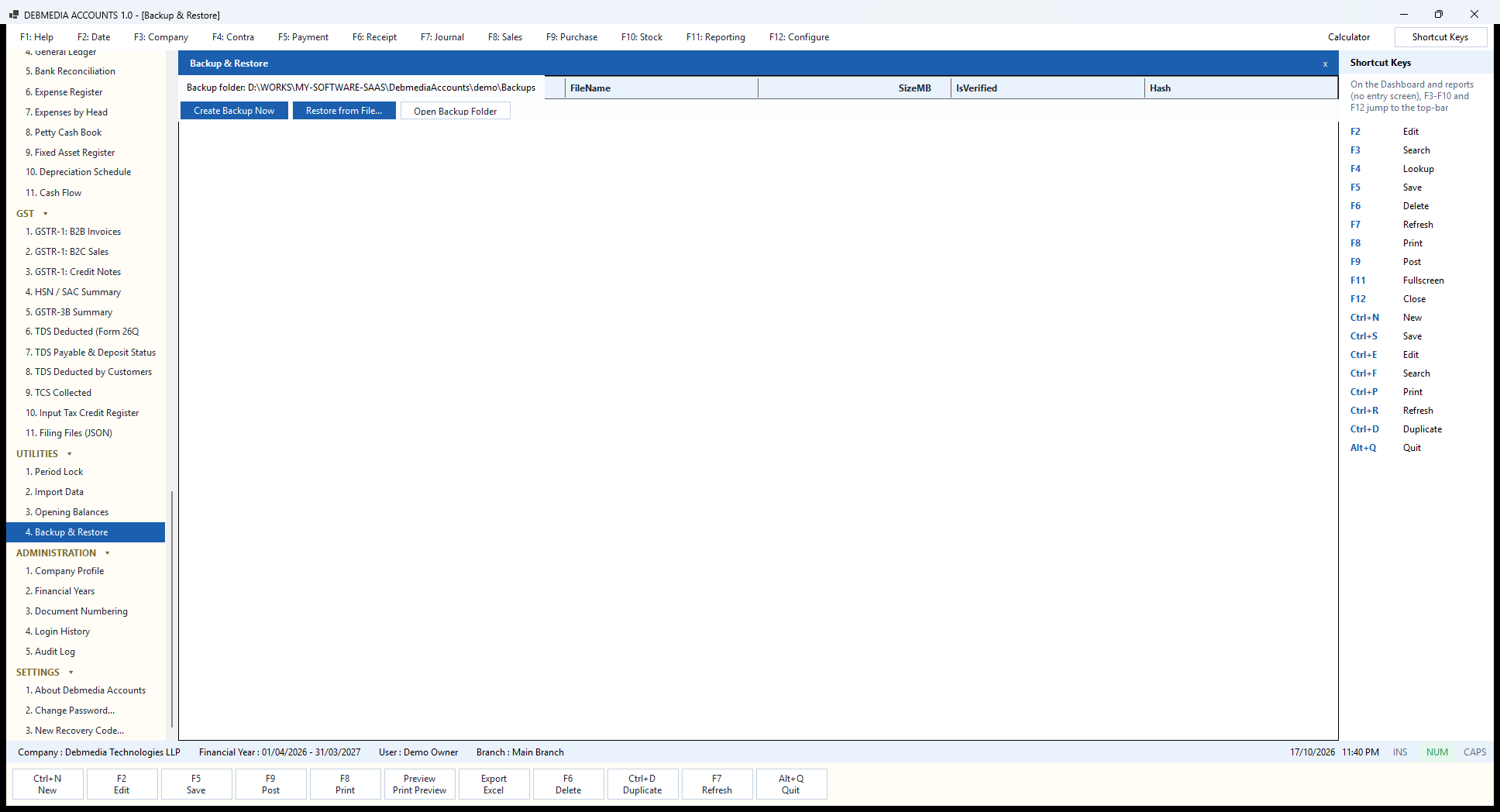
Your books are one file, so protecting them is simple, and Backup & Restore does it. The top line shows the Backup folder where copies are kept. Create Backup Now takes a copy immediately. Open Backup Folder opens that folder in Windows so you can copy the files to a USB drive or a cloud folder. The grid lists every backup with its FileName, SizeMB, IsVerified and Hash.
“Verified” means something. After a backup is written, the program opens the copy, runs SQLite’s integrity check on it and computes its SHA-256 hash, so a copy that exists but is damaged is reported as not verified instead of giving you false comfort. The grid is empty in the picture because the sample has not yet had a backup, which the Dashboard’s Coming up list also mentions.
You do not have to remember to back up. When you close the program, a backup is taken automatically if one has not been taken that day, and the newest fourteen are kept. Restore from File… brings a backup back. It asks for explicit confirmation and, before replacing anything, takes a safety backup of the current books, so a restore of the wrong file can itself be undone.
To move to a new computer, copy the books file and the backups folder, or simply restore the latest backup on the new machine.
Login History
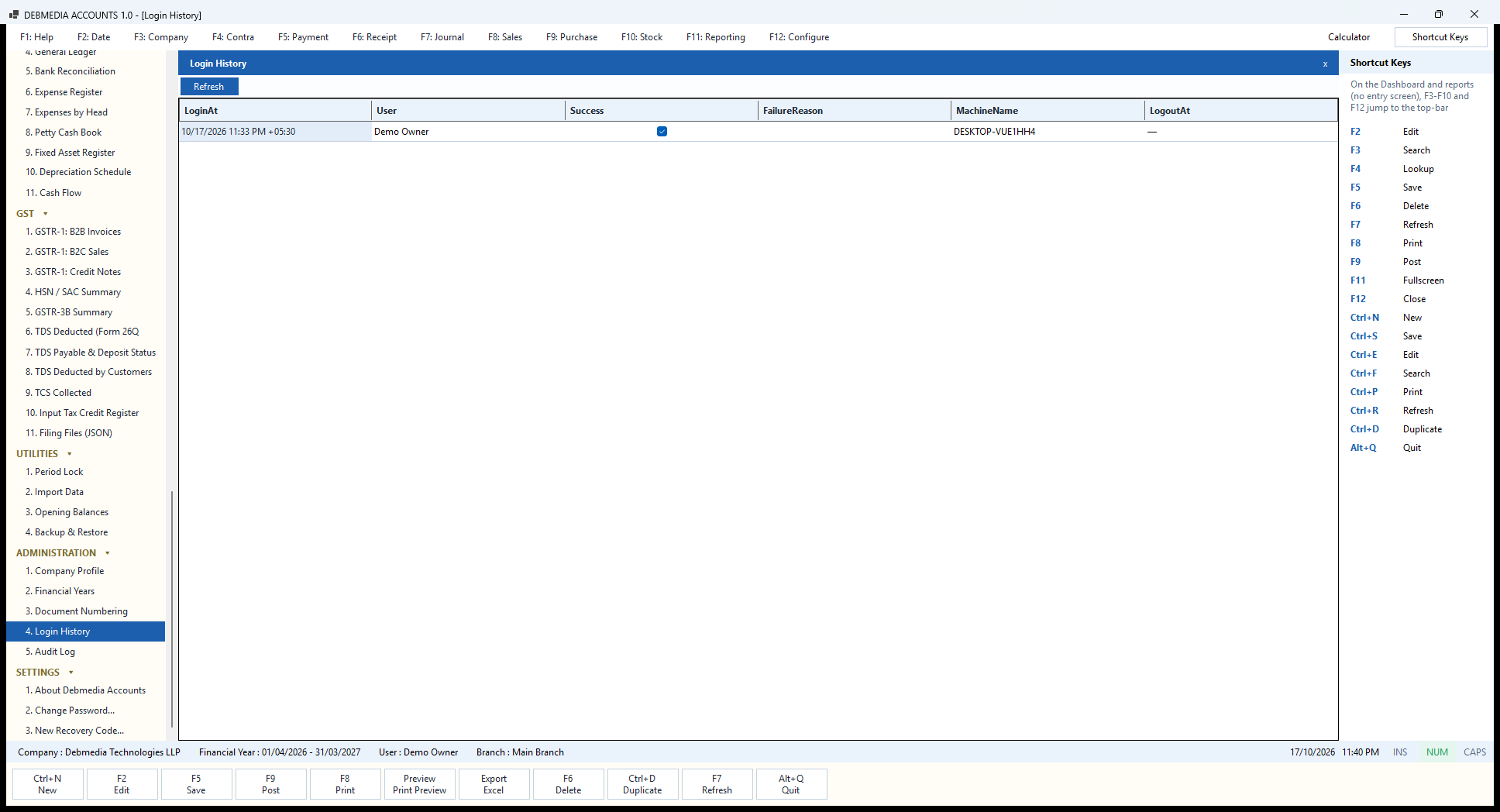
Login History records every attempt to sign in. The columns are LoginAt, User, Success, FailureReason, MachineName and LogoutAt. The sample has one line: the demo owner signing in successfully from a Windows computer on 17 October. A wrong password would add a line with the reason, and after five wrong passwords the account is locked.
When you first start the program you are asked to choose your own name and password; the factory password is never needed again. You are also shown a one-time recovery code and asked to write it down: if the password is forgotten, or the account has been locked by wrong guesses, “Forgot password?” on the sign-in screen and the recovery code let you set a new password, which also unlocks the account and issues a fresh recovery code. The Settings menu has Change Password… and New Recovery Code… to renew either. Passwords and recovery codes are stored only as salted hashes, never as readable text.
The history answers the questions “did anyone open the books while I was away” and “has someone been guessing my password”, which matter more than they sound if the computer is in a shop.
What to watch. A line with a failure reason is worth a look if you did not cause it. A long run of failures means someone has been trying passwords, and the lockout after five wrong attempts stops them. The machine name tells you which computer the attempt came from, which matters most if the books file is ever copied to more than one machine. The Refresh button reloads the list.
Change Password
Change Password… in the Settings menu opens a small window with three boxes: Current Password, New Password and Confirm New Password, and a Save button. The current password is asked for even though you are already signed in, so a passer-by cannot change it while you are away from the desk.
The new password must be at least eight characters, and it must not be the factory password that every new copy starts with; the program will not accept it. The two new entries must match. When you press Save the new password replaces the old one, stored as a salted hash rather than as readable text, and the change is written to the Audit Log. Nothing else in the books changes.
Choose a password you can remember and nobody else can guess, and change it if you think anyone has seen it. If you ever forget it, the recovery code you were shown on the first launch gets you back in without losing a single entry, as the next screen explains.
New Recovery Code
On the first launch the program shows a recovery code, a one-time code for the day the password is forgotten. New Recovery Code… in the Settings menu issues a fresh one. The prompt reads “Type your current password to get a new recovery code. The old code will stop working.” Type the password into the box and press OK, and the new code is displayed once.
Write the code down and keep it somewhere safe and away from the computer, for example with your important papers. Like the password it is stored only as a salted hash, so the program cannot show it to you again, and nobody, including the developer, can recover it. If you have lost it, or think someone has seen it, issue a new one at once; the old code stops working the moment the new one is made.
Using the code is simple: on the sign-in screen choose Forgot password?, enter the code and a new password, and the program sets the new password, unlocks the account if it was locked after wrong guesses, and gives you a fresh recovery code. Too many wrong codes lock the recovery as well, in which case the way back is to restore a backup, which is one more reason to keep the daily backups.
Audit Log
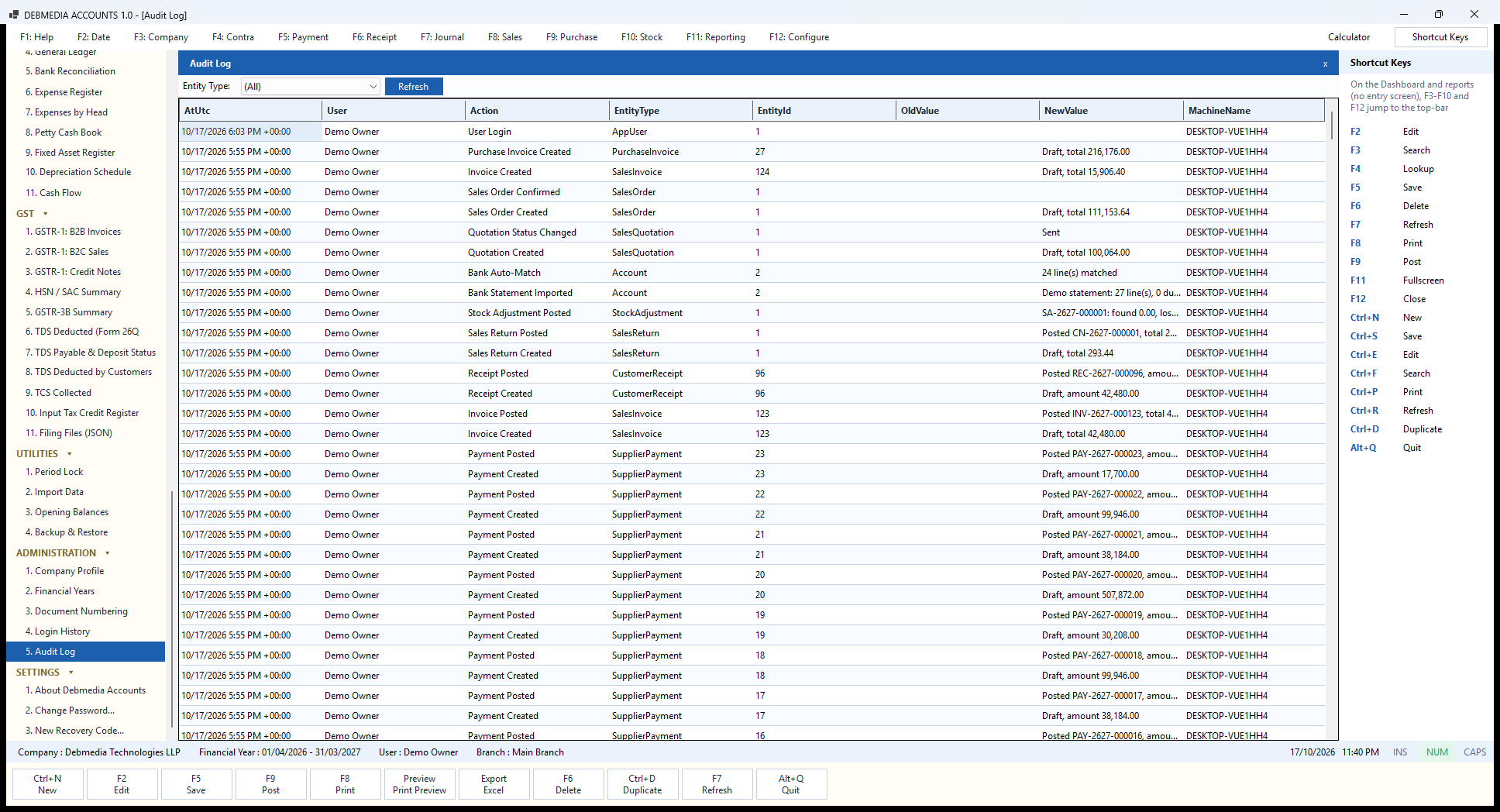
The Audit Log is the program’s memory of what was done. Each row shows the time (AtUtc), the User, the Action, the EntityType and EntityId it concerned, the OldValue and NewValue where relevant, and the MachineName. The Entity Type drop-down at the top filters the list to, say, only sales invoices or only users.
The visible rows read like a diary of the sample company’s setup: “Purchase Invoice Created” with the note “Draft, total 216,176.00”; “Invoice Created” for the draft to Kulkarni; “Sales Order Confirmed” and “Sales Order Created”; “Quotation Status Changed” to Sent; “Bank Auto-Match” with “24 line(s) matched”; “Bank Statement Imported” with “27 line(s)”; “Stock Adjustment Posted”; “Sales Return Posted”; “Receipt Posted” and “Receipt Created”; “Invoice Posted”; and a long series of “Payment Created” and “Payment Posted” entries.
Creating and posting are logged separately, as are cancellations and their reasons, bank auto-matches, imports, depreciation runs, period locks, password changes and sign-ins. The screen has no way to edit or delete an entry. For a small business that is the answer to the owner’s question “who changed this and when”, and for an accountant it is evidence that the books were not quietly altered after the fact.
Using the filter. Choose an Entity Type to narrow the list, for example SalesInvoice to see only what happened to invoices, then press Refresh. Because creating and posting are logged as separate actions, you can see how long a document stayed in draft and who finished it. When a document is cancelled, the reason typed at the time is stored with it. The log is a record for the owner and the accountant, and it is written by the same routines that post the entries, so an action cannot happen without leaving its mark.
About Debmedia Accounts
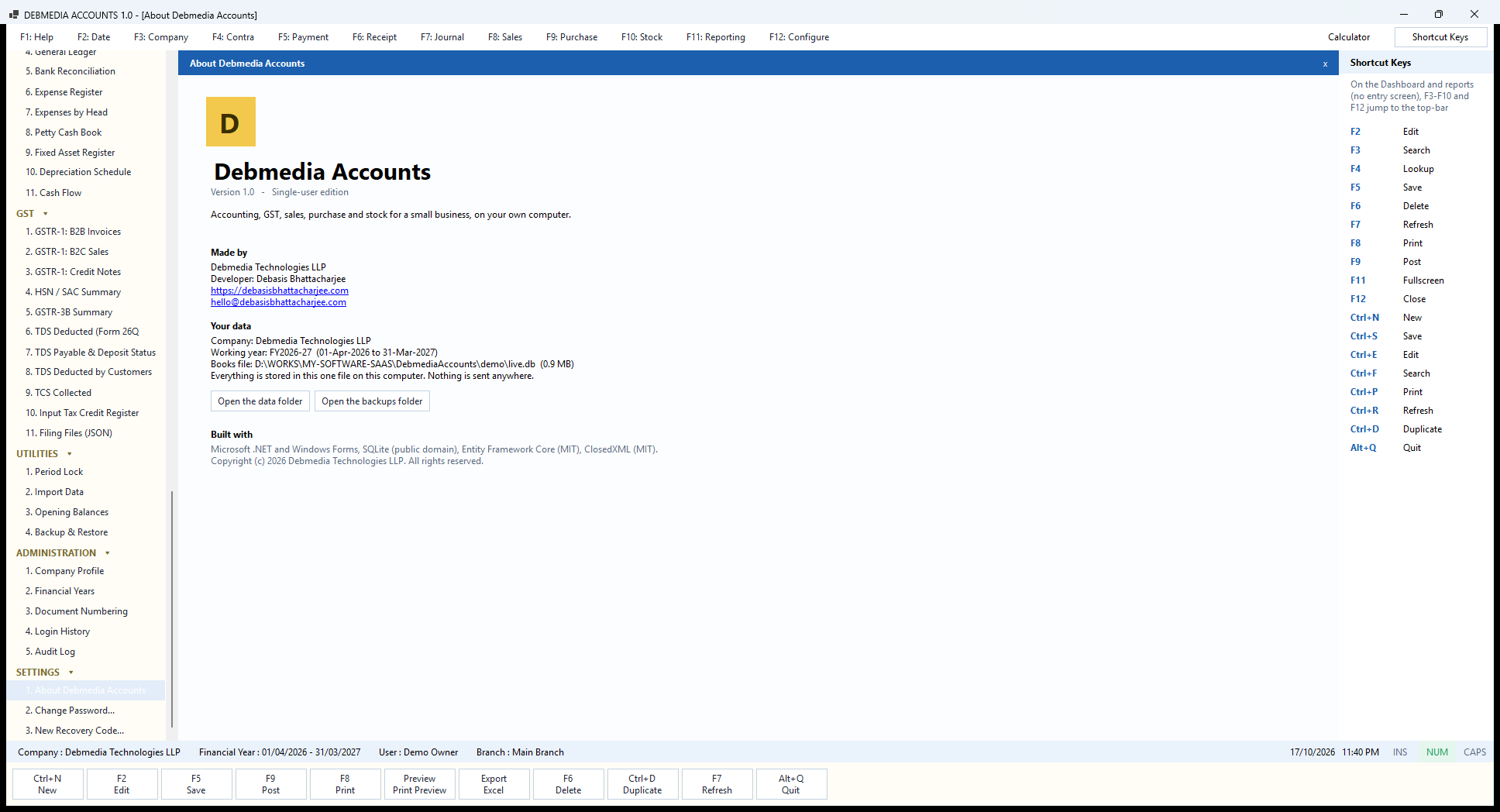
About Debmedia Accounts is the last screen in the Settings menu and the one to check when something needs finding. It states the version (1.0) and the edition (Single-user edition), what the program is for (“Accounting, GST, sales, purchase and stock for a small business, on your own computer”), and who made it: Debmedia Technologies LLP, developer Debasis Bhattacharjee, with the website and e-mail address.
The Your data block is the practical part. It names the company, the working year (FY2026-27, 01-Apr-2026 to 31-Mar-2027) and the Books file, with its full path and size (0.9 MB for the sample company’s seven months). The sentence under it is the promise: “Everything is stored in this one file on this computer. Nothing is sent anywhere.” Open the data folder and Open the backups folder take you straight to the file and its copies.
The bottom of the screen lists what the program is built with: Microsoft .NET and Windows Forms, SQLite, Entity Framework Core and ClosedXML for Excel files, with their licences. Knowing the path is what lets you copy your books to a new computer or e-mail them to your accountant.
Why it is worth a visit. When you want to move your books to another computer, the path on this screen is the file to copy, together with the backups folder. When you ask for support, the version and edition on this screen are what you will be asked for. The Open the data folder and Open the backups folder buttons save you hunting through Windows folders.
The screen also records the promise that matters to many owners: your data is in one file on your computer, and the program sends nothing anywhere. There is no account to create, no licence server to reach and no usage data collected. The single-user edition label tells you what this build is; the multi-user edition planned from the same code would say so here.
A Transaction Followed Through the Whole System
Here is one sale followed through every part of the program, using the figures of the draft invoice on the Sales Invoice screen: ten USB keyboards and ten wireless mice to Kulkarni & Sons Traders of Pune, who are in the same state as the business. The numbers below are exactly what the program works out; none are invented for the example.
1. The invoice. Ten keyboards at ₹749 are ₹7,490.00 and ten mice at ₹599 are ₹5,990.00, so the taxable value is ₹13,480.00. Both items are at GST 18%, which is ₹2,426.40, split into CGST ₹1,213.20 and SGST ₹1,213.20 because buyer and seller share a state. The invoice total is ₹15,906.40, due on 16 November, thirty days later.
2. Pressing Post. The program numbers the invoice, checks that the customer has credit available (₹2,832,462.04 before this sale), checks that the date is not in a locked period, and posts one balanced entry:
| Account | Debit | Credit |
|---|---|---|
| Accounts Receivable | 15,906.40 | |
| Sales Revenue | 13,480.00 | |
| Output CGST | 1,213.20 | |
| Output SGST | 1,213.20 | |
| Cost of Goods Sold (10 × ₹450 + 10 × ₹350) | 8,000.00 | |
| Inventory | 8,000.00 | |
| Totals | 23,906.40 | 23,906.40 |
3. The stock. Ten keyboards and ten mice leave the Main Warehouse at their average cost. Keyboards fall from 63 to 53 and mice from 56 to 46, the Stock Ledger gains two Out lines tied to the invoice number, and total stock value falls by ₹8,000.00 from ₹1,181,233.00 to ₹1,173,233.00.
4. The customer. Kulkarni & Sons Traders now owe ₹183,444.36 (₹167,537.96 plus this invoice), their available credit falls by the invoice total, and the invoice appears on their Customer Statement. The Dashboard’s “You will receive” card rises by ₹15,906.40.
5. The profit. Income rises by ₹13,480.00 and cost of goods by ₹8,000.00, so this sale adds ₹5,480.00 to profit, a margin of 40.65%. The Profit and Loss, the Dashboard’s profit cards and the Item-wise Sales and Profit report all move by the same amount.
6. The tax. The Output CGST and SGST accounts each rise by ₹1,213.20. The GST Report for the month, the GSTR-1 tables, the HSN Summary (code 8471 gains 20 units) and GSTR-3B row 3.1(a) (taxable value up by ₹13,480.00) all include the invoice, and the GSTR-1 file built on the Filing Files screen would contain it.
7. The paper. Print / Preview produces the A4 tax invoice with the company’s logo and GSTIN, the customer’s GSTIN, HSN codes, the tax split, the amount in words (“Rupees Fifteen Thousand Nine Hundred Six and Forty Paise Only”), the bank details, the UPI id and the terms. Save PDF writes it to a file for e-mailing.
8. The money. When the customer pays, Customer Receipt allocates the payment to the invoice. The bank (or cash) is debited and Accounts Receivable credited, the invoice shows as paid, the customer’s outstanding falls, the Cash Book or Bank Book gains a line, and the Cash Flow report shows the money under Receipt.
9. If it was wrong. Cancel Invoice asks for a reason and posts the exact opposite of step 2, brings the twenty items back into stock, and leaves both the invoice and its cancellation in the Journal and the Audit Log. If only part of it comes back later, a credit note on the Sales Return screen reverses just that part, as the sample’s ₹293.44 credit note did.
All of this happened because of one entry, made once. That is the whole idea of the program.
Under the Hood: Technology, Data and Security
Technology. Debmedia Accounts is a native Windows Forms application written in VB.NET on the current .NET platform. Data is stored with SQLite through Entity Framework Core, and Excel files are read and written with ClosedXML. It is a desktop program in the plainest sense: no web server, no browser engine, no background service.
Structure. The program is built in five layers that only depend on the ones beneath them: Domain (the records and rules), Persistence (the database), Application (the posting engines and services, the only place journal entries are created), Reporting (read-only reports, GST return data and file builders, the invoice print model and the Dashboard) and UI (the screens). Screens never work out tax or balances themselves; they ask the layer below.
Rules the code keeps. Every journal entry is created by one routine, which refuses an unbalanced entry. Cancelling posts the exact reverse. A period check runs before every posting and cancellation, covering closed years and the period lock. Balances are always derived from posted entries and documents, never stored and edited. GST is worked out in one place. A new database is created, and an older one is brought up to date automatically after a backup is taken first.
Data. Each company is one SQLite file, by default in your Windows user folder, with its backups in a folder beside it. The About screen shows the exact path. Nothing is sent over the network by the program, so there is nothing to configure in a firewall and nothing that stops working when the internet does.
Security. On the first launch the owner chooses a password and receives a one-time recovery code. Passwords and the recovery code are stored only as salted hashes. Five wrong passwords lock the account until a recovery code is used. Every sign-in is recorded in the Login History, and important actions are recorded in the Audit Log. The books file itself is an ordinary file on your disk, so protect the computer and the backups as you would any other business record; keeping backup copies on a drive that is not in the same room is a sensible habit.
Testing. The program ships with 581 automated checks that cover GST calculation (inclusive and exclusive pricing, reverse charge, TCS), the GST reports, TDS, bank reconciliation, stock and costing, cancellations and reversals, opening balances, fixed assets, import, numbering, invoice printing, backups and the owner’s password and recovery code. They run against fresh temporary databases, and all of them pass on the current build.
Know Before You Decide: Scope and Current Limits
Being clear about what a program does not do is as useful as listing what it does.
| Area | Current position |
|---|---|
| Users | One user at one computer. There are no user accounts, roles or permissions in this edition, and no sharing over a network. A multi-user edition is planned from the same code but is not part of this one. |
| GST portal | The program prepares return figures and builds JSON files (GSTR-1, GSTR-3B, e-invoice, e-way bill). It does not connect to the portal, does not file returns and does not generate an invoice reference number from the portal. You upload the files yourself. |
| Input credit | Input GST is treated as fully eligible, except that bills from suppliers with no GSTIN are flagged. Blocked or partly ineligible credits are not modelled, and GST paid on the purchase of a fixed asset is not split out from its cost. |
| Reverse charge | Reverse-charge purchases are supported. Returns against a reverse-charge purchase are not. |
| TDS and TCS | Rates and thresholds are installed as editable defaults. Confirm them with your accountant each year, because Finance Acts change them. |
| Tally | Ledgers, items, opening balances and stock come across from a Tally export; vouchers come across as journal entries only. Open customer and supplier bills should be moved across as opening balances. |
| Editing | Sales and purchase invoices can be edited as drafts. Quotations, orders, receipts and returns cannot be edited after the first save; cancel and enter again. |
| Scope of the business | Accounting, GST, sales, purchase and stock. There is no payroll, manufacturing, project or CRM module in this program. |
| Country and currency | Built for India: GST, TDS and TCS, state codes, rupee amounts in lakh and crore. It is not a general-purpose multi-country accounting package. |
Who Debmedia Accounts Is For
Debmedia Accounts suits an owner-run Indian business that issues GST invoices and wants its own books on its own computer without a subscription or a server.
- Traders and shopkeepers who need quick GST billing, stock by item, and a clear view of who owes what.
- Distributors and wholesalers with several suppliers, credit customers and an eye on margin per item.
- Service firms and consultants who invoice clients, have TDS deducted by them, and want their 26AS to match.
- Small manufacturers’ trading arms that buy materials, hold stock and bill customers, where the production side is kept elsewhere.
- Accountants and bookkeepers who keep a small client’s books in a clean, exportable file and want the figures to tie out without reconciling spreadsheets.
- Anyone moving off Excel or an older accounting package who wants import from Excel, CSV or Tally and a proper double-entry book underneath.
It is not the right choice if several people must enter data at the same time, if you need a payroll or manufacturing module, or if you want the program itself to file with the GST portal.
Frequently Asked Questions
Do I need the internet?
No. Daily work, printing, backups and building GST files all work without it. You only need a connection when you upload a file to the GST portal, and you do that in your own browser.
Where is my data stored?
In one database file on your own computer, with backups in a folder beside it. The About screen shows the exact path. Nothing is sent to Debmedia or to any cloud.
Does it file my GST return?
It prepares the figures (GSTR-1 tables, HSN summary, GSTR-3B summary) and builds the JSON files you upload on the portal. It does not connect to the portal itself. Please confirm your filings with your accountant.
Can I try it first?
Use the Download Now button at the top of this page to request a trial. Requests are answered by hand with the download link, to the e-mail address you give.
Can several people use it together?
This edition is for one user at one computer. A multi-user edition is planned from the same code; tell us what you need.
I posted a wrong invoice. What now?
Cancel it, giving a reason. The program posts an exact reversal, brings the stock back and keeps both the invoice and the cancellation on record. Then make the correct invoice. If only part of it was wrong, issue a credit note.
Can I change a posted document?
No, by design. Posted documents are locked so the books can be trusted. Corrections are made by cancelling, reversing or issuing a return.
Can I get my figures into Excel?
Every report has Export Excel, Export CSV and Export PDF buttons next to Print and Print Preview.
How do I bring my old data in?
Use Import Data for customers, suppliers, items and accounts from Excel or CSV (every row is checked first) or from a Tally XML export, then Opening Balances for the closing figures of your old books.
How do I start a new financial year?
On Financial Years, add the new year, mark it current and, when the old year is complete, close it. The profit moves to Retained Earnings and invoice numbers restart.
What if I forget my password?
On the sign-in screen choose “Forgot password?” and enter the recovery code you were shown on the first launch. It sets a new password, unlocks the account and gives you a new recovery code.
What if my computer fails?
Install the program on a new computer and restore your latest backup. This is why the automatic daily backup, and copying the backups folder to another drive, matter.
Are the TDS rates right?
They are installed as editable defaults for the common sections. Rates and limits change with each Finance Act, so confirm them with your accountant and update the TDS Sections screen when they change.
In Summary
Debmedia Accounts gives a small Indian business the discipline of a proper double-entry accounting system with the speed and familiarity of a keyboard-driven desktop program. Quotation to cash, request to payment, GST invoices and credit notes, TDS on both sides, stock with a real ledger, expenses with their input credit, fixed assets, bank reconciliation, and the books and returns that come out of them are all there, and each is made from a single entry that is made once. It flows to the stock, the ledgers, the tax tables, the Dashboard and the audit trail, and the checks that ship with the program prove that every screen agrees with every other. To see it on your own business, use the download button at the top of this page to request a trial.
Choose Your Plan
Start free, white-label it, get the full source, or let us build a custom version just for you.
- ✓ Full feature preview
- ✓ No credit card required
- ✓ Works right out of the box
- ✓ Your brand, your name
- ✓ Sell to unlimited clients
- ✓ Full installer & assets
- ✓ Complete source code
- ✓ Modify anything
- ✓ Commercial use rights
- ✓ Any modules you need
- ✓ Tailored to your business
- ✓ Agreed price, no surprises