DEBMEDIA ERP
Offline double-entry ERP for GST businesses: sales, purchase, stock, payroll and books in one fast Windows app
DEBMEDIA ERP keeps buying, selling, stock, accounts, GST and payroll in one offline Windows program. Every invoice, receipt, return and salary run posts balanced double-entry entries automatically, so the Trial Balance, Balance Sheet, GST report and stock always agree.
See DEBMEDIA ERP in Action
A clean, modern interface designed for real-world use.
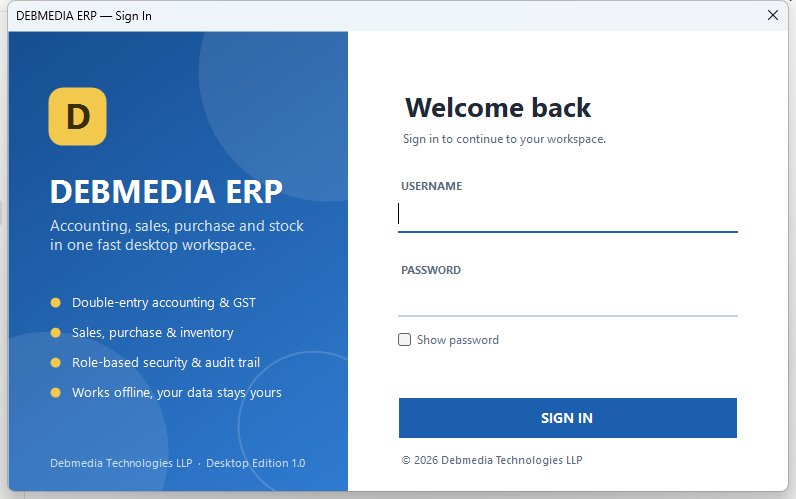
DEBMEDIA ERP Sign In: The sign-in screen: username, password and a SIGN IN button, with the product's promise on the left panel.
What Is DEBMEDIA ERP?
DEBMEDIA ERP is a complete business-management program for Windows that keeps a small or mid-sized company’s buying, selling, stock, accounts, GST and staff in one place. It is a double-entry accounting system at its core: every invoice, receipt, payment, return, stock movement and salary run is turned into balanced accounting entries automatically, so the books are never something you type up afterwards. Sales and purchase documents, the stock ledger, the trial balance, the balance sheet, the GST report, leave, attendance and payroll all read from the same set of records, which means one entry shows up everywhere it should and the reports agree with each other by construction.
The program is a native Windows desktop application, written in VB.NET on the current .NET platform with Windows Forms, and it stores everything in a single SQLite database file on your own computer or your own office server. There is no cloud account, no subscription and no internet connection required to work, to activate the licence or to print. Your data stays where you put it, and you can copy it, back it up and restore it like any other file. The screen is organised the way accountants and shopkeepers who grew up on keyboard-driven accounting software expect: a main menu on the left, function keys along the top, shortcut keys that behave the same way on every screen, and an action bar at the bottom.
This page walks through the application screen by screen, in the same order as its Main Menu. Every screenshot was taken from the real, running program with a sample company loaded, and each screen is explained completely: what it is for, what every field, column and button does, what the program does behind the scenes when you press a button, and how that screen connects to the rest of the system. If you only want the highlights, read the next two sections and jump to the module you care about from the contents list. If you want to understand exactly how the product behaves before you buy it, read it all.
DEBMEDIA ERP at a Glance
| Topic | What you get |
|---|---|
| Platform | Windows 10 and Windows 11 desktop application (native Windows Forms, not a web page in a wrapper). |
| Data storage | One SQLite database file (erp.db). Local, portable, easy to back up. Nothing leaves your computer. |
| Internet | Not needed for daily work, printing, backups or licence activation. |
| Accounting model | True double-entry. Every transaction posts a balanced journal entry; total debits always equal total credits. |
| Tax | GST-aware sales and purchase documents: CGST + SGST for same-state supplies, IGST for inter-state, with input and output tax accounts and a monthly GST report. |
| Stock | Perpetual inventory from a stock ledger, with weighted-average (default) or FIFO costing, reorder levels and negative-stock policy per item. |
| Sales cycle | Quotation, Sales Order, Sales Invoice, Customer Receipt and Sales Return (credit note), each convertible into the next. |
| Purchase cycle | Purchase Request, Purchase Order, Purchase Invoice, Supplier Payment and Purchase Return (debit note). |
| People | Employees, leave types and requests, monthly attendance, salary components, per-employee salary structure, payroll run with posting and payment, and printable payslips. |
| Reports | Trial Balance, Profit and Loss, Balance Sheet, Ageing, GST, Day Book, Cash Book, Bank Book, General Ledger, Cash Flow, stock reports, 12 sales and purchase reports and 7 HR and payroll reports. Print, preview, export to Excel, CSV or PDF from every one. |
| Control | Users, roles and 150 individual permission switches; login history with lockout after repeated failures; a full audit log; financial-year closing. |
| Safety | Verified backups (integrity check and SHA-256 hash), restore, and a protective backup taken before every restore. |
| Several computers | Optional multi-user mode over an office network, with the number of simultaneous users set by the licence (1 to 25). |
| Licence | Lifetime licence, no yearly fee. Activated offline with your email address and key. A 3-day evaluation period for 2 users is built in. |
| Size of the product | 68 screens on the Main Menu, plus the sign-in, change-password and lookup dialogs. |
All figures on this page come from a demo company with fictional customers and suppliers. The numbers are real outputs of the program working on that sample data, so you can follow a transaction from one screen to the next and see the same amounts again.
How DEBMEDIA ERP Works
Before the individual screens, it helps to understand the handful of ideas that every screen shares. Once you know these, the whole program feels familiar.
The Main Window
Every screen lives inside one main window, which has the same six areas whatever you are doing. At the very top is the title bar, which always shows the program name and the name of the screen you are on, for example DEBMEDIA ERP 1.0 (Desktop Edition) – [Sales Invoice]. Directly under it is the function-key bar: twelve buttons labelled F1 to F12 that jump straight to the most common places. F1 shows or hides the Shortcut Keys panel, F2 shows today’s date and the current financial year, F3 opens the Company Profile, F4 (Contra) and F7 open the Journal Entry screen, F5 opens Supplier Payment, F6 opens Customer Receipt, F8 opens Sales Invoice, F9 opens Purchase Invoice, F10 opens the Stock Ledger, F11 opens the Trial Balance, and F12 opens Users. On the right of this bar are a Calculator button, which opens the Windows calculator beside your work, and a Shortcut Keys button.
On the left is the Main Menu, a long scrollable list grouped into collapsible sections: Masters, Sales, Purchase, Accounting, Inventory, HR, Payroll, Financial Reports, Sales Reports, Purchase Reports, Accounting Books, HR and Payroll Reports, Utilities, Administration and Settings. The screen you are on is highlighted in blue. The menu only lists what the signed-in user is allowed to open, so an accountant and a salesperson see different menus from the same program. In the middle is the screen itself, headed by a blue title strip. On the right is the Shortcut Keys panel, a quick reference that you can hide with F1.
At the bottom are two bars. The status bar always tells you the company name, the financial year in force, the signed-in user, the branch, the date and time, and whether the Insert, Num Lock and Caps Lock keys are on. Above the status bar is the action bar, a row of large buttons that mirror the keyboard: Ctrl+N New, F2 Edit, F5 Save, F9 Post, F8 Print, Preview, Export Excel, F6 Delete, Ctrl+D Duplicate, F7 Refresh and Alt+Q Quit. The buttons and the keys run exactly the same code, so using the mouse or the keyboard never gives a different result.
Keyboard Shortcuts
DEBMEDIA ERP is designed to be driven from the keyboard by people who enter data all day. The same keys mean the same thing on every screen that has something to save, post or print. A screen that cannot do what a key asks simply ignores it, and a screen the user has no permission for refuses it, so there is no way to bypass a permission with a shortcut.
| Key | What it does |
|---|---|
| F2 / Ctrl+E | Edit the selected record. |
| F3 / Ctrl+F | Search. On the Dashboard and on reports, F3 instead jumps to the Company Profile. |
| F4 | Lookup. In a customer, supplier or item field it opens the lookup list; pick with Enter. |
| F5 / Ctrl+S | Save (for example Save Draft on an invoice). |
| F6 | Delete (where deleting is allowed). |
| F7 / Ctrl+R | Refresh the screen’s data. |
| F8 / Ctrl+P | Print. |
| F9 | Post, which commits a document to the books. |
| F11 | Full-screen workspace; press again to restore. |
| F12 | Close, or on screens without a close action, jump to Users. |
| Ctrl+N | New record or new document. |
| Ctrl+D | Duplicate the current document. |
| Alt+Q | Quit the program. |
Standard Windows editing keys (Ctrl+C, Ctrl+V, Ctrl+X, Ctrl+Z and Ctrl+A) are deliberately left alone so that typing and pasting inside a text box or a grid behave exactly as you expect.
Documents, Draft and Posted
Every business document in the program, whether a sales invoice, a purchase invoice, a receipt, a payment, a return or a payroll run, moves through a small, strict life cycle. A document starts as a Draft. A draft can be edited freely, has no number yet, and has no effect at all on the books or on stock: you can save it, leave it, come back tomorrow and change it. When you press Post, the document becomes Posted: it receives its permanent number, its accounting entries are created, its stock moves, and it is locked. A posted document can never be edited or deleted. If a posted sales or purchase invoice was wrong, you Cancel it: the invoice stays on record, marked Cancelled, with the reason you typed, and the program posts an exact reversing entry and an opposite stock movement. A manual journal entry is corrected with Reverse, a posted but unpaid payroll run can be cancelled, and goods that come back are handled with a Sales Return or Purchase Return. History is never rewritten; it is corrected by adding more history.
Quotations, sales orders, purchase requests and purchase orders are non-financial documents. They record intent and carry lines forward, but they never create accounting entries or move stock. Only the invoice, receipt, payment, return and payroll documents do.
One Click Posts Everything
The central idea of the product is that posting is a single, atomic operation. When you post a sales invoice, the program, inside one database transaction, numbers the invoice, creates the journal entry (receivable, revenue, output GST), reduces stock for every stock item and posts its cost to cost of goods sold, updates the invoice’s balance, and writes an audit-log entry. If any step cannot be done, for example because the customer would exceed their credit limit, the financial year is closed, or stock would go negative on an item that blocks negative stock, nothing is saved and you are told why. You will never find an invoice that is posted but missing its accounting entry, or a stock movement with no document behind it.
Two further guards protect you when several people work at once. Before posting or cancelling, the program re-reads the latest saved state, and it checks again inside the transaction that the document is still in the status it expects, so two users cannot post or cancel the same document twice. Document numbers are issued by the database itself with a single increment-and-read statement, so two users posting at the same moment can never be handed the same number.
Document Numbering
Each document type has its own number series with a prefix and zero padding, and the series restarts at the beginning of each financial year: quotations QTN-, sales orders SO-, sales invoices INV-, purchase requests PR-, purchase orders PO-, purchase invoices PB-, customer receipts REC-, supplier payments PAY-, sales returns (credit notes) CN-, purchase returns (debit notes) DN-, journal vouchers JV- and payroll runs PRL-. Invoices, receipts, payments and returns receive their number at the moment they are posted, not while they are drafts, so an abandoned draft never leaves a gap in the posted series. Quotations, orders and purchase requests are numbered when they are first saved.
How GST Is Calculated
All tax arithmetic is done in one place and every sales and purchase document uses it. For each line the program first works out the taxable value (quantity multiplied by price, less the line discount), then applies the line’s tax code rate. It then compares the state of your company with the state of the customer or supplier. If they are the same state, the tax is split into equal CGST and SGST halves; if they differ, the whole amount is IGST. The two halves always add up to the exact total: CGST is rounded and SGST is the remainder, so there is never a one-paisa drift. When the party’s state is not recorded, the program treats the supply as same-state, which is the safe default for existing customers.
On posting, sales tax goes to the Output CGST, Output SGST or Output IGST liability accounts, and purchase tax goes to the Input CGST, Input SGST or Input IGST asset accounts. The GST Report then totals the month so you can see tax collected and tax paid, and the Trial Balance and Balance Sheet show the same balances.
Stock and Costing
Stock is never typed into a quantity field. It is the running total of the Stock Ledger, where every receipt is an IN entry and every issue is an OUT entry, each with its unit cost, date, source document and reference. Because of that, the current stock of any item can always be explained entry by entry, and the value of stock on hand can always be tied to the Inventory account in the books.
When goods are issued, the program decides what they cost using the item’s valuation method. The default is weighted average, which uses the average cost of everything received. FIFO takes the cost from the oldest unused receipt. A third option, standard cost, uses the fixed cost stored on the item. Every item also carries a negative-stock policy: Allow, Warn or Block (Warn is the default). With Block, a sales invoice that would take stock below zero is refused.
Users, Roles and Permissions
Access is controlled by roles. A role is a named set of permissions, and a user can hold several roles. The catalogue contains 150 separate permissions, one for each action on each screen, across ten areas: Security, Setup, Masters, Sales, Purchase, Accounting, HR, Payroll, Reports and System. Typical actions are View, Create, Edit, Delete, Post, Cancel, Approve, Close, Reopen, Restore and Pay. Because Post and Pay are separate from Create and Edit, you can let a clerk prepare invoices that only a manager may post, or let one person run payroll and another actually pay it. The menu, the buttons and the keyboard shortcuts all respect these permissions.
Financial Years and Closing
Everything is dated and belongs to a financial year, which starts on the month and day set in the company. Once a year is closed, no one can post, cancel or reverse anything inside it: the invoice, receipt, payment, return, journal and payroll engines all check this before they do anything. Closing is itself a permission, and a closed year can be reopened by someone who holds the Reopen permission, with the change recorded in the audit log.
Starting the Program: Sign-In and Dashboard
Sign In
The first thing you see is the sign-in window. The blue panel on the left restates what the product is for (double-entry accounting and GST, sales, purchase and inventory, role-based security with an audit trail, and offline working where your data stays yours). The right side is the form: a Username box, a Password box that shows dots as you type, a Show password tick-box for when you want to check what you typed, and the large SIGN IN button.
Before this window appears, the program checks its licence. On a computer that has not been activated, it either starts the free 3-day evaluation period (telling you how much time is left) or, when the evaluation is over, shows the activation window where you enter the email address and licence key. Activation works entirely offline. It is a calculation on your own computer, so it needs no internet and no server. If the company database is kept on another computer in the office and that computer is switched off, the program says so and offers to carry on with this computer’s own database instead, without touching the shared one.
When you press SIGN IN the program looks up the user, checks the password (stored only as a salted hash, never as readable text) and records the attempt in the Login History with the computer’s name, whether it succeeded and, if not, why. A wrong username and a wrong password produce the same message, so nobody can use the sign-in box to discover which usernames exist. After five wrong passwords the account is locked until an administrator unlocks it on the Users screen. A deactivated account cannot sign in.
Two more things happen on a successful sign-in. The program claims one of the seats your licence allows (see Network Setup), and if the user is signing in for the first time with a temporary password, the Change Password window opens first and the main window will not open until a new password of at least eight characters has been chosen and confirmed.
Dashboard
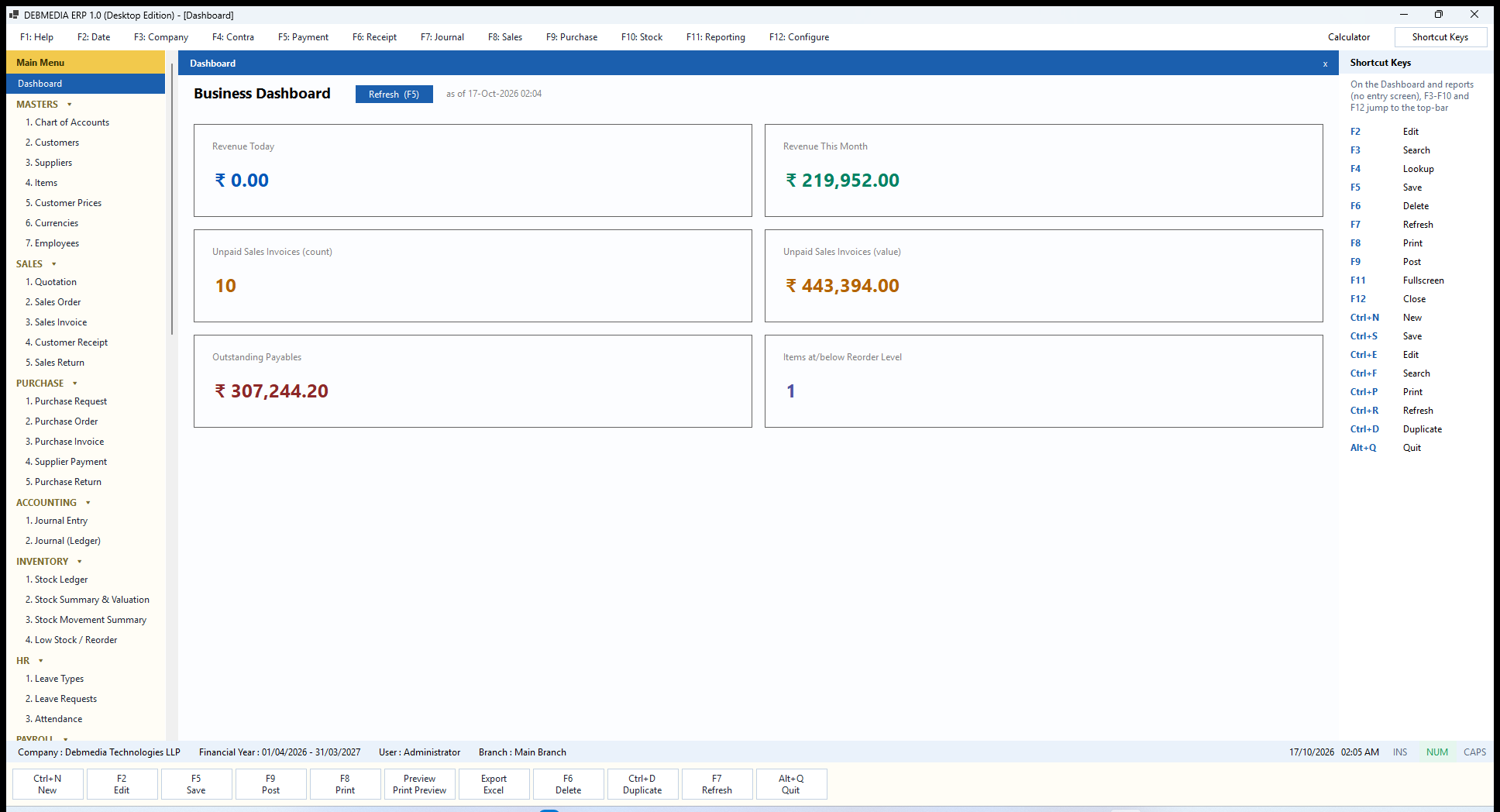
The Dashboard is the home screen and the only one that is purely a summary. It shows six cards, each a single live figure drawn straight from your posted records, and it is rebuilt every time you open it so the numbers are never stale. The Refresh (F5) button and the little as of time stamp next to it let you check how fresh the figures are. Nothing on this screen can be edited, and nothing here changes your data.
Revenue Today adds up the totals of the sales invoices posted with today’s date, and Revenue This Month does the same for the whole calendar month. Both use the invoice grand total, which includes GST, and only posted invoices count: drafts and cancelled invoices are ignored. In the sample company the month’s figure of ₹219,952.00 is exactly the nine October invoices you can see on the GST Report.
Unpaid Sales Invoices appears twice, once as a count (10 here) and once as a rupee value (₹443,394.00): the posted invoices that still have a balance. Outstanding Payables is the equivalent for money you owe suppliers, taken from posted purchase invoices with a balance. Items at/below Reorder Level counts the stock items whose total stock, across all warehouses, has fallen to or below the reorder level set on the item. Items whose reorder level is zero are not counted. Here the count is one, the Dell Inspiron 14 laptop, which you can see in detail on the Low Stock report.
A small point worth knowing when you compare screens: the Dashboard cards show open invoice balances, whereas the Customer Outstanding, Supplier Outstanding, Trial Balance and Balance Sheet figures also net off credit notes and debit notes that have been posted. In the sample data a sales return of ₹2,832.00 and a purchase return of ₹3,068.00 explain the small differences, and the reports agree with each other to the paisa.
Setting Up the Company
Two screens, both in the Administration section of the menu, define the company the books belong to. They are the first things you fill in on a new installation.
Company Profile
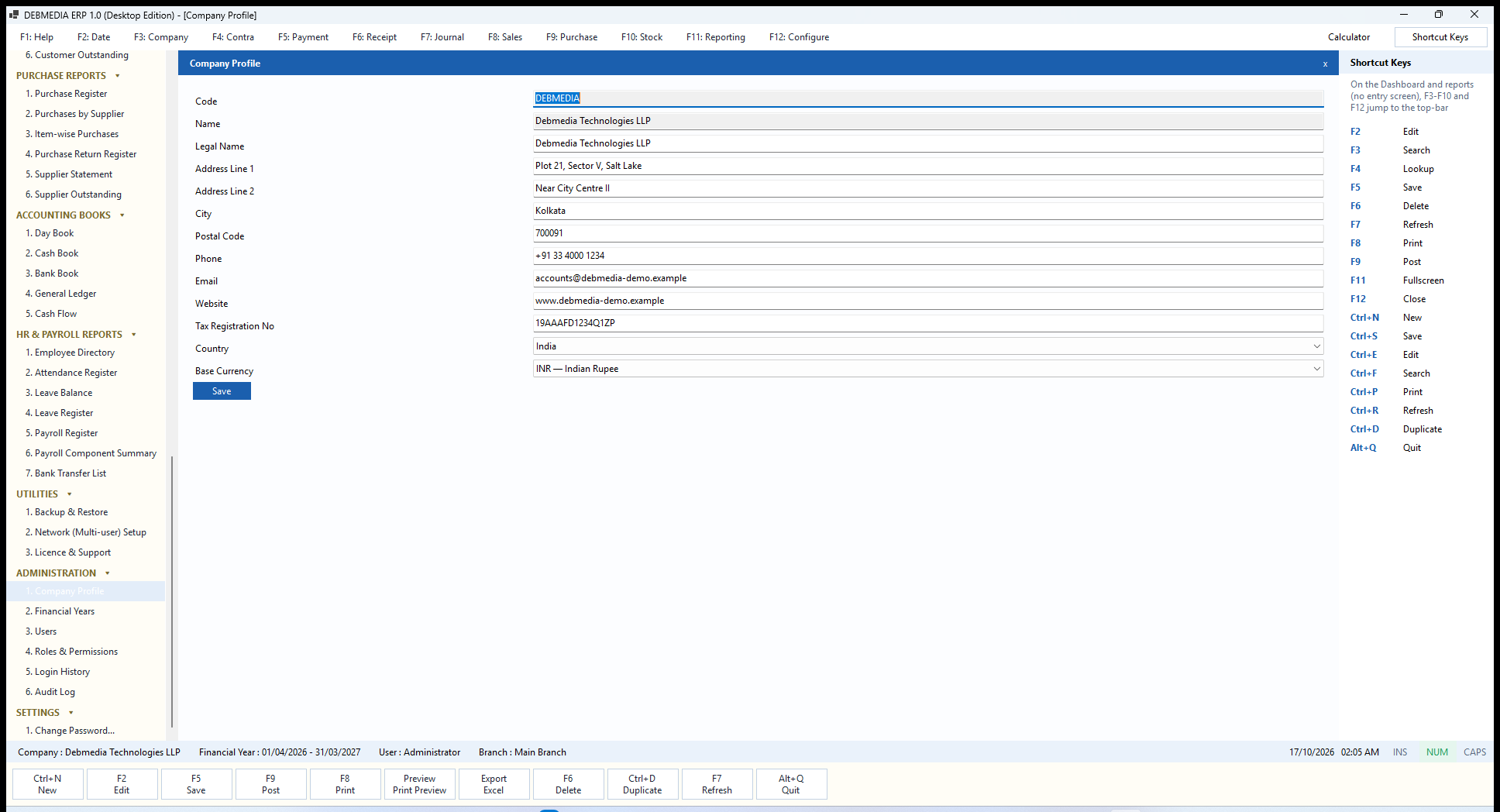
Where to find it: Main Menu, Administration, Company Profile (also the F3 key).
The Company Profile holds the identity that appears on documents and reports. The first two lines, Code and Name, are greyed out because they identify the company inside the database and cannot be changed once it exists. Everything below them can be edited: the Legal Name, Address Line 1 and 2, City, Postal Code, Phone, Email, Website and the Tax Registration No, which is where your GSTIN goes (the sample shows a fictional one).
Country and Base Currency are drop-down lists. The base currency is the company’s own currency and is used for the books; the program ships with thirteen currencies, including the Indian rupee, US dollar, UAE dirham, pound, euro, Saudi riyal and Sudanese pound. Press Save, or F5 or Ctrl+S, to store your changes. Every change is written to the Audit Log. A company is never deleted once it has been created, so there is no Delete button, only Save.
The company name and the financial year shown in the status bar at the bottom of the window come from here and from the Financial Years screen, and the company name is printed in the heading of every report and in each payslip.
Financial Years
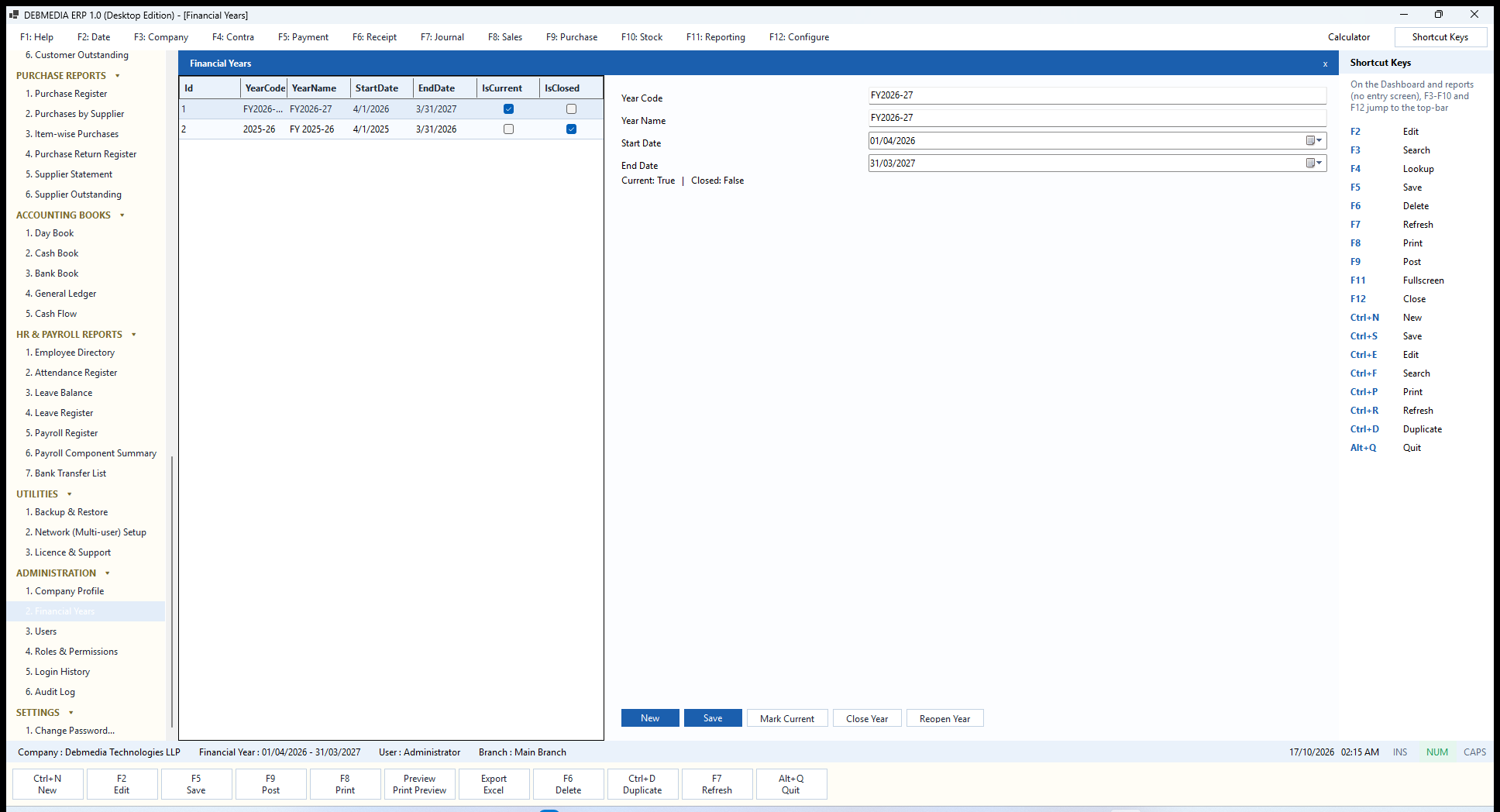
Where to find it: Main Menu, Administration, Financial Years.
Every document belongs to a financial year, and this screen manages them. The list on the left shows each year with its code, name, start and end dates and two tick-boxes, IsCurrent and IsClosed. In the sample company the year FY2026-27 (1 April 2026 to 31 March 2027) is current and open, and the previous year 2025-26 is closed. Selecting a year shows its details on the right, with a plain-language summary line (Current: True | Closed: False).
To add a year, press New, type a unique Year Code and a Year Name, choose the Start Date and End Date (the end must be after the start) and press Save. Mark Current makes the selected year the one new documents are posted into, and the program makes sure only one year is current at a time. The year offered when the program starts is worked out from the start month and day configured for the company, so a company with an April year end gets April to March automatically.
Close Year locks the year. After closing, no invoice, receipt, payment, return, journal entry or payroll run can be posted, cancelled or reversed inside it, and the program tells the user that the year is closed. Reopen Year undoes that. Both are separate permissions, so you can allow an accountant to work in the year but keep closing and reopening for the owner. The Audit Log records who closed or reopened a year and when.
Masters: The Reference Data
Masters are the lists everything else refers to: accounts, customers, suppliers, items, currencies and employees. They share one working style. A list on the left, a form on the right, New and Save buttons under the form, and a simple rule about removal: a record that has never been used can be deleted, but one with any transaction history can only be deactivated, so history never loses its customer, supplier or item.
Chart of Accounts
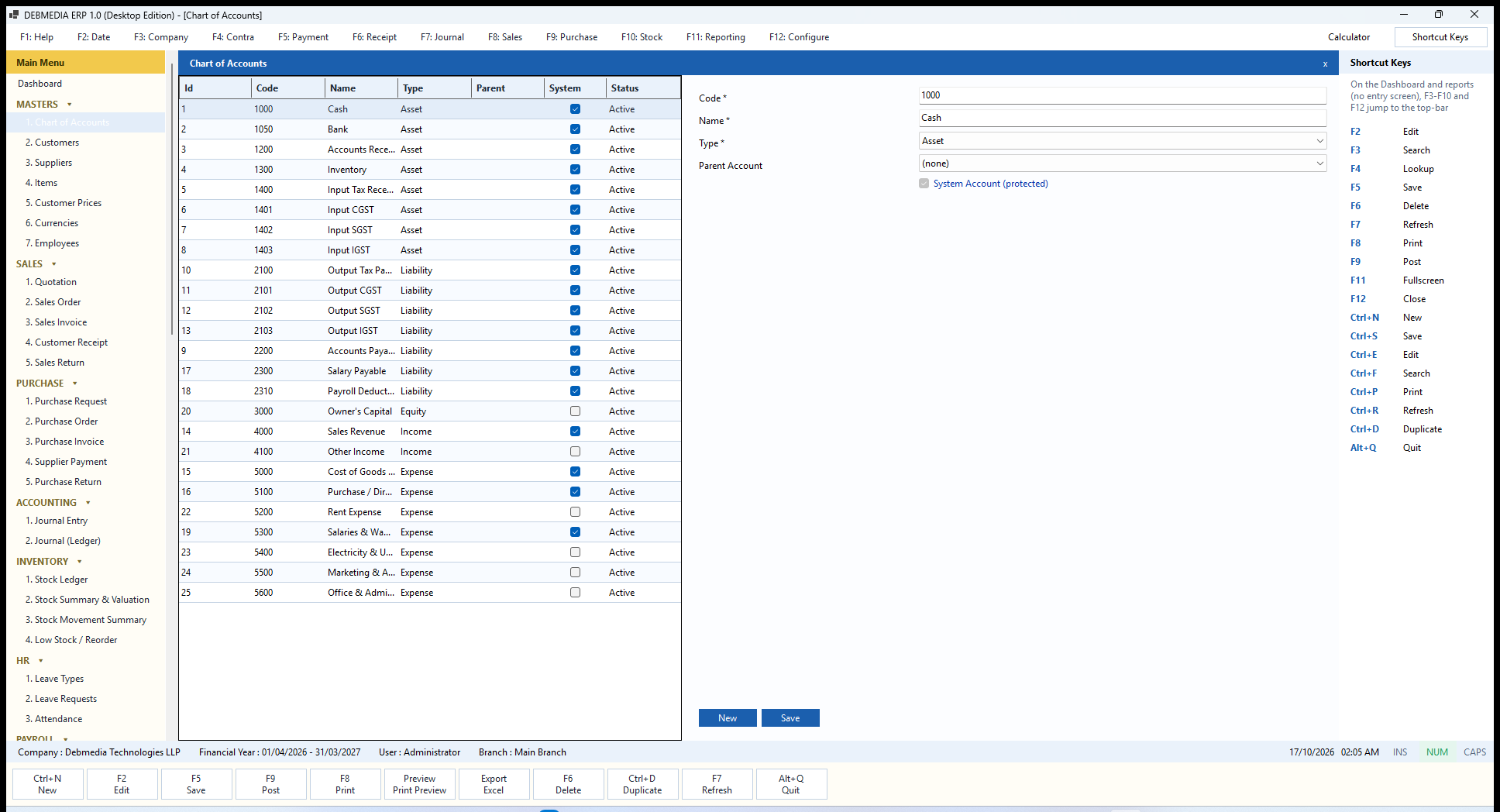
Where to find it: Main Menu, Masters, Chart of Accounts.
The Chart of Accounts is the list of ledger accounts the books are kept in. The list shows each account’s Code, Name, Type (Asset, Liability, Equity, Income or Expense), its Parent account if it sits under another, a tick in System for accounts the program depends on, and its Status. A new company starts with 25 accounts, so you can post from day one.
The numbering follows the usual convention. The 1000 series are assets: Cash (1000), Bank (1050), Accounts Receivable (1200), Inventory (1300) and the Input CGST, SGST and IGST accounts (1401 to 1403) that collect the GST you can claim. The 2000 series are liabilities: the Output CGST, SGST and IGST accounts (2101 to 2103), Accounts Payable (2200), Salary Payable (2300) and Payroll Deductions Payable (2310). 3000 is Owner’s Capital. Income is Sales Revenue (4000) and Other Income (4100). Expenses are Cost of Goods Sold (5000), Purchase and Direct Expense (5100), Rent (5200), Salaries and Wages (5300), Electricity and Utilities (5400), Marketing and Advertising (5500) and Office and Admin Expenses (5600).
The ticked System accounts are the ones the posting engines look up by code when they build journal entries: an invoice debits 1200, credits 4000 and 2101 to 2103, and so on. That is why the form shows a System Account (protected) note for them. The unticked accounts, such as rent or electricity, are the ones you use in manual journal entries. To add your own account press New, enter a Code and Name, choose a Type, optionally choose a Parent Account, and press Save.
Customers
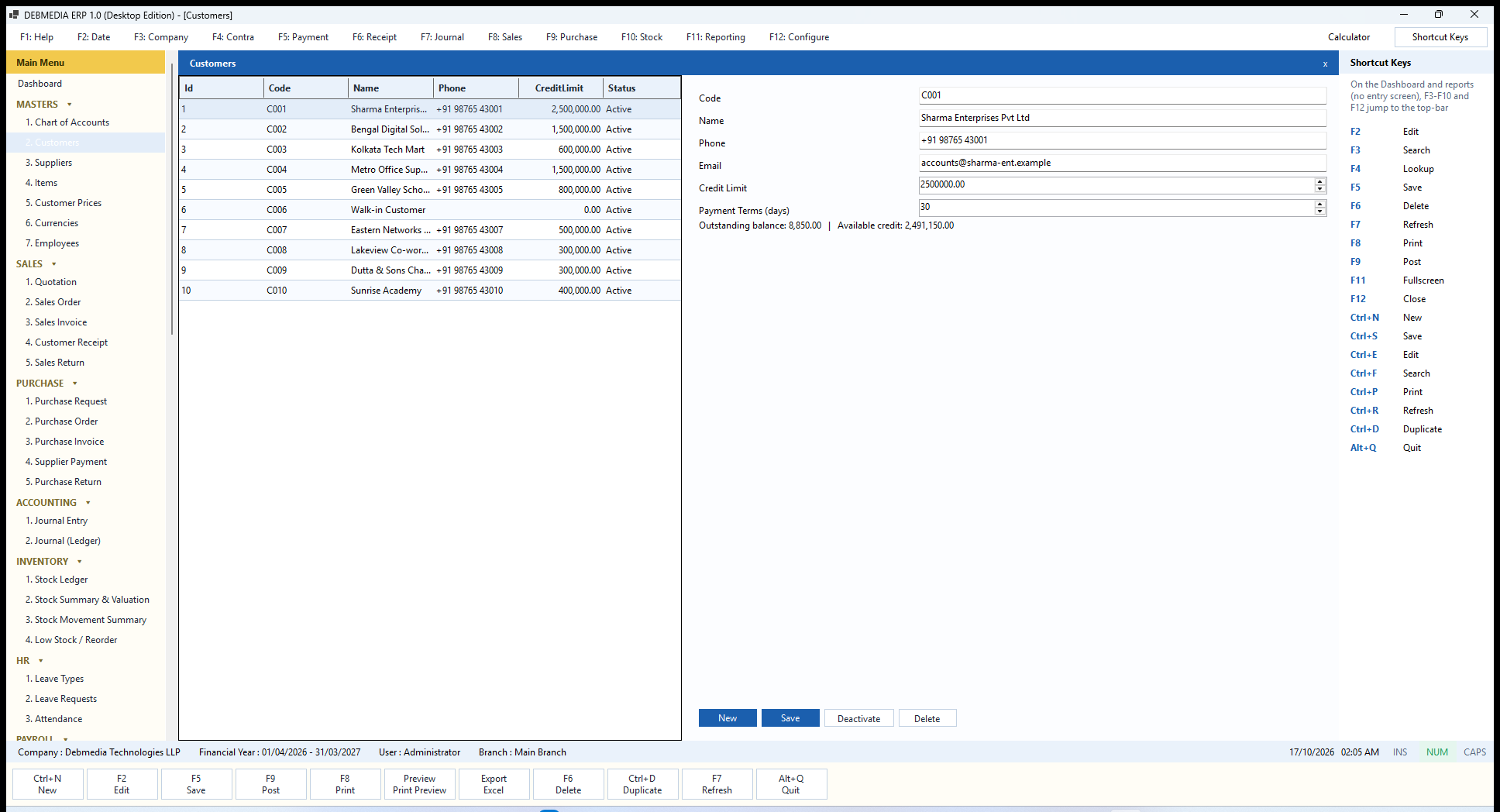
Where to find it: Main Menu, Masters, Customers.
The Customers screen lists everyone you sell to. The list shows each customer’s Code, Name, Phone, Credit Limit and Status. Selecting a customer fills the form with their Code, Name, Phone, Email, Credit Limit and Payment Terms (days). A line under the form shows the customer’s live position, for example Outstanding balance: 8,850.00 | Available credit: 2,491,150.00 for Sharma Enterprises.
Those two figures are worked out from the books every time, never typed in. The outstanding balance is the customer’s opening balance plus the balances of their posted invoices, less any posted credit notes, less any receipt money not yet allocated to an invoice. Available credit is the credit limit minus that outstanding figure. A credit limit of zero means no credit control for that customer; any other limit is enforced when you post an invoice: if the new invoice is bigger than the available credit, the posting is refused and the message names the customer and the amounts.
The Payment Terms number is the number of days given to pay, and it sets the due date on every invoice for that customer (the Metro Office Supplies invoice on the Sales Invoice screen shows a 45-day term). The customer’s address and GST number, which appear on the invoice, come from the customer record.
New clears the form, Save stores a new or edited customer, and the two buttons on the right deal with removal. Deactivate marks a customer inactive while keeping all their history. Delete removes a customer completely, but only if they have never appeared on any invoice; otherwise the program tells you to deactivate instead.
Customer Prices
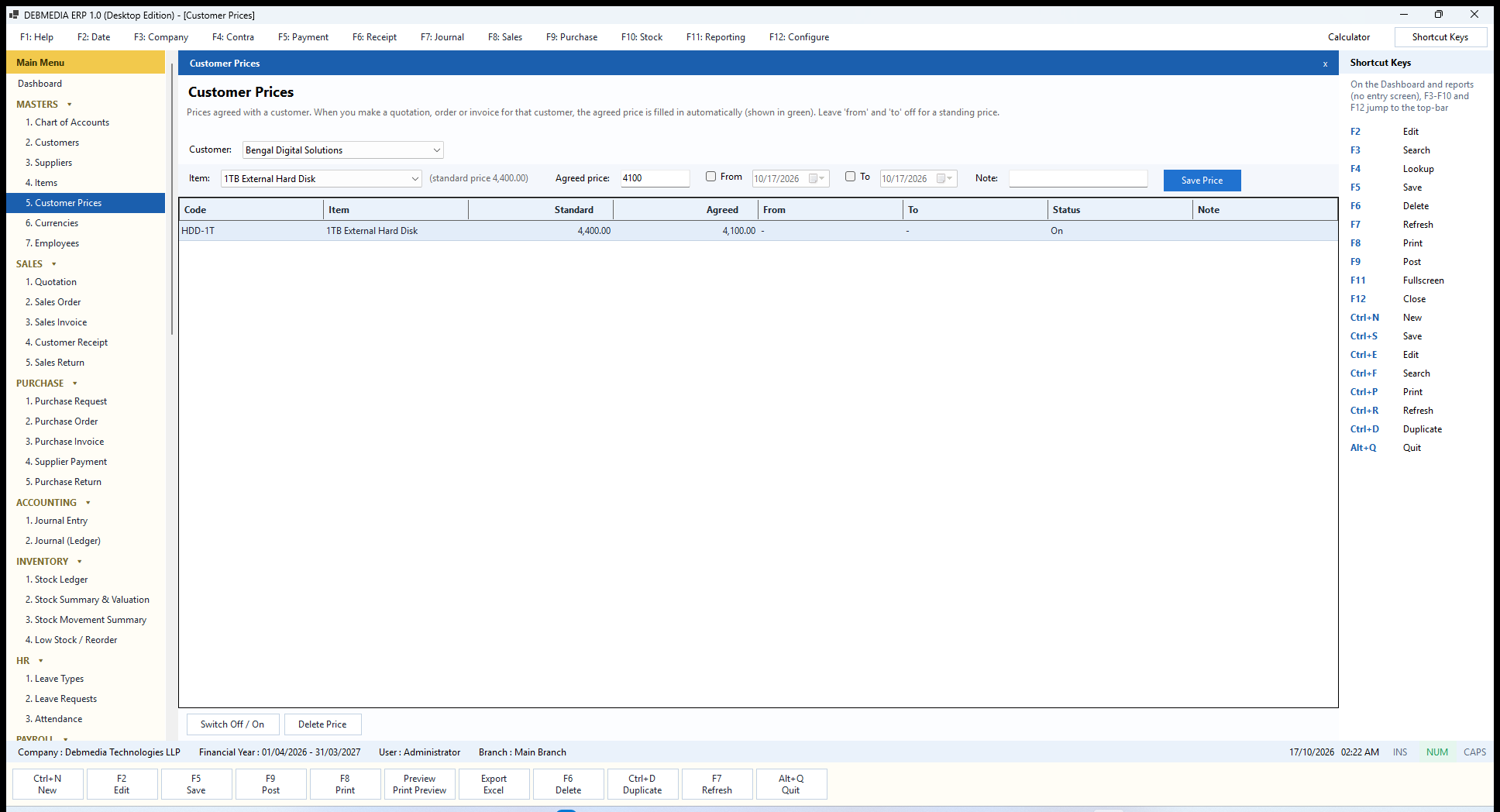
Where to find it: Main Menu, Masters, Customer Prices.
Customer Prices is for the customer who has negotiated a special price. You choose a Customer at the top, then an Item; the screen shows the item’s standard selling price beside it (here 4,400.00 for a 1TB external hard disk). Type the Agreed price (4,100 in the screenshot), optionally tick From and To to give the price a validity window, add a Note, and press Save Price. Leave both date boxes off for a standing price.
When you then make a quotation, a sales order or a sales invoice for that customer, the agreed price is filled in automatically instead of the standard price, and the screen’s own hint says it is shown in green so you can see at a glance that a special price was applied. The rule is precise: an agreed price wins while it is switched on and the document date falls inside its validity window; if several prices fit, the one with the latest start date wins; if there is no agreed price, the item’s standard selling price is used.
The table lists every agreed price for the chosen customer with the item Code, Item name, Standard price, Agreed price, From and To dates, Status (On or Off) and Note. Switch Off / On pauses or resumes the selected price without deleting it, and Delete Price removes it. Saving a new price for the same customer, item and start date replaces the old one. A negative price, or an end date earlier than the start date, is refused. Documents that were already made keep the price they were made with; changing an agreed price never rewrites history.
Suppliers
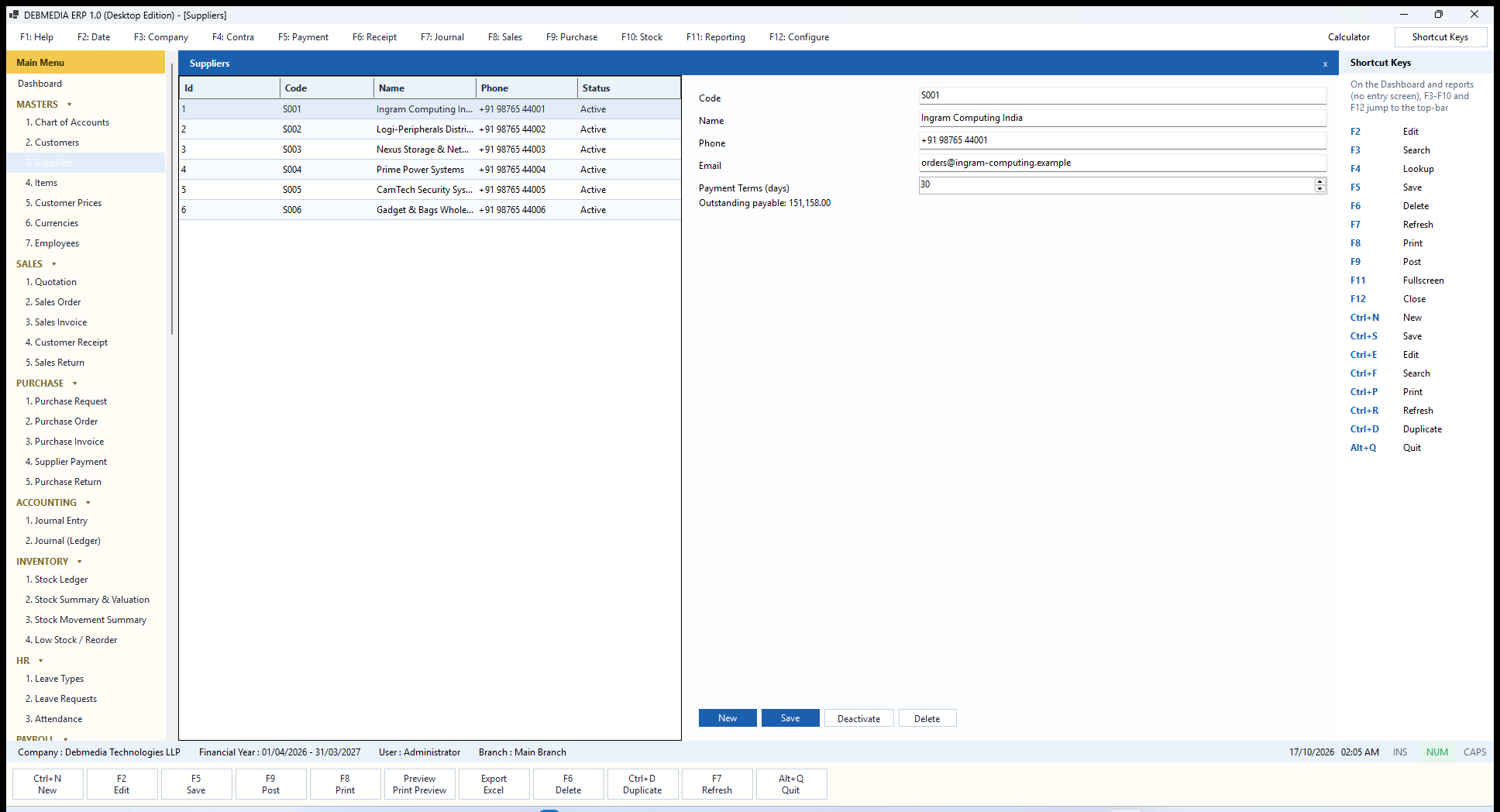
Where to find it: Main Menu, Masters, Suppliers.
The Suppliers screen mirrors the Customers screen for the people you buy from. The list shows Code, Name, Phone and Status; the form holds Code, Name, Phone, Email and Payment Terms (days), and a line shows the supplier’s live Outstanding payable (151,158.00 for Ingram Computing India in the sample). That figure comes from the posted purchase invoices less payments and debit notes, and it agrees with the Supplier Outstanding report.
The payment terms set the due date on the supplier’s purchase invoices, which in turn drives what the Dashboard and the reports show as payable. As with customers, Deactivate marks the supplier inactive and keeps all history, and Delete works only for a supplier who has never appeared on a purchase invoice. The supplier’s address and tax number, shown on the purchase invoice, come from the supplier record.
Items
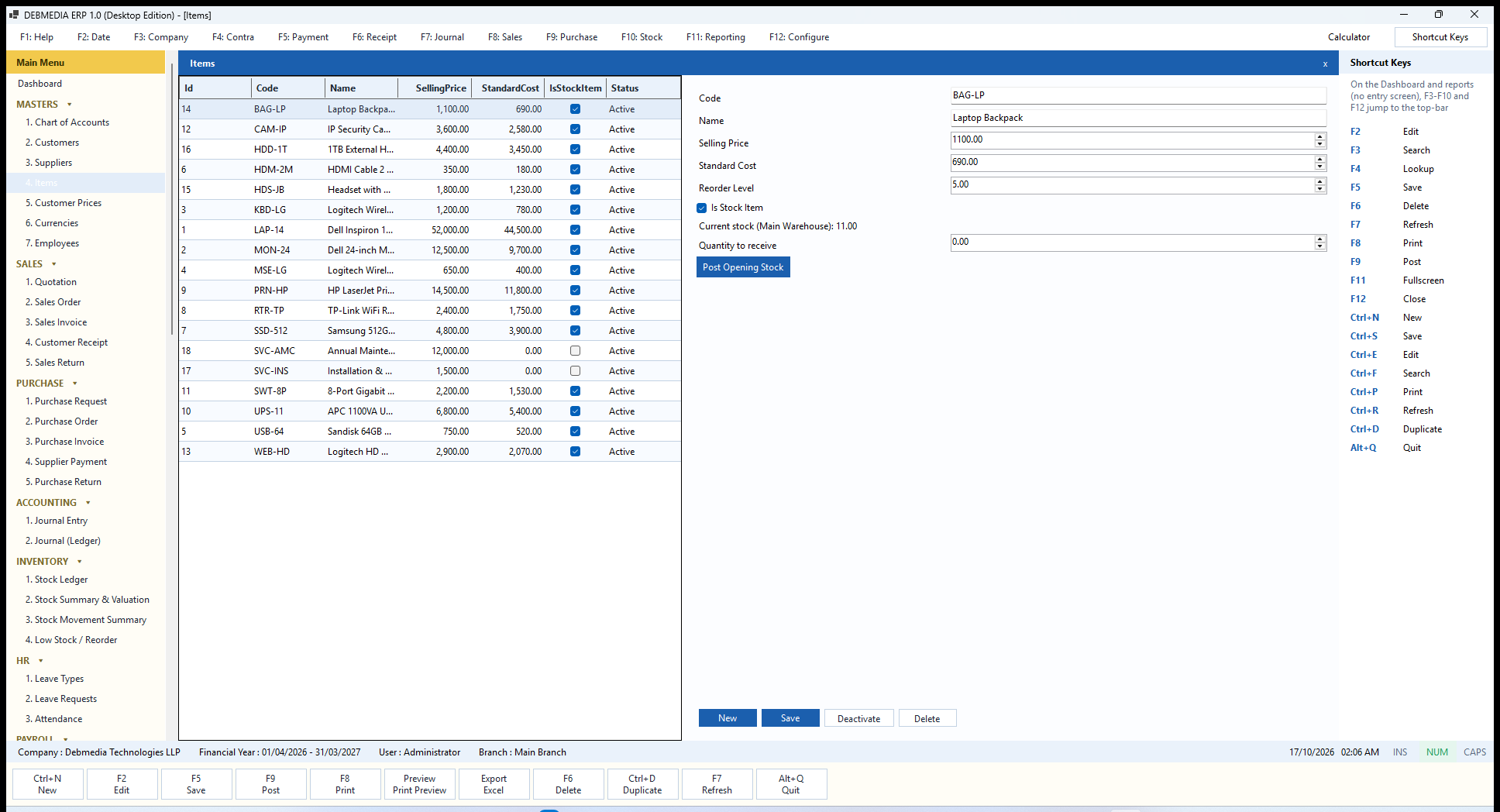
Where to find it: Main Menu, Masters, Items.
The Items screen is the product and service catalogue. The list shows the item’s Code, Name, Selling Price, Standard Cost, an IsStockItem tick and its Status. The sample list has 18 items: computers, monitors, peripherals, networking gear, and two services. The form below the list adds Reorder Level, the stock-item tick-box, and a read-out of Current stock (Main Warehouse), which is computed from the Stock Ledger and not typed.
The Is Stock Item tick separates goods from services. A stock item moves stock when it is bought or sold and carries a cost into cost of goods sold. A service item, such as the Annual Maintenance Contract or the Installation and Setup Service in the sample, never touches the Stock Ledger: a sale posts only revenue and tax, and a purchase of a service is booked straight to the Purchase and Direct Expense account. The Reorder Level feeds the Dashboard count and the Low Stock report.
Post Opening Stock records stock you already own when you start using the program. Choose an item, type a Quantity to receive and press the button: the program writes a stock-in entry dated today, valued at the item’s standard cost, with the reference Manual opening/receipt entry, and the current-stock read-out updates. It is also how you can book stock that did not come through a purchase invoice.
New, Save, Deactivate and Delete work as on the other masters. An item can be deleted only if it has never been on an invoice and has never had a stock movement. Behind each item the program also keeps its valuation method (weighted average by default, with FIFO or standard cost available), its negative-stock policy, tax code, barcode and unit of measure.
Currencies
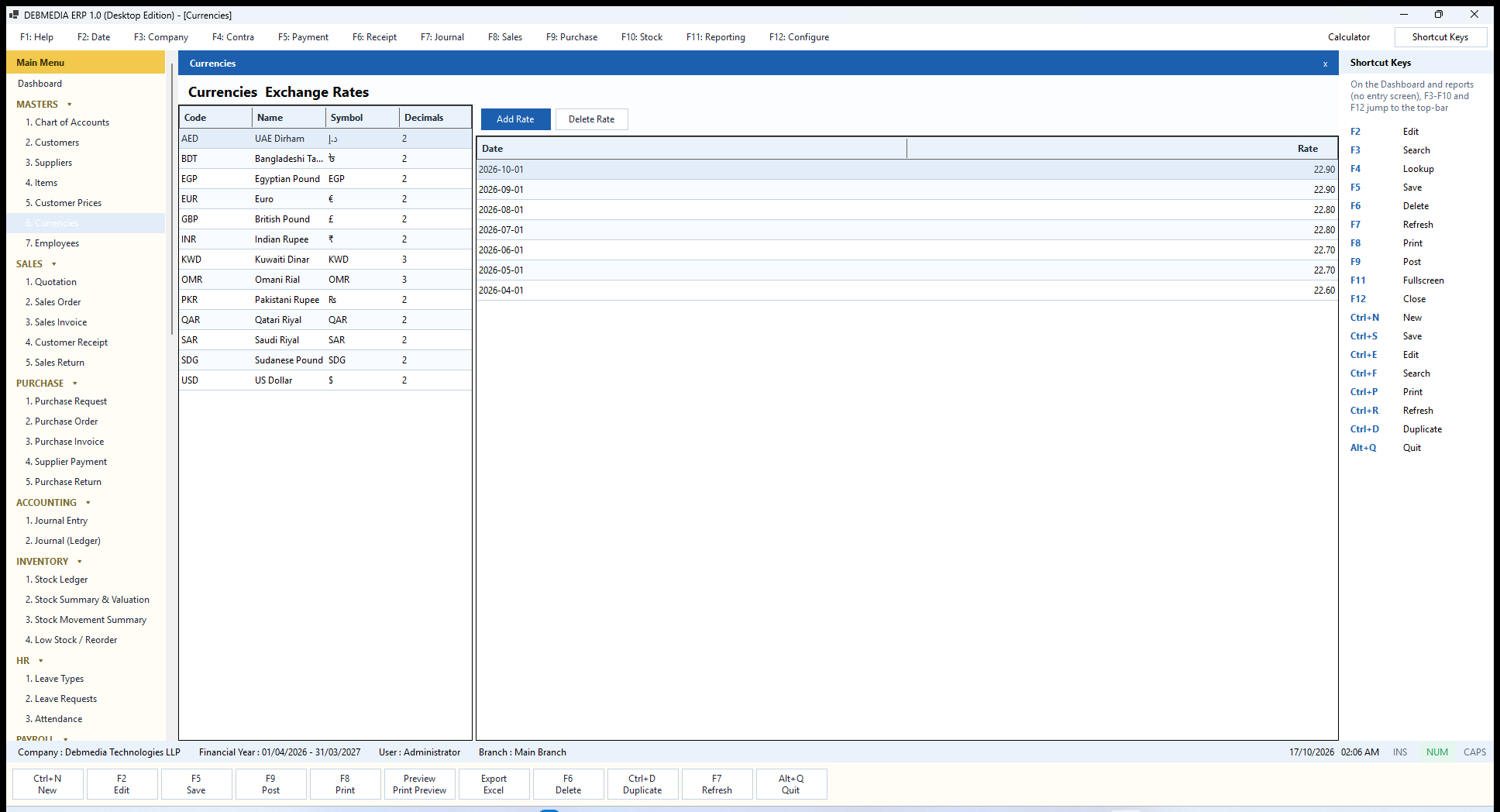
Where to find it: Main Menu, Masters, Currencies.
The Currencies screen has two panels. On the left is the list of currencies the program knows, each with its Code, Name, Symbol and number of Decimals. There are thirteen: AED, BDT, EGP, EUR, GBP, INR, KWD, OMR, PKR, QAR, SAR, SDG and USD, with the three-decimal Kuwaiti dinar and Omani rial set to three places and the rest to two.
Select a currency and the right panel shows its Exchange Rates history, a dated list of the rate to your base currency (for the dirham in the sample, 22.60 in April rising to 22.90 in October). Add Rate adds a new dated rate and Delete Rate removes the selected one. The list is a convenient reference for choosing a rate; an invoice carries its own currency and its own exchange rate, which you see on the invoice screen.
Employees
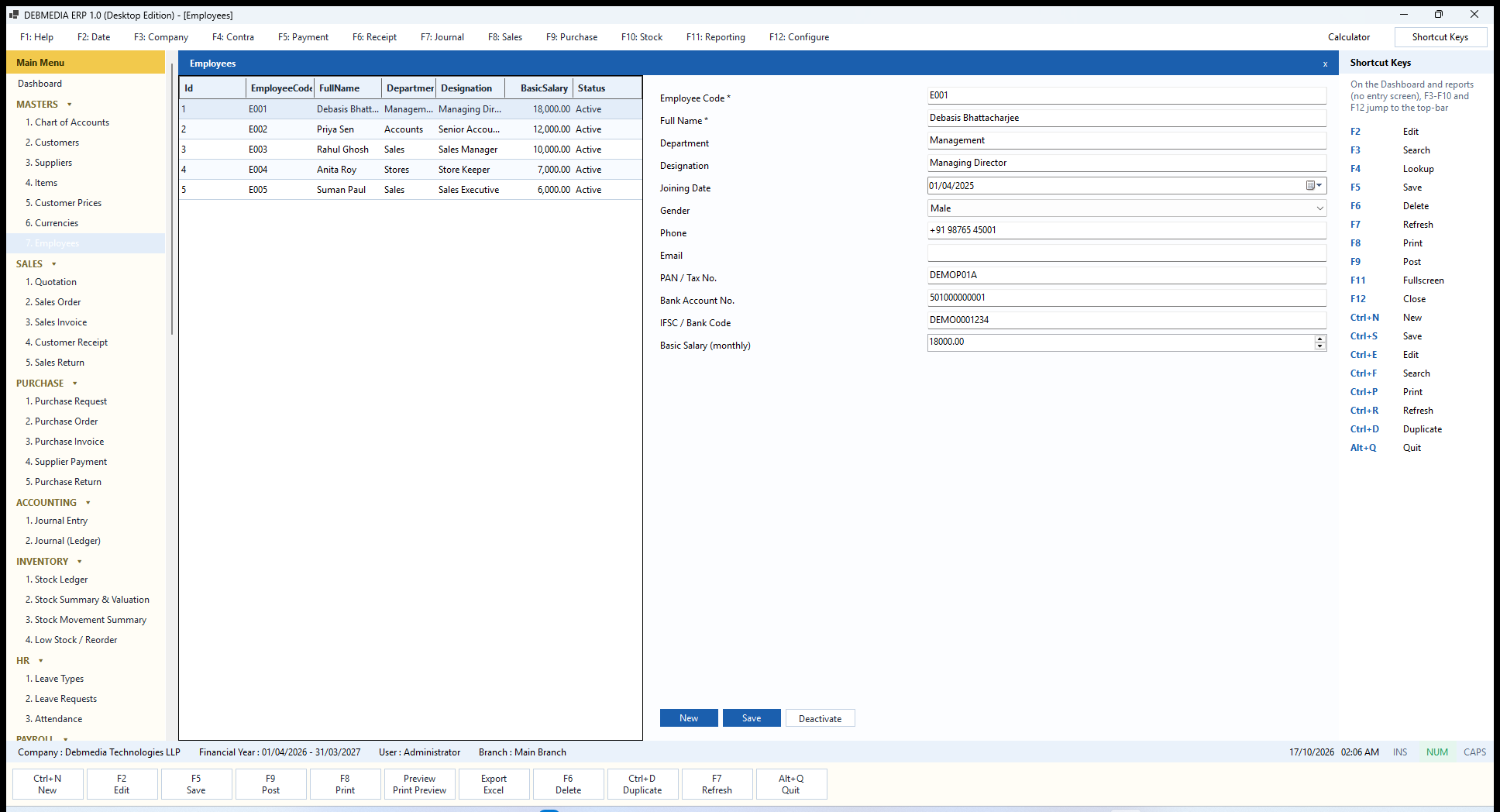
Where to find it: Main Menu, Masters, Employees.
The Employees master holds the people the HR and Payroll modules work on. The list shows EmployeeCode, FullName, Department, Designation, BasicSalary and Status. The form holds the employee’s Employee Code and Full Name (both required), Department, Designation, Joining Date, Gender, Phone, Email, PAN / Tax No., Bank Account No., IFSC / Bank Code and the monthly Basic Salary.
Each field has a job downstream. The basic salary is the starting point for every payroll calculation. The joining date matters because working days before it are never paid. The bank account and bank code feed the Bank Transfer List, and the PAN or tax number is printed on the payslip. New starts a record, Save stores it, and Deactivate removes an employee from future payroll runs without touching past ones. There is no Delete button here, because an employee’s pay history is a financial record.
Sales: From Quotation to Cash
The Sales section follows a sale from the first offer to the money in the bank, and back again if goods are returned. The first two screens (Quotation and Sales Order) record intent and cost nothing in the books; the last three (Sales Invoice, Customer Receipt and Sales Return) are the ones that create accounting entries. Each non-financial document can be converted into the next with one click, carrying its lines forward so nothing is typed twice.
Quotation
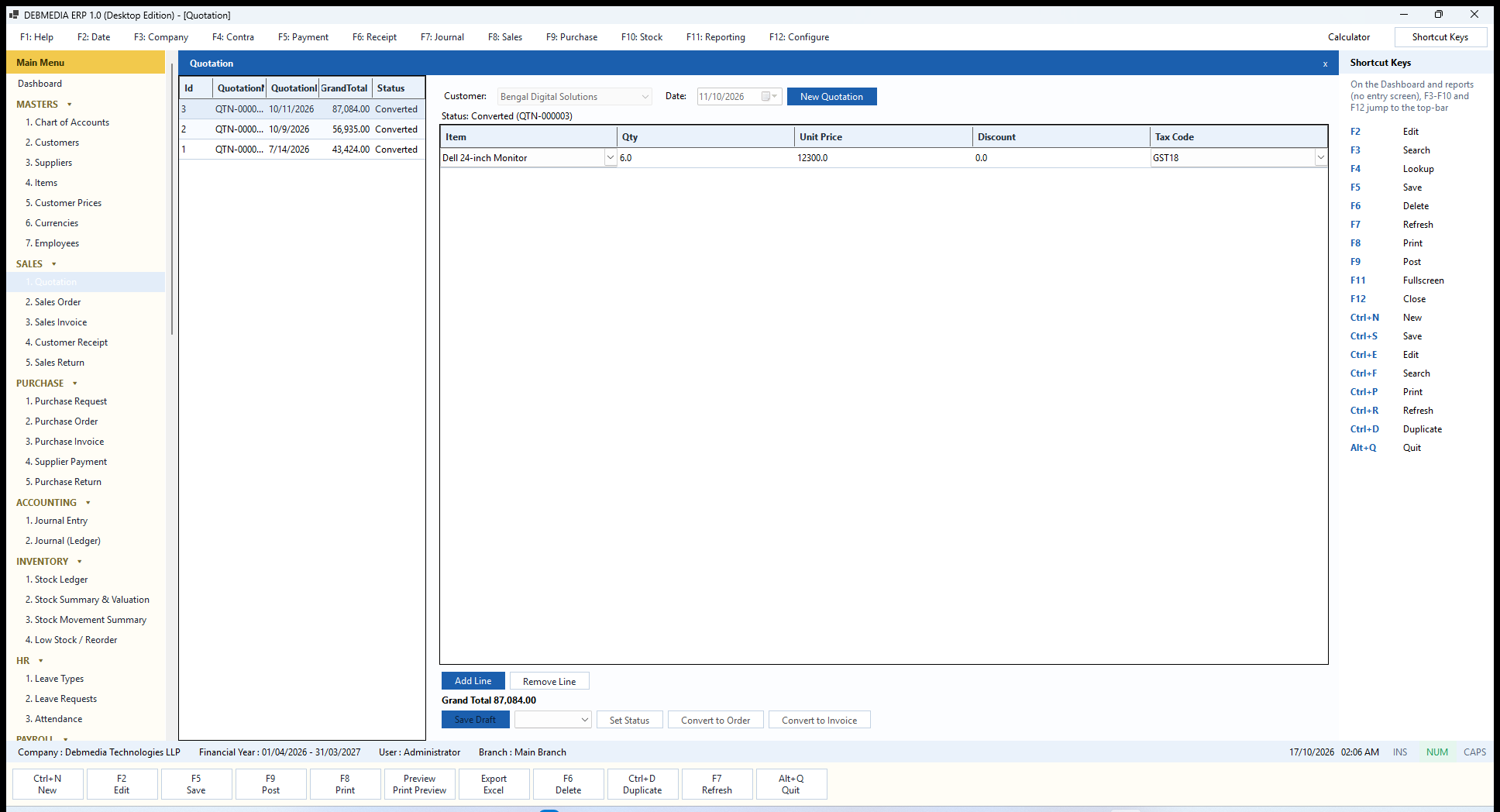
Where to find it: Main Menu, Sales, Quotation.
A quotation is a priced offer to a customer. The list on the left shows each quotation’s number, date, grand total and status; the sample company has three, all converted. Selecting one loads it on the right: the Customer and Date at the top, a line that reads Status: Converted (QTN-000003), the lines grid with Item, Qty, Unit Price, Discount and Tax Code columns, and a running Grand Total (87,084.00 for six 24-inch monitors at 12,300 plus 18 percent GST).
To make a new quotation press New Quotation, pick the customer, press Add Line for each item, and choose the item from the list in the first column. The price and tax code fill in from the item, or from the customer’s agreed price if one exists, and you can overwrite them. Remove Line deletes the selected line. Save Draft stores the quotation and gives it its QTN- number. A quotation never creates accounting entries or moves stock; the program deliberately has no accounting code in this path at all.
The strip of buttons under the totals manages the quotation’s life. The drop-down next to Set Status lets you mark it Sent, Accepted, Rejected, Expired or Cancelled as the conversation with the customer progresses. A quotation that has been converted or cancelled can no longer change status. Convert to Order creates a draft Sales Order with the same lines and marks the quotation Converted; Convert to Invoice skips the order and creates a draft Sales Invoice. A rejected, expired, cancelled or already converted quotation cannot be converted. Each conversion is written to the Audit Log.
Sales Order
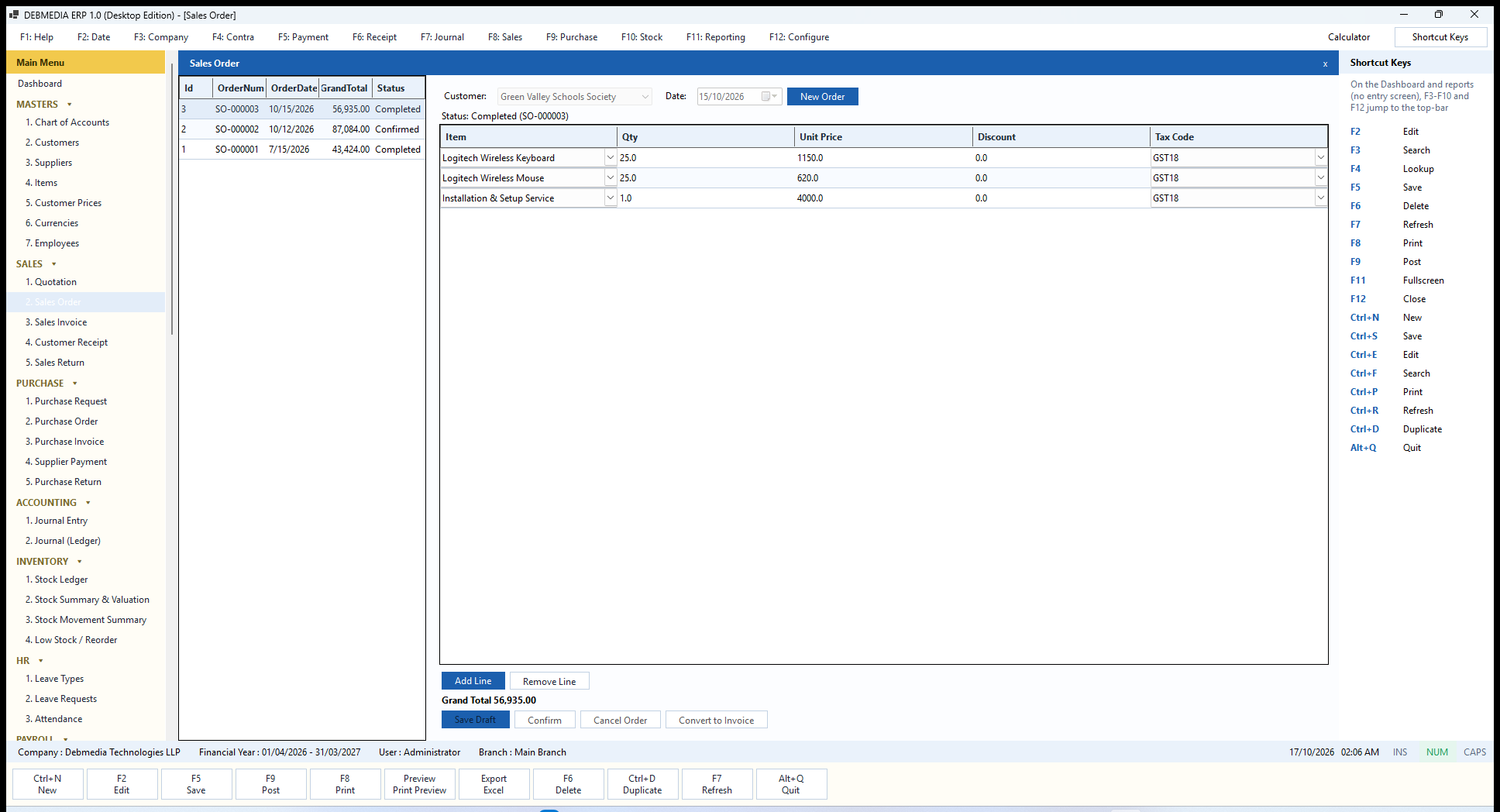
Where to find it: Main Menu, Sales, Sales Order.
A sales order is the customer’s confirmed commitment. The layout is the same as the quotation: a list of orders (SO-000001 to SO-000003 here, with their dates, totals and statuses of Completed or Confirmed) and, on the right, the customer, date and status line, the lines grid and the grand total. The order shown is SO-000003 for Green Valley Schools Society: 25 wireless keyboards at 1,150, 25 wireless mice at 620 and one installation service at 4,000, all with 18 percent GST, for 56,935.00.
An order moves through Draft, Confirmed and Completed (or Cancelled). Save Draft stores it, Confirm marks it as a firm order, Cancel Order abandons it (not possible once it is completed or already cancelled), and Convert to Invoice creates a draft Sales Invoice with the same lines and marks the order Completed. Like the quotation, an order never affects the books or stock; those change only when the invoice it produces is posted. The Audit Log records each step, so you can later see that this very order was confirmed and converted before invoice INV-000036 was posted.
Sales Invoice
Where to find it: Main Menu, Sales, Sales Invoice (also the F8 key).
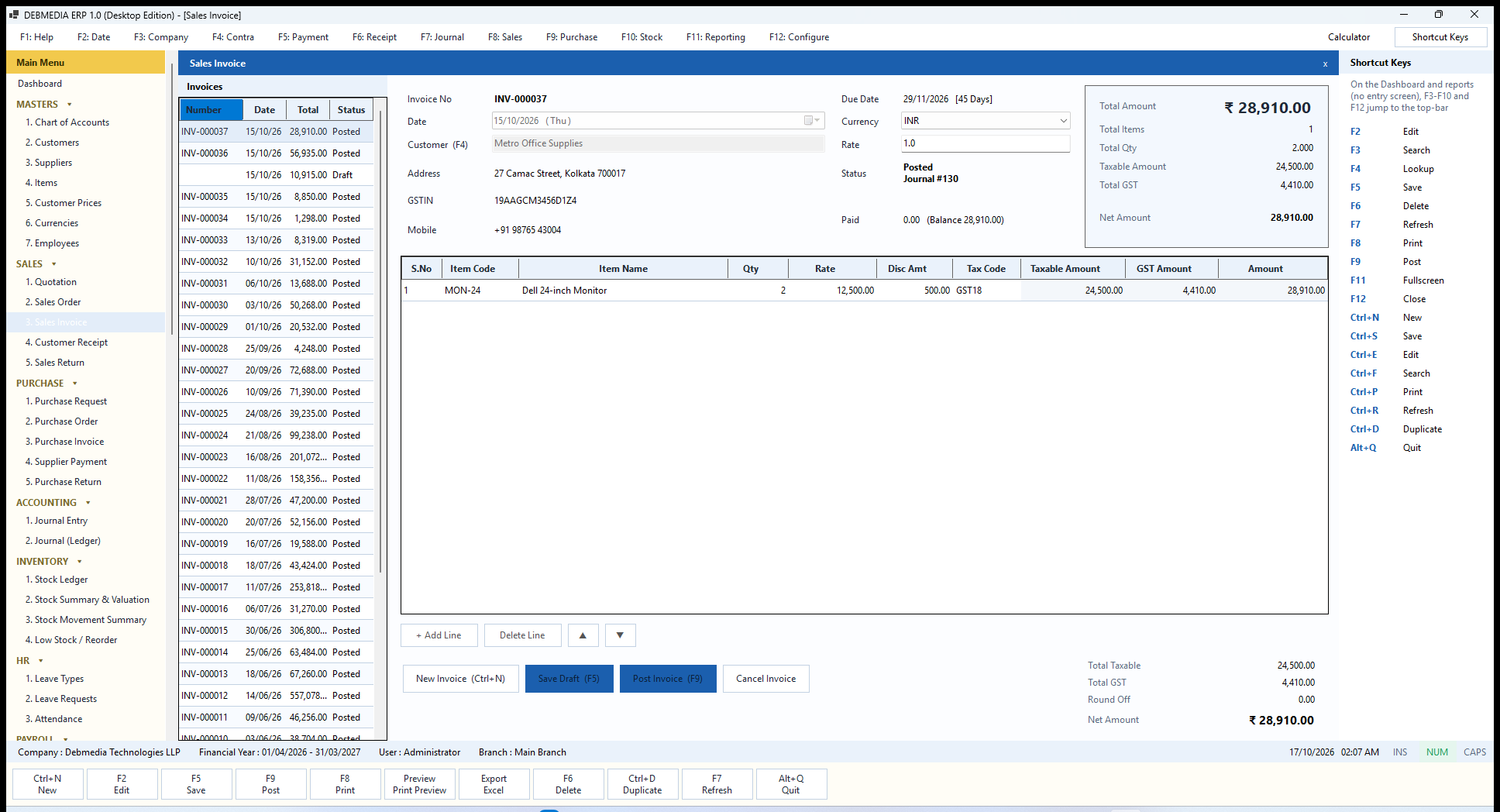
The Sales Invoice is the heart of the Sales module. On the left is the list of all invoices with their Number, Date, Total and Status; one is still a Draft and so has no number yet, and the rest are Posted. On the right is the invoice itself. The header shows the Invoice No, Date (with the weekday), the Customer (press F4 to look one up), and the customer’s Address, GSTIN and Mobile, which fill in on their own. In the next column are the Due Date with its term (29 November, 45 days), the Currency and exchange Rate, the Status (Posted, Journal #130, a direct pointer to the accounting entry the invoice created) and what has been Paid against it and the balance still due.
The framed box at the top right is the live totals panel: Total Amount in large type, then Total Items, Total Qty, Taxable Amount, Total GST and Net Amount. The same figures are repeated under the grid with Round Off. The lines grid has the columns S.No, Item Code, Item Name, Qty, Rate, Disc Amt, Tax Code, Taxable Amount, GST Amount and Amount. The invoice shown, INV-000037 to Metro Office Supplies, is two 24-inch monitors at 12,500.00 with a 500.00 discount: the taxable amount is 24,500.00, GST at 18 percent is 4,410.00 and the invoice total is 28,910.00.
Under the grid, + Add Line and Delete Line manage the lines, and the up and down arrow buttons reorder them. New Invoice (Ctrl+N) starts a blank invoice, Save Draft (F5) stores it without any effect on the books, Post Invoice (F9) commits it, and Cancel Invoice reverses a posted invoice after asking for a reason. If you try to post an invoice you have not saved, the program tells you to save the draft first; if you press Save Draft on one that is already saved, it reminds you that the draft is saved and to press Post when ready.
What posting does is worth stating exactly, because it is the most important thing the program does. For INV-000037 it created one journal entry, number 130. It debited Accounts Receivable by 28,910.00 against the customer, credited Sales Revenue by the taxable 24,500.00, and credited Output CGST 2,205.00 and Output SGST 2,205.00 (the GST split equally, because the supply is within one state). In the same entry it took the two monitors out of stock at their weighted-average cost of about 9,740.48 each and posted the cost, 19,480.95, as a debit to Cost of Goods Sold and a credit to Inventory. The entry’s total is therefore 48,390.95 on each side, which is exactly what the Journal (Ledger) screen shows for entry 130. The same event wrote the Stock Ledger row and the Audit Log entry. Posting is one indivisible transaction: either all of it is saved or none of it is.
Several guards apply when you post. The financial year must be open. If the customer has a credit limit, the invoice must fit within the credit still available, or the posting is refused with a message naming the amounts. Stock lines obey the item’s negative-stock policy, so an item set to Block cannot be sold below zero. Cancel Invoice asks for a reason, creates an exact reversing entry built from the lines that were actually posted (not recalculated from today’s rates), puts the stock back at the cost it left at and marks the invoice Cancelled. It is refused when a receipt has already been allocated to the invoice: reverse the receipt first, so balances can never drift.
Entering an Invoice: A Draft in Progress
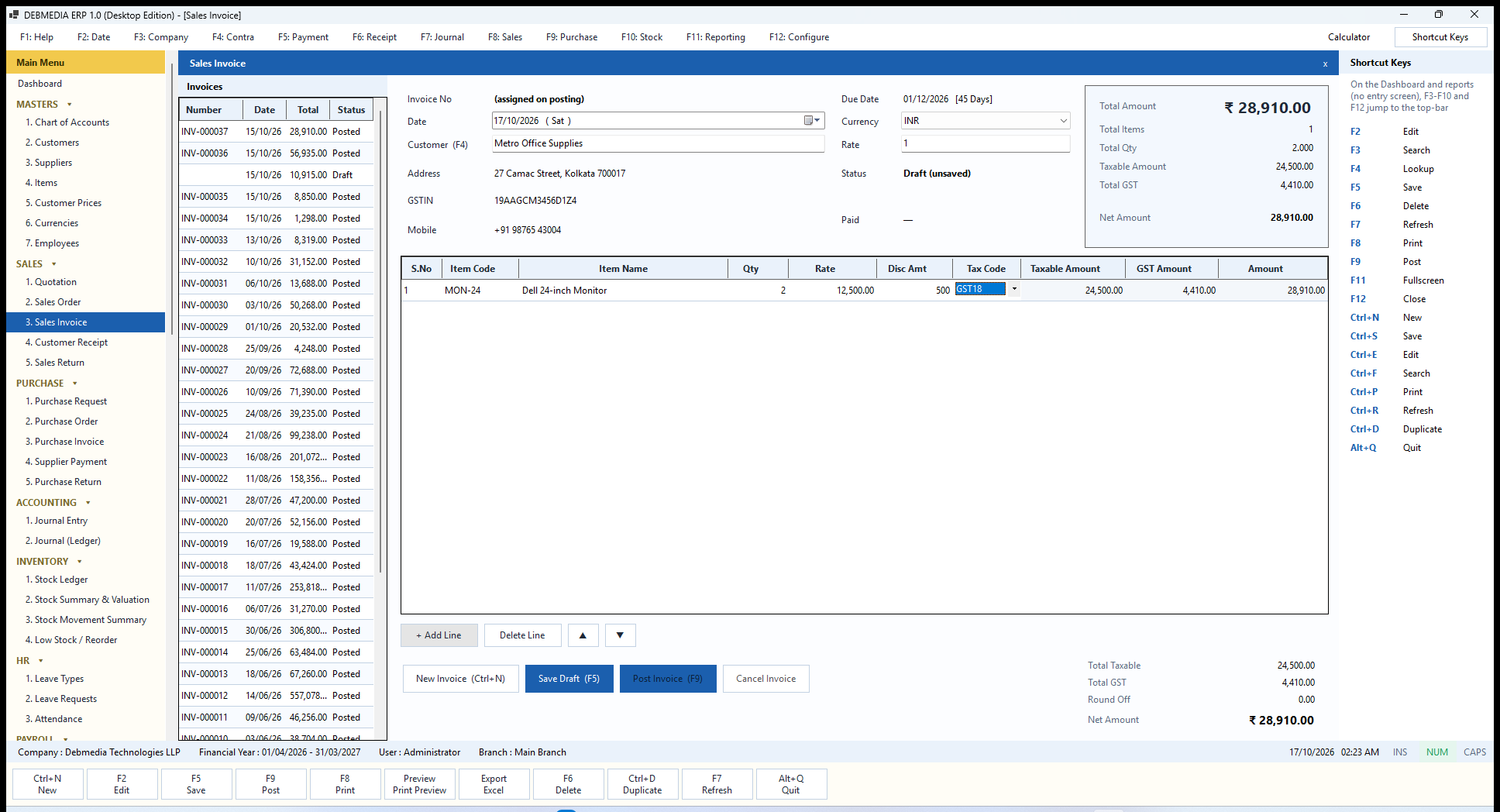
Where to find it: Main Menu, Sales, Sales Invoice, then New Invoice (Ctrl+N).
This is what an invoice looks like while it is being typed. After pressing New Invoice, the user selected Metro Office Supplies (press F4 in the customer box to pick from the list, or type the name) and the program immediately filled in the customer’s address, GSTIN, mobile number and a due date calculated from the customer’s payment terms. The header says (assigned on posting) for the invoice number and Draft (unsaved) for the status, because nothing exists in the books yet and the number will be issued only when the invoice is posted.
The user then added a line, chose the Dell 24-inch monitor (the rate and GST18 came from the item), typed a quantity of 2 and a discount of 500. Every keystroke updates the totals box, so the total of 28,910.00 is already visible before the invoice is saved. The tax-code cell is highlighted, showing where the cursor is. Keyboard users move with Tab; the whole invoice can be entered, saved with F5 and posted with F9 without touching the mouse.
Lookups: The F4 List
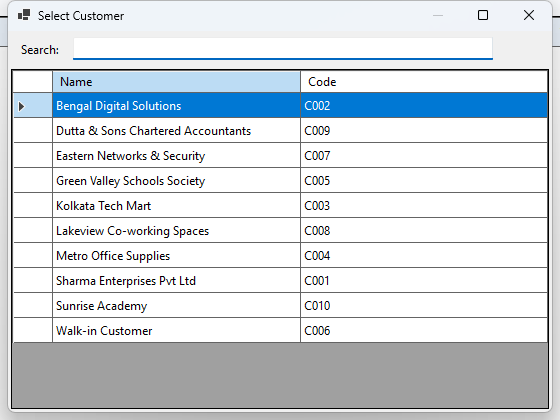
Wherever a field refers to a master record (a customer on an invoice, a supplier on a purchase, an item on a line), pressing F4 opens a lookup window like this one, titled for what you are choosing. It lists the available records with their Name and Code. Type in the Search box at the top to narrow the list to matching names or codes, move with the arrow keys, and press Enter to choose. Escape closes the window without choosing. Because the same lookup window is used everywhere, the way you find a record is the same on every screen.
Customer Receipt
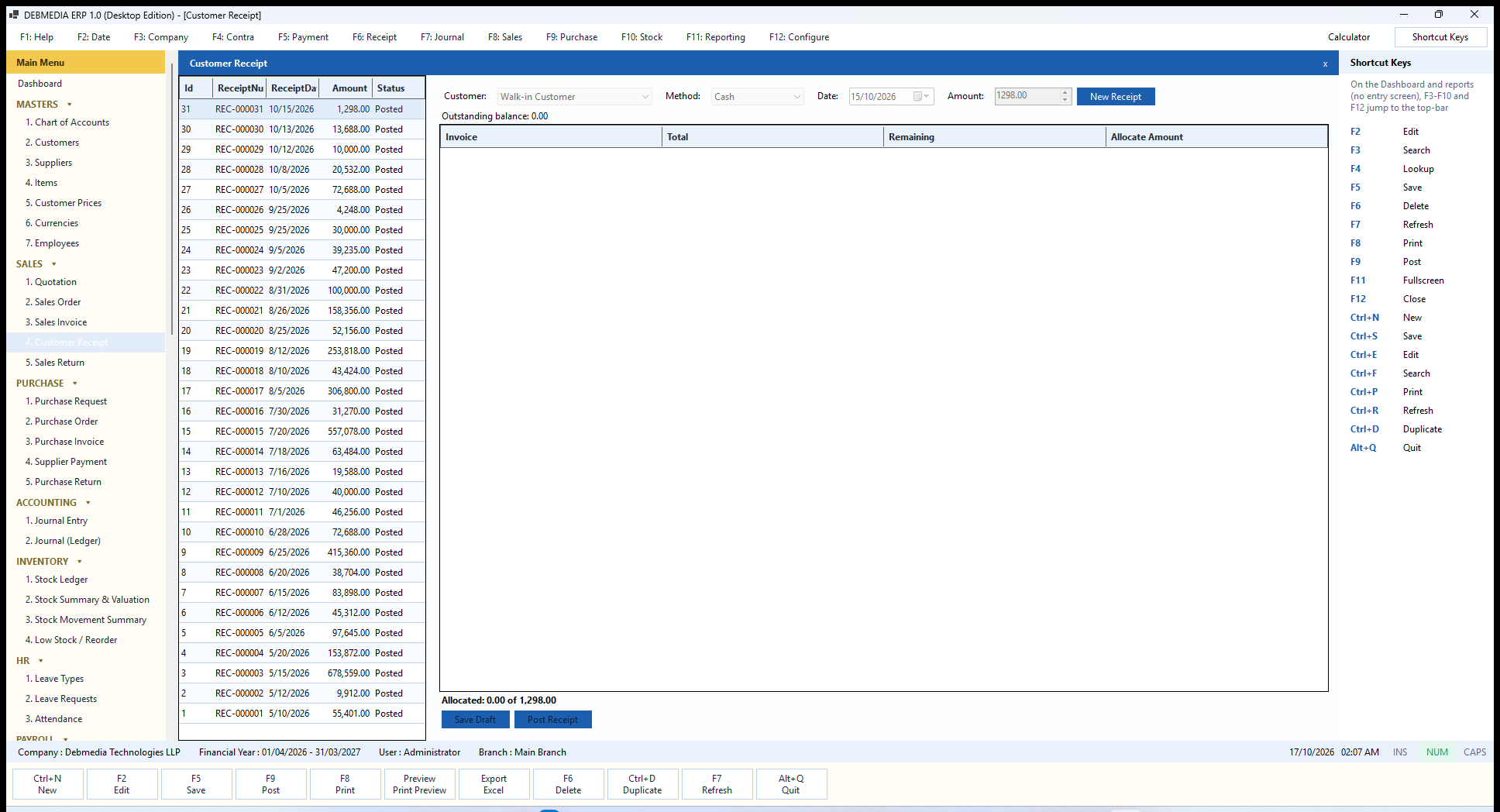
Where to find it: Main Menu, Sales, Customer Receipt (also the F6 key).
A customer receipt records money received and applies it to the invoices it pays. The list on the left shows every receipt with its number, date, amount and status: the sample has 31, all posted. On the right are the Customer, the payment Method (Cash or Bank Transfer), the Date and the Amount, followed by a line stating the customer’s Outstanding balance.
The big grid in the middle is the allocation table. It lists the customer’s open invoices with their Invoice number, Total, Remaining balance and an Allocate Amount column you fill in. A running label under the grid, Allocated: 0.00 of 1,298.00, always shows how much of the receipt has been allocated. You can allocate the whole receipt to one invoice, split it over several, pay part of an invoice, or allocate less than the receipt and leave the remainder as an advance on account. The screenshot shows a receipt that has already been posted, so the invoices it paid are no longer open and the grid is empty.
Save Draft stores the receipt, and Post Receipt commits it. On posting, the program checks that every allocation is against a posted invoice belonging to this customer and does not exceed that invoice’s remaining balance, and that the total allocated does not exceed the receipt. It then debits the Cash or Bank account (whichever the chosen method points to), credits Accounts Receivable for the customer, and reduces each allocated invoice’s balance and raises its paid amount. Any part not allocated is kept against the customer as an unallocated receipt and reduces what the Customers screen and the Customer Outstanding report say they owe.
Sales Return
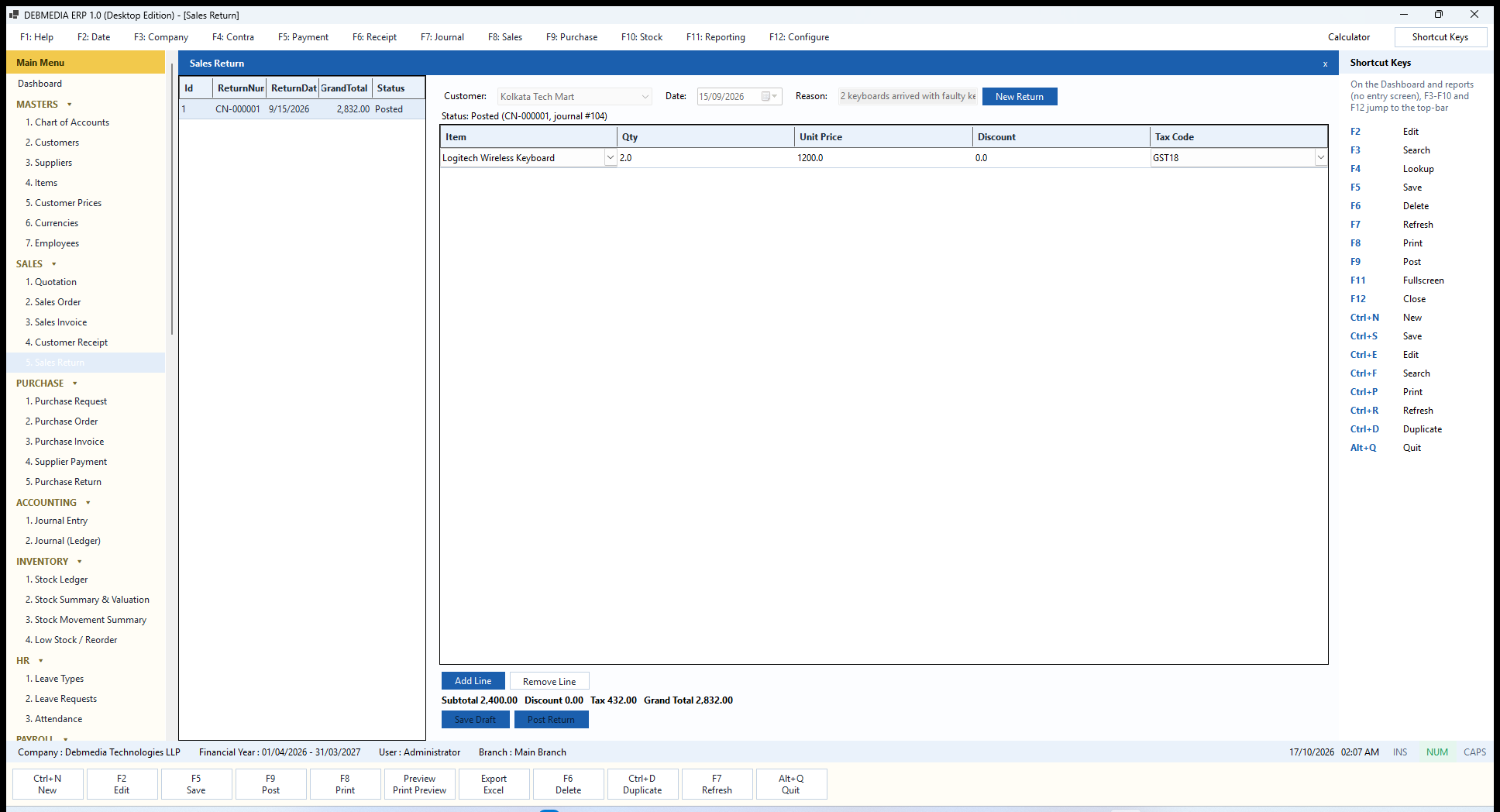
Where to find it: Main Menu, Sales, Sales Return.
A sales return is a credit note for goods a customer sends back. The screen has the same shape as the other sales documents. This one, CN-000001 to Kolkata Tech Mart dated 15 September, carries the Reason typed by the user (2 keyboards arrived with faulty keys) and one line of two Logitech wireless keyboards at 1,200.00 with 18 percent GST. The summary line under the grid breaks the return down into Subtotal 2,400.00, Discount 0.00, Tax 432.00 and Grand Total 2,832.00, and the status line records that it was posted as journal entry 104.
Posting a return reverses the effect of the sale. It credits Accounts Receivable for the full amount, so the customer owes less; debits Sales Revenue; debits the Output CGST and SGST accounts to reverse the tax; brings the stock back in at its current cost and reverses the cost of goods sold. The tax is recalculated from the returned lines themselves, never copied from the original invoice. The original invoice is never touched, which is why a return is a new document. Save Draft stores it and Post Return commits it. Returns appear on the Sales Return Register and are netted off in Sales by Customer and Customer Outstanding.
Purchase: From Request to Payment
The Purchase section mirrors the Sales section from the other side of the counter. A Purchase Request and a Purchase Order are non-financial and cost nothing in the books; the Purchase Invoice, Supplier Payment and Purchase Return are the documents that create accounting entries and move stock.
Purchase Request
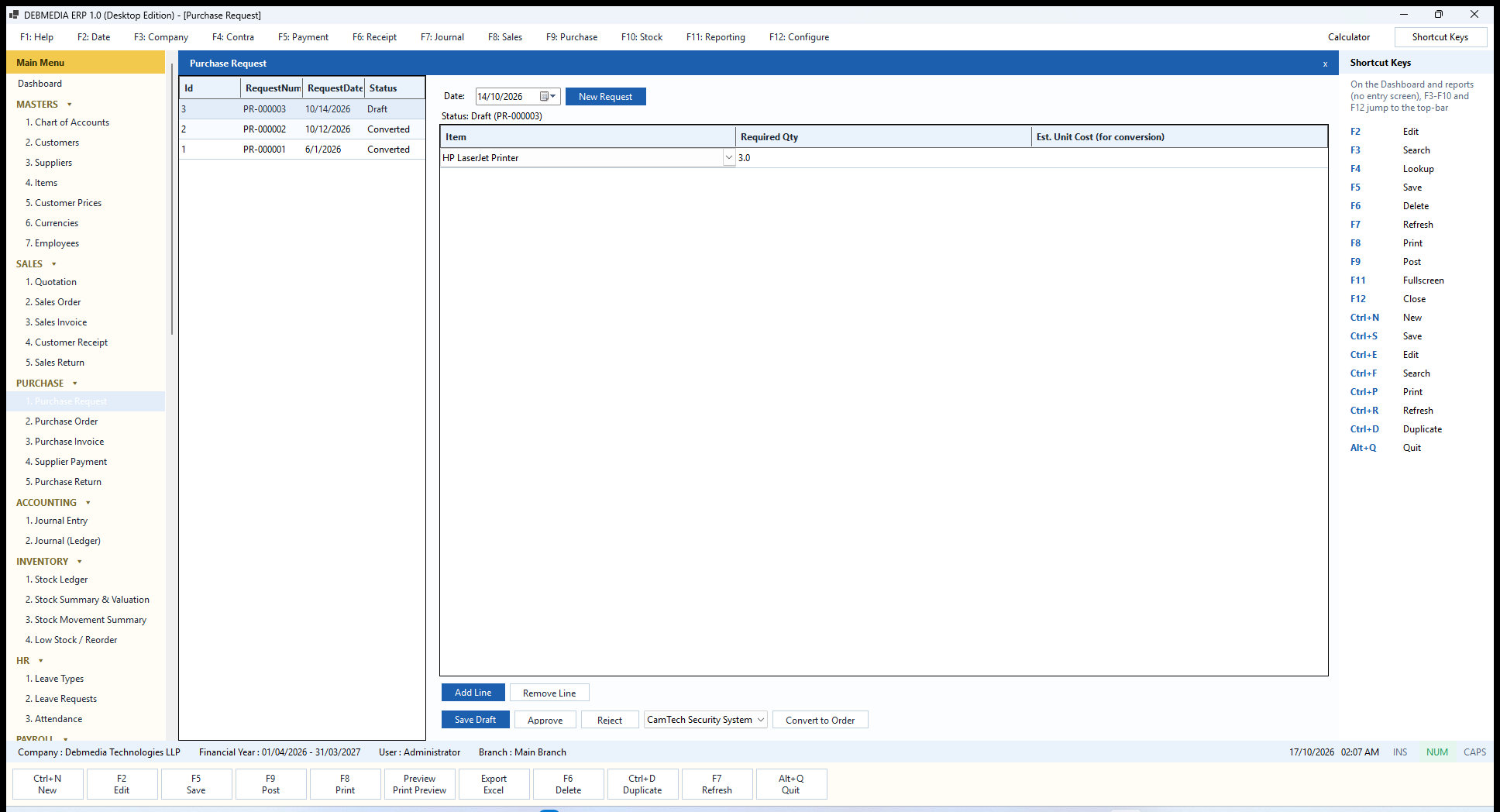
Where to find it: Main Menu, Purchase, Purchase Request.
A purchase request is an internal note that something needs to be bought, before anyone has chosen a supplier or a price. The list on the left shows each request’s number, date and status (Draft or Converted in the sample). On the right, the Date and the lines grid carry only an Item, a Required Qty and an Est. Unit Cost (for conversion). The request shown, PR-000003, is a draft for three HP LaserJet printers.
A request moves through Draft, Approved or Rejected, and finally Converted (or Cancelled). Save Draft stores it, Approve and Reject record the internal decision, and a drop-down lets you choose the supplier. Pressing Convert to Order then creates a draft Purchase Order for that supplier, using the quantities and the unit costs typed in the last column, and marks the request Converted. A request cannot be converted unless every line has a unit cost, because the order is where a price is first fixed. Converted or cancelled requests cannot be changed again, and every step appears in the Audit Log.
Purchase Order
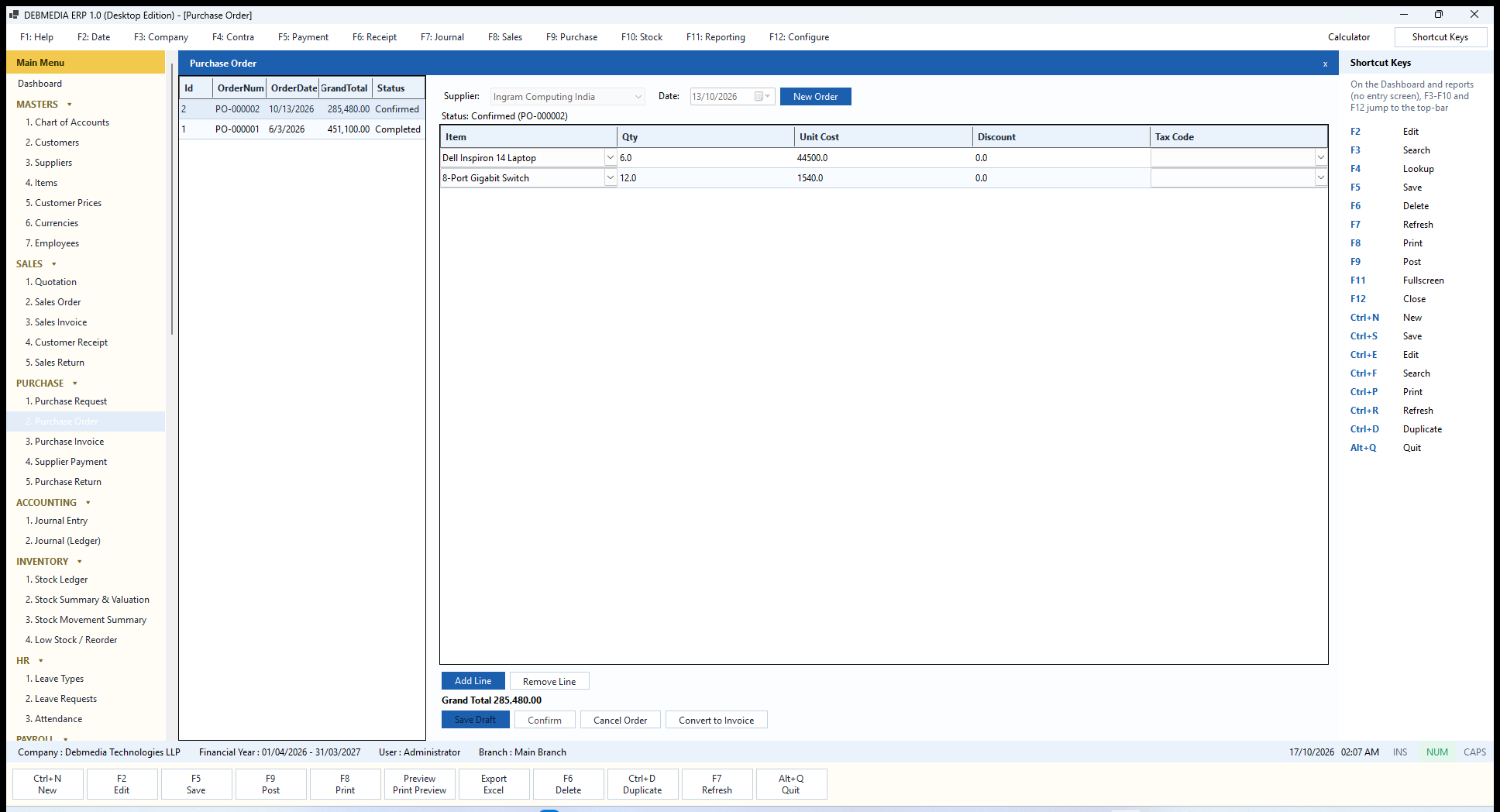
Where to find it: Main Menu, Purchase, Purchase Order.
A purchase order is your formal order to a supplier. The list shows the orders (two in the sample company, one completed and one confirmed) and, on the right, the Supplier, Date, the status line (Status: Confirmed (PO-000002)), the lines grid with Item, Qty, Unit Cost, Discount and Tax Code, and the Grand Total. PO-000002 to Ingram Computing India is for six Dell Inspiron 14 laptops at 44,500 and twelve 8-port gigabit switches at 1,540, a total of 285,480.00 (no tax code was chosen on these lines, so no GST is added; choose a tax code on a line to include input GST).
The buttons are Save Draft, Confirm (the order is firm), Cancel Order (not possible once the order is completed or already cancelled) and Convert to Invoice, which creates a draft Purchase Invoice carrying the same lines and marks the order Completed. The order itself never touches the books or stock. That happens when the resulting purchase invoice is posted, which is also when the goods are treated as received.
Purchase Invoice
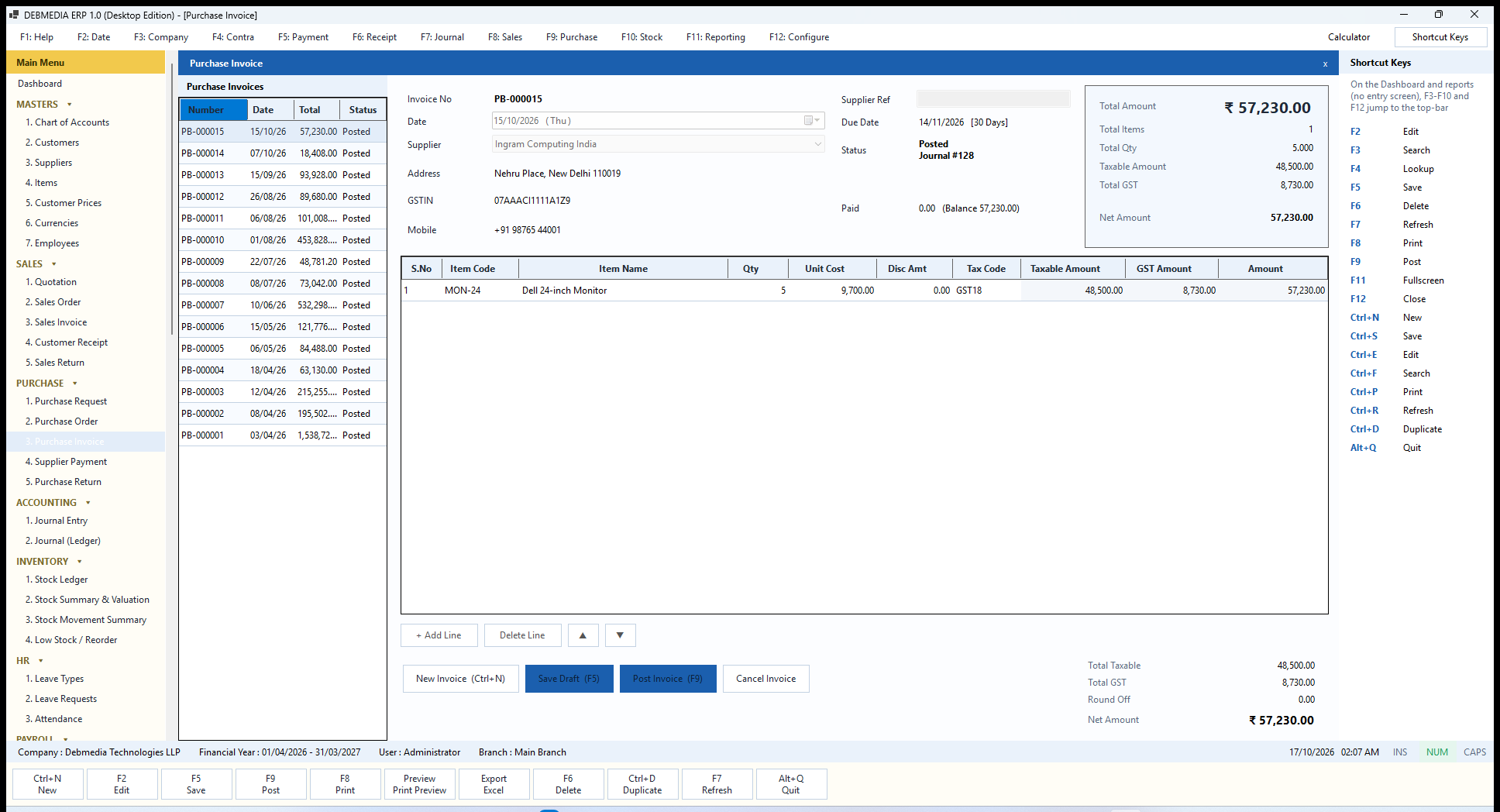
Where to find it: Main Menu, Purchase, Purchase Invoice (also the F9 key).
The Purchase Invoice records a supplier’s bill and brings the goods into stock. It has the same layout as the Sales Invoice, so anyone who can use one can use the other. The list on the left shows every purchase invoice by Number, Date, Total and Status. On the right, the header shows the Invoice No (PB-000015), Date, Supplier, the supplier’s Address, GSTIN and Mobile, the supplier’s own bill number in Supplier Ref, the Due Date worked out from the supplier’s payment terms, the Status (Posted, Journal #128) and the Paid amount and balance.
The totals box and the lines grid work as on the sales side, except that the price column is Unit Cost. The invoice shown is five Dell 24-inch monitors at 9,700.00, a taxable value of 48,500.00 plus 8,730.00 GST, total 57,230.00. New Invoice (Ctrl+N), Save Draft (F5), Post Invoice (F9) and Cancel Invoice behave as on the sales invoice, including the rule that posted invoices are locked and corrected only by cancelling.
On posting, the program creates one journal entry. It credits Accounts Payable for the full amount against the supplier. It debits Inventory for the value of every stock line and the Purchase and Direct Expense account for every service or other non-stock line. It debits the Input CGST and Input SGST accounts (or Input IGST) for the GST you can claim. For PB-000015 that is 48,500.00 to Inventory, and 4,365.00 each to Input CGST and Input SGST, against 57,230.00 payable. In the same transaction, every stock line is added to the Stock Ledger at its unit cost, and the item’s standard cost is updated to the latest price paid. The entry’s number appears in the status line.
In the current version the Purchase Invoice also acts as the goods receipt: stock enters when the invoice is posted, and there is no separate goods-received note. Cancelling a posted purchase invoice reverses the journal exactly as posted and takes the stock back out; it is refused if a supplier payment has already been allocated to the invoice, so the supplier balance can never be left inconsistent.
Supplier Payment
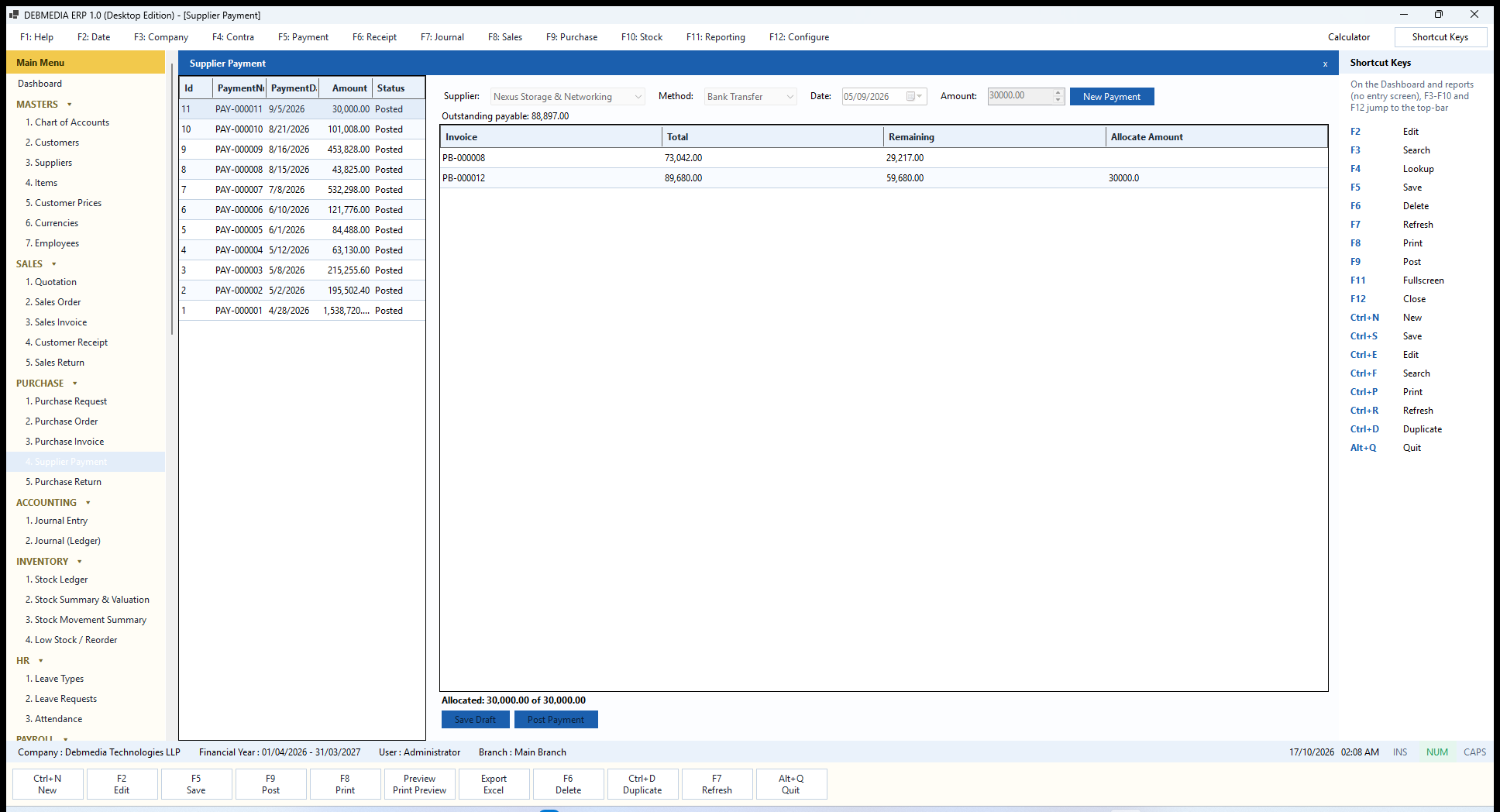
Where to find it: Main Menu, Purchase, Supplier Payment (also the F5 key).
A supplier payment records money you pay out and the invoices it settles. The list shows every payment with its number, date, amount and status (eleven in the sample, all posted). The form has the Supplier, the payment Method (Cash or Bank Transfer), the Date and the Amount, and a line stating the supplier’s Outstanding payable. The payment shown, PAY-000011 for 30,000.00 to Nexus Storage and Networking by bank transfer, is allocated entirely to purchase invoice PB-000012.
The grid lists the supplier’s open invoices with Invoice, Total, Remaining and an Allocate Amount column. After this payment the remaining balance on PB-000012 is 59,680.00 and the other open invoice, PB-000008, still has 29,217.00, together 88,897.00, the supplier’s outstanding payable. The label under the grid, Allocated: 30,000.00 of 30,000.00, confirms that the whole payment is allocated.
Save Draft stores the payment and Post Payment commits it. Posting checks that every allocation is against a posted invoice of this supplier and is no more than that invoice’s remaining balance, that the total allocated does not exceed the payment, and that the financial year is open. It then debits Accounts Payable and credits the Cash or Bank account that the chosen method points to, and updates each invoice’s paid amount and balance. Both Accounts Payable and the bank balance therefore move together, and the Bank Book and Supplier Statement show the same payment.
Purchase Return
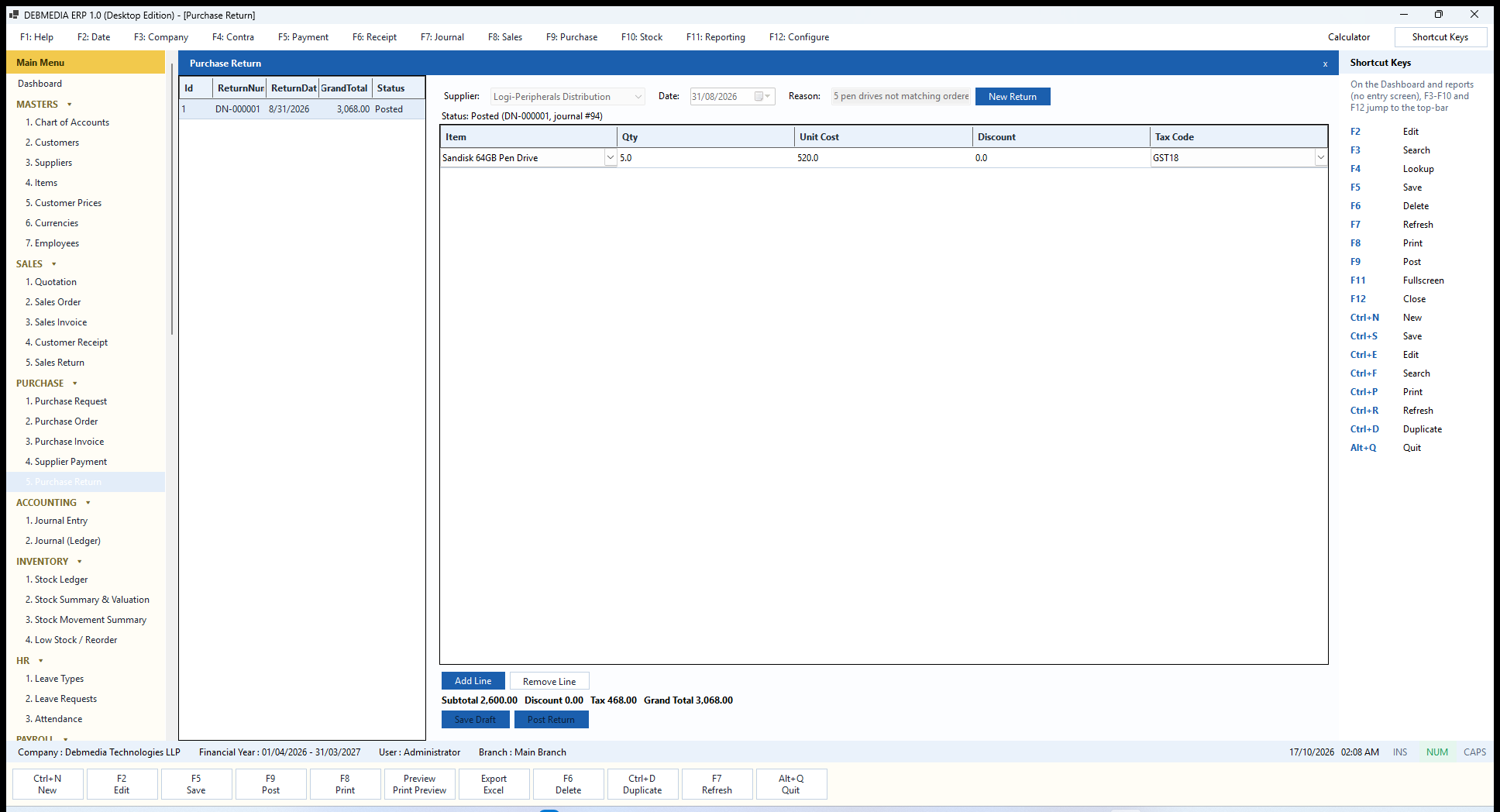
Where to find it: Main Menu, Purchase, Purchase Return.
A purchase return is a debit note for goods you send back to a supplier. The sample return, DN-000001 to Logi-Peripherals Distribution, is for five Sandisk 64GB pen drives at 520.00 that did not match the order, with the reason typed in the header. The summary shows Subtotal 2,600.00, Tax 468.00 and Grand Total 3,068.00, and the status line records journal entry 94.
Posting reverses the purchase: it debits Accounts Payable, so you owe the supplier less; credits Inventory for stock lines (or the purchase expense account for non-stock lines); and credits the Input CGST and SGST accounts to reverse the claimable tax. The returned goods leave the Stock Ledger. As on the sales side, the tax is calculated from the lines of the return itself, and the original purchase invoice is never edited. Save Draft stores the return and Post Return commits it; it then appears on the Purchase Return Register and reduces the payable shown on the Supplier Outstanding report.
Accounting: The Journal
Almost every voucher in the program is created for you by a document. The two Accounting screens are where you add the ones that do not come from a document, and where you inspect all of them.
Journal Entry
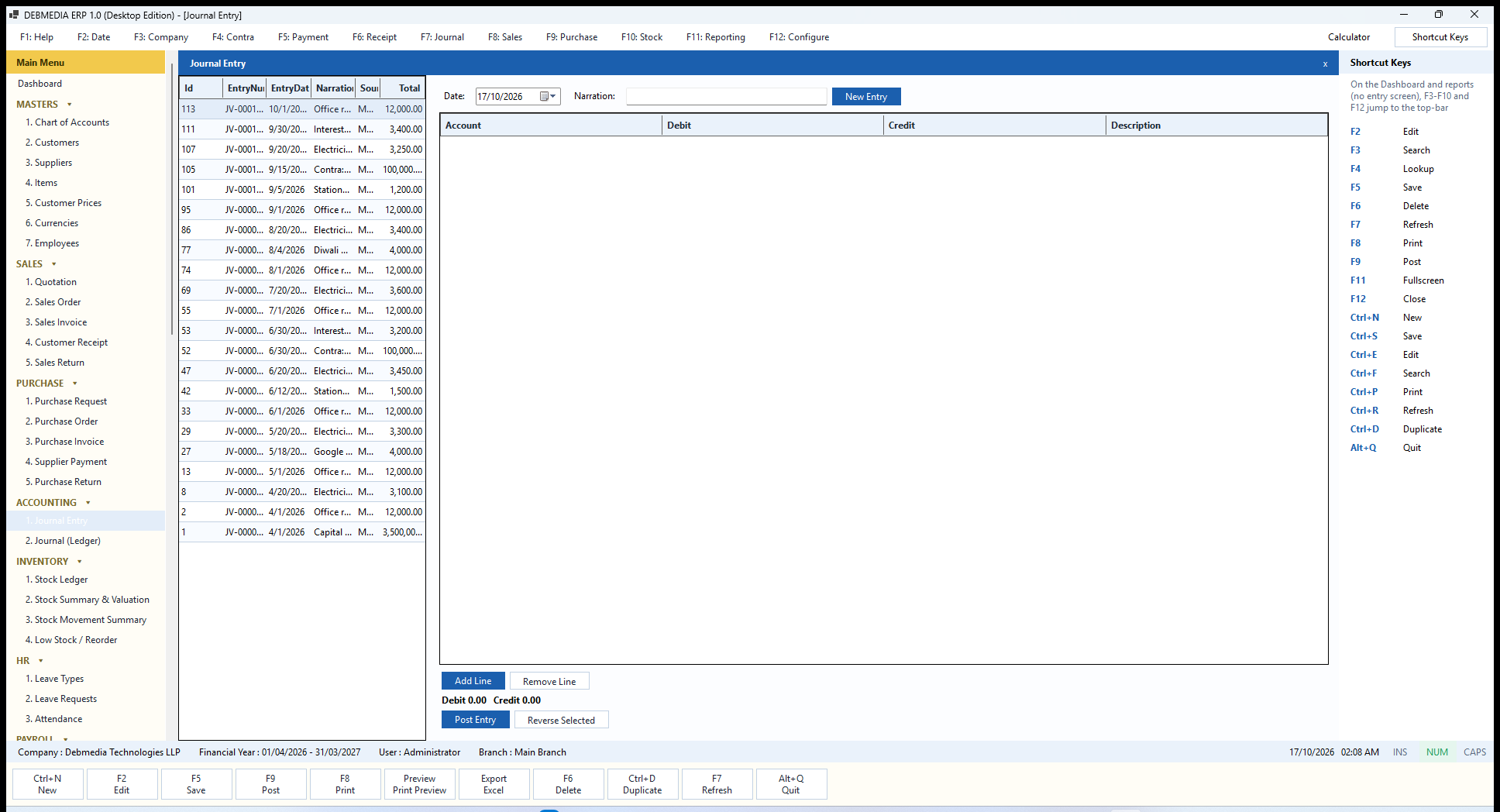
Where to find it: Main Menu, Accounting, Journal Entry (also the F4 and F7 keys).
The Journal Entry screen is for manual vouchers: capital introduced, rent, electricity, bank interest, a transfer between cash and bank, or an adjustment. The list on the left shows the manual journals already posted, with their EntryNumber, date, narration, source and total. On the right you set the Date and a Narration, then press Add Line for each line and fill in the Account (chosen from the Chart of Accounts), a Debit or Credit amount, and an optional Description. Remove Line deletes the selected line.
A running Debit and Credit total sits under the grid. The entry can only be posted when the two are equal; the accounting engine rejects an unbalanced entry, so it is impossible to post a half entry. Post Entry posts immediately. Unlike an invoice there is no draft stage for a manual journal. The entry receives its JV- number and appears at once in the Journal (Ledger), the Day Book and every account it touches. The F4 key on the top bar (Contra) and the F7 key both open this screen, because a contra entry, moving money between Cash and Bank, is simply a two-line journal between those accounts.
A mistake is corrected with Reverse Selected, which posts a new entry that is the exact mirror of the selected one and links the two. Only manual entries can be reversed here. An entry that was generated by an invoice, receipt or payroll run must be corrected through that document’s own cancellation, which keeps the document and its accounting in step. An entry that has already been reversed cannot be reversed twice, and nothing can be reversed inside a closed financial year.
Journal (Ledger)
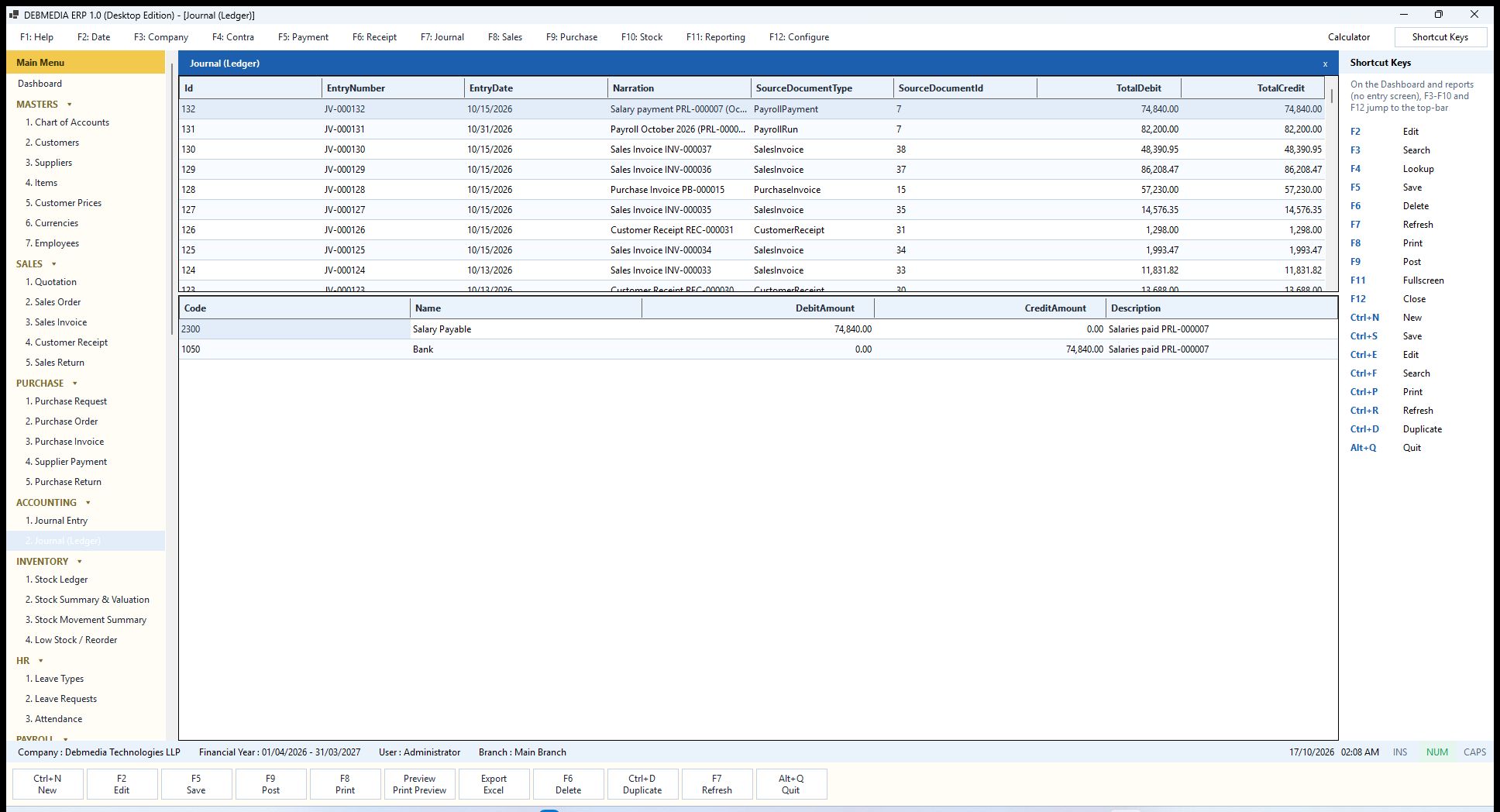
Where to find it: Main Menu, Accounting, Journal (Ledger).
The Journal (Ledger) screen is the complete register of every accounting entry in the company, whatever created it. The upper grid lists the entries with their EntryNumber, EntryDate, Narration, SourceDocumentType (SalesInvoice, PurchaseInvoice, CustomerReceipt, PayrollRun, ManualJournalEntry and so on), SourceDocumentId, TotalDebit and TotalCredit, newest first. In every row the two totals are equal.
Click an entry and the lower grid shows its lines: the account Code and Name, the DebitAmount and CreditAmount, and each line’s Description. The entry selected here, JV-000132, is the October salary payment: it debits Salary Payable (2300) and credits Bank (1050) for 74,840.00. This screen is read-only and refreshes every time you open it. It is the quickest way to answer the question every accountant eventually asks: where did this number come from?
Inventory: Stock You Can Explain
Four screens cover stock. All of them read the same Stock Ledger, so quantities, costs and values always agree with each other and with the Inventory account in the Trial Balance. The reports below use the common report toolbar described under Financial Reports.
Stock Ledger
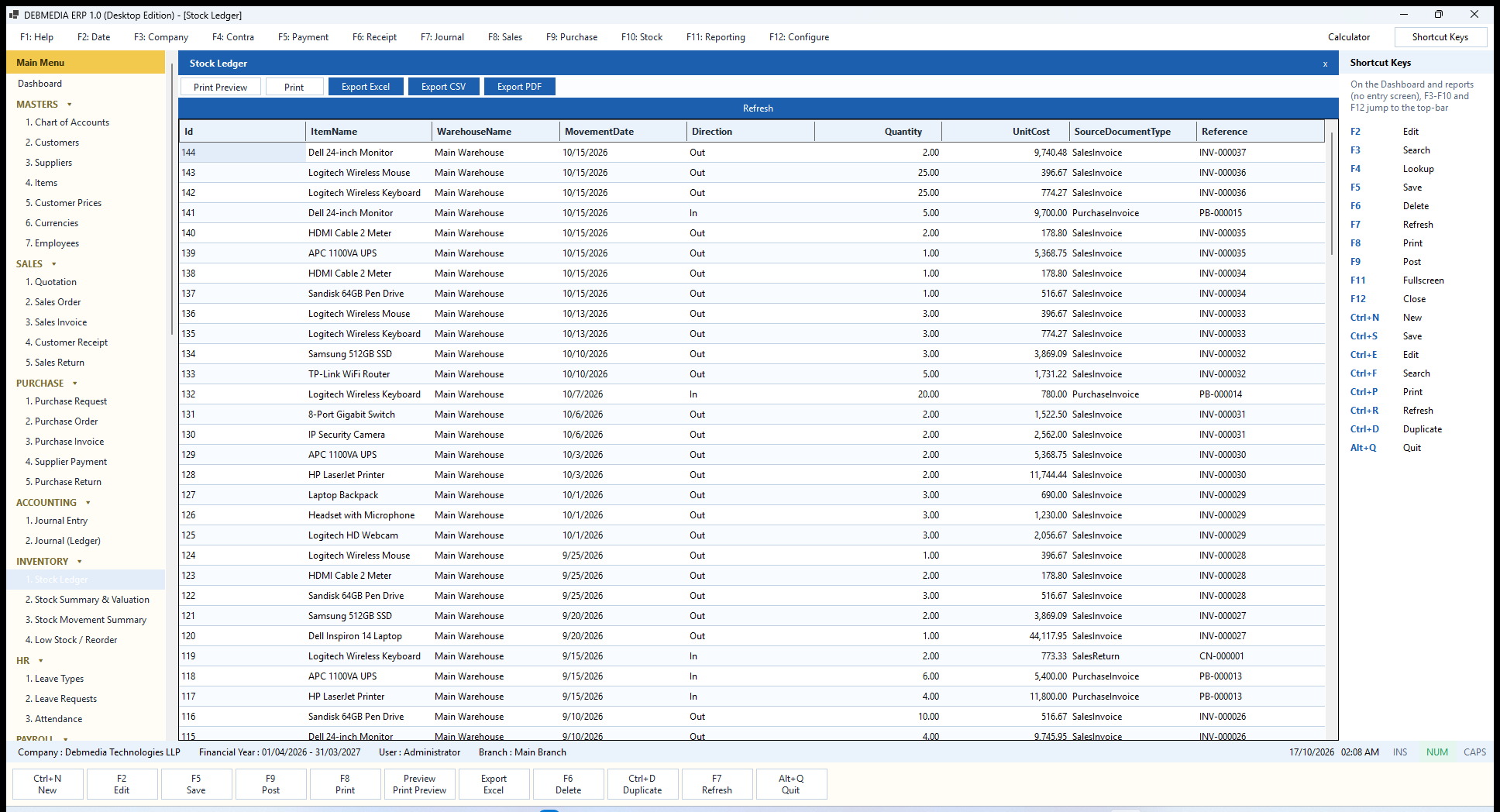
Where to find it: Main Menu, Inventory, Stock Ledger (also the F10 key).
The Stock Ledger lists every stock movement, newest first. The columns are the Id, the ItemName, the WarehouseName, the MovementDate, the Direction (In or Out), the Quantity, the UnitCost, the SourceDocumentType that caused the movement and its Reference. At the top are the print, preview and export buttons, and a blue Refresh bar.
Reading it shows the whole system at work. The top row is the two monitors that left on invoice INV-000037 at a unit cost of 9,740.48. Five monitors came in on purchase invoice PB-000015 at 9,700.00. Further down, two keyboards came back in through sales return CN-000001. Every row names its source document, so any stock figure can be traced back to the invoice, return or opening-stock entry that created it. This is also the only place stock quantities are stored: there is no editable quantity field anywhere in the program, so stock cannot be changed without a document.
Stock Summary and Valuation
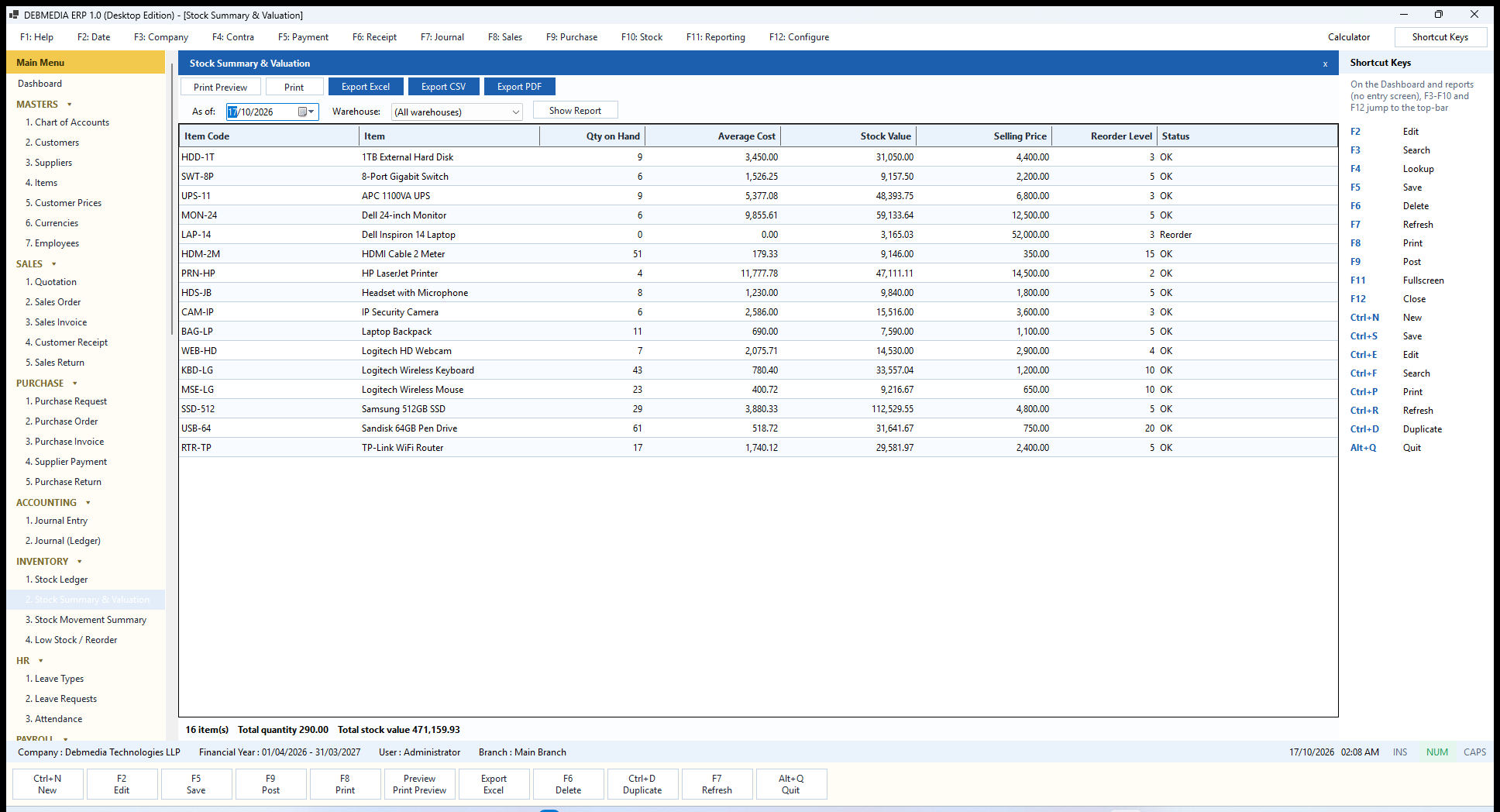
Where to find it: Main Menu, Inventory, Stock Summary and Valuation.
This report answers two questions: how much of each item do I have, and what is it worth? Choose an As of date and, if you keep more than one, a Warehouse (the default is all warehouses), then press Show Report. Each row gives the Item Code, Item, Qty on Hand, Average Cost, Stock Value, Selling Price, Reorder Level and a Status of OK or Reorder.
The footer sums it up: 16 item(s), total quantity 290.00, total stock value 471,159.93. That value is exactly the balance of the Inventory account on the Trial Balance and the Balance Sheet, which is the proof that the stock records and the books agree. Services are not stock items and therefore do not appear. The Dell Inspiron 14 laptop shows a quantity of zero and a status of Reorder because it is at or below its reorder level.
Stock Movement Summary
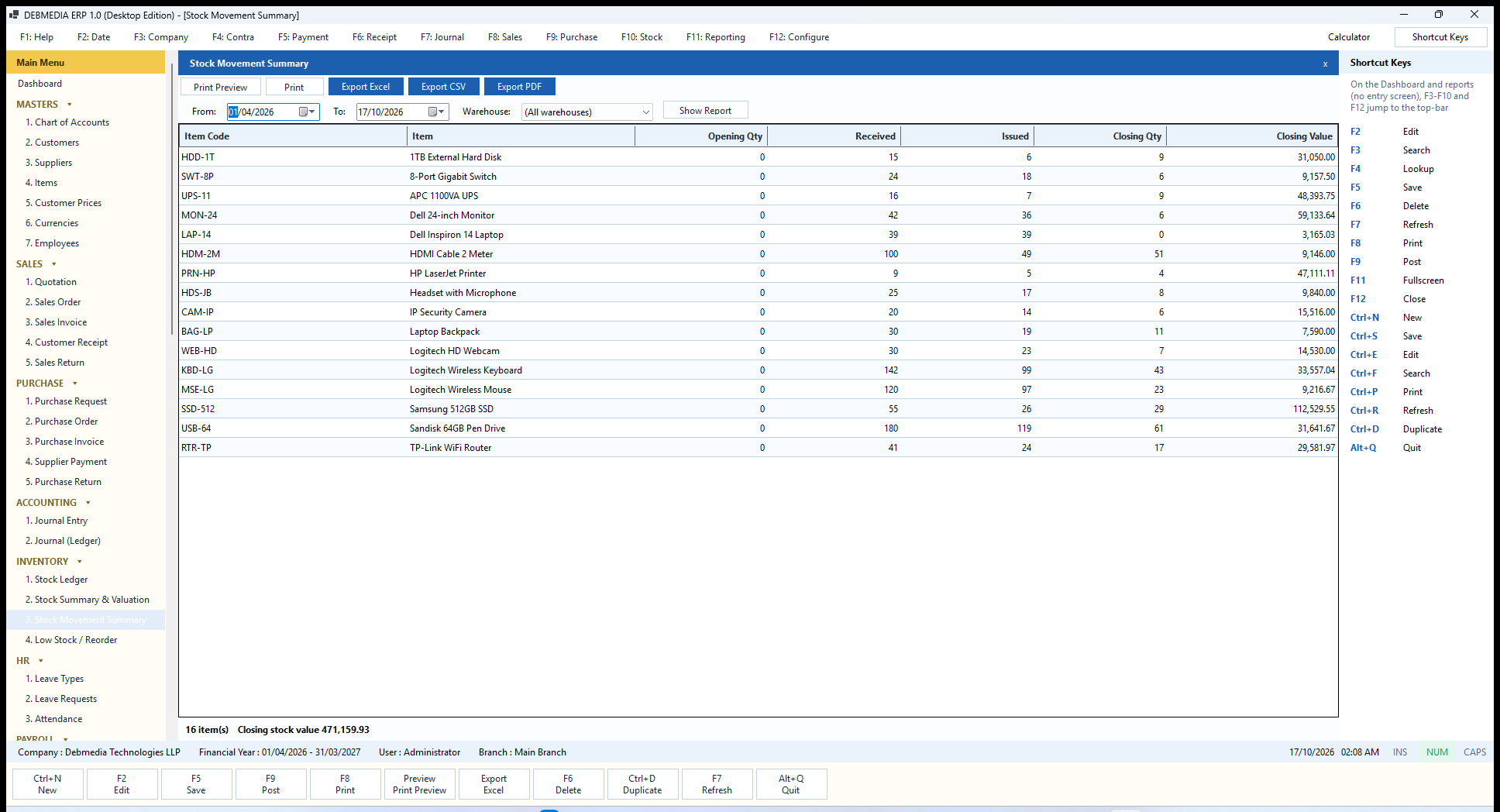
Where to find it: Main Menu, Inventory, Stock Movement Summary.
Where the Stock Summary is a snapshot, the Stock Movement Summary is a period. Choose From and To dates and a Warehouse, press Show Report, and each item shows its Opening Qty, the quantity Received and Issued in the period, the Closing Qty and the Closing Value. For USB-64 the sample shows 180 received, 119 issued and 61 left. The opening quantities are zero for every item in this period because the company’s books start on the first day of the year.
The footer repeats the closing stock value, 471,159.93, which again equals the Inventory account. The report is the right one for answering questions such as how much of an item moved last month, or whether a quantity difference came from buying or selling.
Low Stock / Reorder
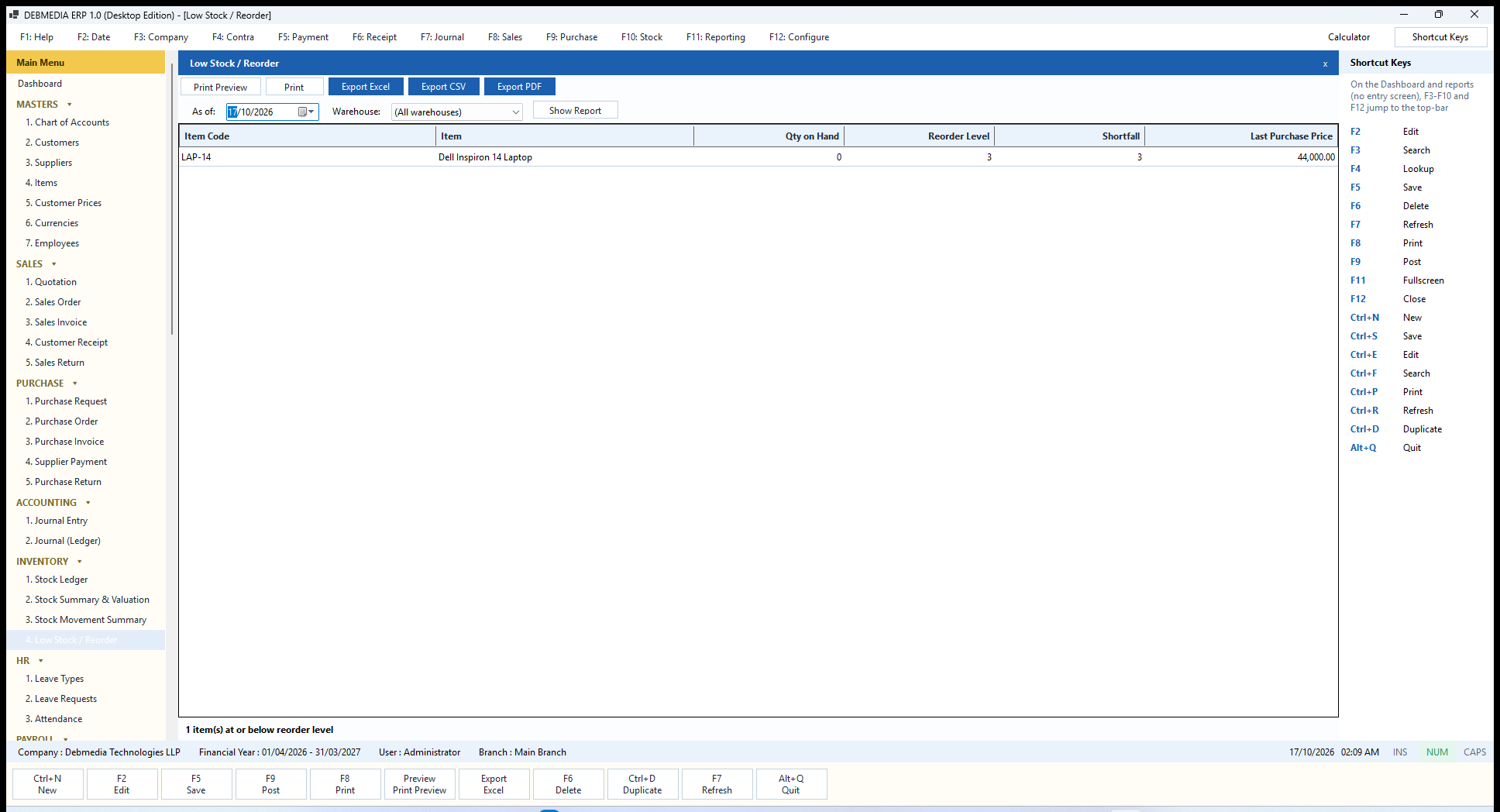
Where to find it: Main Menu, Inventory, Low Stock / Reorder.
This is the buyer’s shopping list. For the chosen As of date and warehouse it lists only the items whose stock is at or below their reorder level, with the Item Code, Item, Qty on Hand, Reorder Level, the Shortfall and the Last Purchase Price, so that the quantity to buy and a sensible price to expect are both in front of you. The sample shows one item, the Dell Inspiron 14 laptop, with none on hand, a reorder level of three, a shortfall of three and a last purchase price of 44,000.00. The footer states the count, and the same figure appears on the Dashboard’s last card.
HR: Leave and Attendance
The HR section holds the three things that decide how many days a person is paid for: what kinds of leave exist, who has asked for leave, and who was present. Payroll reads all three, so there is one definition of an unpaid day across the whole program.
Leave Types
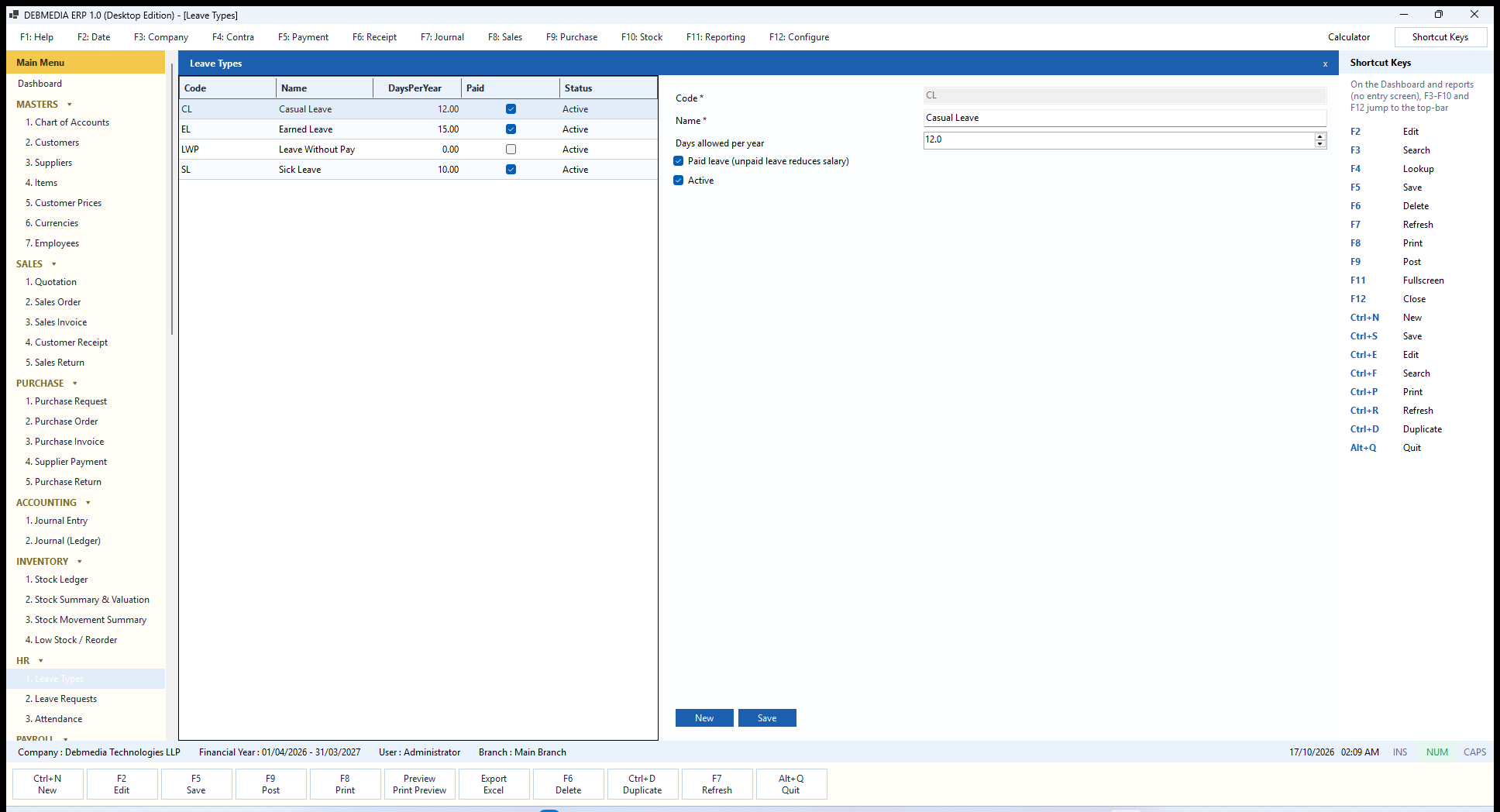
Where to find it: Main Menu, HR, Leave Types.
Leave Types defines the kinds of leave your company gives. The list shows each type’s Code, Name, DaysPerYear (the yearly allowance), a Paid tick and its Status. The sample company has Casual Leave (CL, 12 days), Earned Leave (EL, 15 days), Sick Leave (SL, 10 days), and Leave Without Pay (LWP, no allowance and not paid).
The form has the Code (required, kept in capitals, unique, and locked once saved), the Name, Days allowed per year, the Paid leave tick-box (its label reminds you that unpaid leave reduces salary) and an Active tick-box. New starts a record and Save stores it. The yearly allowance cannot be negative, and a duplicate code is refused.
The paid tick-box is the important choice. A paid leave type has an allowance, and a request that would use more days than the employee has left is refused. An unpaid type has no limit, but every approved day of it becomes an unpaid day in payroll and reduces that month’s pay. An employee’s balance is the yearly allowance minus the approved days already taken in that calendar year; the Leave Balance report shows it for everyone.
Leave Requests
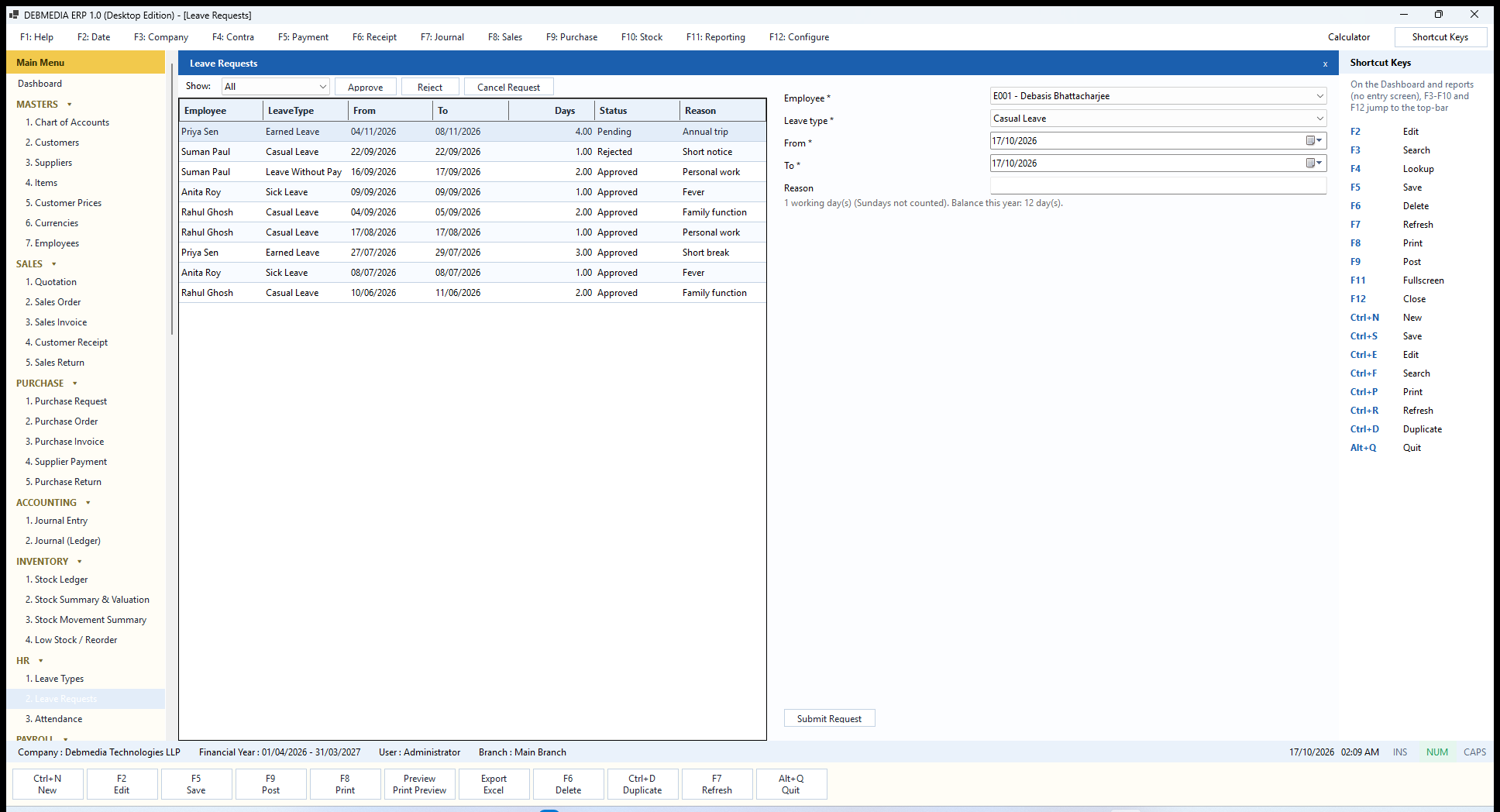
Where to find it: Main Menu, HR, Leave Requests.
Leave Requests is where leave is asked for and decided. The list shows each request’s Employee, LeaveType, From and To dates, the number of Days, its Status (Pending, Approved, Rejected or Cancelled) and the Reason. A Show filter above the list narrows it by status, and three buttons act on the selected request: Approve, Reject and Cancel Request.
To record a request, choose the Employee and the Leave type, set From and To, type an optional Reason and press Submit Request. As soon as you set the dates, a line under the form tells you what will happen, for example 1 working day(s) (Sundays not counted). Balance this year: 12 day(s). The pending request for Priya Sen from 4 to 8 November shows 4.00 days, because 8 November is a Sunday and Sundays are never counted as leave.
The program applies firm rules. The end date cannot be before the start date. The employee and the leave type must be active. The dates must contain at least one working day. A request that overlaps another pending or approved request for the same person is refused. A paid request larger than the remaining balance is refused, and the balance is checked again at approval. Approval, rejection and cancellation each record who decided, when, and any note, and appear in the Audit Log. Finally, leave in a month whose payroll has already been posted cannot be approved or cancelled, because the posted salaries would no longer match the records; cancel that payroll run first.
Attendance
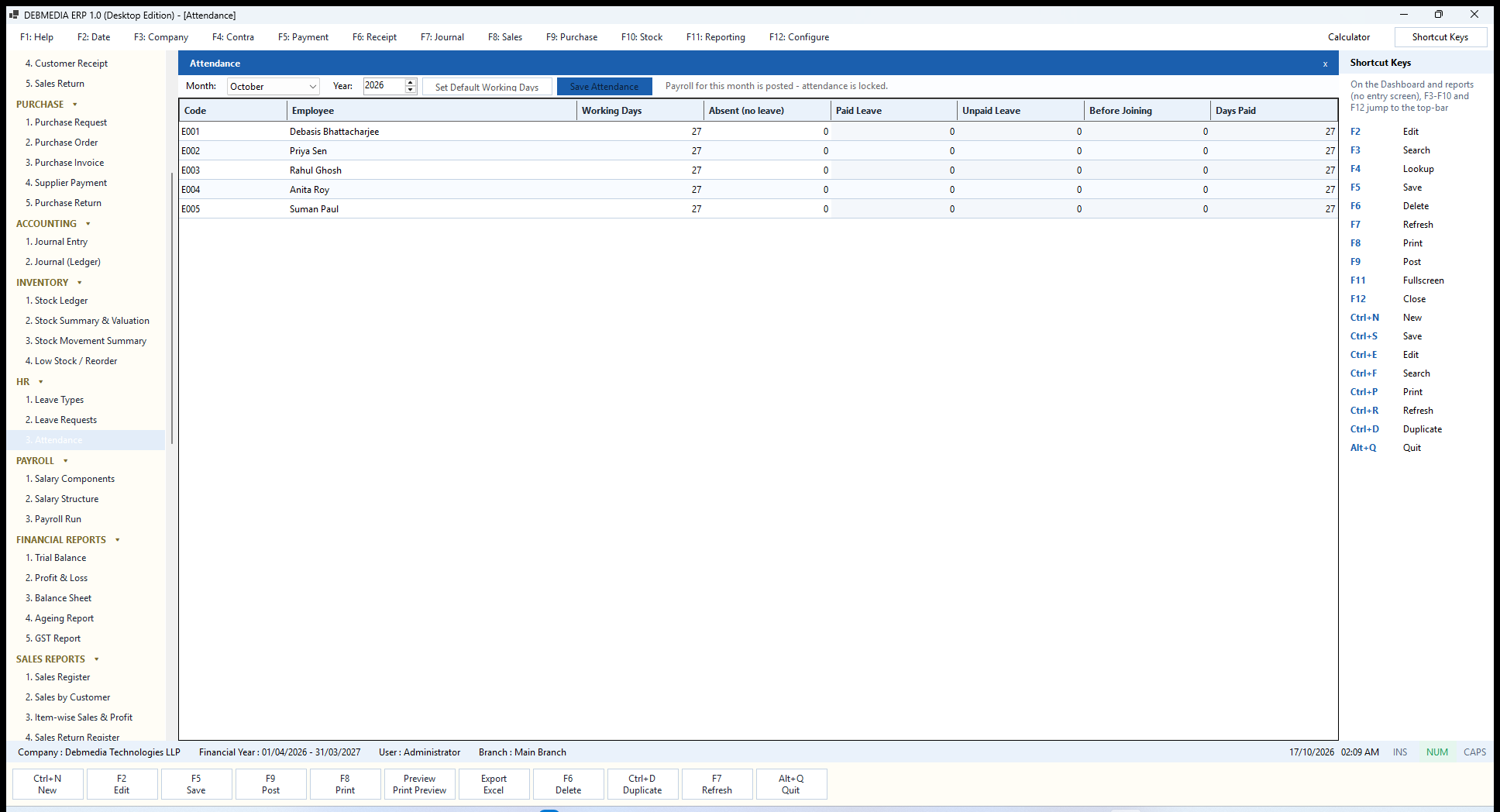
Where to find it: Main Menu, HR, Attendance.
Attendance is a single monthly sheet. Choose the Month and Year and the grid lists every active employee with the columns Working Days, Absent (no leave), Paid Leave, Unpaid Leave, Before Joining and Days Paid. October 2026 has 27 working days for everyone in the sample, since the month has 31 days and four Sundays (4, 11, 18 and 25).
You type only two things: the working days (Set Default Working Days fills in every day except Sundays) and the days a person was absent without leave. The other three figures are calculated and shaded: paid and unpaid leave come from approved leave requests that fall in the month, and days before joining come from the employee’s joining date. Days Paid is the working days minus all the unpaid ones. Save Attendance stores the sheet. Absent days cannot be negative or exceed the working days, and working days cannot exceed the days in the month.
The message at the top of the sample, Payroll for this month is posted – attendance is locked, shows the safeguard: once a month’s payroll is posted or paid, its attendance cannot change, so the paid-days figures in the register always match the payslips. The same rule defines unpaid days for both Payroll and the Attendance Register: absent days plus approved unpaid leave plus days before joining.
Payroll: From Pay Heads to Payslips
Payroll turns the HR facts into salaries and into accounting. Three screens build up the calculation: pay heads (the components of a salary), each employee’s own structure, and the monthly run.
Salary Components
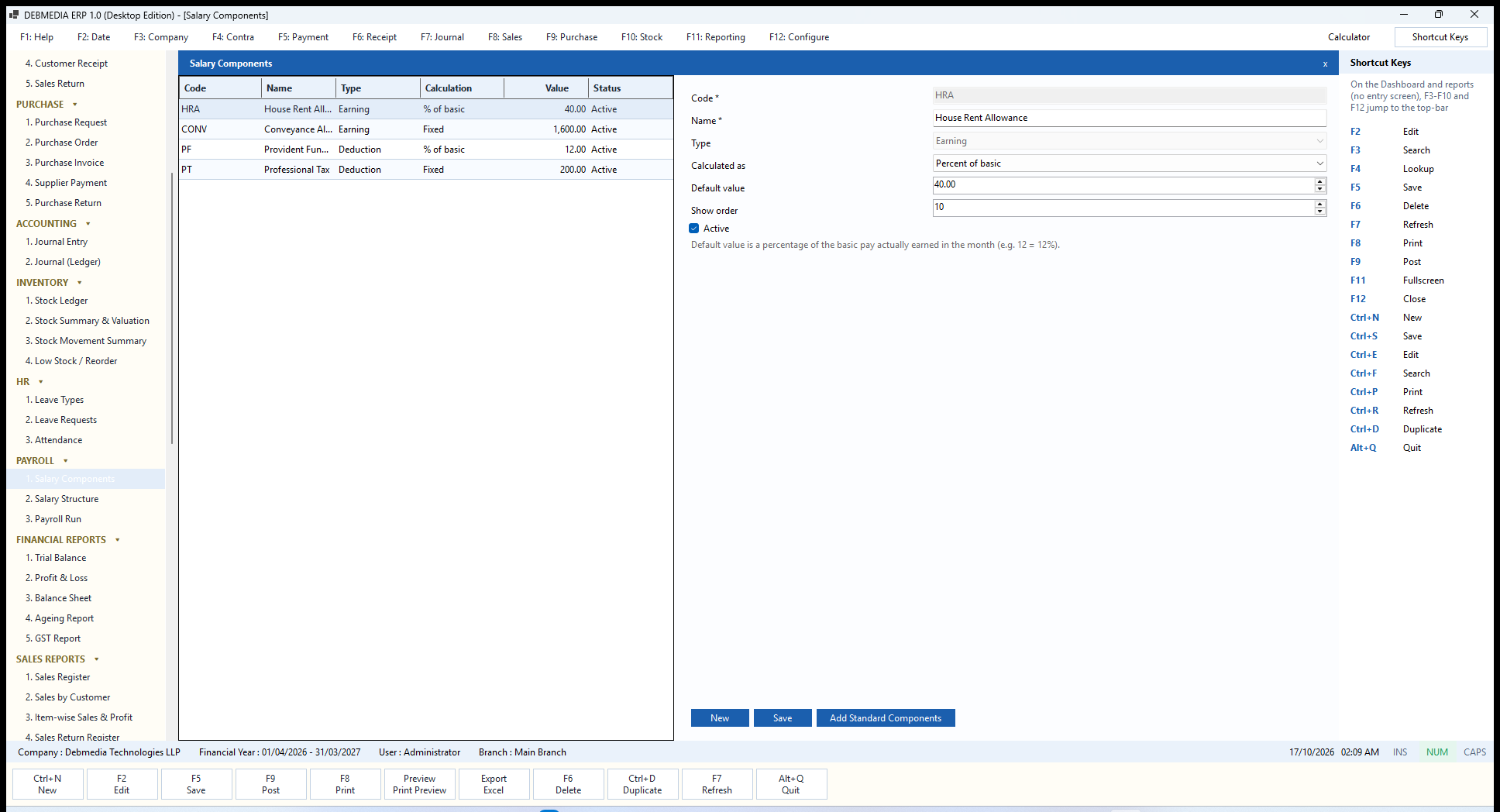
Where to find it: Main Menu, Payroll, Salary Components.
Salary Components defines the pay heads that make up a salary. The list shows each component’s Code, Name, Type (Earning or Deduction), its Calculation method (a percentage of basic or a fixed amount), its Value and Status. The sample has four: House Rent Allowance (40 percent of basic, earning), Conveyance Allowance (fixed 1,600, earning), Provident Fund (12 percent of basic, deduction) and Professional Tax (fixed 200, deduction).
The form holds the Code and Name (both required; the code is unique and kept in capitals), the Type (fixed once saved), Calculated as (Percent of basic or Fixed amount), the Default value, a Show order that decides where it appears on the payslip, and an Active tick. The hint at the bottom explains the percentage: it is a share of the basic pay actually earned in the month. A percentage cannot exceed 100 and no amount can be negative.
Add Standard Components creates those four starting pay heads, but only for a company that has none yet. They are ordinary components that you can edit or switch off, and the program reminds you that rates and caps differ by country and state, so check them against your local rules before relying on them.
Salary Structure
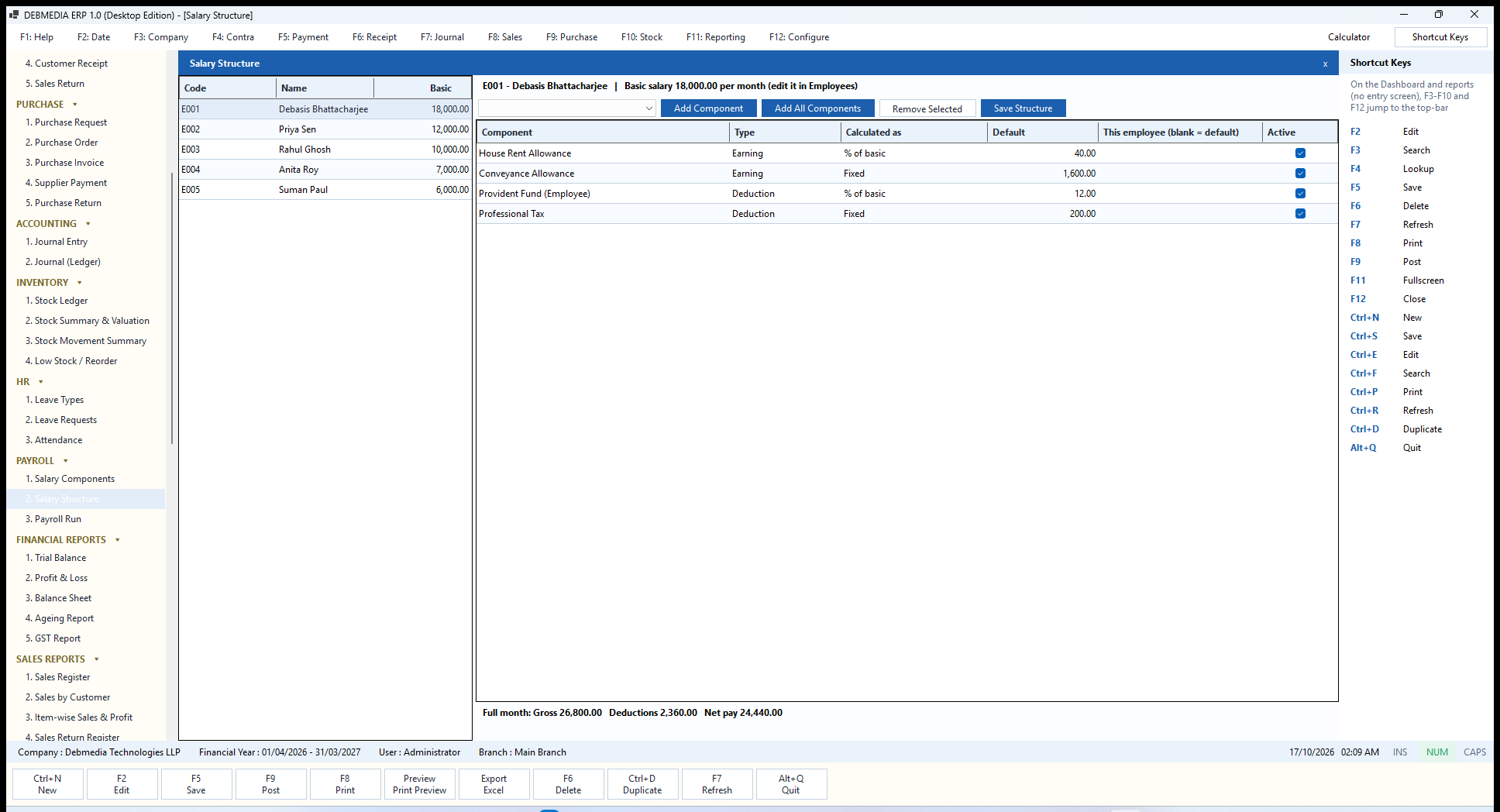
Where to find it: Main Menu, Payroll, Salary Structure.
Salary Structure decides which pay heads each employee receives. The list on the left shows every employee with their code, name and basic salary. Selecting one shows a header such as E001 – Debasis Bhattacharjee | Basic salary 18,000.00 per month (edit it in Employees) and a grid with the columns Component, Type, Calculated as, Default, This employee (blank = default) and Active.
Use the drop-down and Add Component to give the employee one pay head, Add All Components to give every active one at its default, Remove Selected to take one away, and Save Structure to store the result. Typing a figure in the employee column overrides the default for this person only (a different allowance percentage, say); leaving it blank uses the default. The Active tick suspends a pay head without removing it.
The line under the grid is a live preview of a full month: Gross 26,800.00, Deductions 2,360.00, Net pay 24,440.00. It is the 18,000 basic plus 7,200 house rent allowance (40 percent) plus 1,600 conveyance, less 2,160 provident fund (12 percent) and 200 professional tax. The preview is for a full month; the real payroll run adjusts for unpaid days.
Payroll Run
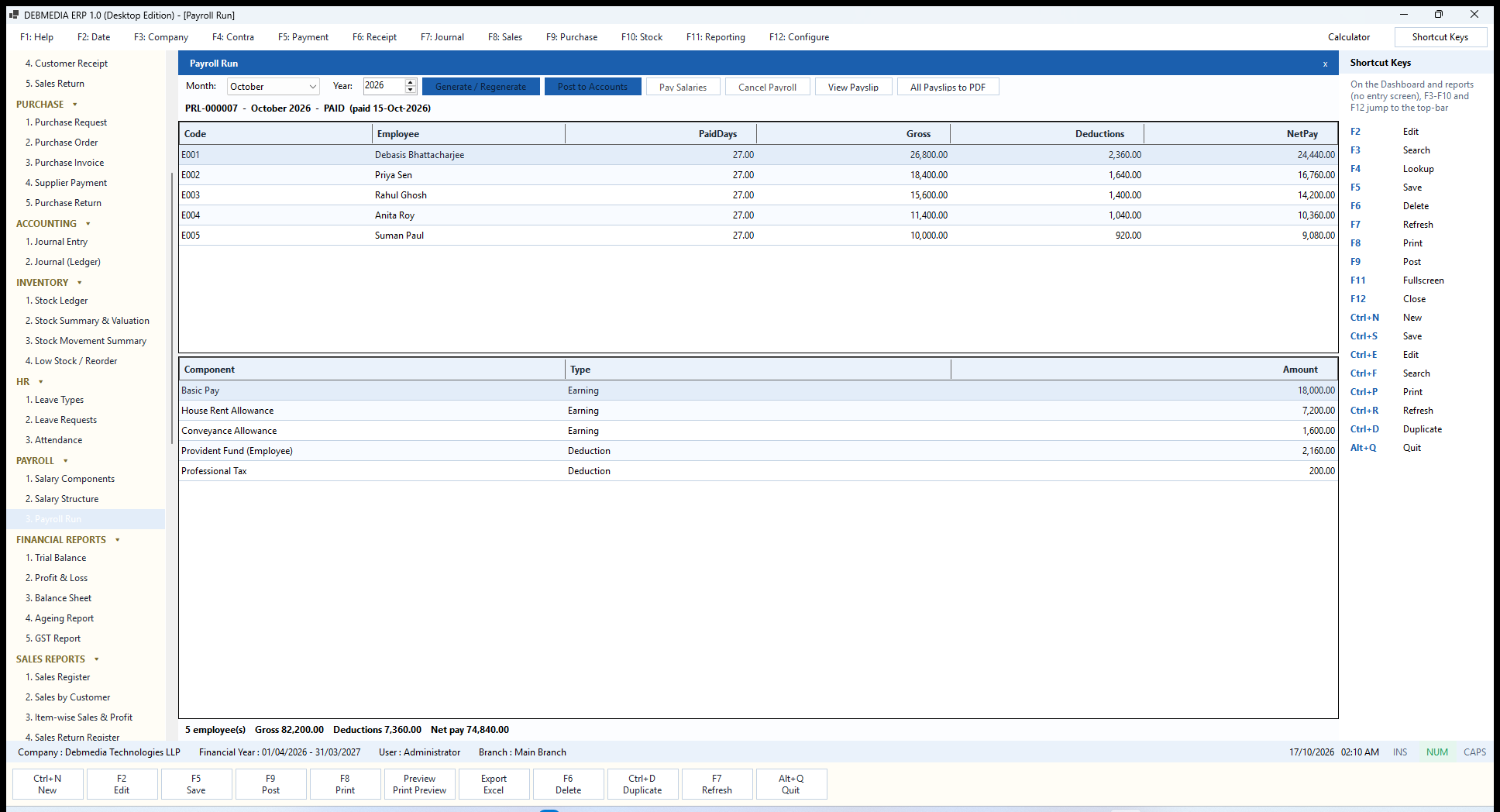
Where to find it: Main Menu, Payroll, Payroll Run.
The Payroll Run screen produces and settles a month’s salaries. Choose the Month and Year; the heading line shows the run’s state, here PRL-000007 – October 2026 – PAID (paid 15-Oct-2026). The upper grid lists each employee with Code, Employee, PaidDays, Gross, Deductions and NetPay. Select an employee and the lower grid breaks that person’s pay into its components (Basic Pay 18,000, House Rent Allowance 7,200, Conveyance 1,600, Provident Fund 2,160, Professional Tax 200). The footer totals the run: 5 employees, gross 82,200.00, deductions 7,360.00, net pay 74,840.00.
Generate / Regenerate builds the month’s payroll as a Draft for every active employee who had joined by the month’s end. It can be regenerated freely while it is a draft. The calculation is exact: the paid-days factor is the working days less unpaid days, divided by the working days; basic earned is the basic salary times that factor; percentage components are taken on the basic earned; fixed earnings are scaled by the factor; and fixed deductions such as professional tax do not shrink. Unpaid days come from the Attendance sheet (absences) plus approved unpaid leave plus days before joining.
Post to Accounts commits the run. It debits Salaries and Wages for the gross, credits Salary Payable for the net pay and credits Payroll Deductions Payable for the amounts withheld (82,200.00, 74,840.00 and 7,360.00 here). A run with a negative net pay is refused with the employee’s name, and nothing can be posted into a closed financial year. Pay Salaries, available only after posting, opens a small Pay Salaries window where you choose the payment method and date and press Record Payment; it debits Salary Payable and credits Cash or Bank. Posting and paying are separate permissions.
Cancel Payroll asks for a reason. It discards a draft, or reverses the exact entry of a posted run that has not been paid. A run that has been paid cannot be cancelled here; record any refund with a journal entry. View Payslip opens the selected employee’s payslip, and All Payslips to PDF writes one payslip per employee into a single PDF file.
Payslip
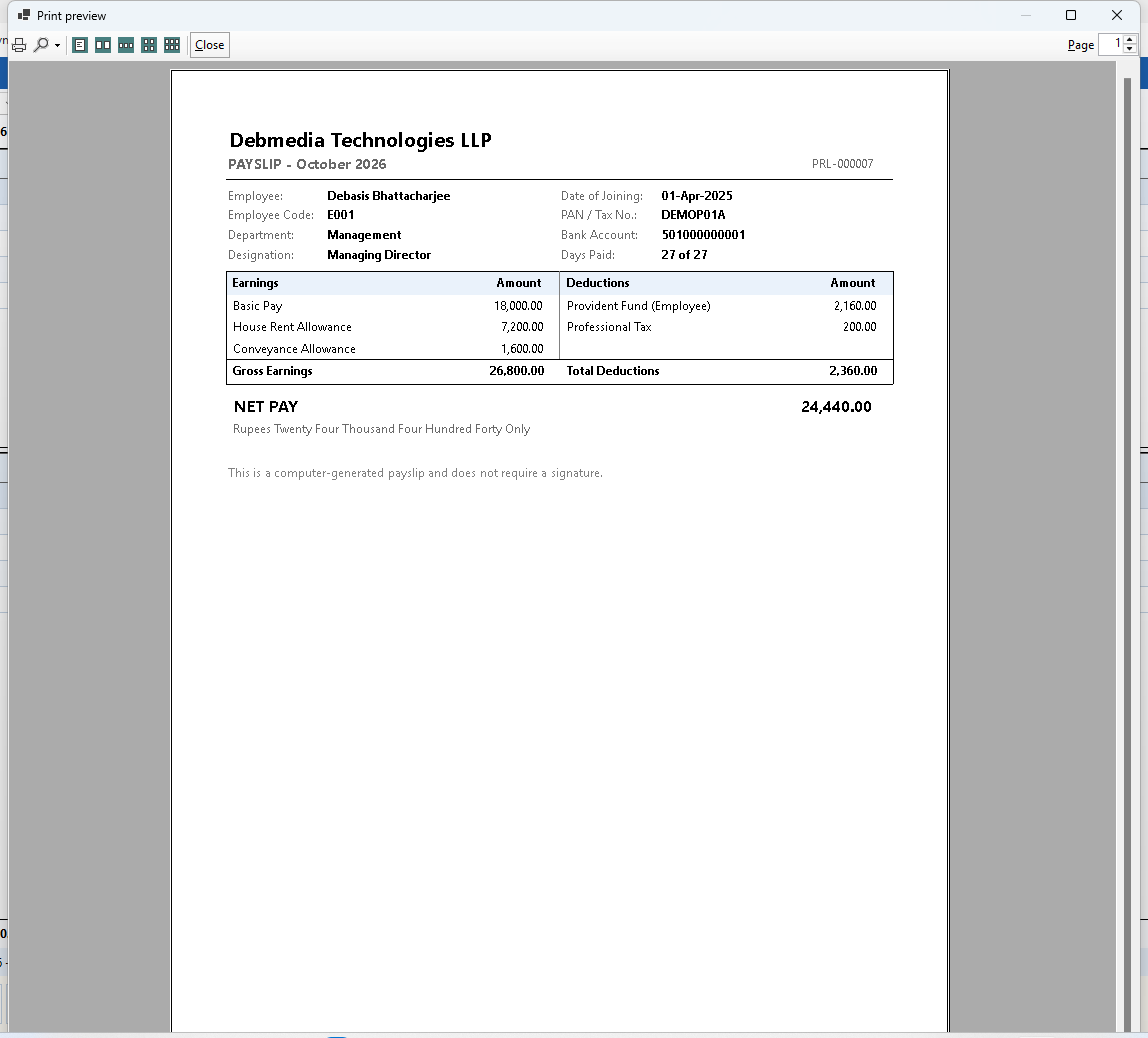
Where to find it: Payroll Run, then View Payslip.
The payslip opens in a print preview window, so you can read it, print it or send it to a PDF. It carries the company name, the title PAYSLIP – October 2026 and the payroll run number, then the employee’s Employee name, Employee Code, Department and Designation beside the Date of Joining, PAN / Tax No., Bank Account and Days Paid (27 of 27).
Below is a two-column table with the Earnings (basic, house rent allowance, conveyance) and the Deductions (provident fund, professional tax), the Gross Earnings and Total Deductions, the NET PAY in figures (24,440.00) and the same amount in words, Rupees Twenty Four Thousand Four Hundred Forty Only, using Indian digit grouping. A closing line states that the payslip is computer-generated and needs no signature. One A4 page is produced per employee.
Financial Reports
Five reports turn the journal into the statements an owner, a bank or a tax consultant asks for. They are all computed live from posted entries, so there is nothing to “close” or “refresh” in the background: the figure you see is the figure in the books at this moment.
Report Screens: Common Features
Every report in the program, from the Trial Balance to the Bank Transfer List, is built the same way, so once you have used one you can use them all. A row of filters sits at the top: a date, a date range, a customer or supplier, a warehouse, or a month and year, depending on the report. Press Show Report or Refresh to run it. The results fill a grid whose columns you can resize, and a one-line summary footer at the bottom gives the totals and, where it applies, a check such as Balanced.
Above the filters is the output toolbar. Print Preview shows the report as paper, with the report title, the company name, the as-of date or period, the time it was generated and a page number on every page. Print sends it to a printer. Export Excel writes a real .xlsx workbook with bold headers and numbers stored as numbers, so you can total and chart them. Export CSV writes a UTF-8 comma-separated file that opens correctly in Excel, with quotes and commas inside values handled properly. Export PDF writes a PDF using the Windows built-in PDF printer, so no physical printer is needed. The Print, Export and keyboard shortcuts (F8 and Ctrl+P) all run the same code, and each report can be restricted by permission.
One safety detail: any exported cell that starts with =, +, – or @ is prefixed so that a spreadsheet will treat it as text and never run it as a formula, which protects you from malicious values hidden in a customer or item name.
Trial Balance
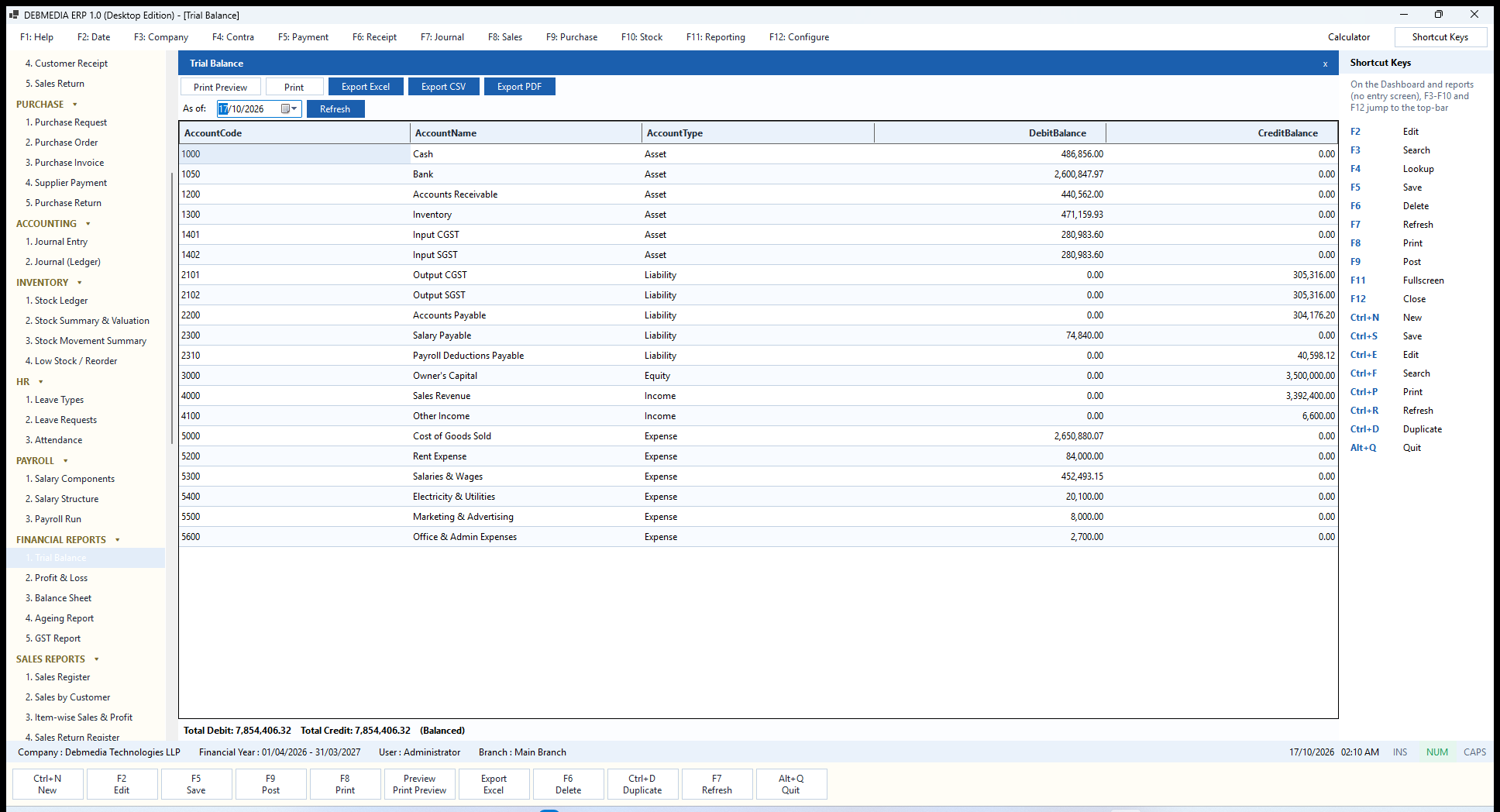
Where to find it: Main Menu, Financial Reports, Trial Balance (also the F11 key).
The Trial Balance lists every account that has a balance, as of the date you choose (it opens on today). The columns are AccountCode, AccountName, AccountType, DebitBalance and CreditBalance. In the sample, Bank carries a debit balance of 2,600,847.97, Accounts Receivable 440,562.00, Inventory 471,159.93, and the credit side holds Owner’s Capital of 3,500,000.00, Sales Revenue of 3,392,400.00 and the output GST accounts.
The footer is the accountant’s first test: Total Debit 7,854,406.32, Total Credit 7,854,406.32 (Balanced). Because every entry the program posts is balanced, this report cannot be out of balance; if it ever said otherwise, that would be a data problem worth knowing about at once. Notice that the figures match other screens: Accounts Receivable agrees with the Customer Outstanding report, Accounts Payable with the Supplier Outstanding report, and Inventory with the Stock Summary.
Trial Balance: Print Preview
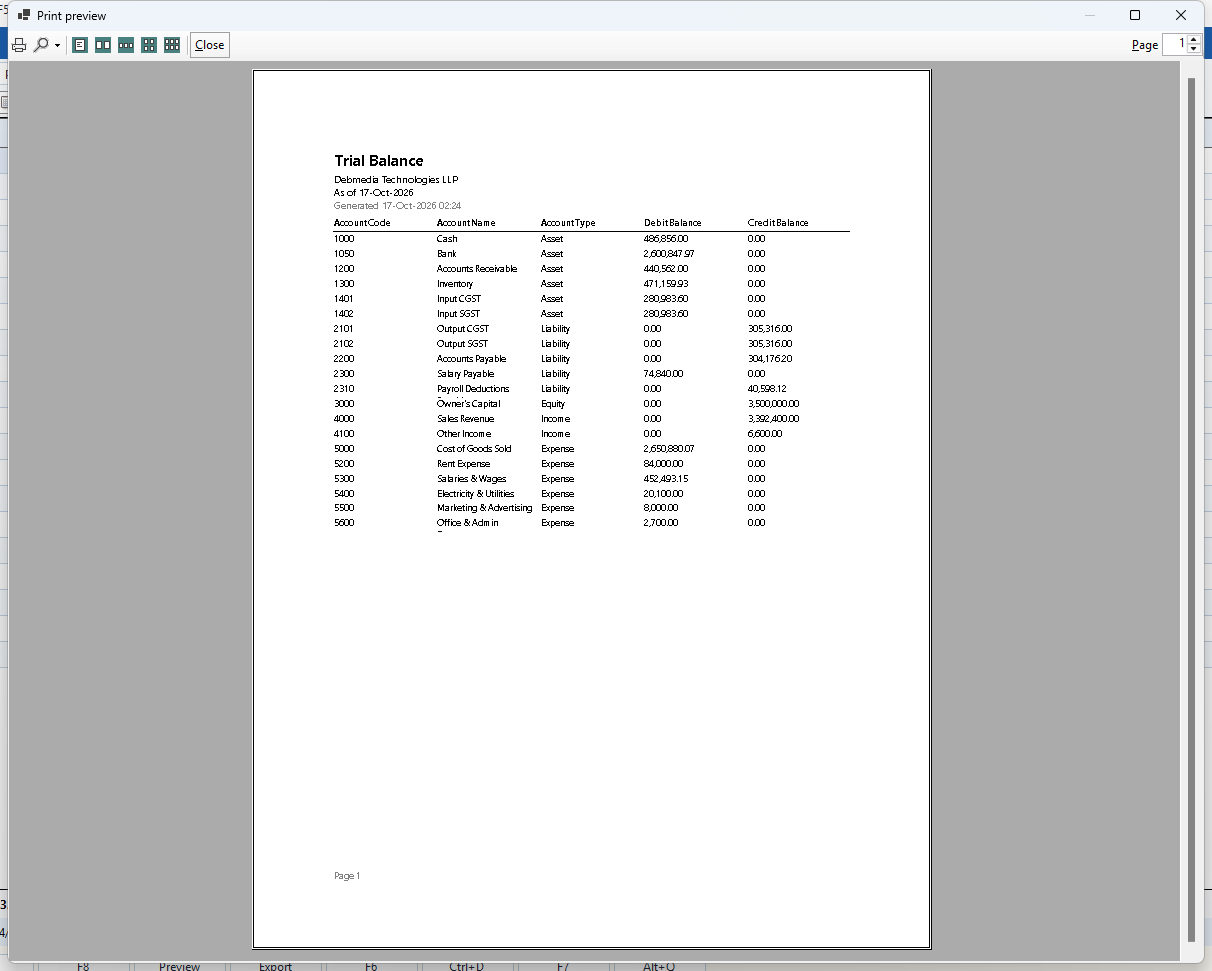
This is what Print Preview produces for the same report. The page has the report title, the company name, As of 17-Oct-2026, the time it was generated, the account table and a page number in the footer. The preview window has the usual buttons: print, zoom, one to several pages across, and Close. The same layout is used when you print or export to PDF, so what you see here is exactly what goes on paper.
Profit and Loss
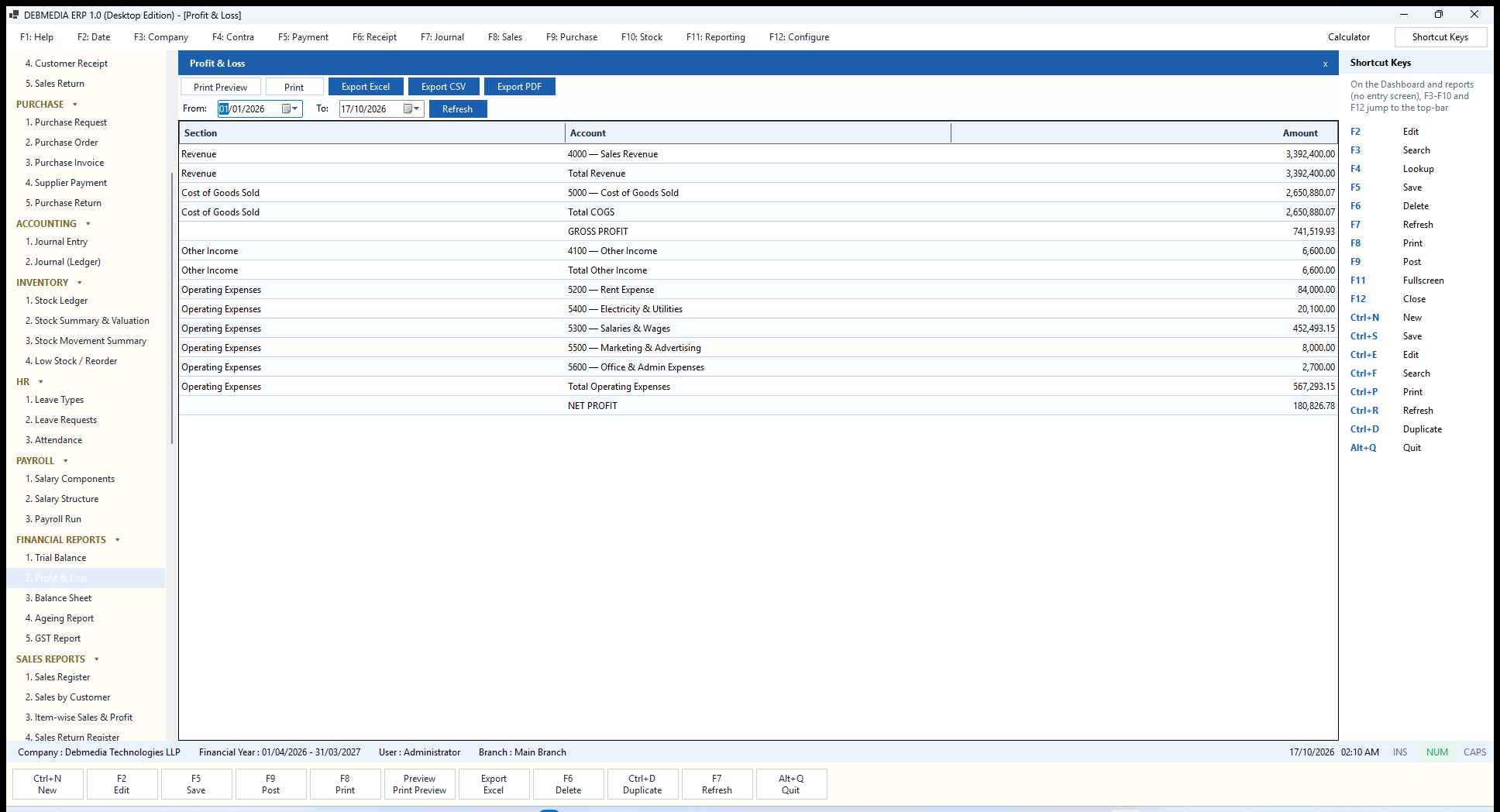
Where to find it: Main Menu, Financial Reports, Profit and Loss.
The Profit and Loss statement is shown for a period: set From and To and press Refresh. The grid is arranged as an income statement, with a Section, an Account and an Amount. Revenue (3,392,400.00) is followed by Cost of Goods Sold (2,650,880.07), which gives a GROSS PROFIT of 741,519.93. Other Income (6,600.00) is added, the Operating Expenses are listed one by one (rent, electricity, salaries and wages, marketing, office and admin, totalling 567,293.15), and the last line is the NET PROFIT of 180,826.78.
The gross profit here equals the profit on the Item-wise Sales and Profit report, because both use the cost that was posted when each sale was made. The net profit is also the figure that appears as retained earnings on the Balance Sheet.
Balance Sheet
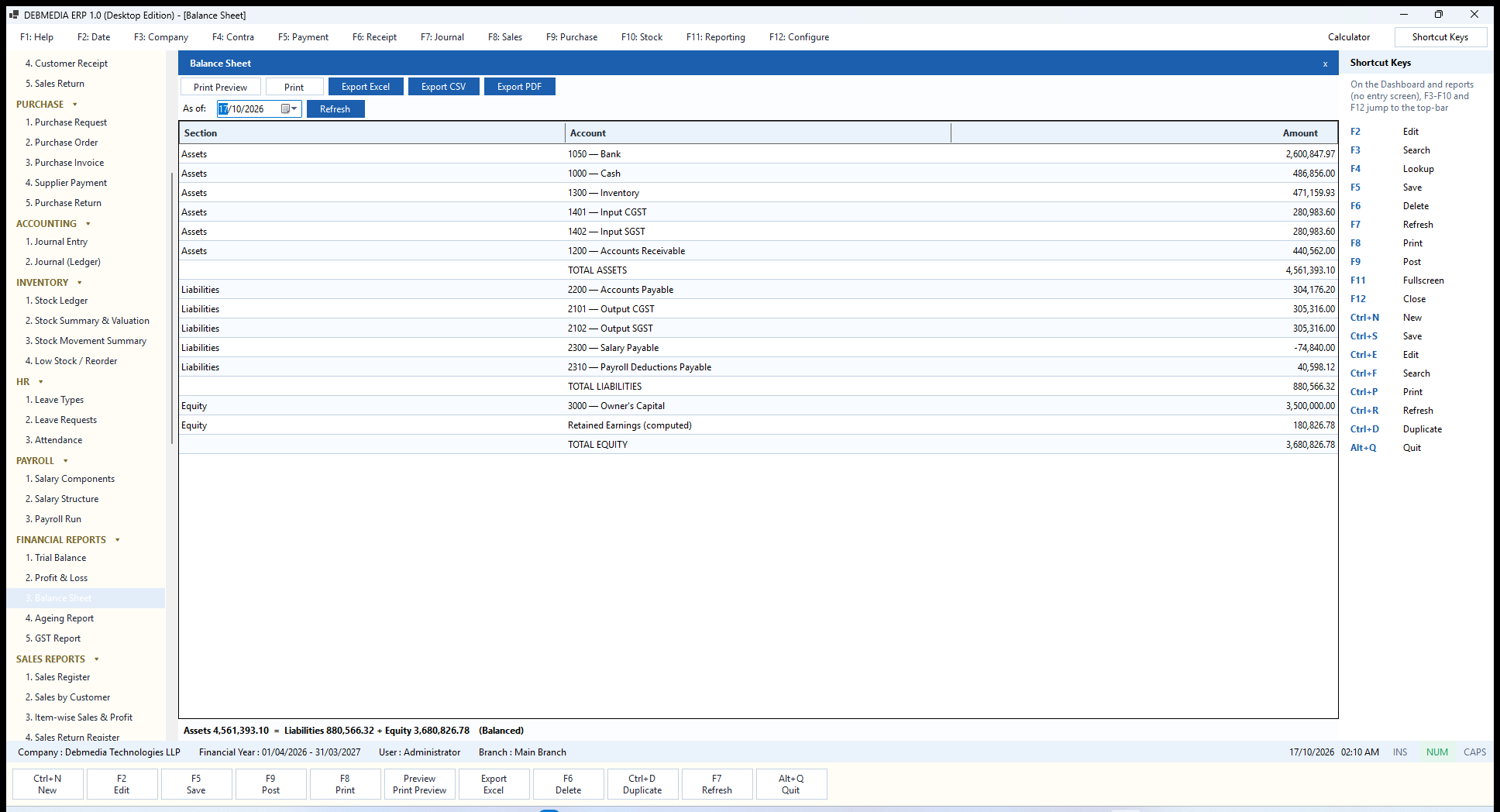
Where to find it: Main Menu, Financial Reports, Balance Sheet.
The Balance Sheet is as of a date. It lists Assets (Bank, Cash, Inventory, Input CGST, Input SGST and Accounts Receivable, totalling 4,561,393.10), Liabilities (Accounts Payable, Output CGST and SGST, Salary Payable and Payroll Deductions Payable, totalling 880,566.32) and Equity: Owner’s Capital of 3,500,000.00 plus Retained Earnings (computed) of 180,826.78, totalling 3,680,826.78. An account carrying an unusual (opposite) balance appears with a minus sign, as Salary Payable does in this sample.
The footer proves the books: Assets 4,561,393.10 = Liabilities 880,566.32 + Equity 3,680,826.78 (Balanced). The retained earnings line is calculated from the income and expense accounts, which is why you never need to run a year-end entry to see a correct balance sheet at any date.
Ageing Report
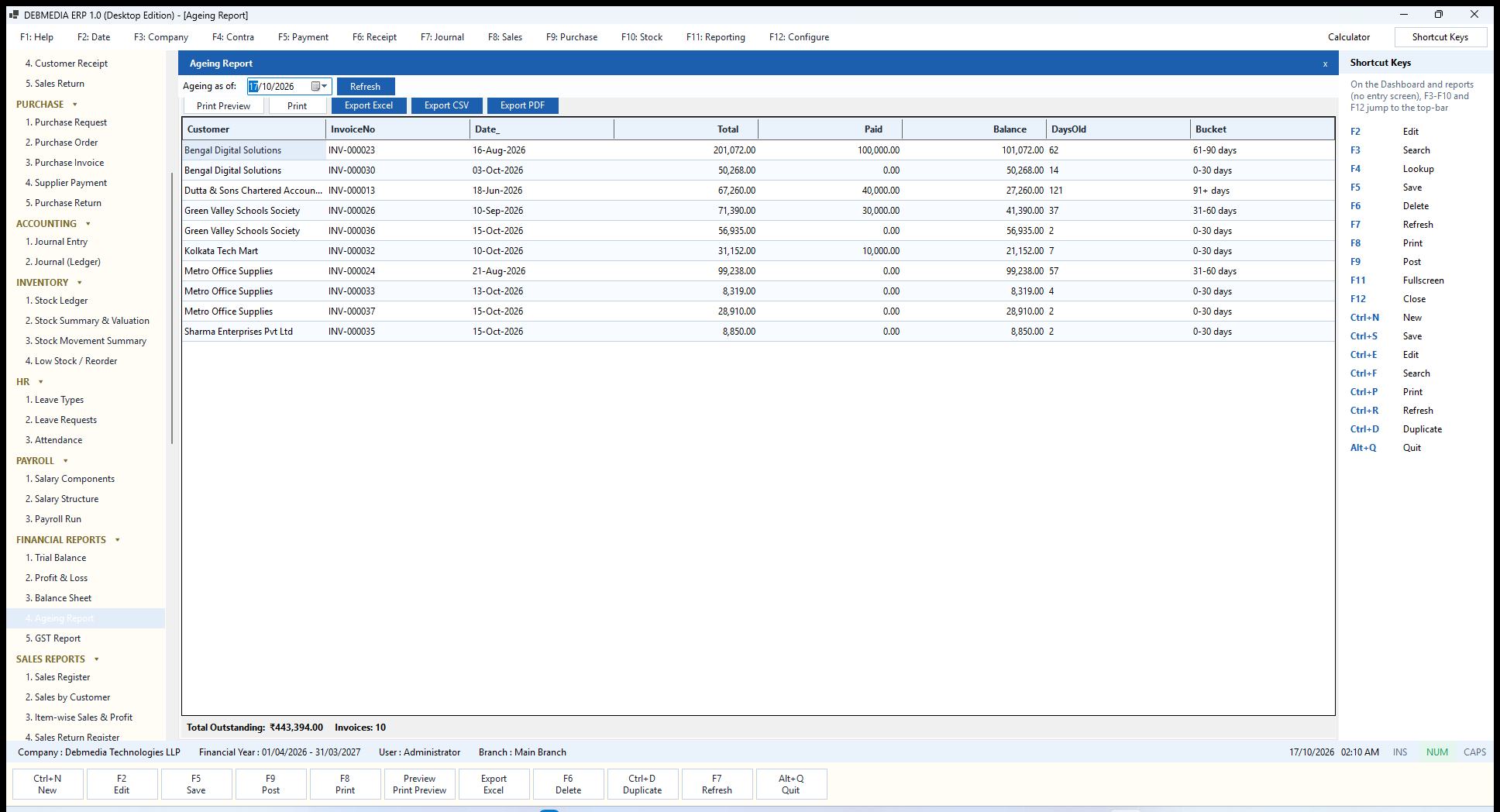
Where to find it: Main Menu, Financial Reports, Ageing Report.
The Ageing Report shows who owes you money and for how long. Choose Ageing as of and press Refresh. Each unpaid sales invoice appears with the Customer, InvoiceNo, Date, Total, Paid, Balance, DaysOld and a Bucket: 0-30 days, 31-60 days, 61-90 days or 91+ days. In the sample the oldest item is a Dutta and Sons invoice 121 days old, in the 91+ bucket, with 27,260.00 outstanding.
The footer gives Total Outstanding 443,394.00, Invoices 10, which matches the Dashboard’s unpaid-invoice cards. Use this report for collection calls and to decide which customers to stop supplying on credit; the credit-limit check at invoice posting is the system’s automatic version of the same decision.
GST Report
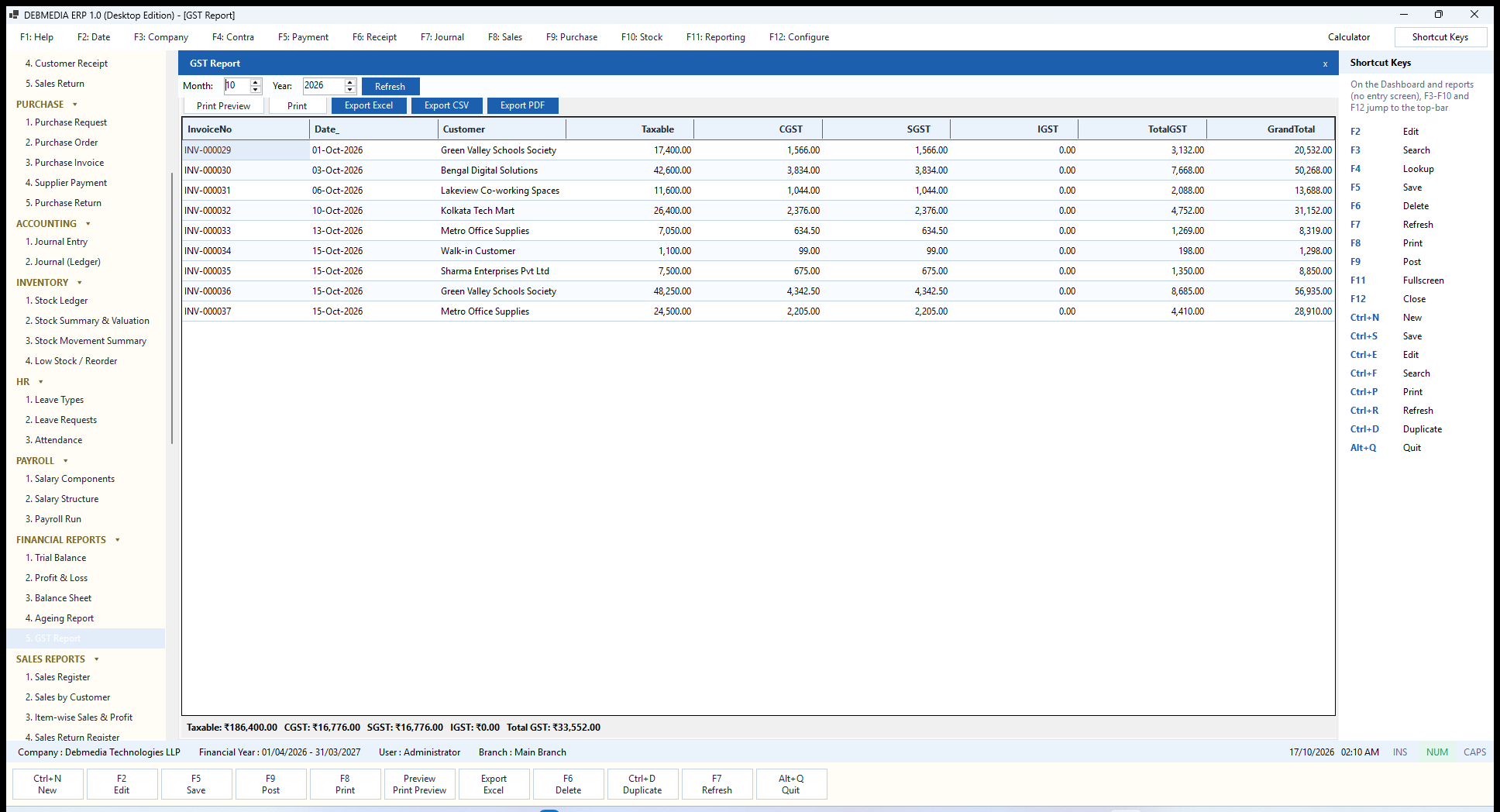
Where to find it: Main Menu, Financial Reports, GST Report.
The GST Report lists the sales invoices of one month with their tax. Choose the Month and Year and press Refresh. Each row shows the InvoiceNo, Date, Customer, Taxable value, CGST, SGST, IGST, TotalGST and GrandTotal. The footer totals the month: taxable 186,400.00, CGST 16,776.00, SGST 16,776.00, IGST 0.00, and total GST 33,552.00.
It is the output-tax side of your GST return: the tax you collected. The tax you paid on purchases is on the Purchase Register, and the Input CGST, SGST and IGST accounts on the Trial Balance hold the running totals of both sides, so the difference between them is what is payable or refundable.
Sales Reports
Six reports look at sales from different angles: by invoice, by customer, by item, by return, and the two reports that deal with money owed. All use the common toolbar and filters described above.
Sales Register
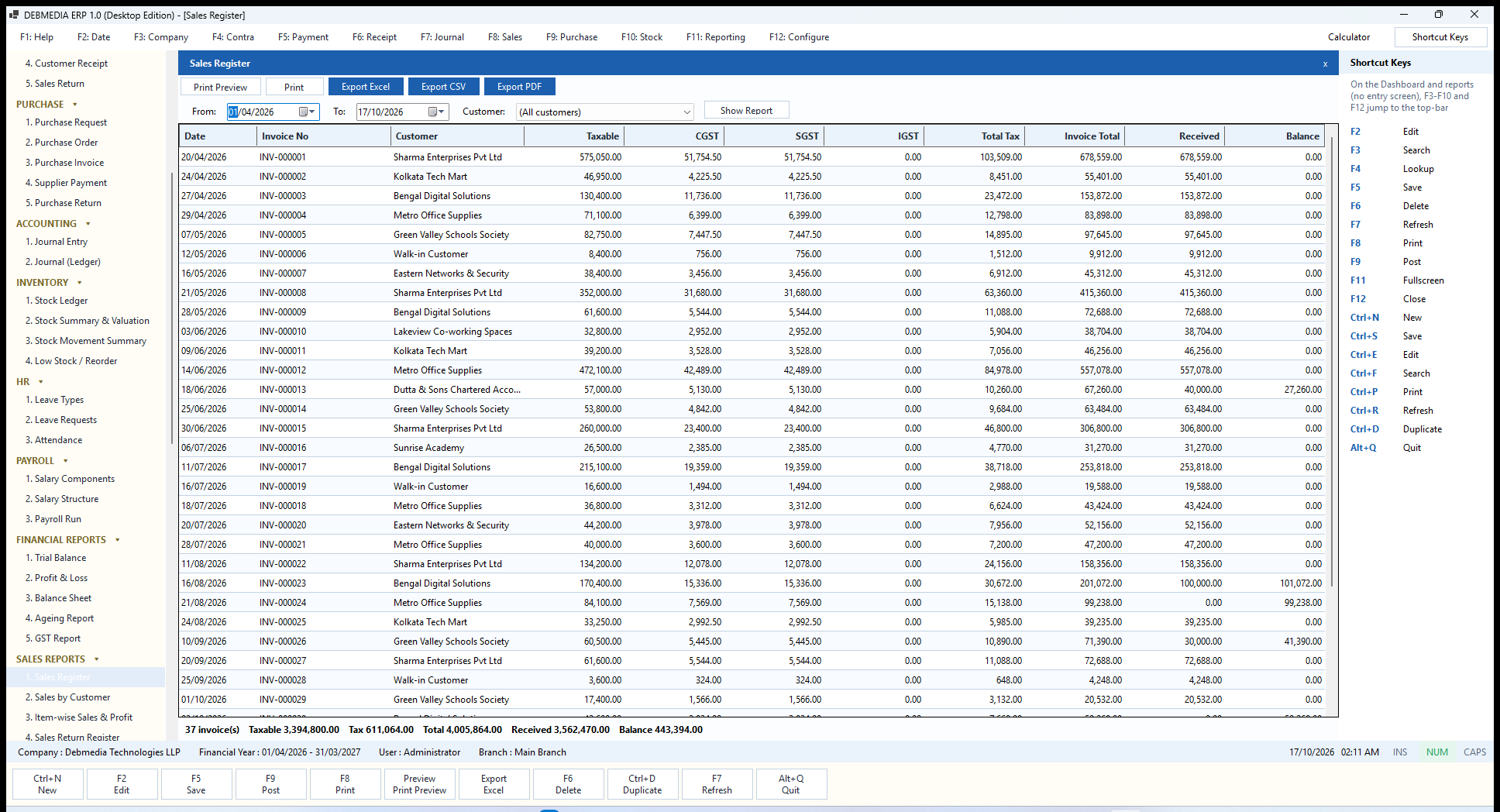
Where to find it: Main Menu, Sales Reports, Sales Register.
The Sales Register is the full list of sales invoices for a period. Set From, To and, if you want one customer only, the Customer (the default is all customers), then press Show Report. Each row has the Date, Invoice No, Customer, Taxable, CGST, SGST, IGST, Total Tax, Invoice Total, Received and Balance. The footer for the sample year reads 37 invoice(s), Taxable 3,394,800.00, Tax 611,064.00, Total 4,005,864.00, Received 3,562,470.00, Balance 443,394.00.
It is the report to hand to a tax adviser or to reconcile against a GST return, and the Received and Balance columns show at a glance which invoices are still open.
Sales by Customer
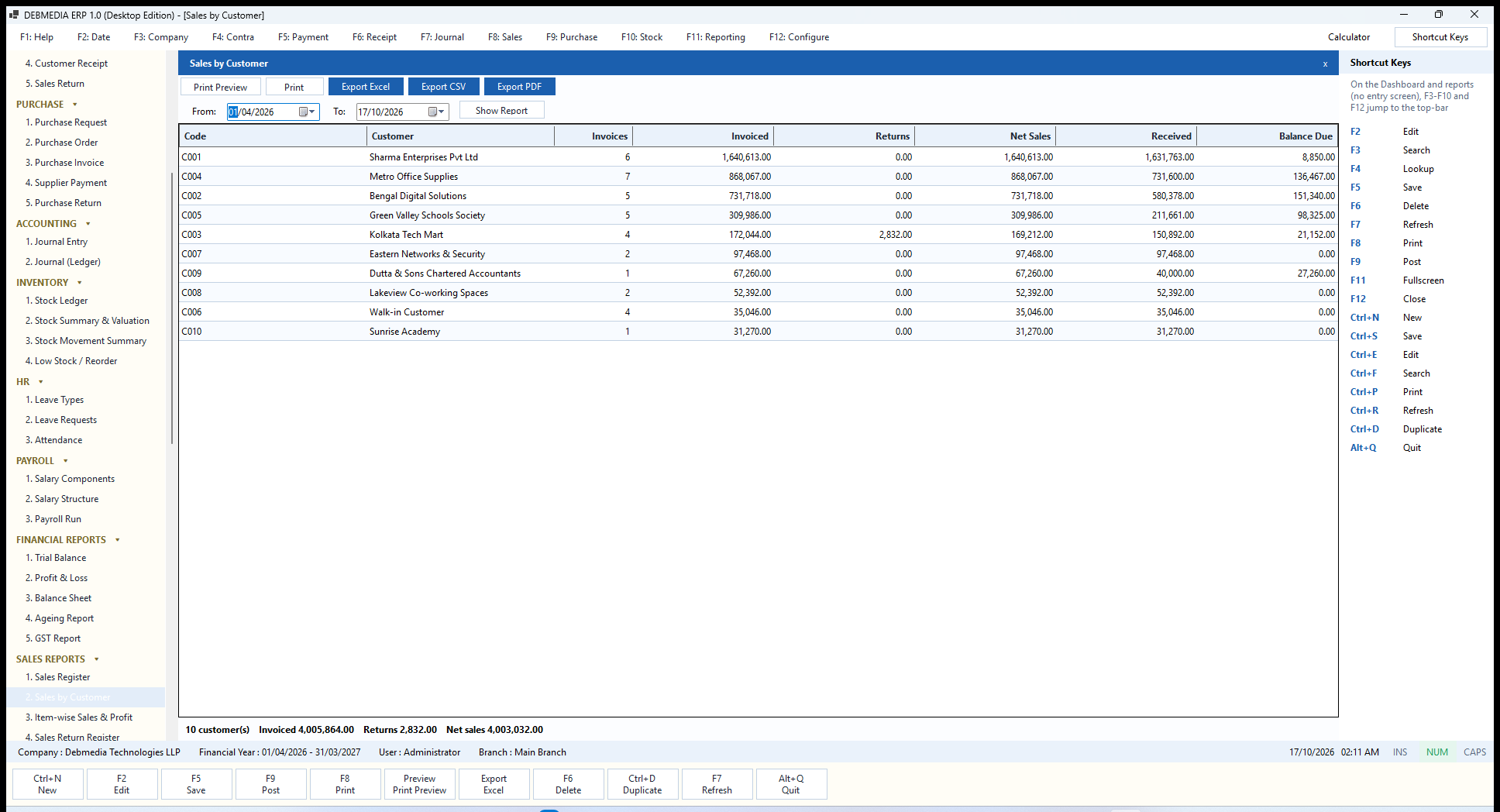
Where to find it: Main Menu, Sales Reports, Sales by Customer.
Sales by Customer ranks your customers. For the chosen period each customer is one row, with the Code, Customer, the number of Invoices, the amount Invoiced, any Returns, the Net Sales, the amount Received and the Balance Due. Sharma Enterprises is the largest in the sample, with six invoices worth 1,640,613.00. The footer shows invoiced 4,005,864.00, returns 2,832.00 and net sales 4,003,032.00.
Item-wise Sales and Profit
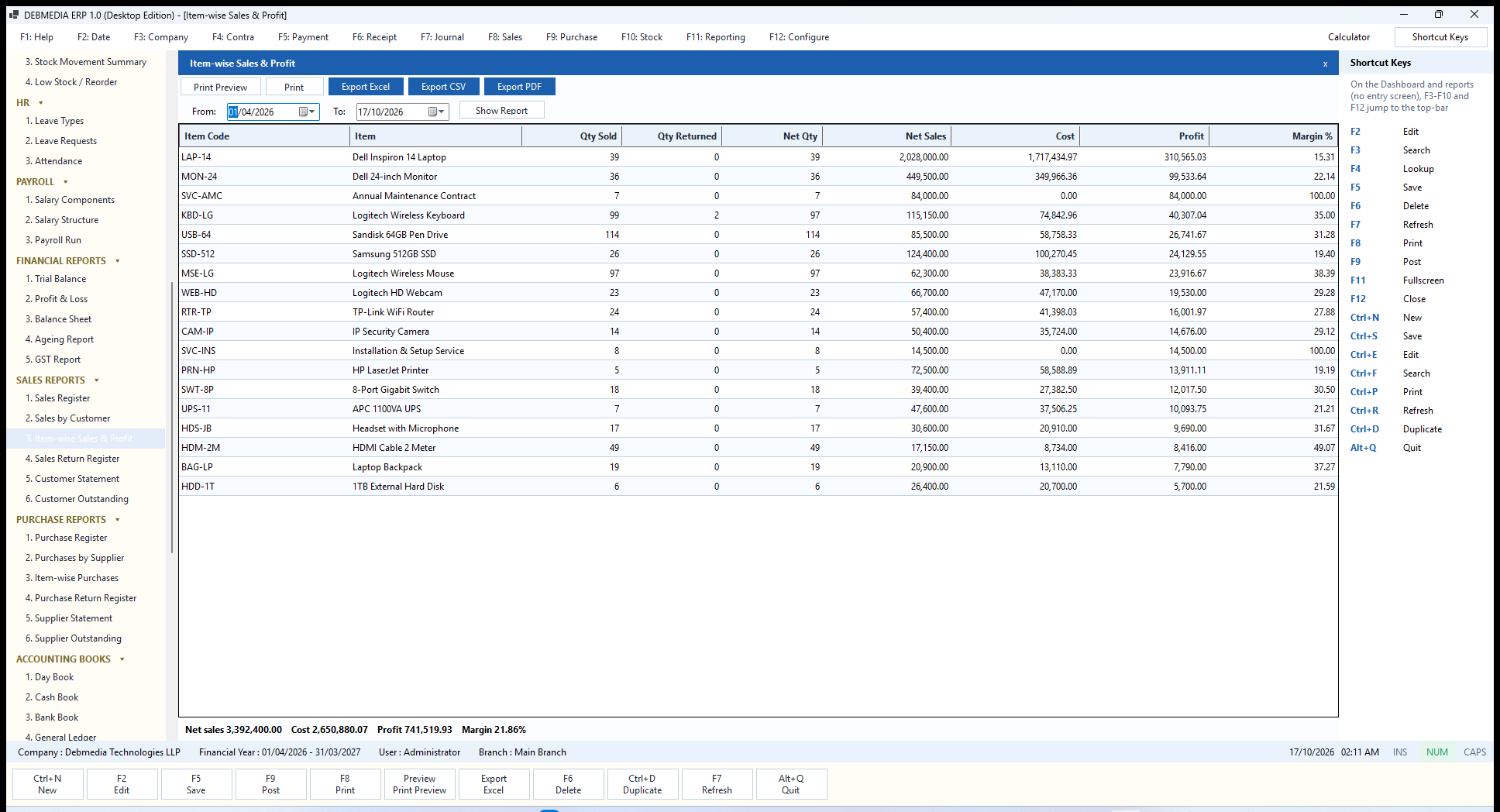
Where to find it: Main Menu, Sales Reports, Item-wise Sales and Profit.
This report shows what you sell and what it earns. For each item it gives the Qty Sold, Qty Returned, Net Qty, Net Sales, the Cost of the goods that were issued, the Profit and the Margin %. The laptops lead with sales of 2,028,000.00 and a 15.31 percent margin, while the service items show 100 percent because they carry no cost. The footer totals net sales 3,392,400.00, cost 2,650,880.07, profit 741,519.93 and an overall margin of 21.86 percent, the same gross profit the Profit and Loss reports.
Because the cost is the one actually posted with each sale (weighted average by default), the margin reflects what the goods really cost you on the day you sold them, not today’s price list.
Sales Return Register
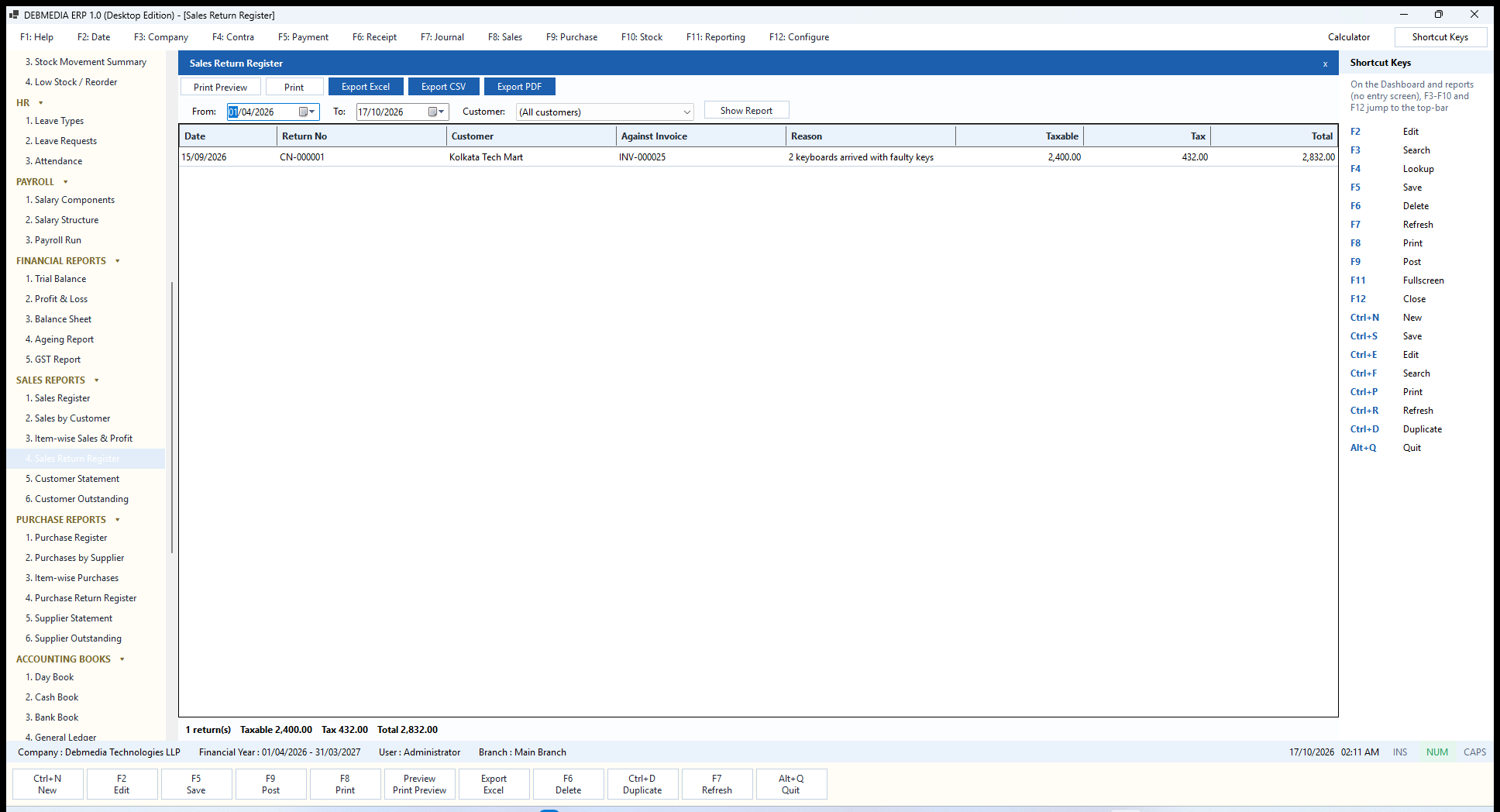
Where to find it: Main Menu, Sales Reports, Sales Return Register.
The Sales Return Register lists the credit notes in the period: the Date, Return No, Customer, the Against Invoice the goods were sold on, the Reason, and the Taxable value, Tax and Total. The one return in the sample, CN-000001 against INV-000025, is for 2,832.00 and carries the reason 2 keyboards arrived with faulty keys. A customer filter narrows the list. Reviewing this register regularly shows which products, and which reasons, cost you money.
Customer Statement
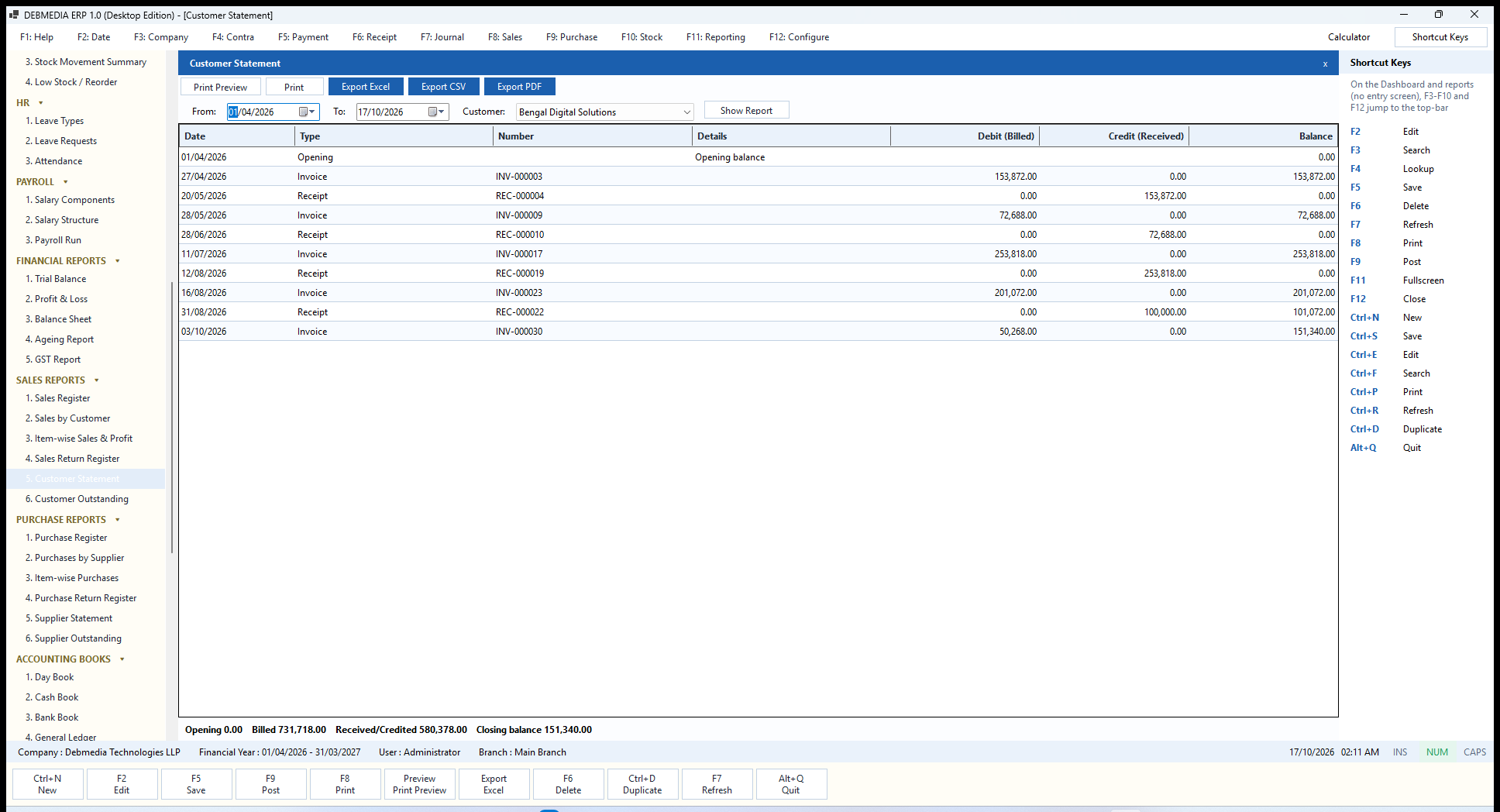
Where to find it: Main Menu, Sales Reports, Customer Statement.
The Customer Statement is the document you send a customer to agree balances. A customer is required here, together with the From and To dates. The grid starts with an Opening balance line, then lists each invoice and receipt in date order with the Date, Type, Number, Details, Debit (Billed), Credit (Received) and a running Balance. For Bengal Digital Solutions the footer reads Opening 0.00, Billed 731,718.00, Received/Credited 580,378.00, Closing balance 151,340.00, which matches the Customer Outstanding report.
Customer Outstanding
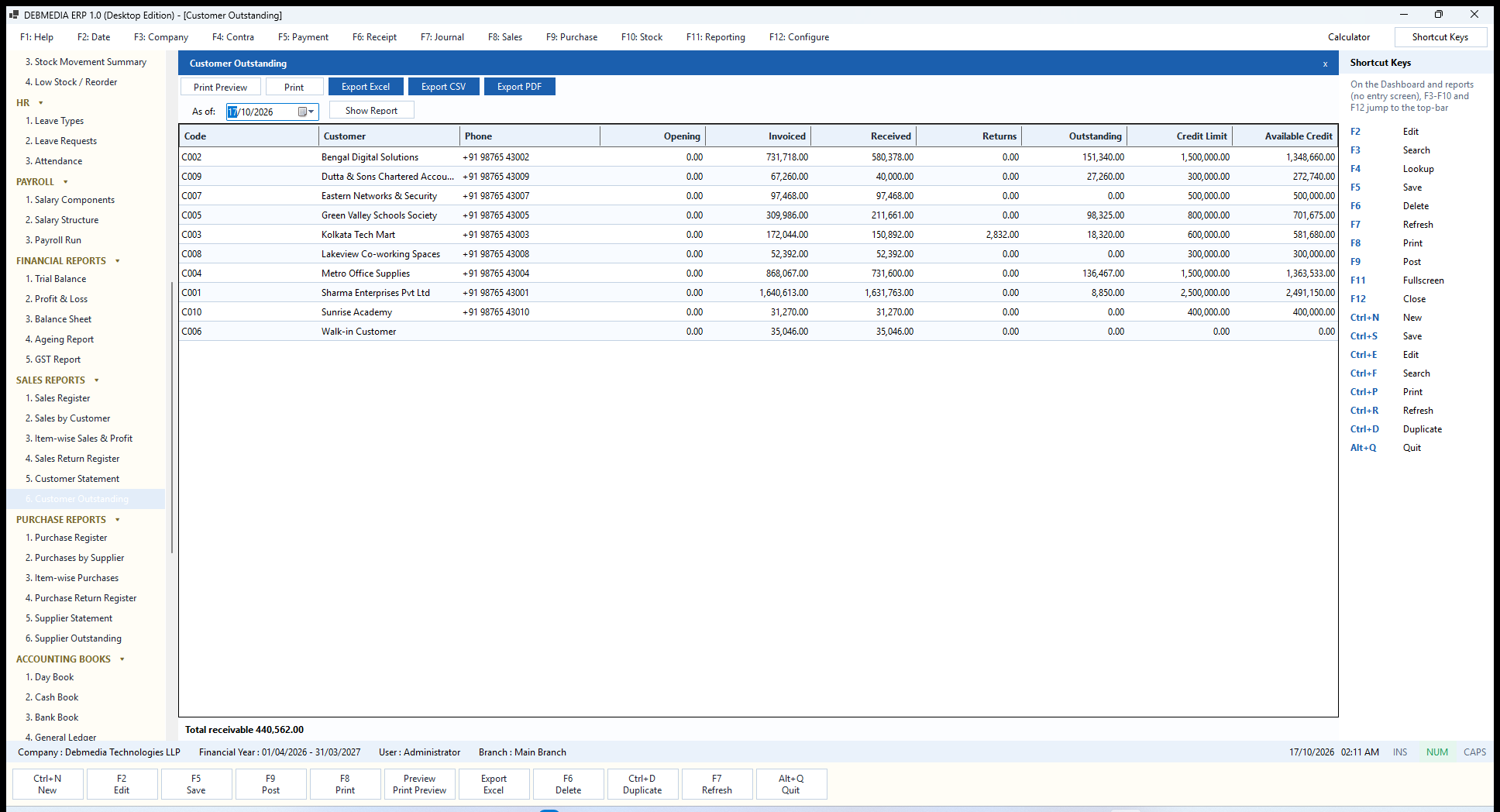
Where to find it: Main Menu, Sales Reports, Customer Outstanding.
Customer Outstanding is the receivables list as of a date. Each customer row shows the Code, Customer, Phone, Opening balance, Invoiced, Received, Returns, the Outstanding amount, the Credit Limit and the Available Credit still unused. The footer states Total receivable 440,562.00, the same figure as Accounts Receivable on the Trial Balance. With the phone number beside every balance it is also a ready-made call list.
Purchase Reports
The purchase reports mirror the sales reports, and they are what you use to check supplier bills, plan payments and reclaim input GST.
Purchase Register
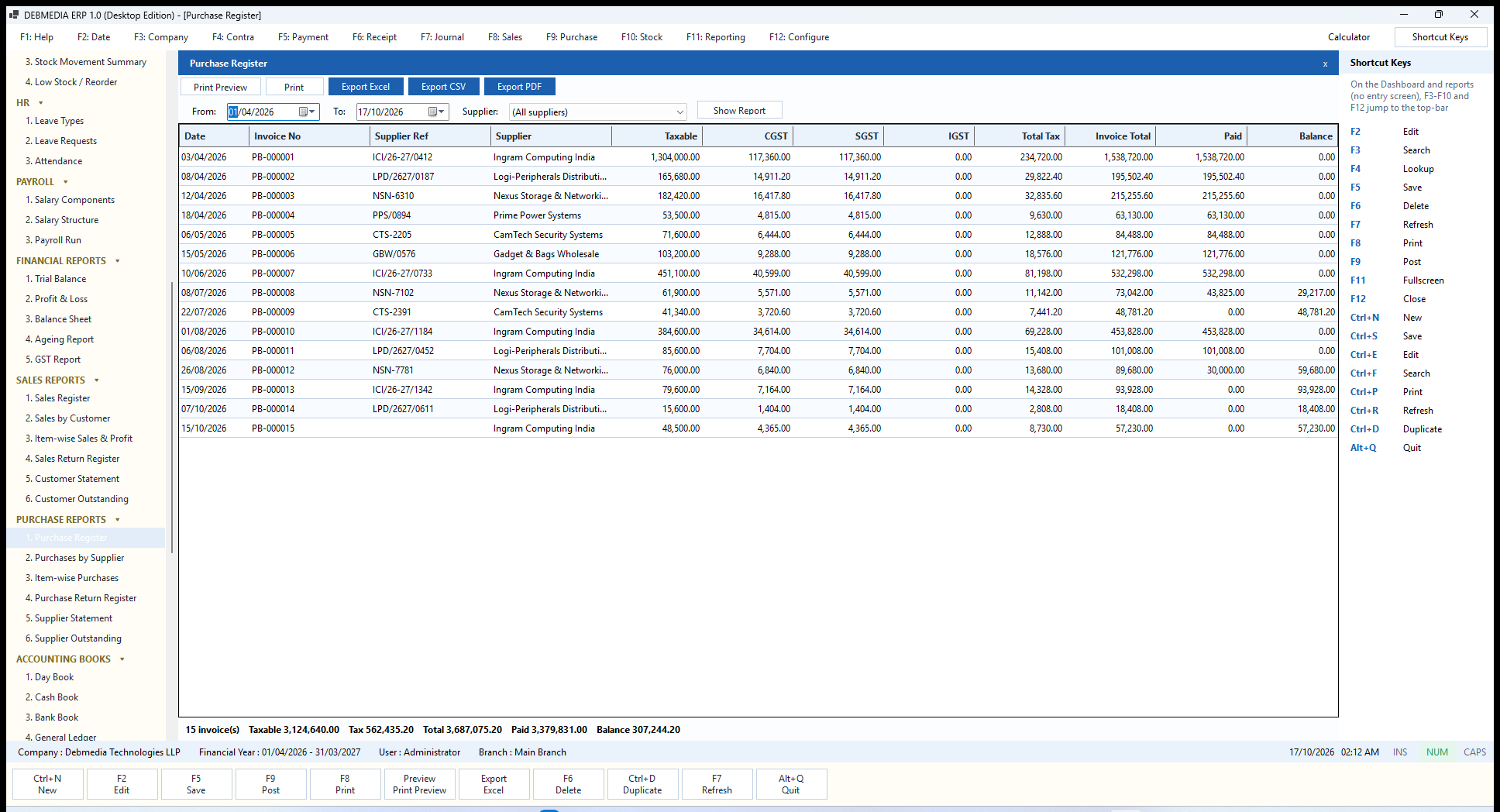
Where to find it: Main Menu, Purchase Reports, Purchase Register.
The Purchase Register lists supplier invoices for a period, optionally for one supplier. The columns are the Date, Invoice No, the supplier’s own number in Supplier Ref, the Supplier, Taxable, CGST, SGST, IGST, Total Tax, Invoice Total, Paid and Balance. The footer shows 15 invoice(s), Taxable 3,124,640.00, Tax 562,435.20, Total 3,687,075.20, Paid 3,379,831.00, Balance 307,244.20. The tax column is the input GST you can claim, so it is the other half of your GST return.
Purchases by Supplier
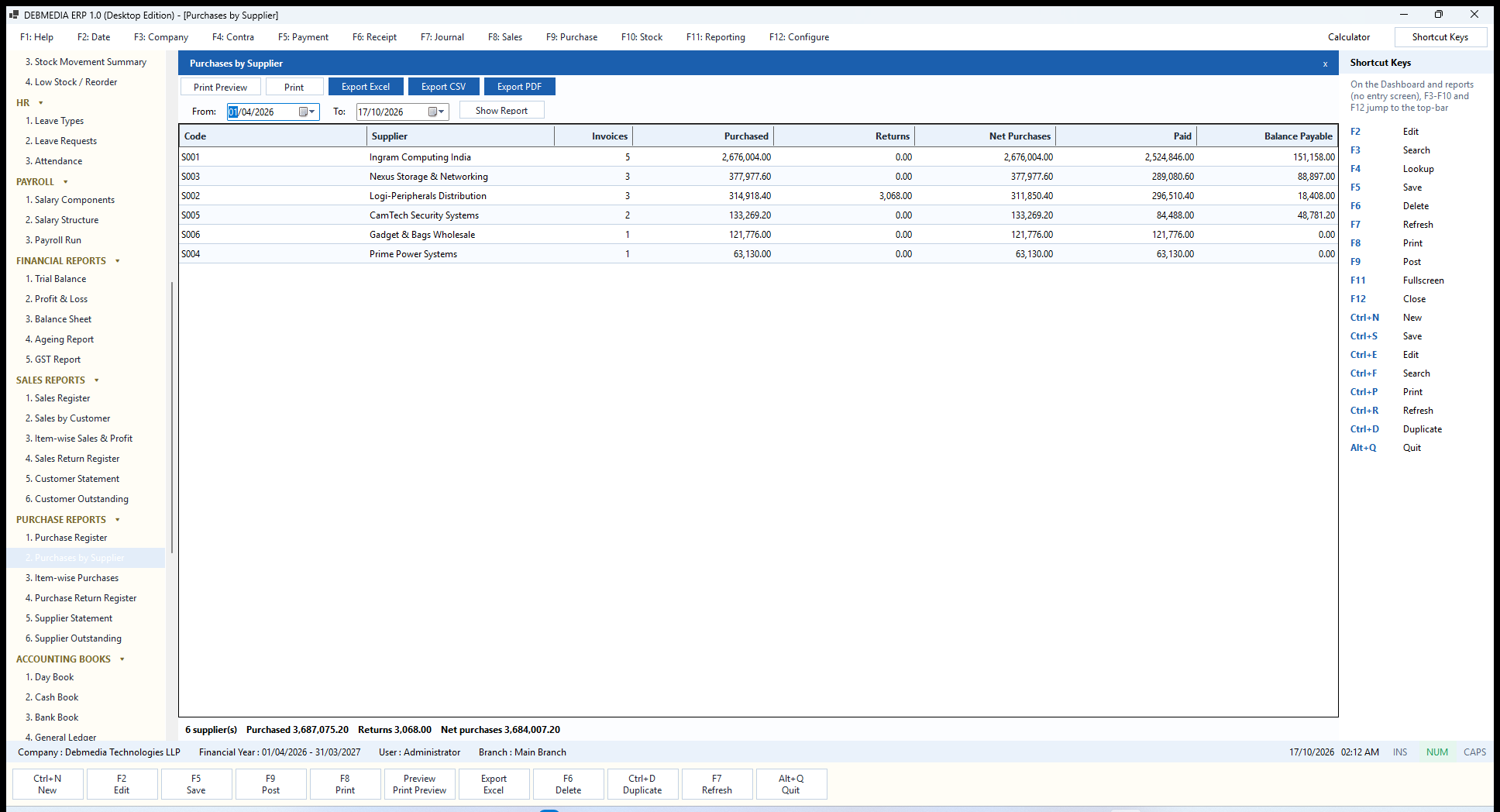
Where to find it: Main Menu, Purchase Reports, Purchases by Supplier.
This report summarises each supplier for the period: the Code, Supplier, the number of Invoices, the amount Purchased, any Returns, the Net Purchases, what has been Paid and the Balance Payable. Ingram Computing India is the largest supplier, with five invoices of 2,676,004.00. The footer shows purchased 3,687,075.20, returns 3,068.00 and net purchases 3,684,007.20. It tells you where your spending is concentrated and which suppliers hold the most leverage over you.
Item-wise Purchases
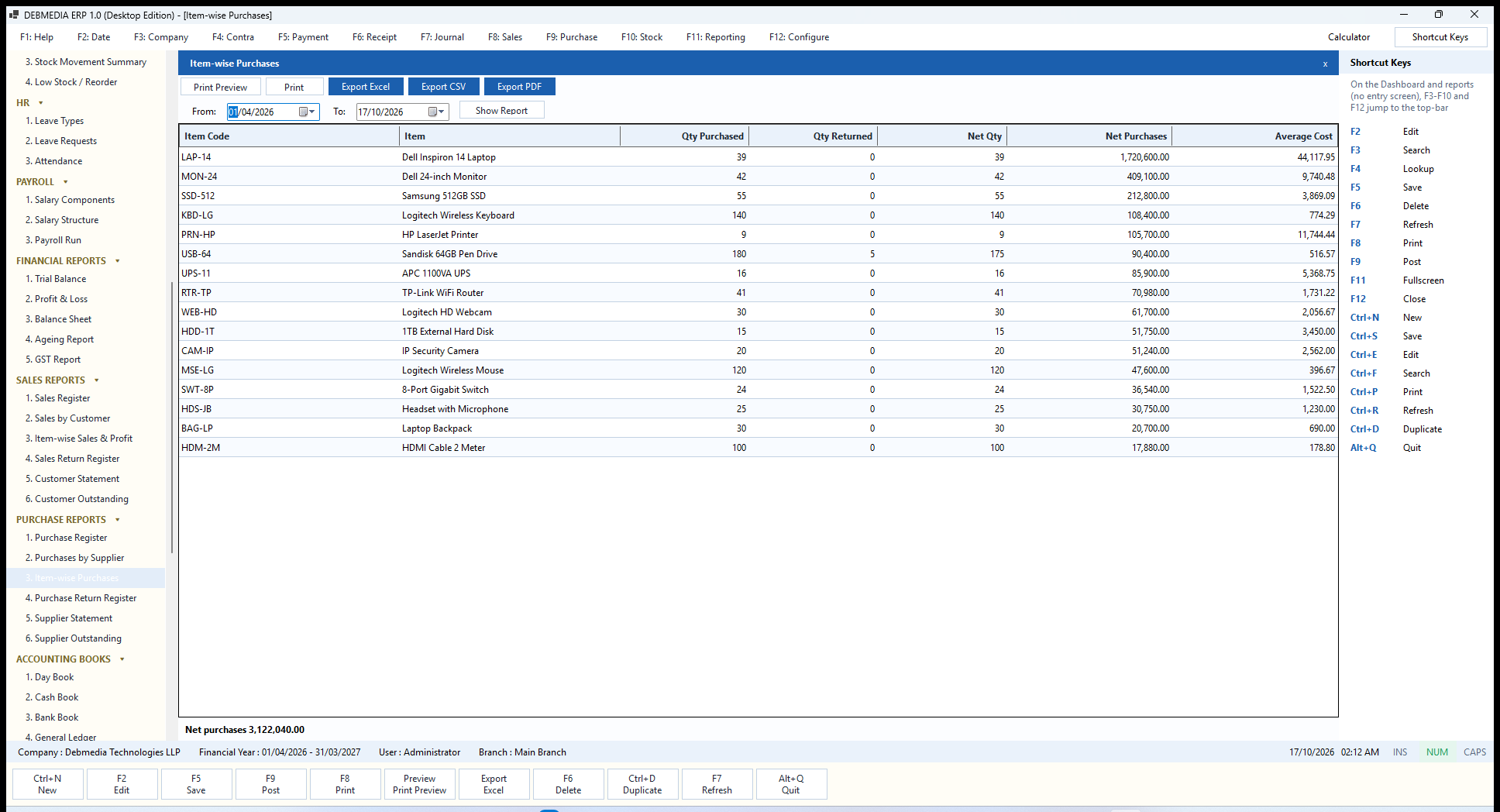
Where to find it: Main Menu, Purchase Reports, Item-wise Purchases.
Item-wise Purchases shows what you bought, in what quantity and at what average cost. Each item has its Qty Purchased, Qty Returned, Net Qty, Net Purchases value and Average Cost. The laptops account for the biggest spend, 1,720,600.00 for 39 units at an average of 44,117.95. The footer gives net purchases of 3,122,040.00. Compared with the Item-wise Sales report it lets you judge whether the price you pay and the price you charge still leave an acceptable margin.
Purchase Return Register
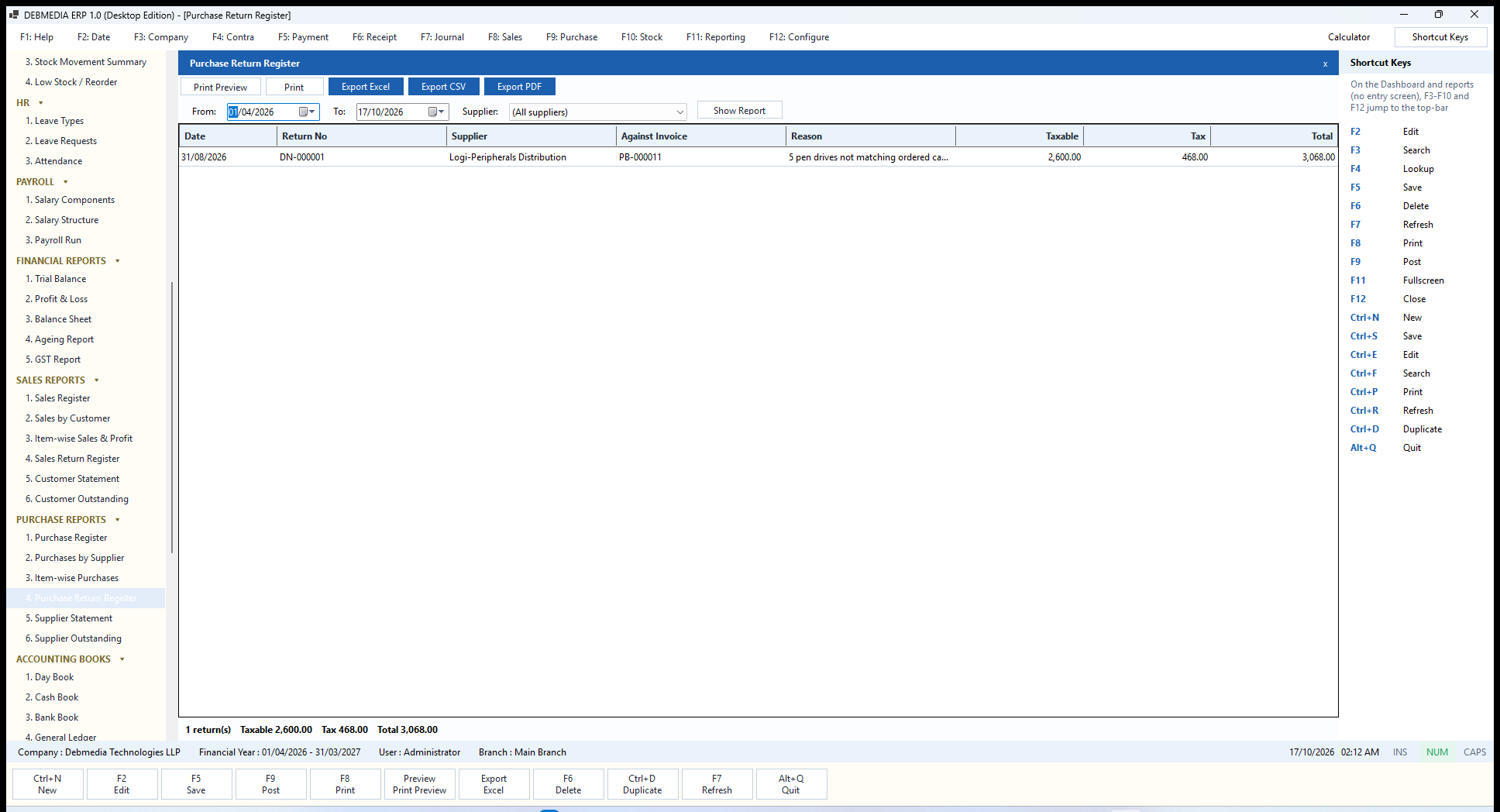
Where to find it: Main Menu, Purchase Reports, Purchase Return Register.
The Purchase Return Register lists debit notes: the Date, Return No, Supplier, the Against Invoice, the Reason, Taxable, Tax and Total. The sample’s DN-000001 returns five pen drives that did not match the order against purchase invoice PB-000011 for 3,068.00. It is the evidence file for supplier quality and ordering problems.
Supplier Statement
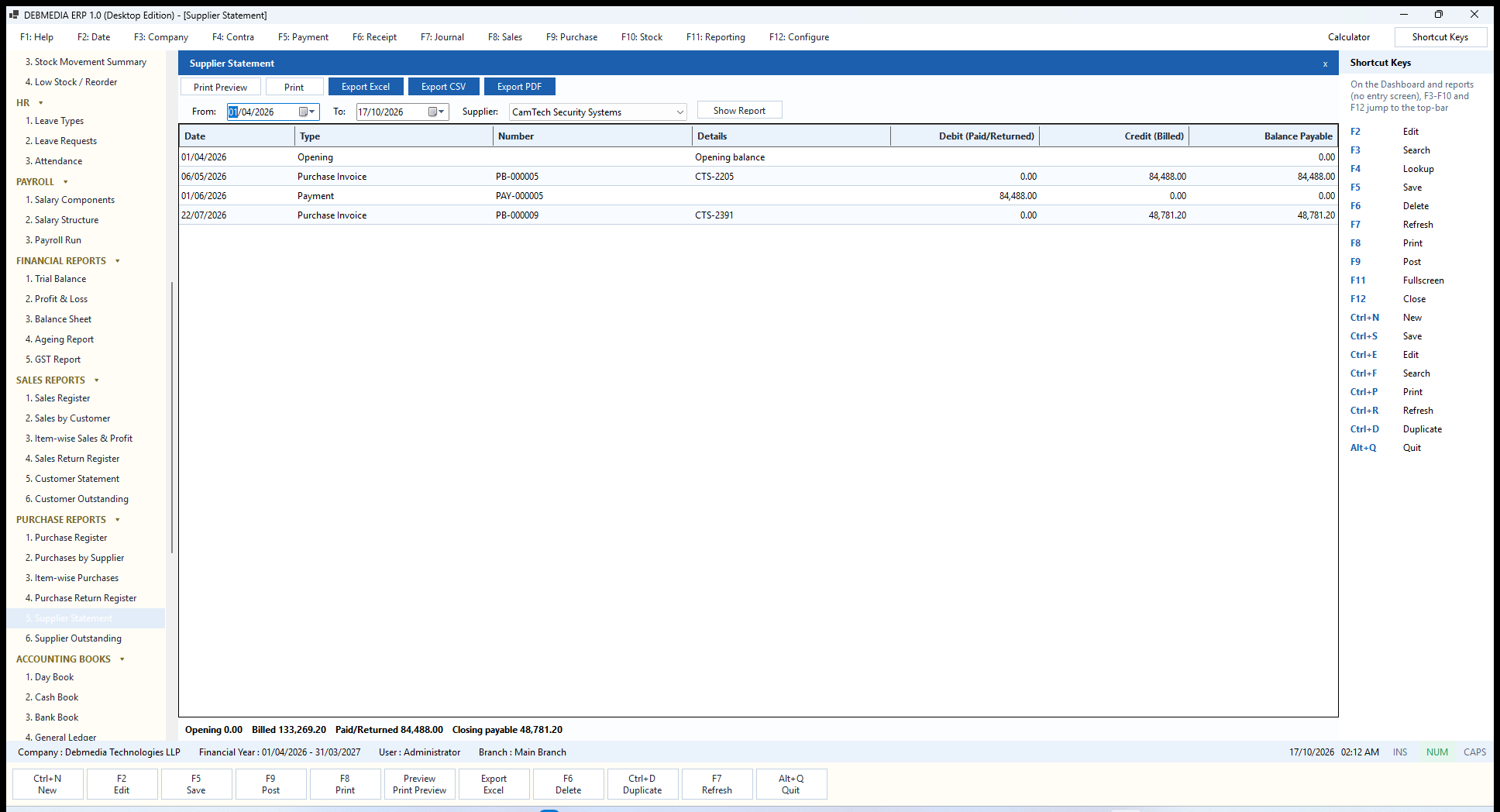
Where to find it: Main Menu, Purchase Reports, Supplier Statement.
The Supplier Statement is the supplier’s account as you see it. Choose a supplier (required) and a period and you get an Opening line followed by invoices and payments with the Date, Type, Number, Details (the supplier’s bill number), Debit (Paid/Returned), Credit (Billed) and a running Balance Payable. For CamTech Security Systems the footer reads Billed 133,269.20, Paid/Returned 84,488.00, Closing payable 48,781.20. Use it to reconcile with the supplier’s own statement before you pay.
Supplier Outstanding
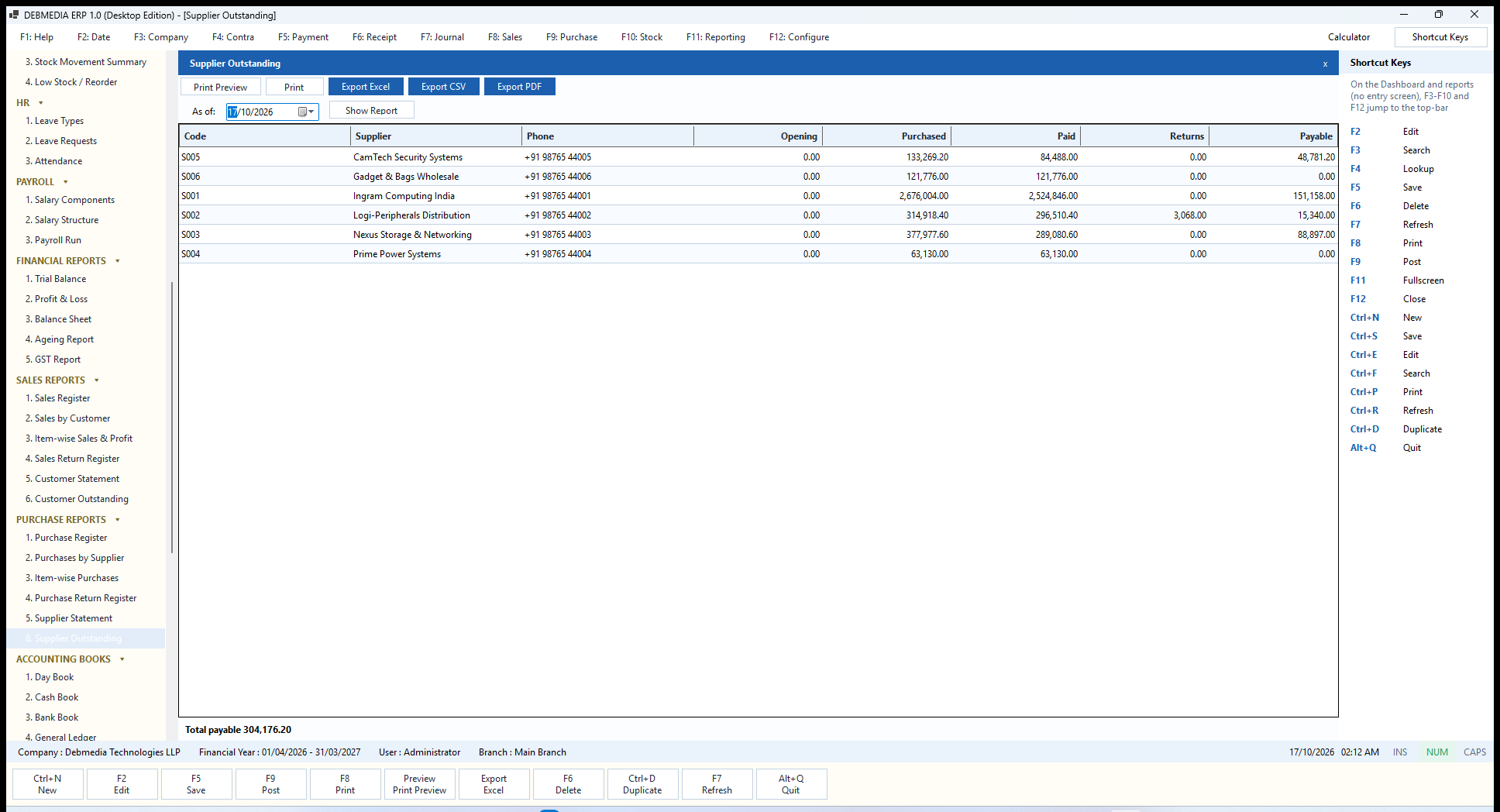
Where to find it: Main Menu, Purchase Reports, Supplier Outstanding.
Supplier Outstanding is the payables list as of a date, with the Code, Supplier, Phone, Opening, Purchased, Paid, Returns and the Payable. The footer, Total payable 304,176.20, equals Accounts Payable on the Trial Balance. Because it nets debit notes, it is lower than the Dashboard’s payables card by the value of the purchase return, 3,068.00.
Accounting Books
The Accounting Books are the traditional ledgers, produced on demand from the journal: the Day Book, the Cash Book, the Bank Book, the General Ledger for any account, and the Cash Flow statement. They use the common report toolbar.
Day Book
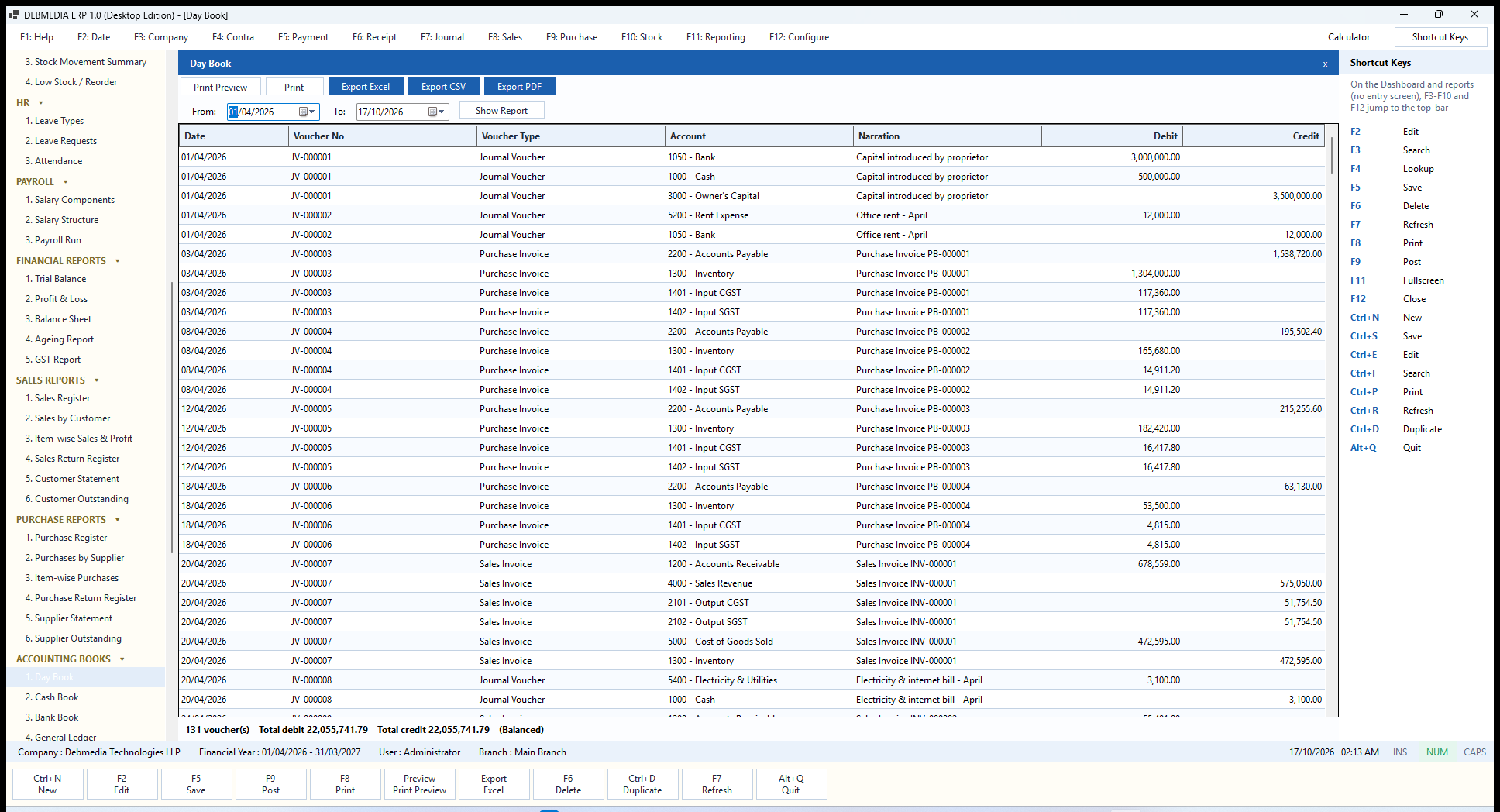
Where to find it: Main Menu, Accounting Books, Day Book.
The Day Book is the chronological record of everything that was posted. For the period you choose it lists every voucher line with the Date, Voucher No, Voucher Type (Journal Voucher, Purchase Invoice, Sales Invoice and so on), the Account, the Narration and the Debit and Credit amounts. The first entries in the sample are the capital introduced on 1 April (3,000,000 into the bank, 500,000 into cash, 3,500,000 to Owner’s Capital) followed by rent, a purchase invoice and the first sales invoice, each shown line by line: receivable, revenue, output GST, cost of goods sold and inventory.
The footer is a self-check: 131 voucher(s), total debit 22,055,741.79, total credit 22,055,741.79 (Balanced). Auditors use the Day Book to follow the flow of the year in order, and to confirm that nothing was posted out of sequence.
Cash Book
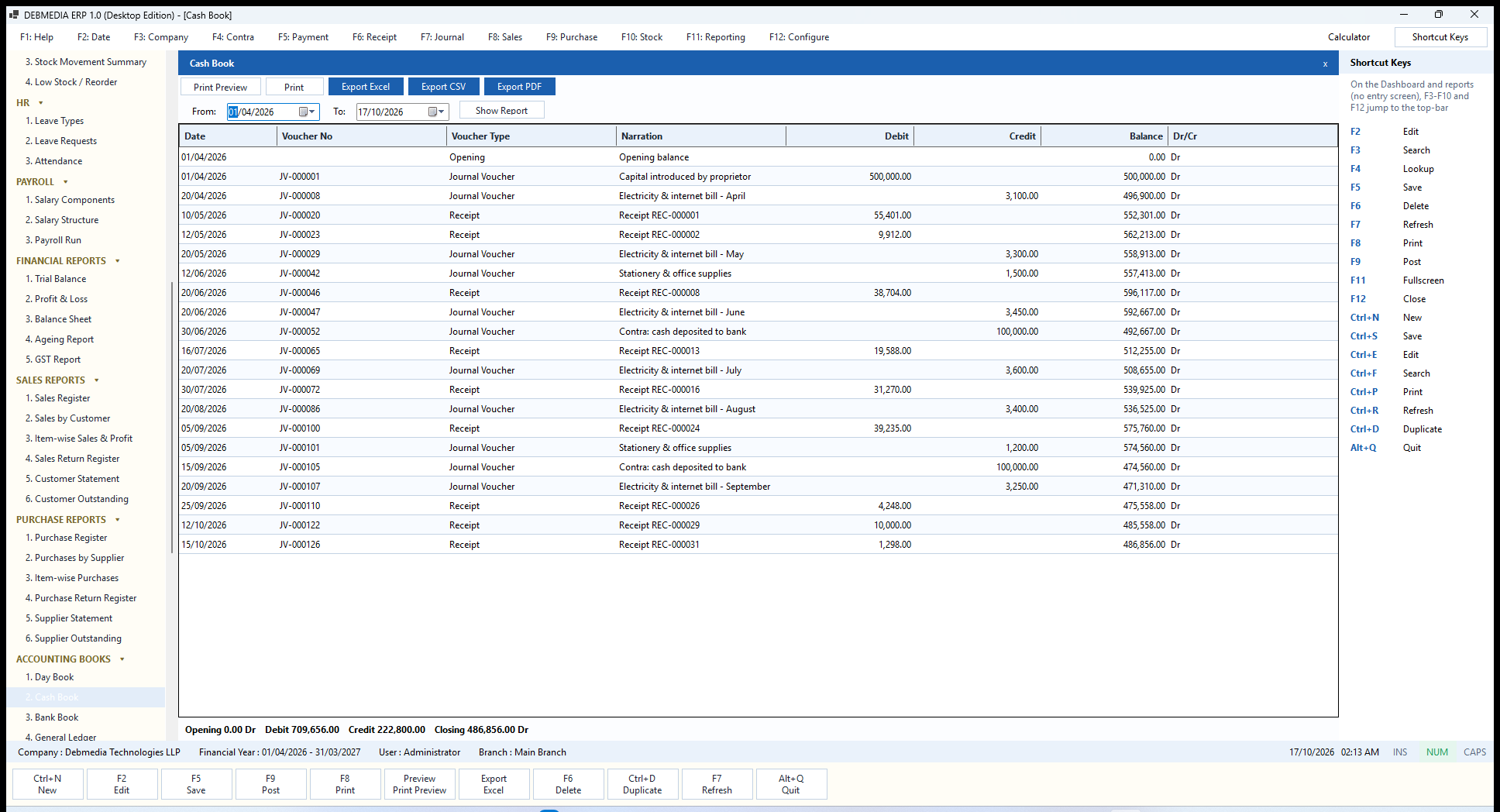
Where to find it: Main Menu, Accounting Books, Cash Book.
The Cash Book is the ledger of the Cash account in the shape shopkeepers know: an Opening line, then each transaction with the Date, Voucher No, Voucher Type, Narration, Debit (money in), Credit (money out), a running Balance and a Dr/Cr marker. In the sample, cash started with 500,000 of capital, received customer money (receipts), paid small electricity and stationery bills and moved 100,000 to the bank twice (the “Contra” entries).
The footer reads Opening 0.00 Dr, Debit 709,656.00, Credit 222,800.00, Closing 486,856.00 Dr, and the closing figure is the Cash balance on the Trial Balance. Counting the physical cash and comparing it with this figure is the quickest daily control a small business can have.
Bank Book
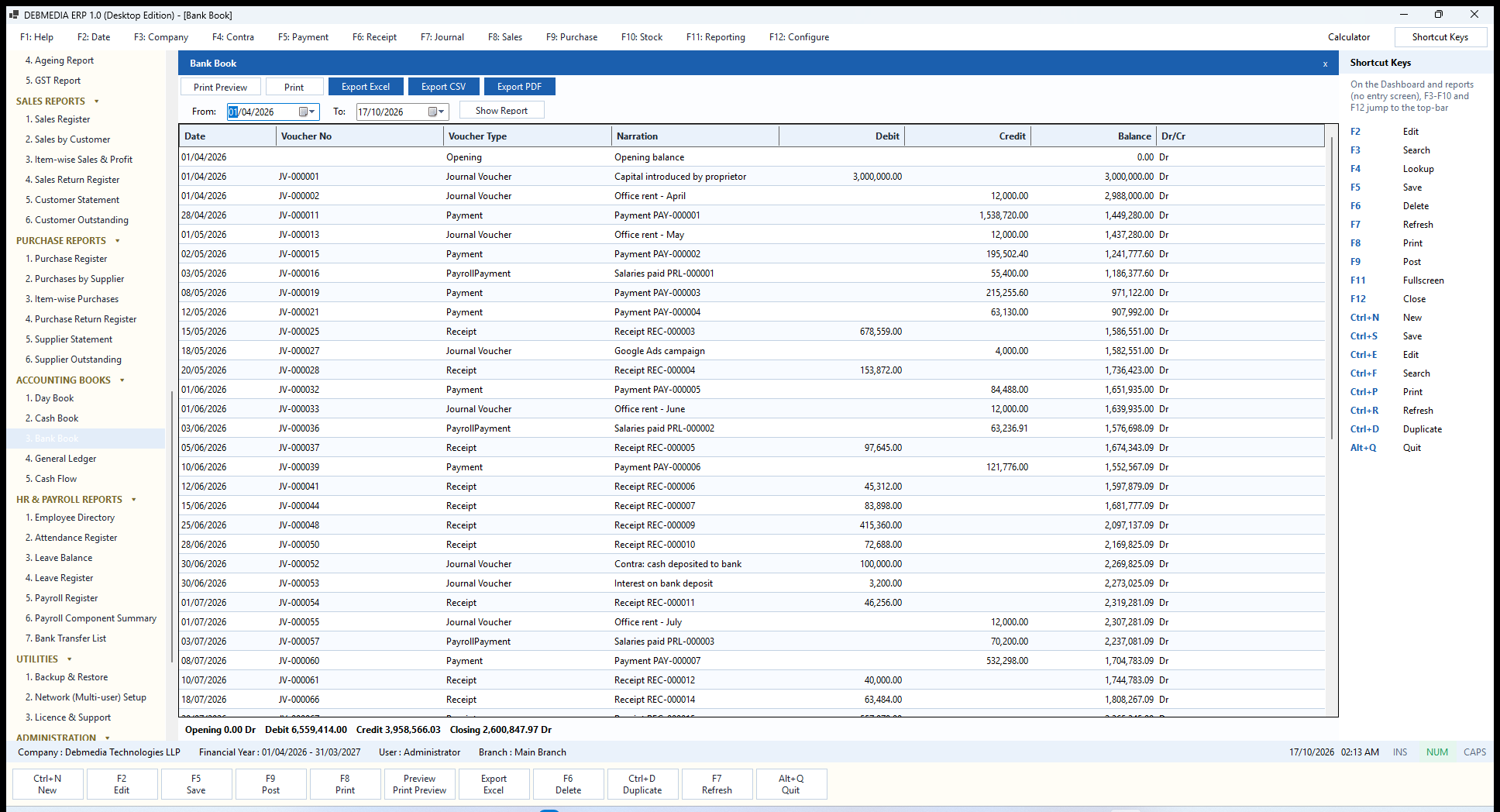
Where to find it: Main Menu, Accounting Books, Bank Book.
The Bank Book does the same for the Bank account. Every deposit, customer receipt by transfer, supplier payment, salary payment and bank charge appears with its date, voucher number, type, narration, debit, credit and running balance. The sample shows the 3,000,000 capital, the rent, supplier payments (PAY-), salary payments (PayrollPayment) and customer receipts (REC-) in date order. The footer gives Debit 6,559,414.00, Credit 3,958,566.03, Closing 2,600,847.97 Dr, which is the Bank balance on the Trial Balance. The Bank Book is the screen you hold up beside the bank’s own statement when you reconcile.
General Ledger
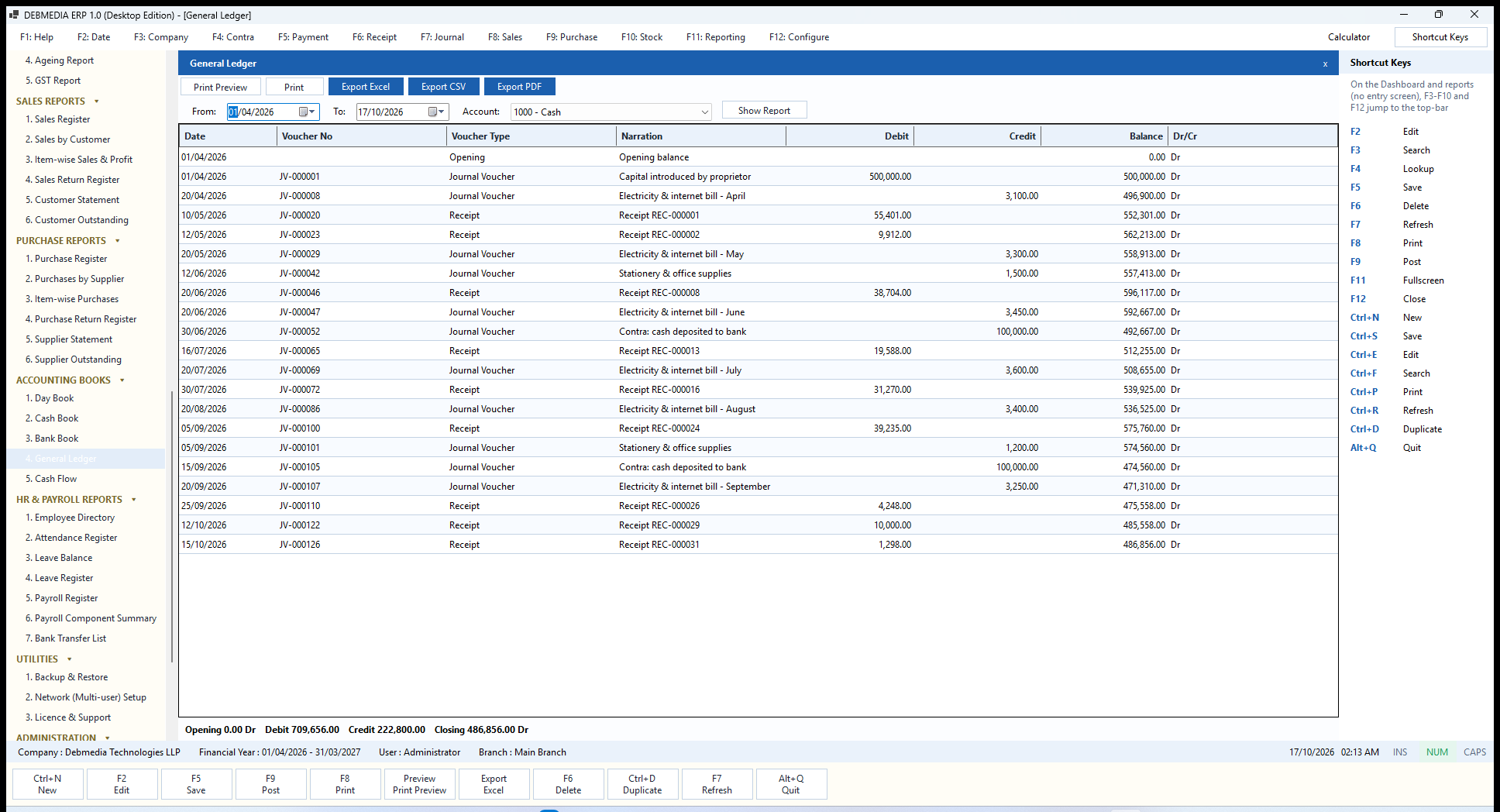
Where to find it: Main Menu, Accounting Books, General Ledger.
The General Ledger is the same ledger layout for any account you choose. Pick the Account from the list (the screen opens on 1000 – Cash), set From and To, and press Show Report. You get the opening balance, every posting to that account with its running balance, and a footer with the totals and the closing balance. Use it for rent, electricity, sales revenue, input GST, the owner’s capital or any other account, to see exactly what makes up its balance.
Cash Flow
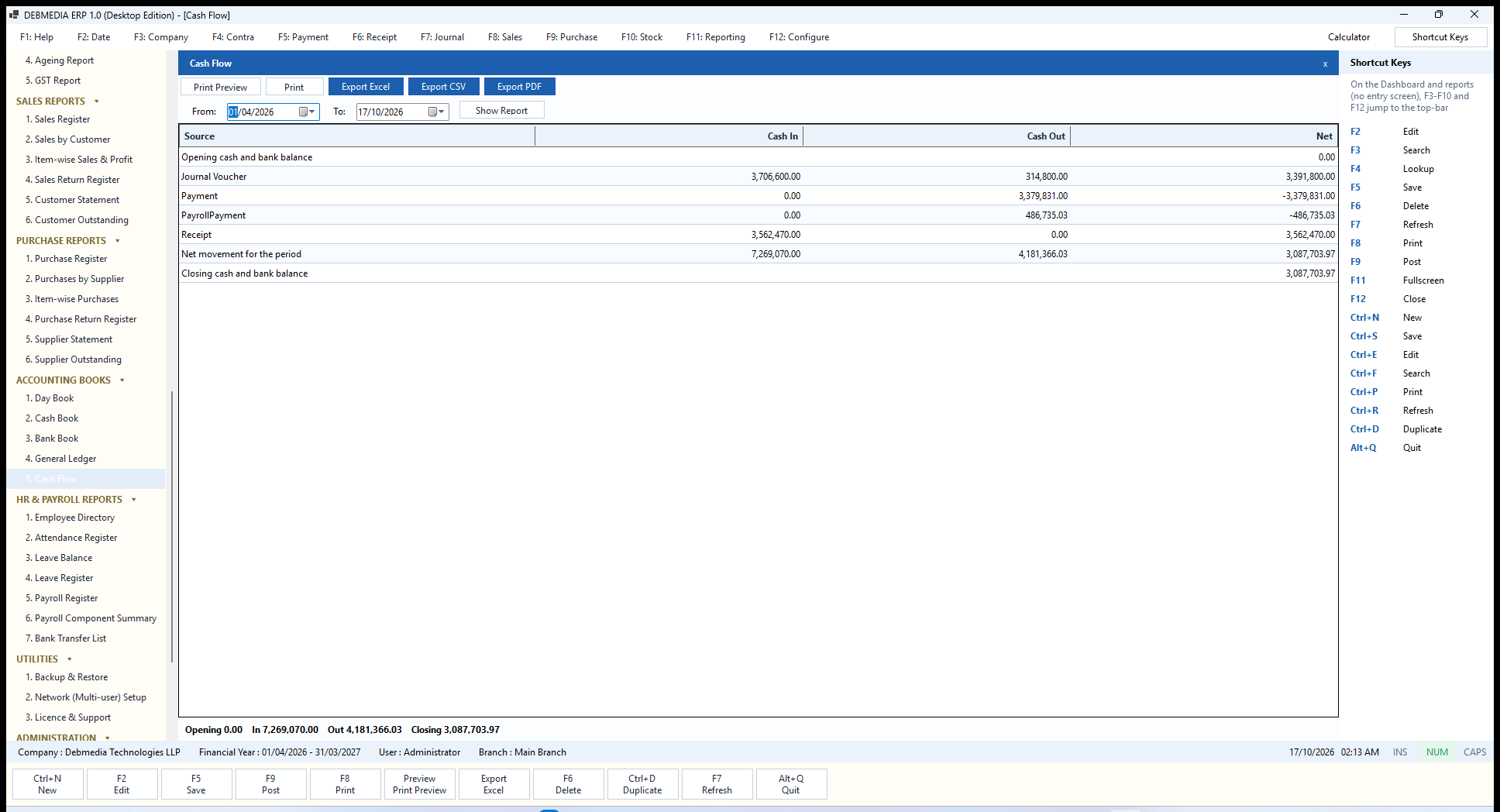
Where to find it: Main Menu, Accounting Books, Cash Flow.
Cash Flow summarises where cash and bank money came from and where it went in a period, grouped by the kind of voucher. The rows are the Source (Journal Voucher, Payment, PayrollPayment, Receipt) with Cash In, Cash Out and Net, followed by the net movement for the period and the closing balance. In the sample, customer receipts brought in 3,562,470.00, supplier payments took out 3,379,831.00 and salaries 486,735.03, while journal vouchers (capital, rent, deposits) netted 3,391,800.00.
The footer, Opening 0.00, In 7,269,070.00, Out 4,181,366.03, Closing 3,087,703.97, equals the Cash and Bank balances added together (486,856.00 plus 2,600,847.97). It is a quick answer to the owner’s question, “where did the money go?”.
HR and Payroll Reports
Seven reports present the HR data for management and for the bank: who works here, who was present, who has leave left, and what was paid.
Employee Directory
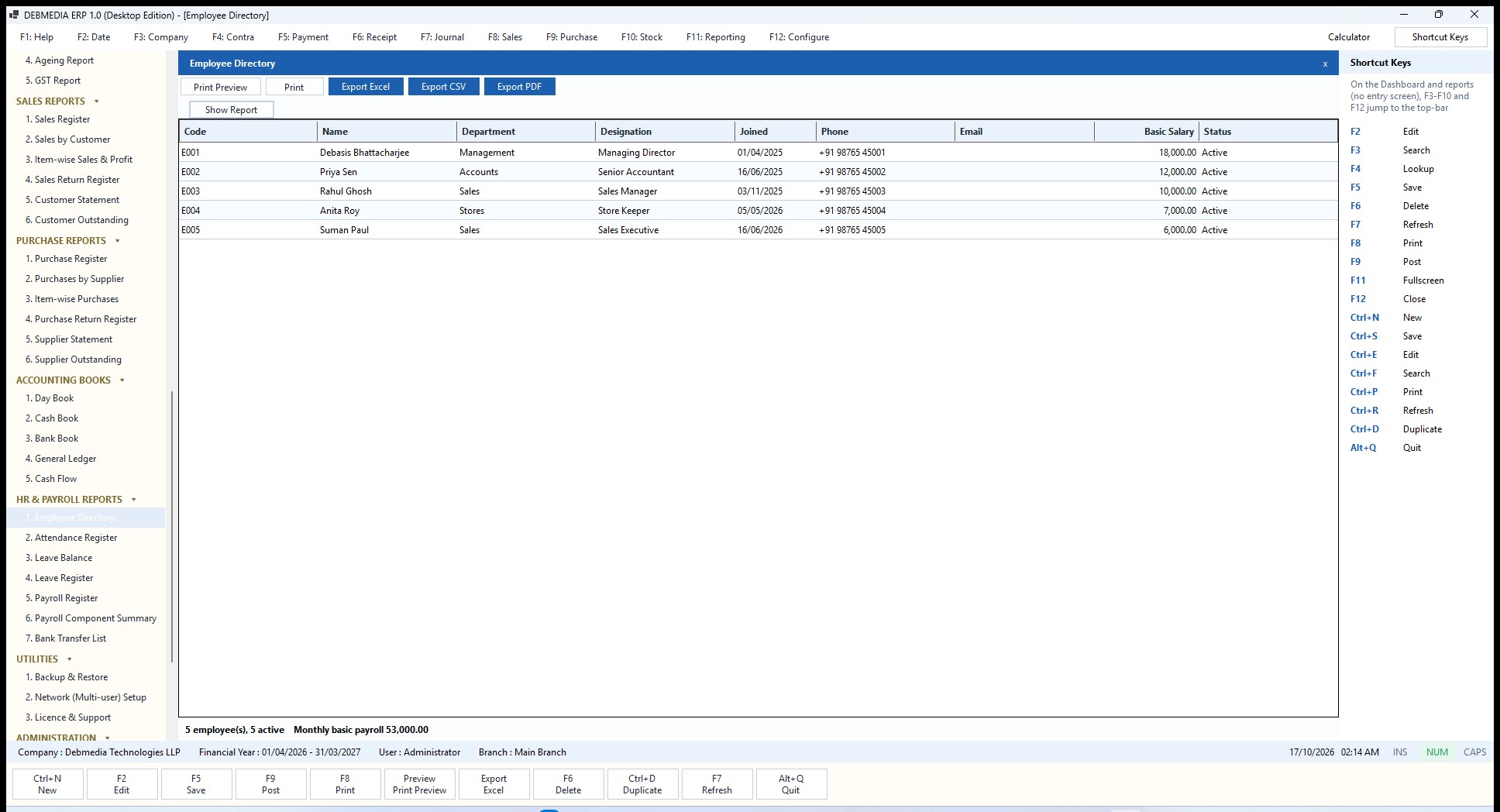
Where to find it: Main Menu, HR and Payroll Reports, Employee Directory.
The Employee Directory lists everyone on the payroll with the Code, Name, Department, Designation, Joined date, Phone, Email, Basic Salary and Status. It has no filters: press Show Report. The footer states 5 employee(s), 5 active, monthly basic payroll 53,000.00, the total of the basic salaries, so you can see the fixed base of your payroll cost at a glance.
Attendance Register
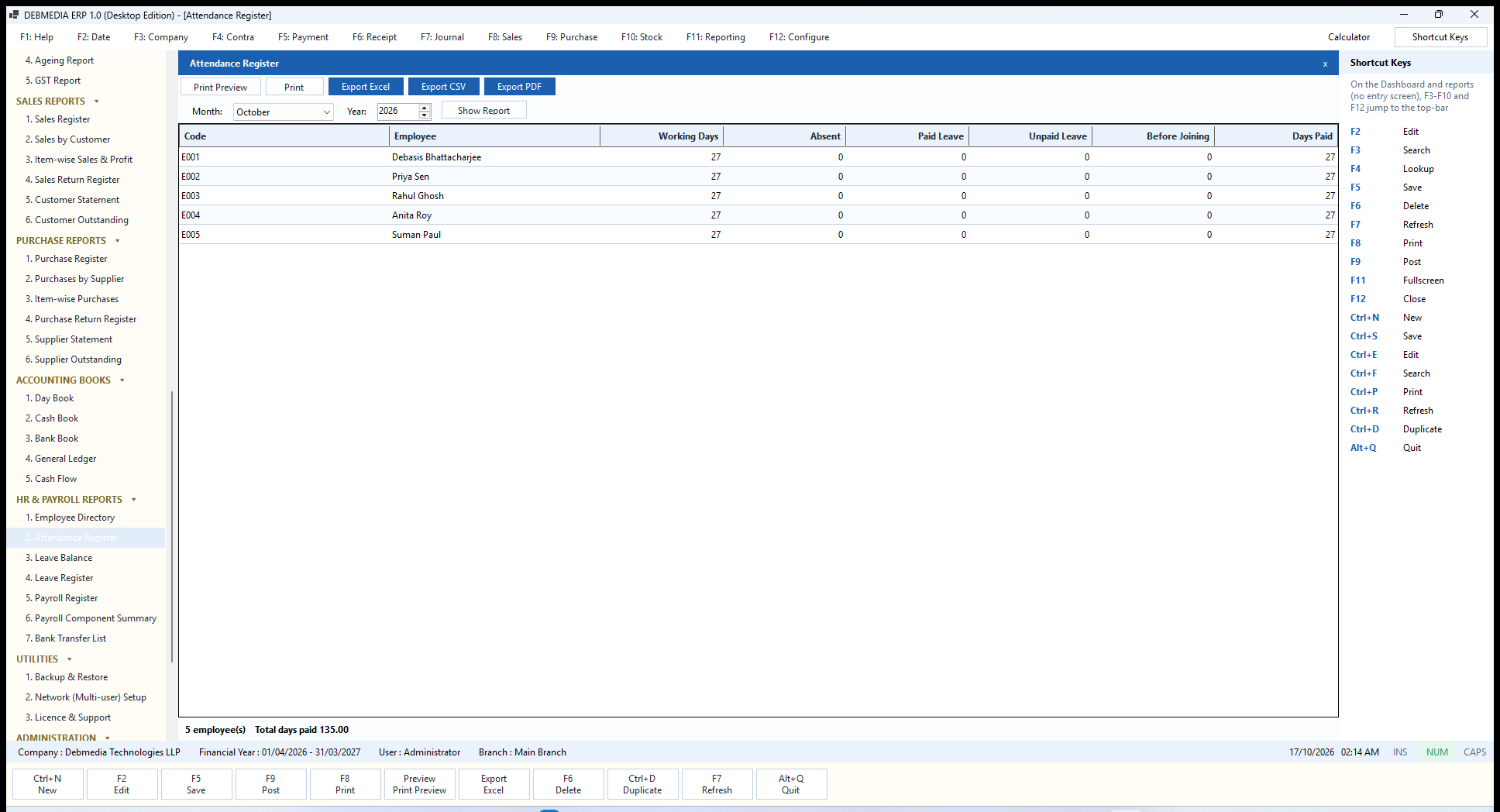
Where to find it: Main Menu, HR and Payroll Reports, Attendance Register.
For a chosen Month and Year, the Attendance Register shows each employee’s Working Days, Absent days, Paid Leave, Unpaid Leave, days Before Joining and Days Paid, with a footer total of days paid (135 for the five sample employees in October). It uses exactly the same definition of unpaid days as the payroll calculation, so the register and the payslips can never disagree.
Leave Balance
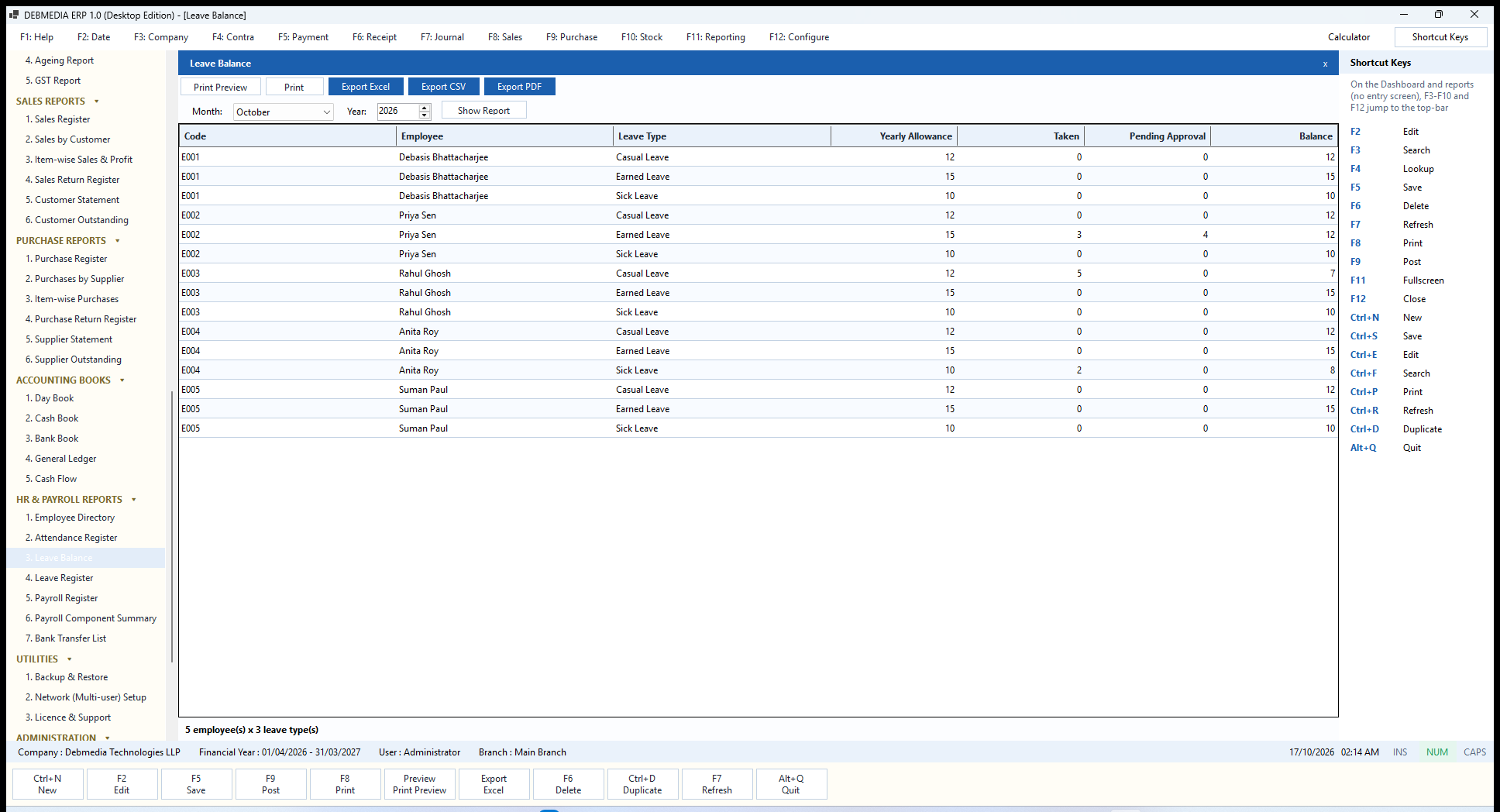
Where to find it: Main Menu, HR and Payroll Reports, Leave Balance.
Leave Balance shows, for every employee and every paid leave type, the Yearly Allowance, the days Taken, the days Pending Approval and the remaining Balance. In the sample, Priya Sen has 15 days of earned leave, has taken 3, has a 4-day request waiting for approval, and a balance of 12; Rahul Ghosh has used 5 of his 12 casual-leave days. The footer counts the rows (5 employees by 3 leave types). Managers use it to answer a leave request fairly and to plan cover.
Leave Register
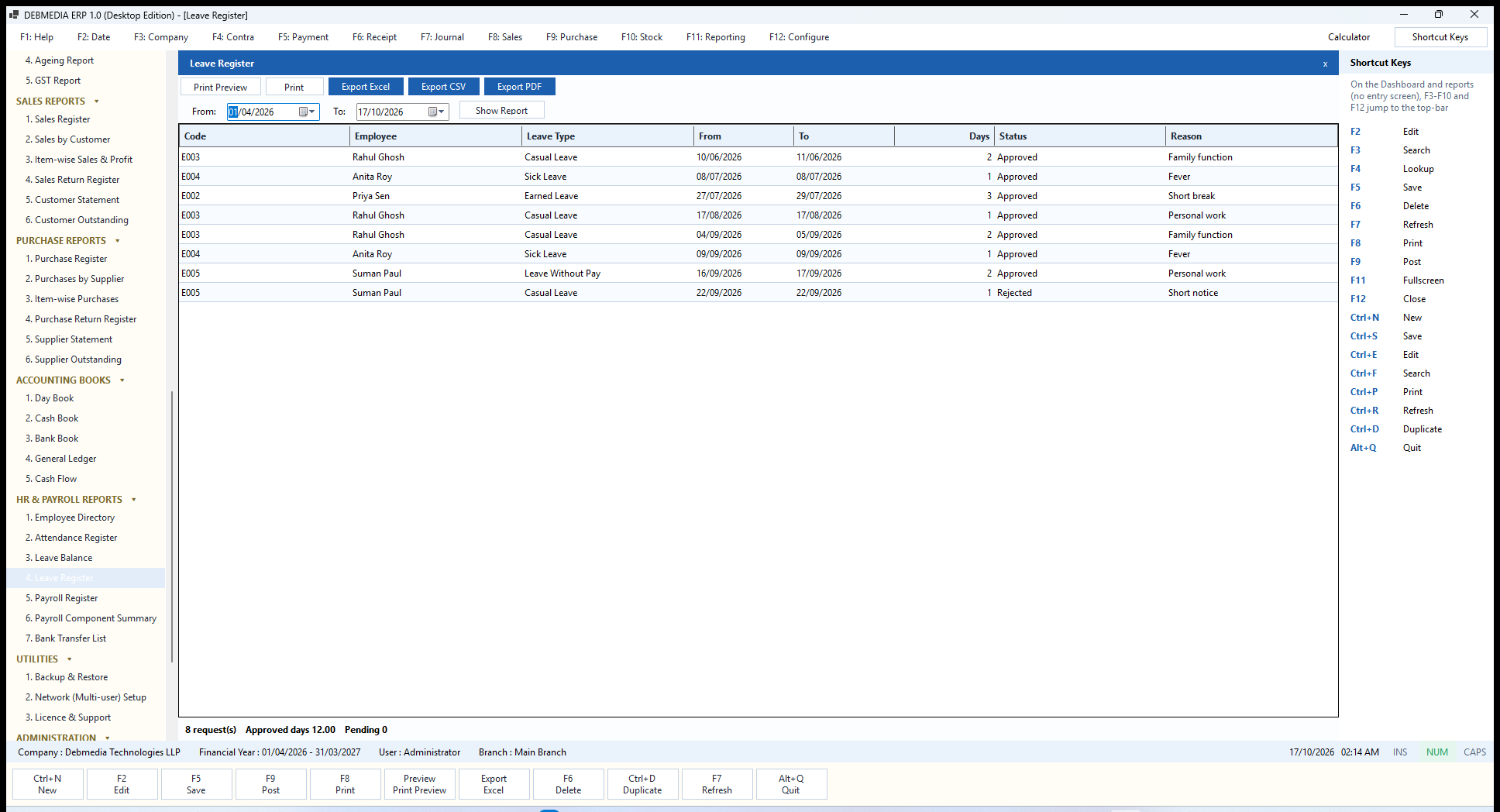
Where to find it: Main Menu, HR and Payroll Reports, Leave Register.
The Leave Register lists every leave request in a period with the Code, Employee, Leave Type, the From and To dates, the Days, the Status and the Reason. The sample period has eight requests, seven approved and one rejected, and the footer states 8 request(s), approved days 12.00, pending 0. It is the permanent record of who was away and why.
Payroll Register
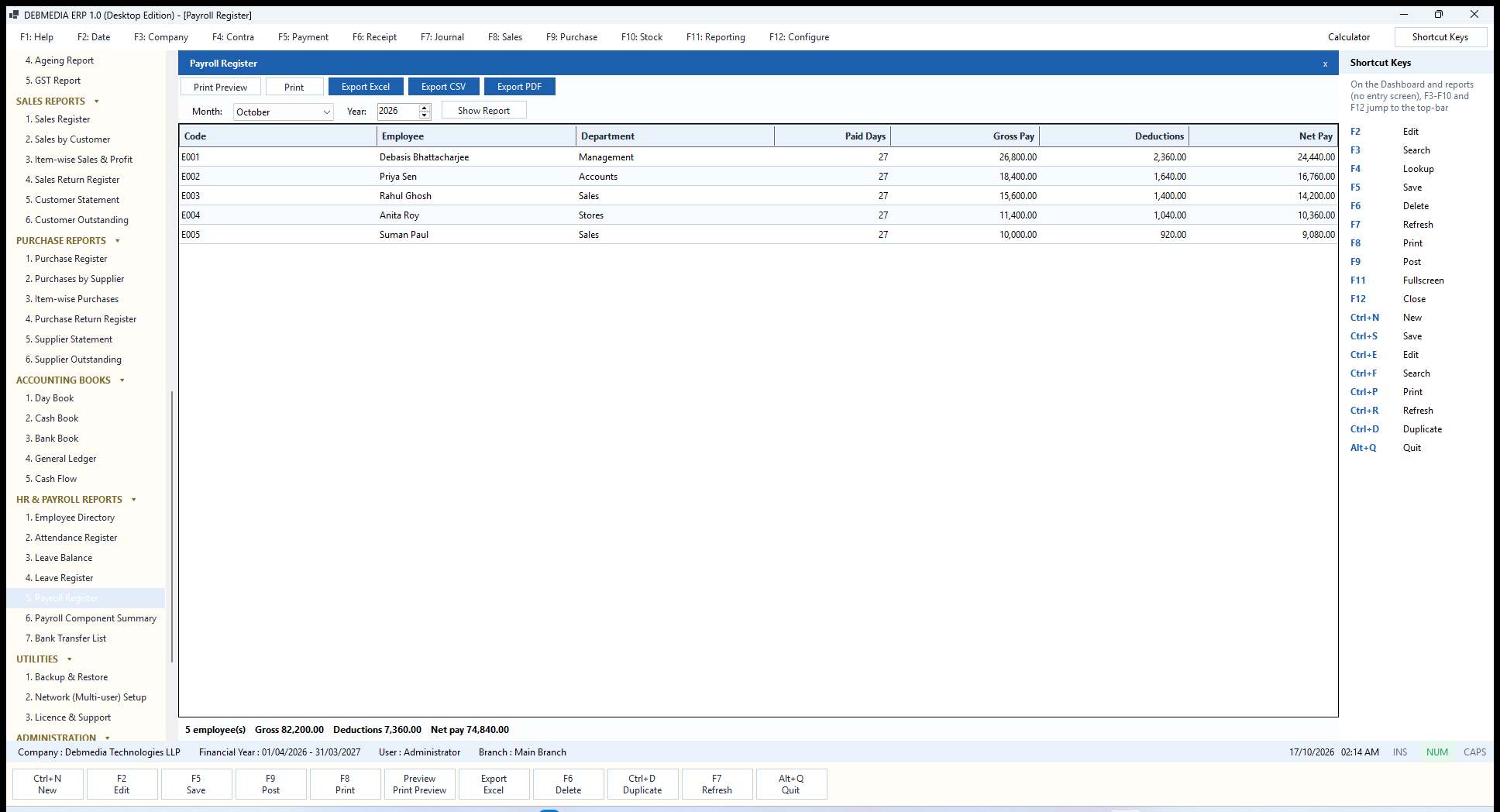
Where to find it: Main Menu, HR and Payroll Reports, Payroll Register.
The Payroll Register is the month’s pay summary: for each employee the Code, Employee, Department, Paid Days, Gross Pay, Deductions and Net Pay. The footer for October reads 5 employee(s), gross 82,200.00, deductions 7,360.00, net pay 74,840.00, the same totals that were posted to the books. It is the sheet management signs off before salaries are paid.
Payroll Component Summary
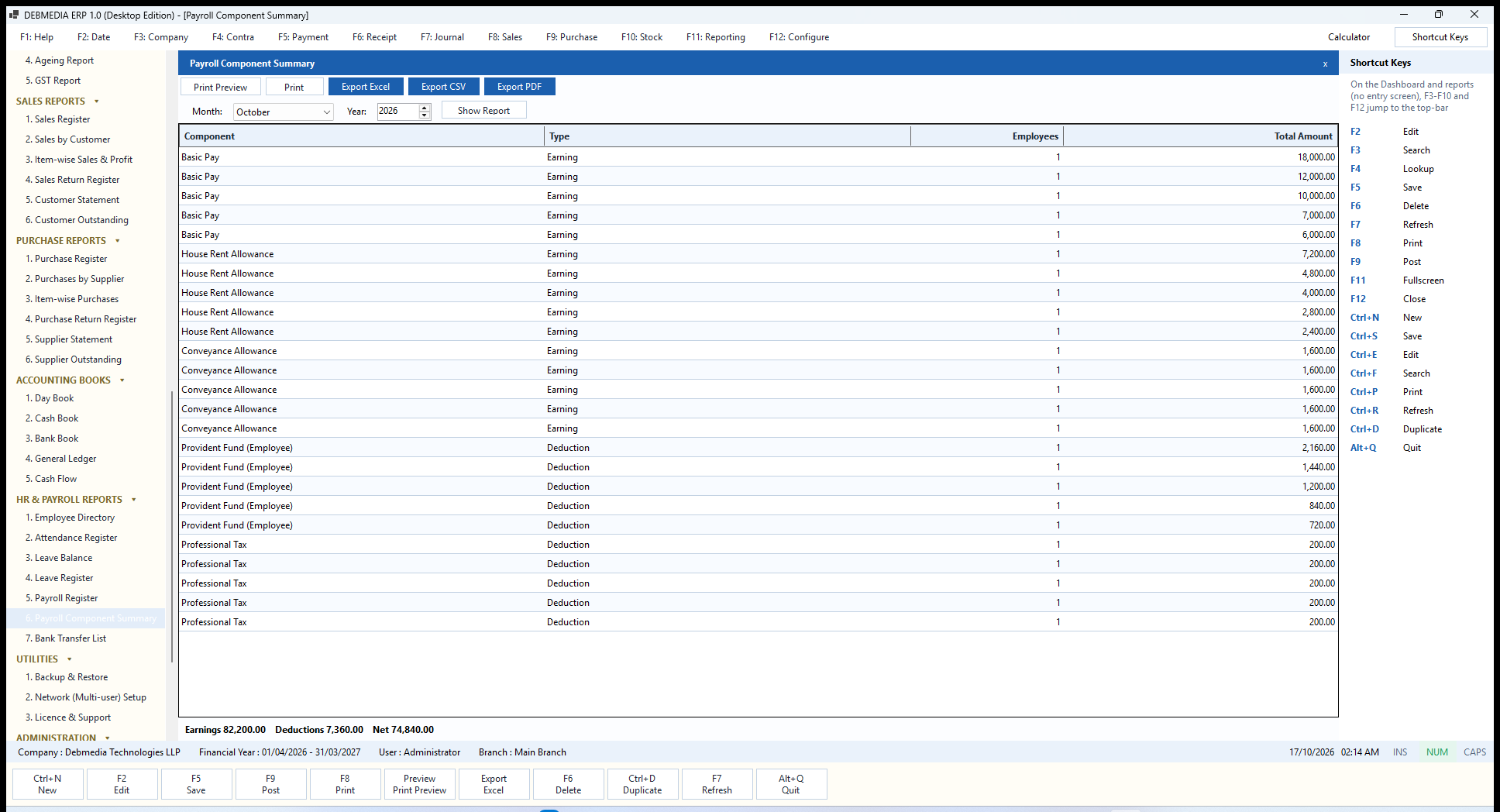
Where to find it: Main Menu, HR and Payroll Reports, Payroll Component Summary.
The Payroll Component Summary analyses the month by pay head. Each row is a Component (Basic Pay, House Rent Allowance, Conveyance Allowance, Provident Fund, Professional Tax), its Type, the number of Employees it applies to and its Total Amount. The footer gives earnings 82,200.00, deductions 7,360.00 and net 74,840.00. Finance uses it to see what was withheld for provident fund and professional tax, which is the amount that must later be paid over to the authorities.
Bank Transfer List
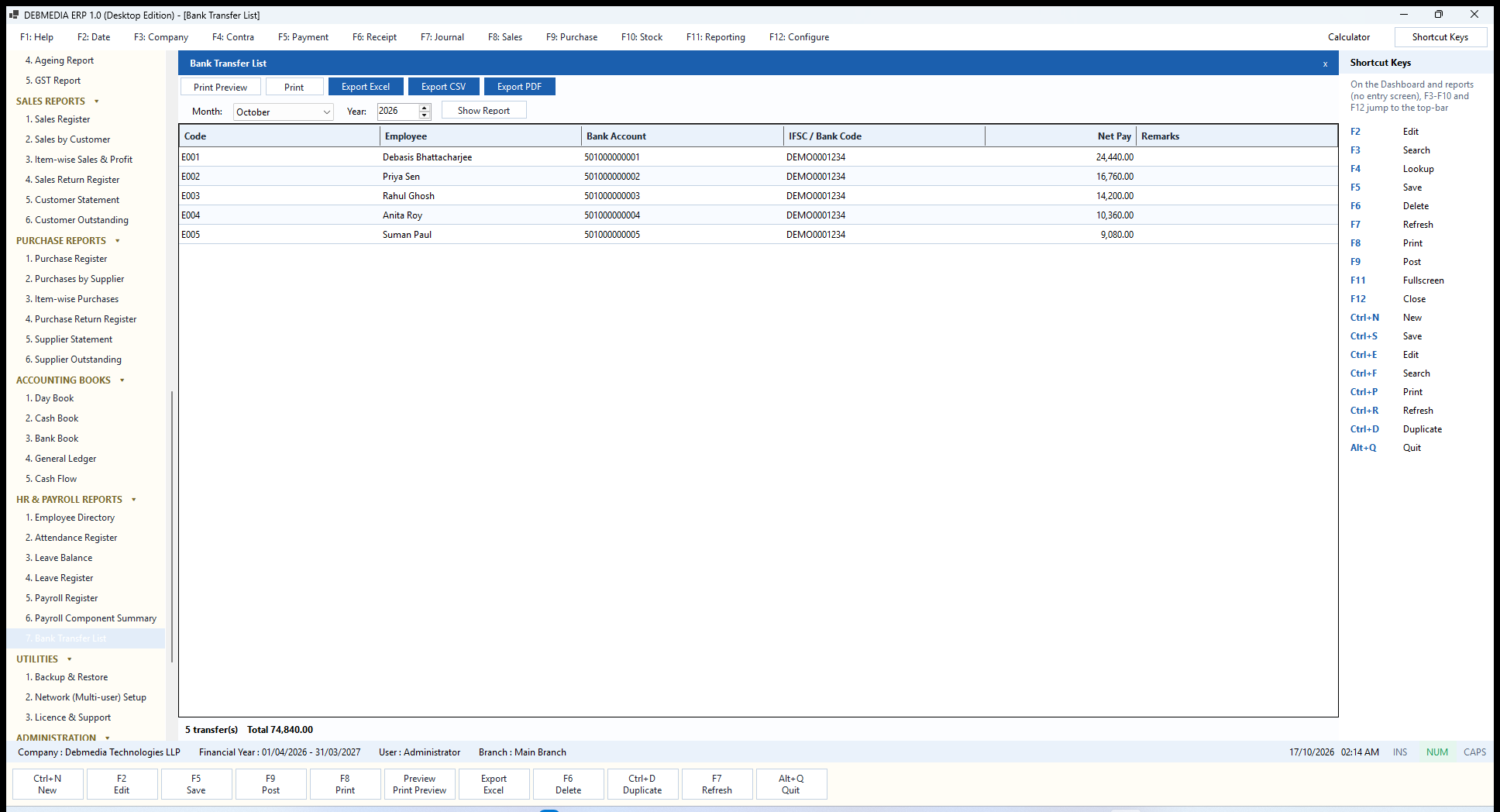
Where to find it: Main Menu, HR and Payroll Reports, Bank Transfer List.
The Bank Transfer List is what you give the bank to pay the salaries. For the chosen month it lists the Code, Employee, Bank Account, IFSC / Bank Code, Net Pay and a Remarks column, with the footer 5 transfer(s), total 74,840.00. The account and bank code come from the Employees master, which is why those two fields are worth filling in. Export it to Excel or CSV for a bank’s bulk-payment upload.
Utilities: Protecting and Sharing Your Data
Backup and Restore
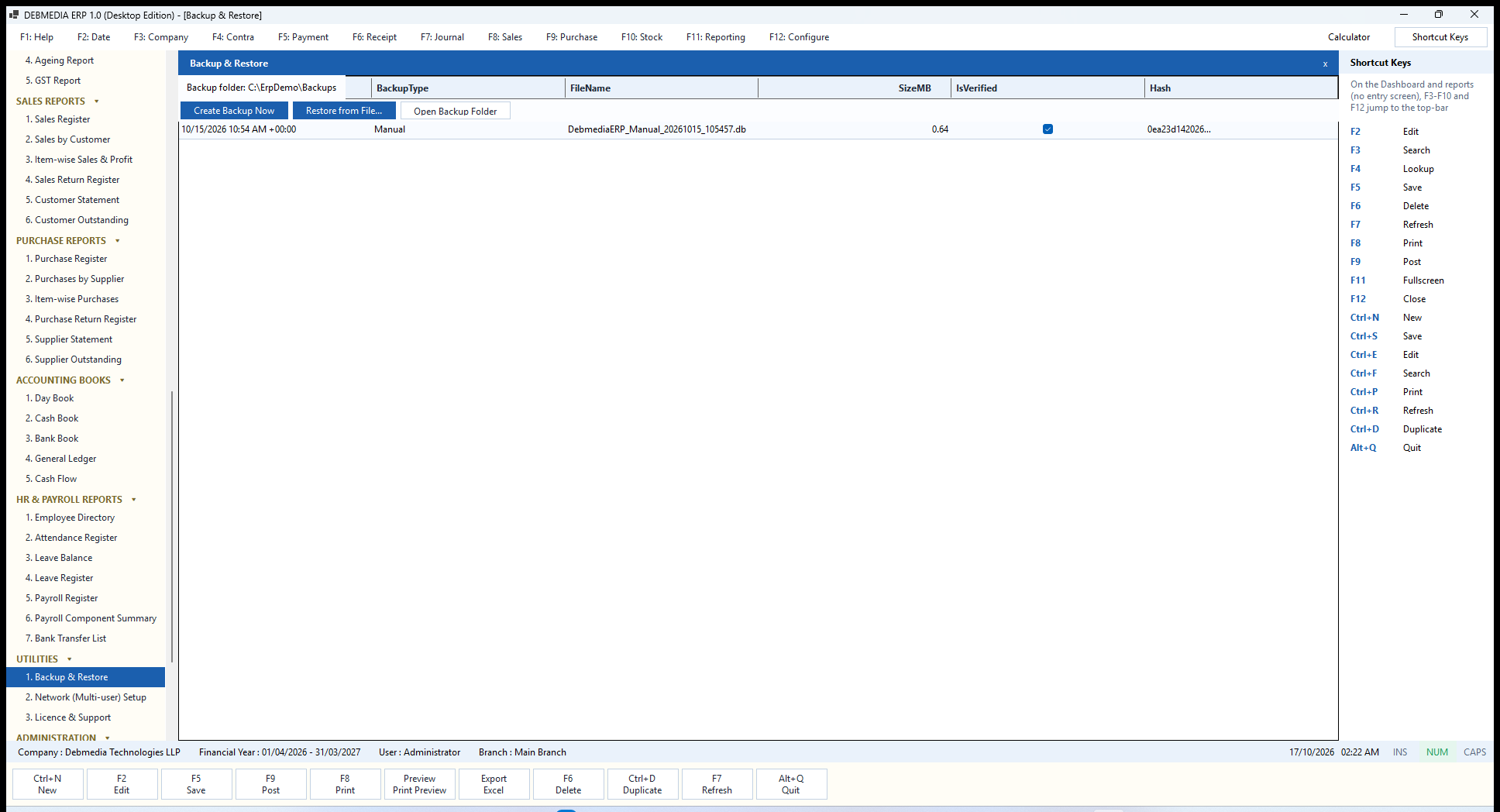
Where to find it: Main Menu, Utilities, Backup and Restore.
Backup and Restore protects the one thing you cannot replace: your data. The top line shows the Backup folder. Create Backup Now makes a backup immediately, Restore from File… brings a backup back, and Open Backup Folder opens the folder in Windows. The history grid records every backup with its date, its BackupType (Manual, Automatic, PreRestore or PreMigration), FileName, SizeMB, an IsVerified tick and a Hash.
A backup is not considered successful just because a file exists. The program copies the live database with SQLite’s own online-backup method, which is safe even while people are working, then opens the copy, runs a structural integrity check and a foreign-key check on it, and computes a SHA-256 fingerprint. Only a backup that passes is marked verified. The message you see says so: Backup created and verified, followed by the path.
Restore is deliberately cautious. If other computers are connected to the database, the program refuses and lists who is using it. Otherwise it asks you to confirm (with No as the default), checks the file you chose is a sound database, and takes a protective PreRestore backup of the current data first, so a restore can always be undone. A damaged or non-database file is rejected without touching your live data. Restoring is a permission of its own.
Network (Multi-user) Setup
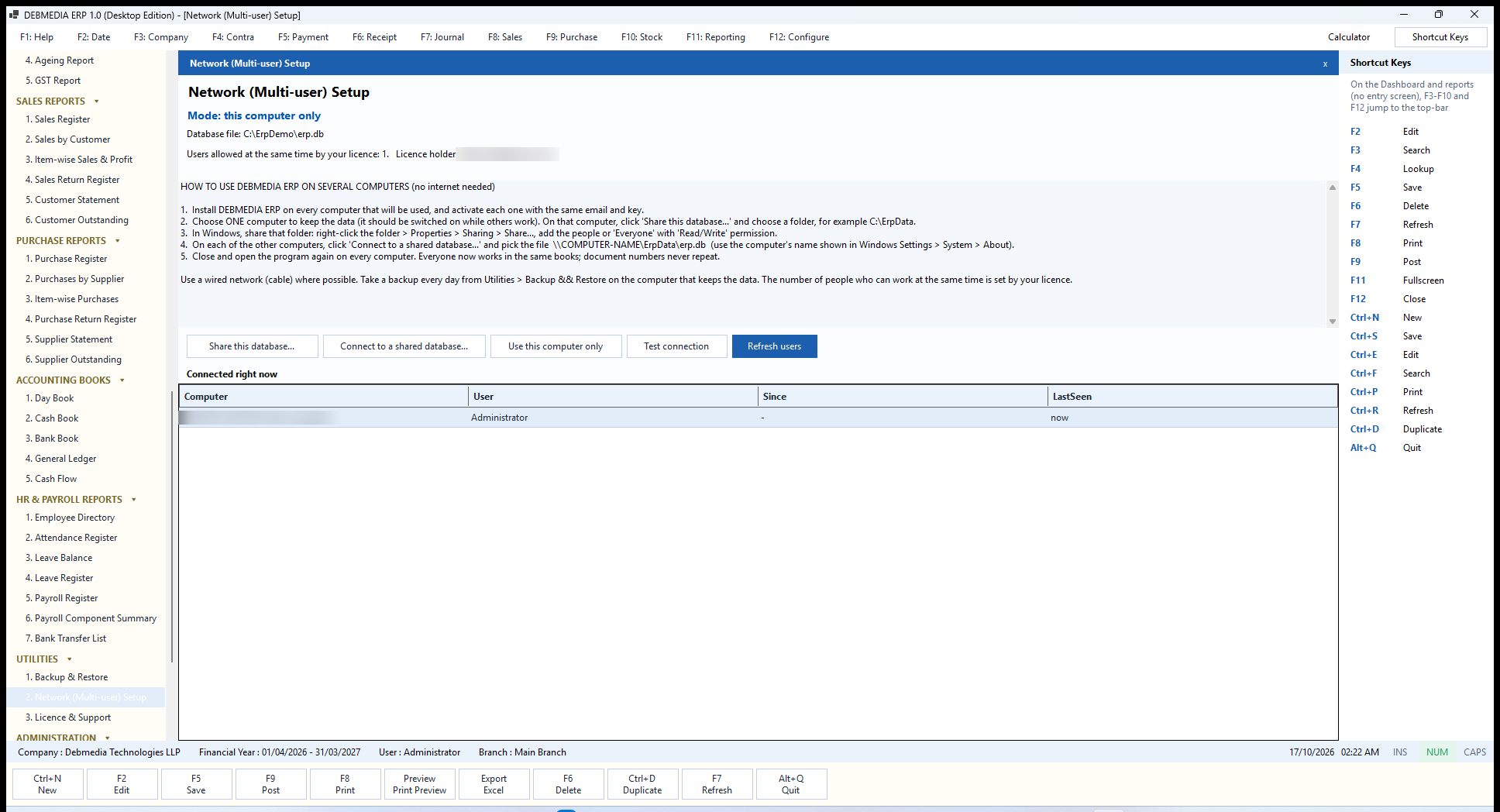
Where to find it: Main Menu, Utilities, Network (Multi-user) Setup.
By default the program works on one computer. Network Setup lets several computers in an office share one company database, with no internet involved. The screen states the current Mode (this computer only or SHARED database), the Database file in use, the number of users your licence allows at the same time and the licence holder. A short instruction panel lists the five steps: install and activate the program on every computer with the same email and key; on the computer that keeps the data choose Share this database and pick a folder; share that folder in Windows with read and write permission; on each of the other computers choose Connect to a shared database and pick the file; then restart the program.
The five buttons do the work: Share this database…, Connect to a shared database…, Use this computer only (to go back), Test connection (which reports success or failure and warns if the answer is slow, suggesting a cable instead of Wi-Fi) and Refresh users. The grid, Connected right now, lists each running copy of the program with its Computer, User, Since and LastSeen times. Each copy reports in once a minute and counts as gone after three minutes of silence, for example after a power cut, so a crashed computer never keeps a seat for ever.
The licence decides how many people may be connected together, from 1 up to 25. When all seats are in use, the next person to sign in sees a message naming who is using the database and is asked to try again, to wait if a computer was switched off suddenly, or to contact Debmedia about adding users. Document numbers can never repeat across computers, because the database itself issues them.
Licence and Support
The Licence and Support screen, the last item in the Utilities section, tells the user how the software is licensed. It shows who the licence is issued to, how many users are allowed at the same time, the type of licence (a lifetime licence with no yearly fee) and how to get help: for more users, a new key, or help moving to another computer, contact Debmedia. To move to a new computer you install the program, enter the same email and key, and restore your latest backup. The full licence terms are available to read on the same screen.
Behind the screen, activation is a calculation performed on your own computer: the key is derived from your email address, and a key for more than one user carries the seat count inside it, so no server is needed to check it. A free evaluation period of three days, for two users at once, starts the first time the program is run on a computer and cannot be extended by changing the clock or deleting files. When the evaluation ends, the program asks for a licence key; everything entered during the trial is kept and is available once you activate.
Administration: People, Permissions and Audit
Users
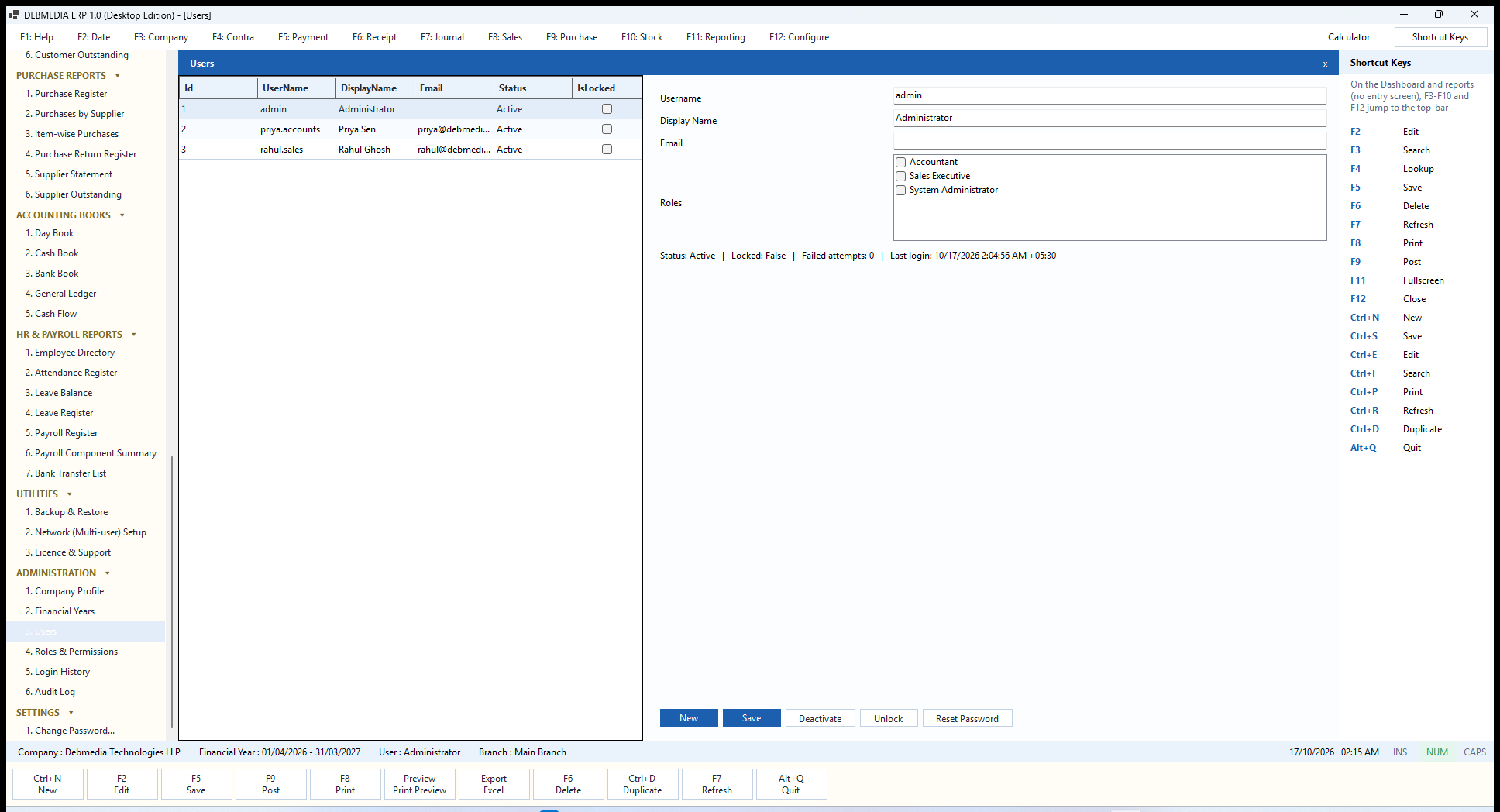
Where to find it: Main Menu, Administration, Users (also the F12 key).
The Users screen manages who can sign in. The list shows each user’s UserName, DisplayName, Email, Status and an IsLocked tick. The form holds the Username, Display Name, Email and a list of Roles to tick, and a status line with the user’s status, locked state, number of failed attempts and last login time.
New clears the form, and Save creates or updates the user. When you create a user the program generates a temporary password and shows it once, and the new user must replace it on first sign-in. Deactivate stops a user signing in while preserving their history. Unlock clears a lock caused by five wrong passwords. Reset Password issues a new temporary password, again forcing a change at the next sign-in. Creating a user, changing roles, deactivating, unlocking and resetting are all recorded in the Audit Log. The first user, admin, belongs to the System Administrator role, which holds every permission.
Roles and Permissions
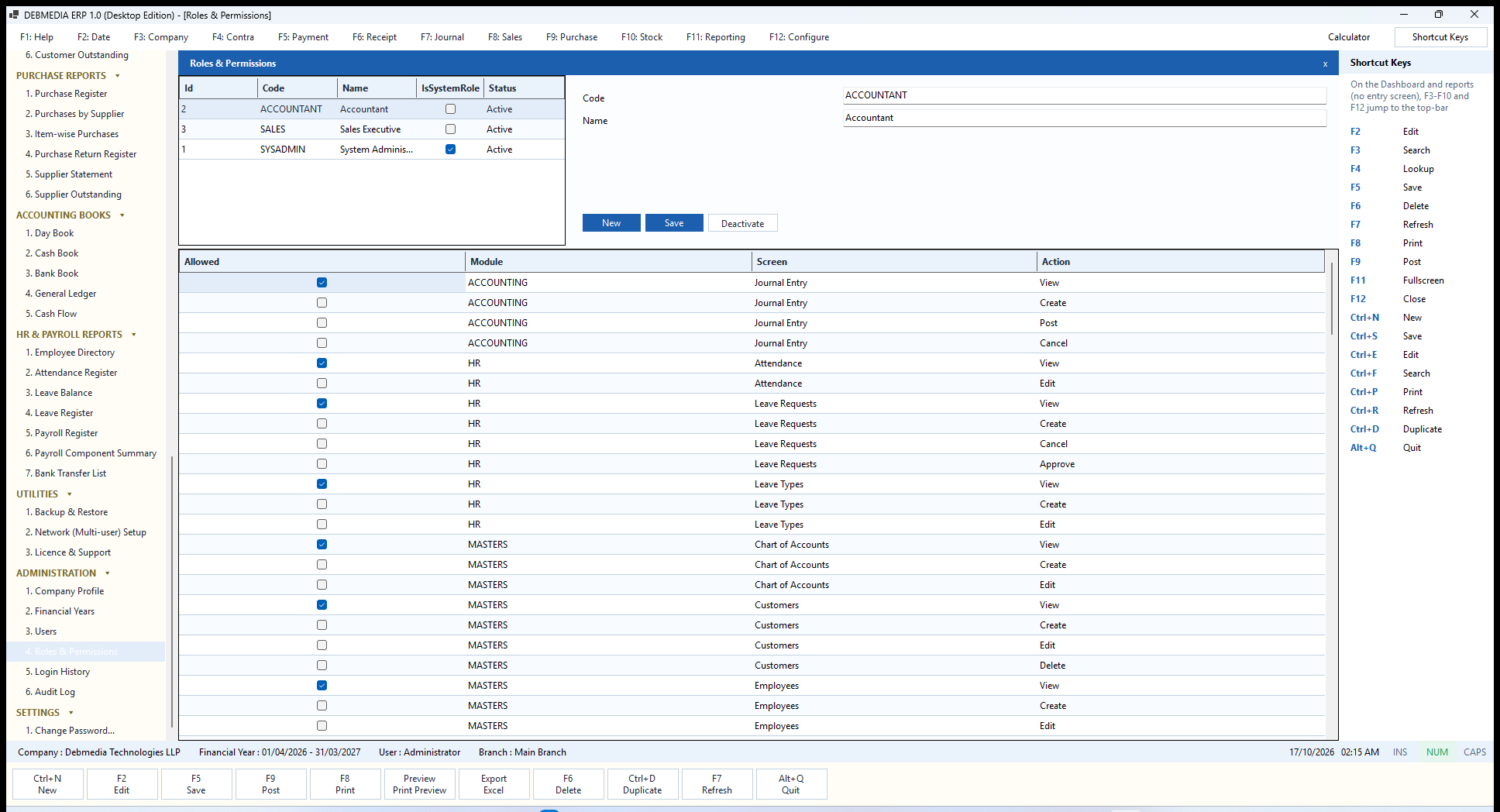
Where to find it: Main Menu, Administration, Roles and Permissions.
Roles and Permissions is where access is designed. The list at the top shows the roles (Accountant, Sales Executive and the built-in System Administrator, marked as a system role). Selecting a role shows its Code and Name; New, Save and Deactivate manage the roles themselves. The large grid beneath lists every permission with an Allowed tick-box and its Module, Screen and Action, such as ACCOUNTING, Journal Entry, Post or HR, Leave Requests, Approve.
There are 150 permissions across ten areas. The grid is scoped to the selected role, and ticking or clearing boxes and saving changes what everyone in that role can do. In the sample, the Accountant role may view the Chart of Accounts, the Customers and Employees masters, the leave types and requests and the journal, but may not create, post or cancel anything unless those boxes are ticked. The permission also controls what appears on the menu and which buttons and shortcuts work, so a person is never offered something they cannot do. Posting, cancelling, approving, closing a year, restoring a backup and paying salaries each have their own permission, which makes true separation of duties possible.
Login History
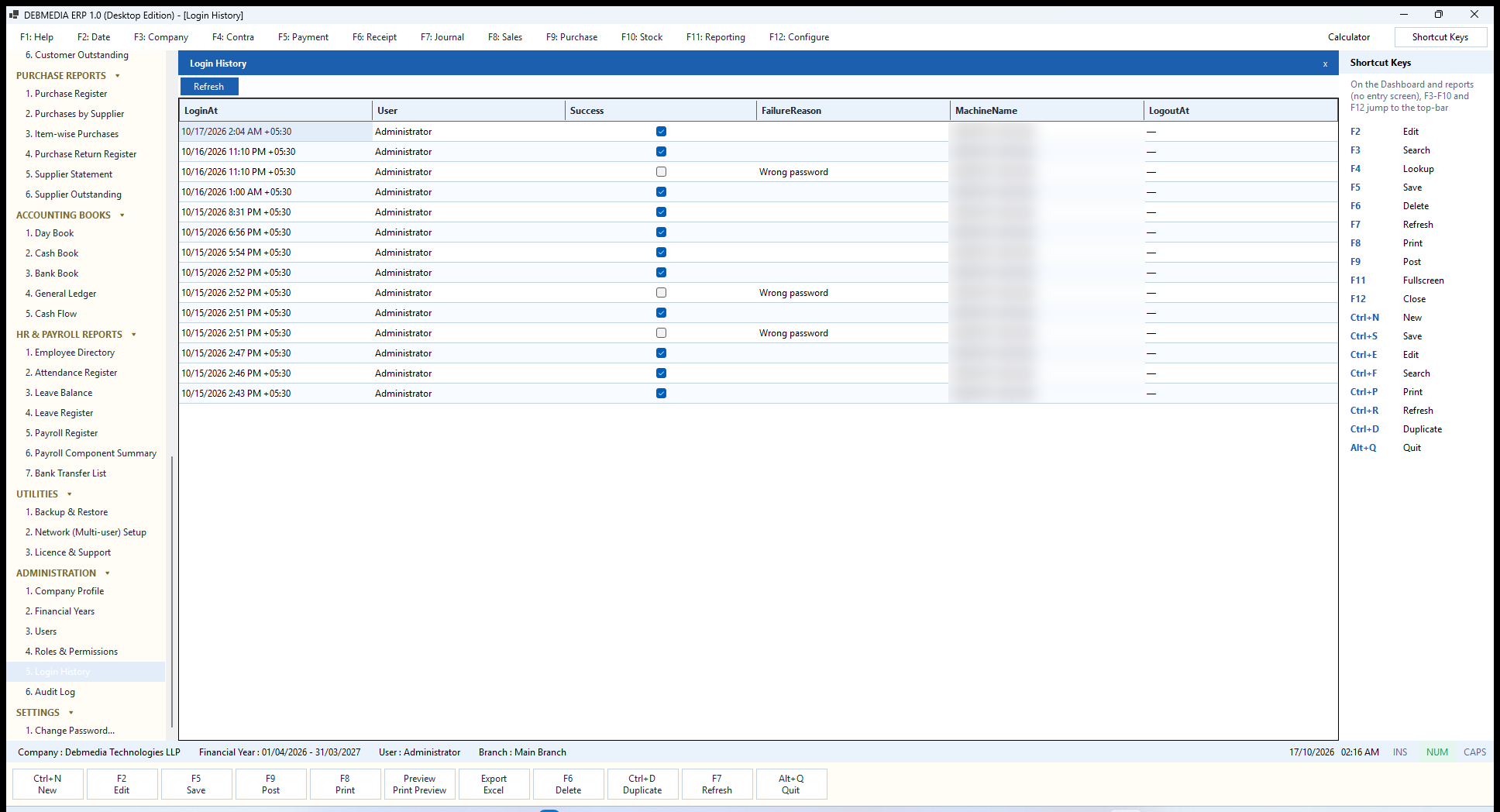
Where to find it: Main Menu, Administration, Login History.
Login History is the security log of sign-ins. Each row shows LoginAt, the User, a Success tick, the FailureReason when it failed (Wrong password, Account locked, Account inactive or Unknown username), the MachineName of the computer used, and LogoutAt. A Refresh button reloads the list. In the sample you can see an ordinary run of successful sign-ins and a few mistyped passwords. If someone is guessing passwords, this is where you see it, and which computer they were using.
Audit Log
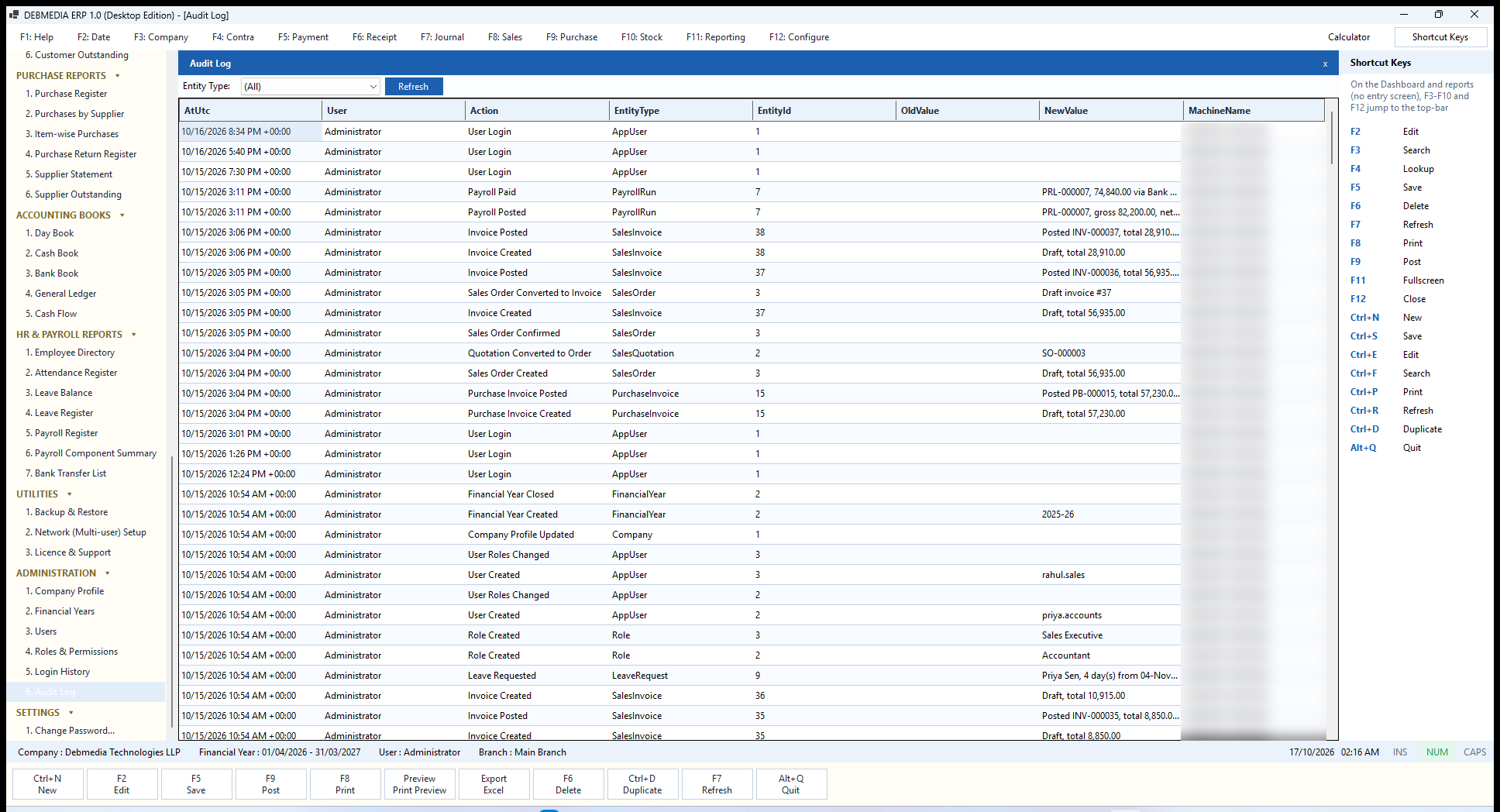
Where to find it: Main Menu, Administration, Audit Log.
The Audit Log records business events, not just sign-ins. Each row shows the time (AtUtc), the User, the Action, the EntityType and EntityId it concerns, the OldValue and NewValue where relevant and the MachineName. An Entity Type filter narrows it to, for example, only sales invoices. In the sample you can read the story of the company: users and roles created, a financial year created and closed, a leave request, invoices created and posted, a quotation converted to an order, an order confirmed and converted to an invoice, a purchase invoice posted, and a payroll run posted and then paid.
Entries are only ever added, never edited or removed, and the posting events are written in the same transaction as the posting itself, so a posting cannot happen without its record. Times are stored in UTC so that they are unambiguous across computers. Viewing the log is itself a permission, normally given to the owner or an auditor.
Change Password
Under Settings at the bottom of the Main Menu is Change Password…, available to every signed-in user. It asks for the old password, a new password and its confirmation. The new password must be at least eight characters and the two entries must match; the old password must be correct. The same window opens automatically, and cannot be skipped, when a user signs in with a temporary password. Passwords are stored only as salted hashes, so nobody, including an administrator, can read an existing one, and every change is recorded in the Audit Log.
The Calculator Button
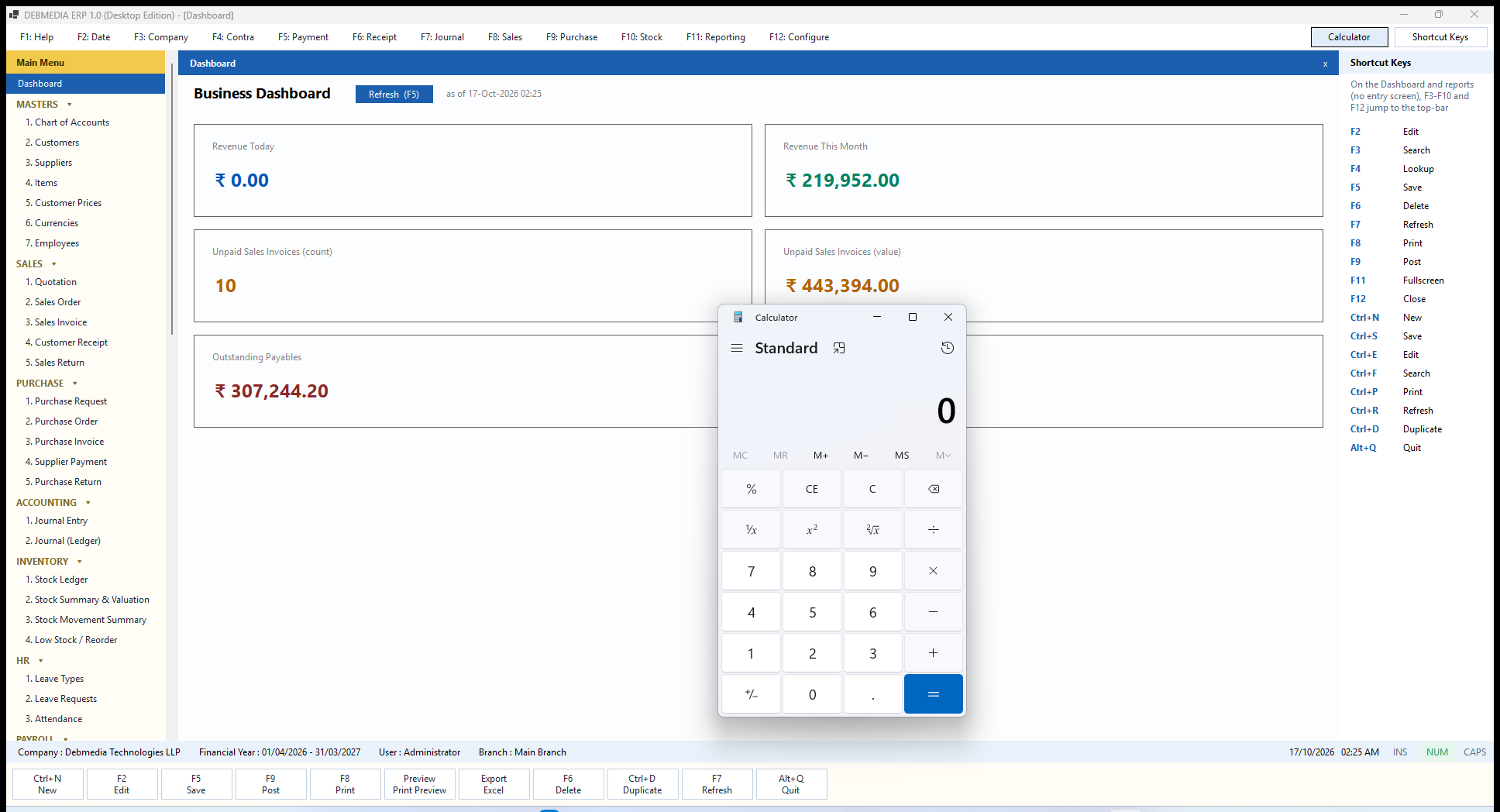
On the right of the function-key bar is a Calculator button. Pressing it opens the Windows calculator next to your work, so a quick sum never means leaving the program or reaching for a phone. The calculator is the standard Windows one, with its Standard, Scientific, Programmer and other modes available from its menu, and it stays open beside DEBMEDIA ERP while you continue entering documents.
A Transaction Followed Through the Whole System
The best way to see how the screens fit together is to follow real entries from the sample company. Every figure below can be found on the screens described above.
One sale, from order to the books
- Sales Order. SO-000003 for Green Valley Schools Society (25 keyboards, 25 mice and an installation service, 56,935.00 with GST) is confirmed.
- Convert to Invoice. One click creates a draft sales invoice with the same lines. Nothing has touched the books or stock yet.
- Post Invoice. The invoice becomes INV-000036 and the program creates journal entry 129: Accounts Receivable debited 56,935.00; Sales Revenue credited 48,250.00; Output CGST and SGST credited 4,342.50 each; the cost of the keyboards and mice debited to Cost of Goods Sold and credited to Inventory. The Stock Ledger shows 25 keyboards and 25 mice out on the same date.
- Reports. The invoice appears at once on the Sales Register and the GST Report (taxable 48,250.00, GST 8,685.00), the customer’s statement, the Ageing Report (0-30 days) and the Dashboard.
- Customer Receipt. When Green Valley pays, a receipt is allocated to the invoice; Cash or Bank is debited, Accounts Receivable credited, and the invoice balance falls.
The same pattern, with the sides reversed, applies to a purchase: PB-000015 brought five monitors in at 9,700.00 each and created journal entry 128 with 48,500.00 to Inventory, 4,365.00 each to Input CGST and Input SGST, and 57,230.00 to Accounts Payable. Those five monitors then became part of the weighted-average cost that INV-000037 used when it sold two of them.
Cross-checks: the Books Agree with Themselves
A finance system earns trust when independent screens give the same answer. In the sample company these pairs agree to the paisa, which is a direct result of everything flowing through one journal:
| Figure | Where you can see it | Value |
|---|---|---|
| Inventory | Trial Balance, Balance Sheet and the Stock Summary footer | 471,159.93 |
| Accounts Receivable | Trial Balance and the Customer Outstanding footer | 440,562.00 |
| Accounts Payable | Trial Balance and the Supplier Outstanding footer | 304,176.20 |
| Cash | Trial Balance and the Cash Book closing balance | 486,856.00 |
| Bank | Trial Balance and the Bank Book closing balance | 2,600,847.97 |
| Cash plus bank | Cash Flow closing balance | 3,087,703.97 |
| Gross profit | Profit and Loss and the Item-wise Sales and Profit footer | 741,519.93 |
| Net profit | Profit and Loss and Retained Earnings on the Balance Sheet | 180,826.78 |
| October payroll | Payroll Register, Payroll Run footer and journal entries 131 and 132 | 82,200.00 gross, 74,840.00 net |
| Total debits and credits | Trial Balance footer (Balanced) | 7,854,406.32 |
Under the Hood: Technology, Data and Security
Technology
DEBMEDIA ERP is written in VB.NET on the current .NET platform with Windows Forms, so it is a genuine native Windows program that starts quickly, uses the keyboard properly and works fully offline. It is built in layers: a Domain layer holding the business entities, an Application layer holding the rules and posting engines (accounting, inventory, tax, numbering, sales, purchase, payroll, security), a Persistence layer using Entity Framework Core on a SQLite database, a Reporting layer that produces the report data, and the screens on top. Because the screens never contain accounting logic, a button and a keyboard shortcut cannot disagree, and the rules are testable on their own; the project carries an integration test suite that exercises the sales, purchase, return, cancellation, reporting and backup flows. Excel export uses a real spreadsheet library, and PDF output uses the Windows PDF printer, so no extra software is needed.
Where Your Data Lives
The whole company is one SQLite file, erp.db, in the program’s folder inside the user’s application-data area (or on the shared computer, in multi-user mode). Backups go to a Backups folder beside it. You can copy the file, email a backup to your accountant, or move it to a new computer. When a new version of the program adds a table or a column, it upgrades an existing database automatically on start-up and never discards your records.
Security and Integrity in Summary
- Sign-in: salted password hashes, lock-out after five failures, forced change of temporary passwords, login history with machine names.
- Permissions: 150 action-level permissions in roles; the menu, buttons and shortcuts all obey them; posting, cancelling, approving, closing, restoring and paying are separate.
- Immutability: posted documents cannot be edited or deleted; corrections are reversing entries and new documents.
- Atomic posting: accounting, stock, balances and audit are saved together or not at all.
- Concurrency: the latest state is re-read before posting or cancelling, status is re-checked inside the transaction, and document numbers come from the database so they never repeat.
- Period control: closed financial years reject every posting, cancellation and reversal.
- Audit trail: an append-only log of who did what, when and from which computer.
- Data safety: verified backups with an integrity check and a SHA-256 fingerprint, and a protective backup before every restore.
- Export safety: exported cells that begin with a formula character are neutralised.
- Licensing: offline key checking; the trial start is signed and stored in two places so it cannot be reset by editing a file.
Know Before You Buy: Scope and Current Limits
A complete description includes what the product does not do yet. These are the points a careful buyer should weigh.
- Purchase receipt: the Purchase Invoice also receives the goods. There is no separate goods-received note step yet.
- GST jurisdiction: the tax engine switches between CGST plus SGST and IGST by comparing the company’s state with the customer’s or supplier’s. The screens do not yet expose a State field, so documents default to CGST plus SGST until states are present in the data.
- Master records: the Customer and Supplier screens edit the core fields shown (code, name, phone, email, limits and terms). Address, tax number and opening balance are part of each record and print on documents, but are not all editable from those screens yet.
- Statutory filing: the program produces the GST report and registers, but it does not generate e-invoices, e-way bills or files for upload to a government portal.
- Credit control: the credit limit is enforced by blocking an over-limit invoice; there is no warn-only or approval-workflow mode.
- Backups: local backups only. There is no cloud copy, no backup encryption and no built-in schedule, so take a backup every day and keep a copy on another device.
- Payroll rules: the provident fund and professional tax pay heads are editable starting points; statutory rates and caps differ by place, so confirm them with your adviser. The working week treats only Sunday as a day off.
- Language and currency symbol: the interface is in English, with no right-to-left screens. The Dashboard and a few report footers show the rupee sign.
- Organisation: a main branch and a main warehouse are created for the company, and the screens work in that warehouse.
- Multi-user: designed for computers on the same office network. Working over the internet, a VPN or a slow link is not supported.
Who DEBMEDIA ERP Is For
DEBMEDIA ERP suits owner-run and small-team businesses that buy and sell goods, keep stock, charge GST and pay a handful to a few dozen employees: traders and distributors, computer and electronics resellers, service-and-supply businesses, schools and societies that sell supplies, workshops and small manufacturers’ dealers. It fits people who want to own their data, who prefer a keyboard-driven desktop program to a browser, who may have patchy internet, and who would rather pay once than rent software. It is not aimed at companies that need multi-country consolidation, e-invoicing integrations or hundreds of simultaneous users.
Frequently Asked Questions
Do I need the internet?
No. Daily work, printing, backups, licence activation and multi-user mode on an office network all work without it.
Where is my data stored?
In one database file on your own computer, or on the office computer you choose to share. Nothing is sent to Debmedia or to any cloud.
Can I try it first?
Yes. A free 3-day evaluation for two users starts the first time you run it. Everything you enter is kept when you activate a licence.
How many people can use it together?
That is set by the licence: one user by default, and keys for more users up to 25 working at the same time on one company database.
I posted a wrong invoice. What now?
Cancel it, giving a reason. The program posts an exact reversal, restores the stock, and keeps both the invoice and the cancellation on record. Then make the correct invoice.
Can I change a posted document?
No, by design. Posted documents are locked so the books can be trusted. Corrections are made by cancelling, reversing or issuing a return.
Can I get my figures into Excel?
Every report has Export Excel, Export CSV and Export PDF buttons, and the Bank Transfer List is built to be uploaded to a bank.
How do I start a new financial year?
On Financial Years, add the new year, mark it current, and when the old year is complete close it. Number series restart for the new year.
What if my computer fails?
Install the program on a new computer, enter the same email and key, and restore your latest backup. This is why daily backups matter.
Does it handle GST?
Yes: tax codes on every line, CGST and SGST (or IGST) accounts on the sales and purchase side, and a GST report. See the scope section for the current limits.
In Summary
DEBMEDIA ERP gives a small business the discipline of a proper double-entry accounting system with the speed and familiarity of a keyboard-driven desktop program. Sixty-eight screens cover the full path from a quotation to a bank deposit, from a purchase request to a supplier payment, from a joining date to a payslip, and from a single posting to the Balance Sheet. One entry is made once, and it flows to the stock, the ledgers, the tax report, the dashboard and the audit trail, with the checks to prove that every screen agrees with every other. To see it working on your own data, use the download button at the top of this page to request the trial.
Choose Your Plan
Start free, white-label it, get the full source, or let us build a custom version just for you.
- ✓ Full feature preview
- ✓ No credit card required
- ✓ Works right out of the box
- ✓ Your brand, your name
- ✓ Sell to unlimited clients
- ✓ Full installer & assets
- ✓ Complete source code
- ✓ Modify anything
- ✓ Commercial use rights
- ✓ Any modules you need
- ✓ Tailored to your business
- ✓ Agreed price, no surprises