VividView Pro
Fast image viewer and browser for Windows with metadata and batch tools
VividView Pro is a high-performance Windows image viewer. Browse large photo libraries at speed, view RAW and all major formats, inspect EXIF metadata, apply quick adjustments, create slideshows and batch rename or convert images.
See VividView Pro in Action
A clean, modern interface designed for real-world use.
Vividviewpro screen 01 screenshot
VividView Pro is a fast, lightweight yet feature-rich image viewer and browser for Windows. Built for photographers, designers, and everyday users who work with large image collections, it combines smooth browsing, instant image info, one-click editing tools, and powerful batch operations — all inside a clean dark-themed interface.
Whether you’re previewing a folder of RAW exports, batch-converting hundreds of images, or just want instant EXIF details on a file, VividView Pro handles it without the overhead of a full editing suite.
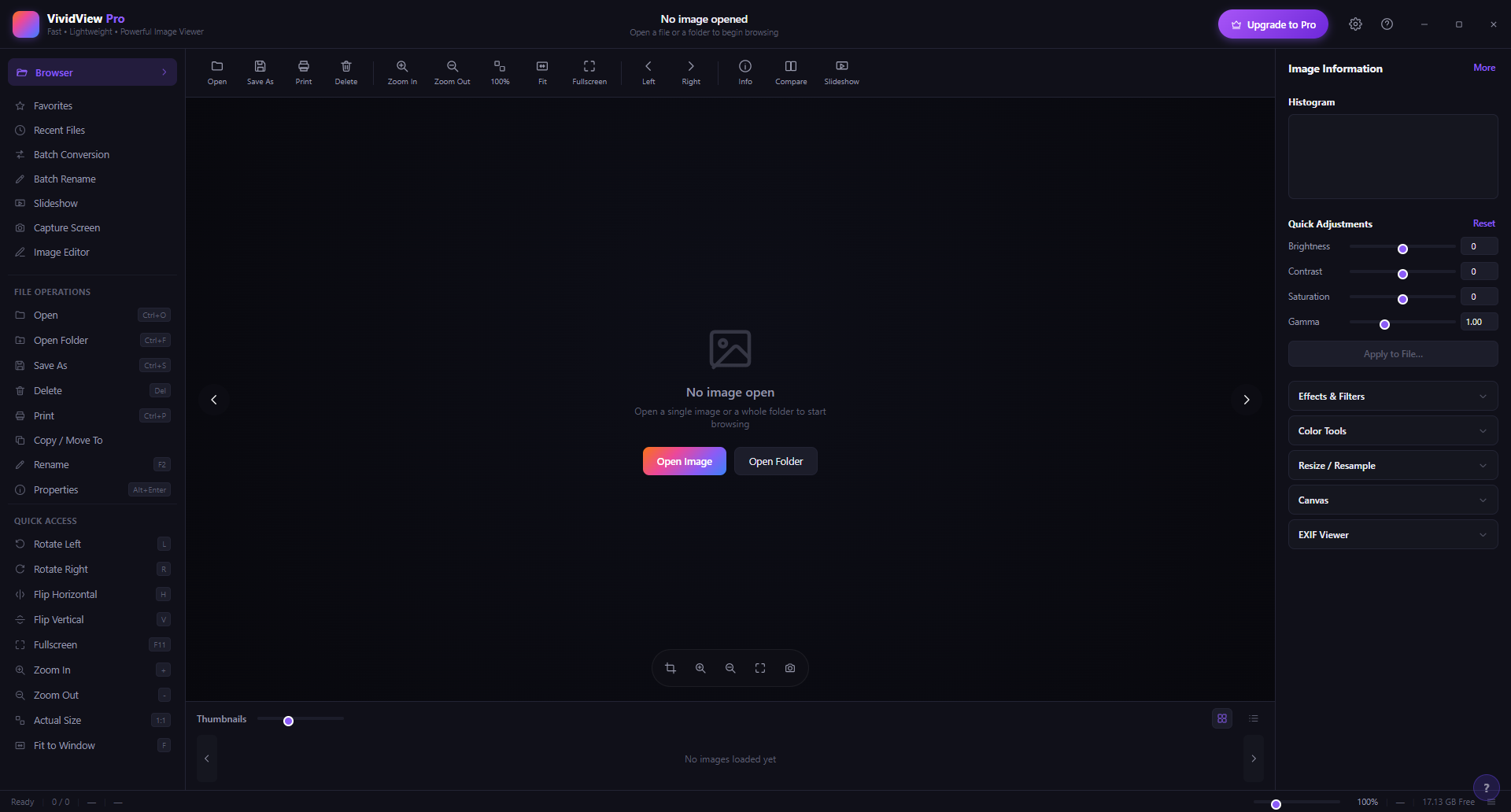
Screen 1 — Main Browser View
The welcome screen shows the complete VividView Pro layout at a glance. The left sidebar provides quick navigation to Favorites, Recent Files, Batch Conversion, Batch Rename, Slideshow, Capture Screen, and Image Editor — plus keyboard-shortcutted file operations (Open, Save As, Delete, Print, Copy/Move, Rename). The top toolbar offers all viewing controls: Zoom In/Out, 100%, Fit to Window, Fullscreen, Left/Right navigation, Info, Compare, and Slideshow. On the right, the Image Information panel stays pinned with Quick Adjustments (Brightness, Contrast, Saturation, Gamma), Effects & Filters, Color Tools, Resize/Resample, Canvas, and EXIF Viewer — ready to use the moment you open an image.
Screen 2 — Folder Scanning

When you open a folder, VividView Pro immediately begins scanning all images inside. The status message reads “I am now scanning for all images in ‘Downloads’ folder.” Scanning is non-blocking — the app remains responsive while the file list builds in the background. Once the scan completes, all images appear in the thumbnail strip at the bottom, ready for immediate browsing.
Screen 3 — Image Viewer with Image Info
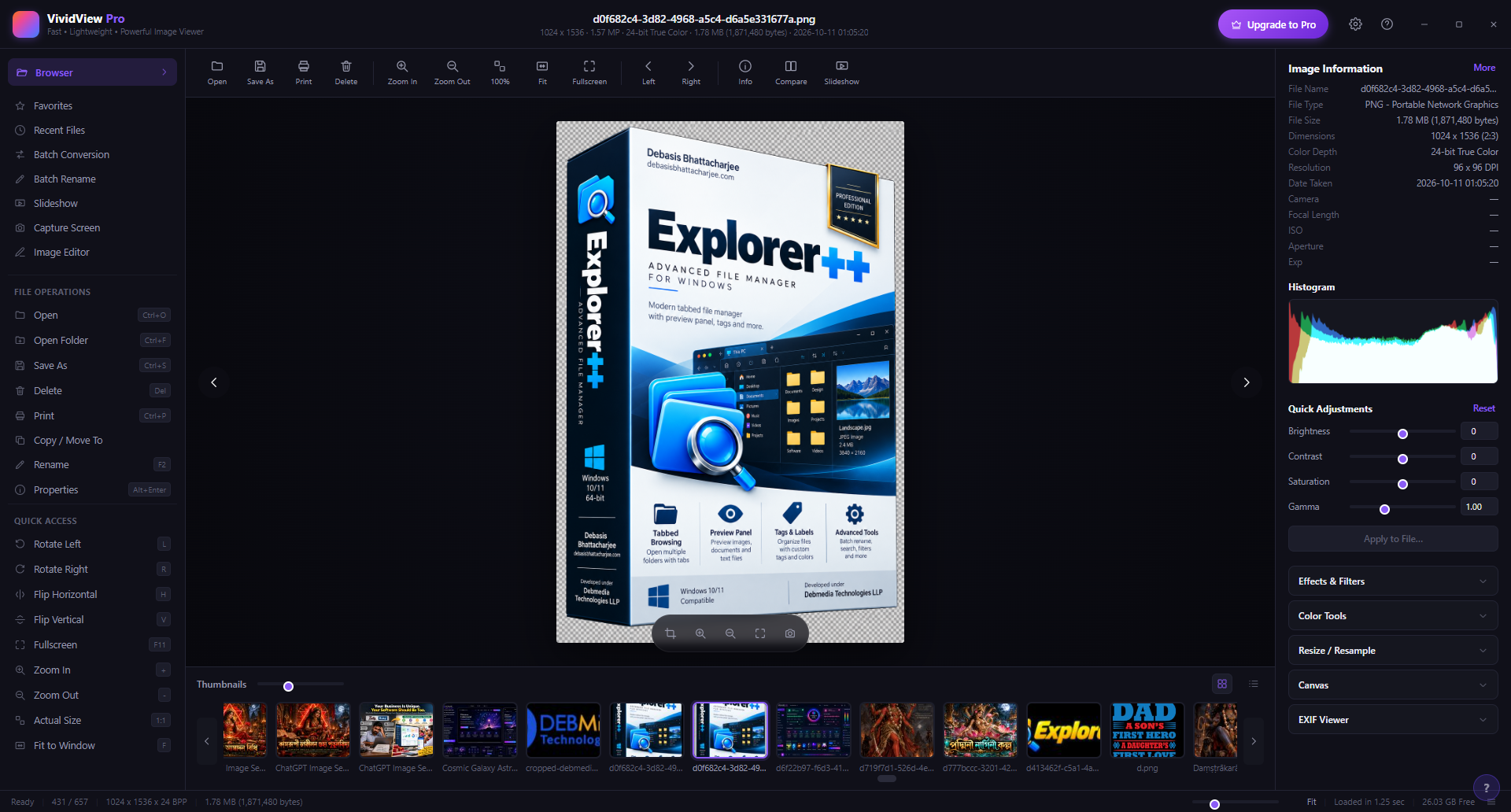
With an image open, the right panel instantly populates with complete file details: File Name, File Type (PNG — Portable Network Graphics), File Size (1.78 MB), Dimensions (1024 × 1536), Color Depth (24-bit True Color), Resolution (96 × 96 DPI), and Date Taken. Below the Histogram, the Quick Adjustments sliders are ready for instant corrections — without opening any dialog. At the bottom, 431 of 657 images from the folder are loaded into the scrollable thumbnail strip, letting you browse the collection without leaving the viewer.
Screen 4 — Effects & Filters Panel
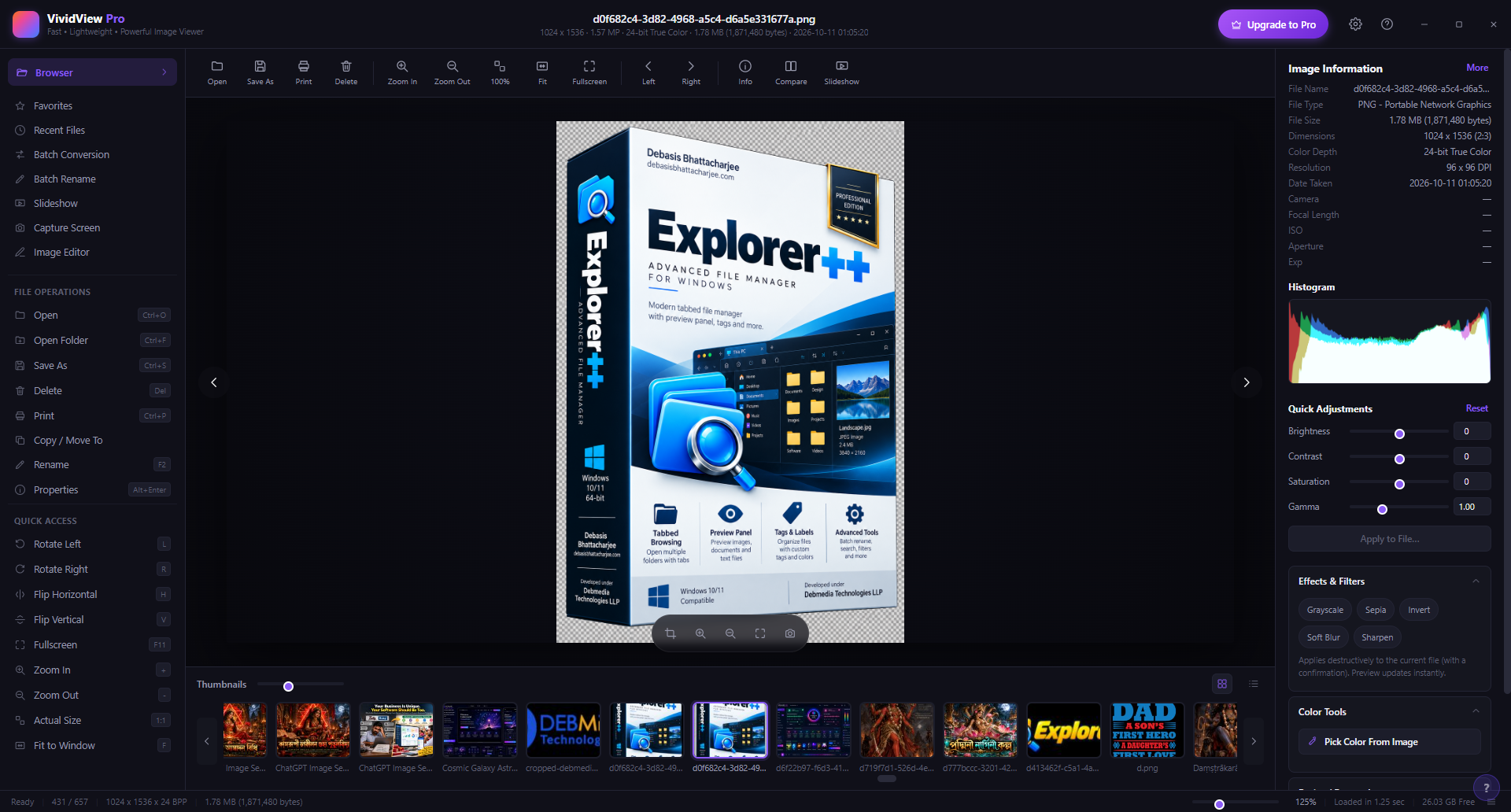
The Effects & Filters section in the right panel provides one-click image effects: Grayscale, Sepia, Invert, Soft Blur, and Sharpen. Each effect applies immediately and updates the Preview. Below it, the Color Tools section shows the Pick Color From Image tool — great for grabbing hex values from any pixel. The Resize/Resample panel shows the current dimensions (1024 × 1536) with a locked aspect ratio and a direct Resize File button for quick scaling without extra dialogs.
Screen 5 — Resize, Canvas and EXIF Viewer
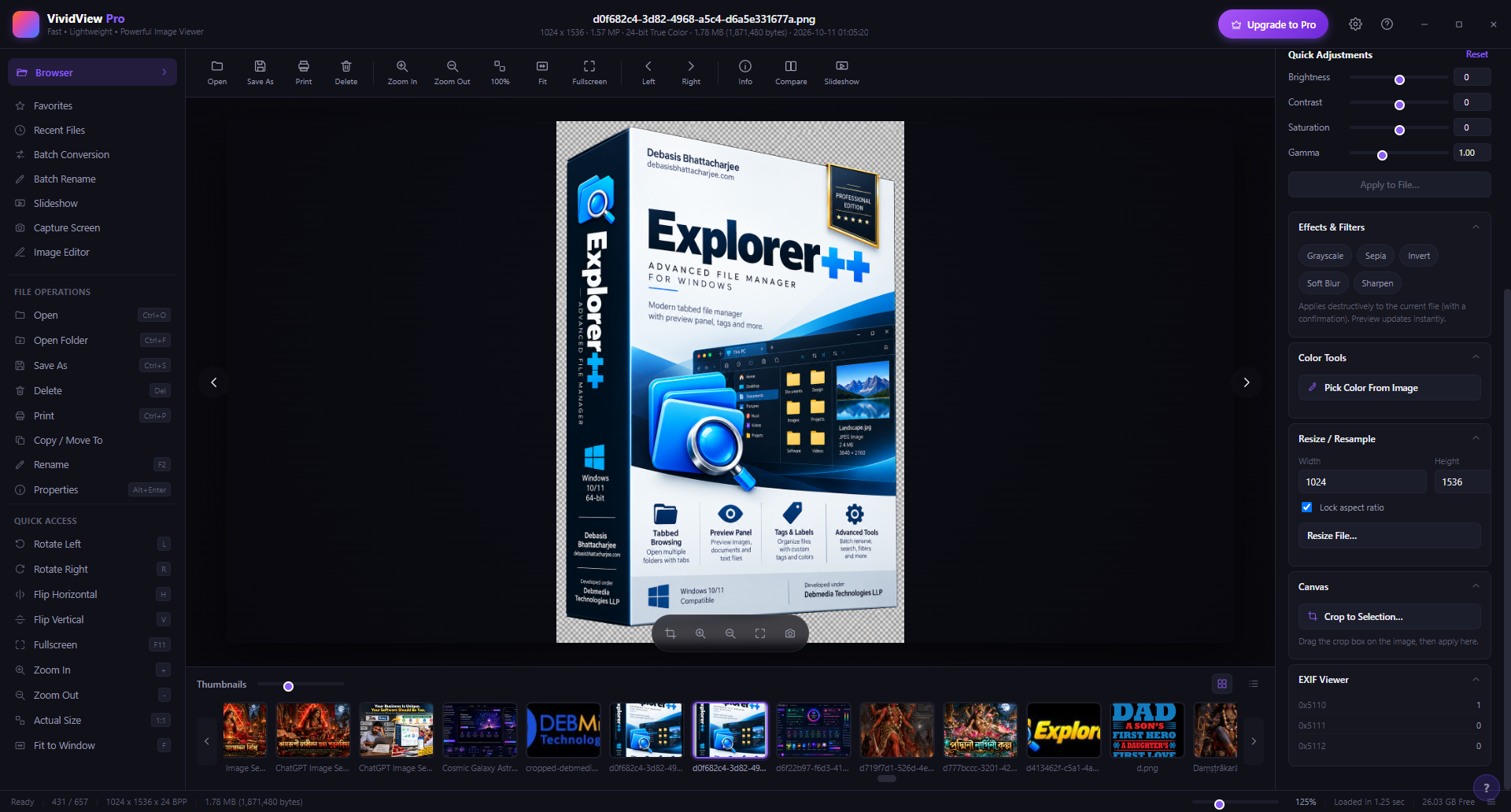
Scrolling further down the right panel reveals the Canvas section with a Crop to Selection tool — drag a crop box on the image and apply in one click. Below that, the EXIF Viewer displays raw camera metadata tags for photographers. These tools are all non-destructive in preview mode; you choose when to apply changes to the actual file. Everything lives in a single unified panel — no modal dialogs needed for routine edits.
Screen 6 — Batch Conversion
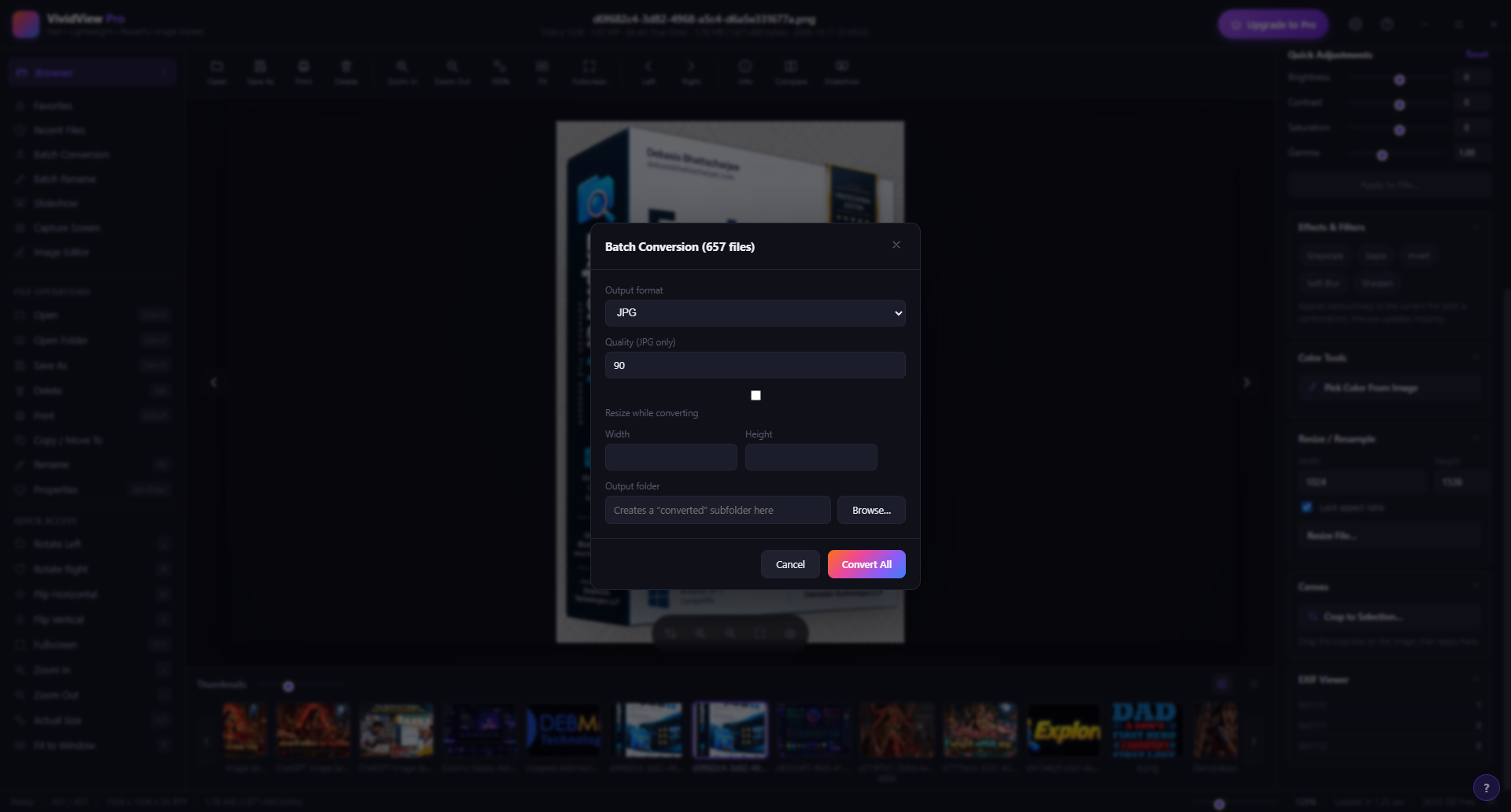
The Batch Conversion dialog converts your entire folder in one operation. Here, all 657 images are queued for conversion to JPG at quality 90. The dialog gives you full control: output format (JPG and others), quality (0–100 for JPEG), optional resize dimensions during conversion, and an output folder that defaults to a “converted” subfolder alongside the originals. Hit Convert All and VividView Pro processes the entire batch without opening a browser or cloud service.
Screen 7 — Batch Rename
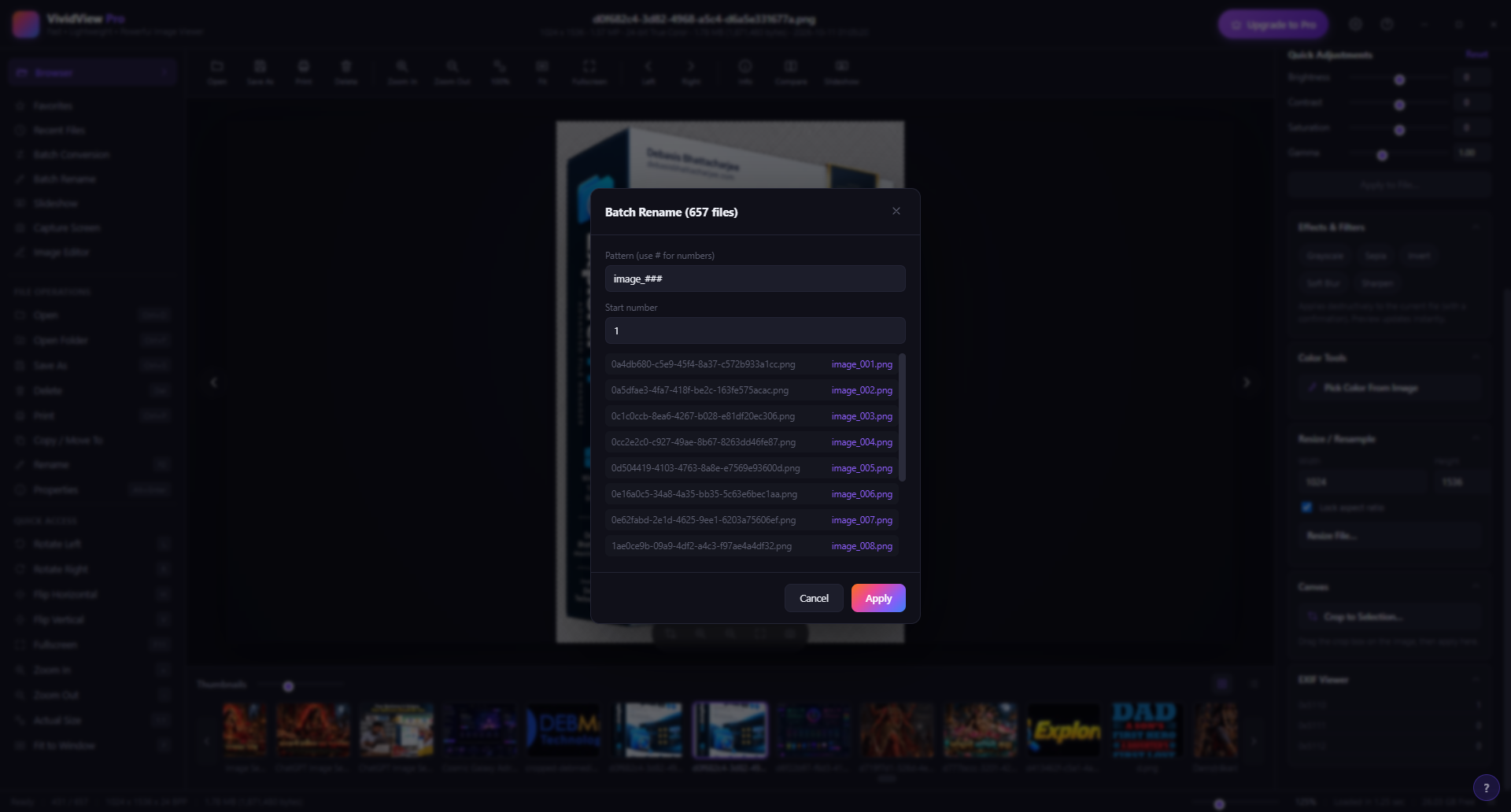
The Batch Rename feature renames an entire folder of images using a configurable pattern. The dialog shows a live preview of the rename operation — original filenames on the left (like `0a4db680-c5e9-45f4…`) mapping to clean sequential names on the right (image_001.png, image_002.png…). You set the pattern (here: image_###) and the start number, and VividView Pro previews every rename before you apply it. No accidental overwrites.
Screen 8 — Viewing Large Files
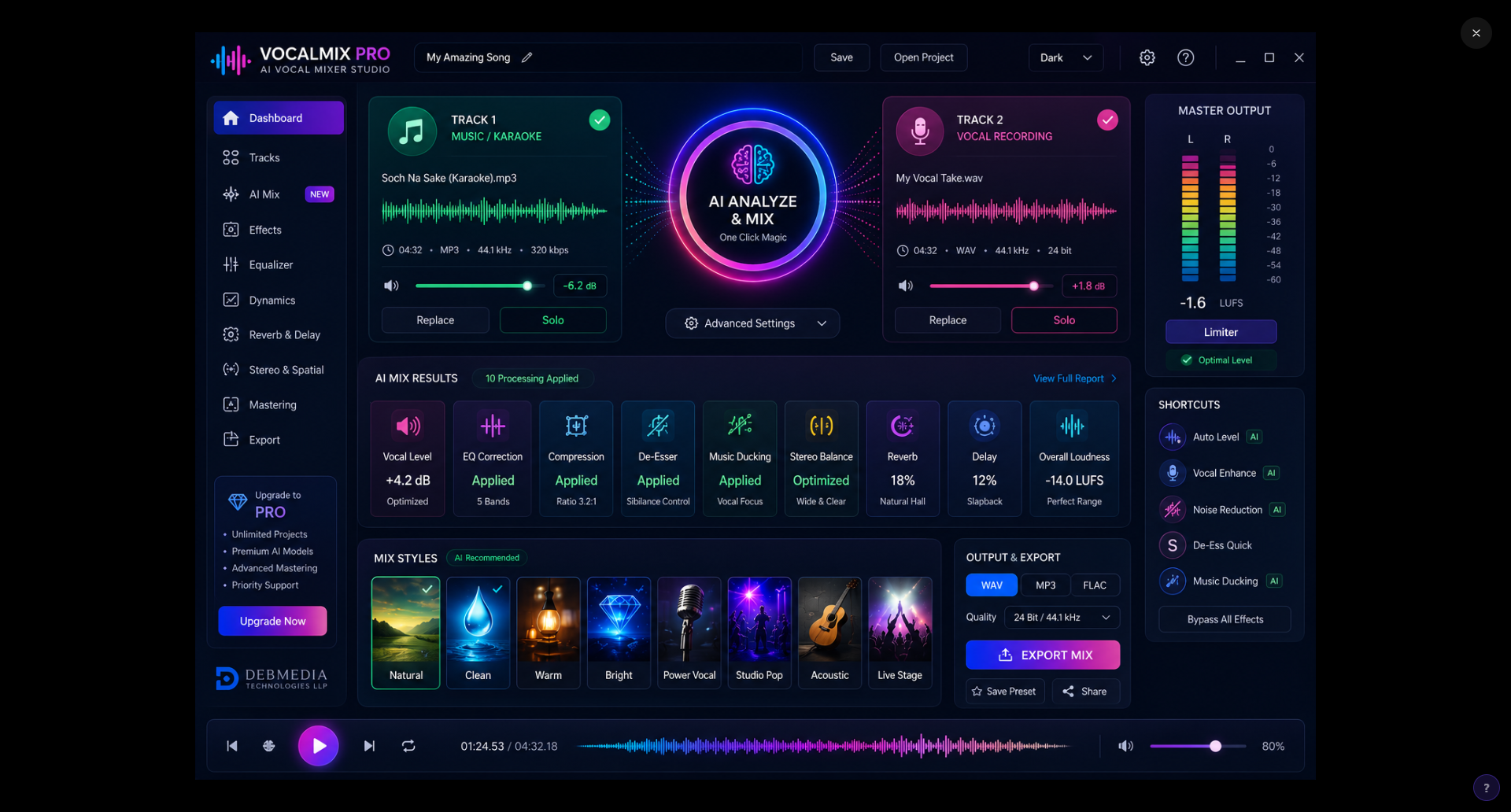
VividView Pro handles large images smoothly. This screenshot demonstrates the viewer displaying a 1.65 MB, 1536 × 1024 pixel image — loaded in 0.10 seconds. The bottom status bar confirms the dimensions and file size, and the thumbnail strip at the bottom continues to show all images in the folder. Large format images fit to window automatically, with zoom controls ready in the toolbar and keyboard shortcuts (+ / -) always active.
Screen 9 — Image Editor Mode
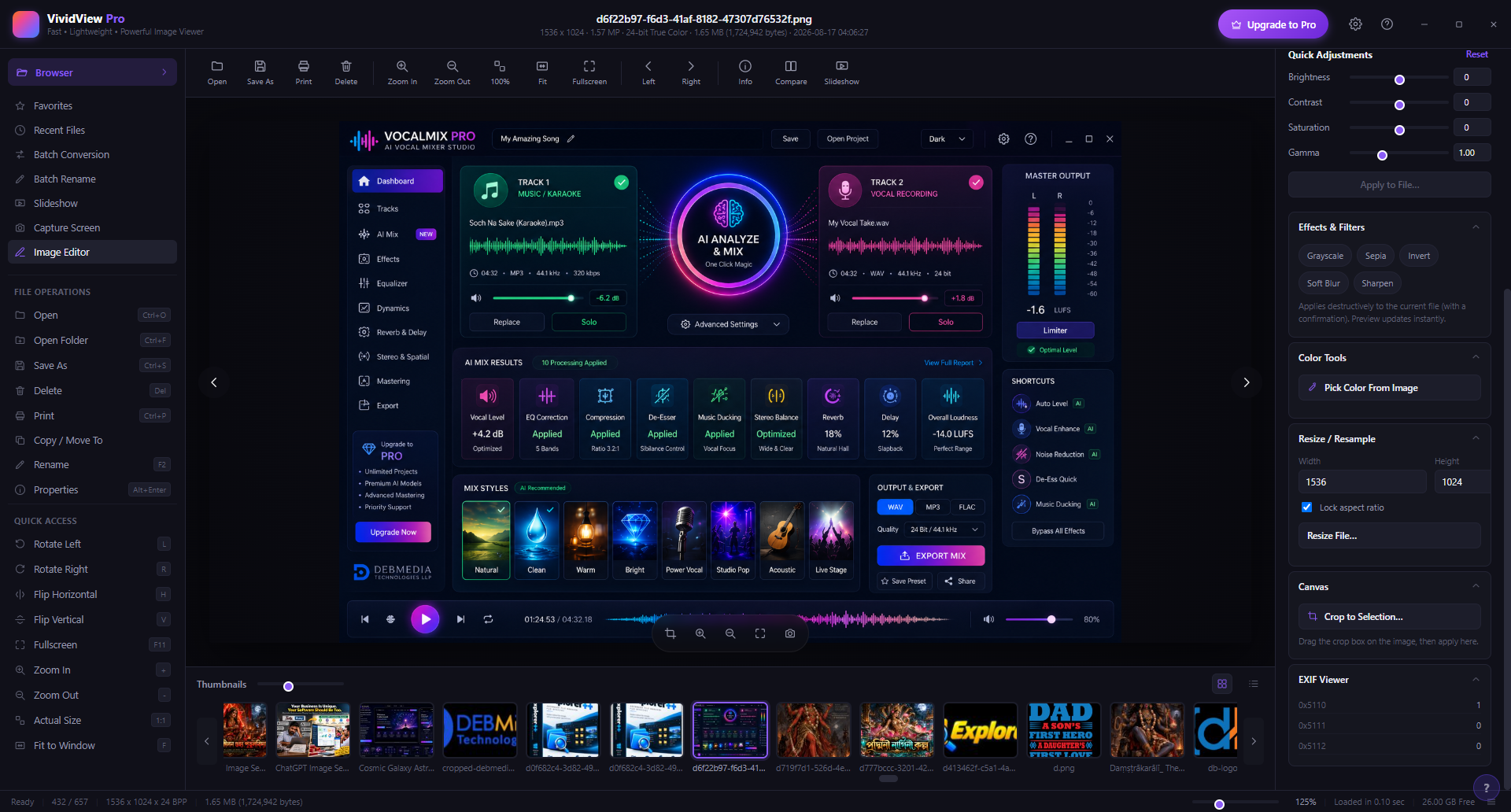
The Image Editor mode, accessible from the left sidebar, shifts focus to non-destructive editing. The right panel consolidates all tools — Quick Adjustments, Effects, Color Tools, Resize, Canvas, EXIF — for a complete editing workflow on the current image. You can apply adjustments, preview the result, and write changes back to the file or save as a new copy. The thumbnail browser at the bottom stays available so you can move to the next image without losing your panel setup.
Screen 10 — About VividView Pro
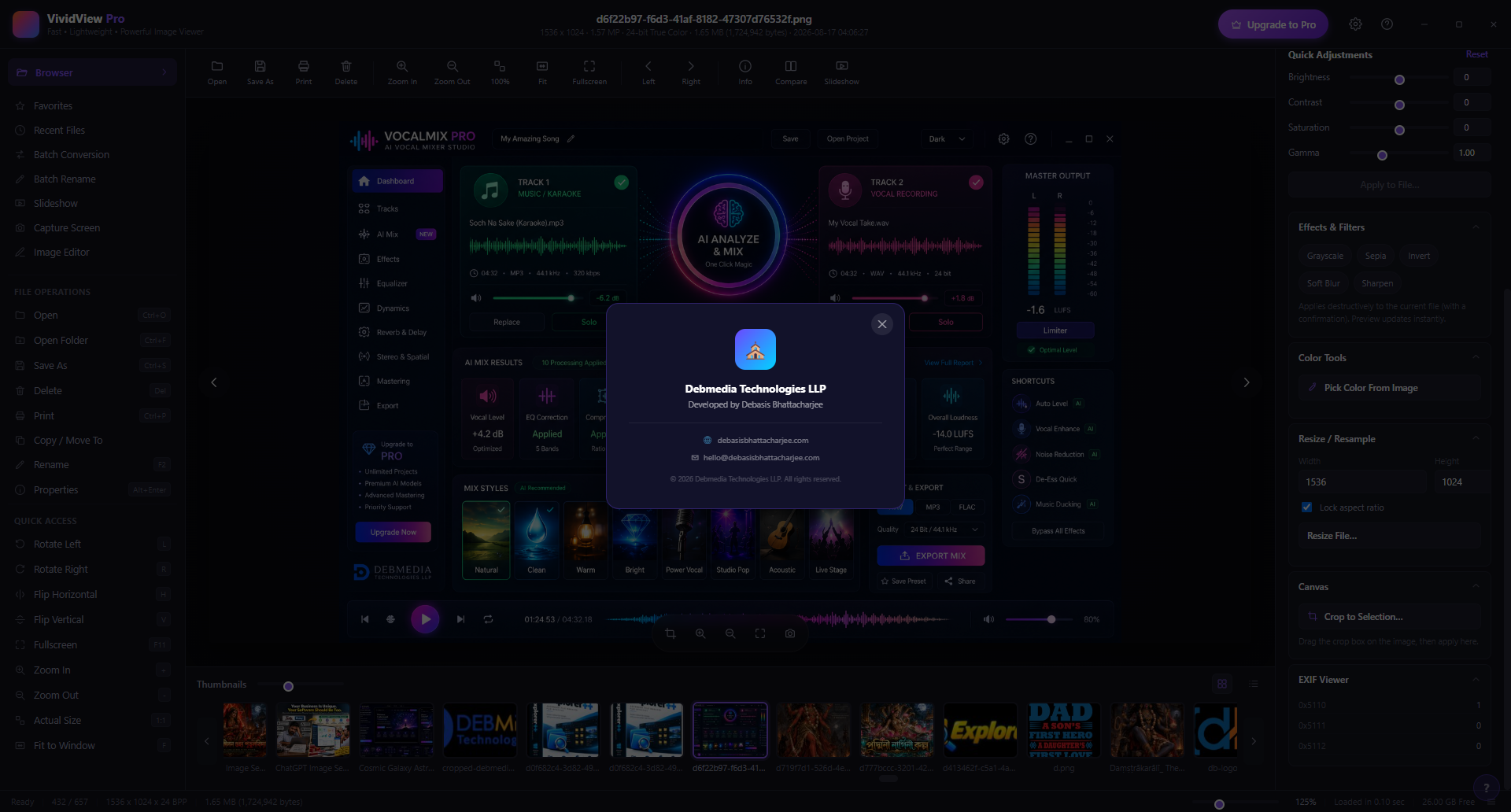
The About dialog confirms the app’s developer credentials: Debmedia Technologies LLP, developed by Debasis Bhattacharjee. Contact details (debasisbhattacharjee.com, hello@debasisbhattacharjee.com) are shown for direct support inquiries. VividView Pro is an independent, locally-run application — no accounts, no subscriptions, no data sent to any server.
Key Features at a Glance
- Fast folder scanning — loads hundreds of images from a folder in seconds
- Instant image info — file size, dimensions, color depth, EXIF data visible without any clicks
- Live Quick Adjustments — brightness, contrast, saturation, gamma sliders always in the panel
- One-click effects — Grayscale, Sepia, Invert, Soft Blur, Sharpen
- Batch Conversion — convert entire folders to JPG, PNG and other formats in one run
- Batch Rename — pattern-based bulk renaming with live preview
- Resize & Resample — scale images directly from the viewer panel
- EXIF Viewer — read camera metadata tags on any image
- Color picker — sample any pixel’s color from any open image
- Slideshow mode — auto-advance through a folder with configurable timing
- Thumbnail strip — scrollable horizontal contact sheet for fast browsing
Who Is VividView Pro For?
VividView Pro is built for anyone who works with images regularly on Windows. Photographers will appreciate the EXIF panel, histogram, and batch conversion. Designers benefit from the color picker and quick resize tools. Anyone who maintains large photo archives will find the folder scanner and batch rename indispensable. It’s lighter than Photoshop, smarter than Windows Photo Viewer, and doesn’t require a subscription.
System Requirements
- Windows 10 / 11 (64-bit)
- .NET 6.0 Runtime or later
- 100 MB disk space
- 4 GB RAM recommended for large folders
Frequently Asked Questions
What image formats does VividView Pro support?
JPG, PNG, BMP, GIF, TIFF, WebP, and more. The list continues to expand.
Does batch conversion overwrite my originals?
No. Batch conversion outputs to a separate “converted” subfolder by default. You can also specify a custom output path.
Is the free version limited?
The free version covers full browsing, viewing, basic adjustments, and batch operations. The Pro version unlocks unlimited projects and advanced features.
Can I compare two images side by side?
Yes — the Compare button in the toolbar opens a split view for side-by-side comparison.
VividView Pro turns image browsing from a chore into a pleasure. Open a folder, see everything at once, fix what needs fixing, convert what needs converting — and move on.
Download VividView Pro
Fast image viewer and browser for Windows with metadata and batch tools