Registry Cleaner Pro
Safe, thorough Windows registry cleaner and repair tool
Registry Cleaner Pro scans the Windows registry for invalid entries, broken references, orphaned keys and startup errors — then safely removes them to improve boot times and system stability, with automatic backup before every clean.
See Registry Cleaner Pro in Action
A clean, modern interface designed for real-world use.
Registrycleaner screen 12 screenshot
Registry Cleaner Pro is a comprehensive Windows registry maintenance tool that scans your system for invalid entries, obsolete leftovers, performance-impacting keys, and file extension errors — then cleans them safely with a built-in backup-before-clean safety net. Beyond registry cleaning, it includes a System Optimizer, Startup Manager, Duplicate File Finder, and quick-launch shortcuts to built-in Windows tools — all in one dark-mode desktop app.
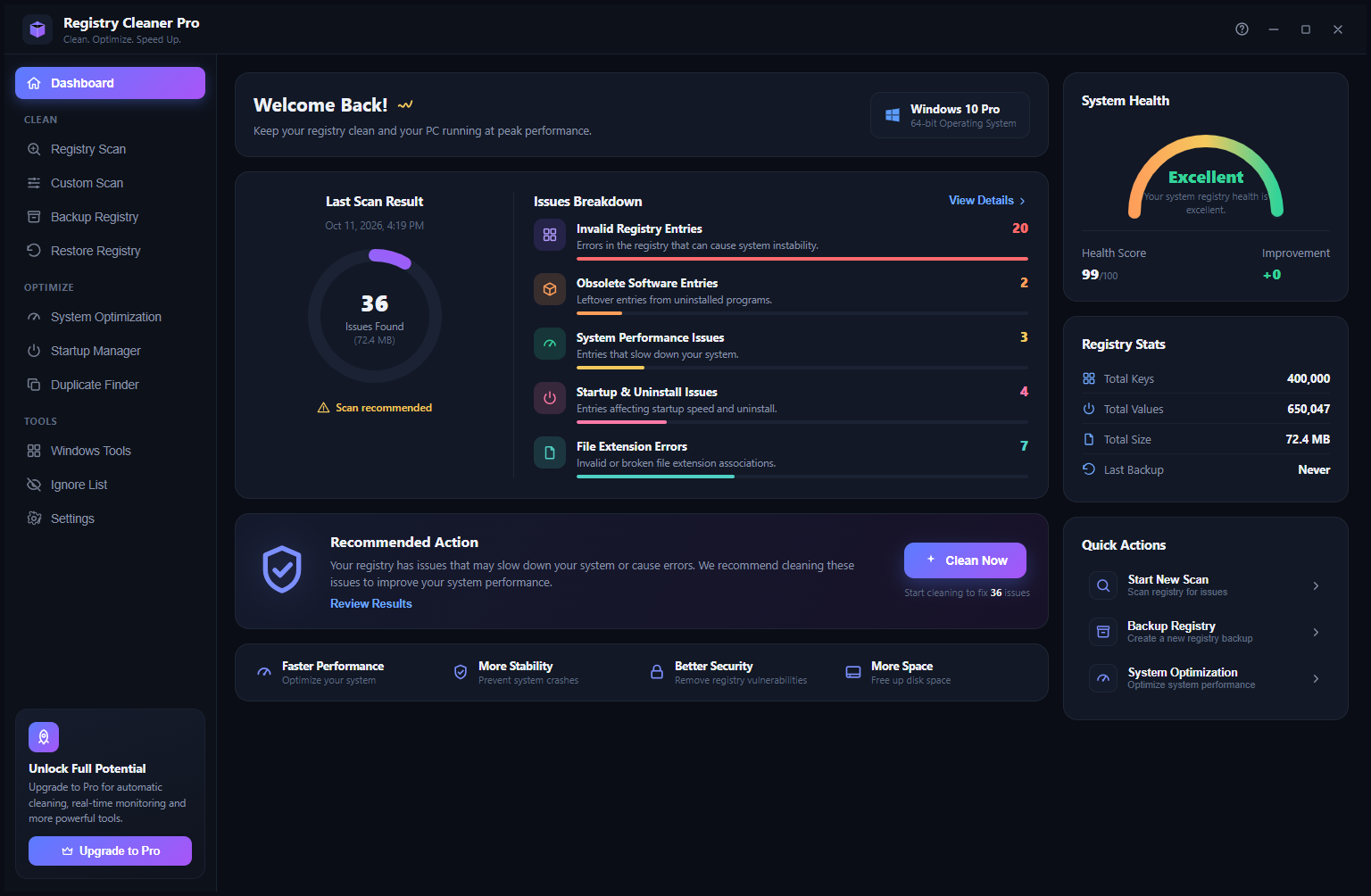
Screen 1 — Dashboard
The Dashboard is the home screen and control center. After a scan, it shows the Last Scan Result — here, 36 Issues Found (72.4 MB) — alongside an Issues Breakdown: Invalid Registry Entries (20), Obsolete Software Entries (2), System Performance Issues (3), Startup & Uninstall Issues (4), and File Extension Errors (7). The System Health gauge on the right reads Excellent with Health Score 99/100 and Improvement +0 after the previous clean.
Registry Stats confirm 400,000 Total Keys, 650,047 Total Values, 72.4 MB Total Size. The Recommended Action card at the bottom shows a + Clean Now button to fix all 36 issues in one click. Quick Actions on the right provide one-click shortcuts to Start New Scan, Backup Registry, and System Optimization. Windows 10 Pro (64-bit) is detected at the top right.
Screen 2 — Registry Scan in Progress

Clicking Registry Scan starts an immediate deep scan of your registry. A modal overlay appears in the center of the screen with a spinning progress indicator and the current progress: “Scanning Registry… Scanned 20,000 keys, 55,406 values…” The scan covers all registry hives including HKCU, HKLMSOFTWARE, and HKLMSYSTEM — the same hives that get backed up. The background dashboard is dimmed during the scan. When complete, the dashboard updates with fresh results and issues are ready to review in Custom Scan.
Screen 3 — Custom Scan Results
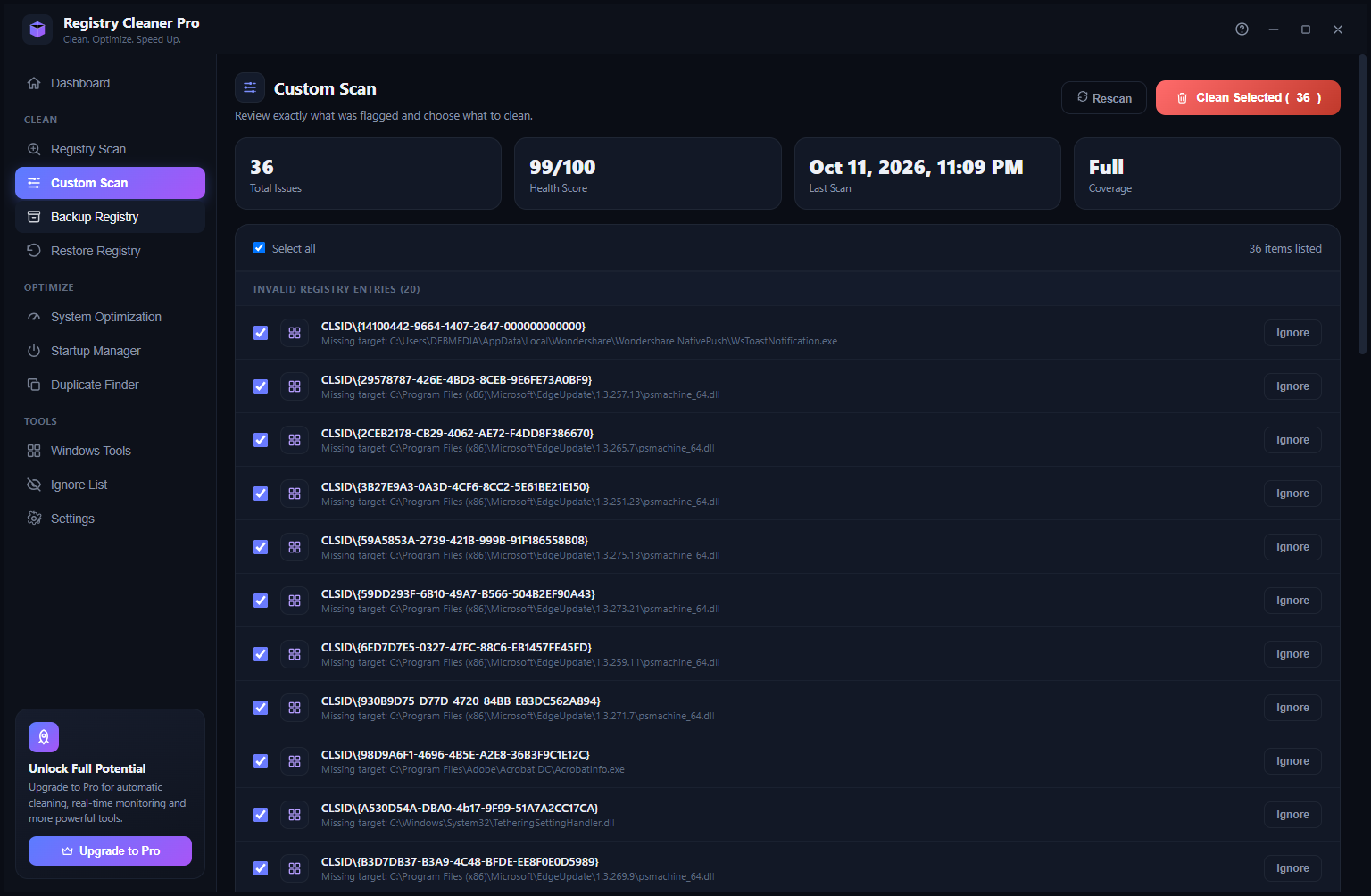
The Custom Scan view shows the full list of detected issues — 36 items total. Summary cards at the top confirm: 36 Total Issues, 99/100 Health Score, Oct 11, 2026, 11:09 PM Last Scan, Full Coverage. Below, all issues are listed under category headers starting with Invalid Registry Entries (20) — each showing the registry key path (e.g., CLSID{14100442-9664-1407-2647-000000000000}) and the missing target file path.
All items are pre-selected via a Select All checkbox. Individual items can be unchecked or Ignored using the per-row ignore button. A Rescan button refreshes the list, while the red Clean Selected (36) button applies the fix to all selected entries safely. Before any clean, Registry Cleaner Pro automatically exports a backup of your registry — so every clean is reversible.
Screen 4 — Backup Registry
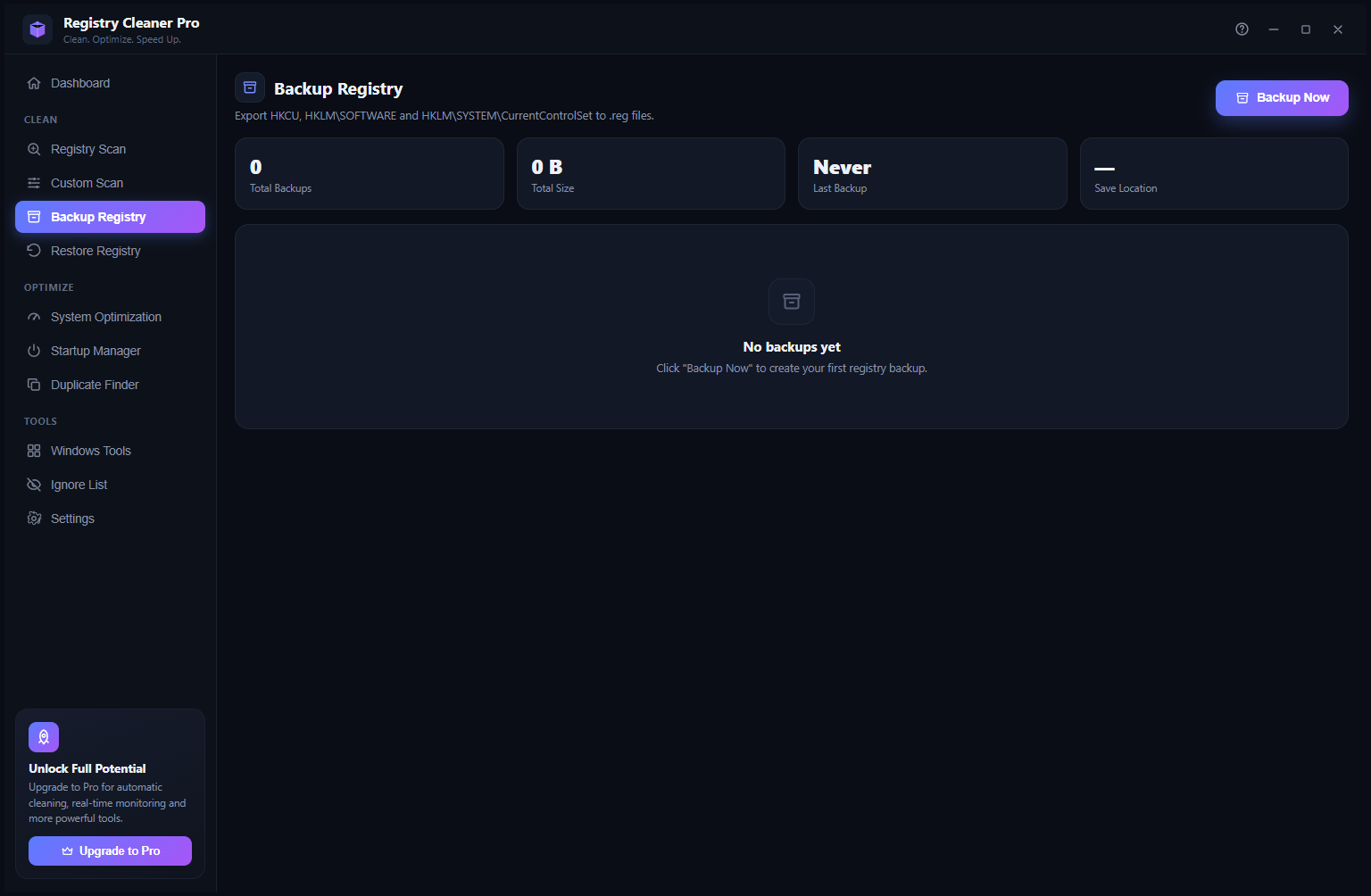
The Backup Registry screen exports HKCU, HKLMSOFTWARE, and HKLMSYSTEMCurrentControlSet to .reg files for safe keeping. Summary cards show Total Backups: 0, Total Size: 0 B, Last Backup: Never, and Save Location. On first use, the backup list shows “No backups yet — Click ‘Backup Now’ to create your first registry backup.” Click Backup Now (top right) to export all three hives immediately. Created backups appear in the list with timestamp, file count, and size — ready to restore with one click from the Restore Registry screen.
Screen 5 — Restore Registry
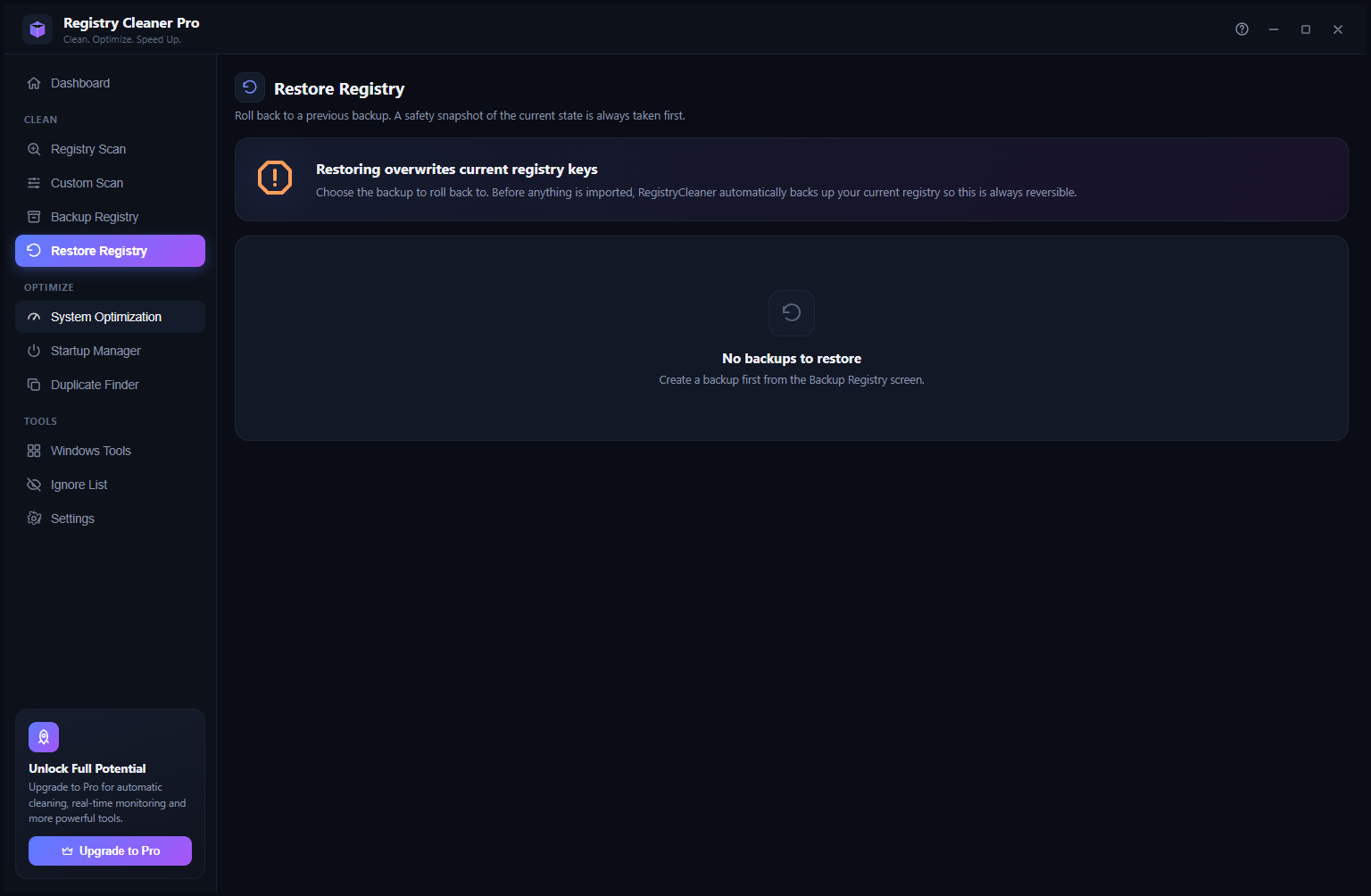
The Restore Registry screen rolls back to a previous backup. An orange warning note at the top reads: “Restoring overwrites current registry keys — Choose the backup to roll back to. Before anything is imported, RegistryCleaner automatically backs up your current registry so this is always reversible.” Without a prior backup, the list shows “No backups to restore — Create a backup first from the Backup Registry screen.” Once backups exist, they appear here as a list — select one and restore in one click. The double-safety (auto-backup before restore) ensures you can always undo a restore.
Screen 6 — System Optimization
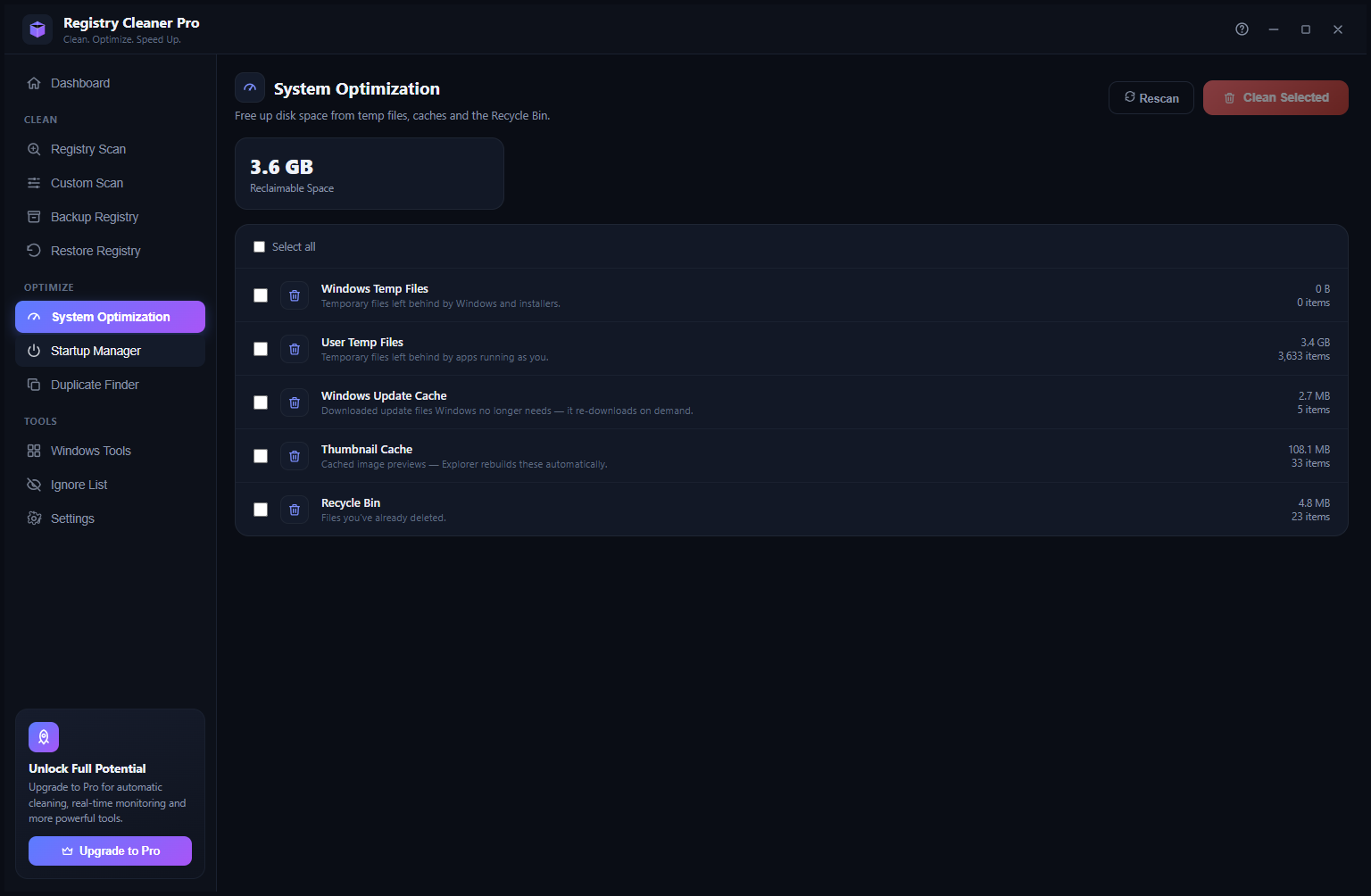
The System Optimization module scans for disk space that can be safely reclaimed — showing 3.6 GB Reclaimable Space in this example. Five categories are listed with individual sizes: Windows Temp Files (0 B / 0 items), User Temp Files (3.4 GB / 3,633 items), Windows Update Cache (2.7 MB / 5 items), Thumbnail Cache (108.1 MB / 33 items), and Recycle Bin (4.8 MB / 23 items). Check what you want to clean and click Clean Selected to free up the space. The Rescan button re-calculates the totals if you’ve already cleaned some categories.
Screen 7 — Startup Manager
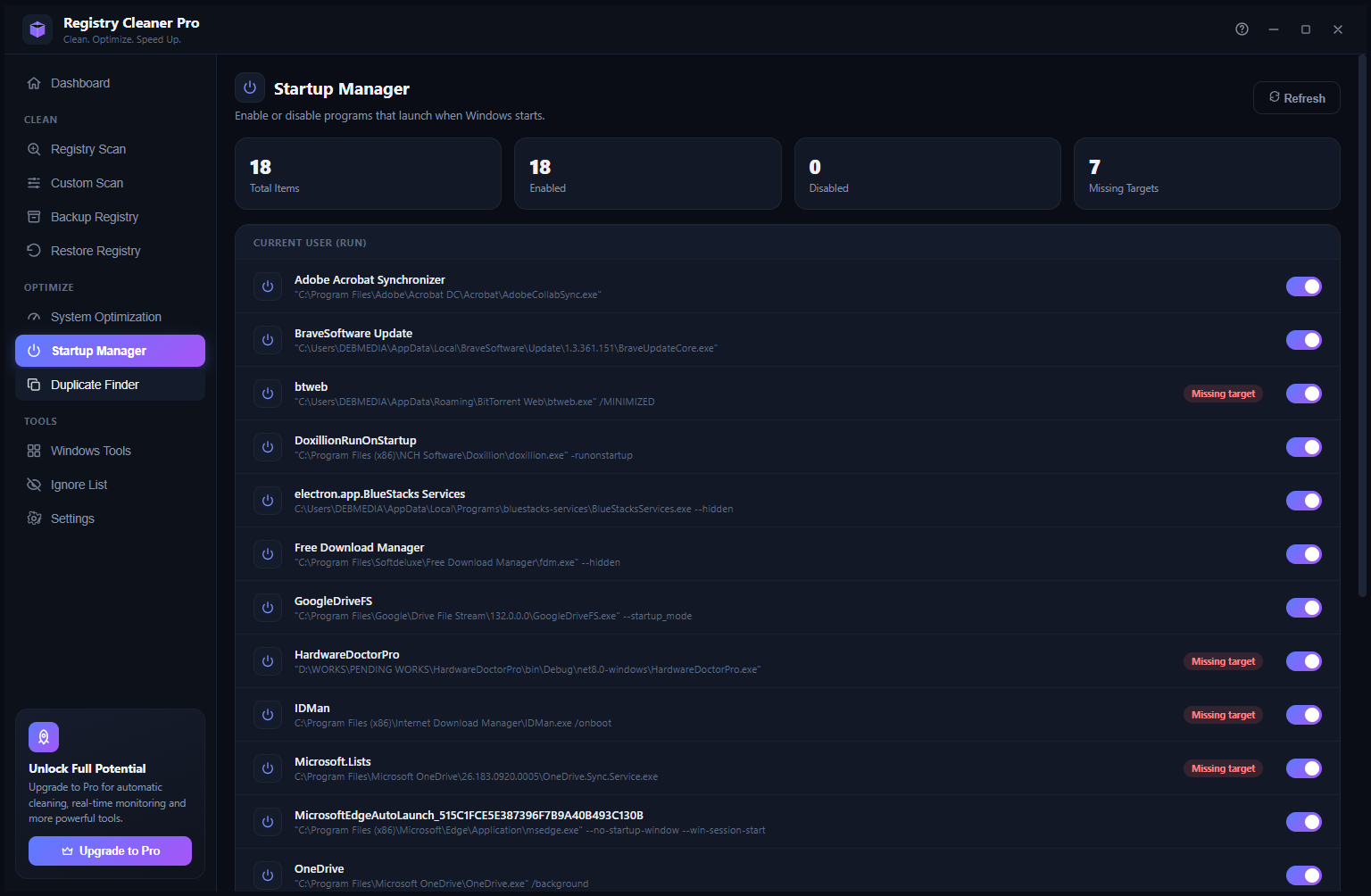
The Startup Manager shows every program that launches when Windows starts — useful for reducing boot time. Summary: 18 Total Items, 18 Enabled, 0 Disabled, 7 Missing Targets. Under Current User (RUN), the full list includes: Adobe Acrobat Synchronizer, BraveSoftware Update, btweb (BitTorrent Web), DoxillionRunOnStartup, electron.app.BlueStacks Services, Free Download Manager, GoogleDriveFS, HardwareDoctorPro, IDMan (Internet Download Manager), Microsoft.Lists, and more. Items marked Missing target in orange have their executable file missing — safe to disable. Toggle any item off using its switch to prevent it from starting with Windows.
Screen 8 — Duplicate Finder
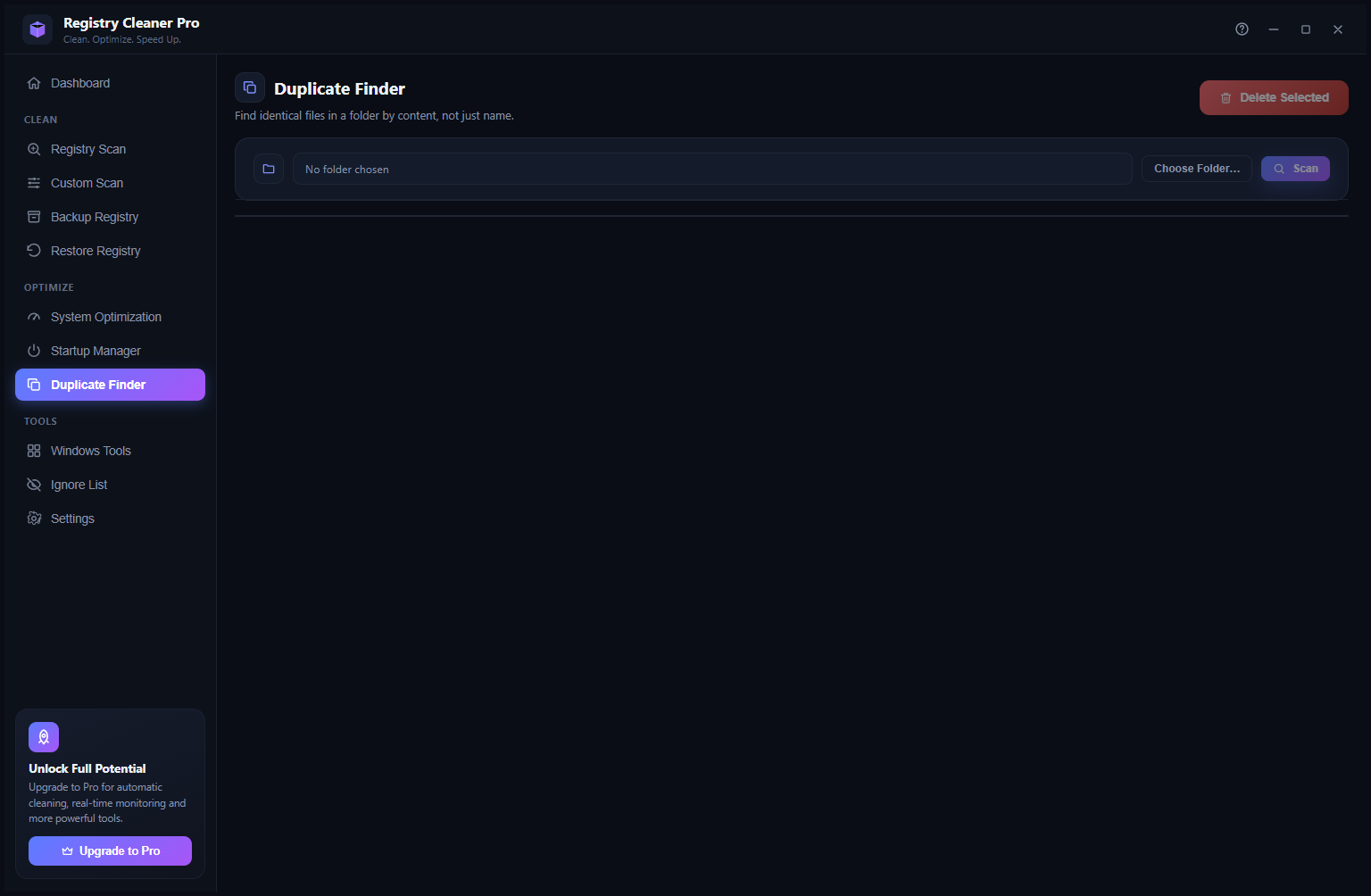
The Duplicate Finder finds identical files in a folder by content — not just by name. Click Choose Folder… to select a directory, then click Scan to begin. Results list files that share the same content hash, grouped by duplicate set — letting you delete the copies you don’t need. A Delete Selected button removes selected duplicates. This goes beyond registry cleaning to help recover disk space from documents, downloads, and media folders with accidental duplicates.
Screen 9 — Ignore List
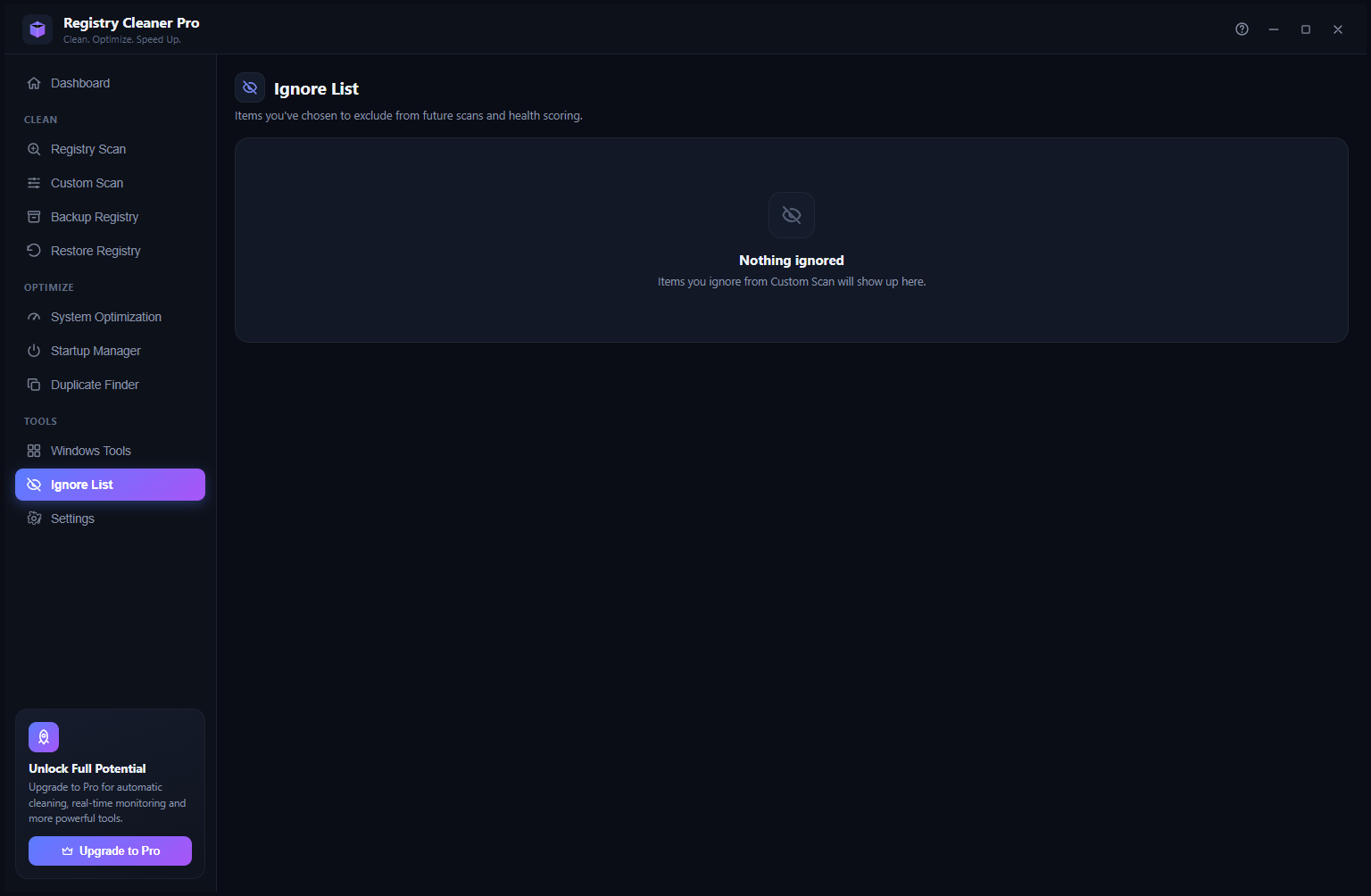
The Ignore List stores items you’ve chosen to exclude from future scans and health scoring. Items you mark Ignore on the Custom Scan screen will appear here. The initial state shows “Nothing ignored — Items you ignore from Custom Scan will show up here.” This is useful when Registry Cleaner Pro detects an entry you know is intentional or safe — add it to the Ignore List and it won’t appear in future scan results or affect your Health Score.
Screen 10 — Settings
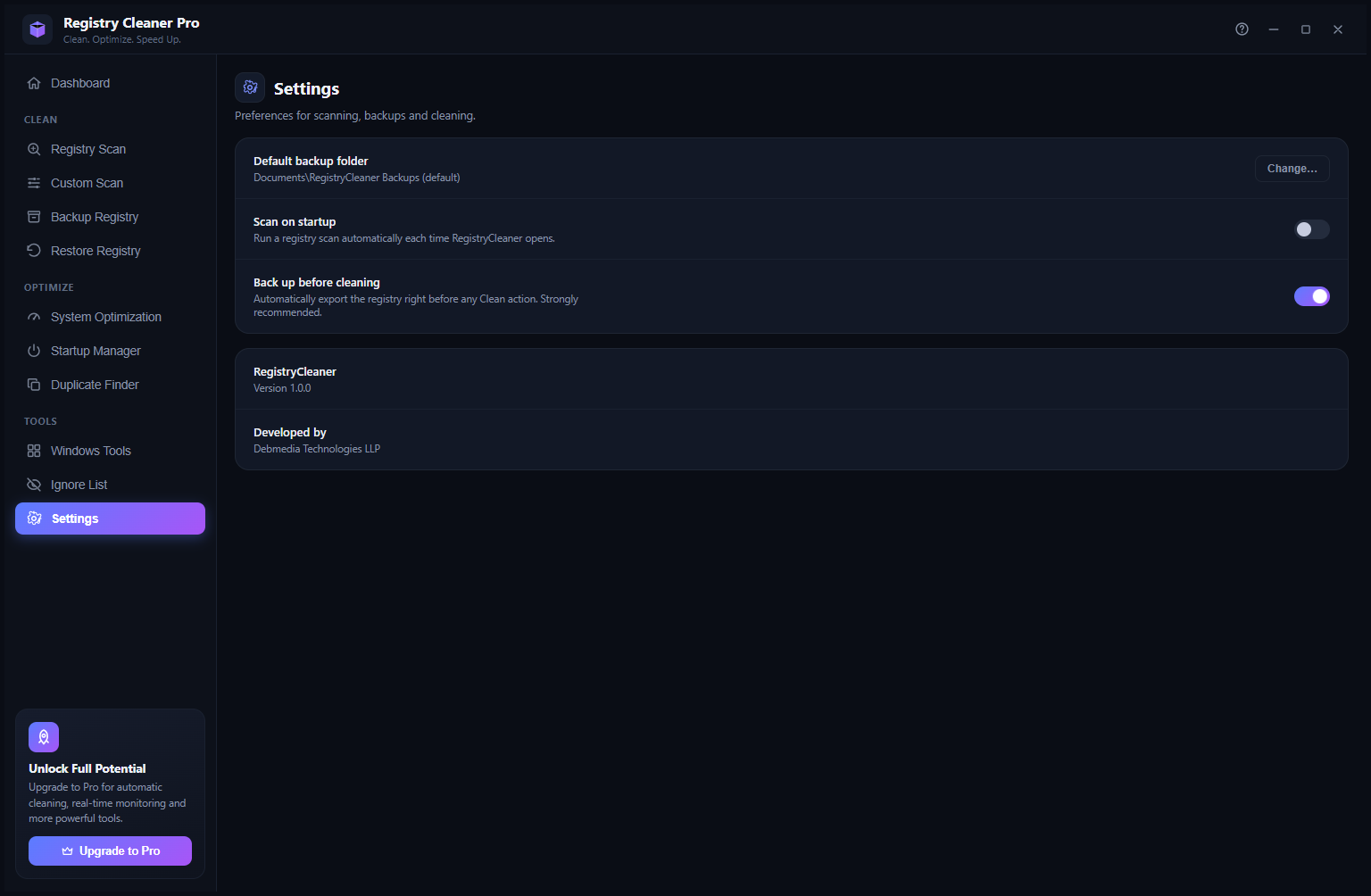
The Settings screen controls scanning and backup preferences. Default backup folder: set to DocumentsRegistryCleaner Backups by default — click Change… to set a custom location. Scan on startup (toggle, default off): automatically runs a registry scan each time the app opens. Back up before cleaning (toggle, default on, strongly recommended): auto-exports a registry backup before any Clean action — ensuring every clean is reversible. The About section confirms RegistryCleaner Version 1.0.0 developed by Debmedia Technologies LLP.
Key Features at a Glance
- Deep registry scan — covers Invalid Entries, Obsolete Software, Performance Issues, Startup & Uninstall Issues, File Extension Errors
- Custom Scan review — see every detected item before cleaning; ignore specific entries
- Backup before every clean — auto-exports registry hives as .reg files before any fix is applied
- One-click restore — roll back to any previous backup instantly; auto-backup taken before restore too
- System Optimization — cleans temp files, update cache, thumbnail cache, and Recycle Bin
- Startup Manager — view and toggle all Windows startup entries; flags missing targets
- Duplicate Finder — finds duplicate files by content hash, not just name
- Ignore List — permanently exclude known-safe entries from future scans
- Health Score — 0–100 registry health indicator updated after every scan
- Dark mode UI — clean, modern dark interface built for daily use
Who Is Registry Cleaner Pro For?
Registry Cleaner Pro is for Windows users who want to keep their system running cleanly without guesswork. It’s particularly useful after uninstalling software (which leaves orphaned registry entries), when Windows is feeling slow for no obvious reason, or as a monthly maintenance routine alongside disk cleanup. The Startup Manager is valuable for anyone who has installed many apps over time and wants to trim what loads at boot. The Duplicate Finder adds extra value beyond registry cleaning for users with cluttered download or documents folders.
System Requirements
- Windows 10 / 11 (64-bit)
- .NET 10 Runtime or later
- No internet connection required — fully offline
- 50 MB disk space
Note on Active Development
Registry Cleaner Pro v1.0.0 is in active development. All 10 screens shown here are functional. Scheduled scans, real-time monitoring, and additional Pro-tier automation features are planned for upcoming releases.
Download Registry Cleaner Pro
Safe, thorough Windows registry cleaner and repair tool